HarmonyOS NEXT 音频播放器开发:AVPlayer 封装、播放列表与后台播放实战
HarmonyOS NEXT 音频播放器开发:AVPlayer 封装、播放列表与后台播放实战
前言
音频播放是工具箱类应用的重要功能模块,HarmonyOS NEXT 提供了 AVPlayer 和 Audio 组件支持丰富的音频播放能力。本文基于 HarmonyExplorer 项目,深入讲解音频播放器(Audio Player)页面的完整开发流程,包括 AVPlayer 封装、播放列表管理、播放模式切换、AudioItem 组件封装、后台播放预留、音频元数据获取和播放器 ViewModel 等核心技术。
一、音频播放器架构设计
1.1 架构分层概述
音频播放器采用 ViewModel + Service + KitManager 三层架构,AVPlayerService 封装底层 AVPlayer 能力,AudioPlayerViewModel 管理播放状态和业务逻辑。
enum PlayMode {
  Sequential = 0, Shuffle = 1, SingleLoop = 2
}

interface AudioMetadata {
  title: string;
  artist: string;
  album: string;
  duration: number;
  artworkPath: string;
}
1.2 模块职责划分
各模块职责清晰分离,Service 层专注播放控制,ViewModel 层管理状态和业务逻辑,职责分离 保证了代码的可测试性。
提示:AVPlayer 是有状态的资源对象,应在 Service 层统一管理其生命周期,避免多处创建导致资源泄漏。
二、AVPlayer 封装
2.1 AVPlayerService 设计
AVPlayerService 是对 AVPlayer 的完整封装,提供初始化、播放、暂停、跳转、释放等核心方法。
import { media } from '@kit.MediaKit';

class AVPlayerService {
  private player: media.AVPlayer | null = null;

  public async init(): Promise<void> {
    if (this.player !== null) { return; }
    this.player = await media.createAVPlayer();
    this.registerCallbacks();
  }

  public async setSource(filePath: string): Promise<void> {
    await this.init();
    if (this.player !== null) { this.player.url = filePath; }
  }

  public async play(): Promise<void> {
    if (this.player !== null) { await this.player.play(); }
  }

  public async pause(): Promise<void> {
    if (this.player !== null) { await this.player.pause(); }
  }

  public async seek(timeMs: number): Promise<void> {
    if (this.player !== null) { this.player.seek(timeMs); }
  }

  public async release(): Promise<void> {
    if (this.player !== null) {
      await this.player.release();
      this.player = null;
    }
  }
}
2.2 回调事件注册
| 回调事件 | 触发时机 | 处理逻辑 |
|---|---|---|
| stateChange | 状态变化 | 更新播放状态 |
| timeUpdate | 播放进度 | 更新当前时间 |
| durationUpdate | 时长获取 | 更新总时长 |
| error | 播放错误 | 错误处理回调 |
三、播放列表管理
3.1 播放列表数据结构
播放列表管理音频文件的顺序和当前播放位置,支持添加、删除、排序等操作。
class PlaylistManager {
  private playlist: Array<FileInfo> = [];
  private currentIndex: number = 0;

  public setPlaylist(files: Array<FileInfo>): void {
    this.playlist = files;
    this.currentIndex = 0;
  }

  public getCurrentFile(): FileInfo {
    if (this.playlist.length === 0) { return new FileInfo(); }
    return this.playlist[this.currentIndex];
  }

  public addToNext(fileInfo: FileInfo): void {
    this.playlist.splice(this.currentIndex + 1, 0, fileInfo);
  }

  public remove(index: number): void {
    if (index < 0 || index >= this.playlist.length) { return; }
    this.playlist.splice(index, 1);
    if (index < this.currentIndex) { this.currentIndex--; }
  }

  public get size(): number { return this.playlist.length; }
}
3.2 列表更新策略
- 删除当前播放项之前的歌曲:索引前移
- 删除当前播放项:自动播放下一首
- 删除当前播放项之后的歌曲:索引不变
- 添加到下一首播放:索引不变
四、上一曲与下一曲功能
4.1 切歌逻辑实现
切换逻辑需要根据当前播放模式决定目标索引,顺序播放到末尾后停止,随机播放随机选择下一首。
class AudioPlayerViewModel {
  public playlist: PlaylistManager = new PlaylistManager();
  public playMode: PlayMode = PlayMode.Sequential;
  public playerService: AVPlayerService = new AVPlayerService();

  public async playNext(): Promise<void> {
    const nextIndex: number = this.getNextIndex();
    if (nextIndex === -1) { await this.playerService.pause(); return; }
    this.playlist.currentIndex = nextIndex;
    const file: FileInfo = this.playlist.getCurrentFile();
    await this.playerService.setSource(file.path);
    await this.playerService.play();
  }

  private getNextIndex(): number {
    const total: number = this.playlist.size;
    if (total === 0) { return -1; }
    if (this.playMode === PlayMode.Shuffle) {
      return Math.floor(Math.random() * total);
    }
    const next: number = this.playlist.currentIndex + 1;
    if (next >= total) {
      return this.playMode === PlayMode.SingleLoop ? this.playlist.currentIndex : -1;
    }
    return next;
  }
}
4.2 切歌状态保存
切换歌曲时需要保存当前播放进度,以便用户切回时恢复播放位置。
- 切歌前获取当前播放位置并通过 Preferences 保存
- 加载新歌曲的元数据和上次播放进度
- 调用 AVPlayer.reset 重置播放器状态
- 设置新的数据源并恢复到记录的播放位置
提示:播放进度可通过 Preferences 持久化存储,以音频文件路径为 key,记录上次播放位置,实现断点续播。
五、播放模式切换
5.1 三种播放模式
音频播放器支持顺序播放、随机播放和单曲循环三种模式,用户可通过点击按钮循环切换。
@Builder
buildPlayModeButton(): void {
  Row() {
    Image(this.getPlayModeIcon()).width(24).height(24)
      .onClick(() => { this.switchPlayMode(); })
    Text(this.getPlayModeText()).fontSize(12).fontColor('#666666').margin({ left: 4 })
  }
}

private switchPlayMode(): void {
  const modes: Array<PlayMode> = [
    PlayMode.Sequential, PlayMode.Shuffle, PlayMode.SingleLoop
  ];
  const currentIdx: number = modes.indexOf(this.viewModel.playMode);
  this.viewModel.playMode = modes[(currentIdx + 1) % modes.length];
  ToastUtil.show('播放模式:' + this.getPlayModeText());
}
5.2 模式行为说明
| 播放模式 | 当前歌曲结束 | 最后一首结束 | 用户点下一曲 |
|---|---|---|---|
| 顺序播放 | 播放下一首 | 停止播放 | 播放下一首 |
| 随机播放 | 随机选曲 | 随机选曲 | 随机选曲 |
| 单曲循环 | 重播当前 | 重播当前 | 播放下一首 |
六、AudioItem 组件封装
6.1 AudioItem 组件设计
AudioItem 是音频列表中的单项展示组件,显示歌曲名称、艺术家、时长和播放状态指示器。
@Component
struct AudioItem {
  @Prop fileInfo: FileInfo;
  @Prop metadata: AudioMetadata;
  @Prop isPlaying: boolean;
  public onItemClick: (fileInfo: FileInfo) => void = () => {};

  build(): void {
    Row() {
      if (this.isPlaying) {
        Image('resources/playing_indicator.gif').width(24).height(24)
      } else {
        Image('resources/music_icon.png').width(24).height(24)
      }
      Column() {
        Text(this.metadata.title).fontSize(15)
          .fontColor(this.isPlaying ? '#007DFF' : '#333333').maxLines(1)
          .textOverflow({ overflow: TextOverflow.Ellipsis })
        Text(this.metadata.artist).fontSize(12).fontColor('#999999').margin({ top: 4 })
      }.layoutWeight(1).margin({ left: 12 }).alignItems(HorizontalAlign.Start)
      Text(this.formatDuration(this.metadata.duration))
        .fontSize(12).fontColor('#999999')
    }.width('100%').padding({ left: 16, right: 16, top: 12, bottom: 12 })
    .onClick(() => { this.onItemClick(this.fileInfo); })
  }
}
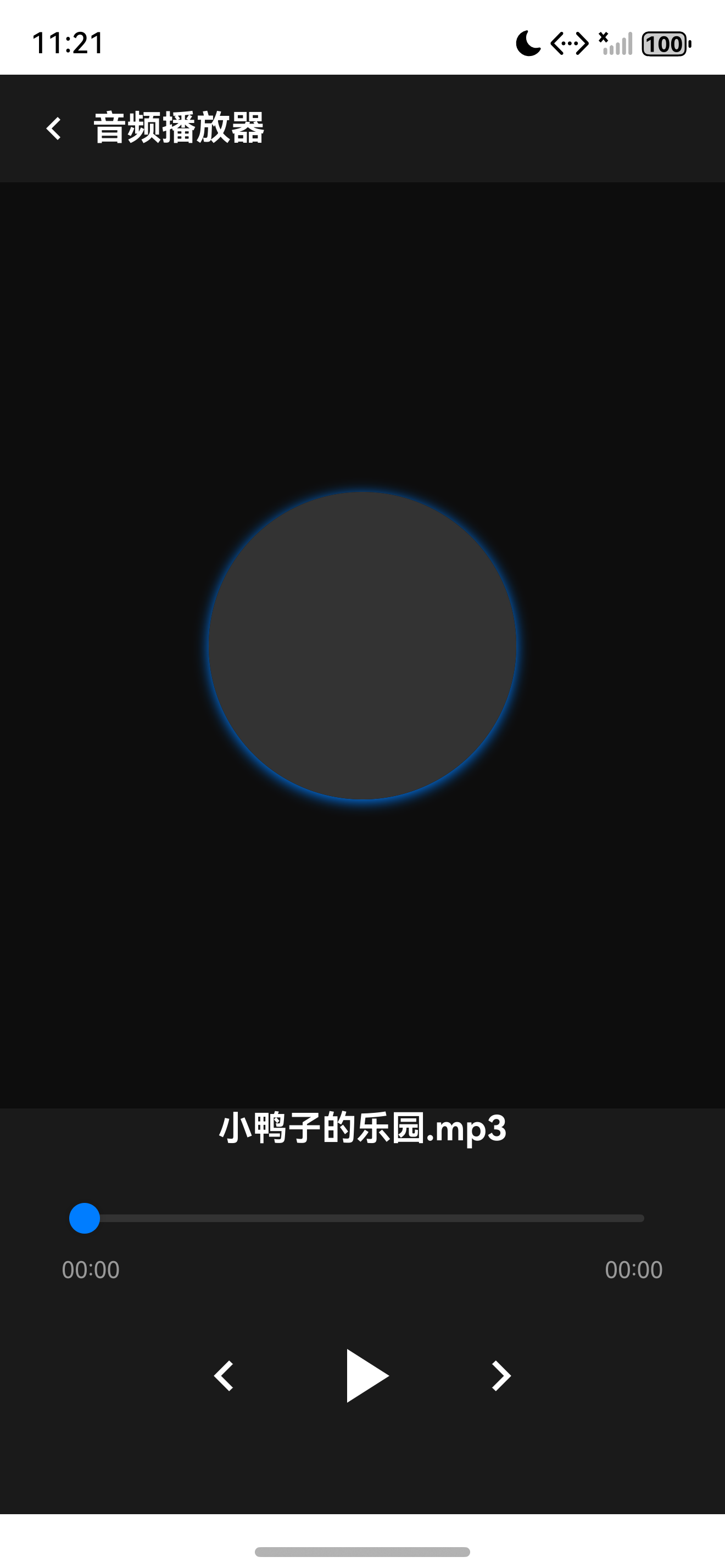
音频播放器页面效果展示,包含播放列表和控制栏
6.2 组件视觉设计
AudioItem 的视觉设计遵循简洁直观的原则,当前播放项 通过颜色高亮和动态指示器进行区分。
七、音频元数据获取
7.1 元数据读取实现
音频元数据包括歌曲名称、艺术家、专辑、时长和封面图片,通过 Media Kit 的元数据接口获取。
class AudioMetadataService {
  public static async getMetadata(filePath: string): Promise<AudioMetadata> {
    const fileFd: number = await FileUtil.openFile(filePath);
    const metadata: media.AudioMetadata = await media.getAudioMetadata(fileFd);
    const result: AudioMetadata = {
      title: metadata.title || FileUtil.getFileNameWithoutExtension(filePath),
      artist: metadata.artist || '未知艺术家',
      album: metadata.album || '未知专辑',
      duration: metadata.duration || 0,
      artworkPath: metadata.artworkPath || ''
    };
    await FileUtil.closeFile(fileFd);
    return result;
  }
}
7.2 元数据缓存策略
元数据获取是 IO 密集型操作,需要采用 缓存策略 避免重复读取。
- 首次加载时缓存所有元数据到内存
- 使用 Map 以文件路径为 key 存储元数据
- 文件变更时清除对应缓存项
- 应用退出时持久化到 Preferences
八、后台播放预留
8.1 后台任务概述
HarmonyOS NEXT 支持通过 Background Task 管理后台任务,音频播放属于长时任务类型。本文预留后台播放接口。
import { backgroundTaskManager } from '@kit.BackgroundTasksKit';

class BackgroundPlaybackManager {
  private static instance: BackgroundPlaybackManager;
  private isBackgroundRunning: boolean = false;

  public static getInstance(): BackgroundPlaybackManager {
    if (BackgroundPlaybackManager.instance === null) {
      BackgroundPlaybackManager.instance = new BackgroundPlaybackManager();
    }
    return BackgroundPlaybackManager.instance;
  }

  public async startBackgroundTask(context: Context): Promise<void> {
    if (this.isBackgroundRunning) { return; }
    try {
      const bgMode: backgroundTaskManager.BackgroundMode =
        backgroundTaskManager.BackgroundMode.AUDIO_PLAYBACK;
      await backgroundTaskManager.startBackgroundRunning(context, bgMode);
      this.isBackgroundRunning = true;
    } catch (error) {
      LogUtil.error('启动后台任务失败: ' + error);
    }
  }

  public async stopBackgroundTask(): Promise<void> {
    if (!this.isBackgroundRunning) { return; }
    await backgroundTaskManager.stopBackgroundRunning();
    this.isBackgroundRunning = false;
  }
}
8.2 后台播放注意事项
提示:后台播放任务必须在应用进入后台前启动,且需要申请 ohos.permission.KEEP_BACKGROUND_RUNNING 权限。
九、播放器 ViewModel 完整实现
9.1 ViewModel 状态管理
AudioPlayerViewModel 统一管理播放状态、播放列表、播放模式和元数据缓存。
@Observed
class AudioPlayerViewModel {
  public playState: PlayState = PlayState.Idle;
  public currentTime: number = 0;
  public duration: number = 0;
  public playMode: PlayMode = PlayMode.Sequential;
  public audioList: Array<FileInfo> = [];
  public currentIndex: number = 0;
  public metadataCache: Map<string, AudioMetadata> = new Map();
  public currentMetadata: AudioMetadata = new AudioMetadata();
  private playerService: AVPlayerService = new AVPlayerService();
  private repository: FileRepository = new FileRepository();

  public async loadAudioList(dirPath: string): Promise<void> {
    this.audioList = await this.repository.getAudiosByPath(dirPath);
    if (this.audioList.length > 0) { await this.playAtIndex(0); }
  }

  public async playAtIndex(index: number): Promise<void> {
    if (index < 0 || index >= this.audioList.length) { return; }
    this.currentIndex = index;
    const file: FileInfo = this.audioList[index];
    await this.playerService.setSource(file.path);
    await this.playerService.play();
    this.playState = PlayState.Playing;
    await this.loadMetadata(file.path);
  }

  private async loadMetadata(filePath: string): Promise<void> {
    const cached: AudioMetadata | undefined = this.metadataCache.get(filePath);
    if (cached !== undefined) { this.currentMetadata = cached; return; }
    const metadata: AudioMetadata = await AudioMetadataService.getMetadata(filePath);
    this.metadataCache.set(filePath, metadata);
    this.currentMetadata = metadata;
    this.duration = metadata.duration;
  }
}
9.2 ViewModel 与 UI 绑定
ViewModel 通过 @Observed 实现状态观察,数据驱动 确保 UI 始终反映最新播放状态。
十、播放控制栏实现
10.1 控制栏布局
播放控制栏位于页面底部,包含上一曲、播放/暂停、下一曲按钮和进度条。
@Builder
buildControlBar(): void {
  Column() {
    Row() {
      Text(this.formatTime(this.viewModel.currentTime)).fontSize(11).fontColor('#999999')
      Slider({
        value: this.viewModel.currentTime,
        min: 0, max: this.viewModel.duration, step: 1000
      })
        .layoutWeight(1).selectedColor('#007DFF')
        .onChange((value: number, mode: SliderChangeMode) => {
          if (mode === SliderChangeMode.End) { this.viewModel.playerService.seek(value); }
        })
      Text(this.formatTime(this.viewModel.duration)).fontSize(11).fontColor('#999999')
    }.width('100%').padding({ left: 16, right: 16 })
    Row() {
      this.buildPlayModeButton()
      Image('resources/previous_icon.png').width(36).height(36)
        .onClick(() => this.viewModel.playPrevious())
      Image(this.viewModel.playState === PlayState.Playing
        ? 'resources/pause_icon.png' : 'resources/play_icon.png')
        .width(48).height(48)
        .onClick(() => this.viewModel.togglePlayPause())
      Image('resources/next_icon.png').width(36).height(36)
        .onClick(() => this.viewModel.playNext())
      Image('resources/playlist_icon.png').width(24).height(24)
        .onClick(() => this.showPlaylistDialog())
    }.width('100%').height(72).justifyContent(FlexAlign.SpaceEvenly)
  }.width('100%').backgroundColor('#FFFFFF')
}
10.2 控制栏交互
控制栏的每个按钮都有明确的交互反馈,点击时显示 Toast 提示当前操作。
十一、播放列表弹窗
11.1 播放列表展示
播放列表弹窗以底部弹出形式展示当前播放列表,用户可快速切换歌曲或删除列表项。
@Builder
buildPlaylistDialog(): void {
  Column() {
    Text('播放列表').fontSize(18).fontWeight(FontWeight.Bold).margin({ top: 16, bottom: 12 })
    List() {
      ForEach(this.viewModel.audioList, (item: FileInfo, index: number) => {
        ListItem() {
          Row() {
            Text(item.name).fontSize(14)
              .fontColor(index === this.viewModel.currentIndex ? '#007DFF' : '#333333')
              .layoutWeight(1)
            if (index === this.viewModel.currentIndex) {
              Text('正在播放').fontSize(11).fontColor('#007DFF')
            }
          }.width('100%').padding({ left: 16, right: 16, top: 12, bottom: 12 })
          .onClick(() => { this.viewModel.playAtIndex(index); })
        }
      }, (item: FileInfo) => item.id)
    }.layoutWeight(1)
  }.width('100%').height('60%').backgroundColor('#FFFFFF')
  .borderRadius({ topLeft: 16, topRight: 16 })
}
11.2 列表交互处理
播放列表支持点击切歌和长按删除操作,当前播放项高亮显示。
十二、性能优化与总结
12.1 性能优化要点
- 元数据加载采用异步批量获取,避免阻塞 UI 线程
- 使用 Map 缓存元数据,减少重复 IO 操作
- 页面销毁时释放 AVPlayer 资源
- 后台播放时降低 UI 更新频率
- 播放列表使用 LazyForEach 实现懒加载
12.2 功能扩展方向
| 扩展方向 | 实现方案 | 技术依赖 |
|---|---|---|
| 后台播放 | AVSession + BackgroundTask | Background Task Kit |
| 锁屏控制 | AVSession 媒体会话 | AVSession Kit |
| 在线音乐 | HTTP 音频流播放 | Network Kit |
| 歌词显示 | LRC 解析与滚动 | 自定义解析器 |
提示:音频播放器的开发需要关注系统资源管理,特别是 AVPlayer 的生命周期管理,不当的资源释放可能导致音频焦点冲突。
总结
本文基于 HarmonyExplorer 项目完整讲解了 HarmonyOS NEXT 音频播放器的开发流程,涵盖了 AVPlayer 封装、播放列表管理、播放模式切换、AudioItem 组件、后台播放预留、音频元数据获取和播放器 ViewModel 等核心功能。通过 Service 层封装和 ViewModel 状态管理,开发者可以构建出功能完善、架构清晰的音频播放应用。
如果这篇文章对你有帮助,欢迎点赞👍、收藏⭐、关注🔔,你的支持是我持续创作的动力!
相关资源

讨论HarmonyOS开发技术,专注于API与组件、DevEco Studio、测试、元服务和应用上架分发等。
更多推荐
 5
5 0
0- 0


 已为社区贡献87条内容

所有评论(0)