HarmonyOS NEXT AI 智能生活助手:首页设计与快捷入口实现
HarmonyOS互动卡片开发实战:睡眠卡片帧动画与点击交互
摘要:本文深入讲解HarmonyOS睡眠互动卡片开发全流程,涵盖FormExtensionAbility与LiveFormExtensionAbility双态架构、权重化帧动画实现、postCardAction点击触发及requestOverflow破框动效。
前言
随着HarmonyOS 7.0发布,互动卡片(LiveForm)重新定义了桌面交互边界。与传统静态卡片不同,互动卡片支持帧动画、3D变换、破框渲染等高级能力。
本文以官方睡眠卡片为实战案例,带你掌握:
- FormExtensionAbility与LiveFormExtensionAbility双Ability架构配置
- 权重化帧序列设计与流畅起床动画实现
- postCardAction点击触发与requestOverflow破框动效
- formProvider.updateForm状态回推与双态无缝切换
适用版本:DevEco Studio 6.1.0 Release及以上,HarmonyOS SDK 6.1+
一、互动卡片架构与双Ability配置
1.1 双态架构设计
互动卡片采用双态管理:
- 非激活态:由FormExtensionAbility管理,行为与普通动态卡片一致
- 激活态:用户点击后,LiveFormExtensionAbility启动,加载完整动画UI
| 状态 | 管理Ability | 渲染方式 | 交互能力 |
|---|---|---|---|
| 非激活态 | FormExtensionAbility | ArkTS声明式UI | 有限点击、数据刷新 |
| 激活态 | LiveFormExtensionAbility | 动态UI页面 | 帧动画、破框渲染 |
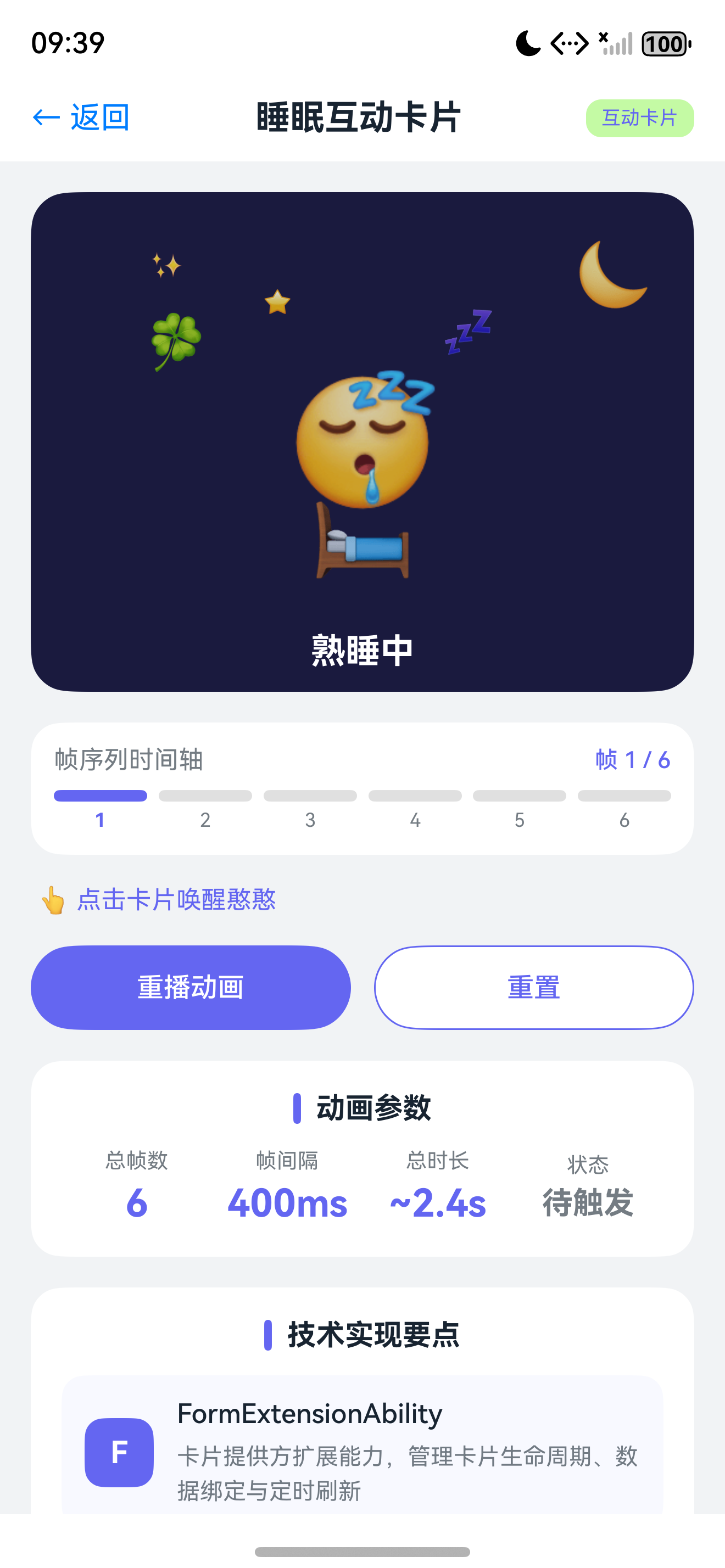
睡眠卡片完整交互流程:
- 非激活态展示:显示憨憨睡眠状态、时间、睡眠数据
- 点击触发:用户点击,发送requestOverflow消息
- 激活动画:LiveFormExtensionAbility启动,憨憨起床帧动画
- 破框效果:三叶草旋转,气球飘出边界
- 状态更新:憨憨变为醒姿,状态更新为"按时起床"
- 数据回推:通过formProvider.updateForm回推isSleep状态
提示:双态架构充分考虑资源管理,非激活态资源占用极低。
1.2 module.json5双Ability声明
// entry/src/main/module.json5
{
  "module": {
    "name": "entry",
    "type": "entry",
    "mainElement": "EntryAbility",
    "deviceTypes": ["phone", "tablet"],
    "pages": "$profile:main_pages",
    "abilities": [
      {
        "name": "EntryAbility",
        "srcEntry": "./ets/entryability/EntryAbility.ets"
      }
    ],
    "extensionAbilities": [
      {
        "name": "EntryFormAbility",
        "srcEntry": "./ets/entryformability/EntryFormAbility.ets",
        "type": "form",
        "metadata": [
          {
            "name": "ohos.extension.form",
            "resource": "$profile:form_config"
          }
        ]
      },
      {
        "name": "SleepLiveCardAbility",
        "srcEntry": "./ets/livecardability/SleepLiveCardAbility.ets",
        "type": "liveForm"
      }
    ]
  }
}
关键配置:
EntryFormAbility的type为"form",SleepLiveCardAbility的type为"liveForm"。
1.3 form_config.json动画配置
{
  "forms": [
    {
      "name": "SleepCard",
      "displayName": "$string:SleepCard",
      "src": "./ets/widget/pages/SleepCard.ets",
      "uiSyntax": "arkts",
      "isDynamic": true,
      "defaultDimension": "2*2",
      "supportDimensions": ["2*2"],
      "sceneAnimationParams": {
        "abilityName": "SleepLiveCardAbility",
        "triggerTypes": ["click"]
      }
    }
  ]
}
| 配置项 | 说明 | 可选值 |
|---|---|---|
| abilityName | 激活时启动的Ability名称 | 与module.json5一致 |
| triggerTypes | 触发动画方式 | "click"、"shake"、数组 |
提示:睡眠卡片仅需点击触发,triggerTypes配置为
["click"]。
二、动态卡片UI与点击触发
2.1 SleepCard页面实现
// entry/src/main/ets/widget/pages/SleepCard.ets
import { ActionUtils } from '../../utils/ActionUtils';
import { LiveCardScale } from '../../constants/LiveCardConstants';

const LIVE_CARD_DURATION: number = 5000;

@Entry
@Component
struct SleepCard {
  @LocalStorageProp('isSleep') isSleep: boolean = true;
  @LocalStorageProp('sleepTime') sleepTime: string = '07:00';

  build() {
    RelativeContainer() {
      Image($rawfile('sleep/background.png'))
        .width('100%').height('100%').id('sleep_bg');

      Image(this.isSleep ? $rawfile('sleep/sleep_hanhan.png')
                         : $rawfile('sleep/wake_hanhan.png'))
        .width('60%').height('60%').id('hanhan')
        .alignRules({ center: { anchor: '__container__', align: Alignment.Center } });

      Column() {
        Text(this.sleepTime).fontSize(14).fontColor('#FFFFFF').fontWeight(FontWeight.Bold);
      }
      .id('info')
      .alignRules({
        bottom: { anchor: '__container__', align: VerticalAlign.Bottom },
        middle: { anchor: '__container__', align: HorizontalAlign.Center }
      });

      Stack() {}
      .width('100%').height('100%')
      .backgroundColor(Color.Transparent)
      .onClick(() => { this.handleCardClick(); });
    }
    .width('100%').height('100%');
  }

  private handleCardClick(): void {
    if (!this.isSleep) {
      ActionUtils.jumpAppPage(this, 'SleepReportPage');
      return;
    }
    ActionUtils.requestOverFlow(this, LiveCardScale.SLEEP_WIDTH,
                               LiveCardScale.SLEEP_HEIGHT, LIVE_CARD_DURATION);
  }
}
2.2 ActionUtils工具类
// entry/src/main/ets/utils/ActionUtils.ets
import { postCardAction, CardAction } from '@kit.FormKit';

export class ActionUtils {
  static requestOverFlow(context: Object, w: number, h: number, d: number): void {
    postCardAction(context, {
      action: CardAction.MESSAGE,
      params: { message: 'requestOverflow', widthRatio: w, heightRatio: h, duration: d }
    });
  }

  static jumpAppPage(context: Object, pageName: string): void {
    postCardAction(context, {
      action: CardAction.ROUTER,
      abilityName: 'EntryAbility',
      params: { targetPage: pageName }
    });
  }
}
提示:postCardAction三种action类型:
- MESSAGE:发送消息触发动画
- ROUTER:跳转应用页面
- CALL:调用应用暴露方法
2.3 EntryFormAbility消息处理
// entry/src/main/ets/entryformability/EntryFormAbility.ets
import { FormExtensionAbility, formProvider, formInfo } from '@kit.FormKit';
import { BusinessError } from '@kit.BasicServicesKit';

export default class EntryFormAbility extends FormExtensionAbility {
  onAddForm(want: Want): formBindingData.FormBindingData {
    return formBindingData.createFormBindingData({
      'isSleep': true, 'sleepTime': '07:00', 'sleepQuality': '优秀'
    });
  }

  onFormEvent(formId: string, message: string): void {
    const params = JSON.parse(message);
    if (params.message === 'requestOverflow') {
      this.requestOverflow(formId, params.widthRatio, params.heightRatio, params.duration);
    }
  }

  private async requestOverflow(formId: string, w: number, h: number, d: number): Promise<void> {
    let formRect = await formProvider.getFormRect(formId);
    let cardW = formRect.width * w;
    let cardH = formRect.height * h;
    formProvider.requestOverflow(formId, {
      area: { left: (formRect.width - cardW) / 2, top: (formRect.height - cardH) / 2,
              width: cardW, height: cardH },
      duration: d
    }).catch((e: BusinessError) => { console.error('requestOverflow error'); });
  }
}
| 参数名 | 类型 | 必填 | 说明 |
|---|---|---|---|
| formId | string | 是 | 卡片唯一标识 |
| area.left | number | 是 | 溢出区域左偏移 |
| area.top | number | 是 | 溢出区域上偏移 |
| area.width | number | 是 | 溢出区域宽度 |
| area.height | number | 是 | 溢出区域高度 |
| duration | number | 是 | 动画持续时间(ms) |
提示:widthRatio建议配置1.5到2.0,平衡破框效果与性能。
三、LiveFormExtensionAbility与帧动画
3.1 SleepLiveCardAbility实现
// entry/src/main/ets/livecardability/SleepLiveCardAbility.ets
import { LiveFormExtensionAbility, LiveFormInfo } from '@kit.FormKit';
import { UIExtensionContentSession } from '@kit.AbilityKit';

export default class SleepLiveCardAbility extends LiveFormExtensionAbility {
  onLiveFormCreate(info: LiveFormInfo, session: UIExtensionContentSession): void {
    let storage = new LocalStorage();
    storage.setOrCreate('formId', info.formId);
    storage.setOrCreate('borderRadius', info.borderRadius);
    storage.setOrCreate('formRect', info.rect);
    session.loadContent('livecardability/pages/SleepLiveCard', storage);
  }

  onLiveFormDestroy(): void {
    console.info('SleepLiveCardAbility destroyed');
  }
}
interface LiveFormInfo {
  formId: string;
  rect: formInfo.Rect;
  borderRadius: number;
}

interface Rect {
  left: number; top: number; width: number; height: number;
}
提示:formRect和borderRadius是动画UI与原始卡片视觉对齐的关键。
3.2 权重化帧序列设计
// entry/src/main/ets/livecardability/pages/SleepLiveCard.ets
import { formProvider } from '@kit.FormKit';

interface FrameConfig {
  source: Resource;
  weight: number;
  duration: number;
}

enum AnimationPhase {
  SLEEPING, WAKING_UP, SITTING_UP, STRETCHING, STANDING, FULLY_AWAKE
}

@Entry({ useSharedStorage: true })
@Component
struct SleepLiveCard {
  @LocalStorageProp('formRect') rect?: formInfo.Rect;
  @LocalStorageProp('borderRadius') radius: number = 0;
  @LocalStorageProp('formId') formId: string = '';

  @State currentPhase: AnimationPhase = AnimationPhase.SLEEPING;
  @State currentFrameIndex: number = 0;
  @State isAnimationRunning: boolean = false;
  @State hanhanTranslateY: number = 0;
  @State hanhanScale: number = 1.0;
  @State cloverRotate: number = 0;
  @State balloonTranslateY: number = 100;
  @State balloonOpacity: number = 0;

  private frameSequence: FrameConfig[] = [
    { source: $rawfile('sleep/wake_01.png'), weight: 2, duration: 200 },
    { source: $rawfile('sleep/wake_02.png'), weight: 3, duration: 200 },
    { source: $rawfile('sleep/wake_03.png'), weight: 4, duration: 200 },
    { source: $rawfile('sleep/wake_04.png'), weight: 3, duration: 200 },
    { source: $rawfile('sleep/wake_05.png'), weight: 2, duration: 200 },
    { source: $rawfile('sleep/wake_06.png'), weight: 1, duration: 300 },
  ];
  private animationTimer: number = -1;
  private totalFrameCount: number = 0;

  aboutToAppear(): void {
    this.totalFrameCount = this.frameSequence.reduce((s, f) => s + f.weight, 0);
    setTimeout(() => this.startWakeUpAnimation(), 300);
  }
  aboutToDisappear(): void { this.stopAnimation(); }

  build() {
    Stack({ alignContent: Alignment.TopStart }) {
      Image($rawfile('sleep/background.png'))
        .borderRadius(this.radius)
        .width(this.rect?.width || 0).height(this.rect?.height || 0)
        .margin({ top: this.rect?.top, left: this.rect?.left });

      Image($rawfile('sleep/clover.png'))
        .width(40).height(40)
        .rotate({ angle: this.cloverRotate })
        .margin({ top: (this.rect?.top || 0) + 20, left: (this.rect?.left || 0) + 20 });

      Stack() {
        Image(this.getCurrentFrameSource())
          .width('100%').height('100%').objectFit(ImageFit.Contain)
          .scale({ x: this.hanhanScale, y: this.hanhanScale })
          .translate({ y: this.hanhanTranslateY });
      }
      .width('60%').height('60%')
      .margin({ top: (this.rect?.top || 0) + 40,
                left: (this.rect?.left || 0) + ((this.rect?.width || 0) * 0.2) });

      Image($rawfile('sleep/balloon.png'))
        .width(60).height(80)
        .opacity(this.balloonOpacity)
        .translate({ y: this.balloonTranslateY })
        .margin({ top: (this.rect?.top || 0) - 40,
                  left: (this.rect?.left || 0) + ((this.rect?.width || 0) * 0.6) });

      Text(this.getStatusText())
        .fontSize(16).fontColor('#FFFFFF').fontWeight(FontWeight.Bold)
        .margin({ top: (this.rect?.top || 0) + (this.rect?.height || 0) - 40,
                  left: (this.rect?.left || 0) + ((this.rect?.width || 0) * 0.25) });
    }
    .width('100%').height('100%')
    .onClick(() => this.cancelOverflow());
  }

  private getCurrentFrameSource(): Resource {
    let w = 0;
    for (let i = 0; i < this.frameSequence.length; i++) {
      w += this.frameSequence[i].weight;
      if (this.currentFrameIndex < w) return this.frameSequence[i].source;
    }
    return this.frameSequence[this.frameSequence.length - 1].source;
  }

  private getStatusText(): string {
    const texts = ['睡眠中...', '正在醒来...', '准备起床...', '伸个懒腰~', '起床成功!', '按时起床'];
    return texts[this.currentPhase] || '';
  }

  private startWakeUpAnimation(): void {
    this.isAnimationRunning = true;
    this.currentFrameIndex = 0;
    this.currentPhase = AnimationPhase.WAKING_UP;
    this.scheduleNextFrame();
    this.animateClover();
    setTimeout(() => this.animateBalloon(), 1000);
  }

  private scheduleNextFrame(): void {
    if (!this.isAnimationRunning || this.currentFrameIndex >= this.totalFrameCount) {
      this.onAnimationComplete(); return;
    }
    this.updateAnimationPhase();
    let cfg = this.getCurrentFrameConfig();
    this.animateHanhanPosition();
    this.currentFrameIndex++;
    this.animationTimer = setTimeout(() => this.scheduleNextFrame(), cfg.duration * cfg.weight);
  }

  private getCurrentFrameConfig(): FrameConfig {
    let w = 0;
    for (let i = 0; i < this.frameSequence.length; i++) {
      w += this.frameSequence[i].weight;
      if (this.currentFrameIndex < w) return this.frameSequence[i];
    }
    return this.frameSequence[this.frameSequence.length - 1];
  }

  private updateAnimationPhase(): void {
    let w = 0;
    for (let i = 0; i < this.frameSequence.length; i++) {
      w += this.frameSequence[i].weight;
      if (this.currentFrameIndex < w) { this.currentPhase = i; break; }
    }
  }

  private animateHanhanPosition(): void {
    let p = this.currentFrameIndex / this.totalFrameCount;
    this.hanhanTranslateY = -p * 20;
    this.hanhanScale = 1.0 + p * 0.1;
  }

  private animateClover(): void {
    let r = 0;
    let interval = setInterval(() => {
      r += 15; this.cloverRotate = r;
      if (r >= 360) { clearInterval(interval); this.cloverRotate = 0; }
    }, 50);
  }

  private animateBalloon(): void {
    this.balloonOpacity = 1;
    let p = 0;
    let interval = setInterval(() => {
      p += 0.02;
      if (p >= 1) { clearInterval(interval); this.balloonOpacity = 0; return; }
      let e = 1 - Math.pow(1 - p, 3);
      this.balloonTranslateY = e * -150;
    }, 30);
  }

  private onAnimationComplete(): void {
    this.currentPhase = AnimationPhase.FULLY_AWAKE;
    this.isAnimationRunning = false;
    setTimeout(() => { this.cancelOverflow(); this.pushStateToForm(); }, 1500);
  }

  private cancelOverflow(): void {
    formProvider.cancelOverflow(this.formId).catch(() => {});
  }

  private pushStateToForm(): void {
    let data = { 'isSleep': false, 'sleepTime': '07:30', 'sleepQuality': '优秀' };
    formProvider.updateForm(this.formId, formBindingData.createFormBindingData(data)).catch(() => {});
  }

  private stopAnimation(): void {
    this.isAnimationRunning = false;
    if (this.animationTimer !== -1) { clearTimeout(this.animationTimer); this.animationTimer = -1; }
  }
}
四、破框效果与状态同步
4.1 破框渲染原理
破框效果允许动画渲染扩展到卡片边界外,需满足:
- requestOverflow的area尺寸大于原始尺寸
- 动画UI根容器覆盖整个area
- 超出圆角范围的元素单独处理透明度
视觉层次:背景层、装饰层、主体层、破框层、文字层。
4.2 常见问题与解决方案
| 问题 | 原因 | 解决方案 |
|---|---|---|
| 动画白屏 | 图片路径错误或LocalStorage未传递 | 检查$rawfile路径和useSharedStorage |
| 动画卡顿 | 帧图过大或解码耗时 | 使用WebP格式,单张不超过200KB |
| 状态回推失败 | formId错误或数据格式不对 | 确认键值对与@LocalStorageProp对应 |
提示:帧动画性能优化要点:图片预加载、权重化分配、及时清理定时器、使用硬件加速属性。
总结
本文完整讲解了HarmonyOS睡眠互动卡片的开发流程,核心要点:
- 双Ability架构:FormExtensionAbility管理非激活态,LiveFormExtensionAbility承载激活态
- 点击触发链路:postCardAction(MESSAGE) -> onFormEvent -> requestOverflow -> onLiveFormCreate
- 权重化帧动画:通过权重分配控制关键帧停留时长
- 破框效果:利用requestOverflow的area参数扩展渲染区域
- 状态同步:通过formProvider.updateForm将激活态变化回推到非激活态
互动卡片为桌面交互带来无限可能,从睡眠卡片的帧动画出发,可进一步探索陀螺仪交互、Canvas自绘制等高级能力。
如果本文对你有帮助,欢迎点赞、收藏、转发!欢迎在评论区分享你的互动卡片开发经验。
相关资源

讨论HarmonyOS开发技术,专注于API与组件、DevEco Studio、测试、元服务和应用上架分发等。
更多推荐

 5
5 0
0- 0


 已为社区贡献17条内容

所有评论(0)