HarmonyOS互动卡片开发实战:快递卡片陀螺仪交互与出框动画
HarmonyOS互动卡片开发实战:快递卡片陀螺仪交互与出框动画
摘要:本文深入解析HarmonyOS快递互动卡片开发方案,重点讲解陀螺仪传感器数据订阅、requestOverflow破框动效、3D透视变换及摇一摇触发等核心能力。
前言
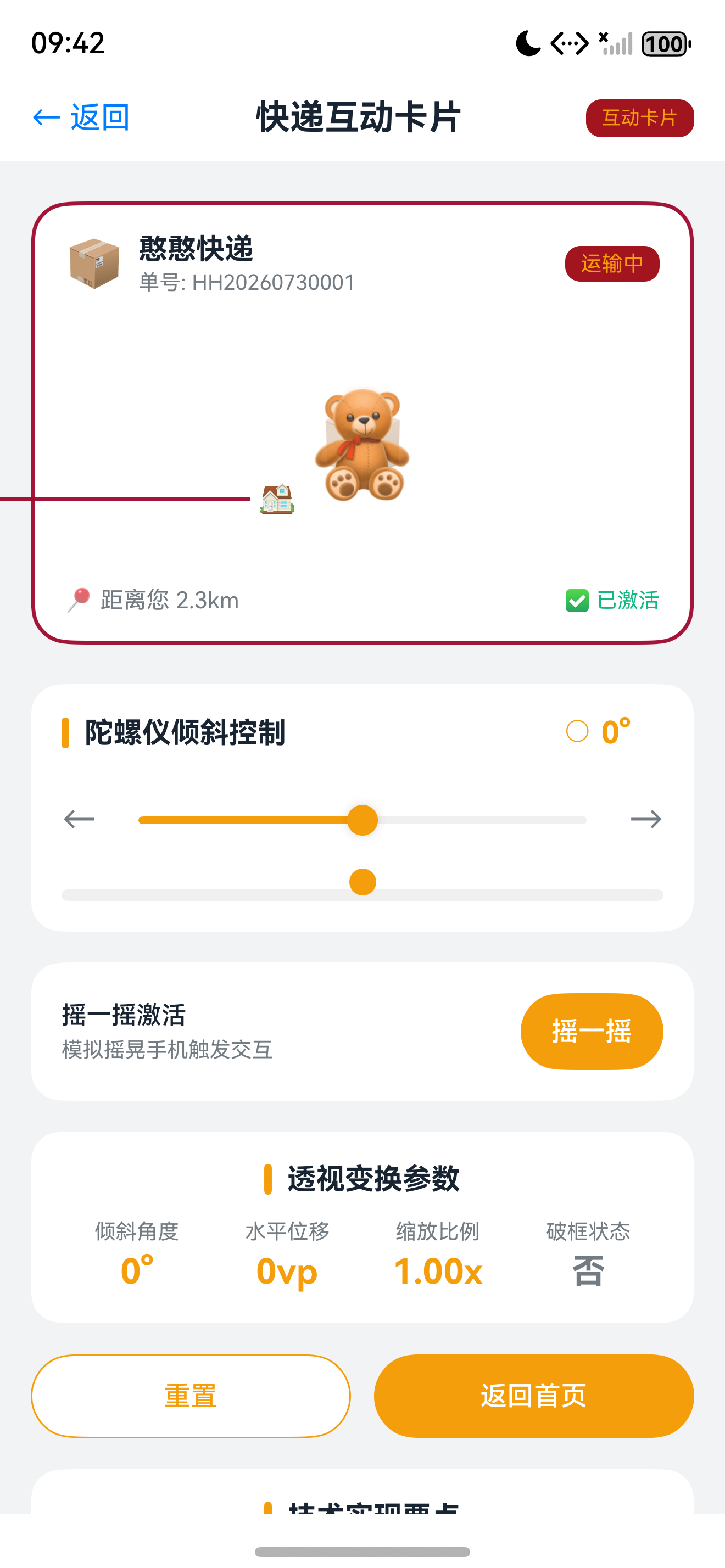
在HarmonyOS 7.0互动卡片体系中,快递卡片是最具代表性的传感器交互场景。用户可通过摇一摇直接激活卡片,更可通过倾斜手机控制憨憨角色在运输路线上左右跑动——向右倾斜憨憨右移并缩小(模拟近→远透视),向左倾斜憨憨左移并放大(模拟远→近透视)。
本文将完整讲解:
- 双触发模式配置:点击触发与摇一摇触发的混合使用
- 陀螺仪数据订阅:通过传感器API实时获取设备姿态
- 3D透视动画:基于陀螺仪数据驱动角色位移与缩放
- 破框渲染技术:让角色和特效突破卡片边界
- 跨进程数据同步:动态卡片与互动卡片间的状态传递
适用版本:HarmonyOS API 12+(点击触发),HarmonyOS 7.0+(摇一摇触发),DevEco Studio 6.1.0+
一、双触发配置与动态卡片
1.1 交互场景与能力矩阵
快递卡片提供三种交互方式:
| 交互方式 | 触发条件 | 动效表现 | 技术实现 |
|---|---|---|---|
| 点击触发 | 用户点击卡片 | 憨憨跑动,包裹运输动画 | postCardAction + requestOverflow |
| 摇一摇触发 | 用户摇动设备 | 直接激活动画 | sceneAnimationParams.triggerTypes |
| 陀螺仪驱动 | 设备左右倾斜 | 憨憨沿路线跑动,带透视缩放 | sensor.Gyroscope + 3D变换 |
快递卡片综合运用HarmonyOS互动卡片多项核心能力:
- LiveFormExtensionAbility:激活态动画页面容器
- sceneAnimationParams:声明式动画触发配置
- formProvider.requestOverflow:破框动画激活API
- sensor.Gyroscope:陀螺仪传感器数据订阅
- 3D变换(scale/translate):透视效果渲染
- LocalStorage:Ability与UI页面间数据共享
1.2 form_config.json配置
{
  "forms": [
    {
      "name": "DeliveryCard",
      "displayName": "$string:DeliveryCard",
      "src": "./ets/widget/pages/DeliveryCard.ets",
      "uiSyntax": "arkts",
      "isDynamic": true,
      "defaultDimension": "2*2",
      "supportDimensions": ["2*2"],
      "sceneAnimationParams": {
        "abilityName": "DeliveryLiveCardAbility",
        "triggerTypes": ["click", "shake"]
      }
    }
  ]
}
| 特性 | 点击触发 | 摇一摇触发 |
|---|---|---|
| 系统要求 | HarmonyOS API 12+ | HarmonyOS 7.0+ |
| 配置方式 | 代码调用requestOverflow | form_config.json声明triggerTypes |
| 用户体验 | 明确、可控 | 惊喜、自然 |
| 适用场景 | 常规交互 | 游戏化、即时反馈 |
关键配置:triggerTypes配置为
["click", "shake"]后,系统会自动监听摇一摇事件,检测到摇动时触发EntryFormAbility的onUpdateForm方法。
1.3 module.json5 Ability声明
// entry/src/main/module.json5
{
  "module": {
    "extensionAbilities": [
      {
        "name": "EntryFormAbility",
        "srcEntry": "./ets/entryformability/EntryFormAbility.ets",
        "type": "form",
        "metadata": [
          {
            "name": "ohos.extension.form",
            "resource": "$profile:form_config"
          }
        ]
      },
      {
        "name": "DeliveryLiveCardAbility",
        "srcEntry": "./ets/livecardability/DeliveryLiveCardAbility.ets",
        "type": "liveForm"
      }
    ]
  }
}
1.4 DeliveryCard页面实现
// entry/src/main/ets/widget/pages/DeliveryCard.ets
import { ActionUtils } from '../../utils/ActionUtils';
import { LiveCardScale } from '../../constants/LiveCardConstants';

const LIVE_CARD_DURATION: number = 8000;

@Entry
@Component
struct DeliveryCard {
  @LocalStorageProp('deliveryStatus') deliveryStatus: string = '运输中';
  @LocalStorageProp('estimatedTime') estimatedTime: string = '预计今日送达';

  build() {
    RelativeContainer() {
      Image($rawfile('delivery/background.png'))
        .width('100%').height('100%').aspectRatio(1).id('delivery_bg');

      Image($rawfile('delivery/fuzzball.png'))
        .width('145%').height('145%')
        .offset({ x: '-22.5%', y: '-22.5%' }).id('fuzzball');

      Image($rawfile('delivery/delivery_text.png'))
        .width('100%').height('100%').aspectRatio(1).id('delivery_text');

      Stack() {
        Column() {
          Text(this.deliveryStatus).fontSize(14).fontColor('#FFFFFF').fontWeight(FontWeight.Bold);
          Text(this.estimatedTime).fontSize(12).fontColor('#CCFFFFFF').margin({ top: 2 });
        }
        .alignItems(HorizontalAlign.Start).padding({ left: 12, bottom: 8 });
      }
      .width('100%').height('30%')
      .alignRules({
        left: { anchor: '__container__', align: HorizontalAlign.Start },
        bottom: { anchor: '__container__', align: VerticalAlign.Bottom }
      })
      .onClick(() => { ActionUtils.jumpAppPage(this, 'DeliveryPage'); })
      .id('bottom_area');
    }
    .width('100%').height('100%')
    .onClick(() => {
      ActionUtils.requestOverFlow(this, LiveCardScale.DELIVERY_WIDTH,
                                 LiveCardScale.DELIVERY_HEIGHT, LIVE_CARD_DURATION);
    });
  }
}
二、摇一摇触发与陀螺仪交互
2.1 EntryFormAbility摇一摇事件处理
摇一摇触发时,系统调用EntryFormAbility的onUpdateForm方法,需在此调用requestOverflow:
// entry/src/main/ets/entryformability/EntryFormAbility.ets
import { FormExtensionAbility, formProvider, formInfo } from '@kit.FormKit';
import { BusinessError } from '@kit.BasicServicesKit';

export default class EntryFormAbility extends FormExtensionAbility {
  onAddForm(want: Want): formBindingData.FormBindingData {
    return formBindingData.createFormBindingData({
      'deliveryStatus': '运输中', 'estimatedTime': '预计今日送达'
    });
  }

  onUpdateForm(formId: string, want: Want): void {
    let parameters = want.parameters as Record<string, Object>;
    if (parameters && parameters['sceneAnimation'] === true) {
      this.requestOverflowByShake(formId);
    }
  }

  onFormEvent(formId: string, message: string): void {
    const params = JSON.parse(message);
    if (params.message === 'requestOverflow') {
      this.requestOverflow(formId, params.widthRatio, params.heightRatio, params.duration);
    }
  }

  private async requestOverflowByShake(formId: string): Promise<void> {
    await this.requestOverflow(formId, 1.8, 1.8, 8000);
  }

  private async requestOverflow(formId: string, w: number, h: number, d: number): Promise<void> {
    let formRect = await formProvider.getFormRect(formId);
    let cardW = formRect.width * w;
    let cardH = formRect.height * h;
    formProvider.requestOverflow(formId, {
      area: { left: (formRect.width - cardW) / 2, top: (formRect.height - cardH) / 2,
              width: cardW, height: cardH },
      duration: d
    }).catch((e: BusinessError) => { console.error('requestOverflow error'); });
  }
}
提示:摇一摇触发的核心识别条件是want.parameters[‘sceneAnimation’] === true。
2.2 GyroscopeUtil工具类封装
HarmonyOS通过sensor模块提供陀螺仪数据订阅能力,封装GyroscopeUtil管理订阅生命周期:
// entry/src/main/ets/utils/GyroscopeUtil.ets
import { sensor } from '@kit.SensorServiceKit';
import { BusinessError } from '@kit.BasicServicesKit';

export interface GyroscopeData { x: number; y: number; z: number; }
export type GyroscopeCallback = (data: GyroscopeData) => void;

export class GyroscopeUtil {
  private static isSubscribed: boolean = false;
  private static callbackMap: Map<number, GyroscopeCallback> = new Map();
  private static callbackId: number = 0;

  static subscribe(callback: GyroscopeCallback, interval: number = 100): number {
    if (!this.isSubscribed) {
      try {
        sensor.on(sensor.SensorId.GYROSCOPE, (data: sensor.GyroscopeResponse) => {
          this.handleSensorData(data);
        }, { interval: interval });
        this.isSubscribed = true;
      } catch (error) { return -1; }
    }
    let id: number = ++this.callbackId;
    this.callbackMap.set(id, callback);
    return id;
  }

  static unsubscribe(id: number): void {
    this.callbackMap.delete(id);
    if (this.callbackMap.size === 0 && this.isSubscribed) {
      try { sensor.off(sensor.SensorId.GYROSCOPE); this.isSubscribed = false; }
      catch (error) { console.error('GyroscopeUtil unsubscribe failed'); }
    }
  }

  private static handleSensorData(data: sensor.GyroscopeResponse): void {
    let gyroData: GyroscopeData = { x: data.x, y: data.y, z: data.z };
    this.callbackMap.forEach((callback) => { callback(gyroData); });
  }
}
2.3 陀螺仪数据解读
陀螺仪返回的三轴角速度数据含义:
| 轴 | 物理意义 | 应用场景 | 单位 |
|---|---|---|---|
| X轴 | 设备前后倾斜(pitch) | 前后视角变化 | rad/s |
| Y轴 | 设备左右倾斜(roll) | 左右跑动控制 | rad/s |
| Z轴 | 设备水平旋转(yaw) | 转向控制 | rad/s |
快递卡片主要使用Y轴数据控制憨憨左右移动:
- Y > 0:设备向右倾斜,憨憨右移(远离视线,缩小)
- Y < 0:设备向左倾斜,憨憨左移(靠近视线,放大)
- Y ≈ 0:设备水平,憨憨保持在中间
三、LiveFormExtensionAbility与3D透视动画
3.1 DeliveryLiveCardAbility实现
// entry/src/main/ets/livecardability/DeliveryLiveCardAbility.ets
import { LiveFormExtensionAbility, LiveFormInfo } from '@kit.FormKit';
import { UIExtensionContentSession } from '@kit.AbilityKit';

export default class DeliveryLiveCardAbility extends LiveFormExtensionAbility {
  onLiveFormCreate(info: LiveFormInfo, session: UIExtensionContentSession): void {
    let storage = new LocalStorage();
    storage.setOrCreate('context', this.context);
    storage.setOrCreate('session', session);
    storage.setOrCreate('formId', info.formId);
    storage.setOrCreate('borderRadius', info.borderRadius);
    storage.setOrCreate('formRect', info.rect);
    session.loadContent('livecardability/pages/DeliveryLiveCard', storage);
  }

  onLiveFormDestroy(): void {
    console.info('DeliveryLiveCardAbility destroyed');
  }
}
3.2 DeliveryLiveCard完整实现
// entry/src/main/ets/livecardability/pages/DeliveryLiveCard.ets
import { formProvider, formInfo } from '@kit.FormKit';
import { GyroscopeUtil, GyroscopeData } from '../../utils/GyroscopeUtil';

@Entry({ useSharedStorage: true })
@Component
struct DeliveryLiveCard {
  @LocalStorageProp('formRect') rect?: formInfo.Rect;
  @LocalStorageProp('borderRadius') radius: number = 0;
  @LocalStorageProp('formId') formId: string = '';

  @State ballSize: number = 0.3;
  @State ballTranslateX: number = 0;
  @State ballTranslateY: number = 0;
  @State currentImage: Resource = $rawfile('delivery/run_01.png');
  @State gyroTranslateX: number = 0;
  @State gyroTranslateY: number = 0;
  @State gyroTranslateZ: number = 0;
  @State targetBallX: number = 0;
  @State targetBallSize: number = 1.0;
  @State targetBallY: number = 0;

  private gyroSubscriptionId: number = -1;
  private animationFrameId: number = -1;
  private readonly maxGyroValue: number = 5.0;
  private readonly threshold: number = 0.3;
  private readonly lerpFactor: number = 0.15;

  private runFrames: Resource[] = [
    $rawfile('delivery/run_01.png'), $rawfile('delivery/run_02.png'),
    $rawfile('delivery/run_03.png'), $rawfile('delivery/run_04.png'),
    $rawfile('delivery/run_05.png'), $rawfile('delivery/run_06.png')
  ];
  @State currentFrameIndex: number = 0;
  private frameInterval: number = -1;

  aboutToAppear(): void {
    this.subscribeGyroscope();
    this.startFrameAnimation();
    this.startSmoothAnimation();
  }

  aboutToDisappear(): void {
    this.unsubscribeGyroscope();
    this.stopFrameAnimation();
    this.stopSmoothAnimation();
  }

  build() {
    Stack({ alignContent: Alignment.TopStart }) {
      Image($rawfile('delivery/background.png'))
        .borderRadius(this.radius)
        .width(this.rect?.width || 0).height(this.rect?.height || 0)
        .margin({ top: this.rect?.top, left: this.rect?.left }).id('live_bg');

      Image($rawfile('delivery/road.png'))
        .width((this.rect?.width || 0) * 1.6).height(60)
        .margin({ top: (this.rect?.top || 0) + ((this.rect?.height || 0) * 0.6),
                  left: (this.rect?.left || 0) - ((this.rect?.width || 0) * 0.3) }).id('road');

      Stack() {
        Image(this.currentImage)
          .width('100%').height('100%').objectFit(ImageFit.Contain)
          .scale({ x: this.ballSize, y: this.ballSize })
          .translate({ x: this.ballTranslateX, y: this.ballTranslateY })
          .shadow({ radius: 10, color: 'rgba(0,0,0,0.3)', offsetX: 5, offsetY: 5 });
      }
      .width(120).height(120)
      .margin({ top: (this.rect?.top || 0) + ((this.rect?.height || 0) * 0.45),
                left: (this.rect?.left || 0) + ((this.rect?.width || 0) * 0.5) - 60 }).id('hanhan');

      Image($rawfile('delivery/package.png'))
        .width(40).height(40)
        .margin({ top: (this.rect?.top || 0) + ((this.rect?.height || 0) * 0.25),
                  left: (this.rect?.left || 0) + ((this.rect?.width || 0) * 0.7) })
        .rotate({ angle: 15 }).id('package');

      Text('倾斜手机控制憨憨跑动').fontSize(14).fontColor('#FFFFFF').fontWeight(FontWeight.Medium)
        .margin({ top: (this.rect?.top || 0) + 20, left: (this.rect?.left || 0) + 20 }).id('hint');

      Button('完成').fontSize(12).width(60).height(32).backgroundColor('#FF6B35').fontColor('#FFFFFF')
        .margin({ top: (this.rect?.top || 0) + (this.rect?.height || 0) - 50,
                  left: (this.rect?.left || 0) + ((this.rect?.width || 0) * 0.5) - 30 })
        .onClick(() => this.cancelOverflow()).id('finish_btn');
    }
    .width('100%').height('100%').id('live_container');
  }

  subscribeGyroscope(): void {
    this.gyroSubscriptionId = GyroscopeUtil.subscribe((data: GyroscopeData) => {
      this.gyroTranslateX = Math.max(-this.maxGyroValue, Math.min(this.maxGyroValue, data.x));
      this.gyroTranslateY = Math.max(-this.maxGyroValue, Math.min(this.maxGyroValue, data.y));
      this.gyroTranslateZ = Math.max(-this.maxGyroValue, Math.min(this.maxGyroValue, data.z));
      this.updateBallPosition();
    }, 50);
  }

  unsubscribeGyroscope(): void {
    if (this.gyroSubscriptionId !== -1) {
      GyroscopeUtil.unsubscribe(this.gyroSubscriptionId);
      this.gyroSubscriptionId = -1;
    }
  }

  private updateBallPosition(): void {
    let normalizedValue: number = this.gyroTranslateY / this.maxGyroValue;
    if (normalizedValue > this.threshold) {
      let t: number = Math.min((normalizedValue - this.threshold) / (1 - this.threshold), 1);
      this.targetBallX = t * 100;
      this.targetBallSize = 1.0 - t * 0.35;
      this.targetBallY = t * 10;
    } else if (normalizedValue < -this.threshold) {
      let t: number = Math.min((-normalizedValue - this.threshold) / (1 - this.threshold), 1);
      this.targetBallX = -t * 100;
      this.targetBallSize = 1.0 + t * 0.3;
      this.targetBallY = -t * 10;
    } else {
      this.targetBallX = 0; this.targetBallSize = 1.0; this.targetBallY = 0;
    }
  }

  private startSmoothAnimation(): void {
    let animate = () => {
      this.ballTranslateX = this.lerp(this.ballTranslateX, this.targetBallX, this.lerpFactor);
      this.ballSize = this.lerp(this.ballSize, this.targetBallSize, this.lerpFactor);
      this.ballTranslateY = this.lerp(this.ballTranslateY, this.targetBallY, this.lerpFactor);
      this.animationFrameId = requestAnimationFrame(animate);
    };
    this.animationFrameId = requestAnimationFrame(animate);
  }

  private stopSmoothAnimation(): void {
    if (this.animationFrameId !== -1) { cancelAnimationFrame(this.animationFrameId); this.animationFrameId = -1; }
  }

  private startFrameAnimation(): void {
    this.frameInterval = setInterval(() => {
      this.currentFrameIndex = (this.currentFrameIndex + 1) % this.runFrames.length;
      this.currentImage = this.runFrames[this.currentFrameIndex];
    }, 150);
  }

  private stopFrameAnimation(): void {
    if (this.frameInterval !== -1) { clearInterval(this.frameInterval); this.frameInterval = -1; }
  }

  private lerp(current: number, target: number, factor: number): number {
    return current + (target - current) * factor;
  }

  private cancelOverflow(): void {
    formProvider.cancelOverflow(this.formId).catch(() => {});
  }
}
3.3 3D透视效果数学模型
快递卡片核心视觉效果是3D透视变换。当设备倾斜时,憨憨移动遵循透视投影规律:
- 远离视线方向(向右倾斜时憨憨右移):物体变小、位置上移
- 靠近视线方向(向左倾斜时憨憨左移):物体变大、位置下移
function calculatePerspective(gyroY: number, maxOffset: number, minScale: number, maxScale: number) {
  let normalized: number = Math.max(-1, Math.min(1, gyroY / 5.0));
  let offset: number = normalized * maxOffset;
  let scale: number;
  if (normalized > 0) { scale = 1.0 - normalized * (1.0 - minScale); }
  else { scale = 1.0 + (-normalized) * (maxScale - 1.0); }
  return { offset, scale };
}
3.4 平滑插值算法
直接应用陀螺仪数据会导致动画抖动,引入**线性插值(Lerp)**算法:
private lerp(current: number, target: number, factor: number): number {
  return current + (target - current) * factor;
}
| 插值因子 | 效果 | 适用场景 |
|---|---|---|
| 0.05 | 非常平滑,延迟大 | 需要极致平滑的场景 |
| 0.15 | 平衡平滑与响应 | 快递卡片推荐使用 |
| 0.3 | 响应快,略有抖动 | 需要快速反馈的场景 |
| 0.5 | 接近原始数据 | 不建议使用 |
四、破框效果与调试技巧
4.1 破框区域计算与摇一摇流程
破框效果的关键是requestOverflow中的area参数计算:
let widthRatio: number = 1.8;
let heightRatio: number = 1.8;
let cardWidth: number = formRect.width * widthRatio;
let cardHeight: number = formRect.height * heightRatio;
let overflowArea = {
  left: (formRect.width - cardWidth) / 2,
  top: (formRect.height - cardHeight) / 2,
  width: cardWidth, height: cardHeight
};
摇一摇触发完整流程:
- 用户摇动设备
- 系统识别摇一摇事件
- 查找sceneAnimationParams.triggerTypes包含
"shake"的卡片 - 读取配置的abilityName
- 触发EntryFormAbility的onUpdateForm方法
- 开发者调用requestOverflow
- 系统创建DeliveryLiveCardAbility实例
- 调用onLiveFormCreate加载动画UI
提示:摇一摇触发的requestOverflow必须在onUpdateForm中调用,系统会在该方法执行完成后启动LiveFormExtensionAbility。
4.2 常见问题与解决方案
| 问题 | 原因 | 解决方案 |
|---|---|---|
| 陀螺仪无响应 | 未声明权限或设备不支持 | 检查module.json5权限声明,确认设备支持 |
| 透视效果不自然 | 参数设置不当 | 调整maxGyroValue、lerpFactor和threshold |
| 摇一摇触发失败 | 系统版本低或未配置 | 升级系统,检查triggerTypes配置 |
| 动画卡顿 | 帧图过大 | 使用WebP格式,单张不超过200KB |
{
  "module": {
    "requestPermissions": [
      { "name": "ohos.permission.ACCELEROMETER" },
      { "name": "ohos.permission.GYROSCOPE" }
    ]
  }
}
提示:陀螺仪交互性能优化要点:降低订阅频率、使用Lerp平滑、及时释放传感器、控制帧图大小。
总结
本文完整讲解了HarmonyOS快递互动卡片开发方案,核心要点:
- 双触发架构:点击触发通过postCardAction+requestOverflow实现;摇一摇触发通过sceneAnimationParams.triggerTypes+onUpdateForm识别实现
- 陀螺仪交互:封装GyroscopeUtil管理传感器订阅,使用Y轴数据驱动角色左右移动
- 3D透视效果:通过scale+translate组合变换,配合线性插值实现近大远小透视感
- 破框渲染:合理计算requestOverflow的area参数,让动画元素突破卡片边界
- 性能优化:使用requestAnimationFrame驱动动画,Lerp算法平滑数据,定时清理避免内存泄漏
互动卡片的传感器交互能力为桌面组件带来了游戏化体验可能。
如果本文对你有帮助,欢迎点赞、收藏、转发!欢迎在评论区交流互动卡片开发心得。
投票与互动
你在互动卡片开发中最关注哪个方面?
- 帧动画性能优化与流畅度
- 传感器交互的实时性与精度
- 破框效果的视觉冲击力
- 双Ability架构的数据同步
相关资源

讨论HarmonyOS开发技术,专注于API与组件、DevEco Studio、测试、元服务和应用上架分发等。
更多推荐



 5
5 0
0- 0


 已为社区贡献14条内容

所有评论(0)