HarmonyOS NEXT 文件复制与移动开发:File Kit API、进度展示与冲突处理实战
HarmonyOS NEXT 文件复制与移动开发:File Kit API、进度展示与冲突处理实战
前言
文件复制与移动是文件管理应用最核心的操作功能。在 HarmonyOS NEXT 中,File Kit 提供了完善的文件操作 API,开发者可以基于这些 API 实现高性能的文件复制和移动功能。本文基于 HarmonyExplorer 项目,深入讲解文件复制与移动功能的完整开发流程,涵盖 File Kit 文件操作 API、目标目录选择、复制移动进度展示、同名文件冲突处理、操作撤销设计、批量操作支持以及 FileUtil 工具类封装等关键技术与实现细节。通过本文的学习,开发者可以掌握鸿蒙原生文件操作的开发方法。
文件复制与移动涉及 File Kit 底层 API 调用、进度反馈和冲突处理三大核心环节,是 HarmonyOS 文件管理应用的基础能力,参考 HarmonyOS File Kit 开发文档。
一、文件复制与移动功能概述
1.1 功能背景
在企业级文件管理场景中,用户需要频繁进行文件复制和移动操作。复制操作保留源文件并创建副本,适用于文件分发场景;移动操作将文件从一个目录转移到另一个目录,适用于文件整理场景。两者都需要处理目标目录选择、进度反馈和同名冲突等共性问题。
1.2 设计目标
复制与移动功能的设计目标如下:
| 设计目标 | 说明 |
|---|---|
| 安全操作 | 文件操作前进行权限检查和路径验证 |
| 进度反馈 | 实时展示复制/移动进度,支持取消操作 |
| 冲突处理 | 同名文件提供覆盖、跳过、重命名三种策略 |
| 批量支持 | 支持多文件批量复制和移动 |
| 操作撤销 | 提供撤销机制,可回滚最近一次操作 |
| 日志记录 | 记录操作历史,便于审计追溯 |
二、File Kit 文件操作 API
2.1 核心 API 介绍
HarmonyOS NEXT 的 File Kit 提供了文件系统操作的核心能力,包括文件读写、目录管理、文件属性查询等。复制和移动操作基于 fs.copyFile 和 fs.rename API 实现。
// kits/FileKitManager.ets
import fs from '@ohos.file.fs';

export class FileKitManager {
  public static async copyFile(srcPath: string, destPath: string): Promise<void> {
    await fs.copyFile(srcPath, destPath);
  }

  public static async moveFile(srcPath: string, destPath: string): Promise<void> {
    await fs.rename(srcPath, destPath);
  }

  public static async fileExists(path: string): Promise<boolean> {
    try {
      await fs.access(path);
      return true;
    } catch (e) {
      return false;
    }
  }
}
2.2 API 对比分析
File Kit 复制与移动 API 的对比如下:
| 操作类型 | API 方法 | 适用场景 | 保留源文件 |
|---|---|---|---|
| 文件复制 | fs.copyFile | 文件分发与备份 | 是 |
| 文件移动 | fs.rename | 文件整理与归档 | 否 |
| 目录复制 | fs.copyDir | 目录备份 | 是 |
| 目录移动 | fs.rename | 目录迁移 | 否 |
提示:fs.rename 方法既可用于文件移动也可用于目录移动,但要求源路径和目标路径在同一文件系统分区下,参考 HarmonyOS 文件系统 API 文档。
三、FileUtil 工具类封装
3.1 工具类设计
FileUtil 是文件操作的核心工具类,封装了复制、移动、冲突检测等通用逻辑,向上为 Service 层提供统一接口。
// utils/FileUtil.ets
export class FileUtil {
  public static async copyFileWithCheck(
    srcPath: string, destDir: string, strategy: ConflictStrategy
  ): Promise<CopyResult> {
    const fileName: string = this.getFileName(srcPath);
    const destPath: string = destDir + '/' + fileName;
    const finalPath: string = await this.resolveConflict(destPath, strategy);
    if (finalPath.length === 0) {
      return { success: false, message: '操作已跳过', path: '' };
    }
    await FileKitManager.copyFile(srcPath, finalPath);
    return { success: true, message: '复制成功', path: finalPath };
  }

  public static getFileName(path: string): string {
    const parts: string[] = path.split('/');
    return parts[parts.length - 1];
  }

  private static async resolveConflict(
    destPath: string, strategy: ConflictStrategy
  ): Promise<string> {
    const exists: boolean = await FileKitManager.fileExists(destPath);
    if (!exists) {
      return destPath;
    }
    if (strategy === ConflictStrategy.OVERWRITE) {
      return destPath;
    } else if (strategy === ConflictStrategy.SKIP) {
      return '';
    } else {
      return this.generateUniqueName(destPath);
    }
  }

  private static async generateUniqueName(path: string): Promise<string> {
    const dotIndex: number = path.lastIndexOf('.');
    const base: string = dotIndex > 0 ? path.substring(0, dotIndex) : path;
    const ext: string = dotIndex > 0 ? path.substring(dotIndex) : '';
    let counter: number = 1;
    let newPath: string = base + '_1' + ext;
    while (await FileKitManager.fileExists(newPath)) {
      counter++;
      newPath = base + '_' + counter.toString() + ext;
    }
    return newPath;
  }
}
3.2 冲突策略枚举定义
// constants/ConflictStrategy.ets
export enum ConflictStrategy {
  OVERWRITE = 'overwrite',
  SKIP = 'skip',
  RENAME = 'rename'
}

export interface CopyResult {
  success: boolean;
  message: string;
  path: string;
}
四、目标目录选择
4.1 Picker 目录选择器
目标目录的选择通过 Picker Kit 的文件夹选择器实现。用户点击复制或移动按钮后,弹出系统级目录选择界面。
// utils/PickerUtil.ets
import picker from '@ohos.file.picker';

export class PickerUtil {
  public static async selectDirectory(): Promise<string> {
    const options: picker.FolderSelectOptions = new picker.FolderSelectOptions();
    options.title = '选择目标目录';
    const folderPicker: picker.FolderPicker = new picker.FolderPicker();
    const result: picker.SelectResult = await folderPicker.select(options);
    if (result.uris.length === 0) {
      return '';
    }
    return this.uriToPath(result.uris[0]);
  }

  private static uriToPath(uri: string): string {
    const prefix: string = 'file://';
    if (uri.startsWith(prefix)) {
      return uri.substring(prefix.length);
    }
    return uri;
  }
}
4.2 选择器使用流程
目录选择的完整流程如下:
- 用户在文件列表中选中文件
- 点击复制或移动按钮
- 弹出文件夹选择器
- 用户选择目标目录并确认
- 执行文件操作并展示进度
五、复制与移动进度展示
5.1 进度展示设计
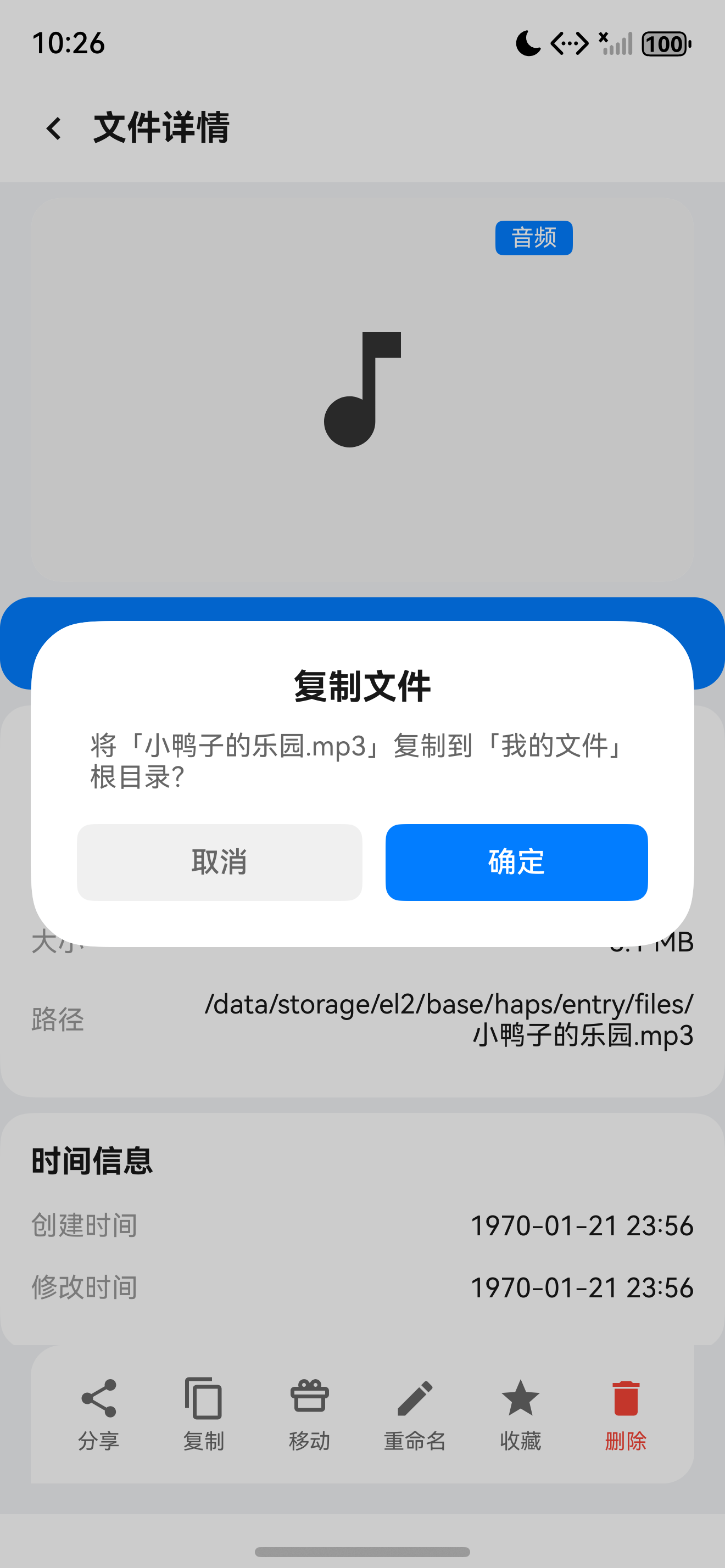
大文件复制时需要展示实时进度,HarmonyExplorer 通过 ProgressBar 组件展示进度百分比,并提供取消按钮。
5.2 进度计算与取消实现
// service/FileCopyService.ets
import fs from '@ohos.file.fs';

export class FileCopyService {
  private isCancelled: boolean = false;

  public async copyWithProgress(
    srcPath: string, destPath: string, onProgress: (p: number) => void
  ): Promise<CopyResult> {
    this.isCancelled = false;
    const srcFile: fs.File = await fs.open(srcPath, fs.OpenMode.READ_ONLY);
    const destFile: fs.File = await fs.open(destPath, fs.OpenMode.CREATE | fs.OpenMode.WRITE);
    const stat: fs.Stat = await srcFile.stat();
    const totalSize: number = stat.size;
    let copiedSize: number = 0;
    const buffer: ArrayBuffer = new ArrayBuffer(8192);
    while (copiedSize < totalSize) {
      if (this.isCancelled) {
        await srcFile.close();
        await destFile.close();
        await fs.unlink(destPath);
        return { success: false, message: '操作已取消', path: '' };
      }
      const readLen: number = await srcFile.read(buffer, { offset: copiedSize });
      await destFile.write(buffer, { offset: copiedSize, length: readLen });
      copiedSize += readLen;
      onProgress(Math.floor((copiedSize / totalSize) * 100));
    }
    await srcFile.close();
    await destFile.close();
    return { success: true, message: '复制成功', path: destPath };
  }

  public cancelCopy(): void {
    this.isCancelled = true;
  }
}
5.3 ProgressBar 进度对话框
// components/CopyProgressDialog.ets
@Component
export struct CopyProgressDialog {
  @State progress: number = 0;
  @State fileName: string = '';
  private onCancel: () => void = (): void => {};

  build(): void {
    Column({ space: 16 }) {
      Text('正在复制: ' + this.fileName).fontSize(16).maxLines(1)
        .textOverflow({ overflow: TextOverflow.Ellipsis })
      ProgressBar({ value: this.progress, total: 100 }).width('100%').color($r('app.color.primary'))
      Text(this.progress.toString() + '%').fontSize(14).fontColor($r('app.color.text_secondary'))
      Button('取消').width('100%').type(ButtonType.Capsule)
        .backgroundColor($r('app.color.danger')).onClick((): void => { this.onCancel(); })
    }.padding(24)
  }
}
六、同名文件冲突处理
6.1 冲突检测机制
在执行复制或移动前,FileUtil 会检测目标路径是否已存在同名文件。若存在冲突,根据用户选择的策略执行对应操作。
6.2 冲突策略对比
冲突处理策略的详细对比如下:
| 策略 | 行为 | 风险等级 | 适用场景 |
|---|---|---|---|
| 覆盖 | 删除目标文件后写入新文件 | 高 | 确认替换旧文件 |
| 跳过 | 取消当前文件操作 | 无 | 保留目标文件不变 |
| 重命名 | 自动生成唯一文件名 | 低 | 保留两份文件 |
6.3 冲突处理对话框
// components/ConflictDialog.ets
@Component
export struct ConflictDialog {
  private fileName: string = '';
  private onOverwrite: () => void = (): void => {};
  private onSkip: () => void = (): void => {};
  private onRename: () => void = (): void => {};
  @State isVisible: boolean = false;

  build(): void {
    if (this.isVisible) {
      Column({ space: 16 }) {
        Text('同名文件冲突').fontSize(18).fontWeight(FontWeight.Bold)
        Text('目标目录已存在 "' + this.fileName + '",请选择处理方式:')
          .fontSize(14).fontColor($r('app.color.text_secondary'))
        Button('覆盖原文件').width('100%').type(ButtonType.Capsule)
          .backgroundColor($r('app.color.warning'))
          .onClick((): void => { this.isVisible = false; this.onOverwrite(); })
        Button('保留两份(重命名)').width('100%').type(ButtonType.Capsule)
          .backgroundColor($r('app.color.primary'))
          .onClick((): void => { this.isVisible = false; this.onRename(); })
        Button('跳过此文件').width('100%').type(ButtonType.Capsule)
          .backgroundColor($r('app.color.text_secondary'))
          .onClick((): void => { this.isVisible = false; this.onSkip(); })
      }.padding(24).backgroundColor(Color.White).borderRadius(16)
    }
  }
}
七、批量操作支持
7.1 批量操作设计
批量复制和移动支持用户选中多个文件后一次性执行操作。批量操作需要处理每个文件的冲突策略,并汇总操作结果。
// service/BatchFileService.ets
export class BatchFileService {
  public async batchCopy(
    filePaths: Array<string>, destDir: string, strategy: ConflictStrategy,
    onProgress: (current: number, total: number, name: string) => void
  ): Promise<BatchResult> {
    const results: Array<CopyResult> = [];
    const total: number = filePaths.length;
    for (let i: number = 0; i < total; i++) {
      const fileName: string = FileUtil.getFileName(filePaths[i]);
      onProgress(i + 1, total, fileName);
      const result: CopyResult = await FileUtil.copyFileWithCheck(filePaths[i], destDir, strategy);
      results.push(result);
    }
    const successCount: number = results.filter((r: CopyResult): boolean => r.success).length;
    return { total: total, success: successCount, failed: total - successCount, results: results };
  }
}
7.2 批量操作流程
批量操作的处理流程包含以下步骤:
- 用户在文件列表中进入多选模式
- 选中需要操作的文件
- 选择复制或移动操作
- 选择目标目录和冲突处理策略
- 逐个执行文件操作并更新进度
八、操作撤销设计
8.1 撤销机制设计
操作撤销通过 UndoManager 实现,记录最近一次文件操作的元信息,在用户撤销时执行反向操作。
// manager/UndoManager.ets
interface UndoAction {
  type: OperationType;
  srcPath: string;
  destPath: string;
  timestamp: number;
}

export enum OperationType {
  COPY = 'copy',
  MOVE = 'move'
}

export class UndoManager {
  private undoStack: Array<UndoAction> = [];

  public pushAction(action: UndoAction): void {
    this.undoStack.push(action);
    if (this.undoStack.length > 10) {
      this.undoStack.shift();
    }
  }

  public async undoLastAction(): Promise<boolean> {
    if (this.undoStack.length === 0) {
      return false;
    }
    const action: UndoAction = this.undoStack.pop()!;
    if (action.type === OperationType.COPY) {
      await fs.unlink(action.destPath);
    } else {
      await fs.rename(action.destPath, action.srcPath);
    }
    return true;
  }

  public canUndo(): boolean {
    return this.undoStack.length > 0;
  }
}
8.2 撤销操作效果
| 操作类型 | 撤销行为 | 数据影响 |
|---|---|---|
| 复制撤销 | 删除目标路径文件副本 | 源文件不受影响 |
| 移动撤销 | 将文件移回原路径 | 目标位置文件消失 |
提示:撤销操作仅保留最近 10 条记录,超出后自动清除最早记录。撤销操作不可逆,执行后无法再次撤销,参考 HarmonyOS 文件管理最佳实践。
九、操作日志记录
9.1 日志模型设计
每次文件操作都会记录操作日志,包含操作类型、源路径、目标路径、操作时间和操作结果,便于审计追溯。
// model/FileOperationLog.ets
export interface FileOperationLog {
  id: string;
  operationType: OperationType;
  srcPath: string;
  destPath: string;
  result: boolean;
  timestamp: number;
  fileSize: number;
}

export class OperationLogger {
  private static logs: Array<FileOperationLog> = [];

  public static log(operation: FileOperationLog): void {
    this.logs.unshift(operation);
    if (this.logs.length > 200) {
      this.logs = this.logs.slice(0, 200);
    }
    LogUtil.info('FileOperation', 'Operation logged: ' + operation.operationType);
  }

  public static getRecentLogs(count: number): Array<FileOperationLog> {
    return this.logs.slice(0, count);
  }
}
9.2 日志记录集成
操作日志的集成流程如下:
- 文件操作完成后自动触发日志记录
- OperationLogger 将日志缓存到内存数组中
- 日志数量超过 200 条时自动截断旧记录
- 业务代码无需手动调用日志接口
十、CopyMoveViewModel 实现
10.1 ViewModel 状态管理
CopyMoveViewModel 管理文件操作的状态,包括进度、冲突策略和操作结果,使用 @Observed 装饰器实现响应式更新。
// viewmodel/CopyMoveViewModel.ets
@Observed
export class CopyMoveViewModel extends ObservedObject {
  public progress: number = 0;
  public currentFile: string = '';
  public isProcessing: boolean = false;
  public batchResult: BatchResult | null = null;
  private batchService: BatchFileService = new BatchFileService();

  public async executeBatchCopy(
    filePaths: Array<string>, destDir: string, strategy: ConflictStrategy
  ): Promise<void> {
    this.isProcessing = true;
    this.batchResult = await this.batchService.batchCopy(
      filePaths, destDir, strategy,
      (current: number, total: number, name: string): void => {
        this.progress = Math.floor((current / total) * 100);
        this.currentFile = name;
      }
    );
    this.isProcessing = false;
    ToastUtil.show('复制完成: ' + this.batchResult.success + '/' + this.batchResult.total + ' 成功');
  }
}
总结
本文详细介绍了 HarmonyExplorer 文件复制与移动功能的完整实现方案,从 File Kit API 调用到 FileUtil 工具类封装,从进度展示到冲突处理,从批量操作到撤销机制,覆盖了文件操作开发的全流程。通过分层架构设计、冲突策略枚举、UndoManager 撤销机制和 OperationLogger 日志记录,实现了安全可靠的文件操作管理。开发者可以将此设计模式推广到文件同步、文件备份等复杂场景中。
如果这篇文章对你有帮助,欢迎点赞👍、收藏⭐、关注🔔,你的支持是我持续创作的动力!
相关资源

讨论HarmonyOS开发技术,专注于API与组件、DevEco Studio、测试、元服务和应用上架分发等。
更多推荐



 4
4 0
0- 0


 已为社区贡献60条内容

所有评论(0)