【HarmonyOS 7 沉浸光感深度实战】 01 ArkUI 与 HDS 两套接口如何选择
文章目录
前言
当你准备给 HarmonyOS 7 应用加上沉浸光感时,接口列表很快就会变长。
uiMaterial、hdsMaterial、ImmersiveMaterial、ImmersiveStyle、MaterialLevel、systemMaterial 和 systemMaterialEffect 会陆续出现在查询结果中。这些名字都和材质有关,第一次查接口时,大家很容易把它们当成同一套配置。
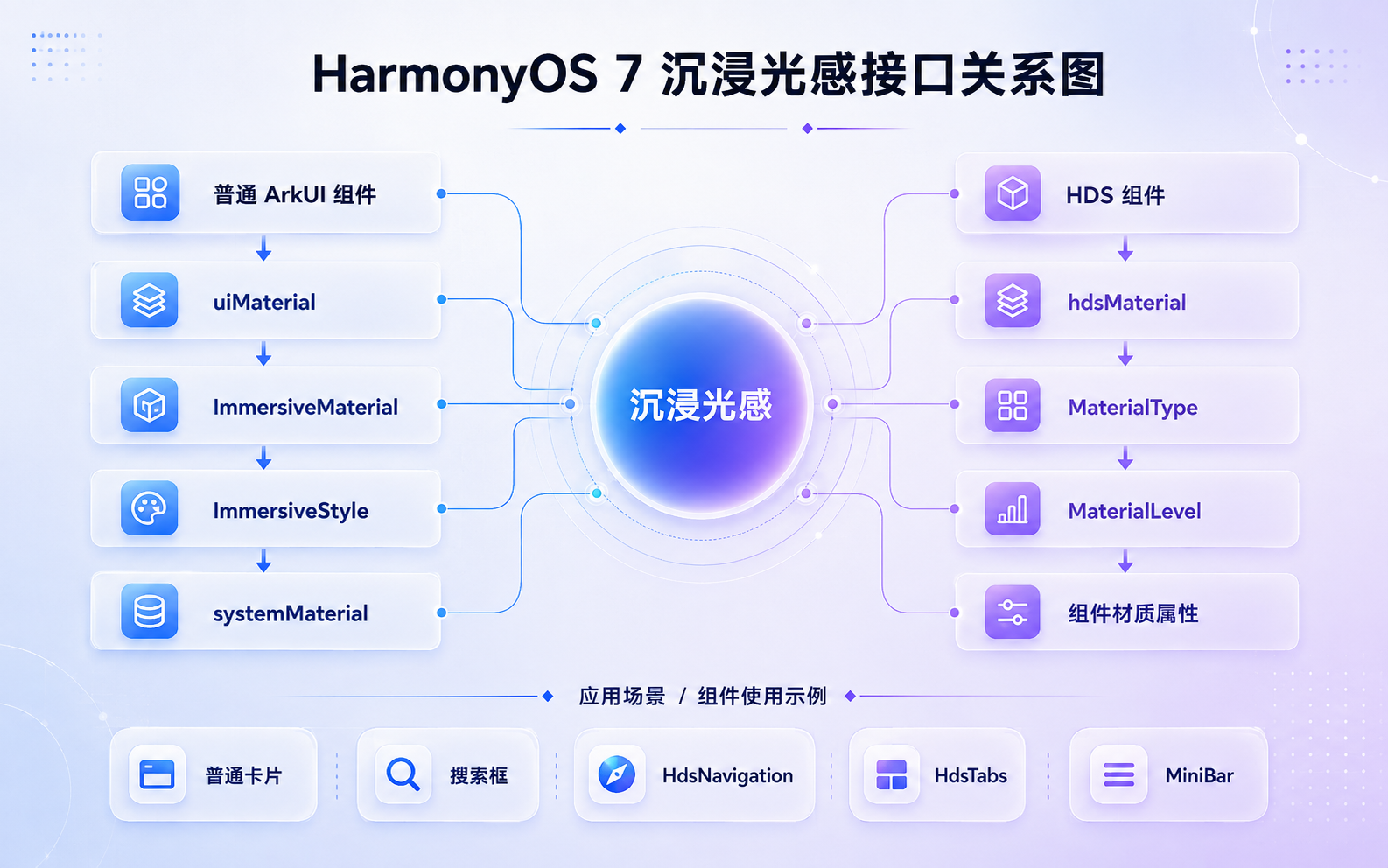
我最初也这样理解过。后来逐项核对接口后,区别就清楚了。普通 ArkUI 组件使用 uiMaterial,HdsNavigation、HdsTabs 和 MiniBar 等 HDS 组件使用 hdsMaterial。两套接口配置的对象不同,项目需要先确认当前组件属于哪一类。
除了组件类型,应用级开关、设备算力和系统设置也会影响最终效果。如果这些条件没有记录完整,同一段代码在模拟器和真机上可能呈现不同结果。
一、两套接口分别给哪些组件使用
ArkUI 的 uiMaterial 与 ImmersiveMaterial 从 API 26.0.0 开始提供。HDS 的 hdsMaterial 从 6.1.0(23)开始提供。ArkUI 的 uiMaterial 与 ImmersiveMaterial 从 API 26.0.0 开始提供,HDS 的 hdsMaterial 从 6.1.0(23)开始提供。两套接口都能配置沉浸材质,但适用的组件不同。沉浸光感包含沉浸式系统材质和空间动效。系统材质负责背景采样、模糊、高光、阴影与边框;空间动效负责按压形变、触点光感以及组件弹出和消失时的反馈。系统还会参考设备算力和用户设置,调整材质的具体参数。
开发时可以先按组件类型区分接口。
| 当前组件 | 需要使用的模块 | 常见调用方式 |
|---|---|---|
| 普通 ArkUI 组件 | @kit.ArkUI | ImmersiveMaterial 配合 systemMaterial |
| HDS 空间化组件 | @kit.UIDesignKit | MaterialType、MaterialLevel 配合组件材质属性 |
普通 Column、Row、搜索框和自定义悬浮工具栏通常使用 uiMaterial。HdsNavigation、HdsTabs 和 MiniBar 等组件则需要查看 HDS 提供的材质配置。hdsMaterial 从 6.1.0(23)开始提供,目前包含材质类型查询和材质等级设置。
如果你只准备改造一张卡片或一条工具栏,可以直接从 ArkUI 接口开始。现有页面已经使用 HDS 组件时,再查询 hdsMaterial 会更省事。
二、普通 ArkUI 组件怎样设置沉浸材质
普通 ArkUI 组件需要导入 uiMaterial。
import { uiMaterial } from '@kit.ArkUI';
uiMaterial 从 API 26.0.0 开始提供,并且只支持 Stage 模型。这个模块包含应用级状态、材质样式、材质参数和材质对象等接口。
| 接口或对象 | 用途 |
|---|---|
MaterialState | 记录应用当前采用的材质开关状态 |
MaterialInfo | 保存应用的材质状态和材质类型 |
getMaterialInfo() | 读取 module.json5 中的材质配置 |
ImmersiveStyle | 选择普通组件使用的材质样式 |
ImmersiveOptions | 设置颜色、阴影、反色和交互效果 |
ImmersiveMaterial | 创建沉浸式材质对象 |
Material.empty | 关闭某个组件的材质效果 |
创建一个 THIN 材质
下面的代码创建了一块薄型材质,同时开启按压形变和触点光感。
private readonly thinMaterial: uiMaterial.Material =
  new uiMaterial.ImmersiveMaterial({
    // THIN 具有较强的透明感,
    // 搜索框和小面积悬浮工具栏可以优先试用这一档。
    style: uiMaterial.ImmersiveStyle.THIN,

    // 开启系统提供的按压形变。
    interactive: true,

    // 开启触点光感,并使用白色光感。
    lightEffect: {
      color: Color.White
    }
  });
ImmersiveMaterial 默认使用 REGULAR 样式。interactive 默认关闭,lightEffect 默认未设置。开发者显式填写这些参数后,组件的行为会更容易观察。
材质对象创建完成后,可以通过 systemMaterial 设置到组件上。
Column() {
  Text('ArkUI 沉浸材质')
    .fontSize(20)
    .fontWeight(FontWeight.Bold)
}
.width('100%')
.height(96)
.borderRadius(24)
.justifyContent(FlexAlign.Center)
.systemMaterial(this.thinMaterial)
这段代码的分工很清楚。ImmersiveMaterial 保存材质参数,systemMaterial 把材质交给当前组件。
如果你正在改造已有项目,可以先挑选搜索框、图片工具栏或底部操作条。这些组件面积较小,背景也比较明确,材质生效前后的差异容易看清。
大家第一次接入时,经常会在一张页面上同时放入多块材质。页面中的背景、文字、阴影和浮层随后一起变化,排查范围会迅速扩大。局部组件更适合完成第一轮验证。
三、HDS 组件怎样选择材质类型和等级
普通 ArkUI 组件处理完成后,页面可能还包含 HdsNavigation、HdsTabs 或 MiniBar。这些组件需要导入 hdsMaterial。
import { hdsMaterial } from '@kit.UIDesignKit';
hdsMaterial 提供 MaterialType、MaterialLevel 和 getSystemMaterialTypes()。MaterialType 包含 NONE、ADAPTIVE 和 IMMERSIVE;MaterialLevel 包含 EXQUISITE、GENTLE、SMOOTH 和 ADAPTIVE。
| 枚举值 | 含义 |
|---|---|
EXQUISITE | 精美等级,使用的性能资源较多 |
GENTLE | 轻柔等级 |
SMOOTH | 流畅等级,运行成本较低 |
ADAPTIVE | 系统根据设备性能选择材质等级 |
HDS 默认推荐 ADAPTIVE。系统会根据设备性能调整组件使用的材质等级。开发者手动指定等级时,应先调用 getSystemMaterialTypes(),确认当前设备支持的材质类型。设备未返回 IMMERSIVE 时,可以选择 SMOOTH,降低卡顿和发热风险。
查询设备支持的 HDS 材质类型
const types: Array<hdsMaterial.MaterialType> =
  hdsMaterial.getSystemMaterialTypes();
getSystemMaterialTypes() 会返回当前设备支持的 HDS 材质类型。查询页面还需要处理类型转换和调用异常,完整代码见文末。Beta 环境中的调用失败可能与 SDK、系统版本或模拟器镜像有关,因此错误信息需要和环境版本一起记录。
大家还容易混淆 ImmersiveStyle 与 MaterialLevel。ImmersiveStyle 用于选择普通 ArkUI 组件的材质样式,MaterialLevel 用于控制 HDS 组件采用的显示等级。这两组枚举不能直接互换。
当前页面查询 HDS 材质类型。HdsNavigation 和 HdsTabs 还涉及导航结构、页签状态与窗口适配,因此查询页面继续保持单文件结构,方便核对接口返回值。
四、应用状态、设备和组件参数怎样共同起作用
两套接口确定以后,开发者还要继续检查应用配置和运行设备。
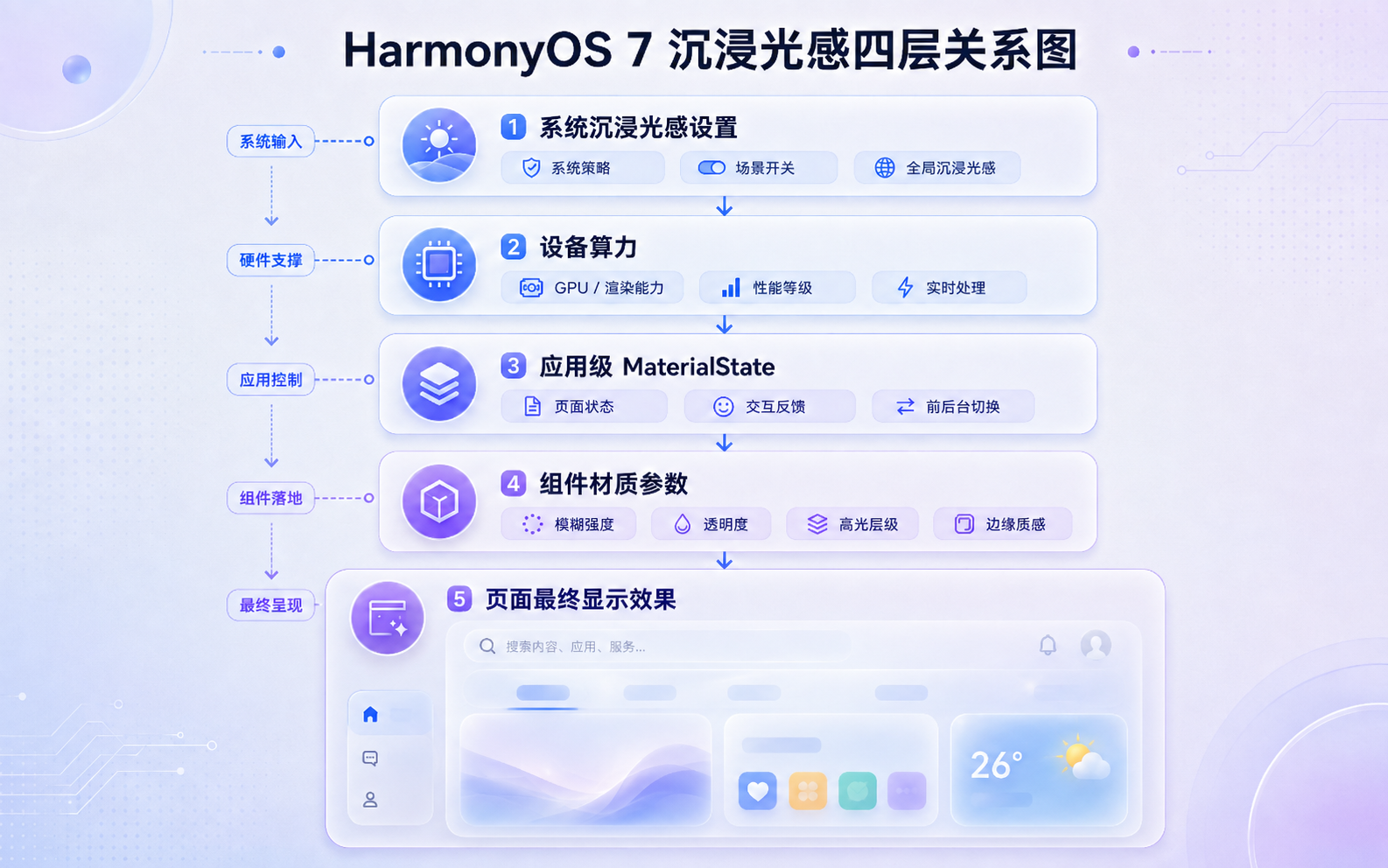
沉浸光感的最终显示结果会受到四类条件影响。
系统设置
用户可以在系统设置中选择沉浸光感的强度。强、均衡和弱会影响材质的模糊、高光、阴影和背景表现。相同代码在不同设置下可能出现视觉差异。
设备算力
系统会按照设备算力调整材质表现。高档和中档设备能够显示更多材质细节,低档设备可能使用背景色、边框和阴影等方式呈现较轻的效果。设备分档由设备厂商决定。
应用级状态
应用通过 module.json5 中的 ohos.arkui.UIMaterial.state 设置材质状态。可选值包括 default、enable 和 disable。这项配置要求 targetAPIVersion 不低于 26.0.0,并且只在 entry 类型的 module 中生效。
| 状态 | 页面行为 |
|---|---|
DEFAULT | 应用使用系统默认的材质规则 |
ENABLE | 支持的系统组件会启用对应材质 |
DISABLE | 应用关闭沉浸式系统材质 |
当你已经设置 ImmersiveMaterial,页面仍然没有显示材质时,可以先读取 MaterialState。应用状态确认后,再检查组件背景色、模糊属性和材质参数,排查过程会更顺。
组件参数
普通 ArkUI 组件使用 ImmersiveStyle 和 ImmersiveOptions。HDS 组件使用 MaterialType、MaterialLevel 和相应组件的材质属性。
开发者可以按下面的顺序理解最终结果。
系统沉浸光感设置
+
设备算力
+
应用级 MaterialState
+
组件材质参数
=
页面最终显示结果
五、检查当前工程
前面的接口关系已经理清,我们接下来需要回到工程里确认实际结果。当前示例把应用级配置、HDS 材质支持和一块 THIN 材质卡片放在同一个页面中,这样可以用一张运行截图完成主要验证。
页面需要展示下面四项内容。
| 查询内容 | 页面显示 |
|---|---|
应用当前使用的 MaterialState | DEFAULT、ENABLE 或 DISABLE |
应用配置的 MaterialType | IMMERSIVE 或接口返回的其他值 |
| 设备支持的 HDS 材质类型 | NONE、IMMERSIVE 或接口返回的其他值 |
| 普通 ArkUI 组件的显示效果 | 一块使用 THIN 材质的卡片 |
读取应用级材质配置
页面先调用 getMaterialInfo(),读取当前应用的材质状态和材质类型。
private loadArkUiMaterialInfo(): void {
  const info: uiMaterial.MaterialInfo =
    uiMaterial.getMaterialInfo();

  this.arkUiStateText =
    this.getArkUiStateName(info.state);

  this.arkUiTypeText =
    this.getArkUiTypeName(info.type);
}
getMaterialInfo() 读取的是 module.json5 中的 metadata 配置。MaterialInfo.state 表示应用当前采用的材质状态,MaterialInfo.type 表示应用配置的材质类型。
这里需要把应用配置和组件效果分开理解。应用配置决定材质是否允许生效,组件仍然需要通过 ImmersiveMaterial 指定具体样式和交互参数。
查询 HDS 材质类型
应用级配置读取完成后,页面继续调用 getSystemMaterialTypes(),查询当前环境支持的 HDS 材质类型。
private loadHdsMaterialTypes(): void {
  try {
    const types: Array<hdsMaterial.MaterialType> =
      hdsMaterial.getSystemMaterialTypes();

    const names: string[] = [];
    this.hdsImmersiveSupported = false;

    for (
      let index: number = 0;
      index < types.length;
      index++
    ) {
      const type: hdsMaterial.MaterialType = types[index];

      switch (type) {
        case hdsMaterial.MaterialType.NONE:
          names.push('NONE');
          break;

        case hdsMaterial.MaterialType.IMMERSIVE:
          names.push('IMMERSIVE');
          this.hdsImmersiveSupported = true;
          break;

        default:
          names.push(`UNKNOWN(${type})`);
          break;
      }
    }

    this.hdsTypesText = names.length > 0
      ? names.join('、')
      : '当前环境未返回 HDS 材质类型';
  } catch (error) {
    const businessError = error as BusinessError;

    this.hdsTypesText =
      `查询失败 ${businessError.code} ${businessError.message}`;

    this.hdsImmersiveSupported = false;
  }
}
页面保留了完整的异常信息。模拟器中的查询失败可能与 SDK 版本、系统镜像或当前设备能力有关,错误码可以帮助开发者缩小排查范围。
如果接口返回 IMMERSIVE,当前环境已经提供 HDS 沉浸材质类型。这个结果说明查询接口已经返回 IMMERSIVE。HdsNavigation、HdsTabs 和 MiniBar 的实际显示效果还需要分别验证。
运行结果如何检查
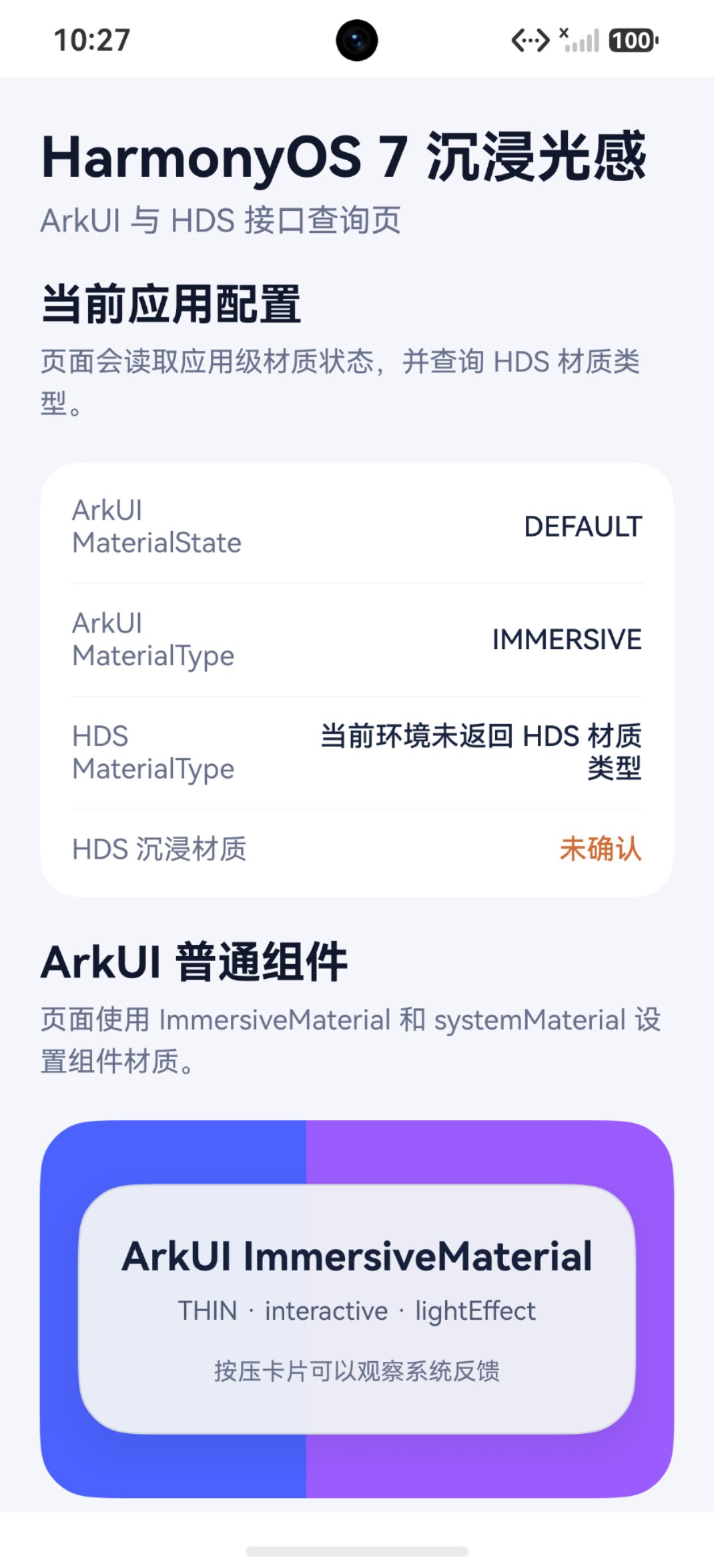
当前示例运行在 HarmonyOS 7 模拟器中。应用读取到的 MaterialState 为 DEFAULT,ArkUI MaterialType 为 IMMERSIVE,普通组件也能够显示 THIN 材质。getSystemMaterialTypes() 在当前模拟器中返回空数组,因此页面将 HDS 沉浸材质标记为未确认,后续还需要在支持相关能力的真机上继续验证。当前结果说明查询接口已经完成调用,但模拟器没有返回具体的 HDS 材质类型。
现有项目怎样选择接口
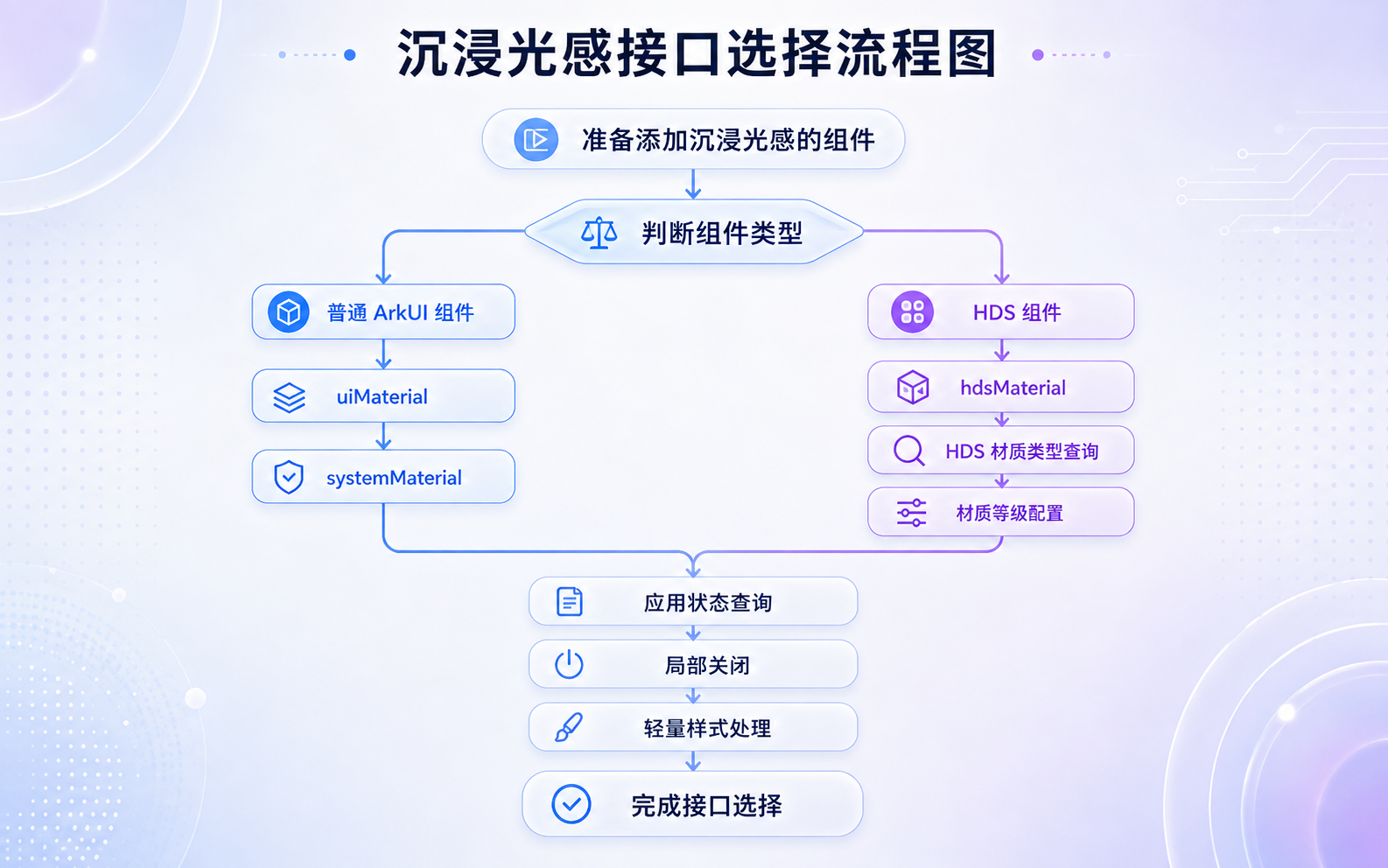
完成查询后,你可以根据当前组件选择接口。
| 使用场景 | 建议使用的接口 |
|---|---|
| 普通 Card、Column 和 Row | uiMaterial.ImmersiveMaterial |
| 搜索框和小面积悬浮工具栏 | 较薄的 ImmersiveStyle |
| Popup、Menu、Tips 和 Sheet | 对应组件的 systemMaterial 参数 |
| HdsNavigation 和 HdsTabs | hdsMaterial 与 HDS 组件材质属性 |
| MiniBar 和悬浮底部导航 | HDS 组件提供的材质配置 |
| 读取应用材质状态 | getMaterialInfo() |
| 查询 HDS 材质支持 | getSystemMaterialTypes() |
| 单独关闭某个组件的材质 | uiMaterial.Material.empty |
| 设备只适合轻量效果 | HDS SMOOTH 或普通背景样式 |
已有项目可以先改一个搜索框、图片工具栏或底部操作条。局部组件的变化比较集中,开发者可以清楚记录每个参数带来的影响。
现有导航已经稳定运行时,可以先核对 HDS 组件会带来哪些页面变化,再评估改动范围。项目完成这一轮检查后,后续的样式比较和参数实验会更容易控制变量。
总结
沉浸光感目前提供两套常用接口。
普通 ArkUI 组件使用 uiMaterial 和 systemMaterial。HDS 组件使用 hdsMaterial,并通过材质类型和材质等级控制显示方式。
系统设置、设备算力、应用状态和组件参数都会参与最终显示。开发者需要逐项记录这些条件,才能解释模拟器与真机之间的差异。
完成接口查询后,你可以继续修改 module.json5,依次验证 default、enable 和 disable。这三种状态会影响应用中的材质启用范围,也会影响部分系统组件的默认效果。
完整示例
Main.ets
/**
 * HarmonyOS 7 沉浸光感深度实战 01
 *
 * 验证环境:
 * HarmonyOS SDK API 26
 * HarmonyOS 7 模拟器
 */

import { uiMaterial } from '@kit.ArkUI';
import { hdsMaterial } from '@kit.UIDesignKit';
import { BusinessError } from '@kit.BasicServicesKit';

@Entry
@Component
struct Main {
  @State private arkUiStateText: string =
    '当前应用尚未读取状态';

  @State private arkUiTypeText: string =
    '当前应用尚未读取类型';

  @State private hdsTypesText: string =
    '当前环境尚未查询 HDS 类型';

  @State private hdsSupportText: string =
    '尚未查询';

  @State private hdsSupportColor: ResourceColor =
    '#68708A';

  /**
   * 页面只创建一次材质对象。
   * 该写法可以减少页面刷新时的重复对象创建。
   */
  private readonly thinMaterial: uiMaterial.Material =
    new uiMaterial.ImmersiveMaterial({
      // THIN 保留较强的透明感。
      // 该样式适合小面积悬浮组件。
      style: uiMaterial.ImmersiveStyle.THIN,

      // interactive 开启系统提供的按压形变。
      interactive: true,

      // lightEffect 开启触点光感反馈。
      lightEffect: {
        color: Color.White
      }
    });

  aboutToAppear(): void {
    this.loadArkUiMaterialInfo();
    this.loadHdsMaterialTypes();
  }

  /**
   * 读取应用级材质配置。
   */
  private loadArkUiMaterialInfo(): void {
    const info: uiMaterial.MaterialInfo =
      uiMaterial.getMaterialInfo();

    this.arkUiStateText =
      this.getArkUiStateName(info.state);

    this.arkUiTypeText =
      this.getArkUiTypeName(info.type);
  }

  /**
   * 查询当前环境支持的 HDS 材质类型。
   *
   * 返回空数组时,页面将支持状态显示为“未确认”。
   * 查询出现异常时,页面保留错误码和错误信息。
   */
  private loadHdsMaterialTypes(): void {
    try {
      const types: Array<hdsMaterial.MaterialType> =
        hdsMaterial.getSystemMaterialTypes();

      if (types.length === 0) {
        this.hdsTypesText =
          '当前环境未返回 HDS 材质类型';

        this.hdsSupportText = '未确认';
        this.hdsSupportColor = '#D06C35';
        return;
      }

      const names: string[] = [];
      let supportsImmersiveMaterial: boolean = false;

      for (
        let index: number = 0;
        index < types.length;
        index++
      ) {
        const type: hdsMaterial.MaterialType =
          types[index];

        switch (type) {
          case hdsMaterial.MaterialType.NONE:
            names.push('NONE');
            break;

          case hdsMaterial.MaterialType.ADAPTIVE:
            names.push('ADAPTIVE');

            // ADAPTIVE 默认采用沉浸式材质。
            supportsImmersiveMaterial = true;
            break;

          case hdsMaterial.MaterialType.IMMERSIVE:
            names.push('IMMERSIVE');
            supportsImmersiveMaterial = true;
            break;

          default:
            names.push(`UNKNOWN(${type})`);
            break;
        }
      }

      this.hdsTypesText = names.join('、');

      if (supportsImmersiveMaterial) {
        this.hdsSupportText = '支持';
        this.hdsSupportColor = '#1A8F5D';
      } else {
        this.hdsSupportText = '未提供支持';
        this.hdsSupportColor = '#D06C35';
      }
    } catch (error) {
      const businessError = error as BusinessError;

      this.hdsTypesText =
        `查询失败 ${businessError.code} ${businessError.message}`;

      this.hdsSupportText = '查询失败';
      this.hdsSupportColor = '#C53A3A';
    }
  }

  /**
   * 将 MaterialState 转换为页面使用的文本。
   */
  private getArkUiStateName(
    state: uiMaterial.MaterialState
  ): string {
    switch (state) {
      case uiMaterial.MaterialState.DEFAULT:
        return 'DEFAULT';

      case uiMaterial.MaterialState.ENABLE:
        return 'ENABLE';

      case uiMaterial.MaterialState.DISABLE:
        return 'DISABLE';

      default:
        return `未知状态 ${state}`;
    }
  }

  /**
   * 将 ArkUI MaterialType 转换为页面使用的文本。
   */
  private getArkUiTypeName(
    type: uiMaterial.MaterialType
  ): string {
    switch (type) {
      case uiMaterial.MaterialType.IMMERSIVE:
        return 'IMMERSIVE';

      default:
        return `未知类型 ${type}`;
    }
  }

  /**
   * 展示一项查询结果。
   *
   * 标签使用固定宽度,结果区域使用剩余空间,
   * 可以减少较长文字互相挤压的问题。
   */
  @Builder
  private statusItem(
    label: string,
    value: string,
    valueColor: ResourceColor = '#18233F'
  ) {
    Row({ space: 12 }) {
      Text(label)
        .width('38%')
        .fontSize(14)
        .fontColor('#68708A')
        .maxLines(2)

      Text(value)
        .layoutWeight(1)
        .fontSize(14)
        .fontWeight(FontWeight.Medium)
        .fontColor(valueColor)
        .textAlign(TextAlign.End)
        .maxLines(3)
    }
    .width('100%')
    .padding({
      top: 12,
      bottom: 12
    })
    .alignItems(VerticalAlign.Center)
  }

  /**
   * 展示页面中的章节标题和说明。
   */
  @Builder
  private sectionTitle(
    title: string,
    description: string
  ) {
    Column({ space: 4 }) {
      Text(title)
        .fontSize(22)
        .fontWeight(FontWeight.Bold)
        .fontColor('#11182C')
        .width('100%')

      Text(description)
        .fontSize(14)
        .fontColor('#68708A')
        .lineHeight(21)
        .width('100%')
    }
    .alignItems(HorizontalAlign.Start)
    .width('100%')
  }

  /**
   * 展示普通 ArkUI 组件的 THIN 材质效果。
   */
  @Builder
  private arkUiMaterialCard() {
    Stack() {
      // 底层双色背景用于观察材质透明效果。
      Row() {
        Column()
          .width('42%')
          .height('100%')
          .backgroundColor('#4B62FF')

        Column()
          .layoutWeight(1)
          .height('100%')
          .backgroundColor('#9B5CFF')
      }
      .width('100%')
      .height('100%')

      Column({ space: 8 }) {
        Text('ArkUI ImmersiveMaterial')
          .fontSize(20)
          .fontWeight(FontWeight.Bold)
          .fontColor('#17203A')

        Text('THIN · interactive · lightEffect')
          .fontSize(13)
          .fontColor('#4F5872')

        Text('按压卡片可以观察系统反馈')
          .fontSize(12)
          .fontColor('#68708A')
          .margin({ top: 8 })
      }
      .width('88%')
      .height(126)
      .borderRadius(28)
      .justifyContent(FlexAlign.Center)
      .alignItems(HorizontalAlign.Center)
      .systemMaterial(this.thinMaterial)
    }
    .width('100%')
    .height(190)
    .borderRadius(28)
    .clip(true)
  }

  /**
   * 展示两套材质接口的适用范围。
   */
  @Builder
  private routeCard(
    title: string,
    moduleName: string,
    route: string,
    description: string
  ) {
    Column({ space: 8 }) {
      Text(title)
        .fontSize(17)
        .fontWeight(FontWeight.Bold)
        .fontColor('#17203A')
        .width('100%')

      Text(moduleName)
        .fontSize(13)
        .fontColor('#5065E8')
        .width('100%')

      Text(route)
        .fontSize(13)
        .fontColor('#343D59')
        .width('100%')

      Text(description)
        .fontSize(13)
        .fontColor('#747C92')
        .lineHeight(20)
        .width('100%')
    }
    .width('100%')
    .padding(16)
    .backgroundColor(Color.White)
    .borderRadius(20)
  }

  build() {
    Scroll() {
      Column({ space: 20 }) {
        Column({ space: 6 }) {
          Text('HarmonyOS 7 沉浸光感')
            .fontSize(28)
            .fontWeight(FontWeight.Bold)
            .fontColor('#11182C')
            .width('100%')

          Text('ArkUI 与 HDS 接口查询页')
            .fontSize(16)
            .fontColor('#68708A')
            .width('100%')
        }
        .alignItems(HorizontalAlign.Start)
        .width('100%')

        this.sectionTitle(
          '当前应用配置',
          '页面会读取应用级材质状态,并查询 HDS 材质类型。'
        )

        Column() {
          this.statusItem(
            'ArkUI MaterialState',
            this.arkUiStateText
          )

          Divider()
            .color('#E8EBF2')

          this.statusItem(
            'ArkUI MaterialType',
            this.arkUiTypeText
          )

          Divider()
            .color('#E8EBF2')

          this.statusItem(
            'HDS MaterialType',
            this.hdsTypesText
          )

          Divider()
            .color('#E8EBF2')

          this.statusItem(
            'HDS 沉浸材质',
            this.hdsSupportText,
            this.hdsSupportColor
          )
        }
        .width('100%')
        .padding({
          left: 16,
          right: 16,
          top: 4,
          bottom: 4
        })
        .backgroundColor(Color.White)
        .borderRadius(20)

        this.sectionTitle(
          'ArkUI 普通组件',
          '页面使用 ImmersiveMaterial 和 systemMaterial 设置组件材质。'
        )

        this.arkUiMaterialCard()

        this.sectionTitle(
          '两套接口',
          '开发者可以先确认组件类型,再选择对应的材质接口。'
        )

        this.routeCard(
          '普通 ArkUI 组件',
          '@kit.ArkUI',
          'uiMaterial → ImmersiveMaterial → systemMaterial',
          '适用于普通容器、搜索框、工具栏和支持 systemMaterial 的浮层组件。'
        )

        this.routeCard(
          'HDS 组件',
          '@kit.UIDesignKit',
          'hdsMaterial → MaterialType / MaterialLevel → systemMaterialEffect',
          '适用于 HdsNavigation、HdsTabs、MiniBar 和悬浮导航。'
        )

        Text(
          '页面完成查询后,可以继续比较材质样式、应用级状态和组件参数。'
        )
          .fontSize(13)
          .fontColor('#747C92')
          .lineHeight(20)
          .padding({
            top: 4,
            bottom: 24
          })
          .width('100%')
      }
      .width('100%')
      .padding({
        left: 20,
        right: 20,
        top: 24,
        bottom: 24
      })
    }
    .width('100%')
    .height('100%')
    .backgroundColor('#F4F6FB')
  }
}

讨论HarmonyOS开发技术,专注于API与组件、DevEco Studio、测试、元服务和应用上架分发等。
更多推荐

 4
4 0
0- 0


 已为社区贡献151条内容

所有评论(0)