基于HarmonyOS API 24社区运动健身打卡应用通过 duration 和运动类型的 caloriesPerMin 计算得出,但这里选择直接存储,因为实际消耗还会受到体重、强度等因素影响
一、引言:为什么我们需要一款专业的运动打卡应用
在当今快节奏的现代生活中,健康问题日益成为公众关注的焦点。久坐不动的工作方式、日益增加的生活压力、以及外卖文化带来的饮食结构变化,使得亚健康状态几乎成为了都市人群的普遍写照。世界卫生组织多次强调,规律的身体活动是预防慢性疾病、提升生活质量的最有效手段之一。然而,"知道要运动"和"真正动起来"之间,往往隔着一条难以跨越的鸿沟。
正是在这样的社会背景下,运动健身打卡类应用应运而生,并迅速成长为移动应用市场中一个不可忽视的重要品类。这类应用的核心价值并不在于监测心率或记录轨迹——这些功能智能穿戴设备往往做得更好——而在于通过"打卡"这一仪式化的行为,将运动从一种偶发的、随性的活动,转化为一种有计划、可追踪、有反馈、有社交属性的长期习惯。
一款优秀的运动打卡应用,至少需要解决三个层面的问题。第一是记录层:用户需要一个便捷的方式记录每次运动的类型、时长、强度、消耗等核心数据,并且这些数据要能够长期保存、随时回溯。第二是激励层:单纯的记录很容易让用户产生倦怠,因此应用需要通过目标设定、成就解锁、连续打卡天数等游戏化机制,持续激发用户的内在动力。第三是社交层:人是社会性动物,看到他人的坚持会强化自身的毅力,分享自己的进步会获得正向反馈,这种社区氛围是维持长期习惯的关键润滑剂。
本文要剖析的,正是这样一款集"打卡记录、训练计划、社区互动、成就系统、数据分析"五大模块于一体的运动健身打卡应用。它采用鸿蒙生态中的声明式 UI 开发范式构建,通过精心设计的数据模型、丰富的可视化组件、以及细腻的交互细节,完整地呈现了一个现代化健康类应用应有的样貌。从代码组织的角度看,这份实现几乎涵盖了一个生产级应用所需的所有核心要素:类型系统的设计、状态管理的运用、组件的拆分与复用、弹窗与模态的统一处理、以及多种数据可视化形式的实现。
接下来的章节中,我们将逐段深入这份实现,从最基础的接口定义开始,一路解析到最复杂的页面布局与交互逻辑。无论你是鸿蒙开发的新手希望系统学习声明式 UI 的写法,还是有经验的开发者希望借鉴一个完整的工程化案例,这篇文章都能为你提供有价值的参考。
二、技术栈与设计理念
2.1 技术选型背景
本应用基于 ArkTS 语言开发,这是鸿蒙生态中专门为应用开发设计的一种语言。它在 TypeScript 的基础上进行了扩展,保留了类型系统的严谨性,同时引入了一系列面向声明式 UI 的语法糖和装饰器。其中最具代表性的就是 @Component、@Builder、@State、@Observed 等装饰器,它们构成了整个声明式 UI 开发范式的基石。
选择这一技术栈有几个突出的优势。首先是开发效率高:声明式 UI 让开发者只需要描述界面"应该是什么样子",框架会自动处理界面更新的细节,大大减少了命令式编程中繁琐的状态同步代码。其次是类型安全:ArkTS 继承了 TypeScript 的静态类型检查能力,能够在编译期发现大量潜在错误,这对于一个涉及多种数据结构、多个页面的中等规模应用尤为重要。最后是生态原生:作为鸿蒙原生开发语言,它能够充分调用系统提供的所有能力,性能上也更贴近底层。
2.2 设计理念
从整体设计来看,这份实现遵循了几个清晰的理念。
数据驱动视图:整个应用的所有界面元素,无论是打卡记录卡片、训练计划列表,还是热力图格子、环形进度,其呈现的内容都来源于预定义的数据结构和配置对象。这意味着如果未来要接入真实的后端接口,只需要替换数据来源,而无需改动视图层的结构。
配置即界面:应用大量使用了"配置表"的思想。运动类型、强度等级、成就徽章等业务概念,都被抽象为静态的配置对象。这种方式使得新增一种运动类型或一个成就,只需要在配置表中添加一行,而不需要修改任何界面代码,极大地降低了维护成本。
视觉一致性:应用定义了一套统一的配色体系,以运动蓝 #1565C0 为主色调,搭配活力橙 #FF6D00、清新绿 #43A047、浅蓝 #E3F2FD 等辅助色。这套配色贯穿所有页面,从头部渐变背景到卡片阴影,从按钮配色到文字层级,都保持着高度的一致性,让用户感受到这是一个精心打磨的整体,而非零散拼凑的功能堆砌。
交互细腻度:每一个可点击的卡片都有阴影反馈,每一个被选中的选项都有明显的视觉差异,每一个弹窗都有半透明遮罩和关闭按钮。这些细节看似微小,却直接决定了用户对应用"质感"的判断。
三、整体架构概览
在深入具体代码之前,我们先从宏观上把握整个应用的结构。整个应用由以下几部分组成:
- 接口类型定义层:定义了运动类型、强度、成就、社区用户等业务概念的元数据结构。
- 数据模型层:使用
@Observed装饰器定义了三个可观察的数据类,分别对应打卡记录、训练计划和社区动态。 - 静态配置层:将运动类型、强度等级、成就徽章等业务数据组织为配置表,供界面层查询使用。
- 可视化数据层:热力图数据、环形进度数据、月度趋势数据等,专门服务于数据可视化组件。
- Mock 数据层:20 条打卡记录、12 条训练计划、12 条社区动态,模拟真实应用中的数据内容。
- 统计函数层:一组纯函数,封装了各类统计计算逻辑,如百分比换算、角度换算等。
- 页面组件层:一个入口页面加五个内容页面(打卡、计划、社区、成就、分析),每个页面都是独立的
@Component。
这种分层结构让代码的职责非常清晰。数据从底层向上流动,经过统计函数的计算,最终在页面组件中呈现为可视化的界面。接下来,我们就按照这个层次,自底向上地逐段解析。
四、接口类型定义详解
应用的第一部分代码,是四个接口类型的定义。这些接口本身不包含任何逻辑,它们的作用是约束数据的"形状",为后续的配置对象和数据类提供类型保障。
4.1 运动类型元数据接口
interface SportTypeMeta {
  label: string
  icon: string
  color: string
  bg: string
  caloriesPerMin: number
}
这个接口定义了"一种运动"在应用中需要携带的所有元信息。
label字段是运动类型的中文名称,比如"跑步"“游泳”,它会直接显示在界面上。icon字段是运动类型的 emoji 图标,比如🏃、🏊,用于在卡片、按钮、标签等处提供直观的视觉识别。color字段是该运动类型的主色调,用于强调色、选中态背景等场景。bg字段是该运动类型的浅色背景色,用于图标容器的底色,形成柔和的视觉层次。caloriesPerMin字段是该运动每分钟消耗的卡路里数,这是一个业务关键数据,它使得应用能够根据运动时长自动估算热量消耗。
可以看到,这个接口虽然字段不多,但每一个字段都有明确的用途。这种"按需定义"的设计避免了冗余字段带来的维护负担,是值得借鉴的做法。
4.2 运动强度元数据接口
interface IntensityMeta {
  label: string
  color: string
  level: number
}
运动强度是衡量一次训练负荷的重要维度。
label字段是强度的名称,如"低强度"“中等”“高强度”“极限”。color字段是该强度对应的颜色,从绿色到红色渐变,直观地传达了强度的递增。level字段是一个数字等级,从 1 到 4,便于在逻辑层进行强度比较和排序。
将强度抽象为独立的配置,使得应用可以在多处复用这套定义,比如打卡表单中的强度选择器、记录详情中的强度标签,都从同一份配置中读取数据,保证了语义的一致性。
4.3 成就徽章元数据接口
interface AchievementMeta {
  label: string
  icon: string
  description: string
  color: string
  unlocked: boolean
  progress: number
}
成就系统是激励层的核心,这个接口定义了一个成就徽章所需的全部信息。
label是成就名称,如"初出茅庐"“百日坚持”。icon是成就的图标,用于徽章的视觉呈现。description是成就的解锁条件说明,告诉用户如何获得这个徽章。color是徽章的主色调,不同成就使用不同颜色,增加视觉丰富度。unlocked是一个布尔值,标识该成就是否已解锁。progress是完成进度,范围 0 到 100,用于未解锁成就的进度展示。
这个设计巧妙地同时支持了"已解锁"和"未解锁"两种状态:已解锁的成就 progress 为 100,未解锁的则显示当前进度,让用户清楚地知道距离解锁还有多远。
4.4 社区用户元数据接口
interface CommunityUserMeta {
  label: string
  avatar: string
  streak: number
  todayCalories: number
}
这个接口服务于社区排行榜的展示。
label是用户的昵称,如"跑者小王"“瑜伽达人”。avatar是用户的头像,这里使用 emoji 代替真实头像,简化了示例。streak是用户的连续打卡天数,是排行榜排序的核心指标。todayCalories是用户今日消耗的卡路里,作为辅助展示信息。
通过这四个接口,应用将运动、强度、成就、用户这四个核心业务概念进行了类型化的定义。这种做法的好处在于:当后续代码引用这些数据时,编译器能够提供完整的类型检查和智能提示,避免了"拼写字段名错误"这类低级但难以排查的 bug。
五、数据模型设计:可观察对象的力量
接口定义的是"形状",而数据模型定义的是"实例"。应用使用 @Observed 装饰器定义了三个数据类,它们分别对应应用中的三类核心实体:打卡记录、训练计划、社区动态。@Observed 的作用是让这个类的实例成为"可观察对象",当其属性发生变化时,绑定了该对象的 UI 组件会自动刷新。这是声明式 UI 响应式更新的底层机制。
5.1 打卡记录模型
@Observed
export class CheckInRecord {
  id: number = 0
  date: string = ''
  sportType: string = ''
  duration: number = 0
  calories: number = 0
  distance: number = 0
  heartRate: number = 0
  intensity: string = '中等'
  location: string = ''
  mood: string = '😊'
  notes: string = ''
  steps: number = 0
  startTime: string = ''
  endTime: string = ''
  constructor(id: number, date: string, sportType: string, duration: number,
              calories: number, distance: number, heartRate: number,
              intensity: string, location: string, mood: string,
              notes: string, steps: number, startTime: string, endTime: string) {
    this.id = id; this.date = date; this.sportType = sportType
    this.duration = duration; this.calories = calories; this.distance = distance
    this.heartRate = heartRate; this.intensity = intensity; this.location = location
    this.mood = mood; this.notes = notes; this.steps = steps
    this.startTime = startTime; this.endTime = endTime
  }
}
这是整个应用中字段最多的数据类,因为一次运动打卡需要记录的信息确实非常丰富。我们来逐一分析每个字段的含义和设计考量。
id 是记录的唯一标识符,用于区分不同的打卡记录,在编辑、删除等操作中作为定位依据。
date 是打卡日期,以字符串形式存储,格式为 YYYY-MM-DD,便于直接展示和排序。
sportType 是运动类型,存储的是运动名称字符串(如"跑步"),而非枚举值或数字编码。这种设计使得在读取数据时可以直接用于显示,无需额外的映射查表,代价是存储空间略大。对于这类示例应用,这种取舍是合理的。
duration 是运动时长,单位为分钟,是计算卡路里消耗的核心输入。
calories 是消耗的卡路里,单位为千卡。虽然理论上可以通过 duration 和运动类型的 caloriesPerMin 计算得出,但这里选择直接存储,因为实际消耗还会受到体重、强度等因素影响,存储实际值更准确。
distance 是运动距离,单位为公里。对于跑步、骑行等位移类运动有意义,对于瑜伽、力量训练则为 0。
heartRate 是平均心率,单位为 bpm(每分钟心跳数),是衡量运动强度的重要生理指标。
intensity 是主观强度感受,取值为"低强度"“中等”“高强度”"极限"之一,对应前面定义的强度配置。
location 是运动地点,如"滨江公园"“健身房”,为记录增添场景感。
mood 是运动时的心情,使用 emoji 表达,如 😊、💪,让记录更有温度。
notes 是文字备注,用户可以记录当天的运动感受、配速变化等自由文本。
steps 是步数,主要针对跑步、步行类运动。
startTime 和 endTime 是运动的起止时间,格式为 HH:MM,让用户能回顾运动的时间安排。
构造函数接收所有字段作为参数,并在函数体中逐一赋值。这种全参数构造函数虽然写起来略显冗长,但保证了对象创建时所有字段都能被正确初始化,避免了"创建了对象却忘记设置某些字段"的问题。
5.2 训练计划模型
@Observed
export class TrainingPlan {
  id: number = 0
  name: string = ''
  sportType: string = ''
  targetDuration: number = 0
  targetCalories: number = 0
  targetDistance: number = 0
  dayOfWeek: string = ''
  difficulty: string = '中等'
  completed: boolean = false
  progress: number = 0
  description: string = ''
  icon: string = ''
  constructor(id: number, name: string, sportType: string,
              targetDuration: number, targetCalories: number, targetDistance: number,
              dayOfWeek: string, difficulty: string, completed: boolean,
              progress: number, description: string, icon: string) {
    this.id = id; this.name = name; this.sportType = sportType
    this.targetDuration = targetDuration; this.targetCalories = targetCalories
    this.targetDistance = targetDistance; this.dayOfWeek = dayOfWeek
    this.difficulty = difficulty; this.completed = completed
    this.progress = progress; this.description = description; this.icon = icon
  }
}
训练计划与打卡记录不同,它代表的是"未来要做什么"而非"已经做了什么"。因此它的字段设计侧重于目标和进度。
id 和 name 分别是计划的唯一标识和名称,如"晨跑5公里"“上肢力量训练”。
sportType 关联运动类型,用于从 SPORT_CONFIG 中获取对应的图标和配色。
targetDuration、targetCalories、targetDistance 三个字段定义了计划的目标值,分别是目标时长(分钟)、目标卡路里(千卡)、目标距离(公里)。这三个目标构成了一个多维度的训练目标体系。
dayOfWeek 是计划安排在星期几,取值为"周一"到"周日",用于按天组织计划列表。
difficulty 是难度等级,取值为"轻松"“中等”“困难”“极限”,帮助用户评估训练负荷。
completed 是完成状态,布尔值,标识计划是否已完成。
progress 是完成进度,0 到 100 的数字,用于未完成计划的进度条展示。
description 是计划的详细描述,如"胸+肩+三头"“400米x8组”,让用户了解训练内容。
icon 是计划的图标 emoji,与运动类型图标配合使用,增加视觉辨识度。
5.3 社区动态模型
@Observed
export class CommunityPost {
  id: number = 0
  userName: string = ''
  avatar: string = ''
  sportType: string = ''
  duration: number = 0
  calories: number = 0
  content: string = ''
  likes: number = 0
  comments: number = 0
  timeAgo: string = ''
  images: number = 0
  liked: boolean = false
  constructor(id: number, userName: string, avatar: string, sportType: string,
              duration: number, calories: number, content: string,
              likes: number, comments: number, timeAgo: string,
              images: number, liked: boolean) {
    this.id = id; this.userName = userName; this.avatar = avatar; this.sportType = sportType
    this.duration = duration; this.calories = calories; this.content = content
    this.likes = likes; this.comments = comments; this.timeAgo = timeAgo
    this.images = images; this.liked = liked
  }
}
社区动态模型代表的是用户在社区中发布的一条动态。它的字段设计融合了"运动数据"和"社交数据"两类信息。
id 是动态的唯一标识。
userName 和 avatar 是发布者的昵称和头像 emoji。
sportType、duration、calories 关联了这次动态对应的运动数据,让社区动态不仅是文字分享,还携带了结构化的运动信息。
content 是动态的文字内容,是用户自由表达的部分。
likes 和 comments 是点赞数和评论数,反映动态的受欢迎程度。
timeAgo 是相对时间描述,如"2小时前"“1天前”,比绝对时间戳更符合社交场景的阅读习惯。
images 是动态包含的图片数量,用于决定是否显示图片标识。
liked 是当前用户是否已点赞这条动态,布尔值,用于控制点赞按钮的显示状态。这是一个典型的"与当前用户相关"的字段,它使得同一条动态在不同用户视角下呈现不同的状态。
六、静态配置:配置表驱动的业务设计
应用将运动类型、强度等级、成就徽章、社区用户等业务数据组织为静态配置对象。这种"配置表"的设计模式,是这份实现中最值得称道的工程实践之一。
6.1 运动类型配置
const SPORT_CONFIG: Record<string, SportTypeMeta> = {
  '跑步': { label: '跑步', icon: '🏃', color: '#1565C0', bg: '#E3F2FD', caloriesPerMin: 10 },
  '骑行': { label: '骑行', icon: '🚴', color: '#FF6D00', bg: '#FFF3E0', caloriesPerMin: 8 },
  '游泳': { label: '游泳', icon: '🏊', color: '#0288D1', bg: '#E1F5FE', caloriesPerMin: 12 },
  '瑜伽': { label: '瑜伽', icon: '🧘', color: '#7E57C2', bg: '#F3E5F5', caloriesPerMin: 4 },
  '力量训练': { label: '力量训练', icon: '🏋️', color: '#5D4037', bg: '#EFEBE9', caloriesPerMin: 7 },
  '篮球': { label: '篮球', icon: '🏀', color: '#E65100', bg: '#FFF8E1', caloriesPerMin: 9 },
  '足球': { label: '足球', icon: '⚽', color: '#2E7D32', bg: '#E8F5E9', caloriesPerMin: 10 },
  '羽毛球': { label: '羽毛球', icon: '🏸', color: '#00838F', bg: '#E0F7FA', caloriesPerMin: 7 }
}
这是一个以运动名称为键、以 SportTypeMeta 为值的字典。它定义了应用支持的 8 种运动类型。
仔细观察可以发现,每种运动都被赋予了独特的配色方案。跑步用运动蓝、骑行用活力橙、游泳用青蓝色、瑜伽用紫色、力量训练用棕色、篮球用深橙、足球用绿色、羽毛球用青色。这些颜色并非随意选择,而是与人们对各项运动的色彩联想相呼应:游泳与水、足球与草、瑜伽与冥想,都有自然的对应关系。这种"语义化配色"让用户在看到颜色的瞬间就能联想到对应的运动。
caloriesPerMin 字段则反映了不同运动的能量消耗差异。游泳以每分钟 12 千卡位居首位,这符合游泳作为全身性高强度有氧运动的特征;瑜伽以每分钟 4 千卡垫底,体现了其低强度的舒缓特性。这些数据虽然简化了真实的人体能量代谢模型,但对于日常记录和趋势分析已经足够。
使用 Record<string, SportTypeMeta> 而非普通对象类型,使得这个配置对象获得了完整的类型检查:任何对不存在运动类型的访问,或对错误字段类型的赋值,都会在编译期被捕获。
6.2 强度配置
const INTENSITY_CONFIG: Record<string, IntensityMeta> = {
  '低强度': { label: '低强度', color: '#66BB6A', level: 1 },
  '中等': { label: '中等', color: '#FFA726', level: 2 },
  '高强度': { label: '高强度', color: '#EF5350', level: 3 },
  '极限': { label: '极限', color: '#D32F2F', level: 4 }
}
强度配置定义了四个等级,颜色从浅绿 #66BB6A 逐渐过渡到深红 #D32F2F。这种"交通灯式"的配色方案是人类最直觉的危险/安全信号系统:绿色代表轻松、黄色代表注意、红色代表危险。将它应用到运动强度上,用户无需阅读文字就能感知到当前记录的强度水平。
level 字段的数字编码则为后续的逻辑判断提供了便利,比如可以轻松实现"只显示高强度以上记录"这类筛选功能。
6.3 成就配置
const ACHIEVEMENT_CONFIG: AchievementMeta[] = [
  { label: '初出茅庐', icon: '🌱', description: '完成首次运动打卡', color: '#43A047', unlocked: true, progress: 100 },
  { label: '坚持一周', icon: '📅', description: '连续打卡7天', color: '#1565C0', unlocked: true, progress: 100 },
  { label: '卡路里杀手', icon: '🔥', description: '累计消耗10000卡', color: '#FF6D00', unlocked: true, progress: 100 },
  { label: '跑步达人', icon: '🏃', description: '累计跑步100公里', color: '#1565C0', unlocked: true, progress: 100 },
  { label: '铁人三项', icon: '🥇', description: '完成3种不同运动', color: '#FFD600', unlocked: true, progress: 100 },
  { label: '早起的鸟儿', icon: '🌅', description: '连续7天6点前打卡', color: '#FFA726', unlocked: true, progress: 100 },
  { label: '百日坚持', icon: '💯', description: '累计打卡100天', color: '#D32F2F', unlocked: false, progress: 67 },
  { label: '马拉松选手', icon: '🏅', description: '单次跑步超21公里', color: '#7E57C2', unlocked: false, progress: 45 },
  { label: '全能运动员', icon: '🏆', description: '完成8种运动类型', color: '#FFD600', unlocked: false, progress: 75 },
  { label: '社交达人', icon: '🤝', description: '获得100个赞', color: '#26A69A', unlocked: false, progress: 82 },
  { label: '热量终结者', icon: '💥', description: '累计消耗50000卡', color: '#FF6D00', unlocked: false, progress: 34 },
  { label: '年度冠军', icon: '👑', description: '年度打卡365天', color: '#D32F2F', unlocked: false, progress: 18 }
]
成就配置是一个数组,定义了 12 个成就徽章。这个设计体现了游戏化激励的几个关键策略。
梯度设计:成就的难度从易到难梯度分布。"初出茅庐"只需完成首次打卡即可解锁,给新用户即时的正向反馈;而"年度冠军"需要全年坚持,是终极目标。这种梯度让不同阶段的用户都能找到可追求的目标。
多样性:成就涵盖了多个维度——有基于天数的(坚持一周、百日坚持、年度冠军)、基于卡路里的(卡路里杀手、热量终结者)、基于距离的(跑步达人、马拉松选手)、基于运动多样性的(铁人三项、全能运动员)、基于行为习惯的(早起的鸟儿)、基于社交的(社交达人)。多维度的成就设计确保了不同偏好的用户都能找到自己擅长和感兴趣的挑战方向。
进度可视化:未解锁的成就不是简单的"锁定"状态,而是显示了当前进度百分比。比如"百日坚持"显示 67%,用户知道已经打卡 67 天,还差 33 天就能解锁。这种"差一点就达成"的心理是极强的激励因素。
6.4 社区用户与常量配置
const COMMUNITY_USERS: CommunityUserMeta[] = [
{ label: '跑者小王', avatar: '🏃♂️', streak: 128, todayCalories: 520 },
{ label: '瑜伽达人', avatar: '🧘♀️', streak: 95, todayCalories: 180 },
{ label: '铁人三项', avatar: '🚴♂️', streak: 210, todayCalories: 680 },
{ label: '篮球少年', avatar: '🏀', streak: 67, todayCalories: 450 },
{ label: '游泳健将', avatar: '🏊♀️', streak: 88, todayCalories: 380 },
{ label: '健身教练', avatar: '🏋️♂️', streak: 365, todayCalories: 550 }
]
const SPORT_TYPES: string[] = ['跑步', '骑行', '游泳', '瑜伽', '力量训练', '篮球', '足球', '羽毛球']
const INTENSITY_TYPES: string[] = ['低强度', '中等', '高强度', '极限']
const WEEK_DAYS: string[] = ['周一', '周二', '周三', '周四', '周五', '周六', '周日']
const DIFFICULTY_TYPES: string[] = ['轻松', '中等', '困难', '极限']
社区用户配置定义了 6 位虚拟用户,他们的连续打卡天数从 67 到 365 不等,模拟了一个真实社区中不同活跃度的用户分布。其中"健身教练"以 365 天的连续打卡成为社区标杆,这种"榜样用户"的存在对真实用户有很强的示范效应。
后面的四个字符串数组是各类枚举值的有序列表。将它们单独提取为常量,而不是在每次使用时内联书写,有两个好处:一是保证了全应用范围内枚举值的一致性,二是方便后续修改(比如新增一种运动类型,只需在 SPORT_TYPES 中添加一项)。
七、可视化数据:为图表组件提供数据源
应用包含三种数据可视化形式:热力图、环形进度、月度趋势柱状图。每种可视化都对应一份专门的数据。
7.1 热力图数据
const HEATMAP_DATA: number[] = [
  2, 3, 1, 0, 3, 2, 4,
  1, 0, 2, 3, 2, 1, 3,
  3, 2, 4, 1, 0, 2, 3,
  2, 3, 1, 2, 3, 4, 2,
  1, 2, 3, 0, 1, 2, 0
]
const HEATMAP_COLORS: string[] = ['#E3F2FD', '#90CAF9', '#42A5F5', '#1976D2', '#0D47A1']
热力图数据是一个包含 35 个数字的数组,对应 5 周 x 7 天的网格。每个数字代表当天的运动强度等级,范围 0 到 4:0 表示未运动,1 到 4 表示从轻到重的运动负荷。
HEATMAP_COLORS 是一个包含 5 个颜色值的数组,从最浅的 #E3F2FD 到最深的 #0D47A1。通过 HEATMAP_DATA[idx] 作为索引去 HEATMAP_COLORS 中取色,就能实现"运动越多,颜色越深"的视觉效果。
这种"数据值映射到颜色梯度"的设计是热力图的核心思想。它让用户一眼就能看出自己最近一段时间的运动频率和强度分布,哪些天坚持得好(深色密集),哪些天有间断(浅色或空白),无需阅读任何数字。
7.2 环形进度数据
const RING_DATA: Record<string, number> = {
  'calories': 520,
  'steps': 8520,
  'duration': 52,
  'distance': 5.2
}
const RING_TARGETS: Record<string, number> = {
  'calories': 600,
  'steps': 10000,
  'duration': 60,
  'distance': 6.0
}
环形进度数据由两个字典组成:RING_DATA 存储当前值,RING_TARGETS 存储目标值。通过两者之比即可计算完成百分比。
这种"当前值/目标值"的二元结构是进度展示的经典模型。它既显示了绝对数值(今日消耗 520 千卡),又显示了相对进度(达到了目标的 87%),让用户同时获得"做了多少"和"做得怎么样"两类信息。
四个维度——卡路里、步数、时长、距离——覆盖了有氧运动最核心的量化指标,且彼此独立而非冗余。比如一个人可能今天走了很多步但没怎么跑步,步数达标但距离未达标,这种差异化的反馈对用户调整训练计划很有价值。
7.3 月度趋势数据
const MONTHLY_TREND: number[] = [320, 450, 380, 520, 480, 610, 560, 680, 720, 650, 780, 840]
const MONTH_LABELS: string[] = ['1月', '2月', '3月', '4月', '5月', '6月', '7月', '8月', '9月', '10月', '11月', '12月']
const MAX_MONTHLY: number = 840
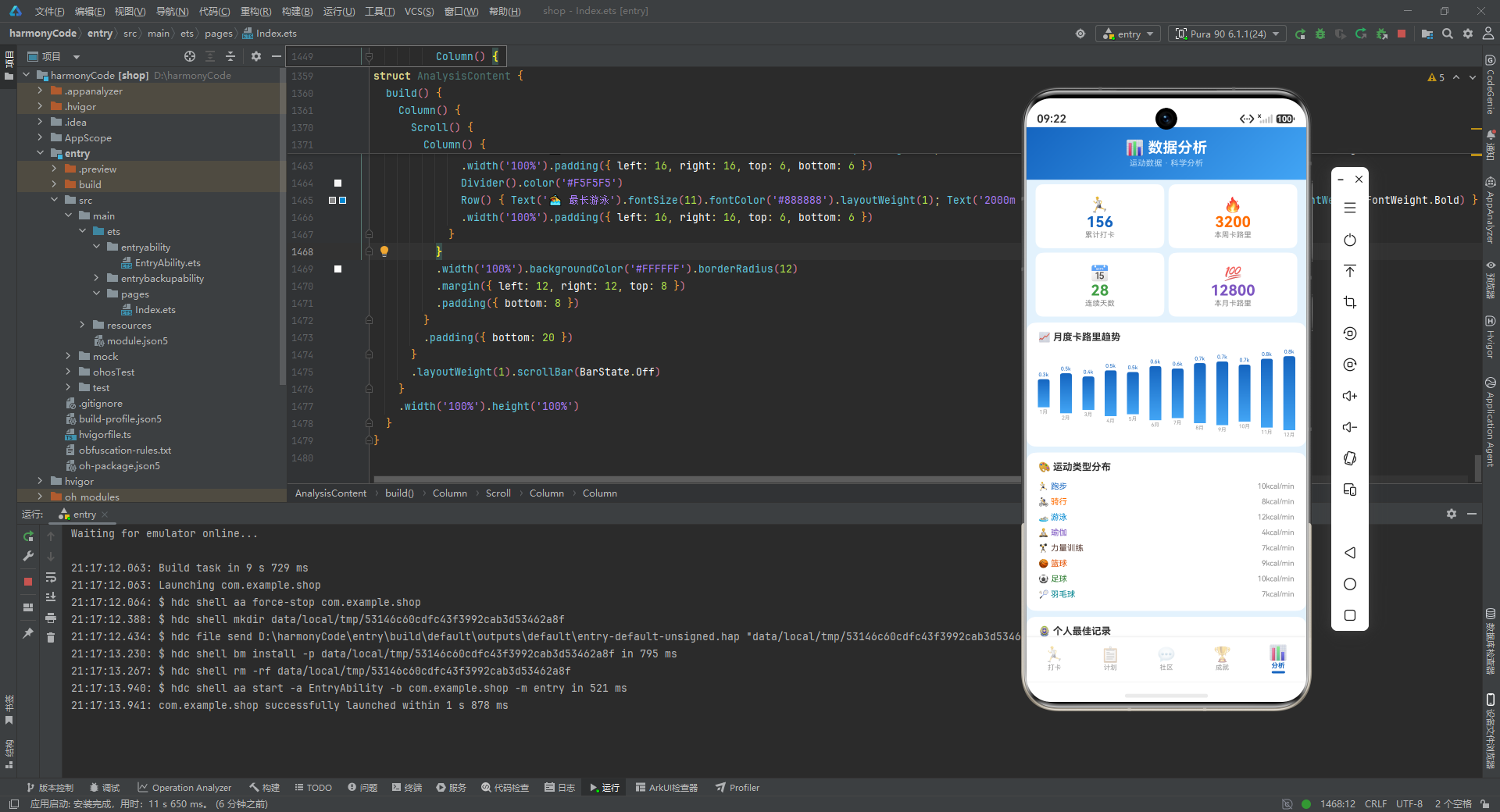
月度趋势数据是一个 12 元素的数组,记录了全年 12 个月每月的卡路里消耗。数据呈现出明显的递增趋势,从 1 月的 320 到 12 月的 840,模拟了一个用户运动习惯逐步养成的过程。
MAX_MONTHLY 存储了最大值 840,用于柱状图的归一化计算——每个月的柱子高度按 当月值 / 最大值 的比例绘制。这种"以最大值为基准"的归一化方式简单有效,确保最高的柱子撑满绘图区域,其余柱子按比例缩短,直观地呈现相对差异。
MONTH_LABELS 则是月份的中文标签数组,与数据一一对应。
八、Mock 数据:模拟真实应用的数据内容
为了让应用在没有后端的情况下也能展示完整的界面效果,代码中预置了三组 Mock 数据。这些数据的内容经过精心编排,既真实可信,又能覆盖各种边界情况。
8.1 打卡记录 Mock 数据
const mockCheckIns: CheckInRecord[] = [
  new CheckInRecord(1, '2026-08-06', '跑步', 45, 450, 5.2, 145, '高强度', '滨江公园', '😊', '天气很好,配速比上次快了10秒', 6800, '06:30', '07:15'),
  new CheckInRecord(2, '2026-08-06', '瑜伽', 30, 120, 0, 85, '低强度', '家中', '😌', '晨间瑜伽,身心放松', 0, '07:30', '08:00'),
  new CheckInRecord(3, '2026-08-05', '力量训练', 50, 350, 0, 130, '中等', '健身房', '💪', '胸+三头训练日', 0, '19:00', '19:50'),
  // ... 共 20 条
]
20 条打卡记录覆盖了多种运动类型、多个日期、多种强度等级。数据设计上有几个值得注意的特点。
同日多条记录:8 月 6 日有两条记录(跑步和瑜伽),模拟了用户一天内进行多次运动的场景。这测试了列表按时间倒序排列、同日记录分组展示等逻辑。
多运动类型覆盖:跑步、瑜伽、力量训练、游泳、篮球、骑行、羽毛球、足球 8 种运动类型全部出现在记录中,确保了运动类型配置的每个条目都被使用到。
不同强度的分布:从"低强度"到"极限"四个等级都有记录,强度标签的颜色差异在列表中得以充分展示。
真实感的备注:每条记录的 notes 字段都写了具有场景感的文字,如"天气很好,配速比上次快了10秒"“3v3半场,赢了5局”。这些文字让 Mock 数据读起来像真实用户的记录,而非机械的测试数据。
合理的心率数据:低强度瑜伽的心率 85 bpm,高强度跑步的心率 145 bpm,极限足球的心率 155 bpm,这些数值符合运动生理学的基本规律,增强了数据的可信度。
8.2 训练计划与社区动态 Mock 数据
const mockPlans: TrainingPlan[] = [
new TrainingPlan(1, '晨跑5公里', '跑步', 30, 300, 5, '周一', '中等', true, 100, '有氧基础训练', '🏃'),
new TrainingPlan(2, '上肢力量训练', '力量训练', 45, 315, 0, '周一', '困难', false, 60, '胸+肩+三头', '🏋️'),
// ... 共 12 条
]
const mockPosts: CommunityPost[] = [
new CommunityPost(1, '跑者小王', '🏃♂️', '跑步', 45, 450, '今天滨江跑了一个5K,配速5\'30",感觉状态比上周好了不少!坚持就是胜利💪', 128, 32, '2小时前', 3, true),
// ... 共 12 条
]
12 条训练计划按周一到周日分布,涵盖了力量、有氧、柔韧性等多种训练类型。部分计划已完成(completed: true, progress: 100),部分进行中(progress 为 0 到 100 之间的值),这种混合状态能充分展示计划列表中已完成和进行中两种卡片的视觉差异。
12 条社区动态则模拟了不同用户发布的运动分享。每条动态的文字内容都带有鲜明的个人风格和运动场景描述,点赞数从 54 到 312 不等,模拟了热门程度的差异。liked 字段在 true 和 false 之间交替,使得点赞按钮的两种状态都能在列表中看到。
九、统计函数:将计算逻辑与视图解耦
在数据与视图之间,应用定义了一组统计函数。这些函数封装了各类数值计算逻辑,使得视图层只需要调用函数即可获得计算结果,无需在布局代码中嵌入复杂的计算表达式。
function getTotalCheckIns(): number { return 156 }
function getTodayCalories(): number { return 520 }
function getWeeklyCalories(): number { return 3200 }
function getMonthlyCalories(): number { return 12800 }
function getStreakDays(): number { return 28 }
function getCaloriesPercent(): number { return Math.round(RING_DATA['calories'] / RING_TARGETS['calories'] * 100) }
function getStepsPercent(): number { return Math.round(RING_DATA['steps'] / RING_TARGETS['steps'] * 100) }
function getDurationPercent(): number { return Math.round(RING_DATA['duration'] / RING_TARGETS['duration'] * 100) }
function getDistancePercent(): number { return Math.round(RING_DATA['distance'] / RING_TARGETS['distance'] * 100) }
function getCaloriesRingAngle(): number { return Math.round(RING_DATA['calories'] / RING_TARGETS['calories'] * 360) }
function getStepsRingAngle(): number { return Math.round(RING_DATA['steps'] / RING_TARGETS['steps'] * 360) }
function getDurationRingAngle(): number { return Math.round(RING_DATA['duration'] / RING_TARGETS['duration'] * 360) }
function getDistanceRingAngle(): number { return Math.round(RING_DATA['distance'] / RING_TARGETS['distance'] * 360) }
function getMonthlyTrend(idx: number): number { return MONTHLY_TREND[idx] }
function getMaxMonthly(): number { return MAX_MONTHLY }
function getHeatmapColor(idx: number): string { return HEATMAP_COLORS[HEATMAP_DATA[idx]] }
function getHeatmapValue(idx: number): number { return HEATMAP_DATA[idx] }
function getUnlockedCount(): number { return 6 }
function getTotalAchievements(): number { return 12 }
这组函数可以分为四类来理解。
第一类是聚合统计函数:getTotalCheckIns、getTodayCalories、getWeeklyCalories、getMonthlyCalories、getStreakDays。在当前实现中,这些函数直接返回固定的数值,模拟从后端获取的统计结果。在真实应用中,它们会被替换为对数据库或接口的查询逻辑。这种"函数封装"的做法使得数据来源的切换对视图层完全透明。
第二类是百分比计算函数:getCaloriesPercent、getStepsPercent、getDurationPercent、getDistancePercent。它们的计算公式统一为 Math.round(当前值 / 目标值 * 100),先做除法得到小数比例,乘以 100 转为百分比,再用 Math.round 四舍五入取整。Math.round 的使用很重要——如果不取整,界面可能显示诸如 86.666666…% 这样的丑观数字。
第三类是角度计算函数:getCaloriesRingAngle 等。它们的公式与百分比函数几乎相同,只是把乘以 100 改为乘以 360,因为环形进度需要一个 0 到 360 度的角度值来绘制弧线。这组函数的存在说明,应用在设计时考虑了真正的环形绘制需求(虽然当前视图层用简化方式模拟了环形效果,但这些函数为未来的精确绘制预留了接口)。
第四类是数据访问函数:getMonthlyTrend、getMaxMonthly、getHeatmapColor、getHeatmapValue、getUnlockedCount、getTotalAchievements。这些函数本质上是数组索引或常量返回的封装,但通过函数调用的方式,将"数据从哪里来"的细节隐藏了起来。
这种将计算逻辑集中到函数层的做法,体现了"关注点分离"的工程原则。视图层只负责"展示什么",函数层负责"怎么算",数据层负责"数据从哪来"。三层各司其职,代码的可读性和可维护性都得到了提升。
十、底部 Tab 枚举:类型安全的导航状态
enum SportsTab {
  CHECKIN = 0,
  PLANS = 1,
  COMMUNITY = 2,
  ACHIEVEMENTS = 3,
  ANALYSIS = 4
}
这个枚举定义了应用底部导航栏的五个标签页。使用枚举而非魔法数字(直接写 0、1、2、3、4)有显著的好处:代码中出现的 SportsTab.CHECKIN 比 0 具有自解释性,阅读者无需查阅注释就能理解这是"打卡页"。同时,枚举提供了编译期检查,如果拼写了不存在的标签名,编译器会立即报错。
每个枚举值对应一个功能模块:打卡(记录)、计划(规划)、社区(社交)、成就(激励)、分析(回顾)。这五个模块恰好覆盖了一个运动习惯养成闭环的全部环节——记录行为、规划未来、获得反馈、持续激励、复盘分析。这种功能架构设计是经过深思熟虑的。
十一、入口页面与底部导航
入口页面是整个应用的根容器,负责管理当前激活的标签页,并渲染对应的内容区域和底部导航栏。
11.1 入口组件结构
@Entry
@Component
struct SportsCheckInApp {
  @State activeTab: SportsTab = SportsTab.CHECKIN

  @Builder contentArea() {
    Column() {
      if (this.activeTab === SportsTab.CHECKIN) {
        CheckInContent()
      } else if (this.activeTab === SportsTab.PLANS) {
        PlanContent()
      } else if (this.activeTab === SportsTab.COMMUNITY) {
        CommunityContent()
      } else if (this.activeTab === SportsTab.ACHIEVEMENTS) {
        AchievementContent()
      } else {
        AnalysisContent()
      }
    }
    .layoutWeight(1)
  }
  // ...
}
@Entry 装饰器标记这是应用的入口组件,即整个应用的根页面。@Component 装饰器声明这是一个自定义组件。struct 关键字定义了组件的结构体,ArkTS 中组件使用结构体而非类来定义。
@State activeTab: SportsTab = SportsTab.CHECKIN 是组件的状态变量。@State 装饰器表示这个变量是响应式的——当它的值发生变化时,所有引用了它的 UI 部分会自动重新渲染。初始值为 SportsTab.CHECKIN,意味着应用启动后默认显示打卡页。
@Builder contentArea() 定义了一个构建器方法。@Builder 装饰器用于定义可复用的 UI 片段,类似于其他框架中的"渲染函数"。这里它根据 activeTab 的当前值,通过一组 if-else 条件分支来决定渲染哪个内容组件。.layoutWeight(1) 让内容区域占据底部导航栏之外的全部剩余空间。
这种"条件渲染"的标签页切换方式简单直接,适合页面数量不多的场景。它的特点是所有页面组件在切换时才会被创建(而非全部预创建),内存占用较低,但切换时可能有轻微的初始化延迟。
11.2 底部导航项构建器
@Builder bottomTabItem(icon: string, label: string, tab: SportsTab) {
  Column() {
    Text(icon).fontSize(20).opacity(this.activeTab === tab ? 1.0 : 0.45)
    Text(label).fontSize(9)
      .fontColor(this.activeTab === tab ? '#1565C0' : '#999999')
      .fontWeight(this.activeTab === tab ? FontWeight.Bold : FontWeight.Normal)
      .margin({ top: 1 })
    if (this.activeTab === tab) {
      Column().width(18).height(3)
        .backgroundColor('#1565C0').borderRadius(2).margin({ top: 2 })
    }
  }
  .layoutWeight(1)
  .alignItems(HorizontalAlign.Center)
  .padding({ top: 5, bottom: 5 })
  .onClick(() => { this.activeTab = tab })
}
这是一个带参数的构建器,用于生成单个底部导航项。它接收三个参数:icon(图标 emoji)、label(文字标签)、tab(对应的枚举值)。
这个构建器的设计精妙之处在于,它通过 this.activeTab === tab 的三元表达式,在同一个构建器中同时处理了"选中"和"未选中"两种状态。
图标 Text(icon) 的 opacity 在选中时为 1.0(完全不透明),未选中时为 0.45(半透明),通过透明度的差异区分状态。
文字 Text(label) 有三层差异:颜色(选中为蓝色 #1565C0,未选中为灰色 #999999)、字重(选中为粗体,未选中为常规)、以及上边距。这种多重视觉差异的叠加,确保了选中状态的辨识度。
最巧妙的是选中指示器的设计:if (this.activeTab === tab) 条件下,渲染一个 18x3 的蓝色小条,作为选中标签下方的指示线。这个元素只在选中时存在,未选中时完全不渲染。这种"条件渲染"而非"条件隐藏"的做法,避免了不必要的 DOM 节点。
.layoutWeight(1) 让每个导航项平均分配横向空间,.alignItems(HorizontalAlign.Center) 让内容居中对齐,.onClick 将点击事件绑定到 this.activeTab = tab,完成页面切换。
11.3 入口页面的整体布局
build() {
  Column() {
    this.contentArea()
    Row() {
      this.bottomTabItem('🏃', '打卡', SportsTab.CHECKIN)
      this.bottomTabItem('📋', '计划', SportsTab.PLANS)
      this.bottomTabItem('💬', '社区', SportsTab.COMMUNITY)
      this.bottomTabItem('🏆', '成就', SportsTab.ACHIEVEMENTS)
      this.bottomTabItem('📊', '分析', SportsTab.ANALYSIS)
    }
    .width('100%')
    .backgroundColor('#FFFFFF')
    .padding({ top: 4, bottom: 6 })
    .shadow({ radius: 8, color: '#1A000000', offsetY: -2 })
  }
  .width('100%').height('100%')
  .backgroundColor('#E3F2FD')
}
build() 方法是每个组件必须实现的方法,它返回组件的 UI 结构。
最外层是一个 Column,宽度高度均为 100%,背景色为浅蓝 #E3F2FD。这个浅蓝背景是整个应用的基底色,在内容区域的间隙处隐约可见,营造出柔和的整体氛围。
Column 内部先放置 this.contentArea()(内容区域,占据剩余空间),再放置底部导航 Row。这种"内容在上、导航在下"的垂直布局是移动应用最经典的布局模式。
底部导航 Row 设置了白色背景、上下内边距,以及一个关键属性 .shadow({ radius: 8, color: '#1A000000', offsetY: -2 })。这个阴影向上偏移 2 像素,颜色为带 10% 透明度的黑色,在导航栏顶部形成一条柔和的投影线,使导航栏与内容区域产生视觉层次分离。#1A 是十六进制透明度前缀,表示约 10% 的不透明度。
五个 bottomTabItem 调用依次生成了五个导航项,每个都传入了对应的图标、文字和枚举值。这种通过参数复用构建器的方式,让五个导航项的代码高度一致,任何导航项的样式调整只需修改构建器定义即可,无需逐个修改。
十二、运动打卡页:核心功能的完整实现
运动打卡页是整个应用最重要的页面,它集成了环形进度、热力图、打卡记录列表、以及四个弹窗(新增、编辑、删除确认、详情),是组件复杂度最高的模块。
12.1 组件状态定义
@Component
struct CheckInContent {
  @State showAddModal: boolean = false
  @State showEditModal: boolean = false
  @State showDeleteConfirm: boolean = false
  @State showDetailModal: boolean = false
  @State selectedRecord: CheckInRecord | null = null
  @State formSportType: string = '跑步'
  @State formDuration: string = '30'
  @State formIntensity: string = '中等'
  @State formLocation: string = ''
  @State formNotes: string = ''
  // ...
}
打卡页组件定义了 9 个状态变量,可以分为三组。
弹窗控制组:showAddModal、showEditModal、showDeleteConfirm、showDetailModal 四个布尔值,分别控制四个弹窗的显示与隐藏。这种"每个弹窗一个布尔值"的设计简单直观,且天然支持互斥——同时只会有一个弹窗显示(详情弹窗中可以触发编辑或删除弹窗,形成弹窗嵌套)。
选中数据组:selectedRecord 存储当前被点击的打卡记录,类型为 CheckInRecord | null。初始值为 null,当用户点击某条记录卡片时,被点击的记录会被赋值给这个变量,详情弹窗、编辑弹窗、删除确认弹窗都从这个变量中读取数据。使用联合类型 | null 是为了表达"可能没有选中任何记录"的状态。
表单数据组:formSportType、formDuration、formIntensity、formLocation、formNotes 五个变量,用于存储新增打卡表单中的用户输入。它们都有初始值(如运动类型默认为"跑步",时长默认为"30"分钟),使得用户打开表单时已经有合理的默认选项,减少了必填项的填写负担。
12.2 遮罩层构建器
@Builder modalOverlay(onClose: () => void) {
  Column()
    .width('100%').height('100%')
    .backgroundColor('rgba(0,0,0,0.5)')
    .onClick(onClose)
}
这是一个被多个弹窗复用的遮罩层构建器。它接收一个 onClose 回调函数作为参数。
遮罩层是一个铺满整个屏幕的 Column,背景色为 rgba(0,0,0,0.5)——半透明黑色。这个半透明遮罩有两个作用:一是视觉上将弹窗与底层内容分离,引导用户注意力聚焦到弹窗上;二是拦截底层内容的点击事件,防止用户在弹窗打开时误操作底层界面。
.onClick(onClose) 将点击遮罩区域的行为绑定到关闭弹窗——这是移动端弹窗交互的常见模式,用户点击弹窗外部区域即可关闭弹窗,提供了便捷的退出路径。
将遮罩层抽取为独立构建器,避免了在每个弹窗中重复编写相同的遮罩代码,体现了 DRY(Don’t Repeat Yourself)原则。
12.3 新增打卡弹窗
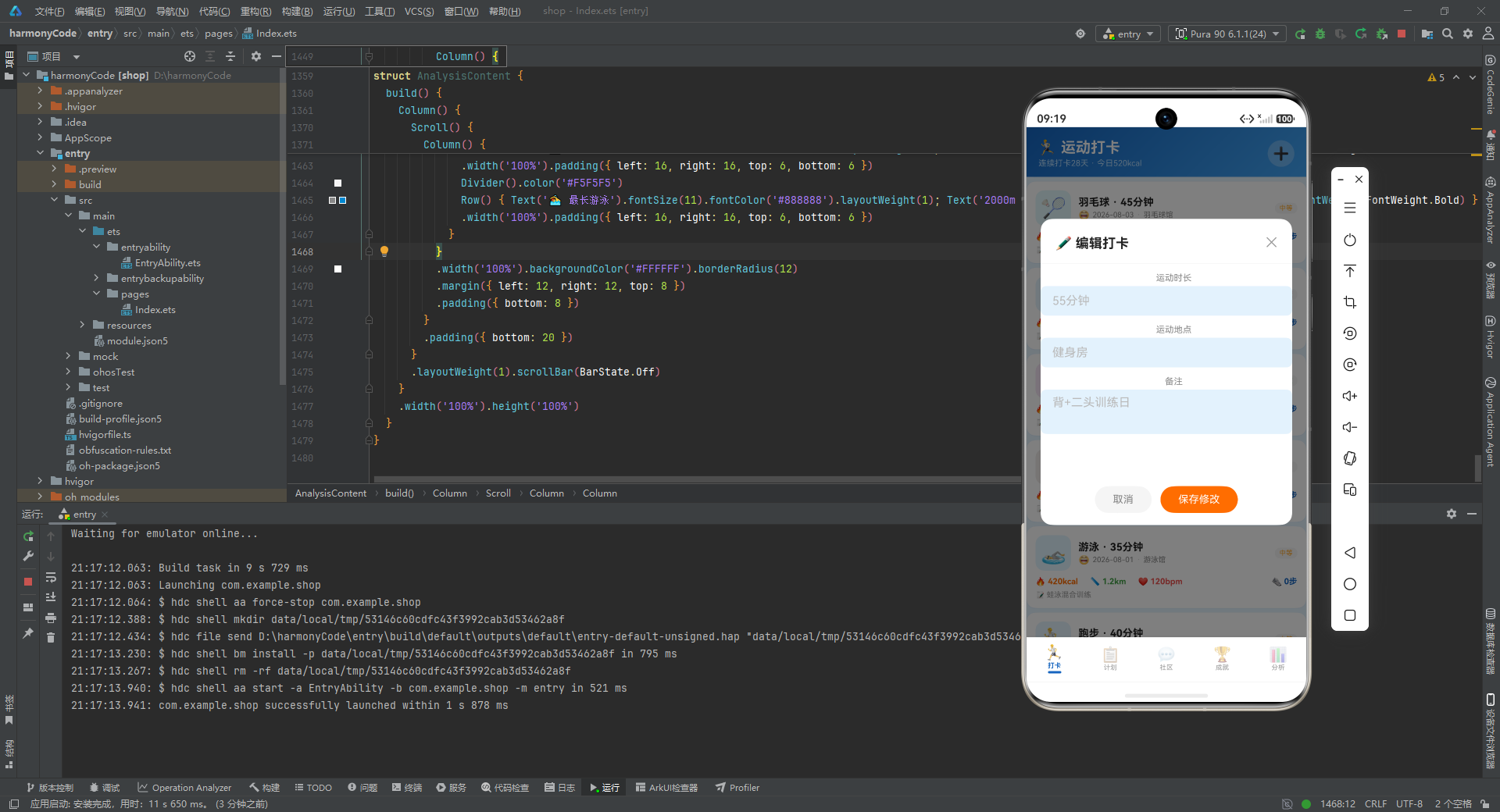
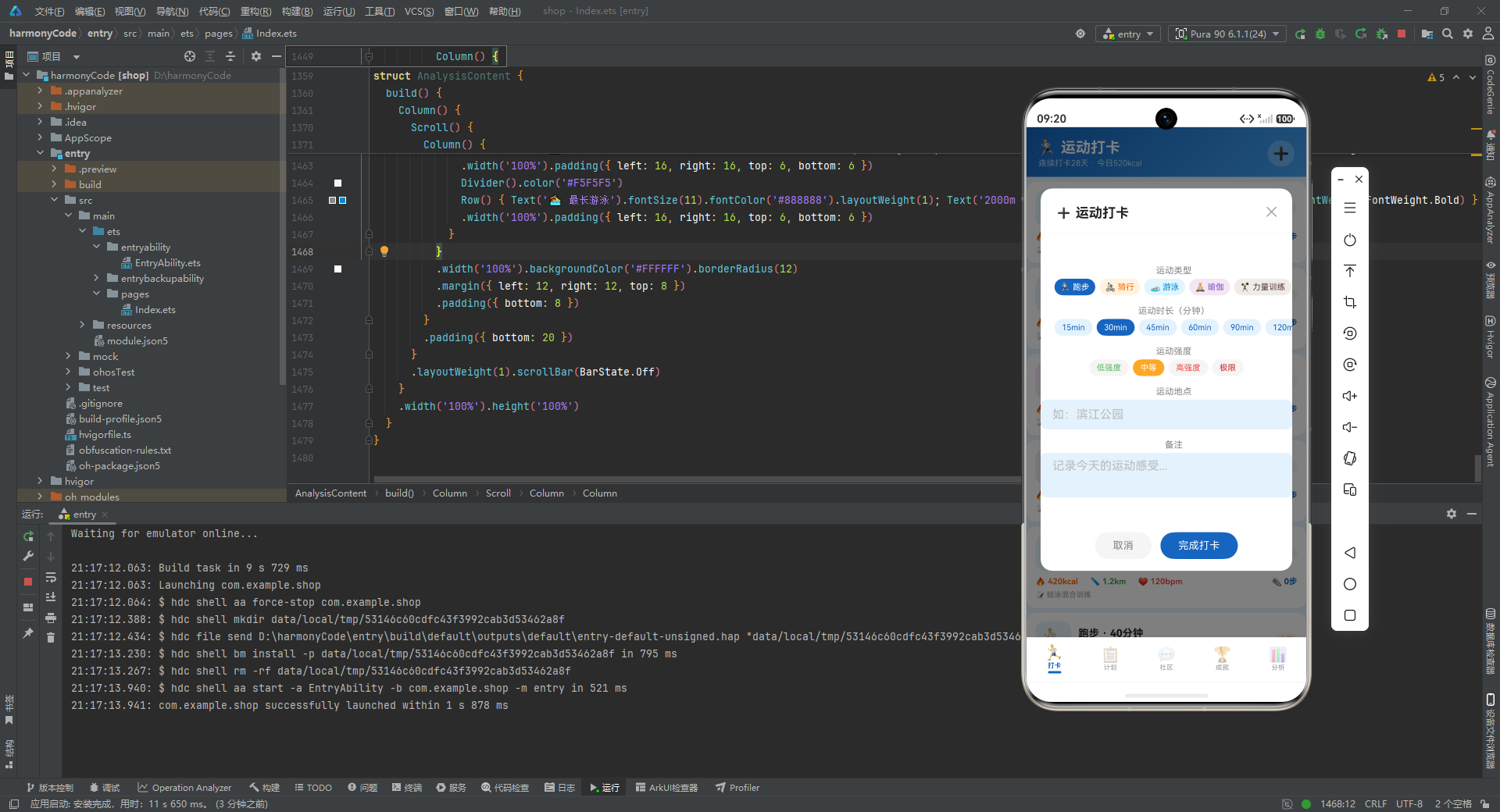
新增打卡弹窗是应用中最复杂的表单界面,它包含了运动类型选择、时长选择、强度选择、地点输入、备注输入等多个表单元素。
@Builder addCheckInModal() {
  Column() {
    this.modalOverlay(() => { this.showAddModal = false })
    Column() {
      Row() {
        Text('➕ 运动打卡').fontSize(18).fontWeight(FontWeight.Bold).fontColor('#212121')
        Row().layoutWeight(1)
        Text('✕').fontSize(18).fontColor('#999999')
          .onClick(() => { this.showAddModal = false })
      }
      .width('100%').padding({ left: 20, right: 20, top: 18, bottom: 12 })
      Divider().color('#F0F0F0')
      // ... 表单内容
    }
    .width('90%').height('75%').backgroundColor('#FFFFFF').borderRadius(16)
    .alignItems(HorizontalAlign.Center)
    .position({ x: '5%', y: '12%' })
  }
  .width('100%').height('100%').position({ x: 0, y: 0 }).zIndex(999)
}
弹窗的整体结构是一个全屏 Column(包含遮罩和弹窗主体),弹窗主体是一个 90% 宽、75% 高的白色圆角卡片,通过 .position({ x: '5%', y: '12%' }) 定位在屏幕中上部。.zIndex(999) 确保弹窗浮于所有内容之上。
标题栏使用 Row 横向排列,左侧是"➕ 运动打卡"标题文字,中间用一个 Row().layoutWeight(1) 占据剩余空间将关闭按钮推到右侧,右侧是"✕"关闭按钮。这种"弹性空间占位"的布局技巧在头部栏中非常常见。
标题栏下方的 Divider().color('#F0F0F0') 是一条浅灰色分隔线,将标题与表单内容视觉分离。
运动类型选择器是一个亮点设计:
Row() {
  ForEach(SPORT_TYPES, (s: string) => {
    if (this.formSportType === s) {
      Text(SPORT_CONFIG[s]?.icon + ' ' + s)
        .fontSize(11).fontColor('#FFFFFF')
        .backgroundColor(SPORT_CONFIG[s]?.color ?? '#1565C0')
        .padding({ left: 8, right: 8, top: 5, bottom: 5 }).borderRadius(12)
        .margin({ left: 3, right: 3 })
    } else {
      Text(SPORT_CONFIG[s]?.icon + ' ' + s)
        .fontSize(11).fontColor(SPORT_CONFIG[s]?.color ?? '#1565C0')
        .backgroundColor(SPORT_CONFIG[s]?.bg ?? '#E3F2FD')
        .padding({ left: 8, right: 8, top: 5, bottom: 5 }).borderRadius(12)
        .margin({ left: 3, right: 3 })
        .onClick(() => { this.formSportType = s })
    }
  })
}
这段代码遍历 SPORT_TYPES 数组,为每种运动生成一个标签按钮。选中态和未选中态通过 if-else 分支呈现完全不同的样式:选中时文字为白色、背景为该运动的主色调;未选中时文字为该运动的主色调、背景为该运动的浅色背景。
这种"双色反转"的选中效果非常直观——选中项在视觉上"凸出"(深色背景白色文字),未选中项"凹陷"(浅色背景深色文字)。而且每种运动的标签都使用自己的专属配色,让选择器不仅有功能性,还有视觉辨识度。
SPORT_CONFIG[s]?.color 中的可选链操作符 ?. 是一个防御性编程技巧:如果 s 不在配置表中,返回 undefined 而非抛出错误,后面的 ?? '#1565C0' 再提供一个默认值。这种"双重保险"确保了即使数据异常,界面也不会崩溃。
时长选择器使用了类似的设计模式,但选项是数字 [15, 30, 45, 60, 90, 120],代表 15 分钟到 120 分钟的预设时长。这些预设值覆盖了从短时拉伸到长时间有氧的常见运动时长,用户无需手动输入数字,点击即可选择。
强度选择器同样复用了这个模式,但选中态的背景色来自 INTENSITY_CONFIG 中各强度对应的颜色,使得低强度为绿色、中等为橙色、高强度为红色、极限为深红,选择器本身就成为了一个强度可视化工具。
地点输入和备注输入使用了 TextInput 和 TextArea 组件:
TextInput({ placeholder: '如:滨江公园' })
  .placeholderColor('#BBBBBB').fontSize(14).width('100%')
  .backgroundColor('#E3F2FD').borderRadius(8)
  .margin({ left: 20, right: 20, top: 4 })
  .onChange((v: string) => { this.formLocation = v })

TextArea({ placeholder: '记录今天的运动感受...' })
  .placeholderColor('#BBBBBB').fontSize(12).width('100%').height(60)
  .backgroundColor('#E3F2FD').borderRadius(8)
  .margin({ left: 20, right: 20, top: 4 })
  .onChange((v: string) => { this.formNotes = v })
TextInput 是单行输入框,TextArea 是多行输入框。两者都设置了浅蓝背景 #E3F2FD 和 8 像素圆角,与整体的浅蓝主题保持一致。placeholder 属性提供了输入提示文字,placeholderColor 设置为浅灰 #BBBBBB,与实际输入的文字颜色形成层次差异。
.onChange((v: string) => { this.formLocation = v }) 是输入框的变更回调,每次用户输入时,输入值 v 会被同步到对应的状态变量。由于这些变量是 @State 装饰的,值的变更会触发界面更新,实现了双向数据绑定。
弹窗底部的操作按钮区域:
Row() {
  Text('取消').fontSize(14).fontColor('#888888')
    .backgroundColor('#F5F5F5').borderRadius(20)
    .padding({ left: 24, right: 24, top: 10, bottom: 10 })
    .onClick(() => { this.showAddModal = false })
  Text('完成打卡').fontSize(14).fontColor('#FFFFFF')
    .backgroundColor('#1565C0').borderRadius(20)
    .padding({ left: 24, right: 24, top: 10, bottom: 10 })
    .margin({ left: 12 })
    .onClick(() => { this.showAddModal = false })
}
.width('100%').justifyContent(FlexAlign.Center)
两个按钮水平排列:左侧"取消"按钮使用灰色背景灰色文字,表示次要操作;右侧"完成打卡"按钮使用蓝色背景白色文字,表示主要操作。.justifyContent(FlexAlign.Center) 让两个按钮整体居中,.margin({ left: 12 }) 在两按钮之间留出间距。
这种"取消在左、确认在右"的按钮排列顺序遵循了移动端的通用交互规范,用户无需思考就能凭直觉操作。
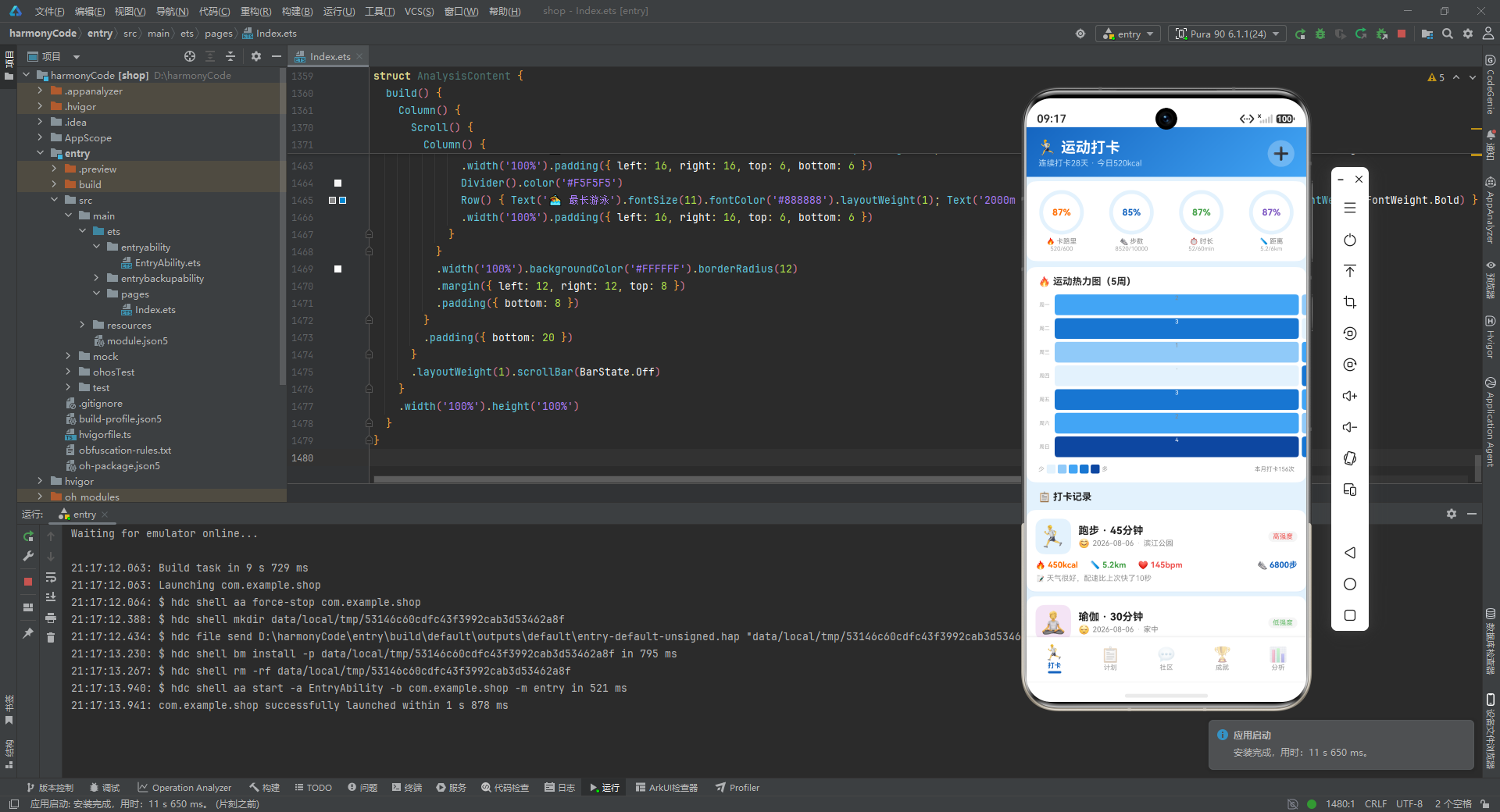
12.4 环形进度区域
环形进度区域是打卡页最具视觉冲击力的部分,它通过四个并排的"伪环形"组件,展示了卡路里、步数、时长、距离四个维度的当日完成情况。
Row() {
  // 卡路里环
  Column() {
    Stack() {
      Column().width(60).height(60).borderRadius(30).backgroundColor('#E3F2FD')
      Column().width(50).height(50).borderRadius(25).backgroundColor('#FFFFFF')
      Text(getCaloriesPercent() + '%').fontSize(12).fontWeight(FontWeight.Bold).fontColor('#FF6D00')
    }
    .width(60).height(60)
    Text('🔥 卡路里').fontSize(9).fontColor('#888888').margin({ top: 4 })
    Text(RING_DATA['calories'] + '/' + RING_TARGETS['calories']).fontSize(8).fontColor('#AAAAAA')
  }.layoutWeight(1).alignItems(HorizontalAlign.Center)
  // ... 步数环、时长环、距离环结构相同
}
.width('100%').padding({ top: 12, bottom: 12 })
.backgroundColor('#FFFFFF')
.margin({ left: 12, right: 12, top: 6 })
.borderRadius(12)
这里的"环形"实际上是通过 Stack 堆叠三个元素来模拟的:最底层是一个 60x60 的浅蓝色圆形(borderRadius: 30 使正方形变成圆形),中间层是一个 50x50 的白色圆形,最上层是百分比文字。两个圆形的尺寸差(60-50=10)形成了一圈 5 像素宽的"环",看起来就像一个进度环的底色。
虽然这种实现方式无法显示真实的进度弧线(那需要使用 Progress 组件或自定义绘制),但它通过百分比文字的动态变化,仍然传达了进度信息。每个环下方还有标签文字(如"🔥 卡路里")和数值文字(如"520/600"),让用户同时获得百分比、当前值、目标值三重信息。
四个环使用不同的文字颜色来区分维度:卡路里用橙色 #FF6D00、步数用蓝色 #1565C0、时长用绿色 #43A047、距离用紫色 #7E57C2。这种颜色编码与全应用的配色体系一致,用户在不同页面看到相同颜色时能自动关联到对应的维度。
12.5 热力图实现
热力图是打卡页的特色可视化组件,它通过颜色深浅直观地展示了用户近 5 周的运动频率。
@Builder heatmapCell(idx: number) {
  Column() {
    Text(getHeatmapValue(idx) > 0 ? getHeatmapValue(idx).toString() : '·')
      .fontSize(8).fontColor(getHeatmapValue(idx) > 2 ? '#FFFFFF' : '#888888')
  }
  .width('100%').height(28)
  .backgroundColor(getHeatmapColor(idx))
  .borderRadius(4)
  .margin({ left: 2, right: 2, top: 2, bottom: 2 })
}
热力图的每个格子由 heatmapCell 构建器生成,接收一个索引参数 idx。
格子的背景色由 getHeatmapColor(idx) 决定,它根据数据值从 HEATMAP_COLORS 数组中取色:值为 0 时是最浅的浅蓝,值为 4 时是最深的深蓝。
格子中的文字也有逻辑:当值大于 0 时显示数字本身(如"3"),值为 0 时显示一个点号"·"作为占位符。文字颜色根据值的大小动态调整——值大于 2 时(深色背景)用白色文字,值小于等于 2 时(浅色背景)用灰色文字。这种"背景色与文字色联动"的设计确保了在任何背景色下文字都清晰可读,体现了对可访问性的关注。
热力图的整体布局:
Row() {
  Column() {
    ForEach(WEEK_DAYS, (d: string) => {
      Text(d).fontSize(7).fontColor('#AAAAAA').height(32).textAlign(TextAlign.Center)
    })
  }.width(24)
  Column() {
    ForEach([0, 1, 2, 3, 4, 5, 6], (row: number) => {
      Row() {
        ForEach([0, 1, 2, 3, 4], (col: number) => {
          this.heatmapCell(col * 7 + row)
        })
      }
      .width('100%')
    })
  }
  .layoutWeight(1)
}
热力图采用"星期标签 + 数据网格"的双列布局。左侧是一个 24 像素宽的 Column,纵向排列"周一"到"周日"七个标签,每个标签高度 32 像素,与数据格子的行高对齐。
右侧是 5 列 x 7 行的数据网格。外层 ForEach 遍历行号 0 到 6(对应一周七天),内层 ForEach 遍历列号 0 到 4(对应 5 周)。每个格子的索引通过 col * 7 + row 计算得出,这种"列优先"的索引方式与 HEATMAP_DATA 数组的数据排列方式相对应。
热力图下方还有一个图例:
Row() {
  Text('少').fontSize(8).fontColor('#AAAAAA')
  ForEach([0, 1, 2, 3, 4], (i: number) => {
    Column().width(12).height(12).backgroundColor(HEATMAP_COLORS[i]).borderRadius(2).margin({ left: 3 })
  })
  Text('多').fontSize(8).fontColor('#AAAAAA').margin({ left: 3 })
  Row().layoutWeight(1)
  Text('本月打卡' + getTotalCheckIns() + '次').fontSize(8).fontColor('#888888')
}
图例展示了从"少"到"多"的五个颜色块,与热力图的配色一一对应,让用户理解颜色的含义。右侧还显示了本月打卡总次数,将可视化与具体数值关联起来。Row().layoutWeight(1) 在图例和次数之间占据弹性空间,将两者推到两端。
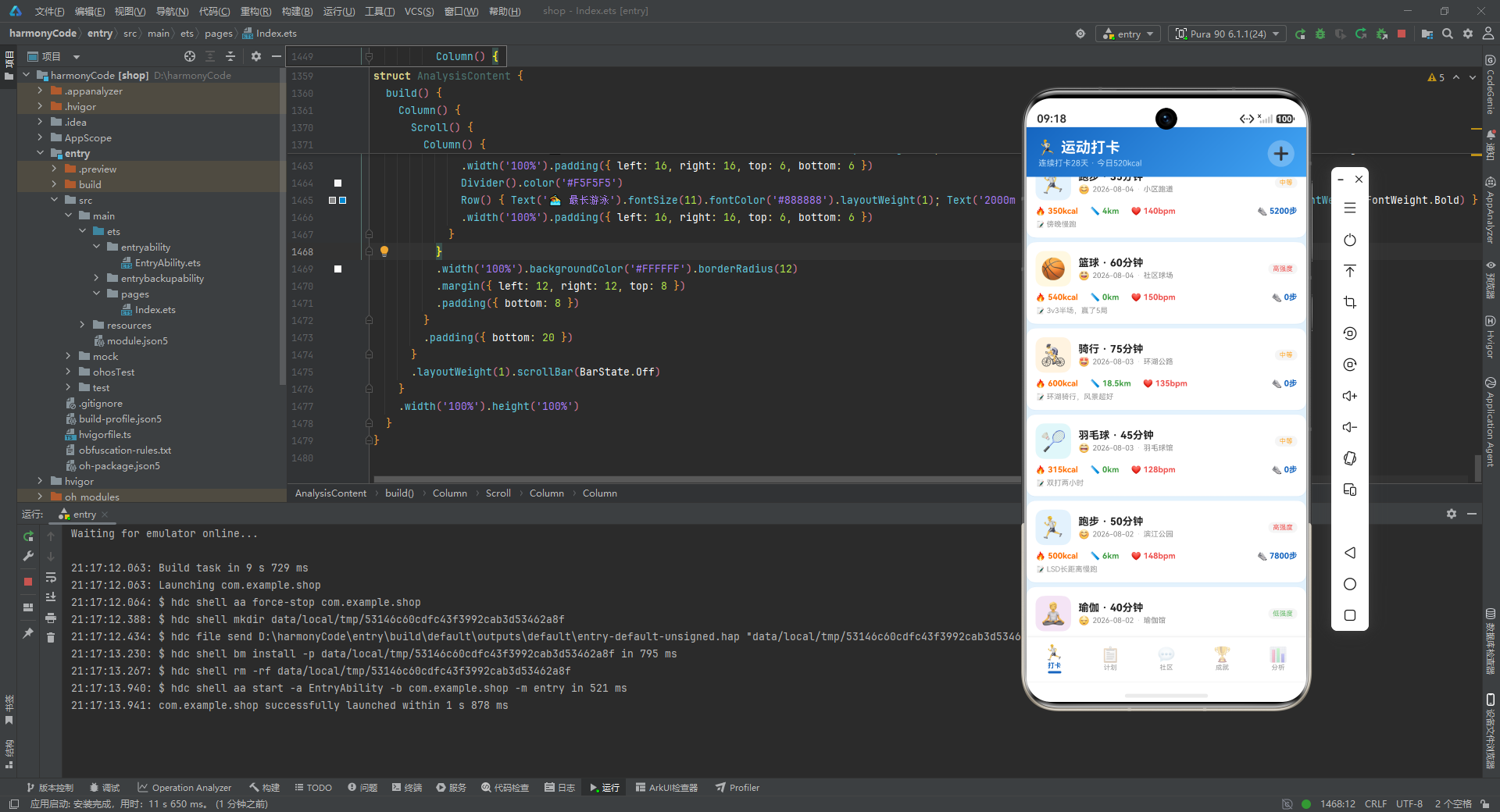
12.6 打卡记录卡片
打卡记录卡片是列表中每条记录的呈现单元,它信息密度高但布局清晰。
@Builder checkInCard(c: CheckInRecord) {
  Column() {
    Row() {
      Column() {
        Text(SPORT_CONFIG[c.sportType]?.icon ?? '🏃').fontSize(28)
      }.width(48).height(48)
      .backgroundColor(SPORT_CONFIG[c.sportType]?.bg ?? '#E3F2FD').borderRadius(12)
      .alignItems(HorizontalAlign.Center).justifyContent(FlexAlign.Center)
      Column() {
        Text(c.sportType + ' · ' + c.duration + '分钟').fontSize(14).fontWeight(FontWeight.Bold).fontColor('#212121')
        Row() {
          Text(c.mood).fontSize(12)
          Text(c.date).fontSize(10).fontColor('#888888').margin({ left: 4 })
          Text('·').fontSize(10).fontColor('#CCCCCC').margin({ left: 4 })
          Text(c.location).fontSize(10).fontColor('#888888').margin({ left: 4 })
        }
        .margin({ top: 2 })
      }.layoutWeight(1).alignItems(HorizontalAlign.Start).padding({ left: 10 })
      Column() {
        Text(INTENSITY_CONFIG[c.intensity]?.label ?? '中等').fontSize(9)
          .fontColor(INTENSITY_CONFIG[c.intensity]?.color ?? '#FFA726')
          .backgroundColor('#F5F5F5')
          .padding({ left: 6, right: 6, top: 2, bottom: 2 }).borderRadius(8)
      }.alignItems(HorizontalAlign.End)
    }
    .width('100%')
    Row() {
      Column() {
        Text('🔥 ' + c.calories + 'kcal').fontSize(11).fontColor('#FF6D00').fontWeight(FontWeight.Bold)
      }.alignItems(HorizontalAlign.Start)
      Column() {
        Text('📏 ' + c.distance + 'km').fontSize(11).fontColor('#43A047').fontWeight(FontWeight.Bold)
      }.margin({ left: 16 })
      Column() {
        Text('❤️ ' + c.heartRate + 'bpm').fontSize(11).fontColor('#EF5350').fontWeight(FontWeight.Bold)
      }.margin({ left: 16 })
      Row().layoutWeight(1)
      Column() {
        Text('👟 ' + c.steps + '步').fontSize(11).fontColor('#1565C0').fontWeight(FontWeight.Bold)
      }
    }
    .width('100%').margin({ top: 8 })
    if (c.notes !== '') {
      Text('📝 ' + c.notes).fontSize(10).fontColor('#999999').maxLines(2)
        .textOverflow({ overflow: TextOverflow.Ellipsis })
        .width('100%').margin({ top: 6 })
    }
  }
  .width('100%').padding(12).backgroundColor('#FFFFFF')
  .borderRadius(12).margin({ left: 12, right: 12, top: 6 })
  .shadow({ radius: 3, color: '#1A1565C0', offsetY: 1 })
  .onClick(() => { this.selectedRecord = c; this.showDetailModal = true })
}
卡片采用三层结构:顶部信息行、数据指标行、备注行。
顶部信息行包含三部分:左侧是一个 48x48 的圆角图标容器,背景色取自运动类型的浅色配置,中间显示运动类型的 emoji 图标;中间区域是运动名称和时长的组合文字(如"跑步 · 45分钟"),下方是心情、日期、地点的次要信息行;右侧是强度标签,使用强度配置中对应的颜色作为文字色,灰色为背景,形成小药丸形状的标签。
数据指标行横向排列了四个核心数据:卡路里(橙色)、距离(绿色)、心率(红色)、步数(蓝色)。每个数据都使用 emoji + 数值 + 单位的格式,颜色编码与前文环形进度的颜色一致。Row().layoutWeight(1) 在心率和步数之间插入弹性空间,将前三个数据推到左侧,步数推到右侧。
备注行是条件渲染的:只有当 c.notes 不为空字符串时才显示。.maxLines(2) 限制最多显示两行,.textOverflow({ overflow: TextOverflow.Ellipsis }) 设置超出部分以省略号结尾。这种处理避免了长备注撑爆卡片,保持了列表的整齐。
卡片整体的视觉处理非常精致:白色背景、12 像素圆角、12 像素内边距,以及 .shadow({ radius: 3, color: '#1A1565C0', offsetY: 1 }) 这一带色彩的阴影。注意阴影颜色不是通常的黑色,而是带有 10% 透明度的运动蓝 #1A1565C0,这让阴影与整体蓝色主题和谐统一,而非突兀的灰黑色。
.onClick 将整个卡片绑定为可点击,点击后设置 selectedRecord 并显示详情弹窗。
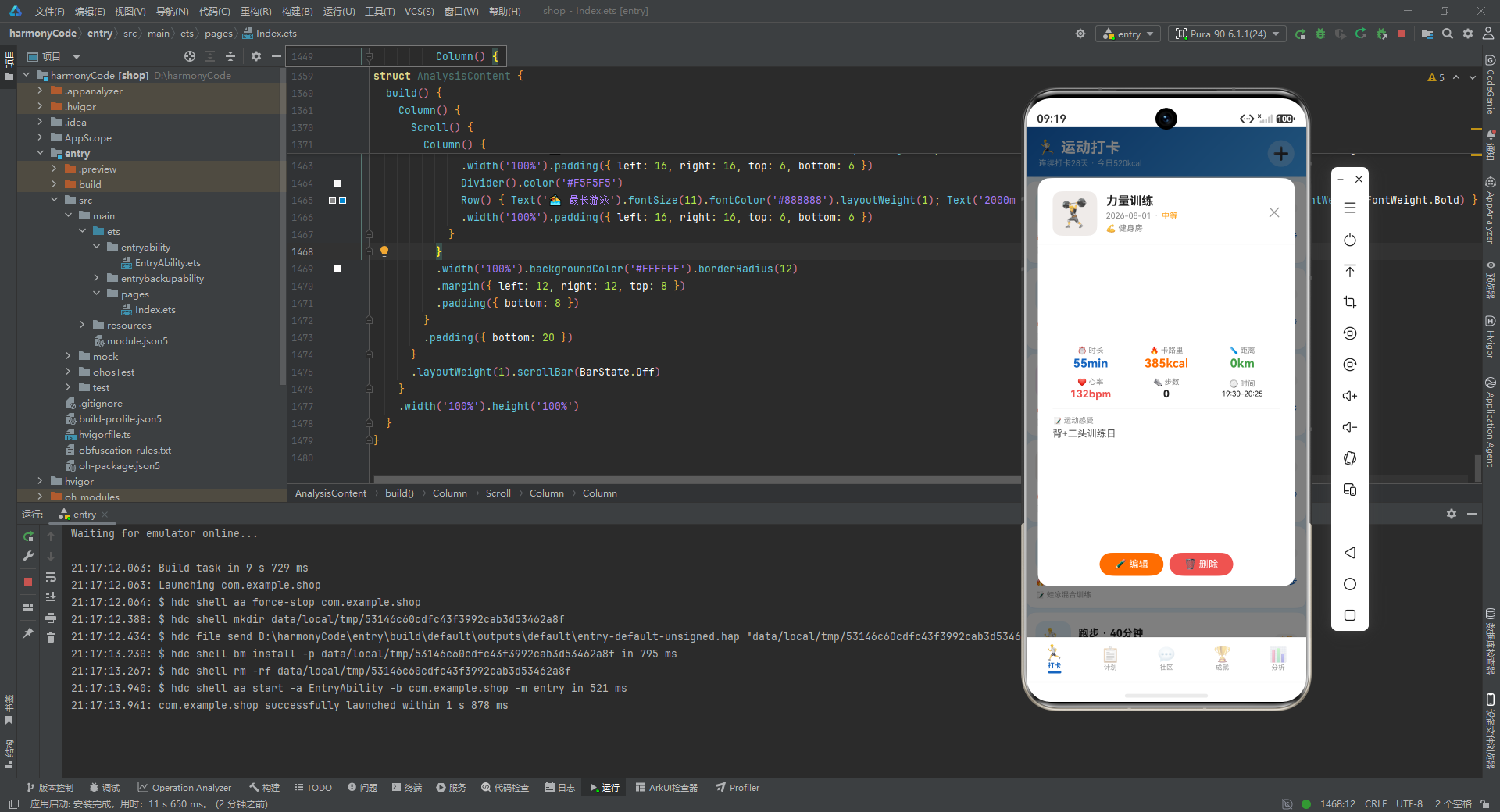
12.7 详情弹窗
详情弹窗在用户点击某条打卡记录后弹出,展示该记录的完整信息。
@Builder detailModal() {
  Column() {
    this.modalOverlay(() => { this.showDetailModal = false })
    Column() {
      Row() {
        Column() {
          Text(SPORT_CONFIG[this.selectedRecord?.sportType ?? '跑步']?.icon ?? '🏃').fontSize(36)
        }.width(60).height(60)
        .backgroundColor(SPORT_CONFIG[this.selectedRecord?.sportType ?? '跑步']?.bg ?? '#E3F2FD').borderRadius(12)
        .alignItems(HorizontalAlign.Center).justifyContent(FlexAlign.Center)
        Column() {
          Text(this.selectedRecord?.sportType ?? '').fontSize(16).fontWeight(FontWeight.Bold).fontColor('#212121')
          Row() {
            Text(this.selectedRecord?.date ?? '').fontSize(11).fontColor('#888888')
            Text('·').fontSize(11).fontColor('#CCCCCC').margin({ left: 4 })
            Text(INTENSITY_CONFIG[this.selectedRecord?.intensity ?? '中等']?.label ?? '中等').fontSize(11)
              .fontColor(INTENSITY_CONFIG[this.selectedRecord?.intensity ?? '中等']?.color ?? '#FFA726')
              .margin({ left: 4 })
          }
          .margin({ top: 4 })
          Text(this.selectedRecord?.mood + ' ' + (this.selectedRecord?.location ?? '')).fontSize(11).fontColor('#888888').margin({ top: 4 })
        }.layoutWeight(1).alignItems(HorizontalAlign.Start).padding({ left: 12 })
        Text('✕').fontSize(18).fontColor('#999999')
          .onClick(() => { this.showDetailModal = false })
      }
      // ... 数据指标和操作按钮
    }
    .width('92%').height('80%').backgroundColor('#FFFFFF').borderRadius(16)
    .alignItems(HorizontalAlign.Center)
    .position({ x: '4%', y: '10%' })
  }
  .width('100%').height('100%').position({ x: 0, y: 0 }).zIndex(999)
}
详情弹窗的头部与卡片头部类似,但图标更大(36 号字体 vs 28 号),信息更完整。由于 selectedRecord 可能为 null,所有对它属性的访问都使用了 ?. 可选链和 ?? '' 默认值的防御性写法。这种写法虽然略显冗长,但确保了弹窗在任何情况下都不会因空指针而崩溃。
详情弹窗的数据指标区域分为两行:第一行是时长、卡路里、距离三个主要指标,使用 16 号粗体大字;第二行是心率、步数、时间三个次要指标,使用 14 号或 10 号较小字体。这种"主次分层"的信息架构让用户首先关注最重要的数据,需要时再查看次要数据。
弹窗底部有两个操作按钮:“编辑"和"删除”。编辑按钮使用橙色背景,删除按钮使用红色背景,颜色差异暗示了操作的性质——编辑是常规操作,删除是危险操作。点击编辑会触发 showEditModal = true,点击删除会触发 showDeleteConfirm = true,形成了弹窗的级联调用。
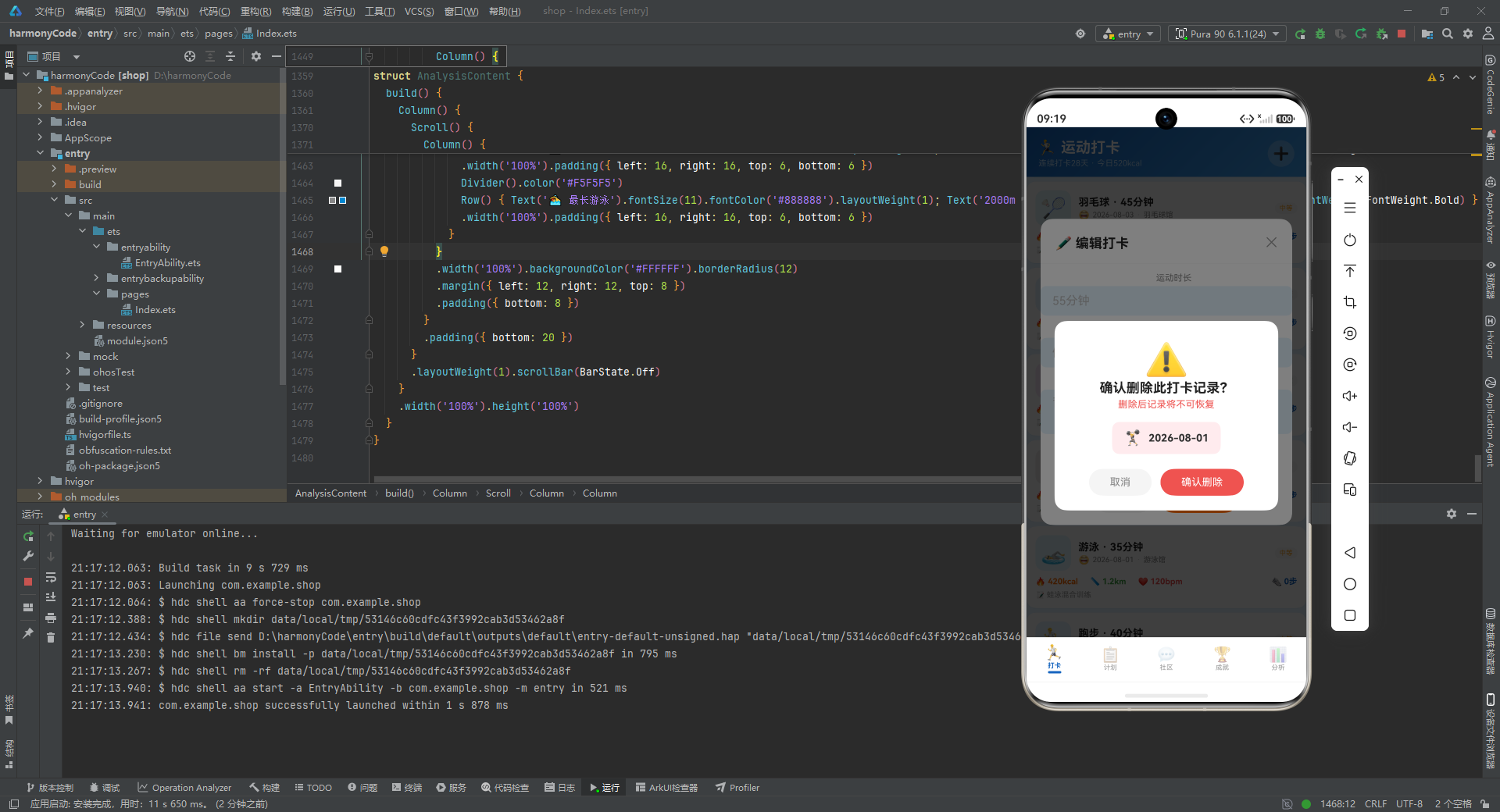
12.8 删除确认弹窗
@Builder deleteConfirmModal() {
  Column() {
    this.modalOverlay(() => { this.showDeleteConfirm = false })
    Column() {
      Text('⚠️').fontSize(48).margin({ top: 24 })
      Text('确认删除此打卡记录?').fontSize(18).fontWeight(FontWeight.Bold).fontColor('#212121')
      Text('删除后记录将不可恢复').fontSize(13).fontColor('#EF5350').margin({ top: 4 })
      Row() {
        Text(SPORT_CONFIG[this.selectedRecord?.sportType ?? '跑步']?.icon ?? '🏃').fontSize(20)
        Text(this.selectedRecord?.date ?? '').fontSize(14).fontColor('#333333')
          .fontWeight(FontWeight.Bold).margin({ left: 8 })
      }
      .backgroundColor('#FFEBEE').borderRadius(10)
      .padding({ left: 16, right: 16, top: 10, bottom: 10 }).margin({ top: 16 })
      Row() {
        Text('取消').fontSize(14).fontColor('#888888')
          .backgroundColor('#F5F5F5').borderRadius(20)
          .padding({ left: 28, right: 28, top: 10, bottom: 10 })
          .onClick(() => { this.showDeleteConfirm = false })
        Text('确认删除').fontSize(14).fontColor('#FFFFFF')
          .backgroundColor('#EF5350').borderRadius(20)
          .padding({ left: 28, right: 28, top: 10, bottom: 10 })
          .margin({ left: 12 })
          .onClick(() => { this.showDeleteConfirm = false })
      }
      .width('100%').justifyContent(FlexAlign.Center)
      .padding({ left: 20, right: 20, top: 20, bottom: 20 })
    }
    .width('80%').backgroundColor('#FFFFFF').borderRadius(16)
    .alignItems(HorizontalAlign.Center)
    .position({ x: '10%', y: '38%' })
  }
  .width('100%').height('100%').position({ x: 0, y: 0 }).zIndex(999)
}
删除确认弹窗是一个典型的"危险操作确认"对话框。它的设计遵循了几个重要的交互原则。
警示视觉:弹窗顶部是一个 48 号字体的警告 emoji “⚠️”,配合"删除后记录将不可恢复"的红色提示文字,从视觉上强调了操作的不可逆性。
操作对象展示:中间用浅红色背景 #FFEBEE 的圆角框展示了即将删除的记录信息(运动类型图标和日期),让用户明确知道自己在删除什么,避免误删。
按钮色彩对比:取消按钮使用灰色,确认删除按钮使用红色 #EF5350。红色的确认按钮是一种"阻力设计"——通过让危险操作按钮在视觉上更醒目,促使用户在点击前多一秒思考,降低误操作概率。
12.9 打卡页整体布局
打卡页的 build() 方法将上述所有组件组装在一起:
build() {
  Stack() {
    Column() {
      // 渐变头部
      Column() {
        Row() {
          Column() {
            Text('🏃 运动打卡').fontSize(20).fontWeight(FontWeight.Bold).fontColor('#FFFFFF')
            Text('连续打卡' + getStreakDays() + '天 · 今日' + getTodayCalories() + 'kcal').fontSize(11).fontColor('#BBDEFB').margin({ top: 3 })
          }.alignItems(HorizontalAlign.Start).layoutWeight(1)
          Text('➕').fontSize(22).fontColor('#FFFFFF')
            .backgroundColor('rgba(255,255,255,0.25)').width(36).height(36).borderRadius(18)
            .textAlign(TextAlign.Center)
            .onClick(() => { this.showAddModal = true })
        }
        .width('100%').padding({ left: 16, right: 16, top: 16, bottom: 12 })
      }
      .width('100%')
      .linearGradient({ angle: 135, colors: [['#1565C0', 0], ['#42A5F5', 1]] })

      // 可滚动内容区域
      Scroll() {
        Column() {
          // 四个环形进度
          // 热力图
          // 打卡记录列表
        }
        .padding({ bottom: 20 })
      }
      .layoutWeight(1).scrollBar(BarState.Off)
    }
    .width('100%').height('100%')

    if (this.showAddModal) { this.addCheckInModal() }
    if (this.showEditModal) { this.editCheckInModal() }
    if (this.showDeleteConfirm) { this.deleteConfirmModal() }
    if (this.showDetailModal) { this.detailModal() }
  }
}
最外层使用 Stack 而非 Column,这是一个关键的设计决策。Stack 允许子元素堆叠(而非垂直排列),使得弹窗可以覆盖在主内容之上。如果使用 Column,弹窗会被排到主内容下方而非覆盖。
头部区域使用了 .linearGradient({ angle: 135, colors: [['#1565C0', 0], ['#42A5F5', 1]] }) 线性渐变背景。angle: 135 表示渐变方向为 135 度(从左上到右下),colors 数组定义了渐变停止点:从 0% 位置的深蓝 #1565C0 渐变到 100% 位置的浅蓝 #42A5F5。这个渐变背景是所有五个页面的统一头部样式,形成了强烈的视觉一致性。
头部右侧的"➕"按钮使用半透明白色背景 rgba(255,255,255,0.25),圆形(36x36,borderRadius 18),点击后触发新增打卡弹窗。半透明设计让按钮既可见又不喧宾夺主,与渐变背景和谐融合。
内容区域使用 Scroll 包裹,.scrollBar(BarState.Off) 隐藏了滚动条,使界面更简洁。.layoutWeight(1) 让滚动区域占据头部下方的全部剩余空间。
最后,四个弹窗通过 if 条件语句放在 Stack 的末尾。每个弹窗的显示由对应的布尔状态变量控制,只有当变量为 true 时弹窗才会被渲染。这种"条件渲染"的方式确保了弹窗不显示时不占用任何资源。
十三、训练计划页:科学规划训练日程
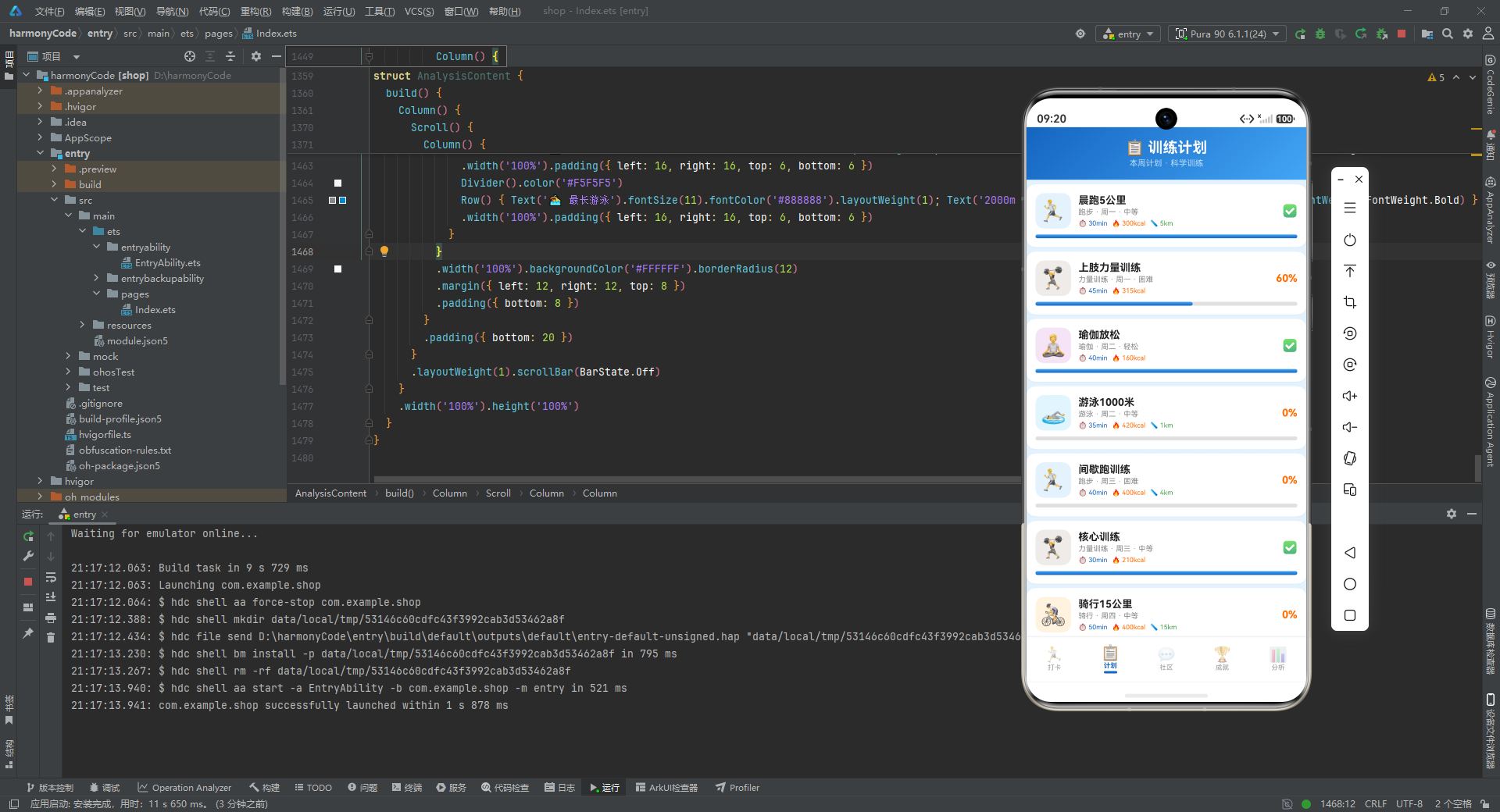
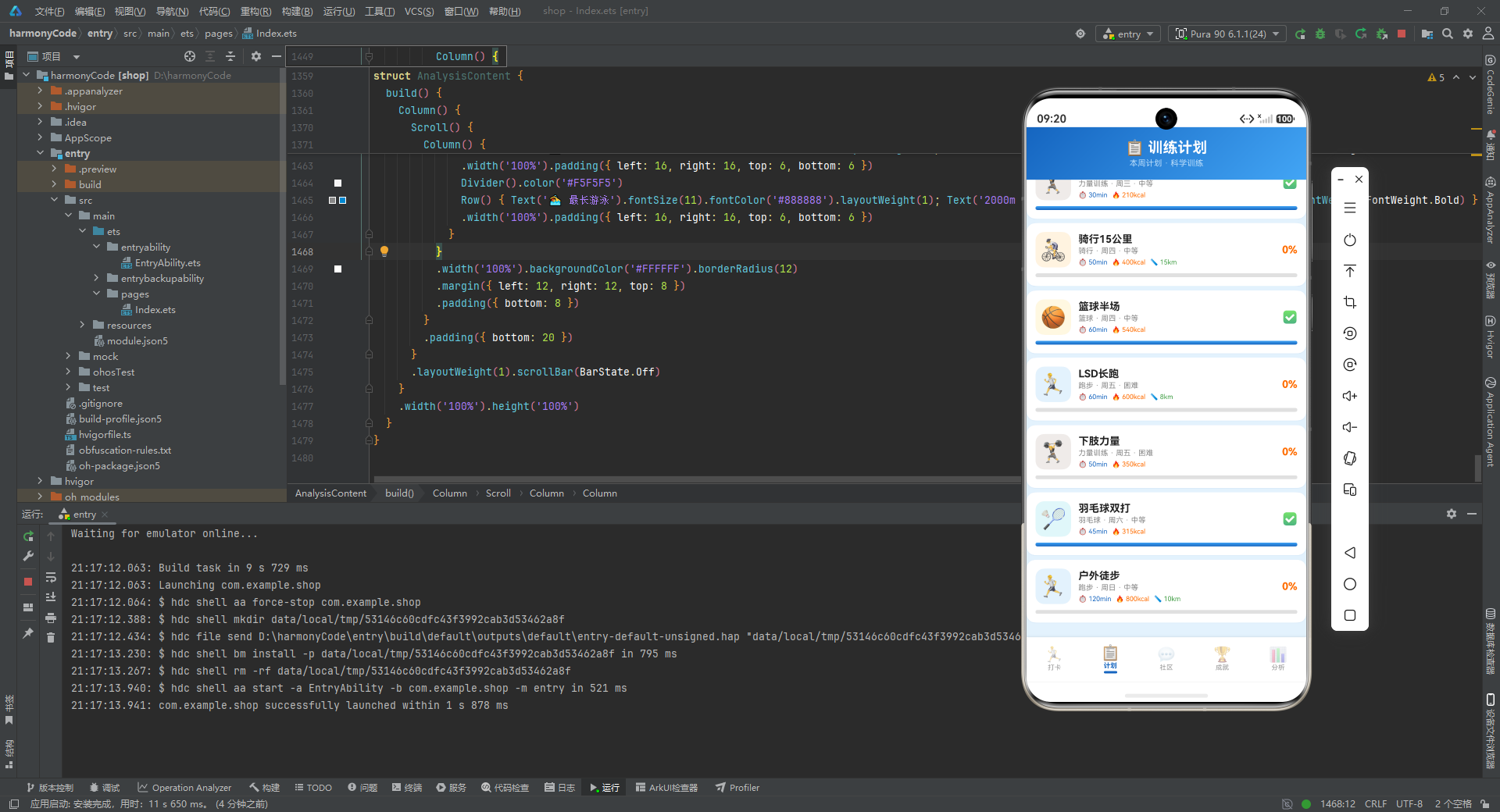
训练计划页帮助用户提前规划一周的训练安排,是"规划未来"环节的核心载体。
13.1 计划卡片构建器
@Builder planCard(p: TrainingPlan) {
  Column() {
    Row() {
      Column() {
        Text(p.icon).fontSize(28)
      }.width(48).height(48)
      .backgroundColor(SPORT_CONFIG[p.sportType]?.bg ?? '#E3F2FD').borderRadius(12)
      .alignItems(HorizontalAlign.Center).justifyContent(FlexAlign.Center)
      Column() {
        Text(p.name).fontSize(14).fontWeight(FontWeight.Bold).fontColor('#212121')
        Text(p.sportType + ' · ' + p.dayOfWeek + ' · ' + p.difficulty).fontSize(10).fontColor('#888888').margin({ top: 2 })
        Row() {
          Text('⏱️ ' + p.targetDuration + 'min').fontSize(9).fontColor('#1565C0')
          Text('🔥 ' + p.targetCalories + 'kcal').fontSize(9).fontColor('#FF6D00').margin({ left: 6 })
          if (p.targetDistance > 0) {
            Text('📏 ' + p.targetDistance + 'km').fontSize(9).fontColor('#43A047').margin({ left: 6 })
          }
        }
        .margin({ top: 4 })
      }.layoutWeight(1).alignItems(HorizontalAlign.Start).padding({ left: 10 })
      Column() {
        if (p.completed) {
          Text('✅').fontSize(16)
        } else {
          Text(p.progress + '%').fontSize(14).fontWeight(FontWeight.Bold).fontColor('#FF6D00')
        }
      }.alignItems(HorizontalAlign.End)
    }
    .width('100%')
    Row() {
      Column()
        .width(p.progress + '%')
        .height(5)
        .linearGradient({ angle: 0, colors: [['#1565C0', 0], ['#42A5F5', 1]] })
        .borderRadius(3)
      Column().layoutWeight(1)
    }
    .width('100%').height(5).backgroundColor('#E0E0E0').borderRadius(3).margin({ top: 8 })
  }
  .width('100%').padding(12).backgroundColor('#FFFFFF')
  .borderRadius(12).margin({ left: 12, right: 12, top: 6 })
  .shadow({ radius: 3, color: '#1A1565C0', offsetY: 1 })
  .onClick(() => { this.selectedPlan = p; this.showDetailModal = true })
}
计划卡片的结构与打卡记录卡片有相似之处,但有关键差异。
头部行同样采用"图标 + 信息 + 状态"三段式布局。图标容器使用计划自带的 icon 字段(而非运动类型的图标),背景色取自运动类型的浅色配置。
信息区域展示了计划名称、运动类型/星期/难度的组合信息,以及目标时长、目标卡路里、目标距离三个指标。值得注意的是,距离指标的显示是条件性的——if (p.targetDistance > 0) 只有当目标距离大于 0 时才显示距离标签。这是因为瑜伽、力量训练等非位移运动没有距离概念,显示"0km"会让用户困惑。
状态区域的设计很巧妙:已完成计划显示绿色对勾"✅",未完成计划显示橙色进度百分比。这种差异化的状态展示,让用户在浏览列表时一眼就能区分哪些计划已完成、哪些还在进行中。
卡片底部是一个进度条,这是计划卡片独有的元素。进度条由两层组成:底层是灰色 #E0E0E0 的背景条,上层是蓝色渐变的进度条,宽度为 p.progress + '%'。渐变方向为 angle: 0(从左到右),从深蓝 #1565C0 渐变到浅蓝 #42A5F5,与头部渐变保持一致。
13.2 计划详情弹窗
@Builder detailModal() {
  Column() {
    this.modalOverlay(() => { this.showDetailModal = false })
    Column() {
      Row() {
        Text(this.selectedPlan?.icon ?? '📋').fontSize(40)
        Row().layoutWeight(1)
        Text('✕').fontSize(18).fontColor('#999999')
          .onClick(() => { this.showDetailModal = false })
      }
      .width('100%').padding({ left: 20, right: 20, top: 20 })
      Text(this.selectedPlan?.name ?? '').fontSize(18).fontWeight(FontWeight.Bold).fontColor('#212121').margin({ top: 8 })
      Text(this.selectedPlan?.description ?? '').fontSize(12).fontColor('#888888').margin({ top: 4 })
      Divider().color('#F0F0F0').margin({ top: 16, left: 20, right: 20 })
      // ... 目标指标和计划详情
    }
    .width('85%').constraintSize({ maxHeight: '80%' }).backgroundColor('#FFFFFF').borderRadius(16)
    .alignItems(HorizontalAlign.Center)
    .position({ x: '7.5%', y: '10%' })
  }
  .width('100%').height('100%').position({ x: 0, y: 0 }).zIndex(999)
}
计划详情弹窗与打卡详情弹窗的结构类似,但内容侧重不同。它重点展示的是"目标"而非"实际数据"——目标时长、目标卡路里、目标距离三个指标,以及运动类型、计划日期、难度、完成状态、完成度等计划属性。
弹窗中还有一个进度条,与卡片底部的进度条样式一致,但更大更醒目,让用户在详情视图中能更清楚地看到完成进度。
弹窗底部只有一个"删除计划"按钮,使用红色背景。这里没有"编辑"按钮,可能是因为训练计划一旦设定后修改需求较低,或者编辑功能留待后续版本实现。.constraintSize({ maxHeight: '80%' }) 限制了弹窗的最大高度为屏幕的 80%,防止内容过多时弹窗溢出屏幕。
13.3 训练计划页整体布局
build() {
  Stack() {
    Column() {
      Column() {
        Text('📋 训练计划').fontSize(20).fontWeight(FontWeight.Bold).fontColor('#FFFFFF')
        Text('本周计划 · 科学训练').fontSize(11).fontColor('#BBDEFB').margin({ top: 3 })
      }
      .width('100%').padding({ top: 16, bottom: 16 })
      .linearGradient({ angle: 135, colors: [['#1565C0', 0], ['#42A5F5', 1]] })
      .alignItems(HorizontalAlign.Center)

      Scroll() {
        Column() {
          this.planCard(mockPlans[0])
          // ... 12 个计划卡片
        }
        .padding({ bottom: 20 })
      }
      .layoutWeight(1).scrollBar(BarState.Off)
    }
    .width('100%').height('100%')

    if (this.showDetailModal) { this.detailModal() }
    if (this.showDeleteConfirm) { this.deleteConfirmModal() }
  }
}
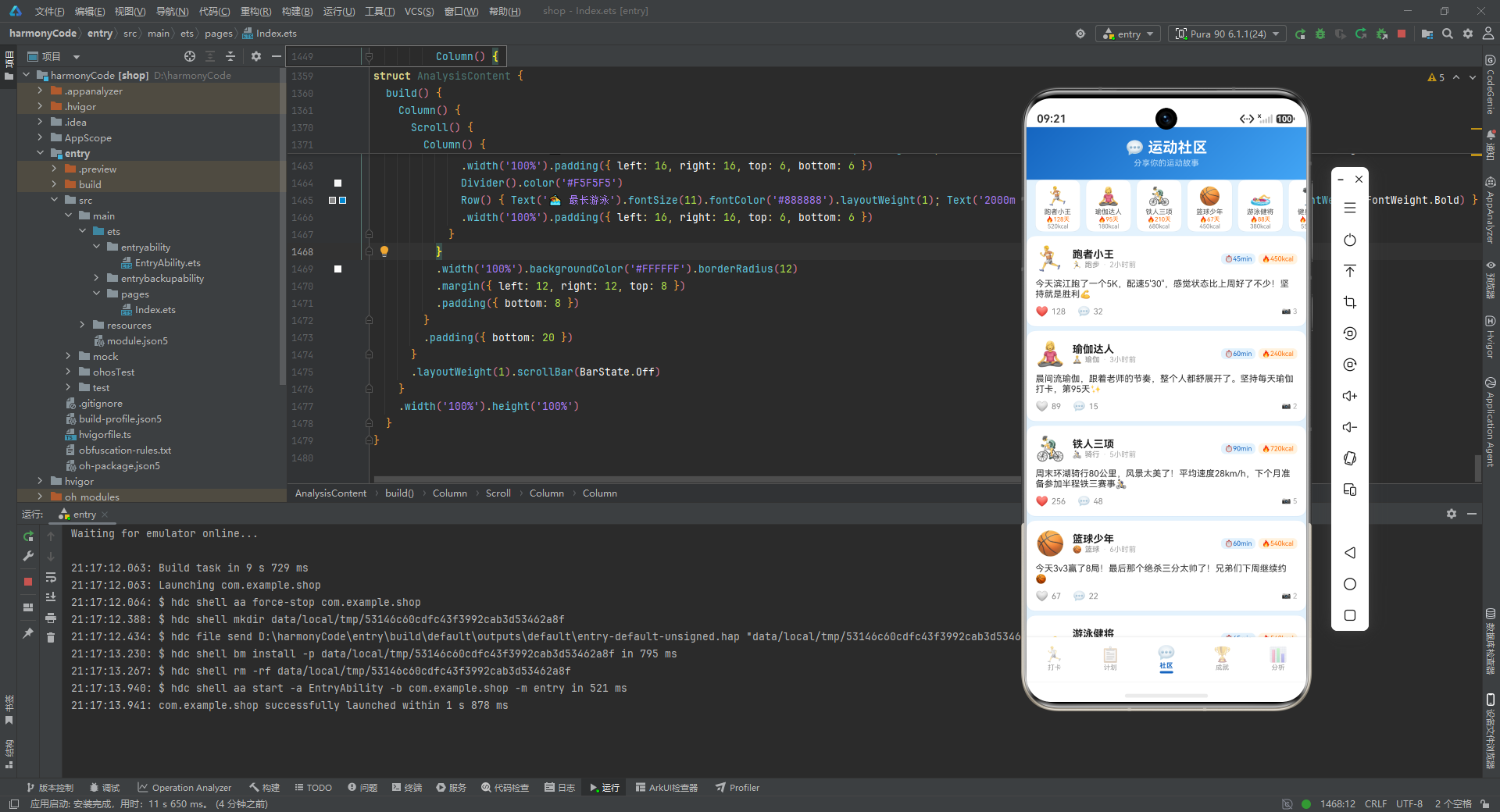
训练计划页的布局与打卡页保持一致:渐变头部 + 可滚动列表 + 弹窗堆叠。头部居中显示"📋 训练计划"标题和"本周计划 · 科学训练"副标题,副标题用浅蓝 #BBDEFB 文字,传达了"科学训练"的价值主张。
十四、运动社区页:社交驱动的运动激励
社区页是应用的社交模块,它通过排行榜和动态流两种形式,将用户的运动行为社交化。
14.1 社区排行榜横滑
Scroll() {
  Row() {
    ForEach([0, 1, 2, 3, 4, 5], (i: number) => {
      Column() {
        Text(COMMUNITY_USERS[i].avatar).fontSize(24)
        Text(COMMUNITY_USERS[i].label).fontSize(9).fontColor('#555555').margin({ top: 2 })
        Text('🔥' + COMMUNITY_USERS[i].streak + '天').fontSize(8).fontColor('#FF6D00')
        Text(COMMUNITY_USERS[i].todayCalories + 'kcal').fontSize(8).fontColor('#888888')
      }
      .backgroundColor('#FFFFFF').borderRadius(10)
      .padding({ left: 12, right: 12, top: 8, bottom: 8 })
      .margin({ left: 4, right: 4 })
      .shadow({ radius: 2, color: '#1A000000', offsetY: 1 })
    })
  }
  .padding({ left: 8, right: 8 })
}
.scrollable(ScrollDirection.Horizontal).scrollBar(BarState.Off).height(70)
排行榜位于头部下方,是一个横向滚动的用户卡片列表。每个卡片包含用户头像、昵称、连续打卡天数和今日卡路里四个信息。
.scrollable(ScrollDirection.Horizontal) 将滚动方向设为水平,.height(70) 固定了排行榜的高度。横向滚动是展示排行榜的理想方式——它既能在有限空间内展示多个用户,又通过"可滑动"的交互暗示了"还有更多用户"的信息。
卡片的阴影使用 #1A000000(10% 透明黑色),比内容卡片的蓝色阴影更中性,因为排行榜卡片较小,使用黑色阴影更符合其"轻量级信息卡"的定位。
14.2 社区动态卡片
@Builder postCard(p: CommunityPost) {
  Column() {
    Row() {
      Text(p.avatar).fontSize(32)
      Column() {
        Text(p.userName).fontSize(14).fontWeight(FontWeight.Bold).fontColor('#212121')
        Row() {
          Text(SPORT_CONFIG[p.sportType]?.icon ?? '🏃').fontSize(10)
          Text(p.sportType).fontSize(10).fontColor('#888888').margin({ left: 4 })
          Text('·').fontSize(10).fontColor('#CCCCCC').margin({ left: 4 })
          Text(p.timeAgo).fontSize(10).fontColor('#AAAAAA').margin({ left: 4 })
        }
      }.layoutWeight(1).alignItems(HorizontalAlign.Start).padding({ left: 10 })
      Row() {
        Text('⏱️' + p.duration + 'min').fontSize(9).fontColor('#1565C0').backgroundColor('#E3F2FD')
          .padding({ left: 5, right: 5, top: 2, bottom: 2 }).borderRadius(6)
        Text('🔥' + p.calories + 'kcal').fontSize(9).fontColor('#FF6D00').backgroundColor('#FFF3E0')
          .padding({ left: 5, right: 5, top: 2, bottom: 2 }).borderRadius(6).margin({ left: 4 })
      }
    }
    .width('100%')
    Text(p.content).fontSize(12).fontColor('#333333').maxLines(3)
      .textOverflow({ overflow: TextOverflow.Ellipsis })
      .width('100%').margin({ top: 8 })
    Row() {
      Text(p.liked ? '❤️' : '🤍').fontSize(14)
      Text(p.likes.toString()).fontSize(11).fontColor('#888888').margin({ left: 4 })
      Text('💬').fontSize(14).margin({ left: 16 })
      Text(p.comments.toString()).fontSize(11).fontColor('#888888').margin({ left: 4 })
      Row().layoutWeight(1)
      if (p.images > 0) {
        Text('📷 ' + p.images).fontSize(10).fontColor('#AAAAAA')
      }
    }
    .width('100%').margin({ top: 8 })
  }
  .width('100%').padding(12).backgroundColor('#FFFFFF')
  .borderRadius(12).margin({ left: 12, right: 12, top: 6 })
  .shadow({ radius: 3, color: '#1A1565C0', offsetY: 1 })
  .onClick(() => { this.selectedPost = p; this.showDetailModal = true })
}
社区动态卡片的设计借鉴了主流社交应用的信息流卡片模式,但融入了运动数据的展示。
头部行使用 32 号字体的用户头像(比打卡卡片的运动图标更大),右侧用两个小药丸标签展示了该动态关联的运动时长和卡路里。这两个标签使用了浅蓝 #E3F2FD 和浅橙 #FFF3E0 背景,与对应数据的颜色编码一致。
正文区域显示动态文字内容,.maxLines(3) 限制最多三行,超出部分省略号截断。三行而非两行,是因为社区动态的文字内容通常比打卡备注更长更重要,给予更多展示空间。
底部互动栏展示了点赞和评论两类社交互动。点赞图标根据 p.liked 的值在"❤️"(已点赞,红心)和"🤍"(未点赞,白心)之间切换,这是社交应用中最常见的交互反馈。右侧的条件渲染 if (p.images > 0) 在动态包含图片时显示图片数量标识。
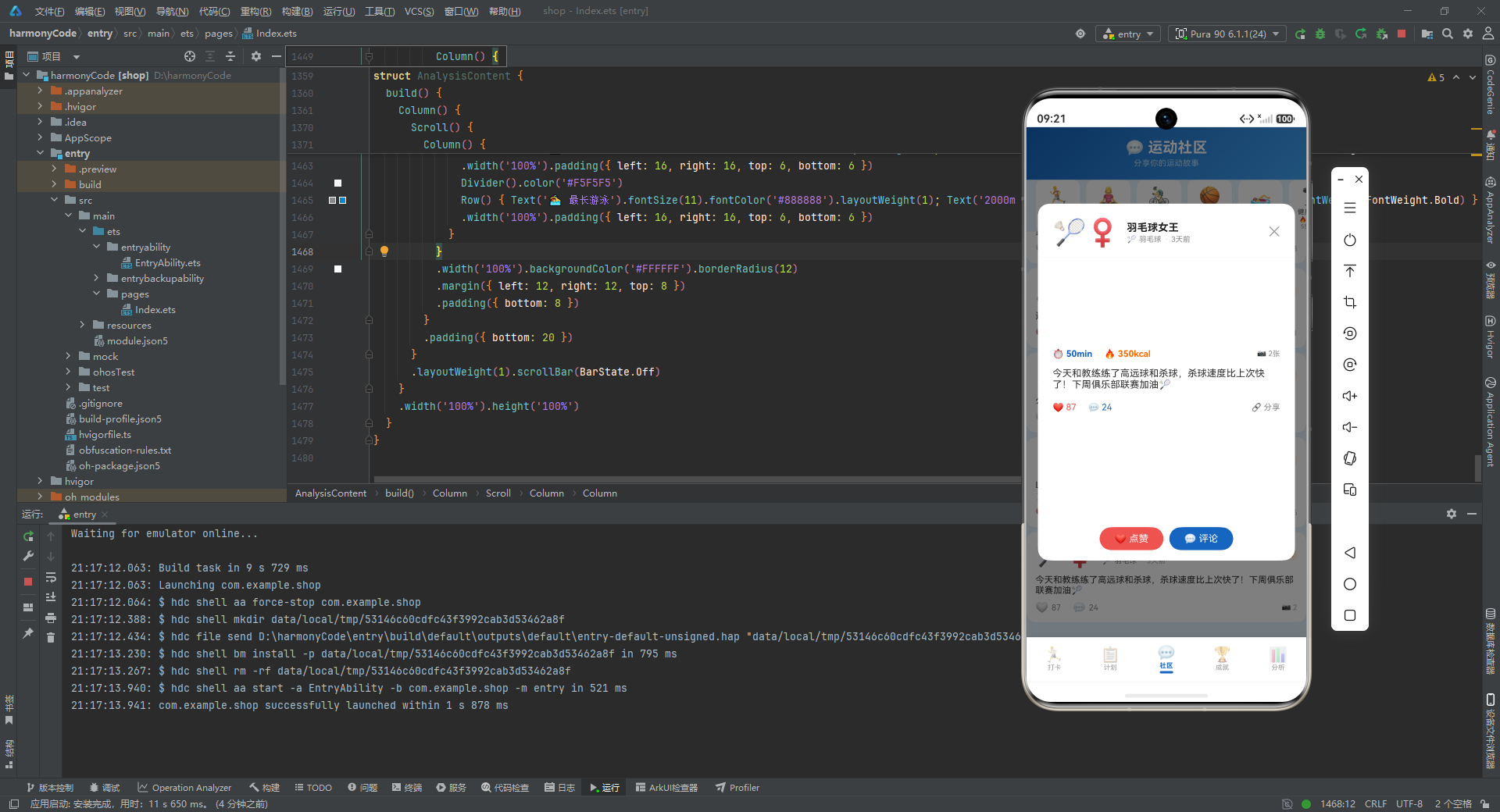
14.3 社区动态详情弹窗
社区动态的详情弹窗与列表卡片内容相似,但展示了完整的文字内容(无行数限制),并增加了"点赞"和"评论"两个操作按钮。点赞按钮使用红色背景,评论按钮使用蓝色背景,两种颜色分别对应了它们在底部互动栏中的图标颜色,形成了视觉关联。
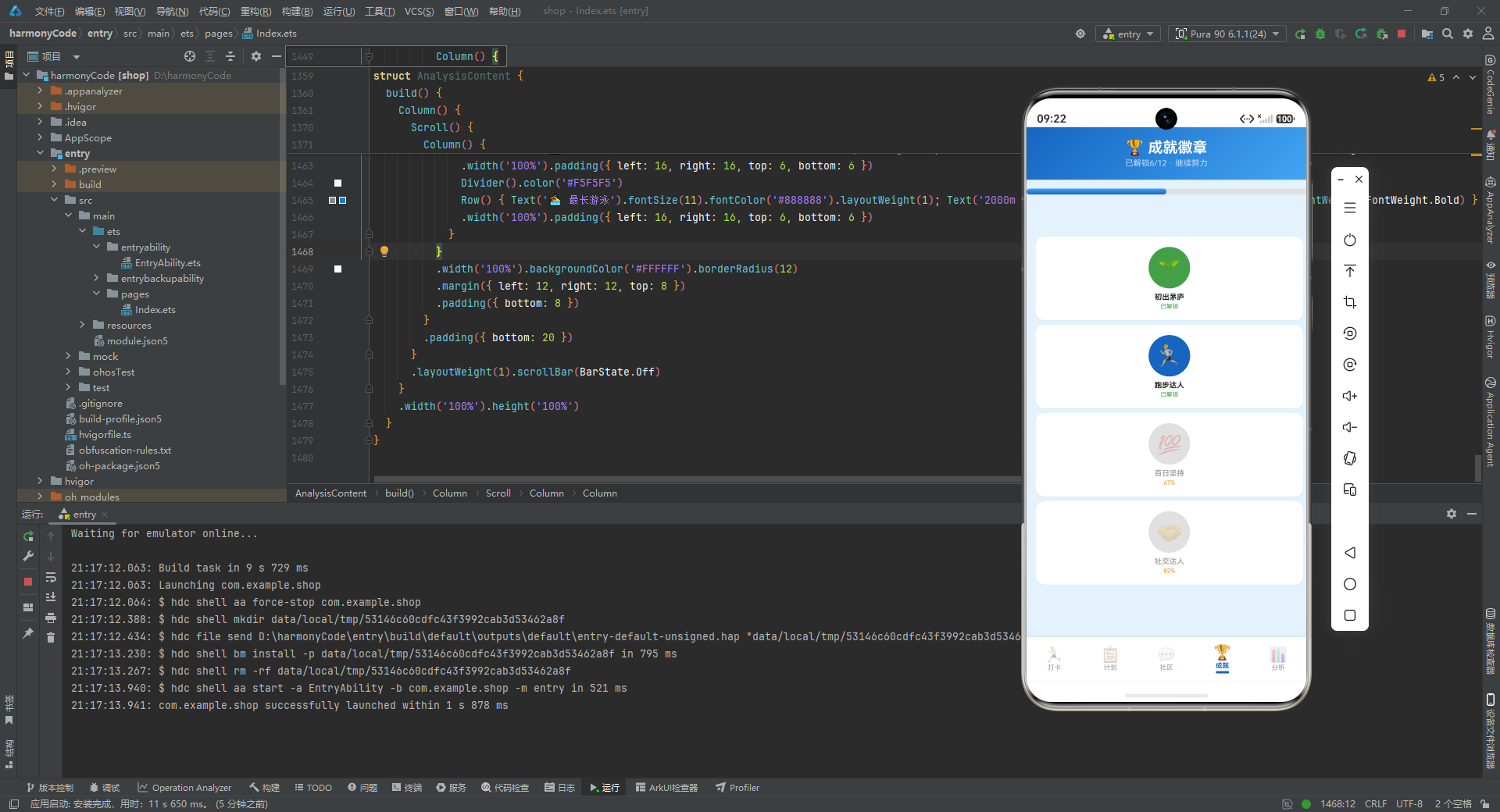
十五、成就徽章页:游戏化激励系统
成就页是应用的激励模块,通过徽章网格和进度展示,激发用户的收集欲和成就感。
15.1 成就徽章卡片
@Builder achievementCard(a: AchievementMeta) {
  Column() {
    Column() {
      Text(a.icon).fontSize(28).opacity(a.unlocked ? 1.0 : 0.3)
    }.width(56).height(56).borderRadius(28)
    .backgroundColor(a.unlocked ? a.color : '#E0E0E0')
    .alignItems(HorizontalAlign.Center).justifyContent(FlexAlign.Center)
    Text(a.label).fontSize(10).fontWeight(FontWeight.Bold)
      .fontColor(a.unlocked ? '#212121' : '#AAAAAA').margin({ top: 6 })
    Text(a.unlocked ? '已解锁' : a.progress + '%').fontSize(8)
      .fontColor(a.unlocked ? '#43A047' : '#FF8F00').margin({ top: 2 })
  }
  .width('100%').padding({ top: 14, bottom: 14 })
  .backgroundColor('#FFFFFF').borderRadius(12)
  .margin({ left: 4, right: 4, top: 6 })
  .shadow({ radius: 2, color: '#1A1565C0', offsetY: 1 })
  .onClick(() => { this.selectedAchievement = a; this.showDetailModal = true })
}
成就卡片的视觉设计围绕"已解锁"和"未解锁"两种状态展开,这两种状态在多个维度上形成对比。
图标容器:已解锁的徽章使用成就自身的 color 作为背景色,图标完全不透明;未解锁的徽章使用灰色 #E0E0E0 背景,图标透明度降为 0.3。这种处理让已解锁徽章色彩鲜明、引人注目,未解锁徽章则显得黯淡、带有"锁定"的暗示。
文字颜色:已解锁的标签文字为深色 #212121,状态文字为绿色"已解锁";未解锁的标签文字为浅灰 #AAAAAA,状态文字为橙色进度百分比。绿色代表"完成",橙色代表"进行中",颜色的语义与状态完美匹配。
徽章容器使用 56x56 的圆形(borderRadius: 28),比打卡卡片的图标容器更大,体现了成就徽章的"奖牌"属性——它应该比普通图标更有分量感。
15.2 成就网格布局
Scroll() {
  Column() {
    Row() {
      this.achievementCard(ACHIEVEMENT_CONFIG[0])
      this.achievementCard(ACHIEVEMENT_CONFIG[1])
      this.achievementCard(ACHIEVEMENT_CONFIG[2])
    }
    .width('100%').padding({ left: 8, right: 8 })
    // ... 共 4 行,每行 3 个
  }
}
成就以 3 列网格的形式排列,12 个成就分为 4 行。每个 Row 包含 3 个 achievementCard,通过卡片自身的 .margin({ left: 4, right: 4 }) 和 Row 的 .padding({ left: 8, right: 8 }) 形成均匀的间距。
网格布局是展示徽章集合的理想方式——它既紧凑(一屏可看到多个徽章),又便于扫视(行列对齐,眼睛容易定位)。3 列的数量经过权衡:2 列太稀疏,4 列太拥挤,3 列在手机屏幕上恰到好处。
15.3 整体进度条
Row() {
  Column()
    .width(Math.round(getUnlockedCount() / getTotalAchievements() * 100) + '%')
    .height(8)
    .linearGradient({ angle: 0, colors: [['#1565C0', 0], ['#42A5F5', 1]] })
    .borderRadius(4)
  Column().layoutWeight(1)
}
.width('100%').height(8).backgroundColor('#E0E0E0').borderRadius(4)
.margin({ left: 16, right: 16, top: 12 })
在成就网格上方,有一个整体进度条,显示已解锁成就占总成就的比例。Math.round(getUnlockedCount() / getTotalAchievements() * 100) 计算出已解锁百分比(6/12*100=50%),进度条的宽度设为这个百分比。这个进度条让用户在浏览徽章之前就能直观地了解自己的整体成就进度。
15.4 成就详情弹窗
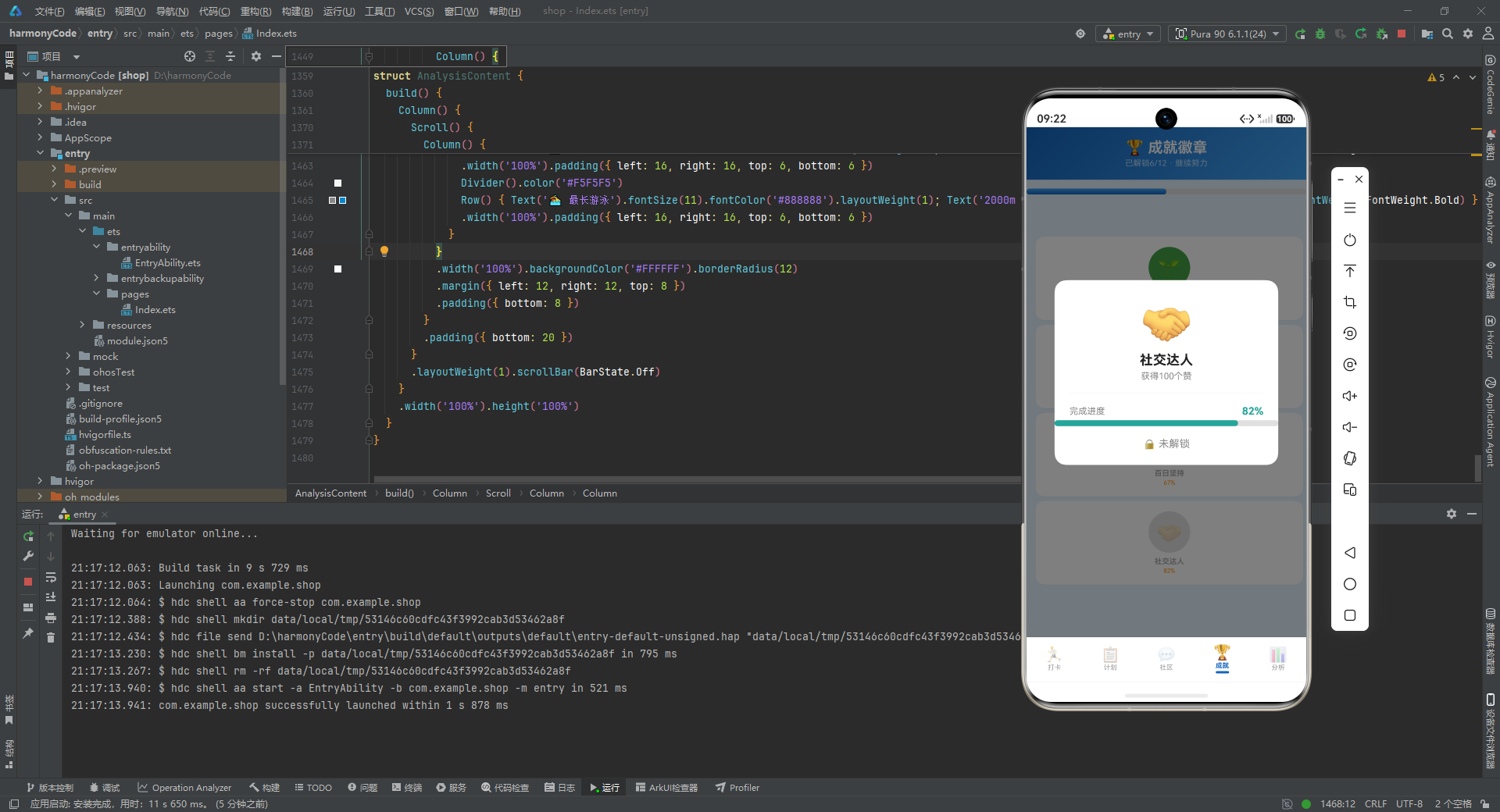
成就详情弹窗的设计简洁而聚焦。顶部是一个 56 号字体的大图标,下方是成就名称、解锁条件描述、进度条、以及解锁状态。与计划详情弹窗的进度条不同,成就详情的进度条使用了成就自身的 color 作为进度色,而非统一的蓝色渐变,让每个成就的详情弹窗都有独特的色彩个性。
十六、数据分析页:多维数据可视化
分析页是应用的复盘模块,它通过四格统计、柱状图、类型分布、个人最佳记录四种形式,全方位地呈现用户的运动数据。
16.1 四格统计卡
Row() {
  Column() {
    Text('🏃').fontSize(20).margin({ top: 4 })
    Text(getTotalCheckIns().toString()).fontSize(20).fontWeight(FontWeight.Bold).fontColor('#1565C0')
    Text('累计打卡').fontSize(10).fontColor('#888888')
  }.layoutWeight(1).alignItems(HorizontalAlign.Center).padding({ top: 12, bottom: 12 })
  .backgroundColor('#FFFFFF').borderRadius(10).margin({ left: 6, right: 3, top: 6 })
  // ... 其他三个统计卡
}
.width('100%').padding({ left: 6, right: 6 })
四个统计卡以 2x2 网格排列,每个卡片展示一个核心统计指标:累计打卡次数(蓝色)、本周卡路里(橙色)、连续天数(绿色)、本月卡路里(紫色)。
每个卡片的结构相同:顶部 emoji 图标、中间大号粗体数值、底部说明文字。数值使用 20 号粗体字体,是整个卡片视觉的焦点。四个卡片使用不同的数值颜色,与各自代表的维度保持色彩一致性。
卡片之间的间距通过 .margin({ left: 6, right: 3 }) 和 .margin({ left: 3, right: 6 }) 的不对称设置来实现——左卡片右边距 3,右卡片左边距 3,合计 6 像素的间距,两端各留 6 像素的外边距,形成了均匀的网格间距。
16.2 月度趋势柱状图
Row() {
  ForEach([0, 1, 2, 3, 4, 5, 6, 7, 8, 9, 10, 11], (i: number) => {
    Column() {
      Text((getMonthlyTrend(i) / 1000).toFixed(1) + 'k')
        .fontSize(7).fontColor('#1565C0').margin({ bottom: 2 })
      Column()
        .width(16)
        .height((getMonthlyTrend(i) / getMaxMonthly() * 100).toFixed(0) + 'vp')
        .linearGradient({ angle: 180, colors: [['#1565C0', 0], ['#42A5F5', 1]] })
        .borderRadius({ topLeft: 3, topRight: 3 })
      Text(MONTH_LABELS[i]).fontSize(7).fontColor('#999999').margin({ top: 2 })
    }
    .layoutWeight(1).alignItems(HorizontalAlign.Center)
  })
}
柱状图是分析页最有技术含量的可视化组件。它通过 12 个 Column 纵向排列,每个 Column 包含三个元素:顶部的数值标签、中间的柱子、底部的月份标签。
数值标签 (getMonthlyTrend(i) / 1000).toFixed(1) + 'k' 将卡路里值除以 1000 并保留一位小数,加上"k"后缀,如"0.3k"“0.8k”。这种"千位缩写"让数字更紧凑,适合在小尺寸柱状图中显示。
柱子的高度是核心计算:(getMonthlyTrend(i) / getMaxMonthly() * 100).toFixed(0) + 'vp'。这里将当月值除以最大值得到比例,乘以 100 转为百分比,取整后加上 'vp' 单位。vp(virtual pixels)是鸿蒙中的虚拟像素单位,它能够根据屏幕密度自动缩放,保证在不同设备上视觉效果一致。
柱子的渐变方向为 angle: 180(从上到下),从深蓝 #1565C0 渐变到浅蓝 #42A5F5。.borderRadius({ topLeft: 3, topRight: 3 }) 只设置上方两个圆角,让柱子顶部圆润、底部方正,符合柱状图的视觉惯例。
每个 Column 使用 .layoutWeight(1) 平均分配横向空间,使得 12 根柱子在可用宽度内均匀分布。
16.3 运动类型分布
Column() {
  ForEach(SPORT_TYPES, (s: string) => {
    Row() {
      Text(SPORT_CONFIG[s]?.icon + ' ' + s).fontSize(11)
        .fontColor(SPORT_CONFIG[s]?.color ?? '#1565C0').layoutWeight(1)
      Text(SPORT_CONFIG[s]?.caloriesPerMin + 'kcal/min').fontSize(10).fontColor('#888888')
    }
    .width('100%').padding({ top: 4, bottom: 4 })
  })
}
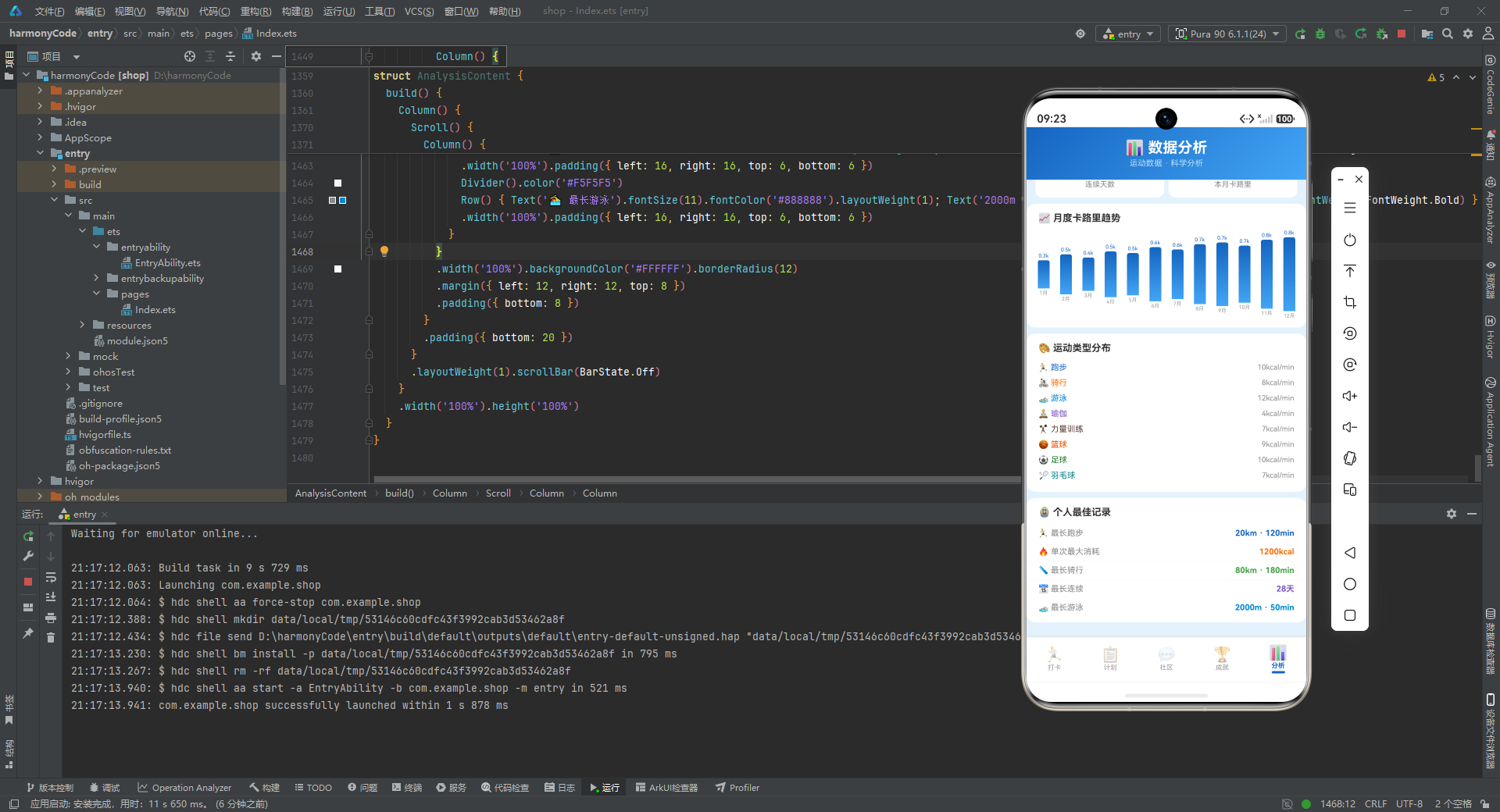
运动类型分布以列表形式展示了 8 种运动的每分钟卡路里消耗率。每行包含运动图标和名称(使用运动专属颜色)以及热量消耗率。这个列表虽然简单,但提供了实用的参考信息——用户可以据此选择热量消耗效率最高的运动。
16.4 个人最佳记录
Column() {
  Row() { Text('🏃 最长跑步').fontSize(11).fontColor('#888888').layoutWeight(1); Text('20km · 120min').fontSize(11).fontColor('#1565C0').fontWeight(FontWeight.Bold) }
  .width('100%').padding({ left: 16, right: 16, top: 6, bottom: 6 })
  Divider().color('#F5F5F5')
  // ... 其他最佳记录
}
个人最佳记录区域以"标签 + 数值"的键值对形式,展示了用户在各项运动中的历史最佳成绩:最长跑步、单次最大消耗、最长骑行、最长连续天数、最长游泳。每行之间用浅色 Divider 分隔,形成清晰的条目划分。
这个区域的设计理念是"里程碑展示"——它不展示日常数据,而是展示用户运动生涯中的高光时刻。这些最佳记录是用户成就感的来源之一,也是持续运动的动力。
十七、五大功能模块关键特性对比
为了更直观地呈现各模块的定位与特点,下表对应用的五个核心页面进行了横向对比。
| 维度 | 运动打卡页 | 训练计划页 | 运动社区页 | 成就徽章页 | 数据分析页 |
|---|---|---|---|---|---|
| 核心定位 | 记录已发生的运动 | 规划将进行的训练 | 分享与社交互动 | 激励与目标追逐 | 复盘与趋势洞察 |
| 数据来源 | 打卡记录数组 | 训练计划数组 | 社区动态数组 | 成就配置数组 | 统计函数与趋势数据 |
| 主要组件 | 环形进度、热力图、记录卡片 | 计划卡片、进度条 | 排行榜横滑、动态卡片 | 徽章网格、整体进度条 | 统计卡、柱状图、最佳记录 |
| 弹窗数量 | 4 个(新增、编辑、删除、详情) | 2 个(详情、删除确认) | 1 个(详情) | 1 个(详情) | 0 个 |
| 状态变量数 | 9 个 | 3 个 | 2 个 | 2 个 | 0 个 |
| 可视化形式 | 热力图、伪环形进度 | 渐变进度条 | 横滑卡片列表 | 徽章网格、进度条 | 柱状图、统计卡片 |
| 交互复杂度 | 最高 | 中等 | 中等 | 较低 | 最低 |
| 信息密度 | 高 | 中等 | 高 | 中等 | 高 |
| 用户角色 | 记录者 | 规划者 | 社交参与者 | 收集者 | 分析者 |
| 习惯闭环环节 | 记录行为 | 规划未来 | 获得反馈 | 持续激励 | 复盘分析 |
从表中可以看出,五个模块在功能定位、组件构成、交互复杂度等方面各有侧重,但又通过统一的视觉语言(渐变头部、蓝色主题、卡片样式)紧密地联系在一起,形成了一个完整的产品闭环。打卡页作为默认首页承担了最重的交互负担,分析页则完全只读、专注于数据呈现,两者在复杂度上形成两极,其余三个页面居于中间。
十八、工程实践总结
18.1 架构设计的亮点
纵观整个实现,最值得称道的架构决策是分层解耦。从接口类型定义到数据模型,从静态配置到统计函数,再到页面组件,每一层都有明确的职责边界。这种分层带来的直接好处是:任何一层的修改都不会波及其他层。比如要将 Mock 数据替换为真实接口数据,只需要修改数据层的实现,统计函数和页面组件完全不需要改动;要调整环形进度的计算精度,只需要修改统计函数,数据和视图层不受影响。
配置表驱动是另一个突出的工程亮点。运动类型、强度等级、成就徽章等业务概念全部以配置对象的形式集中定义,页面组件通过查表获取展示所需的数据。这种模式使得业务规则的调整变得极其简单——新增一种运动类型只需在 SPORT_CONFIG 和 SPORT_TYPES 中各添加一行,全应用的运动类型选择器、卡片图标、颜色编码都会自动生效。
构建器复用有效控制了代码的重复度。遮罩层构建器被所有弹窗复用,卡片构建器被列表中的每一项复用,底部导航项构建器被五个标签复用。这种"定义一次、多处调用"的模式,不仅减少了代码量,更重要的是保证了视觉和行为的一致性——任何样式调整只需修改构建器定义,所有调用处自动同步。
18.2 视觉设计的精髓
在视觉层面,这份实现展现了相当高的设计素养。
色彩系统的系统性令人印象深刻。主色调运动蓝 #1565C0 贯穿始终,辅助色(橙、绿、紫)在数据维度编码中保持一致——卡路里总是橙色、距离总是绿色、心率总是红色、步数总是蓝色,无论在环形进度、卡片指标还是统计卡中,同一维度永远使用同一颜色。这种"色彩即语义"的设计让用户形成了色彩条件反射后,无需阅读文字就能快速定位信息。
阴影的色彩化处理是一个容易被忽略但效果显著的细节。卡片阴影没有使用通用的灰黑色,而是使用了带透明度的运动蓝 #1A1565C0,让阴影与整体蓝色主题融为一体,避免了灰色阴影在蓝色背景上的突兀感。
渐变的统一运用强化了品牌感。所有页面的头部都使用相同的 135 度蓝色渐变,进度条都使用 0 度或 180 度的蓝色渐变,这种统一的渐变语言让五个不同功能的页面呈现出强烈的"同族"气质。
18.3 交互设计的考量
交互层面,这份实现遵循了多个移动端设计原则。
阻力设计在删除操作中得到了体现。删除确认弹窗使用红色确认按钮、警告图标、"不可恢复"提示文字,从视觉和文字两个维度增加了用户执行删除操作前的思考时间,降低了误删概率。
渐进式信息展示贯穿始终。列表卡片只展示摘要信息(运动类型、时长、核心指标),详情弹窗才展示完整数据(心率、步数、起止时间、备注)。这种"摘要-详情"的两级信息架构,既保证了列表的扫视效率,又满足了深度查看的需求。
默认值预设降低了表单填写负担。新增打卡弹窗中,运动类型默认为"跑步"、时长默认为 30 分钟、强度默认为"中等",这些预设值覆盖了最常见的使用场景,用户只需确认即可快速完成打卡。
条件渲染的恰当运用既优化了性能又保持了界面的整洁。弹窗在不显示时完全不渲染,备注在为空时不显示,距离在为 0 时不显示,图片标识在无图片时不显示——这些条件判断消除了界面上"为了完整而存在"的空元素,让每一个可见元素都有实际意义。
18.4 可改进的方向
当然,这份实现作为一个示例项目,也有一些可以进一步优化的方向。
数据层的持久化是首要改进点。当前所有数据都是内存中的常量和 Mock 数据,应用关闭后状态不会保留。在真实场景中,需要引入数据库或本地存储来持久化打卡记录和训练计划。
列表渲染的自动化可以优化。当前打卡记录列表通过 20 次手动调用 this.checkInCard(mockCheckIns[0]) 到 this.checkInCard(mockCheckIns[19]) 来构建,这种写法无法适应数据长度的变化。使用 ForEach 循环渲染会是更优雅的做法。
真实环形进度的绘制可以提升视觉效果。当前用两个圆形堆叠模拟的"伪环形"无法展示进度弧线,使用 Progress 组件或自定义 Canvas 绘制可以实现真正的环形进度动画。
表单验证逻辑的缺失也值得关注。当前新增打卡弹窗的"完成打卡"按钮只是关闭弹窗,没有验证地点、备注等字段的合法性,也没有将表单数据实际写入数据列表。在真实应用中,需要添加输入验证和数据持久化逻辑。
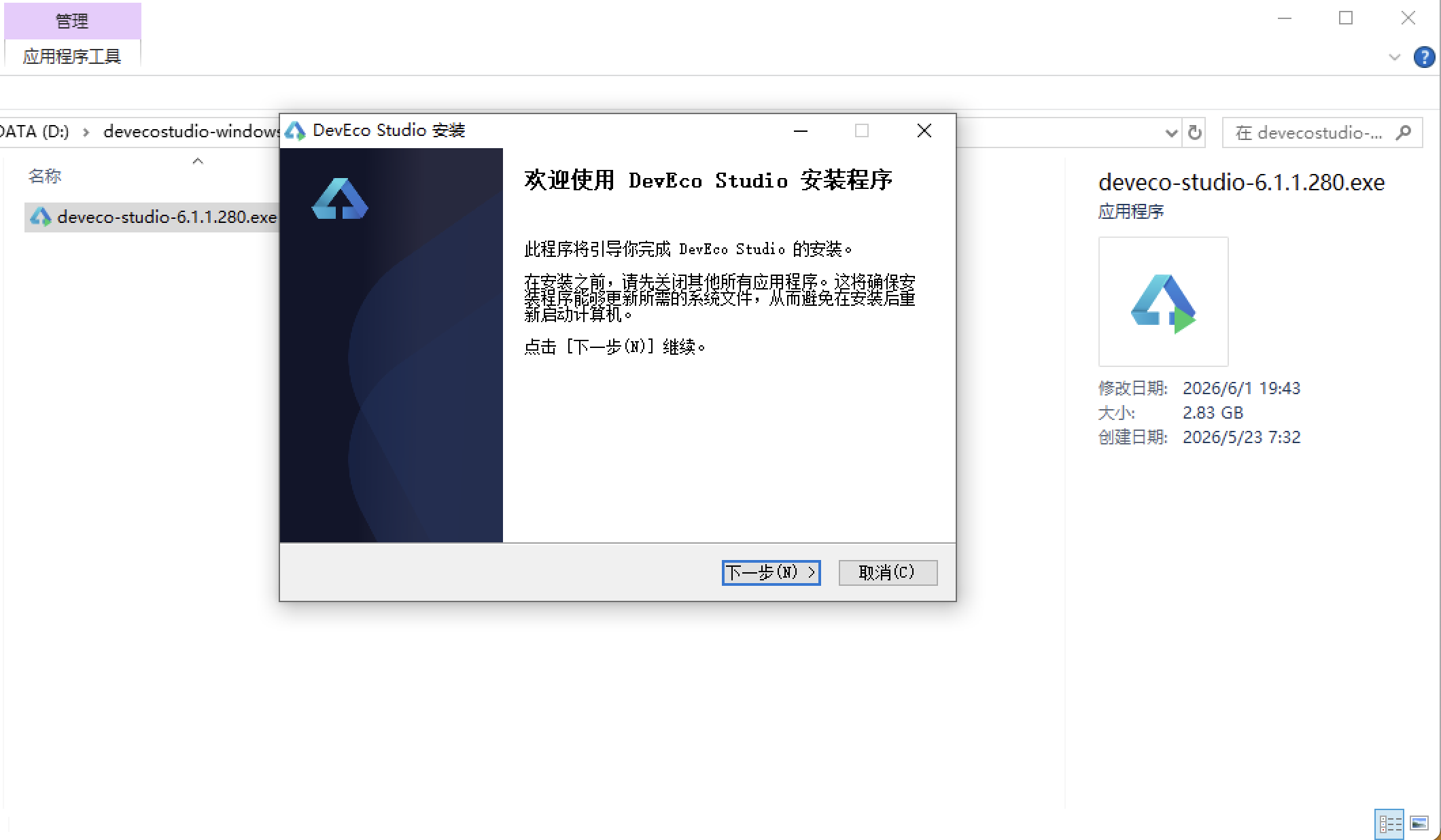
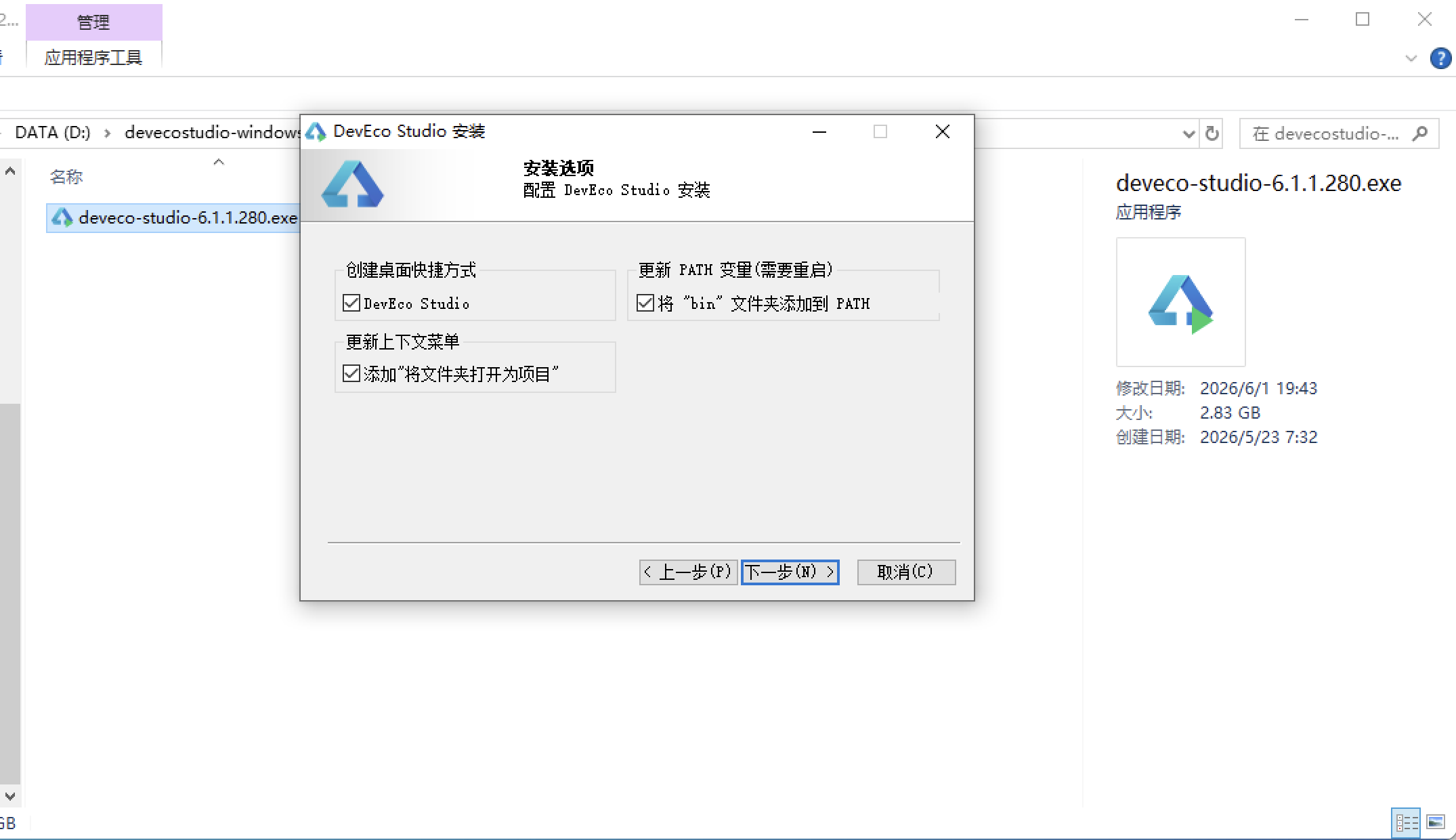
安装DevEco Studio程序
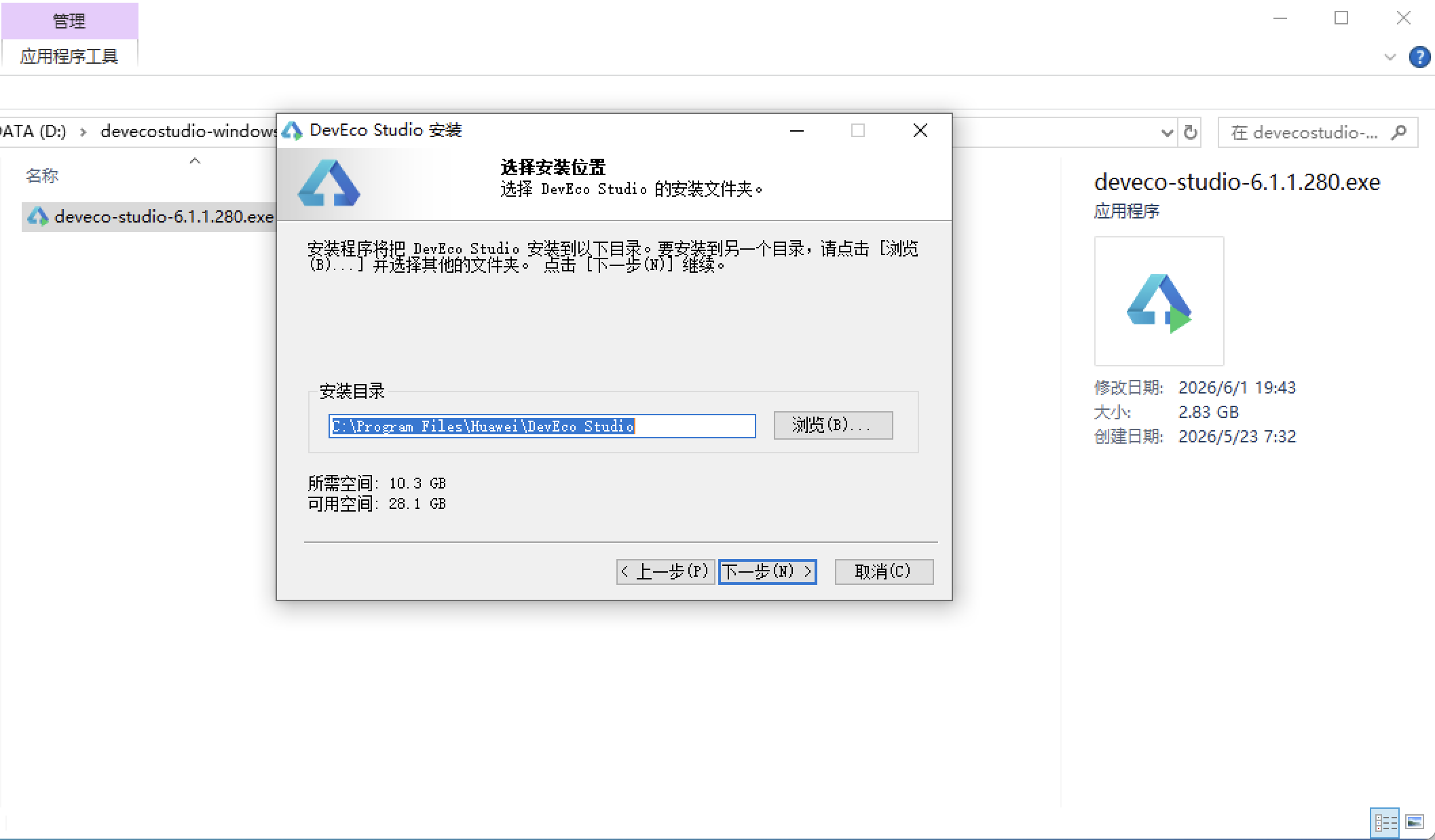
选择目标安装目录:
设置环境变量,但是需要重启一下:
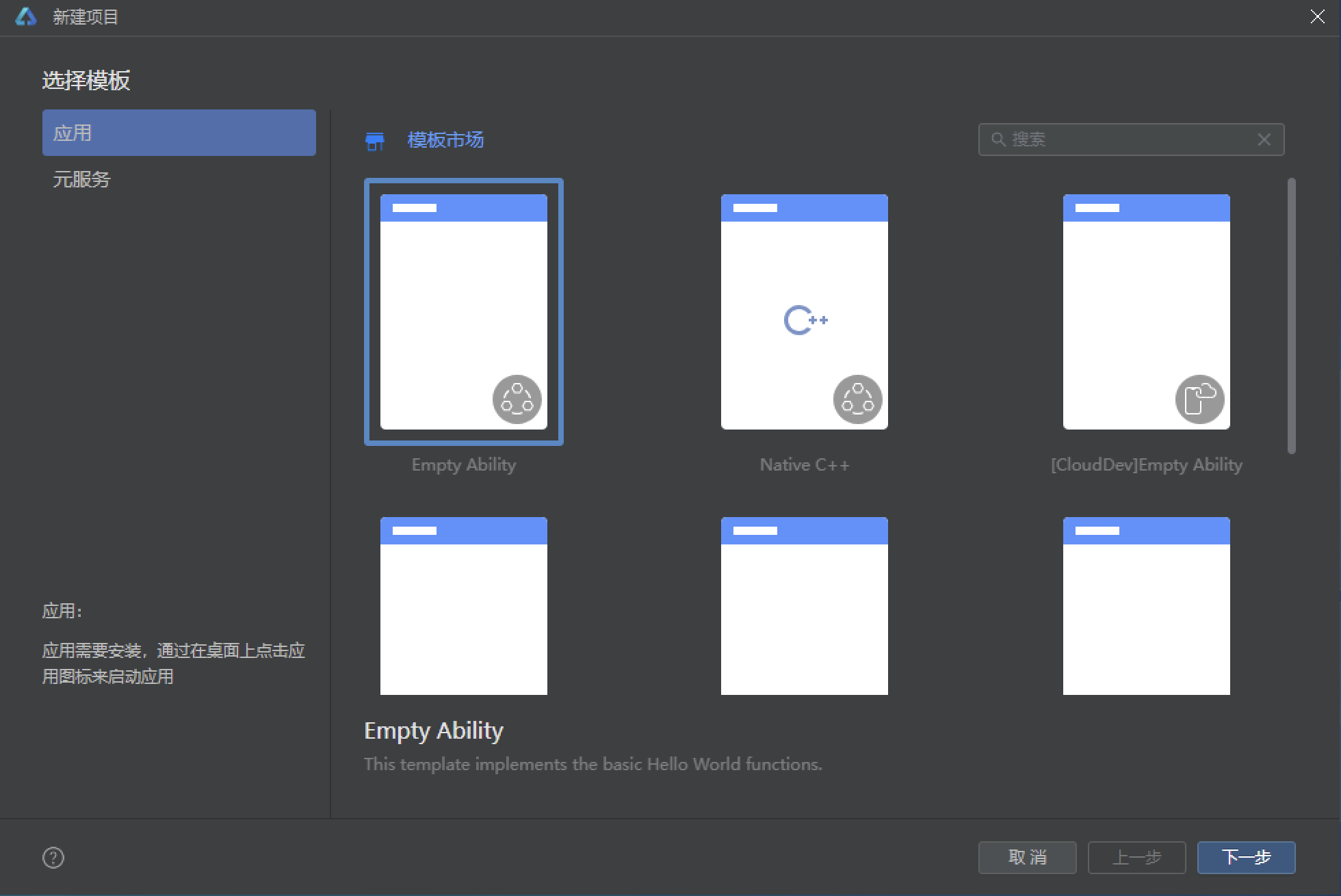
新建一个空白模板:
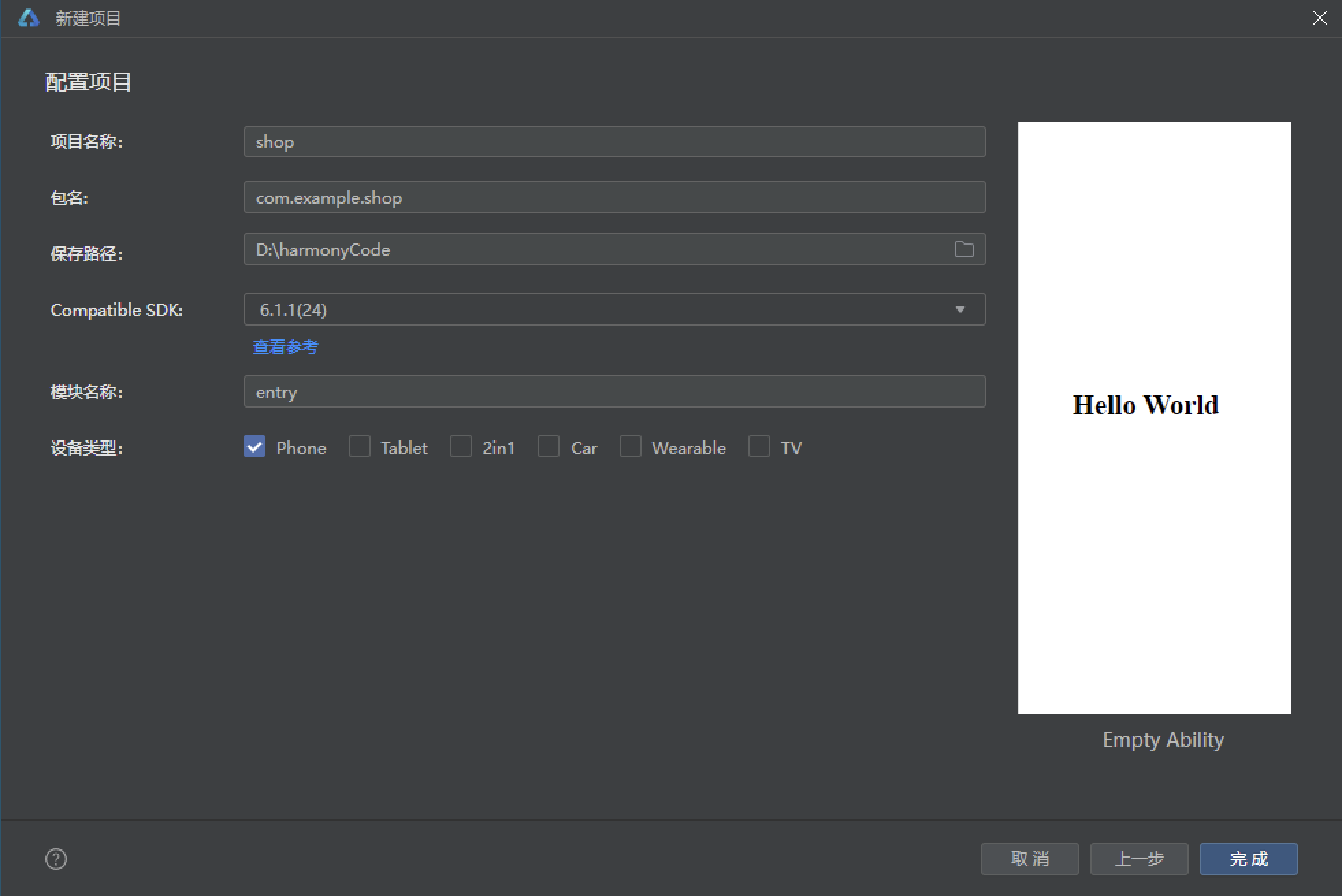
设置API为24的模板项目:
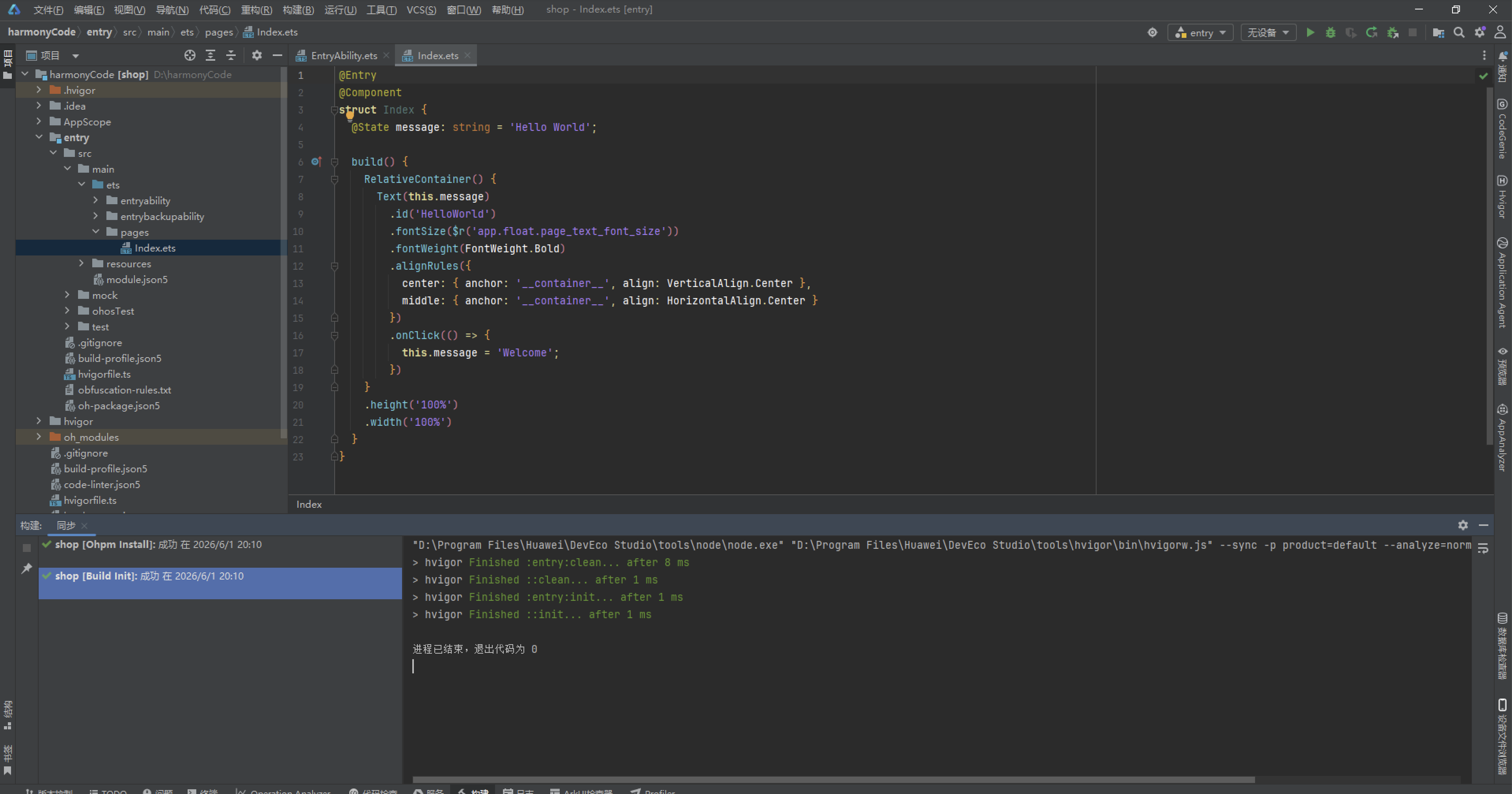
初始化项目,自动下载相关依赖:
完整代码:
// ============================================================
// 场景:社区运动健身打卡 App
// 布局:日历热力图 + 环形进度 + 成就徽章网格
// 配色:运动蓝 #1565C0 / 活力橙 #FF6D00 / 清新绿 #43A047 / 浅蓝 #E3F2FD
// ============================================================
// ==================== 接口类型定义 ====================
interface SportTypeMeta {
label: string
icon: string
color: string
bg: string
caloriesPerMin: number
}
interface IntensityMeta {
label: string
color: string
level: number
}
interface AchievementMeta {
label: string
icon: string
description: string
color: string
unlocked: boolean
progress: number
}
interface CommunityUserMeta {
label: string
avatar: string
streak: number
todayCalories: number
}
// ==================== 数据模型 ====================
@Observed
export class CheckInRecord {
id: number = 0
date: string = ''
sportType: string = ''
duration: number = 0
calories: number = 0
distance: number = 0
heartRate: number = 0
intensity: string = '中等'
location: string = ''
mood: string = '😊'
notes: string = ''
steps: number = 0
startTime: string = ''
endTime: string = ''
constructor(id: number, date: string, sportType: string, duration: number, calories: number, distance: number, heartRate: number, intensity: string, location: string, mood: string, notes: string, steps: number, startTime: string, endTime: string) {
this.id = id; this.date = date; this.sportType = sportType
this.duration = duration; this.calories = calories; this.distance = distance
this.heartRate = heartRate; this.intensity = intensity; this.location = location
this.mood = mood; this.notes = notes; this.steps = steps
this.startTime = startTime; this.endTime = endTime
}
}
@Observed
export class TrainingPlan {
id: number = 0
name: string = ''
sportType: string = ''
targetDuration: number = 0
targetCalories: number = 0
targetDistance: number = 0
dayOfWeek: string = ''
difficulty: string = '中等'
completed: boolean = false
progress: number = 0
description: string = ''
icon: string = ''
constructor(id: number, name: string, sportType: string, targetDuration: number, targetCalories: number, targetDistance: number, dayOfWeek: string, difficulty: string, completed: boolean, progress: number, description: string, icon: string) {
this.id = id; this.name = name; this.sportType = sportType
this.targetDuration = targetDuration; this.targetCalories = targetCalories
this.targetDistance = targetDistance; this.dayOfWeek = dayOfWeek
this.difficulty = difficulty; this.completed = completed
this.progress = progress; this.description = description; this.icon = icon
}
}
@Observed
export class CommunityPost {
id: number = 0
userName: string = ''
avatar: string = ''
sportType: string = ''
duration: number = 0
calories: number = 0
content: string = ''
likes: number = 0
comments: number = 0
timeAgo: string = ''
images: number = 0
liked: boolean = false
constructor(id: number, userName: string, avatar: string, sportType: string, duration: number, calories: number, content: string, likes: number, comments: number, timeAgo: string, images: number, liked: boolean) {
this.id = id; this.userName = userName; this.avatar = avatar; this.sportType = sportType
this.duration = duration; this.calories = calories; this.content = content
this.likes = likes; this.comments = comments; this.timeAgo = timeAgo
this.images = images; this.liked = liked
}
}
// ==================== 静态配置 ====================
const SPORT_CONFIG: Record<string, SportTypeMeta> = {
'跑步': { label: '跑步', icon: '🏃', color: '#1565C0', bg: '#E3F2FD', caloriesPerMin: 10 },
'骑行': { label: '骑行', icon: '🚴', color: '#FF6D00', bg: '#FFF3E0', caloriesPerMin: 8 },
'游泳': { label: '游泳', icon: '🏊', color: '#0288D1', bg: '#E1F5FE', caloriesPerMin: 12 },
'瑜伽': { label: '瑜伽', icon: '🧘', color: '#7E57C2', bg: '#F3E5F5', caloriesPerMin: 4 },
'力量训练': { label: '力量训练', icon: '🏋️', color: '#5D4037', bg: '#EFEBE9', caloriesPerMin: 7 },
'篮球': { label: '篮球', icon: '🏀', color: '#E65100', bg: '#FFF8E1', caloriesPerMin: 9 },
'足球': { label: '足球', icon: '⚽', color: '#2E7D32', bg: '#E8F5E9', caloriesPerMin: 10 },
'羽毛球': { label: '羽毛球', icon: '🏸', color: '#00838F', bg: '#E0F7FA', caloriesPerMin: 7 }
}
const INTENSITY_CONFIG: Record<string, IntensityMeta> = {
'低强度': { label: '低强度', color: '#66BB6A', level: 1 },
'中等': { label: '中等', color: '#FFA726', level: 2 },
'高强度': { label: '高强度', color: '#EF5350', level: 3 },
'极限': { label: '极限', color: '#D32F2F', level: 4 }
}
const ACHIEVEMENT_CONFIG: AchievementMeta[] = [
{ label: '初出茅庐', icon: '🌱', description: '完成首次运动打卡', color: '#43A047', unlocked: true, progress: 100 },
{ label: '坚持一周', icon: '📅', description: '连续打卡7天', color: '#1565C0', unlocked: true, progress: 100 },
{ label: '卡路里杀手', icon: '🔥', description: '累计消耗10000卡', color: '#FF6D00', unlocked: true, progress: 100 },
{ label: '跑步达人', icon: '🏃', description: '累计跑步100公里', color: '#1565C0', unlocked: true, progress: 100 },
{ label: '铁人三项', icon: '🥇', description: '完成3种不同运动', color: '#FFD600', unlocked: true, progress: 100 },
{ label: '早起的鸟儿', icon: '🌅', description: '连续7天6点前打卡', color: '#FFA726', unlocked: true, progress: 100 },
{ label: '百日坚持', icon: '💯', description: '累计打卡100天', color: '#D32F2F', unlocked: false, progress: 67 },
{ label: '马拉松选手', icon: '🏅', description: '单次跑步超21公里', color: '#7E57C2', unlocked: false, progress: 45 },
{ label: '全能运动员', icon: '🏆', description: '完成8种运动类型', color: '#FFD600', unlocked: false, progress: 75 },
{ label: '社交达人', icon: '🤝', description: '获得100个赞', color: '#26A69A', unlocked: false, progress: 82 },
{ label: '热量终结者', icon: '💥', description: '累计消耗50000卡', color: '#FF6D00', unlocked: false, progress: 34 },
{ label: '年度冠军', icon: '👑', description: '年度打卡365天', color: '#D32F2F', unlocked: false, progress: 18 }
]
const COMMUNITY_USERS: CommunityUserMeta[] = [
{ label: '跑者小王', avatar: '🏃♂️', streak: 128, todayCalories: 520 },
{ label: '瑜伽达人', avatar: '🧘♀️', streak: 95, todayCalories: 180 },
{ label: '铁人三项', avatar: '🚴♂️', streak: 210, todayCalories: 680 },
{ label: '篮球少年', avatar: '🏀', streak: 67, todayCalories: 450 },
{ label: '游泳健将', avatar: '🏊♀️', streak: 88, todayCalories: 380 },
{ label: '健身教练', avatar: '🏋️♂️', streak: 365, todayCalories: 550 }
]
const SPORT_TYPES: string[] = ['跑步', '骑行', '游泳', '瑜伽', '力量训练', '篮球', '足球', '羽毛球']
const INTENSITY_TYPES: string[] = ['低强度', '中等', '高强度', '极限']
const WEEK_DAYS: string[] = ['周一', '周二', '周三', '周四', '周五', '周六', '周日']
const DIFFICULTY_TYPES: string[] = ['轻松', '中等', '困难', '极限']
// ==================== 热力图数据(5周 x 7天 = 35格) ====================
const HEATMAP_DATA: number[] = [
2, 3, 1, 0, 3, 2, 4,
1, 0, 2, 3, 2, 1, 3,
3, 2, 4, 1, 0, 2, 3,
2, 3, 1, 2, 3, 4, 2,
1, 2, 3, 0, 1, 2, 0
]
const HEATMAP_COLORS: string[] = ['#E3F2FD', '#90CAF9', '#42A5F5', '#1976D2', '#0D47A1']
// ==================== 环形进度数据 ====================
const RING_DATA: Record<string, number> = {
'calories': 520,
'steps': 8520,
'duration': 52,
'distance': 5.2
}
const RING_TARGETS: Record<string, number> = {
'calories': 600,
'steps': 10000,
'duration': 60,
'distance': 6.0
}
// ==================== 月度趋势数据 ====================
const MONTHLY_TREND: number[] = [320, 450, 380, 520, 480, 610, 560, 680, 720, 650, 780, 840]
const MONTH_LABELS: string[] = ['1月', '2月', '3月', '4月', '5月', '6月', '7月', '8月', '9月', '10月', '11月', '12月']
const MAX_MONTHLY: number = 840
// ==================== 打卡记录数据(20条) ====================
const mockCheckIns: CheckInRecord[] = [
new CheckInRecord(1, '2026-08-06', '跑步', 45, 450, 5.2, 145, '高强度', '滨江公园', '😊', '天气很好,配速比上次快了10秒', 6800, '06:30', '07:15'),
new CheckInRecord(2, '2026-08-06', '瑜伽', 30, 120, 0, 85, '低强度', '家中', '😌', '晨间瑜伽,身心放松', 0, '07:30', '08:00'),
new CheckInRecord(3, '2026-08-05', '力量训练', 50, 350, 0, 130, '中等', '健身房', '💪', '胸+三头训练日', 0, '19:00', '19:50'),
new CheckInRecord(4, '2026-08-05', '游泳', 40, 480, 1.5, 125, '高强度', '游泳馆', '😄', '自由泳1000米', 0, '12:00', '12:40'),
new CheckInRecord(5, '2026-08-04', '跑步', 35, 350, 4.0, 140, '中等', '小区跑道', '😊', '傍晚慢跑', 5200, '18:30', '19:05'),
new CheckInRecord(6, '2026-08-04', '篮球', 60, 540, 0, 150, '高强度', '社区球场', '😆', '3v3半场,赢了5局', 0, '16:00', '17:00'),
new CheckInRecord(7, '2026-08-03', '骑行', 75, 600, 18.5, 135, '中等', '环湖公路', '🤩', '环湖骑行,风景超好', 0, '08:00', '09:15'),
new CheckInRecord(8, '2026-08-03', '羽毛球', 45, 315, 0, 128, '中等', '羽毛球馆', '😄', '双打两小时', 0, '15:00', '15:45'),
new CheckInRecord(9, '2026-08-02', '跑步', 50, 500, 6.0, 148, '高强度', '滨江公园', '😊', 'LSD长距离慢跑', 7800, '06:00', '06:50'),
new CheckInRecord(10, '2026-08-02', '瑜伽', 40, 160, 0, 82, '低强度', '瑜伽馆', '😌', '热瑜伽课', 0, '10:00', '10:40'),
new CheckInRecord(11, '2026-08-01', '力量训练', 55, 385, 0, 132, '中等', '健身房', '💪', '背+二头训练日', 0, '19:30', '20:25'),
new CheckInRecord(12, '2026-08-01', '游泳', 35, 420, 1.2, 120, '中等', '游泳馆', '😄', '蛙泳混合训练', 0, '11:00', '11:35'),
new CheckInRecord(13, '2026-07-31', '跑步', 40, 400, 4.5, 142, '中等', '小区跑道', '😊', '间歇跑训练', 5800, '18:00', '18:40'),
new CheckInRecord(14, '2026-07-31', '足球', 90, 900, 0, 155, '极限', '足球场', '😆', '7人制友谊赛,进了2球', 0, '20:00', '21:30'),
new CheckInRecord(15, '2026-07-30', '骑行', 60, 480, 15.0, 130, '中等', '城市绿道', '😊', '通勤骑行', 0, '07:30', '08:30'),
new CheckInRecord(16, '2026-07-30', '瑜伽', 25, 100, 0, 80, '低强度', '家中', '😌', '睡前放松瑜伽', 0, '21:00', '21:25'),
new CheckInRecord(17, '2026-07-29', '跑步', 30, 300, 3.5, 138, '中等', '滨江公园', '😊', '恢复跑', 4500, '06:30', '07:00'),
new CheckInRecord(18, '2026-07-29', '力量训练', 45, 315, 0, 128, '中等', '健身房', '💪', '腿部训练日', 0, '19:00', '19:45'),
new CheckInRecord(19, '2026-07-28', '游泳', 50, 600, 2.0, 130, '高强度', '游泳馆', '😄', '间歇游泳训练', 0, '12:00', '12:50'),
new CheckInRecord(20, '2026-07-28', '篮球', 55, 495, 0, 145, '高强度', '社区球场', '😆', '投篮训练+半场对抗', 0, '16:30', '17:25')
]
// ==================== 训练计划数据(12条) ====================
const mockPlans: TrainingPlan[] = [
new TrainingPlan(1, '晨跑5公里', '跑步', 30, 300, 5, '周一', '中等', true, 100, '有氧基础训练', '🏃'),
new TrainingPlan(2, '上肢力量训练', '力量训练', 45, 315, 0, '周一', '困难', false, 60, '胸+肩+三头', '🏋️'),
new TrainingPlan(3, '瑜伽放松', '瑜伽', 40, 160, 0, '周二', '轻松', true, 100, '恢复性瑜伽', '🧘'),
new TrainingPlan(4, '游泳1000米', '游泳', 35, 420, 1, '周二', '中等', false, 0, '自由泳训练', '🏊'),
new TrainingPlan(5, '间歇跑训练', '跑步', 40, 400, 4, '周三', '困难', false, 0, '400米x8组', '🏃'),
new TrainingPlan(6, '核心训练', '力量训练', 30, 210, 0, '周三', '中等', true, 100, '平板支撑+卷腹', '🏋️'),
new TrainingPlan(7, '骑行15公里', '骑行', 50, 400, 15, '周四', '中等', false, 0, '城市绿道骑行', '🚴'),
new TrainingPlan(8, '篮球半场', '篮球', 60, 540, 0, '周四', '中等', true, 100, '3v3对抗训练', '🏀'),
new TrainingPlan(9, 'LSD长跑', '跑步', 60, 600, 8, '周五', '困难', false, 0, '长距离慢跑', '🏃'),
new TrainingPlan(10, '下肢力量', '力量训练', 50, 350, 0, '周五', '困难', false, 0, '深蹲+硬拉', '🏋️'),
new TrainingPlan(11, '羽毛球双打', '羽毛球', 45, 315, 0, '周六', '中等', true, 100, '技巧训练+对抗', '🏸'),
new TrainingPlan(12, '户外徒步', '跑步', 120, 800, 10, '周日', '中等', false, 0, '山野徒步', '🏃')
]
// ==================== 社区动态数据(12条) ====================
const mockPosts: CommunityPost[] = [
new CommunityPost(1, '跑者小王', '🏃♂️', '跑步', 45, 450, '今天滨江跑了一个5K,配速5\'30",感觉状态比上周好了不少!坚持就是胜利💪', 128, 32, '2小时前', 3, true),
new CommunityPost(2, '瑜伽达人', '🧘♀️', '瑜伽', 60, 240, '晨间流瑜伽,跟着老师的节奏,整个人都舒展开了。坚持每天瑜伽打卡,第95天✨', 89, 15, '3小时前', 2, false),
new CommunityPost(3, '铁人三项', '🚴♂️', '骑行', 90, 720, '周末环湖骑行80公里,风景太美了!平均速度28km/h,下个月准备参加半程铁三赛事🚴', 256, 48, '5小时前', 5, true),
new CommunityPost(4, '篮球少年', '🏀', '篮球', 60, 540, '今天3v3赢了8局!最后那个绝杀三分太帅了!兄弟们下周继续约🏀', 67, 22, '6小时前', 2, false),
new CommunityPost(5, '游泳健将', '🏊♀️', '游泳', 45, 540, '自由泳2000米完成!换气节奏越来越好了,教练说下个月可以试试参加业余比赛🏊', 102, 28, '8小时前', 1, true),
new CommunityPost(6, '健身教练', '🏋️♂️', '力量训练', 75, 525, '今天深蹲PR新纪录!120kgx3!坚持科学训练,循序渐进才是王道🏋️', 189, 56, '12小时前', 4, false),
new CommunityPost(7, '夜跑达人', '🏃♀️', '跑步', 40, 400, '夜跑5公里,秋风很舒服。跑步的时候听听播客,是最放松的时刻🌙', 76, 12, '1天前', 2, true),
new CommunityPost(8, '足球小子', '⚽', '足球', 90, 900, '7人制友谊赛,我们队4:2赢了!我进了2球还有1个助攻,MVP非我莫属⚽', 145, 38, '1天前', 3, false),
new CommunityPost(9, '骑行爱好者', '🚴♀️', '骑行', 60, 480, '通勤骑行15公里,既锻炼身体又环保。坚持骑行通勤第30天🚴♀️', 93, 19, '1天前', 1, true),
new CommunityPost(10, '太极大师', '🧘', '瑜伽', 30, 120, '公园太极晨练,24式太极拳打完整套。修身养性,内外兼修🌿', 54, 8, '2天前', 0, false),
new CommunityPost(11, '马拉松跑者', '🏃♂️', '跑步', 120, 1200, 'LSD训练20公里完成!配速5\'45",下个月全程马拉松目标sub330🏃', 312, 78, '2天前', 6, true),
new CommunityPost(12, '羽毛球女王', '🏸♀️', '羽毛球', 50, 350, '今天和教练练了高远球和杀球,杀球速度比上次快了!下周俱乐部联赛加油🏸', 87, 24, '3天前', 2, false)
]
// ==================== 统计函数 ====================
function getTotalCheckIns(): number { return 156 }
function getTodayCalories(): number { return 520 }
function getWeeklyCalories(): number { return 3200 }
function getMonthlyCalories(): number { return 12800 }
function getStreakDays(): number { return 28 }
function getCaloriesPercent(): number { return Math.round(RING_DATA['calories'] / RING_TARGETS['calories'] * 100) }
function getStepsPercent(): number { return Math.round(RING_DATA['steps'] / RING_TARGETS['steps'] * 100) }
function getDurationPercent(): number { return Math.round(RING_DATA['duration'] / RING_TARGETS['duration'] * 100) }
function getDistancePercent(): number { return Math.round(RING_DATA['distance'] / RING_TARGETS['distance'] * 100) }
function getCaloriesRingAngle(): number { return Math.round(RING_DATA['calories'] / RING_TARGETS['calories'] * 360) }
function getStepsRingAngle(): number { return Math.round(RING_DATA['steps'] / RING_TARGETS['steps'] * 360) }
function getDurationRingAngle(): number { return Math.round(RING_DATA['duration'] / RING_TARGETS['duration'] * 360) }
function getDistanceRingAngle(): number { return Math.round(RING_DATA['distance'] / RING_TARGETS['distance'] * 360) }
function getMonthlyTrend(idx: number): number { return MONTHLY_TREND[idx] }
function getMaxMonthly(): number { return MAX_MONTHLY }
function getHeatmapColor(idx: number): string { return HEATMAP_COLORS[HEATMAP_DATA[idx]] }
function getHeatmapValue(idx: number): number { return HEATMAP_DATA[idx] }
function getUnlockedCount(): number { return 6 }
function getTotalAchievements(): number { return 12 }
// ==================== 底部 Tab 枚举 ====================
enum SportsTab {
CHECKIN = 0,
PLANS = 1,
COMMUNITY = 2,
ACHIEVEMENTS = 3,
ANALYSIS = 4
}
// ==================== 入口页面 ====================
@Entry
@Component
struct SportsCheckInApp {
@State activeTab: SportsTab = SportsTab.CHECKIN
@Builder contentArea() {
Column() {
if (this.activeTab === SportsTab.CHECKIN) {
CheckInContent()
} else if (this.activeTab === SportsTab.PLANS) {
PlanContent()
} else if (this.activeTab === SportsTab.COMMUNITY) {
CommunityContent()
} else if (this.activeTab === SportsTab.ACHIEVEMENTS) {
AchievementContent()
} else {
AnalysisContent()
}
}
.layoutWeight(1)
}
@Builder bottomTabItem(icon: string, label: string, tab: SportsTab) {
Column() {
Text(icon).fontSize(20).opacity(this.activeTab === tab ? 1.0 : 0.45)
Text(label).fontSize(9)
.fontColor(this.activeTab === tab ? '#1565C0' : '#999999')
.fontWeight(this.activeTab === tab ? FontWeight.Bold : FontWeight.Normal)
.margin({ top: 1 })
if (this.activeTab === tab) {
Column().width(18).height(3)
.backgroundColor('#1565C0').borderRadius(2).margin({ top: 2 })
}
}
.layoutWeight(1)
.alignItems(HorizontalAlign.Center)
.padding({ top: 5, bottom: 5 })
.onClick(() => { this.activeTab = tab })
}
build() {
Column() {
this.contentArea()
Row() {
this.bottomTabItem('🏃', '打卡', SportsTab.CHECKIN)
this.bottomTabItem('📋', '计划', SportsTab.PLANS)
this.bottomTabItem('💬', '社区', SportsTab.COMMUNITY)
this.bottomTabItem('🏆', '成就', SportsTab.ACHIEVEMENTS)
this.bottomTabItem('📊', '分析', SportsTab.ANALYSIS)
}
.width('100%')
.backgroundColor('#FFFFFF')
.padding({ top: 4, bottom: 6 })
.shadow({ radius: 8, color: '#1A000000', offsetY: -2 })
}
.width('100%').height('100%')
.backgroundColor('#E3F2FD')
}
}
// ==================== 运动打卡页(热力图+环形进度布局) ====================
@Component
struct CheckInContent {
@State showAddModal: boolean = false
@State showEditModal: boolean = false
@State showDeleteConfirm: boolean = false
@State showDetailModal: boolean = false
@State selectedRecord: CheckInRecord | null = null
@State formSportType: string = '跑步'
@State formDuration: string = '30'
@State formIntensity: string = '中等'
@State formLocation: string = ''
@State formNotes: string = ''
@Builder modalOverlay(onClose: () => void) {
Column()
.width('100%').height('100%')
.backgroundColor('rgba(0,0,0,0.5)')
.onClick(onClose)
}
@Builder addCheckInModal() {
Column() {
this.modalOverlay(() => { this.showAddModal = false })
Column() {
Row() {
Text('➕ 运动打卡').fontSize(18).fontWeight(FontWeight.Bold).fontColor('#212121')
Row().layoutWeight(1)
Text('✕').fontSize(18).fontColor('#999999')
.onClick(() => { this.showAddModal = false })
}
.width('100%').padding({ left: 20, right: 20, top: 18, bottom: 12 })
Divider().color('#F0F0F0')
Scroll() {
Column() {
Text('运动类型').fontSize(12).fontColor('#888888').margin({ top: 12, left: 20 })
Row() {
ForEach(SPORT_TYPES, (s: string) => {
if (this.formSportType === s) {
Text(SPORT_CONFIG[s]?.icon + ' ' + s)
.fontSize(11).fontColor('#FFFFFF')
.backgroundColor(SPORT_CONFIG[s]?.color ?? '#1565C0')
.padding({ left: 8, right: 8, top: 5, bottom: 5 }).borderRadius(12)
.margin({ left: 3, right: 3 })
} else {
Text(SPORT_CONFIG[s]?.icon + ' ' + s)
.fontSize(11).fontColor(SPORT_CONFIG[s]?.color ?? '#1565C0')
.backgroundColor(SPORT_CONFIG[s]?.bg ?? '#E3F2FD')
.padding({ left: 8, right: 8, top: 5, bottom: 5 }).borderRadius(12)
.margin({ left: 3, right: 3 })
.onClick(() => { this.formSportType = s })
}
})
}
.margin({ left: 16, right: 16, top: 4 })
Text('运动时长(分钟)').fontSize(12).fontColor('#888888').margin({ top: 14, left: 20 })
Row() {
ForEach([15, 30, 45, 60, 90, 120], (d: number) => {
if (this.formDuration === d.toString()) {
Text(d + 'min').fontSize(11).fontColor('#FFFFFF').backgroundColor('#1565C0')
.padding({ left: 10, right: 10, top: 5, bottom: 5 }).borderRadius(12)
.margin({ left: 3, right: 3 })
} else {
Text(d + 'min').fontSize(11).fontColor('#1565C0').backgroundColor('#E3F2FD')
.padding({ left: 10, right: 10, top: 5, bottom: 5 }).borderRadius(12)
.margin({ left: 3, right: 3 })
.onClick(() => { this.formDuration = d.toString() })
}
})
}
.margin({ left: 16, right: 16, top: 4 })
Text('运动强度').fontSize(12).fontColor('#888888').margin({ top: 14, left: 20 })
Row() {
ForEach(INTENSITY_TYPES, (i: string) => {
if (this.formIntensity === i) {
Text(i).fontSize(11).fontColor('#FFFFFF')
.backgroundColor(INTENSITY_CONFIG[i]?.color ?? '#FFA726')
.padding({ left: 10, right: 10, top: 5, bottom: 5 }).borderRadius(12)
.margin({ left: 3, right: 3 })
} else {
Text(i).fontSize(11).fontColor(INTENSITY_CONFIG[i]?.color ?? '#FFA726')
.backgroundColor('#F5F5F5')
.padding({ left: 10, right: 10, top: 5, bottom: 5 }).borderRadius(12)
.margin({ left: 3, right: 3 })
.onClick(() => { this.formIntensity = i })
}
})
}
.margin({ left: 16, right: 16, top: 4 })
Text('运动地点').fontSize(12).fontColor('#888888').margin({ top: 14, left: 20 })
TextInput({ placeholder: '如:滨江公园' })
.placeholderColor('#BBBBBB').fontSize(14).width('100%')
.backgroundColor('#E3F2FD').borderRadius(8)
.margin({ left: 20, right: 20, top: 4 })
.onChange((v: string) => { this.formLocation = v })
Text('备注').fontSize(12).fontColor('#888888').margin({ top: 14, left: 20 })
TextArea({ placeholder: '记录今天的运动感受...' })
.placeholderColor('#BBBBBB').fontSize(12).width('100%').height(60)
.backgroundColor('#E3F2FD').borderRadius(8)
.margin({ left: 20, right: 20, top: 4 })
.onChange((v: string) => { this.formNotes = v })
}
}
.layoutWeight(1)
Row() {
Text('取消').fontSize(14).fontColor('#888888')
.backgroundColor('#F5F5F5').borderRadius(20)
.padding({ left: 24, right: 24, top: 10, bottom: 10 })
.onClick(() => { this.showAddModal = false })
Text('完成打卡').fontSize(14).fontColor('#FFFFFF')
.backgroundColor('#1565C0').borderRadius(20)
.padding({ left: 24, right: 24, top: 10, bottom: 10 })
.margin({ left: 12 })
.onClick(() => { this.showAddModal = false })
}
.width('100%').justifyContent(FlexAlign.Center)
.padding({ left: 20, right: 20, top: 16, bottom: 16 })
}
.width('90%').height('75%').backgroundColor('#FFFFFF').borderRadius(16)
.alignItems(HorizontalAlign.Center)
.position({ x: '5%', y: '12%' })
}
.width('100%').height('100%').position({ x: 0, y: 0 }).zIndex(999)
}
@Builder editCheckInModal() {
Column() {
this.modalOverlay(() => { this.showEditModal = false })
Column() {
Row() {
Text('✏️ 编辑打卡').fontSize(18).fontWeight(FontWeight.Bold).fontColor('#212121')
Row().layoutWeight(1)
Text('✕').fontSize(18).fontColor('#999999')
.onClick(() => { this.showEditModal = false })
}
.width('100%').padding({ left: 20, right: 20, top: 18, bottom: 12 })
Divider().color('#F0F0F0')
Column() {
Text('运动时长').fontSize(12).fontColor('#888888').margin({ top: 12, left: 20 })
TextInput({ placeholder: this.selectedRecord?.duration + '分钟' ?? '' })
.placeholderColor('#BBBBBB').fontSize(14).width('100%')
.backgroundColor('#E3F2FD').borderRadius(8)
.margin({ left: 20, right: 20, top: 4 })
Text('运动地点').fontSize(12).fontColor('#888888').margin({ top: 12, left: 20 })
TextInput({ placeholder: this.selectedRecord?.location ?? '' })
.placeholderColor('#BBBBBB').fontSize(14).width('100%')
.backgroundColor('#E3F2FD').borderRadius(8)
.margin({ left: 20, right: 20, top: 4 })
Text('备注').fontSize(12).fontColor('#888888').margin({ top: 12, left: 20 })
TextArea({ placeholder: this.selectedRecord?.notes ?? '' })
.placeholderColor('#BBBBBB').fontSize(12).width('100%').height(60)
.backgroundColor('#E3F2FD').borderRadius(8)
.margin({ left: 20, right: 20, top: 4 })
}
.layoutWeight(1)
Row() {
Text('取消').fontSize(14).fontColor('#888888')
.backgroundColor('#F5F5F5').borderRadius(20)
.padding({ left: 24, right: 24, top: 10, bottom: 10 })
.onClick(() => { this.showEditModal = false })
Text('保存修改').fontSize(14).fontColor('#FFFFFF')
.backgroundColor('#FF6D00').borderRadius(20)
.padding({ left: 24, right: 24, top: 10, bottom: 10 })
.margin({ left: 12 })
.onClick(() => { this.showEditModal = false })
}
.width('100%').justifyContent(FlexAlign.Center)
.padding({ left: 20, right: 20, top: 16, bottom: 16 })
}
.width('90%').height('60%').backgroundColor('#FFFFFF').borderRadius(16)
.alignItems(HorizontalAlign.Center)
.position({ x: '5%', y: '18%' })
}
.width('100%').height('100%').position({ x: 0, y: 0 }).zIndex(999)
}
@Builder deleteConfirmModal() {
Column() {
this.modalOverlay(() => { this.showDeleteConfirm = false })
Column() {
Text('⚠️').fontSize(48).margin({ top: 24 })
Text('确认删除此打卡记录?').fontSize(18).fontWeight(FontWeight.Bold).fontColor('#212121')
Text('删除后记录将不可恢复').fontSize(13).fontColor('#EF5350').margin({ top: 4 })
Row() {
Text(SPORT_CONFIG[this.selectedRecord?.sportType ?? '跑步']?.icon ?? '🏃').fontSize(20)
Text(this.selectedRecord?.date ?? '').fontSize(14).fontColor('#333333')
.fontWeight(FontWeight.Bold).margin({ left: 8 })
}
.backgroundColor('#FFEBEE').borderRadius(10)
.padding({ left: 16, right: 16, top: 10, bottom: 10 }).margin({ top: 16 })
Row() {
Text('取消').fontSize(14).fontColor('#888888')
.backgroundColor('#F5F5F5').borderRadius(20)
.padding({ left: 28, right: 28, top: 10, bottom: 10 })
.onClick(() => { this.showDeleteConfirm = false })
Text('确认删除').fontSize(14).fontColor('#FFFFFF')
.backgroundColor('#EF5350').borderRadius(20)
.padding({ left: 28, right: 28, top: 10, bottom: 10 })
.margin({ left: 12 })
.onClick(() => { this.showDeleteConfirm = false })
}
.width('100%').justifyContent(FlexAlign.Center)
.padding({ left: 20, right: 20, top: 20, bottom: 20 })
}
.width('80%').backgroundColor('#FFFFFF').borderRadius(16)
.alignItems(HorizontalAlign.Center)
.position({ x: '10%', y: '38%' })
}
.width('100%').height('100%').position({ x: 0, y: 0 }).zIndex(999)
}
@Builder detailModal() {
Column() {
this.modalOverlay(() => { this.showDetailModal = false })
Column() {
Row() {
Column() {
Text(SPORT_CONFIG[this.selectedRecord?.sportType ?? '跑步']?.icon ?? '🏃').fontSize(36)
}.width(60).height(60)
.backgroundColor(SPORT_CONFIG[this.selectedRecord?.sportType ?? '跑步']?.bg ?? '#E3F2FD').borderRadius(12)
.alignItems(HorizontalAlign.Center).justifyContent(FlexAlign.Center)
Column() {
Text(this.selectedRecord?.sportType ?? '').fontSize(16).fontWeight(FontWeight.Bold).fontColor('#212121')
Row() {
Text(this.selectedRecord?.date ?? '').fontSize(11).fontColor('#888888')
Text('·').fontSize(11).fontColor('#CCCCCC').margin({ left: 4 })
Text(INTENSITY_CONFIG[this.selectedRecord?.intensity ?? '中等']?.label ?? '中等').fontSize(11)
.fontColor(INTENSITY_CONFIG[this.selectedRecord?.intensity ?? '中等']?.color ?? '#FFA726')
.margin({ left: 4 })
}
.margin({ top: 4 })
Text(this.selectedRecord?.mood + ' ' + (this.selectedRecord?.location ?? '')).fontSize(11).fontColor('#888888').margin({ top: 4 })
}.layoutWeight(1).alignItems(HorizontalAlign.Start).padding({ left: 12 })
Text('✕').fontSize(18).fontColor('#999999')
.onClick(() => { this.showDetailModal = false })
}
.width('100%').padding({ left: 20, right: 20, top: 18 })
Divider().color('#F0F0F0').margin({ top: 12 })
Scroll() {
Column() {
Row() {
Column() {
Text('⏱️ 时长').fontSize(10).fontColor('#888888')
Text((this.selectedRecord?.duration ?? 0) + 'min').fontSize(16).fontWeight(FontWeight.Bold).fontColor('#1565C0').margin({ top: 2 })
}.layoutWeight(1).alignItems(HorizontalAlign.Center)
Column() {
Text('🔥 卡路里').fontSize(10).fontColor('#888888')
Text((this.selectedRecord?.calories ?? 0) + 'kcal').fontSize(16).fontWeight(FontWeight.Bold).fontColor('#FF6D00').margin({ top: 2 })
}.layoutWeight(1).alignItems(HorizontalAlign.Center)
Column() {
Text('📏 距离').fontSize(10).fontColor('#888888')
Text((this.selectedRecord?.distance ?? 0) + 'km').fontSize(16).fontWeight(FontWeight.Bold).fontColor('#43A047').margin({ top: 2 })
}.layoutWeight(1).alignItems(HorizontalAlign.Center)
}
.width('100%').margin({ top: 12 })
Row() {
Column() {
Text('❤️ 心率').fontSize(10).fontColor('#888888')
Text((this.selectedRecord?.heartRate ?? 0) + 'bpm').fontSize(14).fontWeight(FontWeight.Bold).fontColor('#EF5350').margin({ top: 2 })
}.layoutWeight(1).alignItems(HorizontalAlign.Center)
Column() {
Text('👟 步数').fontSize(10).fontColor('#888888')
Text((this.selectedRecord?.steps ?? 0).toString()).fontSize(14).fontWeight(FontWeight.Bold).fontColor('#212121').margin({ top: 2 })
}.layoutWeight(1).alignItems(HorizontalAlign.Center)
Column() {
Text('🕐 时间').fontSize(10).fontColor('#888888')
Text((this.selectedRecord?.startTime ?? '') + '-' + (this.selectedRecord?.endTime ?? '')).fontSize(10).fontColor('#212121').margin({ top: 2 })
}.layoutWeight(1).alignItems(HorizontalAlign.Center)
}
.width('100%').margin({ top: 10 })
if (this.selectedRecord?.notes !== '') {
Divider().color('#F0F0F0').margin({ top: 12 })
Column() {
Text('📝 运动感受').fontSize(10).fontColor('#888888')
Text(this.selectedRecord?.notes ?? '').fontSize(13).fontColor('#555555').margin({ top: 4 })
.width('100%')
}
.width('100%').margin({ top: 10 }).alignItems(HorizontalAlign.Start)
}
}
.padding({ left: 20, right: 20, bottom: 16 })
}
.layoutWeight(1)
Row() {
Text('✏️ 编辑').fontSize(13).fontColor('#FFFFFF')
.backgroundColor('#FF6D00').borderRadius(16)
.padding({ left: 20, right: 20, top: 8, bottom: 8 })
.onClick(() => { this.showEditModal = true })
Text('🗑️ 删除').fontSize(13).fontColor('#FFFFFF')
.backgroundColor('#EF5350').borderRadius(16)
.padding({ left: 20, right: 20, top: 8, bottom: 8 })
.margin({ left: 8 })
.onClick(() => { this.showDeleteConfirm = true })
}
.width('100%').justifyContent(FlexAlign.Center)
.padding({ left: 20, right: 20, top: 12, bottom: 14 })
}
.width('92%').height('80%').backgroundColor('#FFFFFF').borderRadius(16)
.alignItems(HorizontalAlign.Center)
.position({ x: '4%', y: '10%' })
}
.width('100%').height('100%').position({ x: 0, y: 0 }).zIndex(999)
}
// ========== 热力图格子 Builder ==========
@Builder heatmapCell(idx: number) {
Column() {
Text(getHeatmapValue(idx) > 0 ? getHeatmapValue(idx).toString() : '·')
.fontSize(8).fontColor(getHeatmapValue(idx) > 2 ? '#FFFFFF' : '#888888')
}
.width('100%').height(28)
.backgroundColor(getHeatmapColor(idx))
.borderRadius(4)
.margin({ left: 2, right: 2, top: 2, bottom: 2 })
}
// ========== 打卡记录卡片 Builder ==========
@Builder checkInCard(c: CheckInRecord) {
Column() {
Row() {
Column() {
Text(SPORT_CONFIG[c.sportType]?.icon ?? '🏃').fontSize(28)
}.width(48).height(48)
.backgroundColor(SPORT_CONFIG[c.sportType]?.bg ?? '#E3F2FD').borderRadius(12)
.alignItems(HorizontalAlign.Center).justifyContent(FlexAlign.Center)
Column() {
Text(c.sportType + ' · ' + c.duration + '分钟').fontSize(14).fontWeight(FontWeight.Bold).fontColor('#212121')
Row() {
Text(c.mood).fontSize(12)
Text(c.date).fontSize(10).fontColor('#888888').margin({ left: 4 })
Text('·').fontSize(10).fontColor('#CCCCCC').margin({ left: 4 })
Text(c.location).fontSize(10).fontColor('#888888').margin({ left: 4 })
}
.margin({ top: 2 })
}.layoutWeight(1).alignItems(HorizontalAlign.Start).padding({ left: 10 })
Column() {
Text(INTENSITY_CONFIG[c.intensity]?.label ?? '中等').fontSize(9)
.fontColor(INTENSITY_CONFIG[c.intensity]?.color ?? '#FFA726')
.backgroundColor('#F5F5F5')
.padding({ left: 6, right: 6, top: 2, bottom: 2 }).borderRadius(8)
}.alignItems(HorizontalAlign.End)
}
.width('100%')
Row() {
Column() {
Text('🔥 ' + c.calories + 'kcal').fontSize(11).fontColor('#FF6D00').fontWeight(FontWeight.Bold)
}.alignItems(HorizontalAlign.Start)
Column() {
Text('📏 ' + c.distance + 'km').fontSize(11).fontColor('#43A047').fontWeight(FontWeight.Bold)
}.margin({ left: 16 })
Column() {
Text('❤️ ' + c.heartRate + 'bpm').fontSize(11).fontColor('#EF5350').fontWeight(FontWeight.Bold)
}.margin({ left: 16 })
Row().layoutWeight(1)
Column() {
Text('👟 ' + c.steps + '步').fontSize(11).fontColor('#1565C0').fontWeight(FontWeight.Bold)
}
}
.width('100%').margin({ top: 8 })
if (c.notes !== '') {
Text('📝 ' + c.notes).fontSize(10).fontColor('#999999').maxLines(2)
.textOverflow({ overflow: TextOverflow.Ellipsis })
.width('100%').margin({ top: 6 })
}
}
.width('100%').padding(12).backgroundColor('#FFFFFF')
.borderRadius(12).margin({ left: 12, right: 12, top: 6 })
.shadow({ radius: 3, color: '#1A1565C0', offsetY: 1 })
.onClick(() => { this.selectedRecord = c; this.showDetailModal = true })
}
build() {
Stack() {
Column() {
// 渐变头部
Column() {
Row() {
Column() {
Text('🏃 运动打卡').fontSize(20).fontWeight(FontWeight.Bold).fontColor('#FFFFFF')
Text('连续打卡' + getStreakDays() + '天 · 今日' + getTodayCalories() + 'kcal').fontSize(11).fontColor('#BBDEFB').margin({ top: 3 })
}.alignItems(HorizontalAlign.Start).layoutWeight(1)
Text('➕').fontSize(22).fontColor('#FFFFFF')
.backgroundColor('rgba(255,255,255,0.25)').width(36).height(36).borderRadius(18)
.textAlign(TextAlign.Center)
.onClick(() => { this.showAddModal = true })
}
.width('100%').padding({ left: 16, right: 16, top: 16, bottom: 12 })
}
.width('100%')
.linearGradient({ angle: 135, colors: [['#1565C0', 0], ['#42A5F5', 1]] })
// 环形进度区域
Scroll() {
Column() {
// 四个环形进度
Row() {
// 卡路里环
Column() {
Stack() {
Column().width(60).height(60).borderRadius(30).backgroundColor('#E3F2FD')
Column().width(50).height(50).borderRadius(25).backgroundColor('#FFFFFF')
Text(getCaloriesPercent() + '%').fontSize(12).fontWeight(FontWeight.Bold).fontColor('#FF6D00')
}
.width(60).height(60)
Text('🔥 卡路里').fontSize(9).fontColor('#888888').margin({ top: 4 })
Text(RING_DATA['calories'] + '/' + RING_TARGETS['calories']).fontSize(8).fontColor('#AAAAAA')
}.layoutWeight(1).alignItems(HorizontalAlign.Center)
// 步数环
Column() {
Stack() {
Column().width(60).height(60).borderRadius(30).backgroundColor('#E3F2FD')
Column().width(50).height(50).borderRadius(25).backgroundColor('#FFFFFF')
Text(getStepsPercent() + '%').fontSize(12).fontWeight(FontWeight.Bold).fontColor('#1565C0')
}
.width(60).height(60)
Text('👟 步数').fontSize(9).fontColor('#888888').margin({ top: 4 })
Text(RING_DATA['steps'] + '/' + RING_TARGETS['steps']).fontSize(8).fontColor('#AAAAAA')
}.layoutWeight(1).alignItems(HorizontalAlign.Center)
// 时长环
Column() {
Stack() {
Column().width(60).height(60).borderRadius(30).backgroundColor('#E3F2FD')
Column().width(50).height(50).borderRadius(25).backgroundColor('#FFFFFF')
Text(getDurationPercent() + '%').fontSize(12).fontWeight(FontWeight.Bold).fontColor('#43A047')
}
.width(60).height(60)
Text('⏱️ 时长').fontSize(9).fontColor('#888888').margin({ top: 4 })
Text(RING_DATA['duration'] + '/' + RING_TARGETS['duration'] + 'min').fontSize(8).fontColor('#AAAAAA')
}.layoutWeight(1).alignItems(HorizontalAlign.Center)
// 距离环
Column() {
Stack() {
Column().width(60).height(60).borderRadius(30).backgroundColor('#E3F2FD')
Column().width(50).height(50).borderRadius(25).backgroundColor('#FFFFFF')
Text(getDistancePercent() + '%').fontSize(12).fontWeight(FontWeight.Bold).fontColor('#7E57C2')
}
.width(60).height(60)
Text('📏 距离').fontSize(9).fontColor('#888888').margin({ top: 4 })
Text(RING_DATA['distance'] + '/' + RING_TARGETS['distance'] + 'km').fontSize(8).fontColor('#AAAAAA')
}.layoutWeight(1).alignItems(HorizontalAlign.Center)
}
.width('100%').padding({ top: 12, bottom: 12 })
.backgroundColor('#FFFFFF')
.margin({ left: 12, right: 12, top: 6 })
.borderRadius(12)
// 运动热力图
Column() {
Text('🔥 运动热力图(5周)').fontSize(13).fontWeight(FontWeight.Bold)
.width('100%').padding({ left: 16, top: 12, bottom: 8 })
// 星期标签 + 热力图
Row() {
Column() {
ForEach(WEEK_DAYS, (d: string) => {
Text(d).fontSize(7).fontColor('#AAAAAA').height(32).textAlign(TextAlign.Center)
})
}.width(24)
Column() {
ForEach([0, 1, 2, 3, 4, 5, 6], (row: number) => {
Row() {
ForEach([0, 1, 2, 3, 4], (col: number) => {
this.heatmapCell(col * 7 + row)
})
}
.width('100%')
})
}
.layoutWeight(1)
}
.width('100%').padding({ left: 12, right: 12, bottom: 8 })
// 图例
Row() {
Text('少').fontSize(8).fontColor('#AAAAAA')
ForEach([0, 1, 2, 3, 4], (i: number) => {
Column().width(12).height(12).backgroundColor(HEATMAP_COLORS[i]).borderRadius(2).margin({ left: 3 })
})
Text('多').fontSize(8).fontColor('#AAAAAA').margin({ left: 3 })
Row().layoutWeight(1)
Text('本月打卡' + getTotalCheckIns() + '次').fontSize(8).fontColor('#888888')
}
.width('100%').padding({ left: 16, right: 16, bottom: 12 })
}
.width('100%').backgroundColor('#FFFFFF').borderRadius(12)
.margin({ left: 12, right: 12, top: 8 })
Text('📋 打卡记录').fontSize(13).fontWeight(FontWeight.Bold).fontColor('#212121')
.width('100%').padding({ left: 16, top: 12, bottom: 4 })
// 打卡记录列表
this.checkInCard(mockCheckIns[0])
this.checkInCard(mockCheckIns[1])
this.checkInCard(mockCheckIns[2])
this.checkInCard(mockCheckIns[3])
this.checkInCard(mockCheckIns[4])
this.checkInCard(mockCheckIns[5])
this.checkInCard(mockCheckIns[6])
this.checkInCard(mockCheckIns[7])
this.checkInCard(mockCheckIns[8])
this.checkInCard(mockCheckIns[9])
this.checkInCard(mockCheckIns[10])
this.checkInCard(mockCheckIns[11])
this.checkInCard(mockCheckIns[12])
this.checkInCard(mockCheckIns[13])
this.checkInCard(mockCheckIns[14])
this.checkInCard(mockCheckIns[15])
this.checkInCard(mockCheckIns[16])
this.checkInCard(mockCheckIns[17])
this.checkInCard(mockCheckIns[18])
this.checkInCard(mockCheckIns[19])
}
.padding({ bottom: 20 })
}
.layoutWeight(1).scrollBar(BarState.Off)
}
.width('100%').height('100%')
if (this.showAddModal) { this.addCheckInModal() }
if (this.showEditModal) { this.editCheckInModal() }
if (this.showDeleteConfirm) { this.deleteConfirmModal() }
if (this.showDetailModal) { this.detailModal() }
}
}
}
// ==================== 训练计划页 ====================
@Component
struct PlanContent {
@State showDetailModal: boolean = false
@State showDeleteConfirm: boolean = false
@State selectedPlan: TrainingPlan | null = null
@Builder modalOverlay(onClose: () => void) {
Column()
.width('100%').height('100%')
.backgroundColor('rgba(0,0,0,0.5)')
.onClick(onClose)
}
@Builder detailModal() {
Column() {
this.modalOverlay(() => { this.showDetailModal = false })
Column() {
Row() {
Text(this.selectedPlan?.icon ?? '📋').fontSize(40)
Row().layoutWeight(1)
Text('✕').fontSize(18).fontColor('#999999')
.onClick(() => { this.showDetailModal = false })
}
.width('100%').padding({ left: 20, right: 20, top: 20 })
Text(this.selectedPlan?.name ?? '').fontSize(18).fontWeight(FontWeight.Bold).fontColor('#212121').margin({ top: 8 })
Text(this.selectedPlan?.description ?? '').fontSize(12).fontColor('#888888').margin({ top: 4 })
Divider().color('#F0F0F0').margin({ top: 16, left: 20, right: 20 })
Row() {
Column() {
Text('⏱️ 目标时长').fontSize(10).fontColor('#888888')
Text((this.selectedPlan?.targetDuration ?? 0) + 'min').fontSize(16).fontWeight(FontWeight.Bold).fontColor('#1565C0').margin({ top: 2 })
}.layoutWeight(1).alignItems(HorizontalAlign.Center)
Column() {
Text('🔥 目标热量').fontSize(10).fontColor('#888888')
Text((this.selectedPlan?.targetCalories ?? 0) + 'kcal').fontSize(16).fontWeight(FontWeight.Bold).fontColor('#FF6D00').margin({ top: 2 })
}.layoutWeight(1).alignItems(HorizontalAlign.Center)
Column() {
Text('📏 目标距离').fontSize(10).fontColor('#888888')
Text((this.selectedPlan?.targetDistance ?? 0) + 'km').fontSize(16).fontWeight(FontWeight.Bold).fontColor('#43A047').margin({ top: 2 })
}.layoutWeight(1).alignItems(HorizontalAlign.Center)
}
.width('100%').margin({ top: 16 })
Divider().color('#F0F0F0').margin({ top: 16, left: 20, right: 20 })
Column() {
Text('计划详情').fontSize(13).fontWeight(FontWeight.Bold).fontColor('#212121')
.width('100%').padding({ left: 20, top: 16, bottom: 8 })
Row() { Text('运动类型').fontSize(12).fontColor('#888888').layoutWeight(1);
Text('🔗 分享').fontSize(11).fontColor('#888888')
}
.width('100%').margin({ top: 16, bottom: 16 })
}
.padding({ left: 20, right: 20, bottom: 16 })
}
.layoutWeight(1)
Row() {
Text('❤️ 点赞').fontSize(13).fontColor('#FFFFFF')
.backgroundColor('#EF5350').borderRadius(16)
.padding({ left: 20, right: 20, top: 8, bottom: 8 })
Text('💬 评论').fontSize(13).fontColor('#FFFFFF')
.backgroundColor('#1565C0').borderRadius(16)
.padding({ left: 20, right: 20, top: 8, bottom: 8 })
.margin({ left: 8 })
}
.width('100%').justifyContent(FlexAlign.Center)
.padding({ left: 20, right: 20, top: 12, bottom: 14 })
}
.width('92%').height('70%').backgroundColor('#FFFFFF').borderRadius(16)
.alignItems(HorizontalAlign.Center)
.position({ x: '4%', y: '15%' })
}
.width('100%').height('100%').position({ x: 0, y: 0 }).zIndex(999)
}
@Builder postCard(p: CommunityPost) {
Column() {
Row() {
Text(p.avatar).fontSize(32)
Column() {
Text(p.userName).fontSize(14).fontWeight(FontWeight.Bold).fontColor('#212121')
Row() {
Text(SPORT_CONFIG[p.sportType]?.icon ?? '🏃').fontSize(10)
Text(p.sportType).fontSize(10).fontColor('#888888').margin({ left: 4 })
Text('·').fontSize(10).fontColor('#CCCCCC').margin({ left: 4 })
Text(p.timeAgo).fontSize(10).fontColor('#AAAAAA').margin({ left: 4 })
}
}.layoutWeight(1).alignItems(HorizontalAlign.Start).padding({ left: 10 })
Row() {
Text('⏱️' + p.duration + 'min').fontSize(9).fontColor('#1565C0').backgroundColor('#E3F2FD')
.padding({ left: 5, right: 5, top: 2, bottom: 2 }).borderRadius(6)
Text('🔥' + p.calories + 'kcal').fontSize(9).fontColor('#FF6D00').backgroundColor('#FFF3E0')
.padding({ left: 5, right: 5, top: 2, bottom: 2 }).borderRadius(6).margin({ left: 4 })
}
}
.width('100%')
Text(p.content).fontSize(12).fontColor('#333333').maxLines(3)
.textOverflow({ overflow: TextOverflow.Ellipsis })
.width('100%').margin({ top: 8 })
Row() {
Text(p.liked ? '❤️' : '🤍').fontSize(14)
Text(p.likes.toString()).fontSize(11).fontColor('#888888').margin({ left: 4 })
Text('💬').fontSize(14).margin({ left: 16 })
Text(p.comments.toString()).fontSize(11).fontColor('#888888').margin({ left: 4 })
Row().layoutWeight(1)
if (p.images > 0) {
Text('📷 ' + p.images).fontSize(10).fontColor('#AAAAAA')
}
}
.width('100%').margin({ top: 8 })
}
.width('100%').padding(12).backgroundColor('#FFFFFF')
.borderRadius(12).margin({ left: 12, right: 12, top: 6 })
.shadow({ radius: 3, color: '#1A1565C0', offsetY: 1 })
.onClick(() => { this.selectedPost = p; this.showDetailModal = true })
}
build() {
Stack() {
Column() {
Column() {
Text('💬 运动社区').fontSize(20).fontWeight(FontWeight.Bold).fontColor('#FFFFFF')
Text('分享你的运动故事').fontSize(11).fontColor('#BBDEFB').margin({ top: 3 })
}
.width('100%').padding({ top: 16, bottom: 16 })
.linearGradient({ angle: 135, colors: [['#1565C0', 0], ['#42A5F5', 1]] })
.alignItems(HorizontalAlign.Center)
// 社区排行榜横滑
Scroll() {
Row() {
ForEach([0, 1, 2, 3, 4, 5], (i: number) => {
Column() {
Text(COMMUNITY_USERS[i].avatar).fontSize(24)
Text(COMMUNITY_USERS[i].label).fontSize(9).fontColor('#555555').margin({ top: 2 })
Text('🔥' + COMMUNITY_USERS[i].streak + '天').fontSize(8).fontColor('#FF6D00')
Text(COMMUNITY_USERS[i].todayCalories + 'kcal').fontSize(8).fontColor('#888888')
}
.backgroundColor('#FFFFFF').borderRadius(10)
.padding({ left: 12, right: 12, top: 8, bottom: 8 })
.margin({ left: 4, right: 4 })
.shadow({ radius: 2, color: '#1A000000', offsetY: 1 })
})
}
.padding({ left: 8, right: 8 })
}
.scrollable(ScrollDirection.Horizontal).scrollBar(BarState.Off).height(70)
Scroll() {
Column() {
this.postCard(mockPosts[0])
this.postCard(mockPosts[1])
this.postCard(mockPosts[2])
this.postCard(mockPosts[3])
this.postCard(mockPosts[4])
this.postCard(mockPosts[5])
this.postCard(mockPosts[6])
this.postCard(mockPosts[7])
this.postCard(mockPosts[8])
this.postCard(mockPosts[9])
this.postCard(mockPosts[10])
this.postCard(mockPosts[11])
}
.padding({ bottom: 20 })
}
.layoutWeight(1).scrollBar(BarState.Off)
}
.width('100%').height('100%')
if (this.showDetailModal) { this.detailModal() }
}
}
}
// ==================== 成就徽章页 ====================
@Component
struct AchievementContent {
@State showDetailModal: boolean = false
@State selectedAchievement: AchievementMeta | null = null
@Builder modalOverlay(onClose: () => void) {
Column()
.width('100%').height('100%')
.backgroundColor('rgba(0,0,0,0.5)')
.onClick(onClose)
}
@Builder detailModal() {
Column() {
this.modalOverlay(() => { this.showDetailModal = false })
Column() {
Text(this.selectedAchievement?.icon ?? '🏆').fontSize(56).margin({ top: 24 })
Text(this.selectedAchievement?.label ?? '').fontSize(18).fontWeight(FontWeight.Bold).fontColor('#212121').margin({ top: 8 })
Text(this.selectedAchievement?.description ?? '').fontSize(12).fontColor('#888888').margin({ top: 4 })
Divider().color('#F0F0F0').margin({ top: 16, left: 20, right: 20 })
Row() {
Text('完成进度').fontSize(12).fontColor('#888888').layoutWeight(1)
Text((this.selectedAchievement?.progress ?? 0) + '%').fontSize(14).fontWeight(FontWeight.Bold).fontColor(this.selectedAchievement?.color ?? '#1565C0')
}
.width('100%').padding({ left: 20, right: 20, top: 16 })
Row() {
Column()
.width((this.selectedAchievement?.progress ?? 0) + '%')
.height(8).backgroundColor(this.selectedAchievement?.color ?? '#1565C0').borderRadius(4)
Column().layoutWeight(1)
}
.width('100%').height(8).backgroundColor('#E0E0E0').borderRadius(4).margin({ top: 4, left: 20, right: 20 })
Text(this.selectedAchievement?.unlocked ? '🎉 已解锁' : '🔒 未解锁').fontSize(14)
.fontColor(this.selectedAchievement?.unlocked ? '#43A047' : '#888888')
.margin({ top: 16, bottom: 20 })
}
.width('80%').backgroundColor('#FFFFFF').borderRadius(16)
.alignItems(HorizontalAlign.Center)
.position({ x: '10%', y: '30%' })
}
.width('100%').height('100%').position({ x: 0, y: 0 }).zIndex(999)
}
@Builder achievementCard(a: AchievementMeta) {
Column() {
Column() {
Text(a.icon).fontSize(28).opacity(a.unlocked ? 1.0 : 0.3)
}.width(56).height(56).borderRadius(28)
.backgroundColor(a.unlocked ? a.color : '#E0E0E0')
.alignItems(HorizontalAlign.Center).justifyContent(FlexAlign.Center)
Text(a.label).fontSize(10).fontWeight(FontWeight.Bold)
.fontColor(a.unlocked ? '#212121' : '#AAAAAA').margin({ top: 6 })
Text(a.unlocked ? '已解锁' : a.progress + '%').fontSize(8)
.fontColor(a.unlocked ? '#43A047' : '#FF8F00').margin({ top: 2 })
}
.width('100%').padding({ top: 14, bottom: 14 })
.backgroundColor('#FFFFFF').borderRadius(12)
.margin({ left: 4, right: 4, top: 6 })
.shadow({ radius: 2, color: '#1A1565C0', offsetY: 1 })
.onClick(() => { this.selectedAchievement = a; this.showDetailModal = true })
}
build() {
Stack() {
Column() {
Column() {
Text('🏆 成就徽章').fontSize(20).fontWeight(FontWeight.Bold).fontColor('#FFFFFF')
Text('已解锁' + getUnlockedCount() + '/' + getTotalAchievements() + ' · 继续努力').fontSize(11).fontColor('#BBDEFB').margin({ top: 3 })
}
.width('100%').padding({ top: 16, bottom: 16 })
.linearGradient({ angle: 135, colors: [['#1565C0', 0], ['#42A5F5', 1]] })
.alignItems(HorizontalAlign.Center)
// 进度条
Row() {
Column()
.width(Math.round(getUnlockedCount() / getTotalAchievements() * 100) + '%')
.height(8)
.linearGradient({ angle: 0, colors: [['#1565C0', 0], ['#42A5F5', 1]] })
.borderRadius(4)
Column().layoutWeight(1)
}
.width('100%').height(8).backgroundColor('#E0E0E0').borderRadius(4)
.margin({ left: 16, right: 16, top: 12 })
Scroll() {
Column() {
// 成就网格 3列
Row() {
this.achievementCard(ACHIEVEMENT_CONFIG[0])
this.achievementCard(ACHIEVEMENT_CONFIG[1])
this.achievementCard(ACHIEVEMENT_CONFIG[2])
}
.width('100%').padding({ left: 8, right: 8 })
Row() {
this.achievementCard(ACHIEVEMENT_CONFIG[3])
this.achievementCard(ACHIEVEMENT_CONFIG[4])
this.achievementCard(ACHIEVEMENT_CONFIG[5])
}
.width('100%').padding({ left: 8, right: 8 })
Row() {
this.achievementCard(ACHIEVEMENT_CONFIG[6])
this.achievementCard(ACHIEVEMENT_CONFIG[7])
this.achievementCard(ACHIEVEMENT_CONFIG[8])
}
.width('100%').padding({ left: 8, right: 8 })
Row() {
this.achievementCard(ACHIEVEMENT_CONFIG[9])
this.achievementCard(ACHIEVEMENT_CONFIG[10])
this.achievementCard(ACHIEVEMENT_CONFIG[11])
}
.width('100%').padding({ left: 8, right: 8, bottom: 20 })
}
}
.layoutWeight(1).scrollBar(BarState.Off)
}
.width('100%').height('100%')
if (this.showDetailModal) { this.detailModal() }
}
}
}
// ==================== 数据分析页 ====================
@Component
struct AnalysisContent {
build() {
Column() {
Column() {
Text('📊 数据分析').fontSize(20).fontWeight(FontWeight.Bold).fontColor('#FFFFFF')
Text('运动数据 · 科学分析').fontSize(11).fontColor('#BBDEFB').margin({ top: 3 })
}
.width('100%').padding({ top: 16, bottom: 16 })
.linearGradient({ angle: 135, colors: [['#1565C0', 0], ['#42A5F5', 1]] })
.alignItems(HorizontalAlign.Center)
Scroll() {
Column() {
// 四格统计
Row() {
Column() {
Text('🏃').fontSize(20).margin({ top: 4 })
Text(getTotalCheckIns().toString()).fontSize(20).fontWeight(FontWeight.Bold).fontColor('#1565C0')
Text('累计打卡').fontSize(10).fontColor('#888888')
}.layoutWeight(1).alignItems(HorizontalAlign.Center).padding({ top: 12, bottom: 12 })
.backgroundColor('#FFFFFF').borderRadius(10).margin({ left: 6, right: 3, top: 6 })
Column() {
Text('🔥').fontSize(20).margin({ top: 4 })
Text(getWeeklyCalories().toString()).fontSize(20).fontWeight(FontWeight.Bold).fontColor('#FF6D00')
Text('本周卡路里').fontSize(10).fontColor('#888888')
}.layoutWeight(1).alignItems(HorizontalAlign.Center).padding({ top: 12, bottom: 12 })
.backgroundColor('#FFFFFF').borderRadius(10).margin({ left: 3, right: 6, top: 6 })
}
.width('100%').padding({ left: 6, right: 6 })
Row() {
Column() {
Text('📅').fontSize(20).margin({ top: 4 })
Text(getStreakDays().toString()).fontSize(20).fontWeight(FontWeight.Bold).fontColor('#43A047')
Text('连续天数').fontSize(10).fontColor('#888888')
}.layoutWeight(1).alignItems(HorizontalAlign.Center).padding({ top: 12, bottom: 12 })
.backgroundColor('#FFFFFF').borderRadius(10).margin({ left: 6, right: 3, top: 6 })
Column() {
Text('💯').fontSize(20).margin({ top: 4 })
Text(getMonthlyCalories().toString()).fontSize(20).fontWeight(FontWeight.Bold).fontColor('#7E57C2')
Text('本月卡路里').fontSize(10).fontColor('#888888')
}.layoutWeight(1).alignItems(HorizontalAlign.Center).padding({ top: 12, bottom: 12 })
.backgroundColor('#FFFFFF').borderRadius(10).margin({ left: 3, right: 6, top: 6 })
}
.width('100%').padding({ left: 6, right: 6 })
// 月度趋势柱状图
Column() {
Text('📈 月度卡路里趋势').fontSize(13).fontWeight(FontWeight.Bold)
.width('100%').padding({ left: 16, top: 12, bottom: 8 })
Row() {
ForEach([0, 1, 2, 3, 4, 5, 6, 7, 8, 9, 10, 11], (i: number) => {
Column() {
Text((getMonthlyTrend(i) / 1000).toFixed(1) + 'k')
.fontSize(7).fontColor('#1565C0').margin({ bottom: 2 })
Column()
.width(16)
.height((getMonthlyTrend(i) / getMaxMonthly() * 100).toFixed(0) + 'vp')
.linearGradient({ angle: 180, colors: [['#1565C0', 0], ['#42A5F5', 1]] })
.borderRadius({ topLeft: 3, topRight: 3 })
Text(MONTH_LABELS[i]).fontSize(7).fontColor('#999999').margin({ top: 2 })
}
.layoutWeight(1).alignItems(HorizontalAlign.Center)
})
}
.padding({ left: 8, right: 8, bottom: 12 })
}
.width('100%').backgroundColor('#FFFFFF').borderRadius(12)
.margin({ left: 12, right: 12, top: 8 })
// 运动类型分布
Column() {
Text('🎨 运动类型分布').fontSize(13).fontWeight(FontWeight.Bold)
.width('100%').padding({ left: 16, top: 12, bottom: 8 })
Column() {
ForEach(SPORT_TYPES, (s: string) => {
Row() {
Text(SPORT_CONFIG[s]?.icon + ' ' + s).fontSize(11)
.fontColor(SPORT_CONFIG[s]?.color ?? '#1565C0').layoutWeight(1)
Text(SPORT_CONFIG[s]?.caloriesPerMin + 'kcal/min').fontSize(10).fontColor('#888888')
}
.width('100%').padding({ top: 4, bottom: 4 })
})
}
.padding({ left: 16, right: 16, bottom: 12 })
}
.width('100%').backgroundColor('#FFFFFF').borderRadius(12)
.margin({ left: 12, right: 12, top: 8 })
// 个人最佳记录
Column() {
Text('🏅 个人最佳记录').fontSize(13).fontWeight(FontWeight.Bold)
.width('100%').padding({ left: 16, top: 12, bottom: 8 })
Column() {
Row() { Text('🏃 最长跑步').fontSize(11).fontColor('#888888').layoutWeight(1); Text('20km · 120min').fontSize(11).fontColor('#1565C0').fontWeight(FontWeight.Bold) }
.width('100%').padding({ left: 16, right: 16, top: 6, bottom: 6 })
Divider().color('#F5F5F5')
Row() { Text('🔥 单次最大消耗').fontSize(11).fontColor('#888888').layoutWeight(1); Text('1200kcal').fontSize(11).fontColor('#FF6D00').fontWeight(FontWeight.Bold) }
.width('100%').padding({ left: 16, right: 16, top: 6, bottom: 6 })
Divider().color('#F5F5F5')
Row() { Text('📏 最长骑行').fontSize(11).fontColor('#888888').layoutWeight(1); Text('80km · 180min').fontSize(11).fontColor('#43A047').fontWeight(FontWeight.Bold) }
.width('100%').padding({ left: 16, right: 16, top: 6, bottom: 6 })
Divider().color('#F5F5F5')
Row() { Text('📅 最长连续').fontSize(11).fontColor('#888888').layoutWeight(1); Text('28天').fontSize(11).fontColor('#7E57C2').fontWeight(FontWeight.Bold) }
.width('100%').padding({ left: 16, right: 16, top: 6, bottom: 6 })
Divider().color('#F5F5F5')
Row() { Text('🏊 最长游泳').fontSize(11).fontColor('#888888').layoutWeight(1); Text('2000m · 50min').fontSize(11).fontColor('#0288D1').fontWeight(FontWeight.Bold) }
.width('100%').padding({ left: 16, right: 16, top: 6, bottom: 6 })
}
}
.width('100%').backgroundColor('#FFFFFF').borderRadius(12)
.margin({ left: 12, right: 12, top: 8 })
.padding({ bottom: 8 })
}
.padding({ bottom: 20 })
}
.layoutWeight(1).scrollBar(BarState.Off)
}
.width('100%').height('100%')
}
}
18.5 结语
这份运动健身打卡应用的实现,虽然以示例项目的形式呈现,但其工程化程度和设计完成度已经达到了相当高的水平。它不仅展示了 ArkTS 声明式 UI 开发的各种技术用法——从 @State 状态管理到 @Builder 组件复用,从 Stack 布局到 linearGradient 渐变,从 ForEach 列表渲染到条件渲染——更重要的是,它展示了一个完整产品应该如何思考:如何将一个模糊的"运动打卡"需求,拆解为记录、规划、社交、激励、分析五个功能模块;如何通过数据建模和配置表设计,让代码既灵活又可维护;如何通过色彩系统、渐变语言、阴影处理等视觉手段,打造出一致而有质感的产品体验。
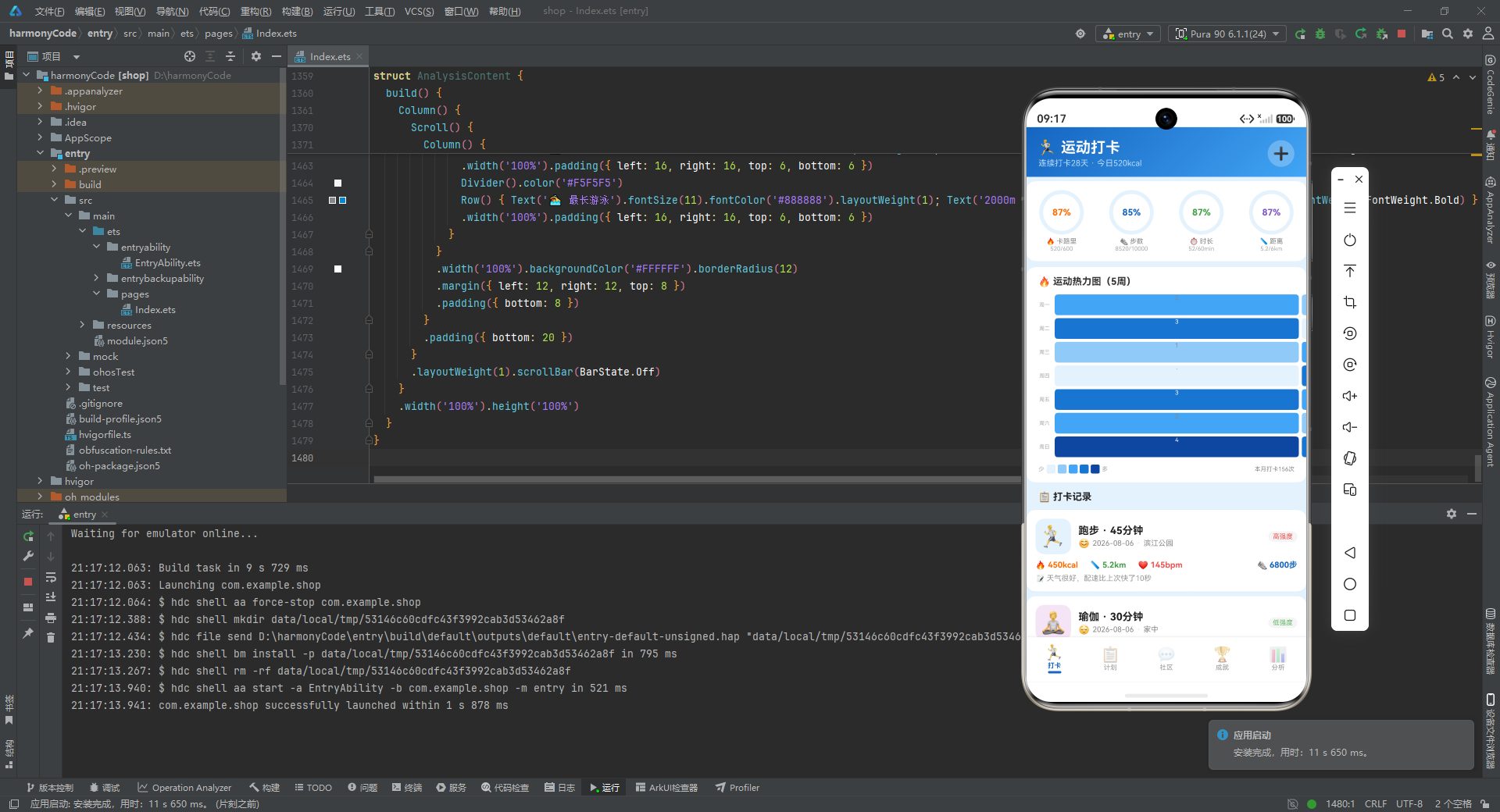
对于想要学习鸿蒙应用开发的工程师来说,这份实现是一个极佳的参考案例。它覆盖了状态管理、组件化、布局系统、样式系统、事件处理、列表渲染、条件渲染、弹窗交互等几乎所有核心知识点,同时又不像简单的教程示例那样碎片化——它是一个完整的、有业务语境的、可以运行的产品原型。通过逐行研读这份代码,开发者不仅能够掌握 ArkTS 的语法和 API,更能学到如何从产品角度思考技术实现,如何用工程化的方式组织代码,如何在细节处体现对用户体验的关注。

讨论HarmonyOS开发技术,专注于API与组件、DevEco Studio、测试、元服务和应用上架分发等。
更多推荐

 6
6 0
0- 0


 已为社区贡献129条内容

所有评论(0)