HarmonyOS NEXT 项目打包与发布:从签名配置到 AppGallery 上架全流程
HarmonyOS NEXT 项目打包与发布:从签名配置到 AppGallery 上架全流程
前言
应用开发完成后,打包与发布是将产品交付给用户的关键环节。HarmonyOS NEXT 的构建体系与传统 Android 有显著差异,涉及 HAP 包结构、签名配置、混淆规则等独有概念。本文将以 HarmonyExplorer 项目为例,完整讲解从构建配置到 AppGallery 发布的全流程。参考 HarmonyOS 应用发布指南 获取官方发布流程。
一、应用签名配置
1.1 签名体系概述
HarmonyOS 应用使用数字证书进行签名,确保应用来源可信和内容完整。签名体系包含以下核心要素:
| 签名要素 | 说明 | 获取方式 |
|---|---|---|
| CSR 文件 | 证书签名请求 | DevEco Studio 生成 |
| 证书文件(.cer) | 数字证书 | AGC 平台签发 |
| Profile 文件 | 应用配置文件 | AGC 平台签发 |
| 密钥库(.p12) | 密钥存储 | DevEco Studio 生成 |
| 密钥别名 | 密钥标识 | 创建时指定 |
1.2 生成密钥与证书
在 DevEco Studio 中通过 Build -> Generate Key And CSR 菜单生成密钥库和 CSR 文件。生成后将 CSR 提交至 AppGallery Connect 平台签发证书。
# 使用 DevEco Studio 命令行工具生成密钥库
# 密钥库密码和密钥别名密码需妥善保管
java -jar hap-sign-tool.jar generate-keypair \
  -alias "harmonyexplorer_key" \
  -keyAlg "RSA" \
  -keySize 2048 \
  -keystore "harmonyexplorer.p12" \
  -storePwd "your_store_password"
密钥库密码和证书文件是应用签名的核心凭证,务必安全备份。一旦丢失将无法更新已发布的应用。
二、build-profile.json5 签名设置
2.1 项目级配置
在项目根目录的 build-profile.json5 中配置签名信息,DevEco Studio 构建时自动读取并完成签名。参考 build-profile 配置文档。
{
  "app": {
    "signingConfigs": [
      {
        "name": "default",
        "type": "HarmonyOS",
        "material": {
          "certpath": "certs/harmonyexplorer.cer",
          "storePassword": "your_store_password",
          "keyAlias": "harmonyexplorer_key",
          "keyPassword": "your_key_password",
          "profile": "certs/harmonyexplorer.p7b",
          "signAlg": "SHA256withECDSA",
          "storeFile": "certs/harmonyexplorer.p12"
        }
      }
    ],
    "products": [
      {
        "name": "default",
        "signingConfig": "default",
        "compileSdkVersion": 12,
        "compatibleSdkVersion": 12,
        "targetSdkVersion": 12
      }
    ]
  }
}
2.2 模块级配置
在 entry 模块的 build-profile.json5 中引用签名配置:
{
  "apiType": "stageMode",
  "buildOption": {
    "arkOptions": {
      "obfuscation": {
        "ruleFiles": ["./obfuscation-rules.txt"],
        "enable": false
      }
    }
  },
  "targets": [
    {
      "name": "default",
      "runtimeOS": "HarmonyOS"
    }
  ]
}
三、Debug 与 Release 构建配置
3.1 构建类型差异
Debug 和 Release 构建在多个维度存在差异,需要针对性配置:
| 配置项 | Debug | Release |
|---|---|---|
| 代码混淆 | 关闭 | 开启 |
| 调试符号 | 保留 | 移除 |
| 日志输出 | 全部输出 | 仅 Error |
| 签名方式 | 自动签名 | 正式签名 |
| 性能优化 | 关闭 | 开启 |
| 资源压缩 | 关闭 | 开启 |
3.2 多 Product 配置
通过 build-profile.json5 的 products 数组可以定义多个构建产物,实现环境隔离:
{
  "app": {
    "products": [
      {
        "name": "debug",
        "signingConfig": "debug_config",
        "compileSdkVersion": 12,
        "compatibleSdkVersion": 12
      },
      {
        "name": "release",
        "signingConfig": "release_config",
        "compileSdkVersion": 12,
        "compatibleSdkVersion": 12
      }
    ]
  }
}
四、混淆规则配置
4.1 混淆基础
HarmonyOS NEXT 使用 ArkTS 编译器内置的混淆能力,通过 obfuscation-rules.txt 文件配置混淆规则。参考 代码混淆文档。
# obfuscation-rules.txt

# 开启基础混淆
-enable-property-obfuscation
-enable-toplevel-obfuscation
-enable-filename-obfuscation

# 保留导出 API 名称
-keep-exported-api

# 保留特定包名不混淆
-keep
./entry/src/main/ets/model
./entry/src/main/ets/constants

# 保留反射使用的类名
-keep-class-name
FileInfo
SettingModel
ToolHistory

# 保留字符串常量
-keep-string-property
app_color_primary
app_color_text_primary
4.2 混淆注意事项
配置混淆时需要注意以下事项:
- 被 @Entry、@Component 装饰的类名不可混淆
- AppStorage 使用的 key 字符串不可混淆
- Preferences 存储的 key 不可混淆
- 跨模块调用的接口名不可混淆
- JSON 序列化/反序列化的字段名不可混淆
混淆配置错误会导致运行时崩溃,建议每次修改混淆规则后执行全量功能回归测试。
五、HAP 包结构
5.1 包结构详解
HAP(Harmony Ability Package)是 HarmonyOS 应用的安装包格式。构建产物结构如下:
harmonyexplorer.hap
  ├── module.json          # 模块配置文件
  ├── resources/           # 资源文件
  │   ├── base/            # 基础资源
  │   └── dark/            # 深色模式资源
  ├── assets/              # 静态资源
  ├── libs/                # 动态库
  ├── pack.info            # 包信息
  └── entry-abilities.json # Ability 配置
5.2 module.json5 关键配置
{
  "module": {
    "name": "entry",
    "type": "entry",
    "deviceTypes": ["phone", "tablet"],
    "deliveryWithInstall": true,
    "installationFree": false,
    "pages": "$profile:main_pages",
    "abilities": [
      {
        "name": "EntryAbility",
        "srcEntry": "./ets/entryability/EntryAbility.ets",
        "description": "HarmonyExplorer 主入口",
        "icon": "$media:app_icon",
        "label": "$string:app_name",
        "startWindowIcon": "$media:start_icon",
        "startWindowBackground": "$color:start_window_background",
        "exported": true,
        "skills": [
          {
            "actions": ["action.system.home"],
            "entities": ["entity.system.home"]
          }
        ]
      }
    ],
    "requestPermissions": [
      {
        "name": "ohos.permission.READ_MEDIA",
        "reason": "$string:permission_read_media_reason",
        "usedScene": {
          "abilities": ["EntryAbility"],
          "when": "inuse"
        }
      }
    ]
  }
}
六、多 Target 设备适配
6.1 设备类型配置
HarmonyExplorer 需要适配手机和平板设备。通过 build-profile.json5 的 targets 配置多设备构建:
{
  "targets": [
    {
      "name": "default",
      "runtimeOS": "HarmonyOS"
    }
  ]
}
6.2 响应式布局适配
在代码层面通过断点适配不同屏幕尺寸,参考 响应式布局文档:
@Entry
@Component
struct FileExplorerPage {
  @State currentBreakpoint: string = BreakpointConstants.BREAKPOINT_SM;

  build(): void {
    GridRow({
      breakpoints: { value: ['320vp', '600vp', '840vp'] },
      onBreakpointChange: (breakpoint: string) => {
        this.currentBreakpoint = breakpoint;
      }
    }) {
      GridCol({ span: { sm: 12, md: 6, lg: 4 } }) {
        FileListSection({ breakpoint: this.currentBreakpoint })
      }
    }
  }
}
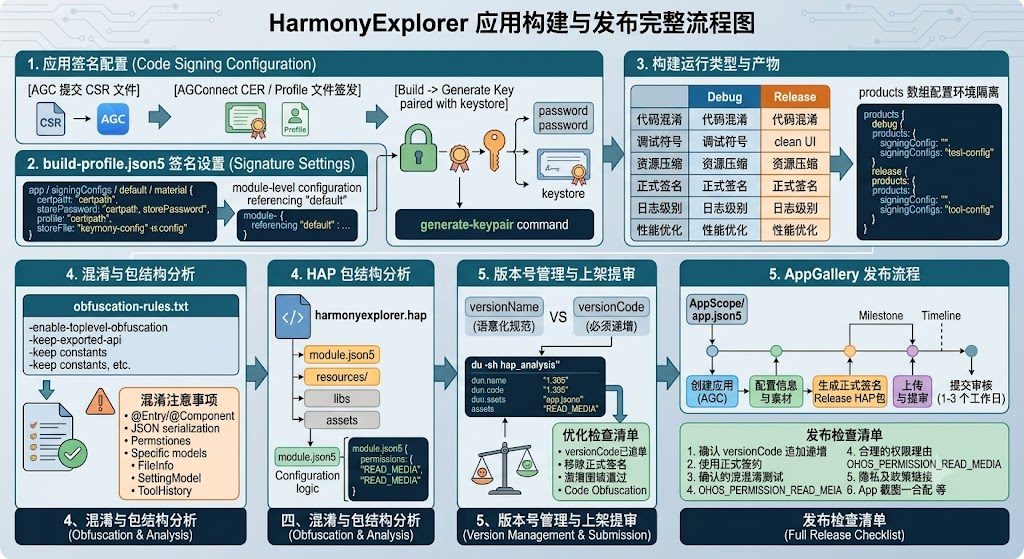
图1:HarmonyExplorer 应用构建与发布完整流程图
七、App Gallery 发布流程
7.1 发布前准备
发布到 AppGallery 前需要完成以下准备工作:
- 在 AppGallery Connect 创建应用
- 配置应用基本信息(名称、分类、描述)
- 准备应用图标和截图素材
- 完成隐私政策和服务条款配置
- 生成正式签名的 Release HAP 包
7.2 上传与提审
# 使用 DevEco Studio 构建 Release 包
# Build -> Build Hap(s)/APP(s) -> Build Release Hap(s)

# 构建完成后在 build/outputs/release 目录获取 HAP 文件
# 登录 AppGallery Connect -> 我的应用 -> 准备提交

# 上传 HAP 文件并填写版本信息
# 提交审核,通常 1-3 个工作日出结果
八、版本号管理
8.1 版本号策略
HarmonyOS 应用版本管理采用 versionName 和 versionCode 双版本号机制:
| 字段 | 类型 | 说明 | 示例 |
|---|---|---|---|
| versionName | string | 展示给用户的版本号 | “1.0.0” |
| versionCode | number | 内部版本号,必须递增 | 10000 |
8.2 版本号配置
在 AppScope/app.json5 中配置版本号:
{
  "app": {
    "bundleName": "com.harmonyexplorer.app",
    "versionCode": 10000,
    "versionName": "1.0.0",
    "icon": "$media:app_icon",
    "label": "$string:app_name"
  }
}
versionCode 必须为正整数且每次发布递增,versionName 遵循语义化版本规范(主版本.次版本.修订号)。
九、构建产物分析
9.1 包大小优化
发布前应分析 HAP 包大小,剔除无用资源。常见优化手段:
- 移除未引用的图片和资源文件
- 压缩大图片资源
- 按需引入 Kit 模块
- 开启代码混淆减小代码体积
- 使用资源限定符替代运行时判断
9.2 构建产物检查
# 解压 HAP 文件分析内容
unzip harmonyexplorer.hap -d hap_analysis

# 检查各目录大小
du -sh hap_analysis/*

# 预期输出:
# 4.0M  hap_analysis/resources/
# 2.0M  hap_analysis/assets/
# 1.5M  hap_analysis/libs/
#  64K  hap_analysis/module.json
十、发布检查清单
10.1 发布前检查项
发布前逐项确认以下发布检查清单,避免遗漏关键步骤:
- 确认 versionCode 已递增
- 确认使用正式签名(非 Debug 签名)
- 确认混淆规则已开启并测试通过
- 确认所有权限已声明且有合理 reason
- 确认隐私政策链接可访问
- 确认应用截图与实际界面一致
- 确认深色模式资源完整
- 确认无硬编码的测试服务器地址
- 确认日志级别在 Release 下为 Error
- 确认在真机上完成全功能回归测试
总结
项目打包与发布是 HarmonyExplorer 交付用户的最后一公里。通过规范的签名配置、精准的混淆规则、完整的发布检查清单,可以确保应用以最佳状态上架 AppGallery。版本号管理和构建产物分析帮助持续追踪应用质量。建议在项目中建立 CI/CD 流水线自动化构建流程,减少人工操作失误。更多发布相关内容请参考 AppGallery Connect 帮助中心 和 HarmonyOS 构建工具文档。
如果这篇文章对你有帮助,欢迎点赞👍、收藏⭐、关注🔔,你的支持是我持续创作的动力!
相关资源

讨论HarmonyOS开发技术,专注于API与组件、DevEco Studio、测试、元服务和应用上架分发等。
更多推荐


 5
5 0
0- 0


 已为社区贡献87条内容

所有评论(0)