HarmonyOS 6.0 应用接续onContinue——手机编辑到一半,平板接着搞
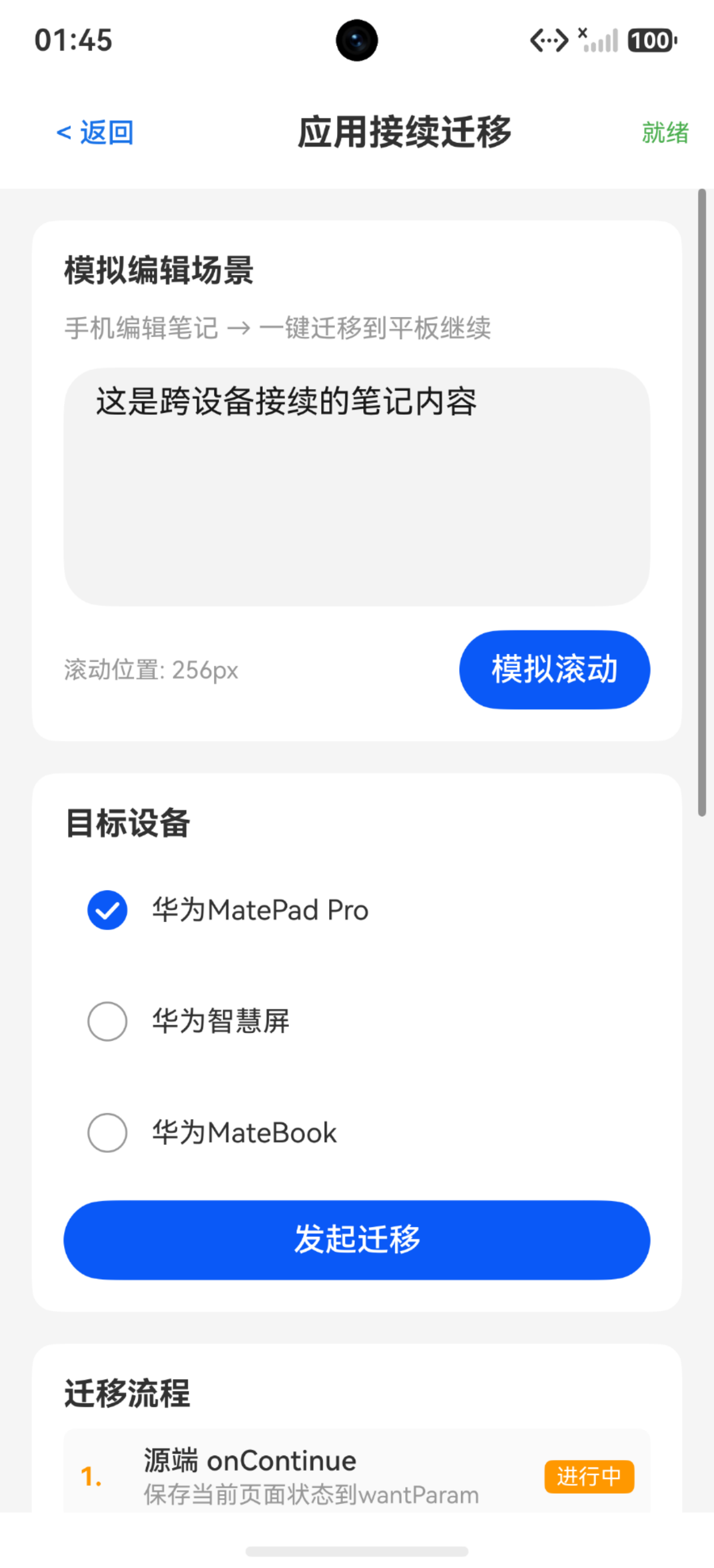
写笔记写到一半要出门,手机一划就转到平板继续——不是云同步那种"保存-重新打开",而是真正的"无缝接续":页面栈、滚动位置、输入内容全部原样恢复。HarmonyOS NEXT 的应用接续(Continuation)就是干这个的。这篇把 onContinue 保存、onCreate 恢复、continuable 配置的完整链路讲清楚。
应用接续概览
核心概念:
- onContinue——源端(手机)保存迁移数据,写入 wantParam
- onCreate/onNewWant——对端(平板)接收迁移数据,恢复 UI
- continuable——module.json5 中声明 Ability 支持接续
- LaunchReason.CONTINUATION——对端通过启动原因判断是接续还是正常启动
import { UIAbility, AbilityConstant, Want } from '@kit.AbilityKit'
配置 continuable
module.json5
{
  "module": {
    "name": "entry",
    "type": "entry"
  },
  "abilities": [
    {
      "name": "EntryAbility",
      "continuable": true,
      "launchType": "singleton"
    }
  ]
}
要点: continuable: true 是必须配置的,否则系统不会触发接续流程。launchType 建议用 singleton,避免对端出现多实例。
源端:onContinue 保存数据
用户发起迁移时,源端 UIAbility 的 onContinue 被触发:
export default class EntryAbility extends UIAbility {
  private content: string = ''
  private scrollY: number = 0
  private editMode: string = ''

  onContinue(wantParam: Record<string, Object>): AbilityConstant.OnContinueResult {
    // 保存业务数据到 wantParam
    wantParam['content'] = this.content
    wantParam['scrollY'] = this.scrollY.toString()
    wantParam['editMode'] = this.editMode
    wantParam['lastEditTime'] = new Date().toLocaleString()

    console.info('onContinue: 数据已保存')

    // 返回 AGREE 表示同意迁移
    return AbilityConstant.OnContinueResult.AGREE

    // 返回 REJECT 表示拒绝迁移(如数据未保存)
    // return AbilityConstant.OnContinueResult.REJECT

    // 返回 MISMATCH 表示版本不匹配
    // return AbilityConstant.OnContinueResult.MISMATCH
  }
}
要点: wantParam 的 value 必须是 Object 类型(string、number 等),复杂对象需要 JSON.stringify 序列化。返回 AGREE 才会继续迁移流程。
对端:onCreate 恢复数据
对端设备的 UIAbility 被启动,launchReason 为 CONTINUATION:
export default class EntryAbility extends UIAbility {
  private content: string = ''
  private scrollY: number = 0

  onCreate(want: Want, launchParam: AbilityConstant.LaunchParam): void {
    // 判断是否为接续启动
    if (launchParam.launchReason === AbilityConstant.LaunchReason.CONTINUATION) {
      // 从 want.parameters 恢复数据
      if (want.parameters !== undefined) {
        let params: Record<string, Object> = want.parameters
        this.content = params['content'] as string
        let scrollYStr: string = params['scrollY'] as string
        this.scrollY = parseInt(scrollYStr, 10)
      }
      console.info('onCreate: 接续数据已恢复')
    } else {
      // 正常启动
      console.info('onCreate: 正常启动')
    }
  }
}
要点: 必须通过 launchReason 判断是否为接续启动,否则正常启动也会走恢复逻辑。want.parameters 和源端 onContinue 的 wantParam 是同一份数据。
对端:onRestoreData 恢复 UI(可选)
如果需要在恢复后做 UI 特定操作:
onRestoreData(wantParam: Record<string, Object>): void {
  // 已废弃,建议在 onCreate 中处理
  // 此回调仅作兼容保留
}
要点: 新版本推荐在 onCreate 中直接恢复,onRestoreData 已废弃。
完整迁移流程
源端(手机)                          对端(平板)
   │                                   │
   │  用户点击迁移按钮                    │
   │                                   │
   │  onContinue()                     │
   │  ├─ 保存数据到wantParam            │
   │  └─ return AGREE                  │
   │                                   │
   │ ───── 系统传输数据 ──────→         │
   │                                   │
   │                          onCreate(want, launchParam)
   │                          ├─ launchReason === CONTINUATION
   │                          ├─ 从want.parameters恢复数据
   │                          └─ 重建UI
   │                                   │
   │  源端onStoreData()                │
   │  └─ 可选:保存源端状态              │
   │                                   │
   │                          onWindowStageRestore()
   │                          └─ 恢复窗口内容
页面级数据恢复
Ability 层恢复数据后,需要传递给页面:
// EntryAbility.ets
onCreate(want: Want, launchParam: AbilityConstant.LaunchParam): void {
  if (launchParam.launchReason === AbilityConstant.LaunchReason.CONTINUATION) {
    let params: Record<string, Object> = want.parameters as Record<string, Object>
    // 通过 AppStorage 传递给页面
    AppStorage.setOrCreate('continuation_content', params['content'] as string)
    AppStorage.setOrCreate('continuation_scrollY', params['scrollY'] as string)
  }
}

// 页面中接收
@StorageLink('continuation_content') content: string = ''
@StorageLink('continuation_scrollY') scrollYStr: string = '0'
要点: Ability 和 Page 是两个不同的上下文,通过 AppStorage 或 LocalStorage 桥接数据。
大数据迁移策略
wantParam 有大小限制(约 100KB),大数据需要用文件或数据库中转:
onContinue(wantParam: Record<string, Object>): AbilityConstant.OnContinueResult {
  // 小数据直接放 wantParam
  wantParam['title'] = this.title
  wantParam['cursorPos'] = this.cursorPos.toString()

  // 大数据写入临时文件,wantParam 只传文件路径
  if (this.largeData.length > 50000) {
    let filePath: string = this.getContext().tempDir + '/continuation_data.json'
    fs.writeTextSync(filePath, JSON.stringify(this.largeData))
    wantParam['dataFilePath'] = filePath
    wantParam['hasLargeData'] = 'true'
  } else {
    wantParam['content'] = this.largeData
    wantParam['hasLargeData'] = 'false'
  }

  return AbilityConstant.OnContinueResult.AGREE
}
要点: 系统会自动传输源端的文件目录(files/temp/cache)到对端,所以文件路径中转是可行的。
迁移失败处理
onContinue(wantParam: Record<string, Object>): AbilityConstant.OnContinueResult {
  // 有未保存的草稿
  if (this.hasUnsavedChanges) {
    // 弹窗提示用户
    return AbilityConstant.OnContinueResult.REJECT
  }

  // 版本不兼容
  if (this.localVersion > this.targetVersion) {
    return AbilityConstant.OnContinueResult.MISMATCH
  }

  return AbilityConstant.OnContinueResult.AGREE
}
要点: REJECT 拒绝迁移(用户可感知),MISMATCH 版本不匹配(系统处理),AGREE 同意迁移。不要无条件返回 AGREE,未保存的数据可能丢失。
完整 Demo 代码
Demo 模拟了笔记编辑→选择目标设备→迁移流程动画的全过程。
interface MigrationStep {
  name: string;
  status: string;
  detail: string;
}

@Entry
@Component
struct ContinuationDemo {
  @State migrationSteps: MigrationStep[] = [];
  @State currentPage: string = '笔记内容编辑中...';
  @State targetDevice: string = '';
  @State isMigrating: boolean = false;
  @State migrateResult: string = '';
  @State editContent: string = '这是跨设备接续的笔记内容';
  @State scrollPosition: number = 0;
  @State availableDevices: string[] = ['华为MatePad Pro', '华为智慧屏', '华为MateBook'];

  build() {
    Column({ space: 0 }) {
      Row() {
        Button('< 返回')
          .fontSize(14)
          .backgroundColor(Color.Transparent)
          .fontColor('#1a73e8')
          .onClick(() => { router.back(); })
        Text('应用接续迁移')
          .fontSize(18)
          .fontWeight(FontWeight.Bold)
          .layoutWeight(1)
          .textAlign(TextAlign.Center)
        Text(this.isMigrating ? '迁移中' : '就绪')
          .fontSize(12)
          .fontColor(this.isMigrating ? '#F44336' : '#4CAF50')
      }
      .width('100%').height(56)
      .padding({ left: 12, right: 12 })
      .alignItems(VerticalAlign.Center)
      .backgroundColor('#FFFFFF')

      Scroll() {
        Column({ space: 16 }) {
          Column({ space: 12 }) {
            Text('模拟编辑场景')
              .fontSize(16).fontWeight(FontWeight.Bold).width('100%')
            Text('手机编辑笔记 → 一键迁移到平板继续')
              .fontSize(13).fontColor('#999999').width('100%')

            TextArea({ text: this.editContent, placeholder: '编辑笔记内容...' })
              .width('100%').height(120)
              .onChange((value: string) => { this.editContent = value; })

            Row() {
              Text('滚动位置: ' + this.scrollPosition + 'px')
                .fontSize(12).fontColor('#999999').layoutWeight(1)
              Button('模拟滚动').onClick(() => { this.scrollPosition = 256; })
            }
          }
          .width('100%').padding(16).borderRadius(12).backgroundColor('#FFFFFF')

          Column({ space: 12 }) {
            Text('目标设备')
              .fontSize(16).fontWeight(FontWeight.Bold).width('100%')

            ForEach(this.availableDevices, (device: string) => {
              Row({ space: 8 }) {
                Radio({ value: device, group: 'devices' })
                  .onChange((isChecked: boolean) => {
                    if (isChecked) { this.targetDevice = device; }
                  })
                Text(device).fontSize(14).layoutWeight(1)
              }
              .width('100%').padding(8)
            }, (device: string) => device)

            Button('发起迁移')
              .width('100%')
              .enabled(this.targetDevice.length > 0 && !this.isMigrating)
              .onClick(() => { this.startMigration(); })
          }
          .width('100%').padding(16).borderRadius(12).backgroundColor('#FFFFFF')

          if (this.migrationSteps.length > 0) {
            Column({ space: 8 }) {
              Text('迁移流程')
                .fontSize(16).fontWeight(FontWeight.Bold).width('100%')
              ForEach(this.migrationSteps, (step: MigrationStep, index: number) => {
                Row({ space: 8 }) {
                  Text((index + 1).toString() + '.')
                    .fontSize(13).fontWeight(FontWeight.Bold)
                    .fontColor(this.getStepColor(step.status)).width(24)
                  Column({ space: 2 }) {
                    Text(step.name).fontSize(14).fontWeight(FontWeight.Medium)
                    Text(step.detail).fontSize(12).fontColor('#999999')
                  }
                  .layoutWeight(1).alignItems(HorizontalAlign.Start)
                  Text(step.status)
                    .fontSize(11).fontColor('#FFFFFF')
                    .backgroundColor(this.getStepColor(step.status))
                    .borderRadius(4)
                    .padding({ left: 6, right: 6, top: 2, bottom: 2 })
                }
                .width('100%').padding(8).borderRadius(6).backgroundColor('#FAFAFA')
              }, (step: MigrationStep, index: number) => `${index}`)
            }
            .width('100%').padding(16).borderRadius(12).backgroundColor('#FFFFFF')
          }

          if (this.migrateResult) {
            Text(this.migrateResult)
              .fontSize(14).fontColor('#4CAF50')
              .padding(12).borderRadius(8).backgroundColor('#E8F5E9')
              .width('100%')
          }
        }
        .padding(16)
      }
      .layoutWeight(1).width('100%')
    }
    .width('100%').height('100%').backgroundColor('#F5F5F5')
  }

  private getStepColor(status: string): string {
    if (status === '完成') return '#4CAF50'
    if (status === '进行中') return '#FF9800'
    return '#9E9E9E'
  }

  private startMigration(): void {
    this.isMigrating = true
    this.migrationSteps = []
    this.migrateResult = ''

    let steps: MigrationStep[] = [
      { name: '源端 onContinue', status: '等待', detail: '保存当前页面状态到wantParam' },
      { name: '系统传输数据', status: '等待', detail: '跨设备传输wantParam和页面栈' },
      { name: '对端 onCreate', status: '等待', detail: 'LaunchReason.CONTINUATION触发恢复' },
      { name: '对端恢复UI', status: '等待', detail: '恢复内容和滚动位置' }
    ]
    this.migrationSteps = steps

    let stepIndex: number = 0
    let intervalId: number = setInterval(() => {
      if (stepIndex < this.migrationSteps.length) {
        this.migrationSteps[stepIndex].status = '进行中'
        setTimeout(() => {
          this.migrationSteps[stepIndex].status = '完成'
          stepIndex++
          if (stepIndex >= this.migrationSteps.length) {
            clearInterval(intervalId)
            this.isMigrating = false
            this.migrateResult = '迁移完成!笔记内容已同步到' + this.targetDevice
          }
        }, 800)
      }
    }, 1000)

    this.migrationSteps[0].status = '进行中'
    setTimeout(() => {
      this.migrationSteps[0].status = '完成'
      this.migrationSteps[0].detail = '已保存: content=' + this.editContent + ', scrollY=' + this.scrollPosition
      stepIndex = 1
    }, 800)
  }
}
应用接续 vs 分布式数据对象
| 对比 | 应用接续 | 分布式数据对象 |
|---|---|---|
| 触发方式 | 用户主动迁移 | 修改属性自动同步 |
| 数据流向 | 单向(源→对端) | 双向实时同步 |
| 恢复内容 | 页面栈+数据 | 仅数据 |
| 使用场景 | 换设备继续用 | 多设备实时协同 |
| 用户体验 | 明确的迁移动画 | 无感知自动同步 |
要点: 接续是"搬家"——把整个应用状态搬过去;分布式对象是"同步"——数据实时保持一致。两者可以配合使用。
踩坑清单
| 问题 | 原因 | 解决 |
|---|---|---|
| onContinue 不触发 | continuable 未配置 | module.json5 设 continuable: true |
| 对端 onCreate launchReason 不对 | 对端不是接续启动 | 检查 launchReason 是否为 CONTINUATION |
| 恢复数据为空 | wantParam value 类型不对 | value 必须是 Object,复杂对象 JSON.stringify |
| 迁移大图失败 | wantParam 超过大小限制 | 大数据用文件中转,传文件路径 |
| 对端页面空白 | 数据未传递到 Page | 通过 AppStorage/LocalStorage 桥接 |
| 迁移后源端卡住 | 未正确返回 AGREE | onContinue 必须返回 OnContinueResult |
| 两端版本不同崩溃 | 数据结构不兼容 | 检查版本号,返回 MISMATCH |
| singleton 模式冲突 | 对端已有实例运行 | singleton 会复用实例,onNewWant 接收数据 |
| 滚动位置恢复不准 | onWindowStageRestore 时机 | windowStage 加载完成后再设置滚动 |
| 网络断开迁移失败 | 蓝牙/WiFi 不稳定 | 迁移前检查网络,失败后重试 |

讨论HarmonyOS开发技术,专注于API与组件、DevEco Studio、测试、元服务和应用上架分发等。
更多推荐
 7
7 0
0- 0


 已为社区贡献100条内容

所有评论(0)