HarmonyOS 互动卡片系列终章:运动卡片与音乐卡片 Canvas 自绘制实战
·
HarmonyOS 互动卡片系列终章:运动卡片与音乐卡片 Canvas 自绘制实战
前言
在前四篇文章中,我们系统讲解了互动卡片的概念原理、配置触发、通信架构,以及快递卡片和睡眠卡片的完整开发流程。本文作为互动卡片系列的终章,将聚焦运动卡片和音乐卡片——前者展示运动状态管理和卡路里数字累加动画,后者展示 Canvas 自绘制和音频控制交互。
一、运动卡片完整开发流程
1.1 场景描述
运动卡片功能清单:
| 功能 | 触发方式 | 效果 |
|---|---|---|
| 开始运动 | 点击"开始运动" | 憨憨拉伸运动动画 |
| 结束运动 | 点击"结束运动" | 庆祝动画 + 卡路里累加 0→300kcal |
| 页面跳转 | 点击卡片 | 跳转到运动详情页 |
| 状态回推 | 运动结束后 | 回推卡路里数据到动态卡片 |
1.2 运动卡片配置
{
  "name": "ExerciseCard",
  "displayName": "$string:ExerciseCard",
  "src": "./ets/widget/pages/ExerciseCard.ets",
  "uiSyntax": "arkts",
  "isDynamic": true,
  "defaultDimension": "2*2",
  "supportDimensions": ["2*2"],
  "sceneAnimationParams": {
    "abilityName": "ExerciseLiveCardAbility",
    "triggerTypes": ["click"]
  }
}
1.3 运动卡片动态卡片 UI
// entry/src/main/ets/widget/pages/ExerciseCard.ets
@Entry
@Component
struct ExerciseCard {
  @LocalStorageProp('isExercising') isExercising: boolean = false;
  @LocalStorageProp('calories') calories: number = 0;

  build() {
    RelativeContainer() {
      Image($rawfile('exercise/background.png'))
        .width('100%').height('100%').id('ex_bg');

      Image(this.isExercising
        ? $rawfile('exercise/exercising_hanhan.png')
        : $rawfile('exercise/rest_hanhan.png'))
        .width('55%').height('55%')
        .id('hanhan')
        .alignRules({
          center: { anchor: '__container__', align: Alignment.Center }
        });

      Text(this.isExercising ? '运动中' : `${this.calories} kcal`)
        .fontSize(18)
        .fontWeight(FontWeight.Bold)
        .fontColor('#FFF')
        .id('calories')
        .alignRules({
          bottom: { anchor: '__container__', align: VerticalAlign.Bottom },
          center: { anchor: '__container__', align: HorizontalAlign.Center }
        })
        .margin({ bottom: 12 });

      Stack()
        .width('100%').height('25%')
        .onClick(() => { ActionUtils.jumpAppPage(this, 'ExercisePage'); })
        .alignRules({
          left: { anchor: '__container__', align: HorizontalAlign.Start },
          bottom: { anchor: '__container__', align: VerticalAlign.Bottom }
        });
    }
    .width('100%').height('100%')
    .onClick(() => {
      ActionUtils.requestOverFlow(this,
        LiveCardScale.EXERCISE_WIDTH, LiveCardScale.EXERCISE_HEIGHT, 5000);
    });
  }
}
1.4 运动卡片动画 UI
// entry/src/main/ets/livecardability/pages/ExerciseLiveCard.ets
import { formProvider, formBindingData, formInfo } from '@kit.FormKit';

@Entry({ useSharedStorage: true })
@Component
struct ExerciseLiveCard {
  @LocalStorageProp('formRect') rect?: formInfo.Rect = undefined;
  @LocalStorageProp('formId') formId: string = '';

  @State isExercising: boolean = false;
  @State currentCalories: number = 0;
  @State showCelebration: boolean = false;
  @State celebrationScale: number = 0;

  private readonly targetCalories: number = 300;
  private calorieTimer: number | null = null;

  /**
   * 开始运动
   */
  startExercise(): void {
    this.isExercising = true;
    this.showCelebration = false;
  }

  /**
   * 结束运动:庆祝动画 + 卡路里累加
   */
  endExercise(): void {
    this.isExercising = false;
    this.showCelebration = true;

    // 庆祝缩放动画
    this.celebrationScale = 1.5;
    setTimeout(() => { this.celebrationScale = 1.0; }, 500);

    // 卡路里数字累加动画
    this.animateCalories();
  }

  /**
   * 卡路里数字累加动画(0 → 300)
   */
  private animateCalories(): void {
    const totalSteps = 60;     // 60 步
    const stepDuration = 30;   // 每步 30ms,总计 1.8 秒
    const increment = this.targetCalories / totalSteps;

    let step = 0;
    this.calorieTimer = setInterval(() => {
      step++;
      this.currentCalories = Math.min(
        Math.round(step * increment),
        this.targetCalories
      );

      if (step >= totalSteps) {
        this.stopCalorieAnimation();
        this.pushCaloriesState();
      }
    }, stepDuration);
  }

  /**
   * 停止卡路里动画
   */
  private stopCalorieAnimation(): void {
    if (this.calorieTimer !== null) {
      clearInterval(this.calorieTimer);
      this.calorieTimer = null;
    }
  }

  /**
   * 回推卡路里数据
   */
  private async pushCaloriesState(): Promise<void> {
    try {
      const bindingData = formBindingData.createFormBindingData({
        calories: this.currentCalories,
        isExercising: false
      });
      await formProvider.updateForm(this.formId, bindingData);
    } catch (err) {
      console.error(`回推失败: ${JSON.stringify(err)}`);
    }
  }

  build() {
    Stack({ alignContent: Alignment.TopStart }) {
      // 背景
      Image($rawfile('exercise/background.png'))
        .borderRadius(this.radius)
        .width(this.rect?.width || 0)
        .height(this.rect?.height || 0);

      // 憨憨动画
      Image(this.isExercising
        ? $rawfile('exercise/stretch_animation.gif')
        : $rawfile('exercise/rest_hanhan.png'))
        .width('60%').height('60%');

      // 庆祝动画
      if (this.showCelebration) {
        Column() {
          Image($rawfile('exercise/celebration.png'))
            .width(80).height(80)
            .scale({ x: this.celebrationScale, y: this.celebrationScale })
            .animation({ duration: 500, curve: Curve.EaseOut });
        }
        .width('100%').height('100%')
        .justifyContent(FlexAlign.Center);
      }

      // 卡路里显示
      Text(`${this.currentCalories} kcal`)
        .fontSize(24)
        .fontWeight(FontWeight.Bold)
        .fontColor('#FF9500')
        .position({ x: '50%', y: '85%' })
        .translate({ x: '-50%', y: 0 });

      // 控制按钮
      Row({ space: 16 }) {
        Button(this.isExercising ? '结束运动' : '开始运动')
          .fontSize(14)
          .fontColor(Color.White)
          .backgroundColor(this.isExercising ? '#FF3B30' : '#34C759')
          .borderRadius(20)
          .height(40)
          .onClick(() => {
            if (this.isExercising) {
              this.endExercise();
            } else {
              this.startExercise();
            }
          });
      }
      .width('100%')
      .justifyContent(FlexAlign.Center)
      .position({ x: 0, y: '100%' })
      .translate({ y: '-100%-16' });
    }
    .width('100%').height('100%');
  }
}
二、音乐卡片完整开发流程
2.1 场景描述
音乐卡片是四张卡片中唯一使用 Canvas 自绘制的卡片,功能清单:
| 功能 | 触发方式 | 效果 |
|---|---|---|
| 播放 | 点击播放按钮 | 憨憨跳舞 + 专辑封面旋转 |
| 暂停 | 点击暂停按钮 | 憨憨停止跳舞,封面停止旋转 |
| 切歌 | 点击切歌按钮 | 憨憨出框取专辑替换 |
| 收藏 | 点击收藏按钮 | 切换收藏状态 |
2.2 音乐卡片配置
{
  "name": "MusicCard",
  "displayName": "$string:MusicCard",
  "src": "./ets/widget/pages/MusicCard.ets",
  "uiSyntax": "arkts",
  "isDynamic": true,
  "defaultDimension": "2*2",
  "supportDimensions": ["2*2"],
  "sceneAnimationParams": {
    "abilityName": "MusicLiveCardAbility",
    "triggerTypes": ["click"]
  }
}
2.3 音乐卡片动态卡片 UI
// entry/src/main/ets/widget/pages/MusicCard.ets
@Entry
@Component
struct MusicCard {
  @LocalStorageProp('songTitle') songTitle: string = '未在播放';
  @LocalStorageProp('artist') artist: string = '';
  @LocalStorageProp('isPlaying') isPlaying: boolean = false;

  build() {
    RelativeContainer() {
      Image($rawfile('music/background.png'))
        .width('100%').height('100%').id('music_bg');

      // 专辑封面
      Image($rawfile('music/album_cover.png'))
        .width('40%').height('40%')
        .borderRadius(8)
        .id('album')
        .alignRules({
          center: { anchor: '__container__', align: Alignment.Center }
        });

      // 歌曲信息
      Column() {
        Text(this.songTitle)
          .fontSize(14).fontWeight(FontWeight.Medium).fontColor('#FFF')
          .maxLines(1).textOverflow({ overflow: TextOverflow.Ellipsis });
        Text(this.artist)
          .fontSize(11).fontColor('rgba(255,255,255,0.7)');
      }
      .id('song_info')
      .alignRules({
        left: { anchor: '__container__', align: HorizontalAlign.Start },
        bottom: { anchor: '__container__', align: VerticalAlign.Bottom }
      })
      .margin({ left: 12, bottom: 36 });

      // 播放按钮
      Image(this.isPlaying
        ? $rawfile('music/btn_pause.png')
        : $rawfile('music/btn_play.png'))
        .width(32).height(32)
        .id('play_btn')
        .alignRules({
          right: { anchor: '__container__', align: HorizontalAlign.End },
          bottom: { anchor: '__container__', align: VerticalAlign.Bottom }
        })
        .margin({ right: 12, bottom: 36 });
    }
    .width('100%').height('100%')
    .onClick(() => {
      ActionUtils.requestOverFlow(this,
        LiveCardScale.MUSIC_WIDTH, LiveCardScale.MUSIC_HEIGHT, 4000);
    });
  }
}
2.4 音乐卡片 Canvas 自绘制动画 UI
// entry/src/main/ets/livecardability/pages/MusicLiveCard.ets
import { formProvider, formBindingData, formInfo } from '@kit.FormKit';
import { drawing } from '@kit.ArkGraphics2D';

@Entry({ useSharedStorage: true })
@Component
struct MusicLiveCard {
  @LocalStorageProp('formRect') rect?: formInfo.Rect = undefined;
  @LocalStorageProp('borderRadius') radius: number = 0;
  @LocalStorageProp('formId') formId: string = '';

  @State isPlaying: boolean = false;
  @State isFavorite: boolean = false;
  @State albumRotation: number = 0;
  @State currentSongIndex: number = 0;

  private settings: RenderingContextSettings = new RenderingContextSettings(true);
  private canvasContext: CanvasRenderingContext2D =
    new CanvasRenderingContext2D(this.settings);
  private animationId: number = 0;

  private readonly songs: SongInfo[] = [
    { title: '夏日序曲', artist: '轻音乐团', cover: 'cover_1' },
    { title: '星空漫步', artist: '电子音乐人', cover: 'cover_2' },
    { title: '雨后彩虹', artist: '独立音乐人', cover: 'cover_3' },
  ];

  aboutToAppear(): void {
    this.startAnimation();
  }

  aboutToDisappear(): void {
    this.cancelAnimationFrame(this.animationId);
  }

  /**
   * Canvas 绘制循环
   */
  private startAnimation(): void {
    const draw = () => {
      this.canvasContext.clearRect(
        0, 0,
        this.rect?.width || 300,
        this.rect?.height || 300
      );

      // 绘制背景渐变
      const gradient = this.canvasContext.createLinearGradient(0, 0, 0, 300);
      gradient.addColorStop(0, '#1a1a2e');
      gradient.addColorStop(1, '#16213e');
      this.canvasContext.fillStyle = gradient;
      this.canvasContext.fillRect(0, 0, 300, 300);

      // 绘制旋转的专辑封面
      this.canvasContext.save();
      this.canvasContext.translate(150, 120);
      if (this.isPlaying) {
        this.albumRotation += 2;
      }
      this.canvasContext.rotate((this.albumRotation * Math.PI) / 180);
      this.canvasContext.fillStyle = '#333';
      this.canvasContext.beginPath();
      this.canvasContext.arc(0, 0, 60, 0, 2 * Math.PI);
      this.canvasContext.fill();
      this.canvasContext.restore();

      // 绘制歌曲信息
      this.canvasContext.fillStyle = '#FFF';
      this.canvasContext.font = '16px sans-serif';
      this.canvasContext.textAlign = 'center';
      this.canvasContext.fillText(
        this.songs[this.currentSongIndex].title, 150, 220
      );

      this.canvasContext.fillStyle = 'rgba(255,255,255,0.7)';
      this.canvasContext.font = '12px sans-serif';
      this.canvasContext.fillText(
        this.songs[this.currentSongIndex].artist, 150, 242
      );

      this.animationId = requestAnimationFrame(draw);
    };
    draw();
  }

  /**
   * 切歌
   */
  switchSong(): void {
    this.currentSongIndex = (this.currentSongIndex + 1) % this.songs.length;
    // 出框动画(憨憨飞出取专辑)
    this.albumRotation = 0;
    this.syncStateToApp();
  }

  /**
   * 切换播放状态
   */
  togglePlay(): void {
    this.isPlaying = !this.isPlaying;
    this.syncStateToApp();
  }

  /**
   * 切换收藏状态
   */
  toggleFavorite(): void {
    this.isFavorite = !this.isFavorite;
    this.syncStateToApp();
  }

  /**
   * 同步状态到应用和动态卡片
   */
  private async syncStateToApp(): Promise<void> {
    try {
      // 回推到动态卡片
      const bindingData = formBindingData.createFormBindingData({
        songTitle: this.songs[this.currentSongIndex].title,
        artist: this.songs[this.currentSongIndex].artist,
        isPlaying: this.isPlaying
      });
      await formProvider.updateForm(this.formId, bindingData);
    } catch (err) {
      console.error(`状态同步失败: ${JSON.stringify(err)}`);
    }
  }

  build() {
    Stack({ alignContent: Alignment.TopStart }) {
      // Canvas 绘制区域
      Canvas(this.canvasContext)
        .width(this.rect?.width || 300)
        .height(this.rect?.height || 300)
        .borderRadius(this.radius);

      // 控制按钮
      Row({ space: 24 }) {
        Button({ type: ButtonType.Circle }) {
          SymbolGlyph($r('sys.symbol.backward'))
            .fontSize(20).fontColor([Color.White])
        }
        .width(44).height(44).backgroundColor('rgba(255,255,255,0.2)')
        .onClick(() => { this.switchSong(); });

        Button({ type: ButtonType.Circle }) {
          SymbolGlyph(this.isPlaying
            ? $r('sys.symbol.pause')
            : $r('sys.symbol.play'))
            .fontSize(28).fontColor([Color.White])
        }
        .width(56).height(56).backgroundColor('#007AFF')
        .onClick(() => { this.togglePlay(); });

        Button({ type: ButtonType.Circle }) {
          SymbolGlyph($r('sys.symbol.forward'))
            .fontSize(20).fontColor([Color.White])
        }
        .width(44).height(44).backgroundColor('rgba(255,255,255,0.2)')
        .onClick(() => { this.switchSong(); });

        Button({ type: ButtonType.Circle }) {
          SymbolGlyph(this.isFavorite
            ? $r('sys.symbol.heart')
            : $r('sys.symbol.heart'))
            .fontSize(20)
            .fontColor([this.isFavorite ? '#FF3B30' : Color.White])
        }
        .width(44).height(44).backgroundColor('rgba(255,255,255,0.2)')
        .onClick(() => { this.toggleFavorite(); });
      }
      .width('100%')
      .justifyContent(FlexAlign.Center)
      .position({ x: 0, y: '100%' })
      .translate({ y: '-100%-20' });
    }
    .width('100%').height('100%')
    .onClick(() => {
      formProvider.cancelOverflow(this.formId).catch(() => {});
    });
  }
}

interface SongInfo {
  title: string;
  artist: string;
  cover: string;
}
2.5 音乐卡片开发要点
- Canvas 自绘制:使用
CanvasRenderingContext2D绘制背景渐变、专辑封面、歌曲信息 - 专辑旋转:播放时
albumRotation += 2,暂停时停止旋转 - 切歌出框:切歌时专辑封面飞出卡片边界,取回新专辑
- 状态同步:播放状态、切歌、收藏状态变化后通过
updateForm回推到动态卡片 - 动画循环:使用
requestAnimationFrame实现流畅的 Canvas 动画
三、新增互动卡片标准流程
3.1 八步标准化流程
基于以上四种卡片的开发经验,总结出新增一张互动卡片的标准化流程:
/**
 * 新增互动卡片标准化流程清单
 * 按步骤逐项完成即可
 */
export const NEW_LIVE_CARD_CHECKLIST = [
  {
    step: 1,
    name: '创建动态卡片页面',
    file: 'entry/src/main/ets/widget/pages/XXXCard.ets',
    description: '先建普通卡片页面,包含基础信息和触发按钮'
  },
  {
    step: 2,
    name: '在 form_config.json 注册',
    description: '配置 name、src、sceneAnimationParams.abilityName、triggerTypes'
  },
  {
    step: 3,
    name: '在 module.json5 注册 LiveForm Ability',
    description: '声明 type 为 liveForm 的 extensionAbility,name 与 abilityName 一致'
  },
  {
    step: 4,
    name: '编写 LiveFormExtensionAbility',
    description: '实现 onLiveFormCreate,通过 LocalStorage 传递数据,调用 loadContent'
  },
  {
    step: 5,
    name: '编写 LiveForm 动画页面',
    description: '实现帧动画/陀螺仪交互/Canvas 自绘制等动效'
  },
  {
    step: 6,
    name: '给动态卡片加触发动作',
    description: 'onClick 中调用 ActionUtils.requestOverFlow 发送激活动效请求'
  },
  {
    step: 7,
    name: '添加业务状态存储',
    description: '根据需求选择 Preferences/RDB/文件存储 + updateForm 状态回推'
  },
  {
    step: 8,
    name: '补充页面跳转路由',
    description: '需要跳转时在卡片 UI 中添加 postCardAction(ROUTER)'
  }
];
3.2 四张卡片技术对比
| 维度 | 睡眠卡片 | 快递卡片 | 运动卡片 | 音乐卡片 |
|---|---|---|---|---|
| 触发方式 | 点击 | 点击+摇一摇 | 点击 | 点击 |
| 动画方式 | 帧动画 | 陀螺仪驱动 | 帧动画+GIF | Canvas 自绘制 |
| 传感器 | 无 | 陀螺仪 | 无 | 无 |
| 破框效果 | 气球、三叶草 | 憨憨跑动范围 | 庆祝动画 | 专辑飞出 |
| 状态回推 | isSleep | 无 | calories | 歌曲信息 |
| 通信方式 | ROUTER+MESSAGE | ROUTER+MESSAGE | ROUTER+MESSAGE | CALL+ROUTER+MESSAGE |
| 数据存储 | 无 | 无 | 文件存储 | RDB |
四、常见问题与排错
4.1 常见问题
| 问题 | 原因 | 解决方案 |
|---|---|---|
| 动画白屏 | loadContent 路径不正确 |
检查路径格式:livecardability/pages/XXXLiveCard |
| 动画切换不平滑 | 帧率不足或动画曲线不合适 | 调整帧间隔,使用 animation 属性添加过渡 |
| 陀螺仪数据不更新 | 采样间隔过大或未授权 | 检查传感器权限,调整采样间隔为 100ms |
| 状态回推失败 | formId 不正确 |
确保 formId 从 liveFormInfo.formId 正确获取 |
| 卡片五元组变更导致被删除 | 升级时修改了配置 | 保持五元组(bundleName、moduleName、abilityName、formName、formDimension)不变 |
4.2 调试技巧
/**
 * 互动卡片调试工具
 */
export class LiveFormDebugger {
  static logLifecycle(tag: string, event: string, formId: string): void {
    console.info(`[${tag}] ${event} - formId: ${formId}`);
  }

  static logAnimation(tag: string, frame: number, total: number): void {
    console.info(`[${tag}] 动画帧: ${frame}/${total}`);
  }

  static logCommunication(tag: string, direction: string, data: object): void {
    console.info(`[${tag}] 通信方向: ${direction}, 数据: ${JSON.stringify(data)}`);
  }

  static logSensor(tag: string, sensor: string, data: object): void {
    console.info(`[${tag}] 传感器: ${sensor}, 数据: ${JSON.stringify(data)}`);
  }
}
五、总结
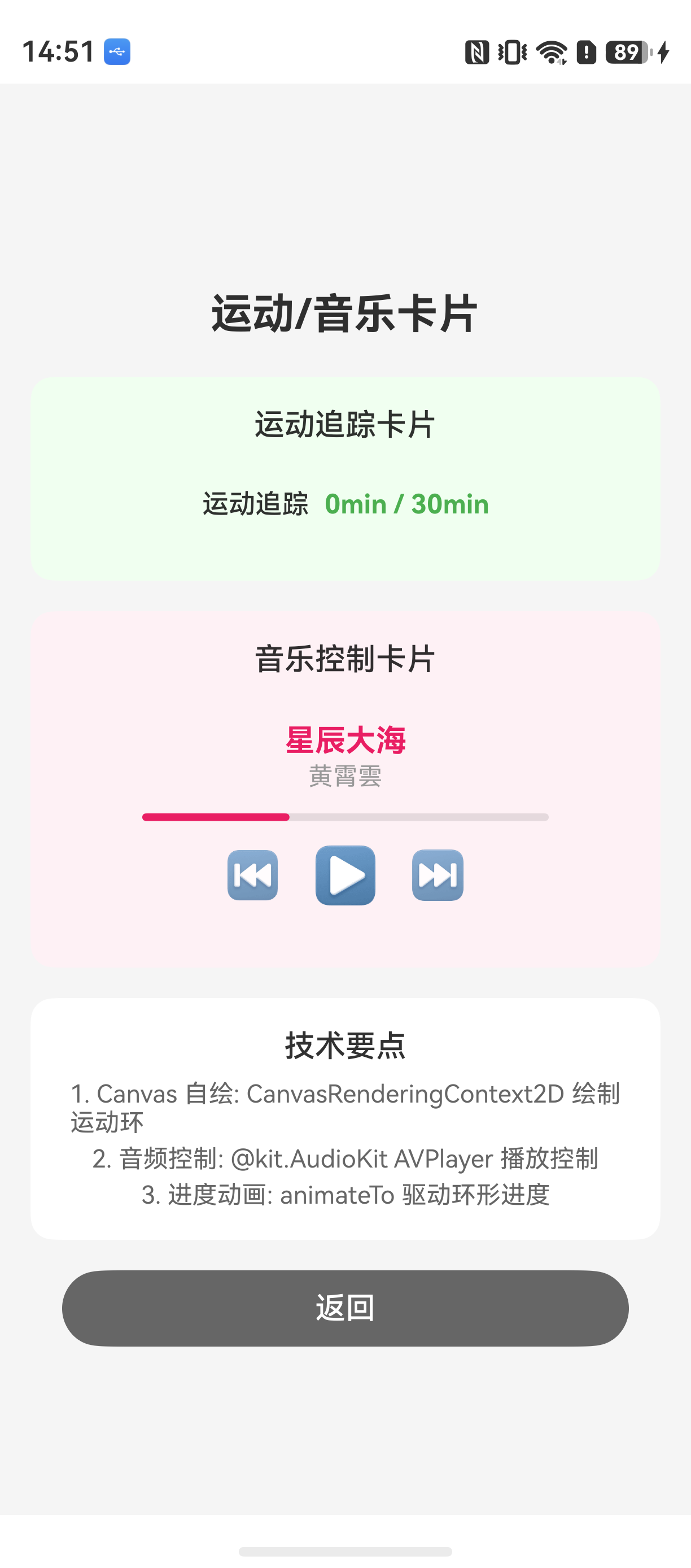
本文作为互动卡片系列的终章,完整拆解了运动卡片和音乐卡片的开发流程:
- 运动卡片:帧动画 + 卡路里数字累加(60 步/30ms 间隔)→ 庆祝动画 → 状态回推
- 音乐卡片:Canvas 自绘制 + 专辑封面旋转动画 → 切歌出框 → 状态同步
- 标准化流程:八步清单,从创建动态卡片到补充路由,覆盖所有新增互动卡片场景
- 四张卡片对比:技术选型参考,帮助开发者根据需求选择合适的实现方式
互动卡片是 HarmonyOS 从"静态展示"到"动态交互"的重要里程碑。从憨憨起床到快递跑动,从运动拉伸到音乐跳舞——互动卡片让桌面体验真正"活"了起来。
如果这篇文章对你有帮助,欢迎点赞👍、收藏⭐、关注🔔,你的支持是我持续创作的动力!
相关资源:

讨论HarmonyOS开发技术,专注于API与组件、DevEco Studio、测试、元服务和应用上架分发等。
更多推荐

 0
0 0
0- 0


 已为社区贡献54条内容

所有评论(0)