桌面小部件开发——从FormExtensionAbility到多尺寸响应式卡片的工程化实践
文章目录

每日一句正能量
去爱具体的人,去过具体的生活。
与其爱抽象的人类,不如去爱身边那个有缺点的人;与其向往远方的诗意,不如用心过好眼前的具体生活。真实的力量和温度,就藏在这些具体的细节里。
摘要
摘要:服务卡片(Form/Widget)是HarmonyOS最具差异化的系统特性之一,用户无需打开应用即可在桌面完成信息浏览与快捷操作。本文基于HarmonyOS 6(API 23),从系统架构、生命周期管理、数据流转机制、多尺寸适配到性能优化,全方位解析桌面小部件的完整开发链路。通过「智能家居控制面板」实战案例,深入讲解FormExtensionAbility的事件响应、postCardAction交互通信、定时刷新与主动推送双驱动数据更新策略,帮助开发者构建企业级卡片服务。
一、服务卡片系统架构与核心概念
HarmonyOS 6在API 23中对Form Kit进行了架构升级,将卡片提供方(Form Provider)与卡片使用方(Form Host)彻底解耦,形成「数据驱动UI、事件反向通信」的双向通道模型。
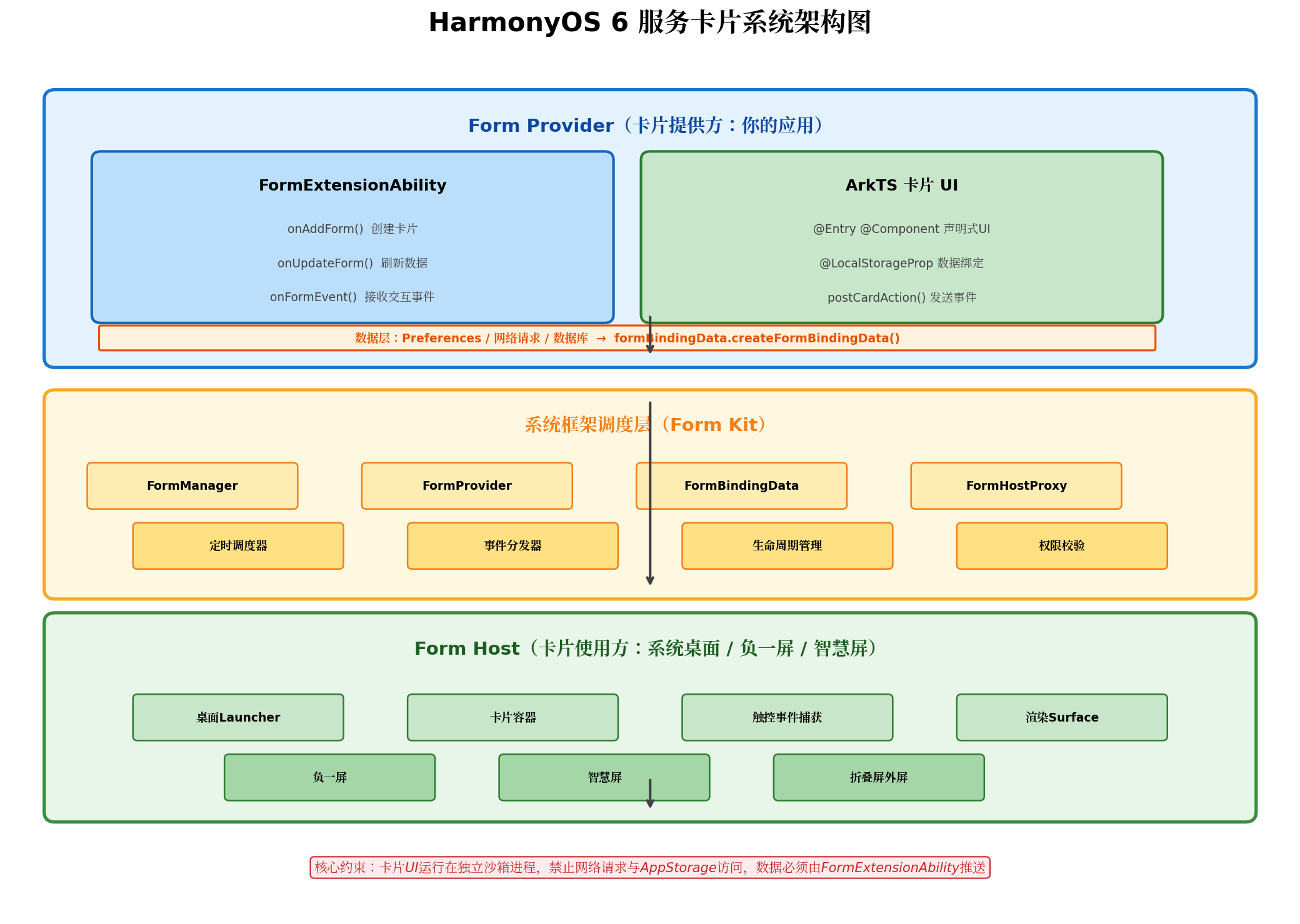
1.1 三层架构模型
Form Provider(卡片提供方):即开发者应用,包含两大核心模块:
- FormExtensionAbility:运行在独立后台进程,负责卡片生命周期管理与数据供给。其生命周期极短,onAddForm、onUpdateForm、onFormEvent等回调执行完毕后进程即进入休眠状态,因此所有业务逻辑必须轻量、同步或依赖持久化存储。
- ArkTS卡片UI:运行在独立沙箱渲染进程,仅支持ArkUI组件子集。关键约束包括:禁止使用
@State/@Link等状态装饰器,只能通过@LocalStorageProp接收FormBindingData注入的数据;禁止直接访问网络、文件系统或AppStorage。
系统框架调度层(Form Kit):FormManager负责卡片注册与权限校验,FormProvider提供updateForm/refreshForm等数据推送接口,定时调度器根据updateDuration与scheduledUpdateTime触发周期性刷新,事件分发器将用户触控事件路由至目标FormExtensionAbility。
Form Host(卡片使用方):系统桌面Launcher、负一屏、智慧屏、折叠屏外屏等宿主环境负责卡片的容器渲染、触控事件捕获与Surface合成。同一卡片可在多种宿主中同时存在,开发者需保证数据一致性。
1.2 与Android Widget的核心差异
| 维度 | HarmonyOS Form | Android AppWidget |
|---|---|---|
| 渲染引擎 | ArkUI声明式UI,GPU加速 | RemoteViews,受限布局 |
| 数据通道 | FormBindingData + LocalStorage | Intent + Bundle |
| 进程模型 | 独立沙箱进程,严格隔离 | 运行于应用主进程 |
| 交互能力 | 支持message/router/call三种事件 | 仅PendingIntent跳转 |
| 分布式 | 原生支持跨设备卡片同步 | 需自行实现 |
二、开发环境配置与项目搭建
2.1 环境要求
- DevEco Studio:4.1 Release 及以上
- SDK版本:HarmonyOS 6.0.0 (API 23)
- 设备/模拟器:支持Form Kit的Phone/Tablet设备
2.2 模块配置文件
在module.json5中声明FormExtensionAbility并配置卡片元数据:
{
  "module": {
    "name": "entry",
    "type": "entry",
    "extensionAbilities": [
      {
        "name": "SmartHomeFormAbility",
        "srcEntry": "./ets/formability/SmartHomeFormAbility.ets",
        "type": "form",
        "description": "智能家居控制面板卡片",
        "formsEnabled": true,
        "forms": [
          {
            "name": "SmartHomeWidget",
            "displayName": "$string:widget_display_name",
            "description": "$string:widget_desc",
            "src": "./ets/widget/pages/SmartHomeCard.ets",
            "uiSyntax": "arkts",
            "window": {
              "designWidth": 720,
              "autoDesignWidth": true
            },
            "colorMode": "auto",
            "isDefault": true,
            "isDynamic": true,
            "updateEnabled": true,
            "updateDuration": 1,
            "scheduledUpdateTime": "08:00",
            "defaultDimension": "2*2",
            "supportDimensions": ["1*2", "2*2", "2*4", "4*4"]
          }
        ]
      }
    ],
    "requestPermissions": [
      { "name": "ohos.permission.INTERNET" },
      { "name": "ohos.permission.GET_WIFI_INFO" }
    ]
  }
}
关键字段解析:
type:"form"为固定值,标识该ExtensionAbility为卡片服务updateDuration: 定时刷新周期,单位为30分钟,最小值为1(即每30分钟触发一次onUpdateForm)scheduledUpdateTime: 定点刷新时刻(如"08:00"),与updateDuration共存时取更频繁的策略supportDimensions: 卡片支持的尺寸规格,必须在form_config.json中同步声明
2.3 卡片配置文件
在src/main/resources/base/profile/form_config.json中定义卡片详细配置:
{
  "forms": [
    {
      "name": "SmartHomeWidget",
      "displayName": "$string:widget_display_name",
      "description": "$string:widget_desc",
      "src": "./ets/widget/pages/SmartHomeCard.ets",
      "uiSyntax": "arkts",
      "window": {
        "designWidth": 720,
        "autoDesignWidth": true
      },
      "colorMode": "auto",
      "isDynamic": true,
      "isDefault": true,
      "updateEnabled": true,
      "updateDuration": 1,
      "scheduledUpdateTime": "08:00",
      "defaultDimension": "2*2",
      "supportDimensions": ["1*2", "2*2", "2*4", "4*4"]
    }
  ]
}
⚠️ 常见踩坑:
forms[].src路径必须相对于module根目录,且与module.json5中的src字段完全一致。若路径拼写错误,卡片将不会在桌面长按菜单中显示。
三、卡片尺寸规格与响应式布局
HarmonyOS 6支持四种标准卡片尺寸,每种尺寸对应不同的信息密度与交互复杂度。
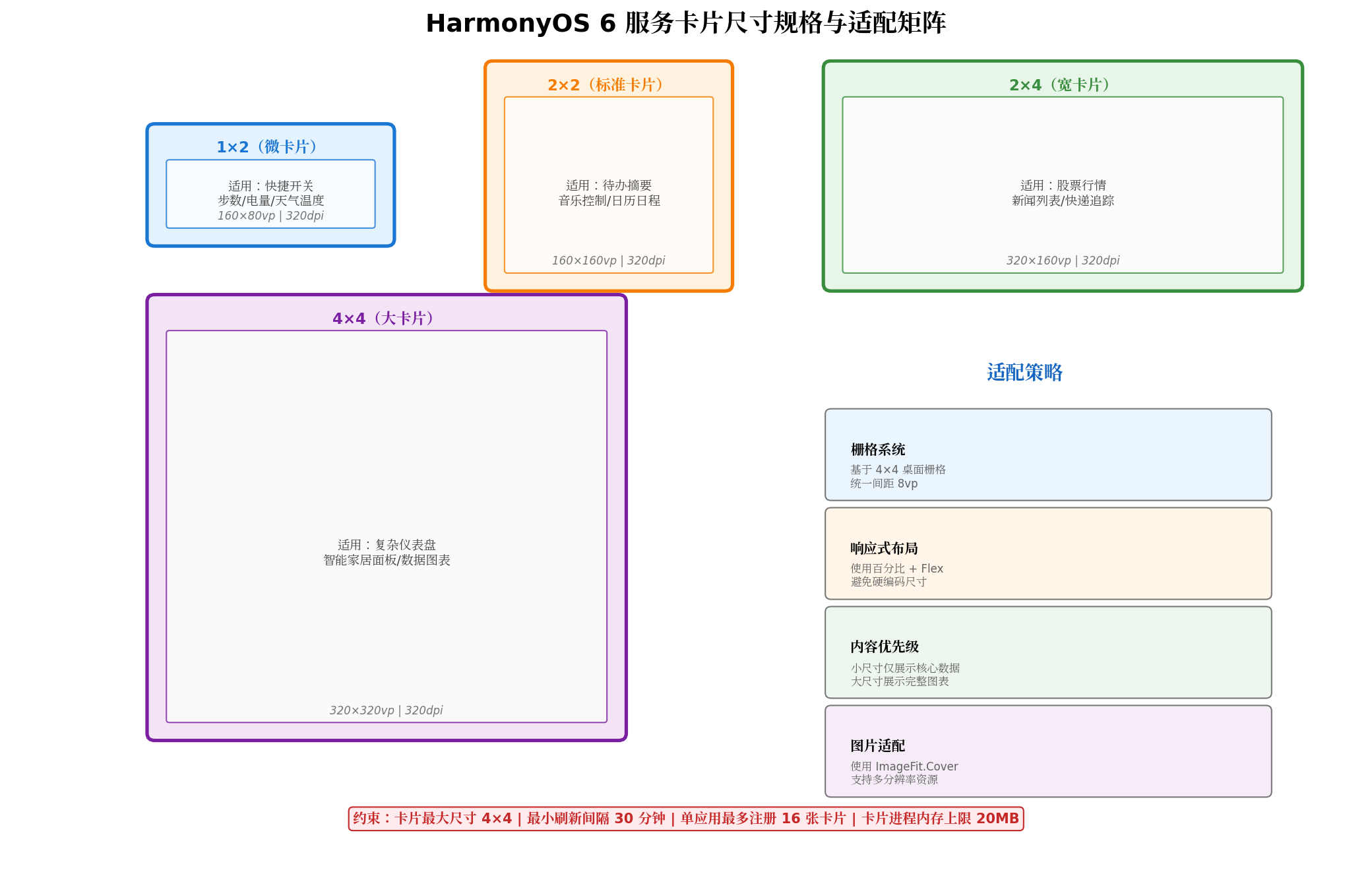
3.1 尺寸规格详解
| 规格 | 桌面栅格 | 物理尺寸(320dpi) | 适用场景 | 信息密度 |
|---|---|---|---|---|
| 1×2 | 1行×2列 | 160×80 vp | 天气温度、步数、电量 | 极简(单数据点) |
| 2×2 | 2行×2列 | 160×160 vp | 待办摘要、音乐控制 | 标准(图文混排) |
| 2×4 | 2行×4列 | 320×160 vp | 股票列表、快递追踪 | 宽屏(列表/图表) |
| 4×4 | 4行×4列 | 320×320 vp | 智能家居面板、数据仪表盘 | 复杂(多控件交互) |
3.2 多尺寸响应式布局实现
卡片UI需根据当前尺寸动态调整布局。HarmonyOS 6提供了@LocalStorageProp('formId')与@LocalStorageProp('dimension')注入当前卡片信息:
// SmartHomeCard.ets
let storage = new LocalStorage();

@Entry(storage)
@Component
struct SmartHomeCard {
  @LocalStorageProp('formId') formId: string = '';
  @LocalStorageProp('dimension') dimension: string = '2*2';
  @LocalStorageProp('deviceList') deviceList: DeviceInfo[] = [];
  @LocalStorageProp('sceneList') sceneList: SceneInfo[] = [];

  build() {
    Column() {
      // 根据尺寸路由到不同布局
      if (this.dimension === '1*2') {
        this.MiniLayout()
      } else if (this.dimension === '2*2') {
        this.StandardLayout()
      } else if (this.dimension === '2*4') {
        this.WideLayout()
      } else if (this.dimension === '4*4') {
        this.LargeLayout()
      }
    }
    .width('100%')
    .height('100%')
    .backgroundColor('#F5F5F5')
  }

  // 1×2 极简布局:仅展示核心状态
  @Builder
  MiniLayout() {
    Row({ space: 8 }) {
      Column() {
        Text('在线设备')
          .fontSize(10)
          .fontColor('#757575')
        Text(`${this.deviceList.filter(d => d.online).length}`)
          .fontSize(28)
          .fontWeight(FontWeight.Bold)
          .fontColor('#1976D2')
      }
      .layoutWeight(1)
      .alignItems(HorizontalAlign.Center)

      Divider().vertical(true).height(40).color('#E0E0E0')

      Column() {
        Text('告警')
          .fontSize(10)
          .fontColor('#757575')
        Text(`${this.deviceList.filter(d => d.alert).length}`)
          .fontSize(28)
          .fontWeight(FontWeight.Bold)
          .fontColor(this.deviceList.some(d => d.alert) ? '#C62828' : '#757575')
      }
      .layoutWeight(1)
      .alignItems(HorizontalAlign.Center)
    }
    .width('100%')
    .height('100%')
    .padding(8)
  }

  // 2×2 标准布局:图文混排 + 快捷操作
  @Builder
  StandardLayout() {
    Column({ space: 6 }) {
      Row() {
        Text('[智能家居]')
          .fontSize(12)
          .fontWeight(FontWeight.Medium)
          .fontColor('#424242')
        Blank()
        Text(`${this.deviceList.filter(d => d.online).length}/${this.deviceList.length} 在线`)
          .fontSize(10)
          .fontColor('#4CAF50')
      }
      .width('100%')

      // 2×2网格展示前4个设备
      Grid() {
        ForEach(this.deviceList.slice(0, 4), (device: DeviceInfo) => {
          GridItem() {
            this.DeviceCell(device)
          }
        })
      }
      .columnsTemplate('1fr 1fr')
      .rowsTemplate('1fr 1fr')
      .columnsGap(6)
      .rowsGap(6)
      .layoutWeight(1)
    }
    .width('100%')
    .height('100%')
    .padding(10)
  }

  // 2×4 宽布局:设备列表 + 场景快捷入口
  @Builder
  WideLayout() {
    Row({ space: 10 }) {
      // 左侧设备列表(占60%)
      Column({ space: 6 }) {
        Text('设备状态')
          .fontSize(13)
          .fontWeight(FontWeight.Bold)
          .fontColor('#212121')

        List({ space: 6 }) {
          ForEach(this.deviceList, (device: DeviceInfo) => {
            ListItem() {
              this.DeviceRow(device)
            }
          })
        }
        .layoutWeight(1)
      }
      .layoutWeight(3)

      Divider().vertical(true).width(1).color('#E0E0E0')

      // 右侧场景面板(占40%)
      Column({ space: 6 }) {
        Text('快捷场景')
          .fontSize(13)
          .fontWeight(FontWeight.Bold)
          .fontColor('#212121')

        List({ space: 6 }) {
          ForEach(this.sceneList, (scene: SceneInfo) => {
            ListItem() {
              this.SceneButton(scene)
            }
          })
        }
        .layoutWeight(1)
      }
      .layoutWeight(2)
    }
    .width('100%')
    .height('100%')
    .padding(10)
  }

  // 4×4 大布局:完整仪表盘
  @Builder
  LargeLayout() {
    Column({ space: 8 }) {
      // 顶部状态栏
      Row() {
        Column({ space: 2 }) {
          Text('智能家居控制中心')
            .fontSize(14)
            .fontWeight(FontWeight.Bold)
            .fontColor('#212121')
          Text(`全屋 ${this.deviceList.length} 个设备 | 在线 ${this.deviceList.filter(d => d.online).length} 个`)
            .fontSize(10)
            .fontColor('#757575')
        }
        .alignItems(HorizontalAlign.Start)
        .layoutWeight(1)

        Button('全部关闭', { type: ButtonType.Capsule })
          .height(28)
          .fontSize(11)
          .backgroundColor('#FFEBEE')
          .fontColor('#C62828')
          .onClick(() => {
            postCardAction(this, {
              action: 'message',
              params: { action: 'turnOffAll' }
            });
          })
      }
      .width('100%')

      // 设备网格(3列)
      Grid() {
        ForEach(this.deviceList, (device: DeviceInfo) => {
          GridItem() {
            this.DeviceCard(device)
          }
        })
      }
      .columnsTemplate('1fr 1fr 1fr')
      .rowsTemplate('1fr 1fr 1fr')
      .columnsGap(8)
      .rowsGap(8)
      .layoutWeight(1)

      // 底部场景栏
      Row({ space: 8 }) {
        ForEach(this.sceneList, (scene: SceneInfo) => {
          Button(scene.name, { type: ButtonType.Capsule })
            .height(32)
            .fontSize(12)
            .layoutWeight(1)
            .backgroundColor(scene.active ? '#E3F2FD' : '#F5F5F5')
            .fontColor(scene.active ? '#1976D2' : '#757575')
            .onClick(() => {
              postCardAction(this, {
                action: 'message',
                params: { action: 'triggerScene', sceneId: scene.id }
              });
            })
        })
      }
      .width('100%')
    }
    .width('100%')
    .height('100%')
    .padding(12)
  }

  // 设备单元格(2×2用)
  @Builder
  DeviceCell(device: DeviceInfo) {
    Column({ space: 4 }) {
      Image(device.online ? $r('app.media.ic_device_on') : $r('app.media.ic_device_off'))
        .width(24)
        .height(24)
        .fillColor(device.online ? '#1976D2' : '#BDBDBD')
      Text(device.name)
        .fontSize(10)
        .fontColor('#616161')
        .maxLines(1)
        .textOverflow({ overflow: TextOverflow.Ellipsis })
    }
    .width('100%')
    .height('100%')
    .backgroundColor(device.online ? '#E3F2FD' : '#FAFAFA')
    .borderRadius(8)
    .justifyContent(FlexAlign.Center)
    .onClick(() => {
      postCardAction(this, {
        action: 'message',
        params: { action: 'toggleDevice', deviceId: device.id }
      });
    })
  }

  // 设备行(2×4用)
  @Builder
  DeviceRow(device: DeviceInfo) {
    Row({ space: 8 }) {
      Image(device.online ? $r('app.media.ic_device_on') : $r('app.media.ic_device_off'))
        .width(20)
        .height(20)
      Text(device.name)
        .fontSize(12)
        .fontColor('#424242')
        .layoutWeight(1)
      Toggle({ type: ToggleType.Switch, isOn: device.online })
        .width(36)
        .height(20)
        .selectedColor('#4CAF50')
        .onChange((isOn: boolean) => {
          postCardAction(this, {
            action: 'message',
            params: { action: 'toggleDevice', deviceId: device.id, state: isOn }
          });
        })
    }
    .width('100%')
    .height(36)
    .padding({ left: 8, right: 8 })
    .backgroundColor('#FAFAFA')
    .borderRadius(6)
  }

  // 设备卡片(4×4用)
  @Builder
  DeviceCard(device: DeviceInfo) {
    Column({ space: 4 }) {
      Row() {
        Image($r('app.media.ic_device_on'))
          .width(28)
          .height(28)
          .fillColor(device.online ? '#1976D2' : '#BDBDBD')
        Blank()
        Toggle({ type: ToggleType.Switch, isOn: device.online })
          .width(32)
          .height(18)
          .selectedColor('#4CAF50')
      }
      .width('100%')

      Text(device.name)
        .fontSize(11)
        .fontColor('#424242')
        .maxLines(1)
        .textOverflow({ overflow: TextOverflow.Ellipsis })

      Text(device.online ? '运行中' : '已关闭')
        .fontSize(9)
        .fontColor(device.online ? '#4CAF50' : '#9E9E9E')
    }
    .width('100%')
    .height('100%')
    .padding(8)
    .backgroundColor(device.online ? '#E8F5E9' : '#FAFAFA')
    .borderRadius(10)
    .onClick(() => {
      postCardAction(this, {
        action: 'router',
        abilityName: 'EntryAbility',
        params: { page: 'deviceDetail', deviceId: device.id }
      });
    })
  }

  // 场景按钮
  @Builder
  SceneButton(scene: SceneInfo) {
    Row() {
      Text(scene.name)
        .fontSize(12)
        .fontColor(scene.active ? '#FFFFFF' : '#424242')
        .layoutWeight(1)
    }
    .width('100%')
    .height(36)
    .padding({ left: 12, right: 12 })
    .backgroundColor(scene.active ? '#1976D2' : '#F5F5F5')
    .borderRadius(8)
    .justifyContent(FlexAlign.Center)
    .onClick(() => {
      postCardAction(this, {
        action: 'message',
        params: { action: 'triggerScene', sceneId: scene.id }
      });
    })
  }
}
四、FormExtensionAbility 生命周期与数据管理
FormExtensionAbility是卡片服务的「幕后大脑」,其生命周期与普通UIAbility截然不同。
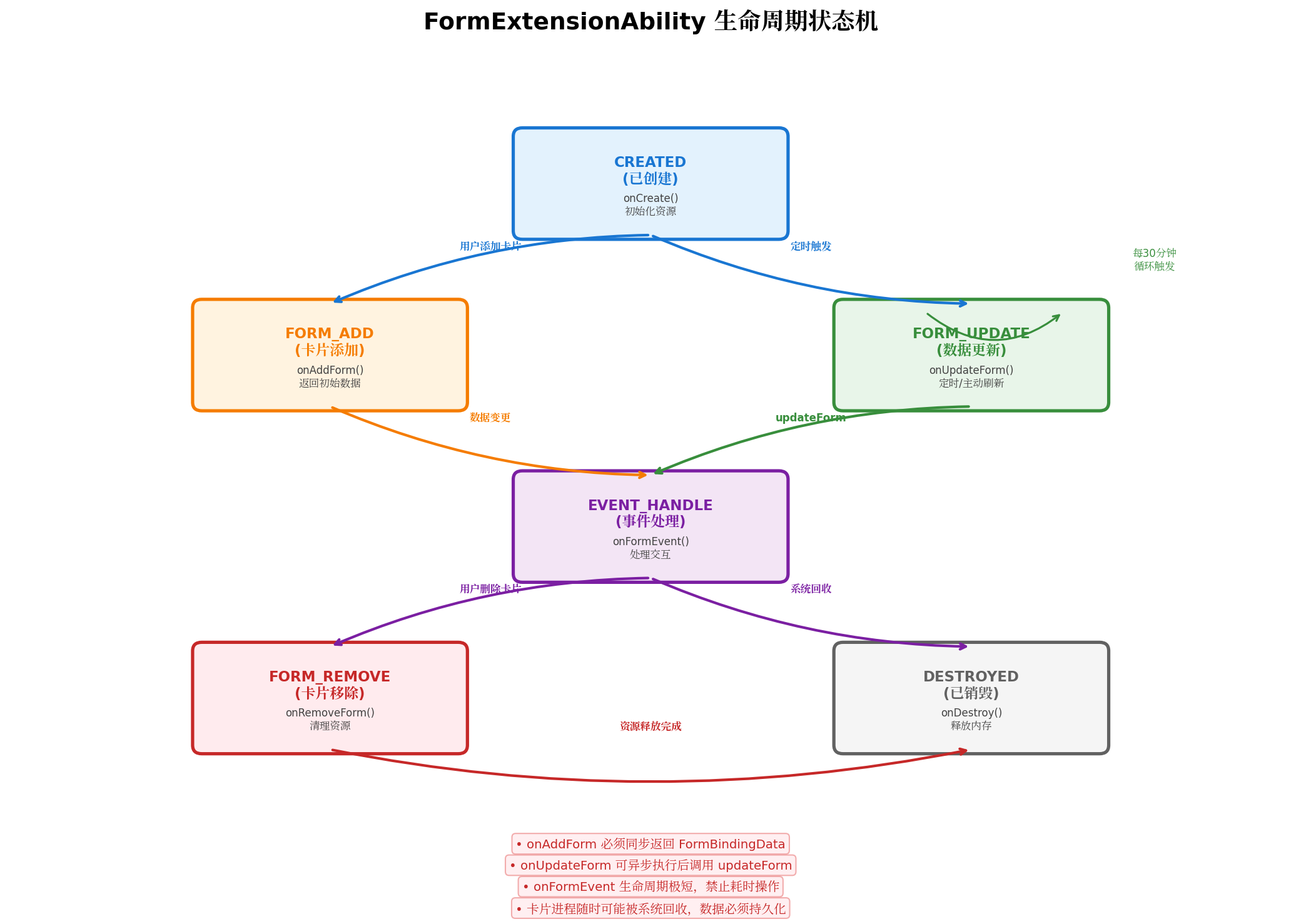
4.1 生命周期回调详解
// SmartHomeFormAbility.ets
import { FormExtensionAbility, formBindingData } from '@kit.FormKit';
import { Want } from '@kit.AbilityKit';
import { preferences } from '@kit.ArkData';

interface DeviceInfo {
  id: string;
  name: string;
  type: string;
  online: boolean;
  alert: boolean;
}

interface SceneInfo {
  id: string;
  name: string;
  active: boolean;
}

export default class SmartHomeFormAbility extends FormExtensionAbility {
  private pref: preferences.Preferences | null = null;

  onCreate(want: Want): void {
    console.info('[SmartHomeForm] onCreate');
    // 初始化本地存储(生命周期极短,必须同步或预加载)
    preferences.getPreferences(this.context, 'smart_home_data')
      .then(p => { this.pref = p; })
      .catch(err => console.error('Failed to init preferences:', err));
  }

  /**
   * 用户添加卡片时触发
   * ⚠️ 必须同步返回 formBindingData,不允许异步操作
   */
  onAddForm(want: Want): formBindingData.FormBindingData {
    console.info('[SmartHomeForm] onAddForm, formId:', want.parameters?.['ohos.extra.param.key.form_identity']);

    const formId = want.parameters?.['ohos.extra.param.key.form_identity'] as string;
    const dimension = want.parameters?.['ohos.extra.param.key.form_dimension'] as string || '2*2';

    // 同步读取缓存数据(若缓存不存在则返回默认值)
    const defaultData = this.getDefaultData(dimension);

    // 异步触发一次数据刷新(从云端拉取最新状态)
    this.refreshFromCloud(formId, dimension).catch(err => {
      console.warn('[SmartHomeForm] async refresh failed:', err);
    });

    return formBindingData.createFormBindingData({
      formId: formId,
      dimension: dimension,
      ...defaultData
    });
  }

  /**
   * 定时刷新或系统触发更新时调用
   * 可执行异步操作,完成后调用 updateForm 推送数据
   */
  onUpdateForm(formId: string): void {
    console.info('[SmartHomeForm] onUpdateForm:', formId);

    this.refreshFromCloud(formId).then(data => {
      this.updateCardData(formId, data);
    }).catch(err => {
      console.error('[SmartHomeForm] update failed:', err);
    });
  }

  /**
   * 接收卡片UI发送的交互事件
   * 处理用户点击、开关切换、场景触发等操作
   */
  onFormEvent(formId: string, message: string): void {
    console.info('[SmartHomeForm] onFormEvent:', formId, message);

    const event = JSON.parse(message);

    switch (event.action) {
      case 'toggleDevice':
        this.handleToggleDevice(formId, event.deviceId, event.state);
        break;
      case 'triggerScene':
        this.handleTriggerScene(formId, event.sceneId);
        break;
      case 'turnOffAll':
        this.handleTurnOffAll(formId);
        break;
      case 'refresh':
        this.onUpdateForm(formId);
        break;
      default:
        console.warn('[SmartHomeForm] unknown event:', event.action);
    }
  }

  /**
   * 用户删除卡片时触发
   * 清理与该formId关联的本地缓存和定时任务
   */
  onRemoveForm(formId: string): void {
    console.info('[SmartHomeForm] onRemoveForm:', formId);
    this.pref?.delete(`form_${formId}`).catch(() => {});
  }

  onDestroy(): void {
    console.info('[SmartHomeForm] onDestroy');
    this.pref = null;
  }

  // ========== 私有业务方法 ==========

  private getDefaultData(dimension: string): Record<string, Object> {
    return {
      deviceList: [
        { id: 'light_01', name: '客厅灯', type: 'light', online: true, alert: false },
        { id: 'ac_01', name: '主卧空调', type: 'ac', online: true, alert: false },
        { id: 'lock_01', name: '大门锁', type: 'lock', online: true, alert: false },
        { id: 'cam_01', name: '门口摄像头', type: 'camera', online: false, alert: false },
      ],
      sceneList: [
        { id: 'home', name: '回家', active: false },
        { id: 'away', name: '离家', active: true },
        { id: 'sleep', name: '睡眠', active: false },
        { id: 'movie', name: '影院', active: false },
      ]
    };
  }

  private async refreshFromCloud(formId: string, dimension?: string): Promise<Record<string, Object>> {
    // 模拟从云端IoT平台拉取设备状态
    // 实际项目中应调用HTTP请求或RPC接口
    const mockData = {
      deviceList: [
        { id: 'light_01', name: '客厅灯', type: 'light', online: true, alert: false },
        { id: 'ac_01', name: '主卧空调', type: 'ac', online: true, alert: false },
        { id: 'lock_01', name: '大门锁', type: 'lock', online: true, alert: false },
        { id: 'cam_01', name: '门口摄像头', type: 'camera', online: true, alert: false },
        { id: 'curtain_01', name: '窗帘', type: 'curtain', online: true, alert: false },
        { id: 'purifier_01', name: '空气净化器', type: 'purifier', online: false, alert: true },
      ],
      sceneList: [
        { id: 'home', name: '回家', active: true },
        { id: 'away', name: '离家', active: false },
        { id: 'sleep', name: '睡眠', active: false },
        { id: 'movie', name: '影院', active: false },
      ]
    };

    // 缓存到本地
    await this.pref?.put(`form_${formId}`, JSON.stringify(mockData));
    await this.pref?.flush();

    return mockData;
  }

  private async handleToggleDevice(formId: string, deviceId: string, state?: boolean): Promise<void> {
    console.info(`[SmartHomeForm] toggle device ${deviceId} to ${state}`);

    // 1. 调用IoT平台API下发控制指令
    // await iotService.controlDevice(deviceId, state);

    // 2. 更新本地缓存
    const cached = await this.pref?.get(`form_${formId}`, '{}') as string;
    const data = JSON.parse(cached);
    const device = data.deviceList?.find((d: DeviceInfo) => d.id === deviceId);
    if (device) {
      device.online = state ?? !device.online;
      await this.pref?.put(`form_${formId}`, JSON.stringify(data));
      await this.pref?.flush();
    }

    // 3. 推送更新到卡片UI
    this.updateCardData(formId, data);
  }

  private async handleTriggerScene(formId: string, sceneId: string): Promise<void> {
    console.info(`[SmartHomeForm] trigger scene ${sceneId}`);

    // 1. 调用场景联动API
    // await sceneService.trigger(sceneId);

    // 2. 更新场景状态
    const cached = await this.pref?.get(`form_${formId}`, '{}') as string;
    const data = JSON.parse(cached);
    data.sceneList?.forEach((s: SceneInfo) => {
      s.active = (s.id === sceneId);
    });

    // 3. 根据场景批量更新设备状态
    const sceneConfig: Record<string, boolean> = {
      'home': true, 'away': false, 'sleep': false, 'movie': true
    };
    data.deviceList?.forEach((d: DeviceInfo) => {
      d.online = sceneConfig[sceneId] ?? d.online;
    });

    await this.pref?.put(`form_${formId}`, JSON.stringify(data));
    await this.pref?.flush();

    this.updateCardData(formId, data);
  }

  private async handleTurnOffAll(formId: string): Promise<void> {
    const cached = await this.pref?.get(`form_${formId}`, '{}') as string;
    const data = JSON.parse(cached);
    data.deviceList?.forEach((d: DeviceInfo) => { d.online = false; });
    data.sceneList?.forEach((s: SceneInfo) => { s.active = false; });

    await this.pref?.put(`form_${formId}`, JSON.stringify(data));
    await this.pref?.flush();

    this.updateCardData(formId, data);
  }

  private updateCardData(formId: string, data: Record<string, Object>): void {
    const bindingData = formBindingData.createFormBindingData({
      ...data,
      lastUpdated: this.formatTime(new Date())
    });

    import('@ohos.app.form.formProvider').then(({ default: formProvider }) => {
      formProvider.updateForm(formId, bindingData)
        .then(() => console.info('[SmartHomeForm] updateForm success:', formId))
        .catch(err => {
          // errCode 16501003 表示卡片已被用户移除
          if (err.code === 16501003) {
            console.info('[SmartHomeForm] form already removed:', formId);
            this.pref?.delete(`form_${formId}`).catch(() => {});
          } else {
            console.error('[SmartHomeForm] updateForm failed:', err);
          }
        });
    });
  }

  private formatTime(date: Date): string {
    return `${String(date.getHours()).padStart(2, '0')}:${String(date.getMinutes()).padStart(2, '0')}`;
  }
}
五、数据更新双驱动机制
卡片数据更新支持「定时刷新」与「事件驱动」两种模式,实际项目中通常组合使用。
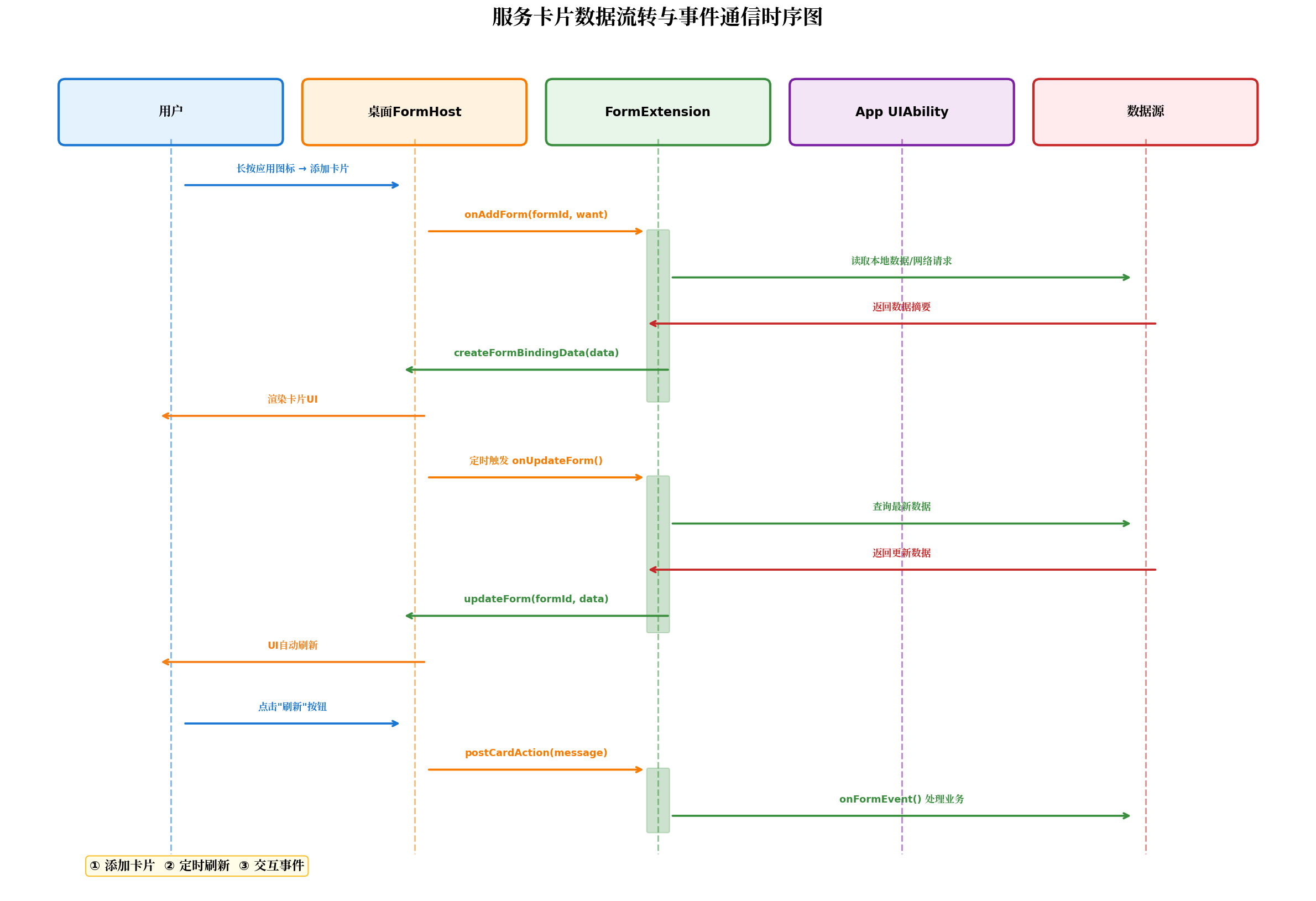
5.1 定时刷新策略
系统根据updateDuration和scheduledUpdateTime自动触发onUpdateForm:
// module.json5 配置示例
"updateEnabled": true,
"updateDuration": 1,        // 每30分钟刷新
"scheduledUpdateTime": "08:00"  // 每天8:00定点刷新
策略优先级:当两者共存时,系统取更频繁的策略。例如updateDuration=1(30分钟)且scheduledUpdateTime=“08:00”,则卡片每30分钟刷新一次,同时确保8:00有一次刷新。
5.2 主动推送刷新(App侧触发)
当用户在应用内操作后,需主动刷新所有关联卡片:
// FormUpdateService.ets
import formProvider from '@ohos.app.form.formProvider';
import formBindingData from '@ohos.app.form.formBindingData';

export class FormUpdateService {
  /**
   * 刷新本应用所有已添加的卡片
   * 调用时机:设备状态变更、场景触发、数据同步完成后
   */
  static async refreshAllForms(data: Record<string, Object>): Promise<void> {
    const bindingData = formBindingData.createFormBindingData({
      ...data,
      lastUpdated: FormUpdateService.formatTime(new Date())
    });

    try {
      // 获取本应用所有已添加的卡片信息
      const forms = await formProvider.getFormsInfo();

      const tasks = forms.map(form =>
        formProvider.updateForm(form.formId, bindingData)
          .catch(err => {
            if (err.code === 16501003) {
              console.info(`[FormUpdateService] form ${form.formId} removed by user`);
            } else {
              console.warn(`[FormUpdateService] update ${form.formId} failed:`, err);
            }
          })
      );

      await Promise.allSettled(tasks);
      console.info(`[FormUpdateService] refreshed ${forms.length} forms`);
    } catch (err) {
      console.error('[FormUpdateService] getFormsInfo failed:', err);
    }
  }

  private static formatTime(date: Date): string {
    return `${String(date.getHours()).padStart(2, '0')}:${String(date.getMinutes()).padStart(2, '0')}`;
  }
}
5.3 卡片跳转与深度链接
用户点击卡片后,通过postCardAction的router事件拉起应用特定页面:
// EntryAbility.ets
import UIAbility from '@ohos.app.ability.UIAbility';
import window from '@ohos.window';
import Want from '@ohos.app.ability.Want';
import { router } from '@kit.ArkUI';

export default class EntryAbility extends UIAbility {
  private targetPage: string = '';
  private targetParams: Record<string, Object> = {};

  onCreate(want: Want): void {
    console.info('[EntryAbility] onCreate');
    this.handleFormWant(want);
  }

  onNewWant(want: Want): void {
    console.info('[EntryAbility] onNewWant');
    this.handleFormWant(want);

    // 热启动时主动触发页面跳转
    if (this.targetPage && this.currentWindowStage) {
      this.navigateToTarget();
    }
  }

  private handleFormWant(want: Want): void {
    // 解析卡片传递的参数
    const params = want.parameters?.['params'] as string;
    if (params) {
      try {
        const parsed = JSON.parse(params);
        this.targetPage = parsed.page || '';
        this.targetParams = parsed;
        console.info('[EntryAbility] form navigation:', this.targetPage, this.targetParams);
      } catch (e) {
        console.error('[EntryAbility] failed to parse form params:', e);
      }
    }
  }

  onWindowStageCreate(windowStage: window.WindowStage): void {
    this.currentWindowStage = windowStage;

    windowStage.loadContent('pages/Index', (err) => {
      if (err) {
        console.error('[EntryAbility] loadContent failed:', err);
        return;
      }

      // 冷启动时若存在卡片跳转目标,延迟执行导航
      if (this.targetPage) {
        setTimeout(() => this.navigateToTarget(), 300);
      }
    });
  }

  private navigateToTarget(): void {
    if (!this.targetPage) return;

    const url = `pages/${this.targetPage.charAt(0).toUpperCase() + this.targetPage.slice(1)}`;
    router.pushUrl({
      url: url,
      params: this.targetParams
    }).catch(err => {
      console.error('[EntryAbility] navigation failed:', err);
    });

    // 清空目标,防止重复跳转
    this.targetPage = '';
    this.targetParams = {};
  }

  private currentWindowStage: window.WindowStage | null = null;
}
六、交互事件通信机制
HarmonyOS 6卡片支持三种事件类型,分别对应不同的业务场景。
6.1 postCardAction 事件类型对比
| 事件类型 | 是否切换前台 | 处理位置 | 典型场景 |
|---|---|---|---|
message | ❌ 不切换 | onFormEvent() | 开关切换、数据刷新、场景触发 |
router | ✅ 切换前台 | EntryAbility.onNewWant() | 打开设备详情、查看历史记录 |
call | ❌ 不切换 | UIAbility.Callee | 静默收藏、后台同步配置 |
6.2 完整交互示例
// 卡片UI中的交互处理
@Builder
ActionButtons() {
  Row({ space: 8 }) {
    // message事件:仅刷新卡片数据
    Button('刷新状态', { type: ButtonType.Normal })
      .height(32)
      .fontSize(12)
      .layoutWeight(1)
      .backgroundColor('#F5F5F5')
      .fontColor('#616161')
      .onClick(() => {
        postCardAction(this, {
          action: 'message',
          params: { action: 'refresh' }
        });
      });

    // router事件:打开应用详情页
    Button('查看详情', { type: ButtonType.Normal })
      .height(32)
      .fontSize(12)
      .layoutWeight(1)
      .backgroundColor('#1976D2')
      .fontColor('#FFFFFF')
      .onClick(() => {
        postCardAction(this, {
          action: 'router',
          abilityName: 'EntryAbility',
          params: {
            page: 'deviceDetail',
            deviceId: 'light_01',
            source: 'form_card'
          }
        });
      });

    // call事件:后台静默操作
    Button('收藏', { type: ButtonType.Normal })
      .height(32)
      .fontSize(12)
      .layoutWeight(1)
      .backgroundColor('#FFF3E0')
      .fontColor('#F57C00')
      .onClick(() => {
        postCardAction(this, {
          action: 'call',
          abilityName: 'EntryAbility',
          params: {
            method: 'toggleFavorite',
            params: JSON.stringify({ deviceId: 'light_01' })
          }
        });
      });
  }
  .width('100%')
}
6.3 Callee 后台调用处理
// EntryAbility.ets 中注册Callee
import { Caller, Callee, CallerInfo } from '@kit.AbilityKit';

export default class EntryAbility extends UIAbility {
  private callee: Callee | null = null;

  onCreate(want: Want): void {
    // 注册Callee方法
    this.callee = new Callee(this.context);
    this.callee.on('toggleFavorite', this.toggleFavorite.bind(this));
  }

  private toggleFavorite(callInfo: CallerInfo): Record<string, Object> {
    const params = JSON.parse(callInfo.parameters?.['params'] as string || '{}');
    const deviceId = params.deviceId;

    console.info('[EntryAbility] toggleFavorite:', deviceId);

    // 执行收藏逻辑(不切换前台)
    // await favoriteService.toggle(deviceId);

    // 刷新卡片
    FormUpdateService.refreshAllForms({}).catch(() => {});

    return { result: 'success', deviceId };
  }

  onDestroy(): void {
    this.callee?.release();
    this.callee = null;
  }
}
七、多尺寸响应式布局实战
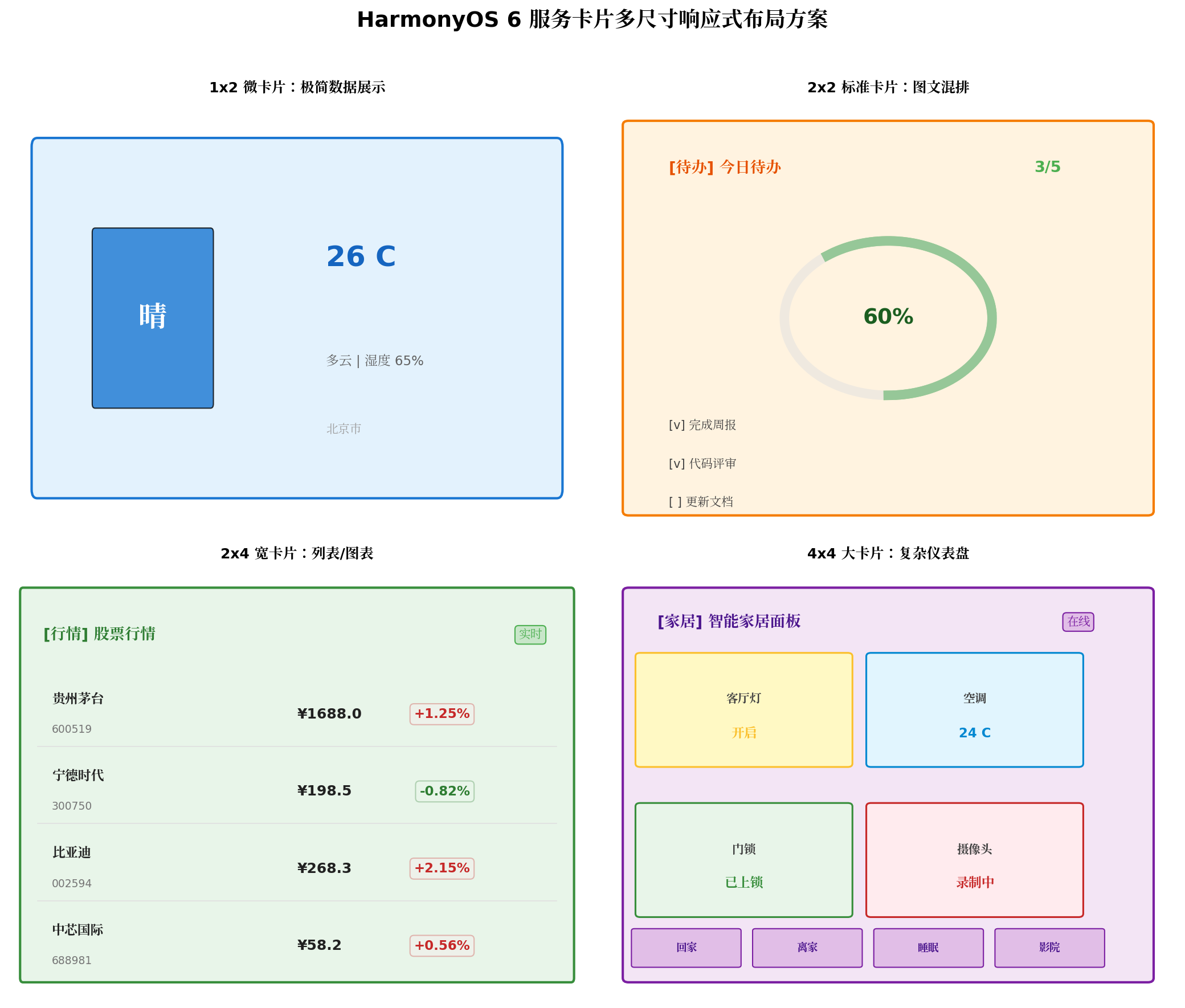
7.1 布局适配原则
- 栅格对齐:所有尺寸基于4×4桌面栅格系统,间距统一为8vp的倍数
- 内容优先级:小尺寸仅展示核心数据(如设备在线数),大尺寸展示完整控制面板
- 图片适配:使用
ImageFit.Cover并配置多分辨率资源(media-ldpi至media-xxxhdpi) - 触控热区:按钮最小触控区域不小于44×44vp,避免误触
7.2 动态尺寸切换处理
当用户调整卡片尺寸时,系统会销毁旧卡片并创建新实例。开发者可通过onAddForm中的want.parameters获取新尺寸并返回对应数据:
onAddForm(want: Want): formBindingData.FormBindingData {
  const formId = want.parameters?.['ohos.extra.param.key.form_identity'] as string;
  const dimension = want.parameters?.['ohos.extra.param.key.form_dimension'] as string;

  // 根据尺寸裁剪数据量
  let deviceList = this.getAllDevices();
  if (dimension === '1*2') {
    deviceList = []; // 1×2不展示设备列表
  } else if (dimension === '2*2') {
    deviceList = deviceList.slice(0, 4);
  } else if (dimension === '2*4') {
    deviceList = deviceList.slice(0, 6);
  }
  // 4×4展示全部

  return formBindingData.createFormBindingData({
    formId,
    dimension,
    deviceList,
    sceneList: this.getAllScenes()
  });
}
八、性能优化与踩坑总结
8.1 性能优化策略
| 优化项 | 问题描述 | 解决方案 |
|---|---|---|
| 数据序列化 | FormBindingData大数据量传输耗时 | 仅传输差异字段,使用JSON压缩 |
| 图片资源 | 高分辨率图片导致内存峰值 | 提供多分辨率资源,卡片内使用低分辨率版本 |
| 定时刷新 | 频繁刷新增加功耗 | 合理设置updateDuration,业务数据变化时优先使用主动推送 |
| 进程启动 | FormExtensionAbility频繁冷启动 | 使用preferences缓存,避免onAddForm中网络请求 |
| 布局嵌套 | 深层嵌套影响渲染性能 | 扁平化布局,优先使用Row/Column替代Flex |
8.2 常见踩坑与解法
坑1:onAddForm中执行异步操作返回undefined
现象:卡片添加后白屏或显示默认数据
解法:onAddForm必须同步返回FormBindingData,异步数据通过onUpdateForm+updateForm二次推送

坑2:@State在卡片UI中报错
现象:编译失败,提示装饰器不支持
解法:卡片UI只能使用@LocalStorageProp/@LocalStorageLink接收数据

坑3:updateForm返回errCode 16501003
现象:调用updateForm抛出异常
解法:该错误表示卡片已被用户移除,catch后清理本地缓存即可

坑4:router事件abilityName拼写错误
现象:点击卡片无响应,应用未启动
解法:abilityName必须与module.json5中abilities[].name完全一致(区分大小写)

坑5:定时刷新不生效
现象:updateDuration设置后卡片未按预期刷新
解法:updateDuration最小值为1(30分钟),0表示不刷新;检查updateEnabled是否为true

坑6:卡片进程内存溢出
现象:卡片频繁崩溃或无法添加
解法:单卡片进程内存上限约20MB,避免加载大图或大量数据;使用ImageCache控制图片缓存

坑7:深色模式适配异常
现象:系统切换深色模式后卡片颜色未同步
解法:设置colorMode为"auto",使用系统提供的资源引用($r('sys.color.xxx'))
九、完整项目结构
entry/src/main/
├── ets/
│   ├── entryability/
│   │   └── EntryAbility.ets          # 主Ability,处理卡片跳转
│   ├── formability/
│   │   └── SmartHomeFormAbility.ets  # 卡片生命周期与数据管理
│   ├── widget/
│   │   └── pages/
│   │       └── SmartHomeCard.ets     # 卡片UI(多尺寸响应式)
│   ├── service/
│   │   ├── FormUpdateService.ets     # 主动刷新服务
│   │   ├── IoTService.ets            # 设备控制API
│   │   └── SceneService.ets          # 场景联动API
│   ├── model/
│   │   ├── DeviceInfo.ets            # 设备数据模型
│   │   └── SceneInfo.ets             # 场景数据模型
│   └── pages/
│       ├── Index.ets                 # 应用主页
│       ├── DeviceDetail.ets          # 设备详情页
│       └── SceneEditor.ets           # 场景编辑页
├── resources/
│   ├── base/
│   │   ├── media/                    # 图标资源(多分辨率)
│   │   ├── element/
│   │   │   └── string.json           # 国际化字符串
│   │   └── profile/
│   │       └── form_config.json      # 卡片配置文件
│   └── rawfile/                      # 静态资源
└── module.json5                      # 模块配置
十、总结与展望
本文基于HarmonyOS 6(API 23),从系统架构到工程实践,完整解析了桌面小部件的开发全链路。通过FormExtensionAbility的生命周期管理、FormBindingData的数据驱动模型、postCardAction的三类事件通信机制,开发者可以构建从极简数据展示到复杂交互控制的多尺寸卡片服务。
核心要点回顾:
- 架构解耦:Form Provider与Form Host分离,数据单向推送、事件反向通信
- 生命周期管理:onAddForm同步返回、onUpdateForm异步刷新、onFormEvent轻量处理
- 多尺寸适配:基于dimension字段的条件渲染,内容优先级驱动的响应式布局
- 双驱动更新:定时刷新(updateDuration/scheduledUpdateTime)与主动推送(updateForm)结合
- 性能保障:对象缓存、数据裁剪、进程内存控制、异常兜底
未来演进方向:
- AI智能卡片:结合HarmonyOS 6端侧大模型,实现用户行为预测与卡片内容自适应推荐
- 分布式卡片:利用分布式软总线,实现手机卡片控制智慧屏设备、车机卡片同步家居状态
- 动态卡片模板:支持云端下发卡片布局模板,无需发版即可更新卡片UI
- 折叠屏适配:针对HarmonyOS折叠屏设备,开发展开态/折叠态差异化卡片体验
服务卡片作为HarmonyOS「原子化服务」理念的核心载体,其技术深度与产品价值仍在持续演进。期待更多开发者加入鸿蒙卡片生态,为用户打造「一眼即达、一触即控」的极致桌面体验。
转载自:https://blog.csdn.net/u014727709/article/details/163802182
欢迎 👍点赞✍评论⭐收藏,欢迎指正

讨论HarmonyOS开发技术,专注于API与组件、DevEco Studio、测试、元服务和应用上架分发等。
更多推荐



 1
1 0
0- 0


 已为社区贡献794条内容

所有评论(0)