快捷方式创建——从静态配置到动态生成的全链路工程化实践
文章目录

每日一句正能量
保持积极乐观,坚定的走好脚下的每一步。
乐观不是空中楼阁,而是指引方向的灯光;同时,需要配合“走好每一步”的务实。
摘要
摘要:快捷方式是HarmonyOS系统中提升用户操作效率的核心入口能力,允许用户从桌面一键直达应用内的特定功能页面。本文基于HarmonyOS 6(API 23),深入剖析快捷方式的系统架构、静态配置与动态生成两种创建模式、Want参数透传机制、动态路由实现以及多场景适配方案。通过「智能出行助手」完整实战案例,覆盖从shortcuts_config.json配置、productViewManager动态API调用到EntryAbility冷启动/热启动双路径路由的全流程,帮助开发者构建企业级快捷入口体系。
一、快捷方式系统架构与核心概念
HarmonyOS 6在API 23中对快捷方式(Shortcut)能力进行了架构升级,将快捷方式纳入Ability Kit统一管理,形成了「配置声明→系统注册→参数透传→动态路由」的标准化链路。
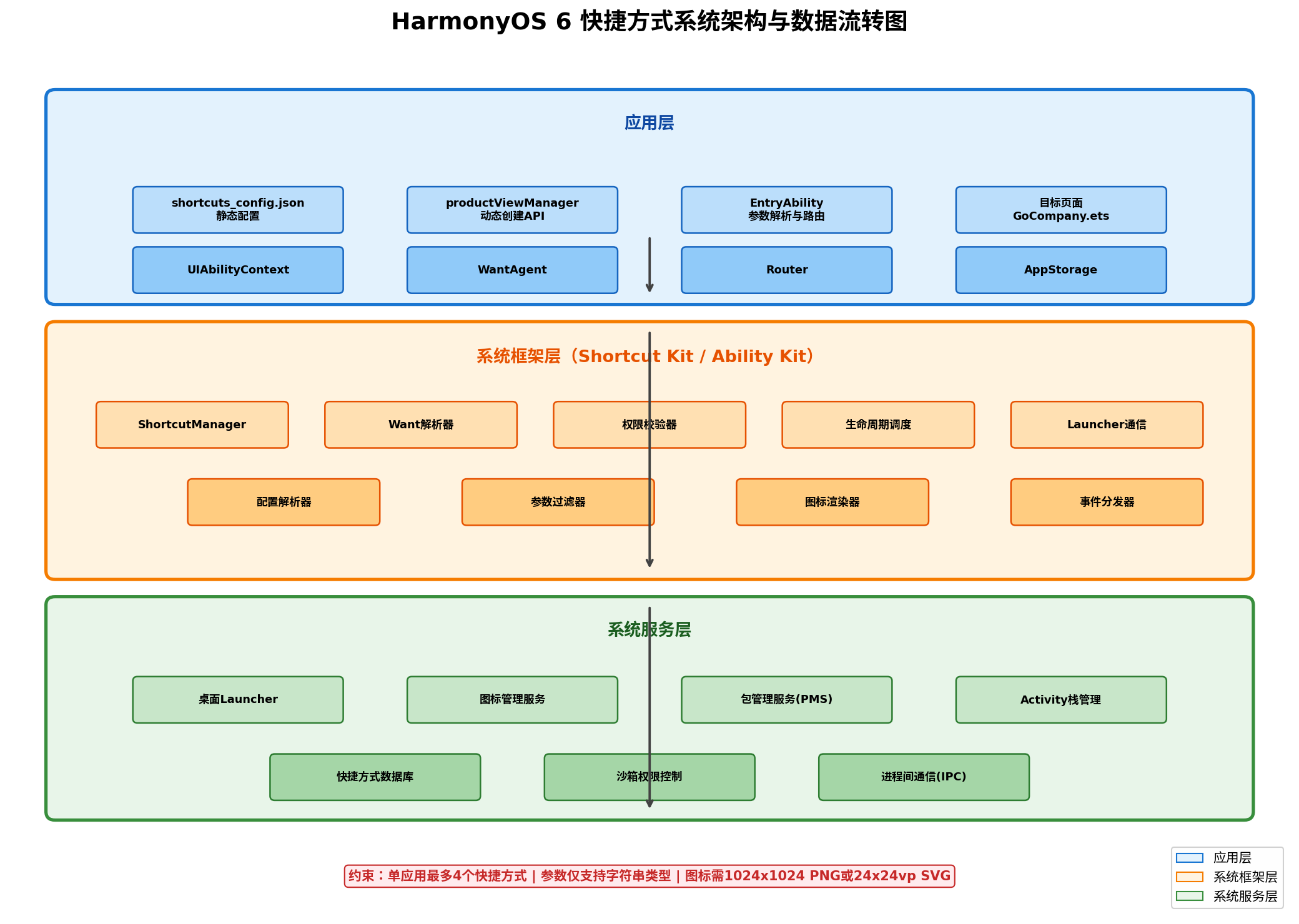
1.1 三层架构模型
应用层:开发者通过两种模式创建快捷方式——
- 静态配置:在
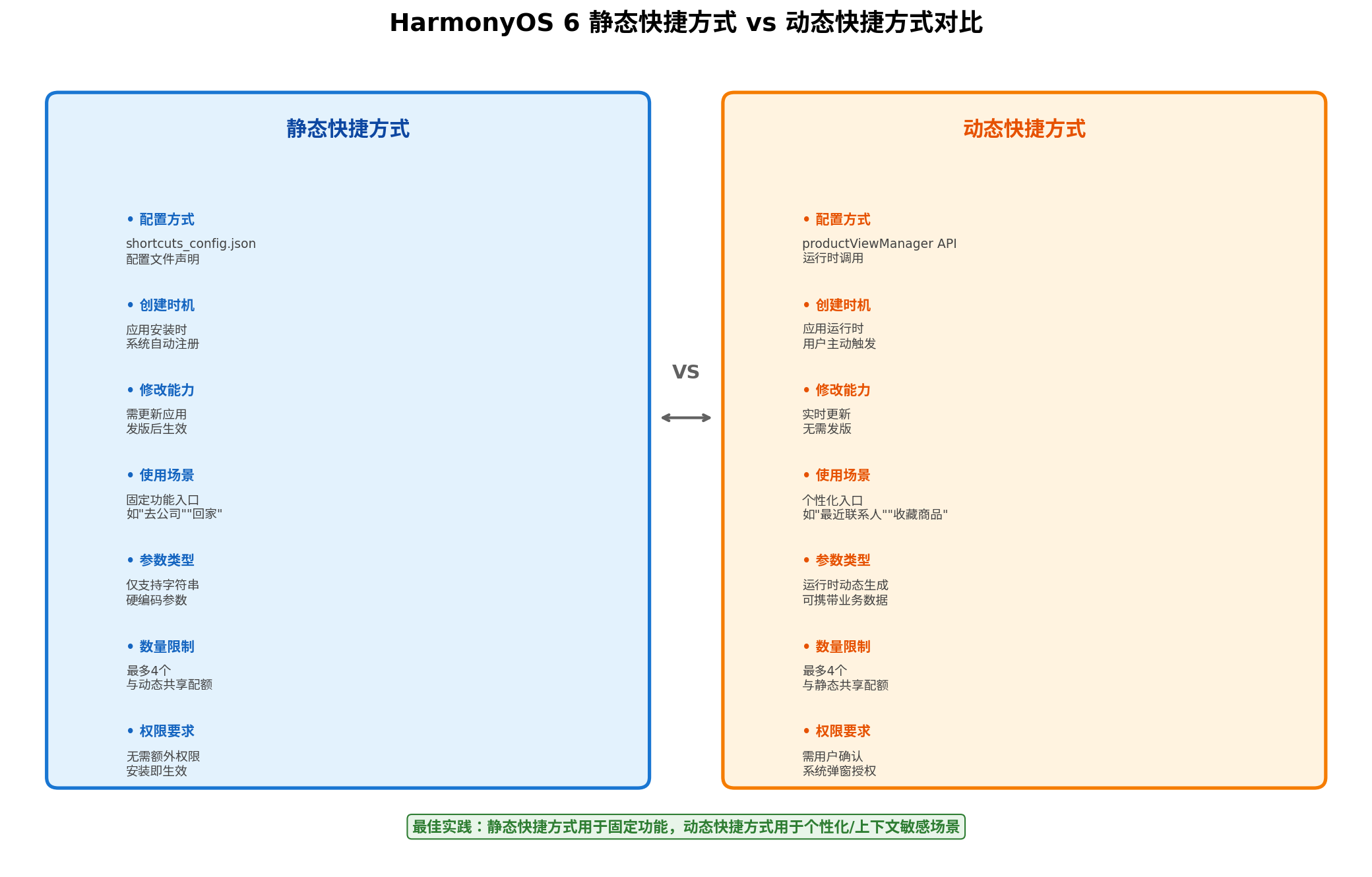
shortcuts_config.json中预定义快捷方式元数据(shortcutId、label、icon、wants),应用安装时由系统自动注册到桌面Launcher。 - 动态生成:通过
productViewManager提供的checkPinShortcutPermitted与requestNewPinShortcutAPI,在应用运行时根据用户行为(如最近联系人、收藏商品)动态创建个性化快捷入口。
系统框架层:ShortcutManager负责解析配置文件并注册到系统数据库,Want解析器处理快捷方式携带的parameters参数字段,权限校验器确保应用具备创建快捷方式的系统权限,生命周期调度器协调EntryAbility的冷启动(onCreate)与热启动(onNewWant)双路径。
系统服务层:桌面Launcher负责快捷方式的图标渲染与触控响应,包管理服务(PMS)维护快捷方式与应用的绑定关系,Activity栈管理器根据Want参数决定是新建任务栈还是复用已有实例。
1.2 快捷方式与卡片的本质区别
| 维度 | 快捷方式(Shortcut) | 服务卡片(Form) |
|---|---|---|
| 形态 | 桌面独立图标/应用长按菜单项 | 嵌入式UI组件 |
| 渲染 | 系统级图标+文字 | ArkUI声明式UI |
| 交互 | 点击跳转Ability | 支持按钮/列表/图表交互 |
| 数据更新 | 不支持实时刷新 | 支持定时/主动刷新 |
| 适用场景 | 一键直达特定功能页 | 信息展示+轻量操作 |
| 进程模型 | 拉起目标Ability | 独立FormExtensionAbility |
设计原则:快捷方式解决「快速启动」问题,卡片解决「信息速览」问题。两者互补而非替代。
二、静态快捷方式开发实战
静态快捷方式是最基础、最常用的快捷入口形式,适用于功能固定、无需动态变化的场景(如「去公司」「回家」「新建笔记」)。
2.1 开发环境准备
- DevEco Studio:4.1 Release 及以上
- SDK版本:HarmonyOS 6.0.0 (API 23)
- 设备要求:支持桌面快捷方式的HarmonyOS手机/平板
2.2 完整配置流程
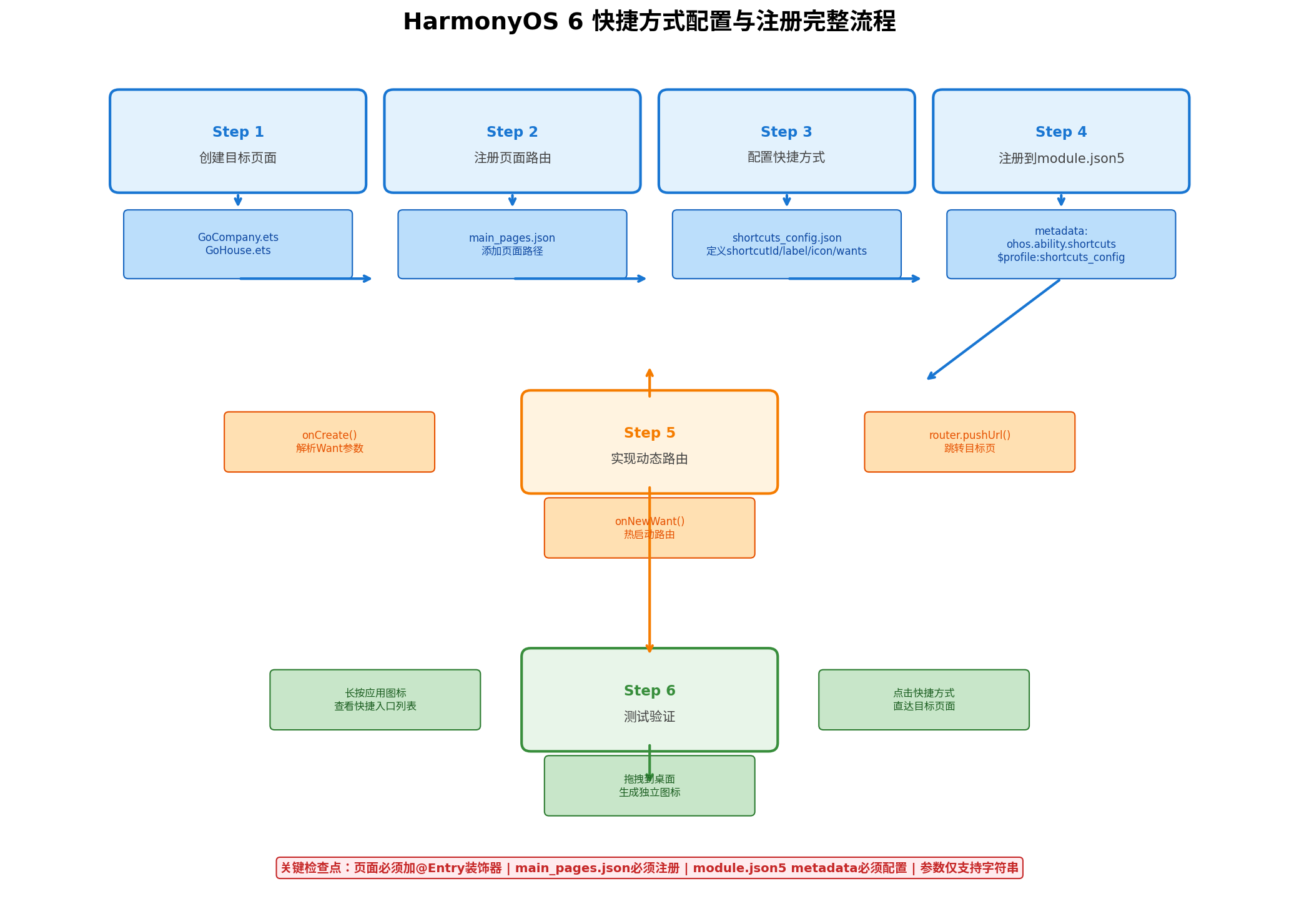
Step 1:创建目标页面
每个快捷方式必须对应一个独立的页面组件,且必须使用@Entry装饰器:
// pages/GoCompany.ets
import { router } from '@kit.ArkUI';

@Entry
@Component
struct GoCompanyPage {
  @State companyAddress: string = '北京市海淀区中关村软件园';
  @State navigationStarted: boolean = false;

  aboutToAppear(): void {
    // 解析路由参数
    const params = router.getParams() as Record<string, string>;
    if (params?.['address']) {
      this.companyAddress = params['address'];
    }
    // 自动开始导航规划
    this.startNavigation();
  }

  private startNavigation(): void {
    this.navigationStarted = true;
    // 调用地图SDK开始路线规划
    console.info('[GoCompany] Starting navigation to:', this.companyAddress);
  }

  build() {
    Column({ space: 16 }) {
      Navigation() {
        Column({ space: 20 }) {
          Text('公司导航')
            .fontSize(24)
            .fontWeight(FontWeight.Bold)
            .fontColor('#1976D2')

          Row({ space: 12 }) {
            Image($r('app.media.ic_location'))
              .width(24)
              .height(24)
              .fillColor('#1976D2')
            Text(this.companyAddress)
              .fontSize(16)
              .fontColor('#424242')
              .layoutWeight(1)
          }
          .width('100%')
          .padding(16)
          .backgroundColor('#E3F2FD')
          .borderRadius(12)

          if (this.navigationStarted) {
            Column({ space: 8 }) {
              Progress({ value: 60, total: 100, type: ProgressType.Linear })
                .width('100%')
                .color('#4CAF50')
              Text('正在规划路线...')
                .fontSize(14)
                .fontColor('#757575')
            }
            .width('100%')
          }

          Button('开始导航', { type: ButtonType.Capsule })
            .width('100%')
            .height(48)
            .fontSize(16)
            .backgroundColor('#1976D2')
            .onClick(() => {
              this.startNavigation();
            })
        }
        .width('100%')
        .padding(20)
      }
      .title('智能出行')
      .titleMode(NavigationTitleMode.Mini)
    }
    .width('100%')
    .height('100%')
    .backgroundColor('#F5F5F5')
  }
}
// pages/GoHouse.ets
@Entry
@Component
struct GoHousePage {
  @State homeAddress: string = '北京市朝阳区望京SOHO';

  aboutToAppear(): void {
    const params = router.getParams() as Record<string, string>;
    if (params?.['address']) {
      this.homeAddress = params['address'];
    }
  }

  build() {
    Column() {
      Navigation() {
        Column({ space: 20 }) {
          Text('回家导航')
            .fontSize(24)
            .fontWeight(FontWeight.Bold)
            .fontColor('#4CAF50')
          // ... 与GoCompany类似
        }
        .width('100%')
        .padding(20)
      }
      .title('智能出行')
    }
    .width('100%')
    .height('100%')
  }
}
Step 2:注册页面路由
在resources/base/profile/main_pages.json中注册所有快捷方式目标页面:
{
  "src": [
    "pages/Index",
    "pages/GoCompany",
    "pages/GoHouse",
    "pages/QuickScan",
    "pages/NewNote"
  ]
}
⚠️ 关键约束:未在
main_pages.json中注册的页面无法通过快捷方式拉起,系统会抛出16000050错误码(页面未找到)。
Step 3:配置快捷方式元数据
在resources/base/profile/shortcuts_config.json中定义快捷方式:
{
  "shortcuts": [
    {
      "shortcutId": "id_go_company",
      "label": "$string:shortcut_go_company",
      "icon": "$media:ic_company",
      "wants": [
        {
          "bundleName": "com.example.smarttravel",
          "moduleName": "entry",
          "abilityName": "EntryAbility",
          "parameters": {
            "shortcutKey": "CompanyPage",
            "address": "北京市海淀区中关村软件园",
            "routeType": "drive",
            "priority": "fastest"
          }
        }
      ]
    },
    {
      "shortcutId": "id_go_house",
      "label": "$string:shortcut_go_house",
      "icon": "$media:ic_house",
      "wants": [
        {
          "bundleName": "com.example.smarttravel",
          "moduleName": "entry",
          "abilityName": "EntryAbility",
          "parameters": {
            "shortcutKey": "HousePage",
            "address": "北京市朝阳区望京SOHO",
            "routeType": "drive",
            "avoidCongestion": "true"
          }
        }
      ]
    },
    {
      "shortcutId": "id_quick_scan",
      "label": "$string:shortcut_quick_scan",
      "icon": "$media:ic_scan",
      "wants": [
        {
          "bundleName": "com.example.smarttravel",
          "moduleName": "entry",
          "abilityName": "EntryAbility",
          "parameters": {
            "shortcutKey": "ScanPage",
            "scanType": "qr_code",
            "autoProcess": "true"
          }
        }
      ]
    },
    {
      "shortcutId": "id_new_note",
      "label": "$string:shortcut_new_note",
      "icon": "$media:ic_note",
      "wants": [
        {
          "bundleName": "com.example.smarttravel",
          "moduleName": "entry",
          "abilityName": "EntryAbility",
          "parameters": {
            "shortcutKey": "NewNotePage",
            "template": "travel_diary",
            "autoLocation": "true"
          }
        }
      ]
    }
  ]
}
字段详解:
shortcutId:唯一标识,长度不超过63字节,同一应用内不可重复label:快捷方式显示名称,支持$string:引用资源文件实现多语言icon:图标资源引用,支持$media:引用PNG或SVG资源wants:目标Ability配置数组,每个快捷方式只能配置一个wants元素bundleName/moduleName/abilityName:目标Ability的三元组标识parameters:自定义参数字典,仅支持字符串类型,键值最大长度1024字符
Step 4:注册到module.json5
在module.json5的abilities标签下配置metadata:
{
  "module": {
    "name": "entry",
    "type": "entry",
    "abilities": [
      {
        "name": "EntryAbility",
        "srcEntry": "./ets/entryability/EntryAbility.ets",
        "description": "$string:EntryAbility_desc",
        "icon": "$media:layered_image",
        "label": "$string:EntryAbility_label",
        "startWindowIcon": "$media:startIcon",
        "startWindowBackground": "$color:start_window_background",
        "exported": true,
        "skills": [
          {
            "entities": ["entity.system.home"],
            "actions": ["ohos.want.action.home"]
          }
        ],
        "metadata": [
          {
            "name": "ohos.ability.shortcuts",
            "resource": "$profile:shortcuts_config"
          }
        ]
      }
    ]
  }
}
⚠️ 常见踩坑:
metadata.name必须为ohos.ability.shortcuts(固定值),resource必须为$profile:shortcuts_config(对应profile目录下的配置文件名)。任何拼写错误都会导致快捷方式在系统层面注册失败,桌面长按应用图标时不会显示快捷入口列表。
三、动态路由与参数解析
快捷方式的核心价值在于「参数化直达」——通过Want的parameters字段携带场景化数据,在EntryAbility中解析并路由到目标页面。
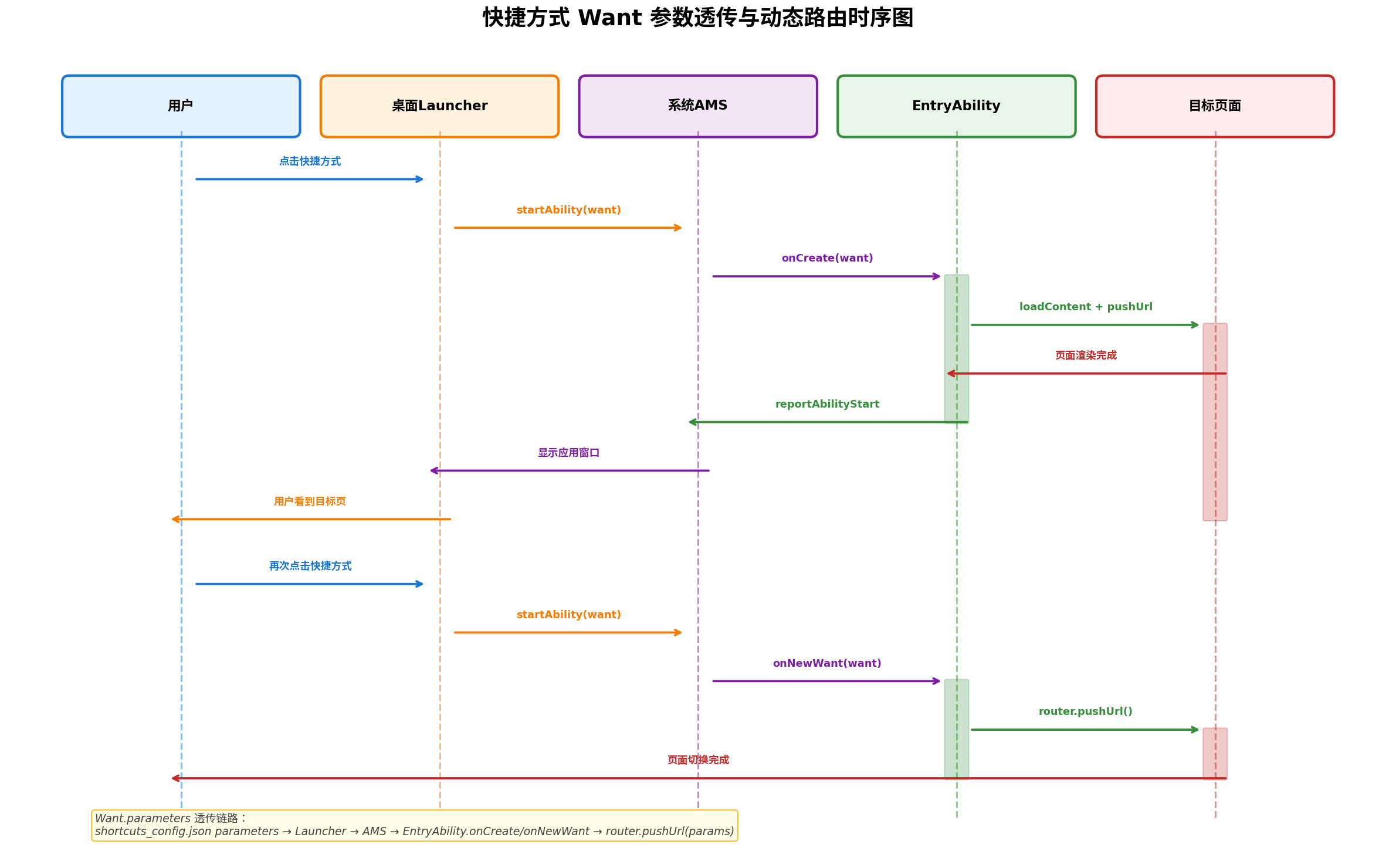
3.1 冷启动路径(onCreate)
当应用未在后台运行时,点击快捷方式会触发Ability的冷启动流程:
// entryability/EntryAbility.ets
import { AbilityConstant, UIAbility, Want } from '@kit.AbilityKit';
import { window } from '@kit.ArkUI';
import { hilog } from '@kit.PerformanceAnalysisKit';

export default class EntryAbility extends UIAbility {
  private targetPage: string = '';
  private routeParams: Record<string, string> = {};

  onCreate(want: Want, launchParam: AbilityConstant.LaunchParam): void {
    hilog.info(0x0000, 'EntryAbility', 'onCreate');

    // 解析快捷方式参数
    this.parseShortcutParams(want);

    // 将Want存入AppStorage,供页面侧读取
    AppStorage.setOrCreate('launch_want', want);
    AppStorage.setOrCreate('shortcut_target', this.targetPage);
    AppStorage.setOrCreate('shortcut_params', this.routeParams);
  }

  onNewWant(want: Want, launchParam: AbilityConstant.LaunchParam): void {
    hilog.info(0x0000, 'EntryAbility', 'onNewWant');

    // 热启动时重新解析参数
    this.parseShortcutParams(want);

    AppStorage.setOrCreate('launch_want', want);
    AppStorage.setOrCreate('shortcut_target', this.targetPage);
    AppStorage.setOrCreate('shortcut_params', this.routeParams);

    // 触发页面侧的路由更新
    AppStorage.setOrCreate('shortcut_refresh_trigger', Date.now());
  }

  private parseShortcutParams(want: Want): void {
    const parameters = want.parameters;
    if (!parameters) {
      this.targetPage = '';
      this.routeParams = {};
      return;
    }

    // 提取shortcutKey作为路由标识
    const shortcutKey = parameters['shortcutKey'] as string;

    // 提取所有parameters作为路由参数
    this.routeParams = {};
    for (const key in parameters) {
      if (Object.prototype.hasOwnProperty.call(parameters, key)) {
        const value = parameters[key];
        // 仅保留字符串类型参数
        if (typeof value === 'string') {
          this.routeParams[key] = value;
        }
      }
    }

    // 映射shortcutKey到目标页面路径
    const routeMap: Record<string, string> = {
      'CompanyPage': 'pages/GoCompany',
      'HousePage': 'pages/GoHouse',
      'ScanPage': 'pages/QuickScan',
      'NewNotePage': 'pages/NewNote'
    };

    this.targetPage = routeMap[shortcutKey] || '';

    hilog.info(0x0000, 'EntryAbility', `Parsed shortcut: key=${shortcutKey}, target=${this.targetPage}`);
  }

  onWindowStageCreate(windowStage: window.WindowStage): void {
    hilog.info(0x0000, 'EntryAbility', 'onWindowStageCreate');

    windowStage.loadContent('pages/Index', (err) => {
      if (err && err.code) {
        hilog.error(0x0000, 'EntryAbility', `Failed to load content: ${JSON.stringify(err)}`);
        return;
      }

      hilog.info(0x0000, 'EntryAbility', 'WindowStage loadContent success');

      // 延迟执行路由跳转,确保页面已加载完成
      if (this.targetPage) {
        setTimeout(() => {
          this.navigateToShortcutPage();
        }, 200);
      }
    });
  }

  private navigateToShortcutPage(): void {
    if (!this.targetPage) return;

    const router = this.context.getRouter();
    router.pushUrl({
      url: this.targetPage,
      params: this.routeParams
    }).then(() => {
      hilog.info(0x0000, 'EntryAbility', `Navigated to ${this.targetPage}`);
    }).catch((err: Error) => {
      hilog.error(0x0000, 'EntryAbility', `Navigation failed: ${err.message}`);
    });
  }
}
3.2 热启动路径(onNewWant)
当应用已在后台运行时,点击快捷方式会触发onNewWant而非onCreate。此时需要:
// pages/Index.ets
import { router } from '@kit.ArkUI';

@Entry
@Component
struct Index {
  @StorageLink('shortcut_refresh_trigger') refreshTrigger: number = 0;
  @StorageLink('shortcut_target') targetPage: string = '';
  @StorageLink('shortcut_params') routeParams: Record<string, string> = {};

  aboutToAppear(): void {
    // 冷启动时检查是否需要路由
    this.checkShortcutNavigation();
  }

  onPageShow(): void {
    // 每次页面显示时检查(处理热启动场景)
    this.checkShortcutNavigation();
  }

  private checkShortcutNavigation(): void {
    if (this.targetPage) {
      // 清除目标,防止重复跳转
      AppStorage.set('shortcut_target', '');

      router.pushUrl({
        url: this.targetPage,
        params: this.routeParams
      }).catch((err: Error) => {
        console.error('[Index] Navigation failed:', err.message);
      });
    }
  }

  build() {
    Column() {
      // 主页内容
      Text('智能出行助手')
        .fontSize(24)
        .fontWeight(FontWeight.Bold)
      // ...
    }
    .width('100%')
    .height('100%')
  }
}
3.3 路由参数类型安全封装
由于parameters仅支持字符串类型,建议封装类型转换工具:
// utils/ShortcutParamsParser.ets
export class ShortcutParamsParser {
  /**
   * 解析布尔类型参数
   */
  static parseBoolean(params: Record<string, string>, key: string, defaultValue: boolean = false): boolean {
    const value = params[key];
    if (value === undefined) return defaultValue;
    return value === 'true' || value === '1';
  }

  /**
   * 解析数值类型参数
   */
  static parseNumber(params: Record<string, string>, key: string, defaultValue: number = 0): number {
    const value = params[key];
    if (value === undefined) return defaultValue;
    const parsed = parseFloat(value);
    return isNaN(parsed) ? defaultValue : parsed;
  }

  /**
   * 解析JSON字符串参数
   */
  static parseJson<T>(params: Record<string, string>, key: string, defaultValue: T | null = null): T | null {
    const value = params[key];
    if (!value) return defaultValue;
    try {
      return JSON.parse(value) as T;
    } catch {
      return defaultValue;
    }
  }

  /**
   * 解析枚举类型参数
   */
  static parseEnum<T extends string>(params: Record<string, string>, key: string,
                                      validValues: T[], defaultValue: T): T {
    const value = params[key] as T;
    if (!value || !validValues.includes(value)) return defaultValue;
    return value;
  }
}

// 使用示例
const avoidCongestion = ShortcutParamsParser.parseBoolean(this.routeParams, 'avoidCongestion', false);
const routeType = ShortcutParamsParser.parseEnum(this.routeParams, 'routeType', ['drive', 'bus', 'walk', 'ride'], 'drive');
四、动态快捷方式生成
动态快捷方式允许应用根据用户行为(如最近目的地、收藏商品、常用联系人)在运行时创建个性化快捷入口。
4.1 动态创建API详解
HarmonyOS 6通过productViewManager模块提供动态快捷方式能力:
// utils/DynamicShortcutManager.ets
import { hilog } from '@kit.PerformanceAnalysisKit';
import { BusinessError } from '@kit.BasicServicesKit';
import { productViewManager } from '@kit.StoreKit';
import { common, Want } from '@kit.AbilityKit';
import promptAction from '@ohos.promptAction';

export interface DynamicShortcutConfig {
  shortcutId: string;
  label: string;
  iconResName: string;
  targetAbility: string;
  parameters: Record<string, string>;
}

export class DynamicShortcutManager {
  private static readonly TAG = 'DynamicShortcutManager';

  /**
   * 创建动态快捷方式
   * 流程:校验权限 → 获取tid → 请求创建
   */
  static async createDynamicShortcut(
    context: common.UIAbilityContext,
    config: DynamicShortcutConfig
  ): Promise<boolean> {
    const want: Want = {
      bundleName: context.applicationInfo.name,
      moduleName: 'entry',
      abilityName: config.targetAbility,
      parameters: config.parameters
    };

    try {
      // Step 1: 校验快捷方式是否可添加
      const checkResult = await productViewManager.checkPinShortcutPermitted(
        context,
        config.shortcutId,
        want,
        config.label,
        config.iconResName
      );

      hilog.info(0x0001, this.TAG, `Check permitted: ${JSON.stringify(checkResult)}`);
      const tid = checkResult.tid;

      // Step 2: 发起创建请求(系统会弹窗让用户确认)
      await productViewManager.requestNewPinShortcut(context, tid);

      promptAction.showToast({ message: '快捷方式已添加至桌面' });
      return true;

    } catch (error) {
      const err = error as BusinessError;
      hilog.error(0x0001, this.TAG, `Create shortcut failed: ${err.code}, ${err.message}`);

      // 错误码处理
      switch (err.code) {
        case 1006620003:
          promptAction.showToast({ message: '桌面已存在此快捷方式' });
          break;
        case 1006620001:
          promptAction.showToast({ message: '快捷方式数量已达上限(最多4个)' });
          break;
        case 1006620002:
          promptAction.showToast({ message: '用户取消了创建操作' });
          break;
        default:
          promptAction.showToast({ message: `创建失败: ${err.message}` });
      }
      return false;
    }
  }

  /**
   * 批量创建最近目的地快捷方式
   */
  static async createRecentDestinations(
    context: common.UIAbilityContext,
    destinations: Array<{ id: string; name: string; address: string }>
  ): Promise<void> {
    const maxShortcuts = 4; // 系统限制最多4个
    const recentDestinations = destinations.slice(0, maxShortcuts);

    for (const dest of recentDestinations) {
      const shortcutId = `recent_${dest.id}`;
      const config: DynamicShortcutConfig = {
        shortcutId: shortcutId,
        label: dest.name,
        iconResName: 'ic_location_dynamic',
        targetAbility: 'EntryAbility',
        parameters: {
          shortcutKey: 'CompanyPage',
          address: dest.address,
          destinationName: dest.name,
          routeType: 'drive',
          source: 'dynamic_recent'
        }
      };

      await this.createDynamicShortcut(context, config);
    }
  }
}
4.2 动态快捷方式使用场景
// pages/DestinationHistory.ets
import { DynamicShortcutManager } from '../utils/DynamicShortcutManager';

@Entry
@Component
struct DestinationHistoryPage {
  @State recentDestinations: Array<{ id: string; name: string; address: string }> = [
    { id: '1', name: '公司', address: '北京市海淀区中关村软件园' },
    { id: '2', name: '家', address: '北京市朝阳区望京SOHO' },
    { id: '3', name: '健身房', address: '北京市海淀区五道口购物中心' },
  ];

  private async addToDesktop(destination: { id: string; name: string; address: string }): Promise<void> {
    const context = getContext(this) as common.UIAbilityContext;

    const config: DynamicShortcutConfig = {
      shortcutId: `dest_${destination.id}`,
      label: `去${destination.name}`,
      iconResName: 'ic_navigation_dynamic',
      targetAbility: 'EntryAbility',
      parameters: {
        shortcutKey: 'CompanyPage',
        address: destination.address,
        destinationName: destination.name,
        routeType: 'drive',
        avoidCongestion: 'true'
      }
    };

    const success = await DynamicShortcutManager.createDynamicShortcut(context, config);
    if (success) {
      // 记录用户偏好,用于后续个性化推荐
      this.saveUserPreference(destination.id);
    }
  }

  private saveUserPreference(destinationId: string): void {
    // 持久化用户偏好数据
    console.info(`[DestinationHistory] Saved preference: ${destinationId}`);
  }

  build() {
    Navigation() {
      List({ space: 12 }) {
        ForEach(this.recentDestinations, (dest) => {
          ListItem() {
            Row({ space: 12 }) {
              Column({ space: 4 }) {
                Text(dest.name)
                  .fontSize(16)
                  .fontWeight(FontWeight.Medium)
                  .fontColor('#212121')
                Text(dest.address)
                  .fontSize(12)
                  .fontColor('#757575')
                  .maxLines(1)
                  .textOverflow({ overflow: TextOverflow.Ellipsis })
              }
              .layoutWeight(1)
              .alignItems(HorizontalAlign.Start)

              Button('添加到桌面', { type: ButtonType.Capsule })
                .height(32)
                .fontSize(12)
                .backgroundColor('#E3F2FD')
                .fontColor('#1976D2')
                .onClick(() => {
                  this.addToDesktop(dest);
                })
            }
            .width('100%')
            .padding(16)
            .backgroundColor('#FFFFFF')
            .borderRadius(12)
          }
        })
      }
      .width('100%')
      .padding(16)
    }
    .title('最近目的地')
    .titleMode(NavigationTitleMode.Mini)
  }
}
五、图标规范与多场景适配
快捷方式的图标直接影响用户识别效率与桌面美观度。HarmonyOS 6对图标资源有严格的规范要求。
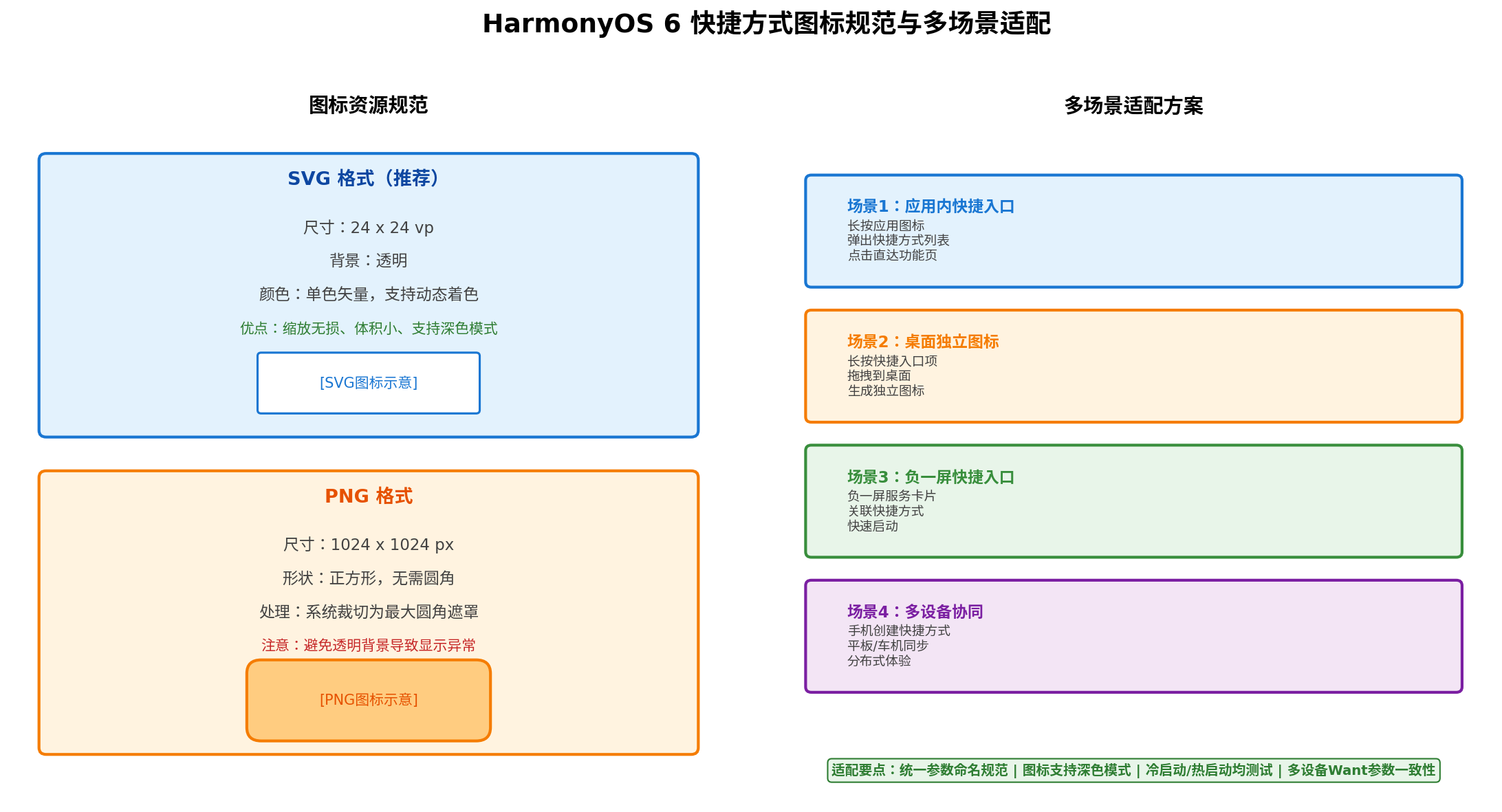
5.1 图标资源规范
SVG格式(推荐):
- 尺寸:24×24 vp(矢量单位,随屏幕密度自动缩放)
- 背景:透明
- 颜色:单色矢量路径,支持系统动态着色(跟随深色/浅色模式自动切换)
- 优点:文件体积小(通常<1KB)、任意缩放无损、支持动态主题色
PNG格式:
- 尺寸:1024×1024 px(系统会自动裁切为各分辨率适配版本)
- 形状:正方形,无需圆角(系统会自动添加最大圆角遮罩)
- 格式:PNG-24或PNG-32,支持Alpha通道
- 注意:避免纯透明背景导致在深色桌面壁纸上显示异常
5.2 多语言适配
在resources/base/element/string.json中配置多语言标签:
{
  "string": [
    {
      "name": "shortcut_go_company",
      "value": "去公司"
    },
    {
      "name": "shortcut_go_company",
      "value": "Go to Company",
      "locale": "en-US"
    },
    {
      "name": "shortcut_go_company",
      "value": "会社へ",
      "locale": "ja-JP"
    },
    {
      "name": "shortcut_go_house",
      "value": "回家"
    },
    {
      "name": "shortcut_go_house",
      "value": "Go Home",
      "locale": "en-US"
    }
  ]
}
5.3 深色模式适配
若使用PNG格式图标,建议提供深色模式专用资源:
resources/
├── base/
│   └── media/
│       ├── ic_company.png          # 默认(浅色模式)
│       └── ic_company_dark.png     # 深色模式
├── dark/
│   └── media/
│       └── ic_company.png          # 覆盖默认,深色模式生效
在shortcuts_config.json中无需额外配置,系统会根据当前colorMode自动选择对应资源。
六、完整项目结构
entry/src/main/
├── ets/
│   ├── entryability/
│   │   └── EntryAbility.ets          # 入口Ability,参数解析与路由
│   ├── pages/
│   │   ├── Index.ets                 # 应用主页
│   │   ├── GoCompany.ets            # "去公司"快捷页面
│   │   ├── GoHouse.ets              # "回家"快捷页面
│   │   ├── QuickScan.ets            # "扫一扫"快捷页面
│   │   ├── NewNote.ets              # "新建笔记"快捷页面
│   │   └── DestinationHistory.ets   # 最近目的地(动态快捷方式管理)
│   └── utils/
│       ├── DynamicShortcutManager.ets   # 动态快捷方式管理器
│       └── ShortcutParamsParser.ets     # 参数类型安全解析器
├── resources/
│   ├── base/
│   │   ├── media/
│   │   │   ├── ic_company.png       # 公司图标
│   │   │   ├── ic_house.png         # 家图标
│   │   │   ├── ic_scan.png          # 扫描图标
│   │   │   ├── ic_note.png          # 笔记图标
│   │   │   └── ic_navigation_dynamic.png  # 动态快捷方式通用图标
│   │   ├── element/
│   │   │   └── string.json          # 多语言字符串
│   │   └── profile/
│   │       ├── main_pages.json      # 页面路由注册
│   │       └── shortcuts_config.json  # 静态快捷方式配置
│   └── dark/
│       └── media/                   # 深色模式图标覆盖
└── module.json5                     # 模块配置(含metadata注册)
七、踩坑总结与最佳实践
7.1 常见错误码与解决方案
| 错误码 | 含义 | 解决方案 |
|---|---|---|
| 1006620001 | 快捷方式数量超过上限 | 单应用最多4个,需删除旧快捷方式后再创建 |
| 1006620002 | 用户取消创建操作 | 属于正常流程,无需处理 |
| 1006620003 | 快捷方式已存在 | 创建前检查或catch后提示用户 |
| 16000050 | 目标页面未找到 | 检查main_pages.json是否注册、页面路径拼写 |
| 16000051 | 页面缺少@Entry装饰器 | 目标页面必须添加@Entry |
| 16000101 | 参数类型不合法 | parameters仅支持字符串类型键值对 |
7.2 最佳实践清单
✅ 配置层
  • shortcuts_config.json中shortcutId全局唯一,建议前缀+业务标识
  • label使用$string:引用,支持多语言国际化
  • icon优先使用SVG格式,确保24x24vp透明背景
  • wants.parameters仅传递字符串,复杂数据序列化为JSON字符串

✅ 代码层
  • EntryAbility必须同时处理onCreate(冷启动)和onNewWant(热启动)
  • 路由跳转前延迟200ms,确保windowStage.loadContent完成
  • 使用AppStorage作为Ability与Page间的参数传递桥梁
  • 封装ShortcutParamsParser处理字符串到业务类型的安全转换

✅ 测试层
  • 冷启动测试:杀掉应用进程后点击快捷方式
  • 热启动测试:应用后台运行时点击快捷方式
  • 参数透传测试:验证所有parameters字段正确到达目标页面
  • 边界测试:空参数、超长参数(1024字符上限)、特殊字符
  • 多设备测试:验证分布式场景下快捷方式行为一致性

✅ 性能层
  • onCreate/onNewWant中禁止耗时操作(>100ms会导致ANR)
  • 路由跳转使用pushUrl而非replaceUrl,保留返回栈
  • 动态快捷方式创建失败时优雅降级,不影响主流程
八、总结与展望
本文基于HarmonyOS 6(API 23),从系统架构到工程实践,完整解析了快捷方式的开发全链路。通过静态配置与动态生成两种模式,开发者可以覆盖从固定功能入口到个性化快捷方式的全场景需求。
核心要点回顾:
- 双模式创建:静态配置(shortcuts_config.json)适用于固定功能,动态生成(productViewManager)适用于个性化场景
- 参数透传机制:Want.parameters仅支持字符串,需封装类型转换工具保证数据安全
- 双路径路由:EntryAbility必须同时处理onCreate冷启动与onNewWant热启动,使用AppStorage桥接Ability与Page
- 图标规范:优先SVG(24×24vp透明),PNG需1024×1024px正方形,系统会自动裁切圆角
- 数量限制:单应用最多4个快捷方式(静态+动态共享配额),需合理规划优先级
未来演进方向:
- AI预测快捷方式:结合HarmonyOS 6端侧大模型,根据用户行为模式(如工作日早晨自动推荐「去公司」)预创建动态快捷方式
- 分布式快捷方式:利用分布式软总线,实现手机创建的快捷方式在平板、车机、智慧屏间的状态同步与无缝接力
- 场景化快捷方式:基于时间、地点、设备状态等上下文信息,自动展示最相关的快捷入口(如到达机场时自动显示「值机」快捷方式)
- 语音快捷方式:与HarmonyOS智慧语音深度集成,支持「小艺,导航去公司」直接触发快捷方式参数化跳转
快捷方式作为用户触达应用核心功能的「最后一公里」,其设计质量直接影响用户留存与操作效率。期待更多开发者善用这一能力,为用户打造「零摩擦」的极致体验。
转载自:https://blog.csdn.net/u014727709/article/details/163802225
欢迎 👍点赞✍评论⭐收藏,欢迎指正

讨论HarmonyOS开发技术,专注于API与组件、DevEco Studio、测试、元服务和应用上架分发等。
更多推荐


 1
1 0
0- 0


 已为社区贡献794条内容

所有评论(0)