依托HarmonyOS 6.1最新特性实现图片编辑APP(三):Image Kit图片编码与格式转换
依托HarmonyOS 6.1最新特性实现图片编辑APP(三):Image Kit图片编码与格式转换
前言
在前两篇文章中,我们介绍了 Image Kit 的整体架构和图片解码的详细实现。当图片经过编辑处理后,下一步就是将其保存为文件——这正是图片编码(Image Encoding)的职责所在。Image Kit 提供了强大的图片编码能力,通过 ImagePacker 组件,开发者可以将处理后的PixelMap或Picture对象编码为多种格式的图片文件。
图片编码是指将处理后的图像数据封装为指定图片格式文件的过程,用于保存、传输或格式转换。ImagePacker支持灵活的编码参数配置,包括格式选择、质量控制和元数据嵌入。
本文将详细介绍 ImagePacker 的使用方法,并结合 ImageEditor Pro APP的实际场景,实现图片的格式转换、质量控制和批量导出功能。
一、图片编码基础概念
1.1 编码流程概览
Image Kit 中图片编码的标准流程如下:
- 获取待编码的 PixelMap 或 Picture 对象
- 创建 ImagePacker 实例
- 配置 PackingOptions 编码参数
- 调用编码方法获取编码数据
- 将编码数据写入文件系统
- 释放 ImagePacker 资源
1.2 编码输出格式
ImagePacker 支持编码为以下格式:
| 格式 | MIME类型 | 特点 | 推荐场景 |
|---|---|---|---|
| JPEG | image/jpeg | 有损压缩,文件小,兼容性好 | 照片分享、网络传输 |
| PNG | image/png | 无损压缩,支持透明通道 | 图标、UI素材、需要透明度的图片 |
| WebP | image/webp | 同时支持有损和无损,压缩率高 | 现代应用、网页图片 |
| HEIF | image/heic | 高效压缩,体积更小 | 专业摄影、高效存储 |
| BMP | image/bmp | 无压缩,简单直接 | 少数特定场景 |
1.3 编码参数配置
PackingOptions 是编码的关键配置,决定了输出图片的格式和质量:
| 参数 | 类型 | 说明 | 适用格式 |
|---|---|---|---|
| format | string | 目标编码格式的MIME类型 | 所有格式 |
| quality | number | 编码质量(0-100),仅对JPEG/WebP有效 | JPEG, WebP |
| needsPackProperties | boolean | 是否打包图片属性(如Exif数据) | 所有格式 |
| desiredDynamicRange | PackingDynamicRange | 目标动态范围 | 支持HDR的格式 |
二、ImagePacker基础使用
2.1 创建ImagePacker与基础编码
import { image } from '@kit.ImageKit';
import { fileIo } from '@kit.CoreFileKit';
import { BusinessError } from '@kit.BasicServicesKit';

// 基础编码示例:将PixelMap编码为JPEG并保存
async function encodePixelMapToJPEG(
  pixelMap: image.PixelMap,
  outputPath: string,
  quality: number = 90
): Promise<boolean> {
  try {
    // 创建ImagePacker
    const imagePacker = image.createImagePacker();

    // 配置编码选项
    let packOptions: image.PackingOptions = {
      format: 'image/jpeg',
      quality: quality  // 质量范围0-100
    };

    // 编码为ArrayBuffer
    const data: ArrayBuffer = await imagePacker.packToData(pixelMap, packOptions);
    console.info(`Encoded size: ${data.byteLength} bytes`);

    // 写入文件
    const file = fileIo.openSync(outputPath,
      fileIo.OpenMode.CREATE | fileIo.OpenMode.WRITE_ONLY | fileIo.OpenMode.TRUNC);
    fileIo.writeSync(file.fd, data);
    fileIo.closeSync(file);

    // 释放ImagePacker
    imagePacker.release();

    console.info(`Image saved to ${outputPath}`);
    return true;
  } catch (error) {
    console.error(`Encoding failed: ${error}`);
    return false;
  }
}
2.2 多格式编码支持
下面是支持多种输出格式的编码方法:
// 支持多种格式的编码工具
class ImageExportUtil {
  private imagePacker: image.ImagePacker;

  constructor() {
    this.imagePacker = image.createImagePacker();
  }

  // 通用编码方法
  async encodeToFormat(
    pixelMap: image.PixelMap,
    format: string,
    quality: number = 90
  ): Promise<ArrayBuffer | undefined> {
    try {
      let packOptions: image.PackingOptions = {
        format: format,
        quality: quality
      };

      const data = await this.imagePacker.packToData(pixelMap, packOptions);
      console.info(`Encoded as ${format}, size: ${data.byteLength} bytes`);
      return data;
    } catch (error) {
      console.error(`Failed to encode as ${format}: ${error}`);
      return undefined;
    }
  }

  // 编码为JPEG(高质量)
  async encodeToJPEG(pixelMap: image.PixelMap, quality: number = 95): Promise<ArrayBuffer | undefined> {
    return this.encodeToFormat(pixelMap, 'image/jpeg', quality);
  }

  // 编码为PNG(无损)
  async encodeToPNG(pixelMap: image.PixelMap): Promise<ArrayBuffer | undefined> {
    return this.encodeToFormat(pixelMap, 'image/png');
  }

  // 编码为WebP
  async encodeToWebP(pixelMap: image.PixelMap, quality: number = 80): Promise<ArrayBuffer | undefined> {
    return this.encodeToFormat(pixelMap, 'image/webp', quality);
  }

  // 编码为HEIF(高效存储)
  async encodeToHEIF(pixelMap: image.PixelMap): Promise<ArrayBuffer | undefined> {
    return this.encodeToFormat(pixelMap, 'image/heic');
  }

  // 将编码数据保存到文件
  async saveToFile(data: ArrayBuffer, outputPath: string): Promise<boolean> {
    try {
      const file = fileIo.openSync(outputPath,
        fileIo.OpenMode.CREATE | fileIo.OpenMode.WRITE_ONLY | fileIo.OpenMode.TRUNC);
      fileIo.writeSync(file.fd, data);
      fileIo.closeSync(file);
      console.info(`File saved: ${outputPath} (${data.byteLength} bytes)`);
      return true;
    } catch (error) {
      console.error(`Failed to save file: ${error}`);
      return false;
    }
  }

  // 释放资源
  release(): void {
    this.imagePacker.release();
  }
}
2.3 多图对象编码
对于 Picture(多图对象),编码方法略有不同:
// 多图对象编码示例
async function encodePictureExample(
  picture: image.Picture,
  outputPath: string
): Promise<boolean> {
  try {
    const imagePacker = image.createImagePacker();

    let packOptions: image.PackingOptions = {
      format: 'image/heic',
      desiredDynamicRange: image.PackingDynamicRange.HDR
    };

    // 使用packToData方法编码Picture对象
    const data = await imagePacker.packToData(picture, packOptions);

    // 保存文件
    const file = fileIo.openSync(outputPath,
      fileIo.OpenMode.CREATE | fileIo.OpenMode.WRITE_ONLY | fileIo.OpenMode.TRUNC);
    fileIo.writeSync(file.fd, data);
    fileIo.closeSync(file);

    imagePacker.release();
    console.info(`Picture encoded and saved to ${outputPath}`);
    return true;
  } catch (error) {
    console.error(`Picture encoding failed: ${error}`);
    return false;
  }
}
三、ImageEditor Pro中的导出模块
3.1 导出功能设计
ImageEditor Pro 的导出功能支持多种格式选择和质量控制:
// 导出配置类型
interface ExportConfig {
  format: string;       // 目标格式
  quality: number;      // 质量参数(0-100)
  outputPath: string;   // 输出路径
  preserveMetadata: boolean; // 是否保留元数据
}

// 导出管理器
export class ExportManager {
  private imagePacker: image.ImagePacker;
  private context: common.Context;

  constructor(context: common.Context) {
    this.context = context;
    this.imagePacker = image.createImagePacker();
  }

  // 执行导出
  async exportImage(
    pixelMap: image.PixelMap,
    config: ExportConfig
  ): Promise<ExportResult> {
    const startTime = Date.now();

    try {
      let packOptions: image.PackingOptions = {
        format: config.format,
        quality: config.quality,
        needsPackProperties: config.preserveMetadata
      };

      const data = await this.imagePacker.packToData(pixelMap, packOptions);

      // 确保输出目录存在
      const outputDir = config.outputPath.substring(0, config.outputPath.lastIndexOf('/'));
      fileIo.mkdirSync(outputDir, true);

      // 写入文件
      const file = fileIo.openSync(config.outputPath,
        fileIo.OpenMode.CREATE | fileIo.OpenMode.WRITE_ONLY | fileIo.OpenMode.TRUNC);
      fileIo.writeSync(file.fd, data);
      fileIo.closeSync(file);

      const elapsed = Date.now() - startTime;

      return {
        success: true,
        filePath: config.outputPath,
        fileSize: data.byteLength,
        format: config.format,
        elapsed: elapsed
      };
    } catch (error) {
      return {
        success: false,
        filePath: config.outputPath,
        fileSize: 0,
        format: config.format,
        elapsed: Date.now() - startTime,
        error: String(error)
      };
    }
  }

  // 批量导出:同一张图片导出为多种格式
  async batchExport(
    pixelMap: image.PixelMap,
    outputDir: string,
    baseName: string,
    formats: { format: string; quality: number }[]
  ): Promise<ExportResult[]> {
    const results: ExportResult[] = [];

    for (const fmt of formats) {
      const extension = this.getExtension(fmt.format);
      const outputPath = `${outputDir}/${baseName}.${extension}`;

      const result = await this.exportImage(pixelMap, {
        format: fmt.format,
        quality: fmt.quality,
        outputPath: outputPath,
        preserveMetadata: true
      });

      results.push(result);
    }

    return results;
  }

  // 根据格式获取文件扩展名
  private getExtension(format: string): string {
    const extMap: Record<string, string> = {
      'image/jpeg': 'jpg',
      'image/png': 'png',
      'image/webp': 'webp',
      'image/heic': 'heic',
      'image/bmp': 'bmp'
    };
    return extMap[format] || 'jpg';
  }

  release(): void {
    this.imagePacker.release();
  }
}

// 导出结果类型
interface ExportResult {
  success: boolean;
  filePath: string;
  fileSize: number;
  format: string;
  elapsed: number;
  error?: string;
}
3.2 导出页面UI实现
// 导出页面
@Entry
@Component
struct ExportPage {
  @State selectedFormat: string = 'image/jpeg';
  @State quality: number = 90;
  @State exportResults: ExportResult[] = [];
  @State isExporting: boolean = false;
  private exportManager: ExportManager = new ExportManager(getContext(this));
  private pixelMap: image.PixelMap | undefined = undefined;

  // 格式选项
  private formatOptions: { label: string; value: string; ext: string }[] = [
    { label: 'JPEG (推荐)', value: 'image/jpeg', ext: 'jpg' },
    { label: 'PNG (无损)', value: 'image/png', ext: 'png' },
    { label: 'WebP (高效)', value: 'image/webp', ext: 'webp' },
    { label: 'HEIF (最新)', value: 'image/heic', ext: 'heic' }
  ];

  // 执行导出
  async doExport(): Promise<void> {
    if (!this.pixelMap) {
      return;
    }

    this.isExporting = true;
    this.exportResults = [];

    const timestamp = new Date().getTime();
    const selectedOption = this.formatOptions.find(f => f.value === this.selectedFormat);

    const result = await this.exportManager.exportImage(this.pixelMap, {
      format: this.selectedFormat,
      quality: this.quality,
      outputPath: `${getContext(this).cacheDir}/export_${timestamp}.${selectedOption?.ext || 'jpg'}`,
      preserveMetadata: true
    });

    this.exportResults = [result];
    this.isExporting = false;
  }

  build() {
    Column() {
      Text('图片导出设置')
        .fontSize(24)
        .fontWeight(FontWeight.Bold)
        .padding(20)

      // 格式选择
      Text('选择导出格式')
        .fontSize(16)
        .padding({ left: 20, top: 10 })

      ForEach(this.formatOptions, (item: { label: string; value: string; ext: string }) => {
        Row() {
          Radio({ value: item.value, group: 'formatGroup' })
            .checked(this.selectedFormat === item.value)
            .onChange((checked: boolean) => {
              if (checked) {
                this.selectedFormat = item.value;
              }
            })
          Text(item.label)
            .fontSize(14)
            .margin({ left: 10 })
        }
        .padding({ left: 20, top: 5, bottom: 5 })
      })

      // 质量控制
      if (this.selectedFormat === 'image/jpeg' || this.selectedFormat === 'image/webp') {
        Column() {
          Text(`编码质量: ${this.quality}`)
            .fontSize(16)
            .padding({ left: 20, top: 20 })

          Slider({
            value: this.quality,
            min: 10,
            max: 100,
            step: 5
          })
            .width('90%')
            .onChange((value: number) => {
              this.quality = value;
            })
        }
      }

      // 导出按钮
      Button('开始导出')
        .margin(20)
        .onClick(() => {
          this.doExport();
        })

      // 导出结果
      if (this.exportResults.length > 0) {
        List() {
          ForEach(this.exportResults, (result: ExportResult) => {
            ListItem() {
              Column() {
                Text(result.success ? '导出成功' : '导出失败')
                  .fontSize(16)
                  .fontColor(result.success ? Color.Green : Color.Red)
                Text(`格式: ${result.format}`)
                Text(`大小: ${(result.fileSize / 1024).toFixed(1)} KB`)
                Text(`耗时: ${result.elapsed}ms`)
                if (result.error) {
                  Text(`错误: ${result.error}`).fontColor(Color.Red)
                }
              }
              .padding(10)
            }
          })
        }
      }

      if (this.isExporting) {
        LoadingProgress()
          .width(50)
          .height(50)
      }
    }
    .width('100%')
    .height('100%')
  }
}
四、格式转换实战
4.1 批量格式转换工具
// 批量格式转换器
class BatchFormatConverter {
  private context: common.Context;

  constructor(context: common.Context) {
    this.context = context;
  }

  // 批量转换目录中的图片格式
  async batchConvertDirectory(
    inputDir: string,
    outputDir: string,
    targetFormat: string,
    quality: number = 90
  ): Promise<ConvertResult[]> {
    const results: ConvertResult[] = [];

    try {
      // 获取输入目录中的所有图片文件
      const files = fileIo.listFileSync(inputDir);
      const imageExtensions = ['.jpg', '.jpeg', '.png', '.webp', '.heic', '.bmp'];

      for (const fileName of files) {
        const ext = fileName.substring(fileName.lastIndexOf('.')).toLowerCase();
        if (!imageExtensions.includes(ext)) {
          continue;
        }

        const inputPath = `${inputDir}/${fileName}`;
        const baseName = fileName.substring(0, fileName.lastIndexOf('.'));
        const outputExt = this.getExtension(targetFormat);
        const outputPath = `${outputDir}/${baseName}.${outputExt}`;

        try {
          // 解码
          const imageSource = image.createImageSource(inputPath);
          const decodingOptions: image.DecodingOptions = {
            editable: false,
            desiredPixelFormat: image.PixelMapFormat.RGBA_8888
          };
          const pixelMap = await imageSource.createPixelMap(decodingOptions);
          await imageSource.release();

          // 编码
          const imagePacker = image.createImagePacker();
          let packOptions: image.PackingOptions = {
            format: targetFormat,
            quality: quality
          };
          const data = await imagePacker.packToData(pixelMap, packOptions);

          // 保存
          fileIo.mkdirSync(outputDir, true);
          const file = fileIo.openSync(outputPath,
            fileIo.OpenMode.CREATE | fileIo.OpenMode.WRITE_ONLY | fileIo.OpenMode.TRUNC);
          fileIo.writeSync(file.fd, data);
          fileIo.closeSync(file);

          await pixelMap.release();
          imagePacker.release();

          results.push({
            fileName: fileName,
            success: true,
            outputPath: outputPath,
            originalSize: (await fileIo.statSync(inputPath)).size,
            convertedSize: data.byteLength,
            compressionRatio: ((1 - data.byteLength / (await fileIo.statSync(inputPath)).size) * 100).toFixed(1) + '%'
          });

          console.info(`Converted: ${fileName} -> ${baseName}.${outputExt}`);
        } catch (error) {
          results.push({
            fileName: fileName,
            success: false,
            outputPath: '',
            originalSize: 0,
            convertedSize: 0,
            compressionRatio: '0%',
            error: String(error)
          });
        }
      }
    } catch (error) {
      console.error(`Batch conversion failed: ${error}`);
    }

    return results;
  }

  private getExtension(format: string): string {
    const extMap: Record<string, string> = {
      'image/jpeg': 'jpg',
      'image/png': 'png',
      'image/webp': 'webp',
      'image/heic': 'heic'
    };
    return extMap[format] || 'jpg';
  }
}

interface ConvertResult {
  fileName: string;
  success: boolean;
  outputPath: string;
  originalSize: number;
  convertedSize: number;
  compressionRatio: string;
  error?: string;
}
4.2 格式对比分析
以下是同一张图片(4000x3000像素,摄影照片)使用不同格式编码后的文件大小对比:
| 格式 | 质量参数 | 文件大小 | 压缩率 | 透明支持 | 浏览器兼容性 |
|---|---|---|---|---|---|
| JPEG | 100 | 3.2 MB | 基准 | 否 | 极佳 |
| JPEG | 90 | 1.8 MB | -44% | 否 | 极佳 |
| JPEG | 70 | 0.9 MB | -72% | 否 | 极佳 |
| PNG | N/A | 8.5 MB | +166% | 是 | 极佳 |
| WebP | 80 | 1.2 MB | -63% | 是 | 良好 |
| HEIF | N/A | 1.5 MB | -53% | 是 | 有限 |
建议:对于照片分享场景,推荐使用JPEG质量90;对于需要透明通道的UI素材,推荐使用PNG;对于追求极致文件大小的Web应用,推荐使用WebP。
五、编码质量与性能优化
5.1 质量参数选择策略
// 智能质量选择器
class QualitySelector {
  // 根据使用场景自动选择质量参数
  static selectQuality(scenario: ExportScenario): number {
    switch (scenario) {
      case ExportScenario.SOCIAL_SHARE:
        return 85; // 社交媒体分享,平衡质量和大小
      case ExportScenario.PROFESSIONAL_PRINT:
        return 100; // 专业打印,最高质量
      case ExportScenario.THUMBNAIL:
        return 60; // 缩略图,低质量即可
      case ExportScenario.ARCHIVE:
        return 95; // 存档,高质量
      case ExportScenario.EMAIL:
        return 75; // 邮件附件,控制大小
      case ExportScenario.WEB_OPTIMIZED:
        return 80; // Web优化,兼顾加载速度
      default:
        return 90;
    }
  }

  // 根据目标文件大小估算质量参数
  static estimateQuality(
    pixelMap: image.PixelMap,
    targetSizeKB: number,
    format: string
  ): number {
    // 以不同质量参数编码并测量文件大小
    // 实际项目中可采用二分查找法找到最佳质量参数
    return 85; // 简化示例
  }
}

enum ExportScenario {
  SOCIAL_SHARE = 'social_share',
  PROFESSIONAL_PRINT = 'professional_print',
  THUMBNAIL = 'thumbnail',
  ARCHIVE = 'archive',
  EMAIL = 'email',
  WEB_OPTIMIZED = 'web_optimized'
}
5.2 编码性能优化
// 编码性能优化管理器
class EncodingOptimizer {
  // 使用Worker线程进行编码(避免阻塞主线程)
  // 注意:实际项目中应使用TaskPool或Worker实现

  // 渐进式编码:对大图片分块编码
  async progressiveEncode(
    pixelMap: image.PixelMap,
    outputPath: string,
    onProgress?: (progress: number) => void
  ): Promise<boolean> {
    try {
      const imagePacker = image.createImagePacker();
      let packOptions: image.PackingOptions = {
        format: 'image/jpeg',
        quality: 90
      };

      onProgress?.(0.5);

      const data = await imagePacker.packToData(pixelMap, packOptions);

      onProgress?.(0.8);

      const file = fileIo.openSync(outputPath,
        fileIo.OpenMode.CREATE | fileIo.OpenMode.WRITE_ONLY | fileIo.OpenMode.TRUNC);
      fileIo.writeSync(file.fd, data);
      fileIo.closeSync(file);

      imagePacker.release();

      onProgress?.(1.0);

      return true;
    } catch (error) {
      console.error(`Progressive encoding failed: ${error}`);
      return false;
    }
  }

  // 内存优化:编码后立即释放PixelMap
  async encodeAndRelease(pixelMap: image.PixelMap, outputPath: string): Promise<boolean> {
    const result = await this.progressiveEncode(pixelMap, outputPath);
    await pixelMap.release();
    return result;
  }
}
六、常见问题与解决方案
6.1 编码失败排查
| 问题 | 可能原因 | 解决方案 |
|---|---|---|
| 编码后文件为空 | 质量参数无效 | 确保quality在0-100范围内 |
| 不支持的目标格式 | 设备不支持该编码格式 | 查询设备支持的编码格式 |
| 文件写入失败 | 目录不存在或权限不足 | 确保目录存在且有写入权限 |
| 编码后文件过大 | 未设置合适的质量参数 | 调整quality参数 |
| HEIF编码失败 | 设备不支持HEIF编码 | 添加格式支持检查 |
6.2 编码格式兼容性检查
// 编码格式兼容性检查工具
class EncodingCompatibilityChecker {
  // 检查设备是否支持指定编码格式
  static isFormatSupportedForEncoding(format: string): boolean {
    // 常见格式通常都支持编码
    const commonlySupported = ['image/jpeg', 'image/png', 'image/webp'];
    if (commonlySupported.includes(format)) {
      return true;
    }

    // 对于HEIF等特殊格式,需要实际测试
    if (format === 'image/heic') {
      try {
        // 创建一个小测试PixelMap进行编码测试
        const array = new ArrayBuffer(4);
        // 实际编码测试...
        return true;
      } catch (error) {
        return false;
      }
    }

    return false;
  }
}
总结
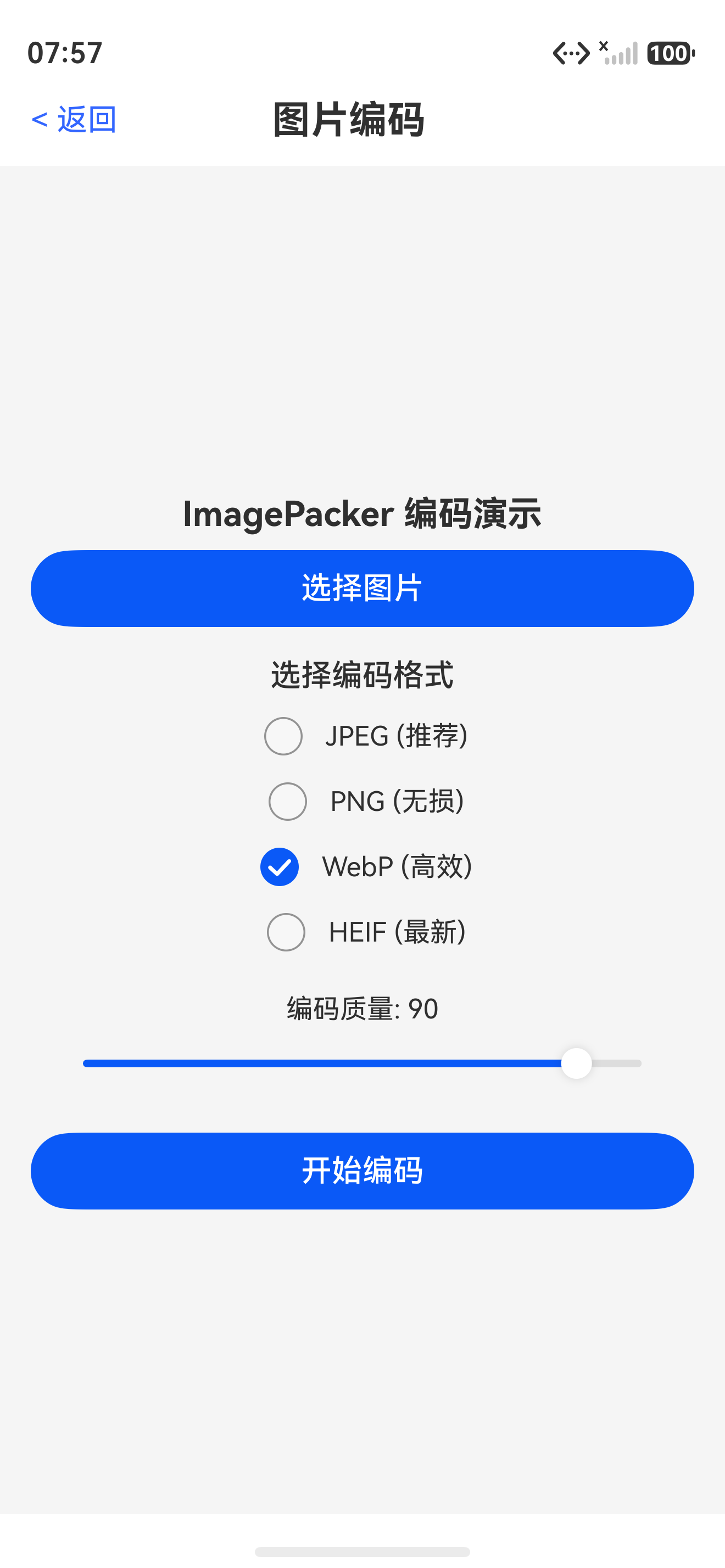
本文详细介绍了 HarmonyOS 6.1 Image Kit 的图片编码功能,包括 ImagePacker 的创建和使用、多格式编码支持、Picture多图对象编码、以及与ImageEditor Pro APP结合的导出模块实现。通过合理配置编码参数,开发者可以实现灵活高效的图片格式转换和导出功能。
下一篇文章,我们将开始进入图片编辑的核心——PixelMap图像变换,学习如何实现裁剪、缩放、旋转、翻转等基础编辑操作。
如果这篇文章对你有帮助,欢迎点赞👍、收藏⭐、关注🔔,你的支持是我持续创作的动力!
相关资源:
- 图片编码官方文档:使用ImagePacker完成图片编码
- 多图对象编码:使用ImagePacker完成多图对象编码
- PixelMap接口:Interface (PixelMap)
- 图片开发指导(ArkTS):开发指南
- 文件管理API:@ohos.file.fs
- 图片获取与保存示例:ImageGetAndSave
- 水印添加示例:Watermark
- 开源鸿蒙跨平台社区:社区链接

讨论HarmonyOS开发技术,专注于API与组件、DevEco Studio、测试、元服务和应用上架分发等。
更多推荐

 7
7 0
0- 0


 已为社区贡献64条内容

所有评论(0)