依托HarmonyOS 6.1最新特性实现图片编辑APP(四):PixelMap图像变换实战
依托HarmonyOS 6.1最新特性实现图片编辑APP(四):PixelMap图像变换实战
前言
在前三篇文章中,我们完成了 Image Kit 的架构理解和图片解码/编码的基础学习。从本文开始,我们将进入图片编辑的核心领域——PixelMap图像变换。图片编辑功能是用户最直观感知的能力,也是ImageEditor Pro APP的核心价值所在。
PixelMap(位图对象)是 Image Kit 中用于承载图片像素数据的核心对象,它提供了丰富的图像变换API,包括裁剪(Crop)、缩放(Scale)、平移(Translate)、旋转(Rotate)、翻转(Flip)和透明度调整(Opacity)等操作。
PixelMap是Image Kit中用于承载一张图片像素数据的位图对象,可读取或写入像素数据,并支持裁剪、缩放、旋转、镜像等图像处理操作。它是图片编辑的基础。
一、PixelMap图像变换能力概览
1.1 支持的变换操作
PixelMap 提供的图像变换API如下:
| 操作 | API方法 | 说明 | 参数 |
|---|---|---|---|
| 裁剪 | crop(region) | 裁剪指定区域 | x, y, width, height |
| 缩放 | scale(x, y) | 缩放图片尺寸 | 宽度缩放比例, 高度缩放比例 |
| 平移 | translate(x, y) | 平移图片位置 | 水平偏移像素, 垂直偏移像素 |
| 旋转 | rotate(angle) | 旋转图片 | 旋转角度(顺时针度数) |
| 翻转 | flip(horizontal, vertical) | 水平/垂直翻转 | 水平翻转, 垂直翻转 |
| 透明度 | opacity(alpha) | 设置全局透明度 | 0.0(完全透明)到1.0(完全不透明) |
1.2 变换操作的前提条件
在对 PixelMap 进行变换操作之前,需要确保满足以下条件:
- PixelMap 必须是通过解码选项
editable: true创建的 - 操作执行前需要获取图片信息,确保操作参数在有效范围内
- 所有变换操作都是异步的,返回Promise
// 确保PixelMap可编辑
let decodingOptions: image.DecodingOptions = {
  editable: true,  // 必须设置为true
  desiredPixelFormat: image.PixelMapFormat.RGBA_8888
};
二、基础图像变换操作
2.1 图片裁剪(Crop)
图片裁剪是最常用的编辑操作之一,用于截取图片的指定区域:
import { image } from '@kit.ImageKit';
import { BusinessError } from '@kit.BasicServicesKit';

// 图片裁剪工具
class ImageCropUtil {
  // 基础裁剪:从左上角裁剪指定尺寸
  static async cropFromTopLeft(
    pixelMap: image.PixelMap,
    width: number,
    height: number
  ): Promise<void> {
    try {
      await pixelMap.crop({
        x: 0,
        y: 0,
        size: { width: width, height: height }
      });
      console.info(`Crop completed: ${width} x ${height}`);
    } catch (error) {
      console.error(`Crop failed: ${error}`);
    }
  }

  // 中心裁剪:裁剪图片中心区域
  static async cropCenter(
    pixelMap: image.PixelMap,
    targetWidth: number,
    targetHeight: number
  ): Promise<void> {
    try {
      let imageInfo = await pixelMap.getImageInfo();
      let x = Math.max(0, (imageInfo.size.width - targetWidth) / 2);
      let y = Math.max(0, (imageInfo.size.height - targetHeight) / 2);

      await pixelMap.crop({
        x: x,
        y: y,
        size: { width: targetWidth, height: targetHeight }
      });
      console.info(`Center crop completed: ${targetWidth} x ${targetHeight}`);
    } catch (error) {
      console.error(`Center crop failed: ${error}`);
    }
  }

  // 智能裁剪:根据宽高比裁剪
  static async cropToAspectRatio(
    pixelMap: image.PixelMap,
    aspectRatio: number // 宽/高,如 16/9 = 1.778
  ): Promise<void> {
    try {
      let imageInfo = await pixelMap.getImageInfo();
      let currentRatio = imageInfo.size.width / imageInfo.size.height;

      let cropWidth: number;
      let cropHeight: number;

      if (currentRatio > aspectRatio) {
        // 当前图片更宽,裁剪宽度
        cropHeight = imageInfo.size.height;
        cropWidth = Math.round(cropHeight * aspectRatio);
      } else {
        // 当前图片更高,裁剪高度
        cropWidth = imageInfo.size.width;
        cropHeight = Math.round(cropWidth / aspectRatio);
      }

      let x = Math.round((imageInfo.size.width - cropWidth) / 2);
      let y = Math.round((imageInfo.size.height - cropHeight) / 2);

      await pixelMap.crop({
        x: x,
        y: y,
        size: { width: cropWidth, height: cropHeight }
      });
      console.info(`Aspect ratio crop completed: ${cropWidth} x ${cropHeight}`);
    } catch (error) {
      console.error(`Aspect ratio crop failed: ${error}`);
    }
  }
}
2.2 图片缩放(Scale)
缩放操作可以改变图片的显示尺寸:
// 图片缩放工具
class ImageScaleUtil {
  // 按比例缩放
  static async scaleByRatio(
    pixelMap: image.PixelMap,
    ratioX: number,
    ratioY: number
  ): Promise<void> {
    try {
      await pixelMap.scale(ratioX, ratioY);
      console.info(`Scale completed: ${ratioX}x, ${ratioY}y`);
    } catch (error) {
      console.error(`Scale failed: ${error}`);
    }
  }

  // 缩放到指定尺寸
  static async scaleToSize(
    pixelMap: image.PixelMap,
    targetWidth: number,
    targetHeight: number
  ): Promise<void> {
    try {
      let imageInfo = await pixelMap.getImageInfo();
      let ratioX = targetWidth / imageInfo.size.width;
      let ratioY = targetHeight / imageInfo.size.height;

      await pixelMap.scale(ratioX, ratioY);
      console.info(`Scale to size completed: ${targetWidth} x ${targetHeight}`);
    } catch (error) {
      console.error(`Scale to size failed: ${error}`);
    }
  }

  // 等比例缩放(限制最大尺寸)
  static async scaleToMaxSize(
    pixelMap: image.PixelMap,
    maxSize: number
  ): Promise<void> {
    try {
      let imageInfo = await pixelMap.getImageInfo();
      let maxDimension = Math.max(imageInfo.size.width, imageInfo.size.height);
      let ratio = maxSize / maxDimension;

      if (ratio < 1.0) {
        await pixelMap.scale(ratio, ratio);
        console.info(`Scale to max size completed: ${maxSize}`);
      } else {
        console.info('Image is already smaller than max size, no scaling needed.');
      }
    } catch (error) {
      console.error(`Scale to max size failed: ${error}`);
    }
  }
}
2.3 图片旋转(Rotate)
旋转操作支持任意角度旋转:
// 图片旋转工具
class ImageRotateUtil {
  // 顺时针旋转90度
  static async rotate90(pixelMap: image.PixelMap): Promise<void> {
    try {
      await pixelMap.rotate(90);
      console.info('Rotated 90 degrees clockwise.');
    } catch (error) {
      console.error(`Rotate 90 failed: ${error}`);
    }
  }

  // 顺时针旋转180度
  static async rotate180(pixelMap: image.PixelMap): Promise<void> {
    try {
      await pixelMap.rotate(180);
      console.info('Rotated 180 degrees.');
    } catch (error) {
      console.error(`Rotate 180 failed: ${error}`);
    }
  }

  // 顺时针旋转270度
  static async rotate270(pixelMap: image.PixelMap): Promise<void> {
    try {
      await pixelMap.rotate(270);
      console.info('Rotated 270 degrees.');
    } catch (error) {
      console.error(`Rotate 270 failed: ${error}`);
    }
  }

  // 根据Exif旋转角度自动校正
  static async autoRotateByExif(
    pixelMap: image.PixelMap,
    exifOrientation: number
  ): Promise<void> {
    const rotationMap: Record<number, number> = {
      1: 0,    // 正常
      3: 180,  // 旋转180度
      6: 90,   // 旋转90度(顺时针)
      8: 270   // 旋转270度(顺时针)
    };

    const rotation = rotationMap[exifOrientation] || 0;
    if (rotation > 0) {
      await pixelMap.rotate(rotation);
      console.info(`Auto rotated by Exif orientation: ${rotation} degrees`);
    }
  }
}
2.4 图片翻转(Flip)
翻转操作支持水平和垂直两个方向:
// 图片翻转工具
class ImageFlipUtil {
  // 水平翻转(镜像)
  static async flipHorizontal(pixelMap: image.PixelMap): Promise<void> {
    try {
      await pixelMap.flip(true, false);
      console.info('Horizontal flip completed.');
    } catch (error) {
      console.error(`Horizontal flip failed: ${error}`);
    }
  }

  // 垂直翻转
  static async flipVertical(pixelMap: image.PixelMap): Promise<void> {
    try {
      await pixelMap.flip(false, true);
      console.info('Vertical flip completed.');
    } catch (error) {
      console.error(`Vertical flip failed: ${error}`);
    }
  }

  // 同时水平和垂直翻转(相当于旋转180度)
  static async flipBoth(pixelMap: image.PixelMap): Promise<void> {
    try {
      await pixelMap.flip(true, true);
      console.info('Both horizontal and vertical flip completed.');
    } catch (error) {
      console.error(`Both flip failed: ${error}`);
    }
  }
}
2.5 透明度调整(Opacity)
// 透明度调整工具
class ImageOpacityUtil {
  // 设置全局透明度
  static async setOpacity(pixelMap: image.PixelMap, alpha: number): Promise<void> {
    try {
      // alpha范围:0.0(完全透明)到1.0(完全不透明)
      const clampedAlpha = Math.max(0.0, Math.min(1.0, alpha));
      await pixelMap.opacity(clampedAlpha);
      console.info(`Opacity set to: ${clampedAlpha}`);
    } catch (error) {
      console.error(`Opacity adjustment failed: ${error}`);
    }
  }

  // 添加半透明水印效果
  static async applyWatermarkEffect(pixelMap: image.PixelMap, opacity: number = 0.3): Promise<void> {
    // 注意:这只是一个简单的透明度调整示例
    // 实际水印需要叠加另一个图片
    await this.setOpacity(pixelMap, opacity);
  }
}
三、组合变换操作
3.1 变换链式操作
在实际编辑场景中,经常需要组合多种变换操作。以下是ImageEditor Pro中的变换链处理:
// 变换操作记录
interface TransformOperation {
  type: 'crop' | 'scale' | 'rotate' | 'flip' | 'opacity' | 'translate';
  params: Record<string, number | boolean>;
  timestamp: number;
}

// 变换链管理器
class TransformChainManager {
  private operations: TransformOperation[] = [];
  private pixelMap: image.PixelMap;

  constructor(pixelMap: image.PixelMap) {
    this.pixelMap = pixelMap;
  }

  // 添加操作到变换链
  addOperation(type: string, params: Record<string, number | boolean>): void {
    this.operations.push({
      type: type as TransformOperation['type'],
      params: params,
      timestamp: Date.now()
    });
  }

  // 执行整个变换链
  async executeChain(): Promise<void> {
    for (const op of this.operations) {
      try {
        switch (op.type) {
          case 'crop':
            await this.pixelMap.crop({
              x: op.params.x as number,
              y: op.params.y as number,
              size: {
                width: op.params.width as number,
                height: op.params.height as number
              }
            });
            break;
          case 'scale':
            await this.pixelMap.scale(
              op.params.ratioX as number,
              op.params.ratioY as number
            );
            break;
          case 'rotate':
            await this.pixelMap.rotate(op.params.angle as number);
            break;
          case 'flip':
            await this.pixelMap.flip(
              op.params.horizontal as boolean,
              op.params.vertical as boolean
            );
            break;
          case 'opacity':
            await this.pixelMap.opacity(op.params.alpha as number);
            break;
          case 'translate':
            await this.pixelMap.translate(
              op.params.x as number,
              op.params.y as number
            );
            break;
        }
        console.info(`Executed ${op.type} successfully.`);
      } catch (error) {
        console.error(`Failed to execute ${op.type}: ${error}`);
      }
    }
  }

  // 获取操作历史
  getOperations(): TransformOperation[] {
    return [...this.operations];
  }

  // 撤销最后一个操作(需要从原始图片重新执行)
  // 注意:PixelMap的变换是不可逆的,需要从原始图片重新开始
  getOperationCount(): number {
    return this.operations.length;
  }

  // 清空操作链
  clear(): void {
    this.operations = [];
  }
}
3.2 常用组合操作模板
// 预设变换模板
class TransformPresets {
  // 正方形裁切(Instagram风格)
  static async squareCrop(pixelMap: image.PixelMap): Promise<void> {
    let imageInfo = await pixelMap.getImageInfo();
    let squareSize = Math.min(imageInfo.size.width, imageInfo.size.height);
    let x = Math.round((imageInfo.size.width - squareSize) / 2);
    let y = Math.round((imageInfo.size.height - squareSize) / 2);

    await pixelMap.crop({
      x: x,
      y: y,
      size: { width: squareSize, height: squareSize }
    });
    console.info('Square crop completed.');
  }

  // 16:9宽屏裁切
  static async wideScreenCrop(pixelMap: image.PixelMap): Promise<void> {
    let imageInfo = await pixelMap.getImageInfo();
    const targetRatio = 16 / 9;
    let cropHeight = imageInfo.size.height;
    let cropWidth = Math.round(cropHeight * targetRatio);

    if (cropWidth > imageInfo.size.width) {
      cropWidth = imageInfo.size.width;
      cropHeight = Math.round(cropWidth / targetRatio);
    }

    let x = Math.round((imageInfo.size.width - cropWidth) / 2);
    let y = Math.round((imageInfo.size.height - cropHeight) / 2);

    await pixelMap.crop({
      x: x,
      y: y,
      size: { width: cropWidth, height: cropHeight }
    });
    console.info('16:9 widescreen crop completed.');
  }

  // 4:3标准比例裁切
  static async standardCrop(pixelMap: image.PixelMap): Promise<void> {
    let imageInfo = await pixelMap.getImageInfo();
    const targetRatio = 4 / 3;
    let cropHeight = imageInfo.size.height;
    let cropWidth = Math.round(cropHeight * targetRatio);

    if (cropWidth > imageInfo.size.width) {
      cropWidth = imageInfo.size.width;
      cropHeight = Math.round(cropWidth / targetRatio);
    }

    let x = Math.round((imageInfo.size.width - cropWidth) / 2);
    let y = Math.round((imageInfo.size.height - cropHeight) / 2);

    await pixelMap.crop({
      x: x,
      y: y,
      size: { width: cropWidth, height: cropHeight }
    });
    console.info('4:3 standard crop completed.');
  }

  // 缩略图生成(缩放到200px以内)
  static async thumbnailTransform(pixelMap: image.PixelMap): Promise<void> {
    let imageInfo = await pixelMap.getImageInfo();
    let maxDimension = Math.max(imageInfo.size.width, imageInfo.size.height);
    let ratio = 200 / maxDimension;

    if (ratio < 1.0) {
      await pixelMap.scale(ratio, ratio);
    }
    console.info('Thumbnail transform completed.');
  }
}
四、图像信息获取
在对图片进行变换操作前后,获取图片信息是必要步骤:
// 图片信息获取工具
class ImageInfoUtil {
  // 获取完整的图片信息
  static async getFullImageInfo(pixelMap: image.PixelMap): Promise<ImageInfo> {
    try {
      let info = await pixelMap.getImageInfo();
      return {
        width: info.size.width,
        height: info.size.height,
        pixelFormat: info.pixelFormat,
        isHdr: info.isHdr,
        density: info.density
      };
    } catch (error) {
      console.error(`Failed to get image info: ${error}`);
      return {
        width: 0,
        height: 0,
        pixelFormat: 'Unknown',
        isHdr: false,
        density: 0
      };
    }
  }

  // 同步获取图片信息
  static getImageInfoSync(pixelMap: image.PixelMap): ImageInfo {
    try {
      let info = pixelMap.getImageInfoSync();
      return {
        width: info.size.width,
        height: info.size.height,
        pixelFormat: info.pixelFormat,
        isHdr: info.isHdr,
        density: info.density
      };
    } catch (error) {
      console.error(`Failed to get image info sync: ${error}`);
      return {
        width: 0,
        height: 0,
        pixelFormat: 'Unknown',
        isHdr: false,
        density: 0
      };
    }
  }

  // 获取图片尺寸信息
  static async getImageSize(pixelMap: image.PixelMap): Promise<{ width: number; height: number }> {
    let info = await pixelMap.getImageInfo();
    return {
      width: info.size.width,
      height: info.size.height
    };
  }

  // 获取图片字节数
  static async getImageBytes(pixelMap: image.PixelMap): Promise<number> {
    try {
      let info = await pixelMap.getImageInfo();
      let bytesPerPixel = 4; // RGBA_8888默认4字节
      return info.size.width * info.size.height * bytesPerPixel;
    } catch (error) {
      return 0;
    }
  }
}

interface ImageInfo {
  width: number;
  height: number;
  pixelFormat: string;
  isHdr: boolean;
  density: number;
}
五、ImageEditor Pro编辑页面实现
5.1 编辑工具栏
// 编辑类型枚举
enum EditAction {
  CROP = 'crop',
  ROTATE = 'rotate',
  FLIP_H = 'flip_horizontal',
  FLIP_V = 'flip_vertical',
  SCALE_UP = 'scale_up',
  SCALE_DOWN = 'scale_down',
  SQUARE = 'square',
  RESET = 'reset'
}

// 编辑页面主组件
@Entry
@Component
struct EditorPage {
  @State pixelMap: image.PixelMap | undefined = undefined;
  @State imageWidth: number = 0;
  @State imageHeight: number = 0;
  @State currentAction: string = '无';
  @State isProcessing: boolean = false;
  private transformChain: TransformChainManager | undefined;

  // 初始化PixelMap
  async initPixelMap(filePath: string): Promise<void> {
    try {
      const imageSource = image.createImageSource(filePath);
      let decodingOptions: image.DecodingOptions = {
        editable: true,
        desiredPixelFormat: image.PixelMapFormat.RGBA_8888
      };
      this.pixelMap = await imageSource.createPixelMap(decodingOptions);
      await imageSource.release();

      if (this.pixelMap) {
        this.transformChain = new TransformChainManager(this.pixelMap);
        let info = await this.pixelMap.getImageInfo();
        this.imageWidth = info.size.width;
        this.imageHeight = info.size.height;
      }
    } catch (error) {
      console.error(`Init PixelMap failed: ${error}`);
    }
  }

  // 执行编辑操作
  async executeAction(action: EditAction): Promise<void> {
    if (!this.pixelMap || this.isProcessing) {
      return;
    }

    this.isProcessing = true;
    this.currentAction = action;

    try {
      switch (action) {
        case EditAction.ROTATE:
          await this.pixelMap.rotate(90);
          break;
        case EditAction.FLIP_H:
          await this.pixelMap.flip(true, false);
          break;
        case EditAction.FLIP_V:
          await this.pixelMap.flip(false, true);
          break;
        case EditAction.SCALE_UP:
          await this.pixelMap.scale(1.2, 1.2);
          break;
        case EditAction.SCALE_DOWN:
          await this.pixelMap.scale(0.8, 0.8);
          break;
        case EditAction.SQUARE:
          await TransformPresets.squareCrop(this.pixelMap);
          break;
      }

      // 更新图片尺寸信息
      let info = await this.pixelMap.getImageInfo();
      this.imageWidth = info.size.width;
      this.imageHeight = info.size.height;
    } catch (error) {
      console.error(`Action ${action} failed: ${error}`);
    } finally {
      this.isProcessing = false;
    }
  }

  build() {
    Column() {
      // 图片信息显示
      Row() {
        Text(`尺寸: ${this.imageWidth} x ${this.imageHeight}`)
          .fontSize(12)
          .padding(5)
        Text(`操作: ${this.currentAction}`)
          .fontSize(12)
          .padding(5)
      }
      .width('100%')
      .justifyContent(FlexAlign.SpaceBetween)

      // 图片预览区域
      if (this.pixelMap) {
        Image(this.pixelMap)
          .width('100%')
          .layoutWeight(1)
          .objectFit(ImageFit.Contain)
      }

      if (this.isProcessing) {
        LoadingProgress()
          .width(40)
          .height(40)
      }

      // 编辑工具栏
      Row() {
        Button('旋转')
          .onClick(() => this.executeAction(EditAction.ROTATE))
        Button('水平翻转')
          .onClick(() => this.executeAction(EditAction.FLIP_H))
        Button('垂直翻转')
          .onClick(() => this.executeAction(EditAction.FLIP_V))
        Button('放大')
          .onClick(() => this.executeAction(EditAction.SCALE_UP))
        Button('缩小')
          .onClick(() => this.executeAction(EditAction.SCALE_DOWN))
        Button('正方形')
          .onClick(() => this.executeAction(EditAction.SQUARE))
      }
      .width('100%')
      .justifyContent(FlexAlign.SpaceEvenly)
      .padding(10)
    }
    .width('100%')
    .height('100%')
  }
}
六、变换操作的最佳实践
6.1 变换操作注意事项
| 注意事项 | 说明 | 建议 |
|---|---|---|
| 不可逆性 | PixelMap变换是原地修改,不可撤销 | 操作前保留原始PixelMap副本 |
| 质量损失 | 多次缩放会导致质量下降 | 尽量避免多次缩放,一次性计算目标尺寸 |
| 内存占用 | 变换操作需要临时内存 | 操作大图时注意内存管理 |
| 异步执行 | 所有变换操作都是异步的 | 使用async/await或Promise链处理 |
| 参数范围 | 裁剪区域不能超出图片边界 | 操作前检查参数有效性 |
6.2 撤销/重做机制
// 撤销/重做管理器
class UndoRedoManager {
  private history: image.PixelMap[] = [];
  private currentIndex: number = -1;
  private maxHistory: number = 20; // 最多保存20步历史

  // 保存当前状态
  async saveState(pixelMap: image.PixelMap): Promise<void> {
    // 由于PixelMap的不可变性,实际项目中需要复制PixelMap
    // 这里简化为记录操作步骤
    this.currentIndex++;
    if (this.currentIndex < this.history.length) {
      this.history = this.history.slice(0, this.currentIndex);
    }
    this.history.push(pixelMap);

    // 限制历史记录数量
    if (this.history.length > this.maxHistory) {
      this.history.shift();
      this.currentIndex--;
    }
  }

  // 是否可撤销
  canUndo(): boolean {
    return this.currentIndex > 0;
  }

  // 是否可重做
  canRedo(): boolean {
    return this.currentIndex < this.history.length - 1;
  }

  // 撤销
  async undo(): Promise<image.PixelMap | undefined> {
    if (this.canUndo()) {
      this.currentIndex--;
      return this.history[this.currentIndex];
    }
    return undefined;
  }

  // 重做
  async redo(): Promise<image.PixelMap | undefined> {
    if (this.canRedo()) {
      this.currentIndex++;
      return this.history[this.currentIndex];
    }
    return undefined;
  }
}
总结
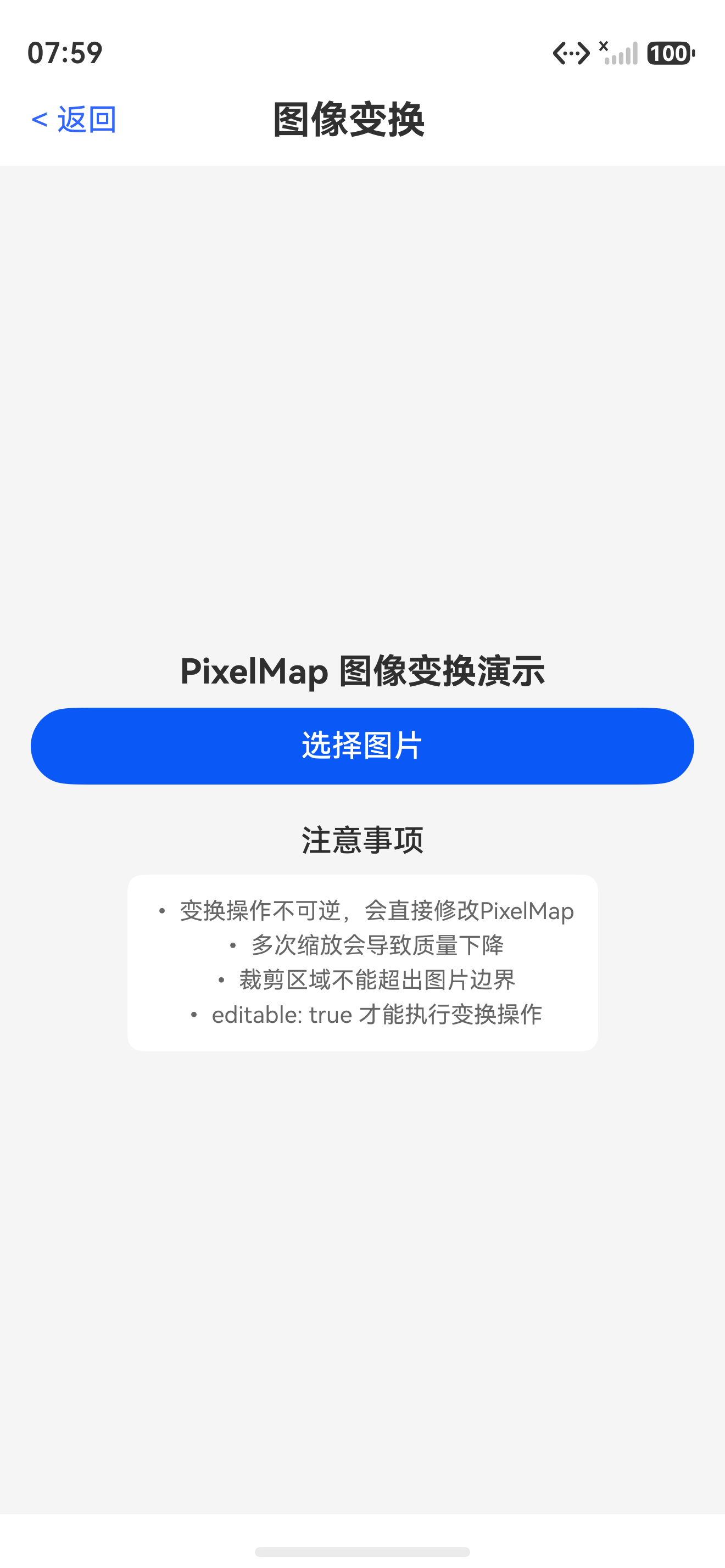
本文详细介绍了 HarmonyOS 6.1 Image Kit 中 PixelMap 的图像变换操作,包括裁剪、缩放、旋转、翻转、平移和透明度调整,并展示了ImageEditor Pro APP中编辑工具栏的完整实现。
掌握这些基础变换操作后,你就能实现图片编辑应用中最常用的一批功能。下一篇文章,我们将深入探讨 PixelMap位图操作——像素级图像处理与自定义滤镜的实现。
如果这篇文章对你有帮助,欢迎点赞👍、收藏⭐、关注🔔,你的支持是我持续创作的动力!
相关资源:
- 使用PixelMap完成图像变换:官方文档
- 使用PixelMap完成位图操作:位图操作文档
- PixelMap接口参考:Interface (PixelMap)
- 图片解码指南:ImageSource解码
- 拼图示例:Game Puzzle
- Image组件:Image组件
- 图片处理指南:图片编辑和处理
- 开源鸿蒙跨平台社区:社区链接

讨论HarmonyOS开发技术,专注于API与组件、DevEco Studio、测试、元服务和应用上架分发等。
更多推荐



 5
5 0
0- 0


 已为社区贡献64条内容

所有评论(0)