《键盘沉浸式样式》一、Search组件使用指南
HarmonyOS Search 搜索框组件完整使用指南:从基础到沉浸式键盘实战
前言
在 HarmonyOS 应用开发中,搜索功能是用户交互的核心入口之一。Search 组件作为 ArkUI 提供的内置搜索框组件,不仅封装了搜索图标、占位文本、输入事件等常用能力,还支持通过 keyboardAppearance 属性实现输入法键盘的沉浸式样式,为用户提供更加一致的视觉体验。
本文将从 Search 组件的基础用法讲起,逐步深入到高级特性,并通过一个完整的示例演示如何利用 Search 组件构建一个功能完备的搜索界面。
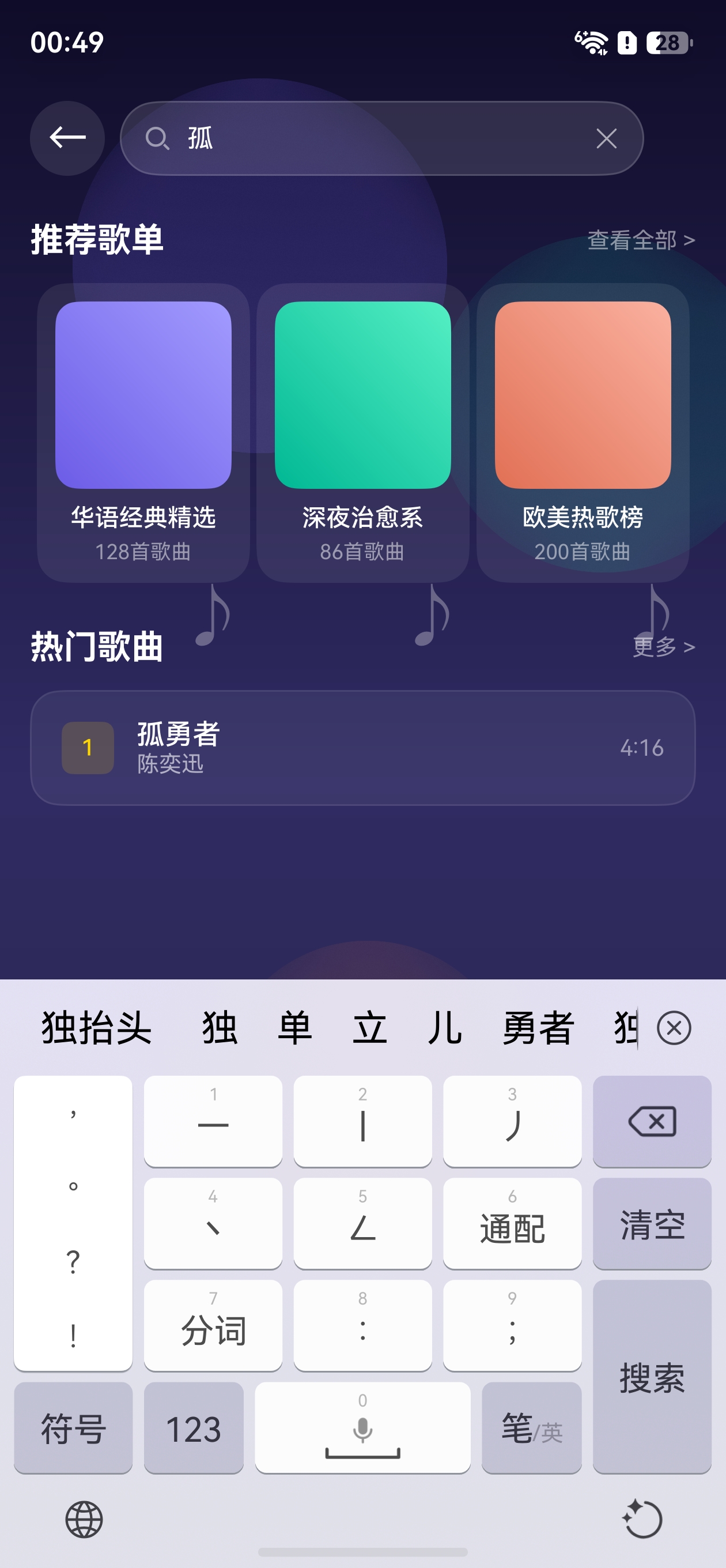
效果
一、Search 组件概述
1.1 什么是 Search 组件
Search 是 ArkUI 框架内置的搜索框组件,专门用于构建搜索输入场景。它在 TextInput 组件的基础上增加了搜索图标和搜索按钮,并提供了丰富的属性配置。
1.2 组件基本结构
Search 组件由以下部分组成:
- 搜索图标:位于输入框左侧,可通过
searchIcon自定义 - 输入区域:文本输入框,支持占位文本、字体样式等配置
- 搜索按钮(可选):点击触发搜索事件
1.3 导入方式
Search 组件属于 ArkUI 内置组件,无需额外导入,直接在 build() 方法中使用即可:
build() {
  Search({ placeholder: '请输入搜索关键词' })
}
二、Search 组件基础用法
2.1 构造函数
Search 组件通过构造参数传入配置对象:
Search(options: {
  value?: string;          // 输入框初始值
  placeholder?: ResourceStr; // 占位提示文本
  controller?: SearchController; // 搜索控制器
})
2.2 基本使用示例
@Entry
@Component
struct SearchBasicDemo {
  private controller: SearchController = new SearchController();

  build() {
    Column() {
      Search({
        placeholder: '搜索你感兴趣的内容',
        controller: this.controller
      })
        .width('90%')
        .margin({ top: 20 })
    }
    .width('100%')
    .height('100%')
  }
}
2.3 SearchController 控制器
SearchController 是 Search 组件的控制器对象,用于程序化控制搜索框的行为:
| 方法 | 说明 |
|---|---|
focus(value: boolean) |
控制搜索框是否获取焦点 |
stopMultiSelect() |
停止多选文本操作 |
使用示例:
private controller: SearchController = new SearchController();

build() {
  Column() {
    Search({ placeholder: '搜索', controller: this.controller })
    Button('聚焦')
      .onClick(() => {
        this.controller.focus(true);
      })
  }
}
三、Search 组件核心属性
3.1 外观属性一览
| 属性 | 类型 | 说明 |
|---|---|---|
searchIcon |
SearchIconOptions |
配置搜索图标(位置、颜色、大小) |
placeholderColor |
ResourceColor |
占位文本颜色 |
placeholderFont |
FontOptions |
占位文本字体样式 |
textFont |
FontOptions |
输入文本字体样式 |
fontColor |
ResourceColor |
输入文本颜色 |
backgroundColor |
ResourceColor |
搜索框背景色 |
keyboardAppearance |
KeyboardAppearance |
键盘样式(沉浸模式) |
3.2 搜索图标配置
searchIcon 支持设置图标的位置、颜色和大小:
Search({ placeholder: '搜索歌曲' })
  .searchIcon({
    position: SearchIconPosition.Start, // 图标位置:Start(左侧)或 End(右侧)
    color: '#666666',                   // 图标颜色
    size: 20                            // 图标大小(vp)
  })
3.3 文本样式配置
Search({ placeholder: '请输入关键词' })
  .placeholderColor('#999999')                           // 占位文本颜色
  .placeholderFont({ size: 14, weight: 400 })            // 占位文本字体
  .fontColor('#333333')                                  // 输入文本颜色
  .textFont({ size: 16, weight: FontWeight.Medium })     // 输入文本字体
3.4 搜索按钮配置
通过 submitButton 可自定义搜索按钮样式:
Search({ placeholder: '搜索' })
  .submitButton({
    value: '搜索',          // 按钮文本
    fontSize: 14,           // 按钮字体大小
    fontColor: '#FFFFFF',   // 按钮字体颜色
    backgroundColor: '#007DFF' // 按钮背景色
  })
四、Search 组件事件处理
4.1 核心事件
| 事件 | 参数 | 说明 |
|---|---|---|
onChange |
(value: string) |
输入内容变化时触发 |
onSubmit |
(value: string) |
点击搜索按钮或键盘搜索键时触发 |
onSearch |
(value: string) |
搜索事件触发(与 onSubmit 类似) |
4.2 事件处理示例
@Entry
@Component
struct SearchEventDemo {
  @State searchText: string = '';
  @State resultText: string = '';
  private controller: SearchController = new SearchController();

  build() {
    Column() {
      Search({ placeholder: '搜索歌曲名称', controller: this.controller })
        .width('90%')
        .margin({ top: 20 })
        .onChange((value: string) => {
          this.searchText = value;
        })
        .onSubmit((value: string) => {
          this.resultText = `搜索结果:${value}`;
        })

      Text(this.resultText)
        .fontSize(16)
        .margin({ top: 20 })
    }
    .width('100%')
    .height('100%')
  }
}
五、keyboardAppearance 沉浸式键盘
5.1 KeyboardAppearance 枚举
keyboardAppearance 属性用于设置拉起的输入法键盘样式,这是实现沉浸式体验的关键属性。
| 枚举值 | 说明 |
|---|---|
KeyboardAppearance.LIGHT |
浅色键盘样式 |
KeyboardAppearance.DARK |
深色键盘样式 |
KeyboardAppearance.IMMERSIVE |
沉浸式键盘样式(API 15+) |
5.2 沉浸式键盘效果说明
当设置 keyboardAppearance(KeyboardAppearance.IMMERSIVE) 时:
- 输入法键盘区域背景变为透明或半透明
- 键盘与应用界面形成视觉融合
- 输入法框架会将前台应用的沉浸模式期望传递给输入法应用
- 输入法应用根据该期望决定最终的沉浸模式(浅色沉浸或深色沉浸)
5.3 使用沉浸式键盘的前提条件
- 应用需要设置全屏布局(
setWindowLayoutFullScreen(true)) - 需要正确处理状态栏和导航条的避让区域
- 建议使用深色主题背景以获得最佳视觉效果
5.4 沉浸式键盘完整示例
import { window } from '@kit.ArkUI';

@Entry
@Component
struct ImmersiveSearchDemo {
  @State topPadding: number = 0;
  @State bottomPadding: number = 0;
  @State searchValue: string = '';
  private controller: SearchController = new SearchController();

  aboutToAppear(): void {
    // 在 EntryAbility 中设置全屏后,通过 AppStorage 获取避让区域
    this.topPadding = AppStorage.get<number>('topRectHeight') ?? 0;
    this.bottomPadding = AppStorage.get<number>('bottomRectHeight') ?? 0;
  }

  build() {
    Column() {
      Search({ placeholder: '沉浸式搜索', controller: this.controller })
        .width('85%')
        .searchIcon({ color: '#FFFFFF' })
        .placeholderColor('rgba(255,255,255,0.6)')
        .placeholderFont({ size: 14, weight: 400 })
        .fontColor('#FFFFFF')
        .textFont({ size: 14, weight: 400 })
        .backgroundColor('rgba(255,255,255,0.15)')
        .borderRadius(20)
        .keyboardAppearance(KeyboardAppearance.IMMERSIVE) // 设置沉浸式键盘
        .onChange((value: string) => {
          this.searchValue = value;
        })
    }
    .width('100%')
    .height('100%')
    .padding({ top: this.topPadding, bottom: this.bottomPadding })
    .linearGradient({
      direction: GradientDirection.Bottom,
      colors: [['#1A1A2E', 0.0], ['#16213E', 0.5], ['#0F3460', 1.0]]
    })
  }
}
六、EntryAbility 全屏与避让配置
要发挥沉浸式键盘的最佳效果,需要在 EntryAbility 中进行全屏和避让配置:
import { UIAbility } from '@kit.AbilityKit';
import { window } from '@kit.ArkUI';
import { BusinessError } from '@kit.BasicServicesKit';

export default class EntryAbility extends UIAbility {
  onWindowStageCreate(windowStage: window.WindowStage): void {
    windowStage.loadContent('pages/Index', (err) => {
      if (err.code) return;

      const win = windowStage.getMainWindowSync();

      // 1. 设置全屏布局
      win.setWindowLayoutFullScreen(true);

      // 2. 获取状态栏避让高度
      const sysArea = win.getWindowAvoidArea(window.AvoidAreaType.TYPE_SYSTEM);
      AppStorage.setOrCreate('topRectHeight', sysArea.topRect.height);

      // 3. 获取导航条避让高度
      const navArea = win.getWindowAvoidArea(window.AvoidAreaType.TYPE_NAVIGATION_INDICATOR);
      AppStorage.setOrCreate('bottomRectHeight', navArea.bottomRect.height);

      // 4. 监听避让区域变化
      win.on('avoidAreaChange', (data) => {
        if (data.type === window.AvoidAreaType.TYPE_SYSTEM) {
          AppStorage.setOrCreate('topRectHeight', data.area.topRect.height);
        } else if (data.type === window.AvoidAreaType.TYPE_NAVIGATION_INDICATOR) {
          AppStorage.setOrCreate('bottomRectHeight', data.area.bottomRect.height);
        }
      });
    });
  }
}
七、Search 组件与 TextInput 组件的区别
| 特性 | Search | TextInput |
|---|---|---|
| 内置搜索图标 | ✅ 支持 | ❌ 不支持 |
| 搜索按钮 | ✅ 支持 | ❌ 不支持 |
| 键盘沉浸式 | ✅ keyboardAppearance |
✅ keyboardAppearance |
| 多行输入 | ❌ 不支持 | ✅ 支持 |
| 输入类型限制 | 仅搜索场景 | 通用输入场景 |
八、实战:构建带搜索过滤功能的列表页
以下示例展示如何结合 Search 组件实现一个带实时过滤功能的歌曲列表:
@ObservedV2
class SongData {
  @Trace name: string = '';
  @Trace singer: string = '';

  constructor(name: string, singer: string) {
    this.name = name;
    this.singer = singer;
  }
}

const ALL_SONGS: SongData[] = [
  new SongData('晴天', '周杰伦'),
  new SongData('七里香', '周杰伦'),
  new SongData('光辉岁月', 'Beyond'),
  new SongData('海阔天空', 'Beyond'),
  new SongData('夜曲', '周杰伦')
];

@Entry
@ComponentV2
struct SongSearchPage {
  @Local keyword: string = '';
  @Local displayList: SongData[] = ALL_SONGS;
  private ctrl: SearchController = new SearchController();

  build() {
    Column() {
      Search({ placeholder: '搜索歌曲', controller: this.ctrl })
        .width('90%')
        .keyboardAppearance(KeyboardAppearance.IMMERSIVE)
        .onChange((value: string) => {
          this.keyword = value;
          if (value.length === 0) {
            this.displayList = ALL_SONGS;
          } else {
            const kw = value.toLowerCase();
            this.displayList = ALL_SONGS.filter(
              (s: SongData) =>
                s.name.toLowerCase().includes(kw) ||
                s.singer.toLowerCase().includes(kw)
            );
          }
        })

      List({ space: 8 }) {
        ForEach(this.displayList, (song: SongData) => {
          ListItem() {
            Row() {
              Text(song.name).fontSize(16).fontColor('#FFFFFF')
              Blank()
              Text(song.singer).fontSize(14).fontColor('rgba(255,255,255,0.6)')
            }
            .width('100%')
            .height(50)
            .padding({ left: 16, right: 16 })
            .backgroundColor('rgba(255,255,255,0.08)')
            .borderRadius(12)
          }
        })
      }
      .width('90%')
      .margin({ top: 16 })
    }
    .width('100%')
    .height('100%')
    .linearGradient({
      direction: GradientDirection.Bottom,
      colors: [['#0F0C29', 0.0], ['#302B63', 1.0]]
    })
  }
}
九、常见问题与注意事项
9.1 沉浸式键盘不生效
原因:未设置全屏布局。
解决方案:确保在 EntryAbility.onWindowStageCreate() 中调用:
windowClass.setWindowLayoutFullScreen(true);
9.2 键盘弹出时界面遮挡
原因:未正确配置避让区域。
解决方案:使用 getWindowAvoidArea() 获取状态栏和导航条高度,并应用到页面 padding。
9.3 keyboardAppearance 对非系统输入法的效果
KeyboardAppearance.IMMERSIVE 对系统内置输入法效果最佳。对于自定义输入法应用,需要输入法应用主动配合设置沉浸模式(参考输入法应用沉浸模式开发指南)。
9.4 API 版本要求
| 特性 | 最低 API 版本 |
|---|---|
| Search 组件 | API 7 |
keyboardAppearance |
API 15 |
KeyboardAppearance.IMMERSIVE |
API 15 |
SearchController |
API 7 |
十、总结
Search 组件是 HarmonyOS 中构建搜索功能的首选方案,其核心优势包括:
- 开箱即用:内置搜索图标、占位文本、搜索按钮,减少重复开发
- 沉浸式体验:通过
keyboardAppearance(KeyboardAppearance.IMMERSIVE)实现键盘与应用视觉融合 - 事件丰富:支持
onChange、onSubmit、onSearch等事件,满足各种搜索交互需求 - 灵活配置:图标、字体、颜色、按钮等均可自定义
在实际开发中,建议配合全屏布局和避让区域处理,为用户打造最佳的沉浸式搜索体验。
参考文档:

讨论HarmonyOS开发技术,专注于API与组件、DevEco Studio、测试、元服务和应用上架分发等。
更多推荐
 7
7 0
0- 0



 已为社区贡献47条内容

所有评论(0)