【共创稿事节】 HarmonyOS7 相机 MetadataOutput 人脸贴纸:不用 AR Engine 也能做
前言
人脸贴纸这个需求,很多人第一反应是上 AR Engine。确实,AR Engine 能做,但它整套能力比较重——3D 场景加载、BlendShape 提取、ARViewContext 管理,如果你的需求只是在人脸头顶贴个皇冠或兔耳朵,这些能力有一大半用不上。
其实 HarmonyOS 的 Camera Kit 自带人脸检测能力:MetadataOutput。相机预览流本身就能输出人脸框坐标,拿到坐标后用 ArkUI 的绝对定位把贴纸叠上去就行,根本不需要 AR Engine。
这篇文章围绕一个完整的人脸贴纸案例,把从相机初始化、人脸框获取到贴纸定位的整条链路拆开讲。每个环节的代码我都会说明"为什么这样写",文末有完整源码,可以直接取用。
效果预览

主要流程
整个流程可以压缩成 4 步:
- 用
XComponent拿到surfaceId,作为相机预览的渲染目标。 - 创建
CameraManager→CameraInput→PreviewOutput+MetadataOutput→PhotoSession,启动相机。 - 在
metadataObjectsAvailable回调里拿到人脸框的归一化坐标,乘以预览区域尺寸得到像素坐标。 - 根据人脸框位置,按配置参数计算贴纸位置,用
.position()绝对定位叠加在预览画面上。
后面所有代码,都是围绕这条链路展开的。
开始之前:权限和导入
Camera Kit 的相机访问需要 ohos.permission.CAMERA 权限,在 module.json5 的 requestPermissions 里声明:
{
  "name": "ohos.permission.CAMERA",
  "reason": "$string:camera_reason",
  "usedScene": {
    "abilities": ["EntryAbility"],
    "when": "inuse"
  }
}
代码里的导入:
import { camera } from '@kit.CameraKit';
import { BusinessError } from '@kit.BasicServicesKit';
import { image } from '@kit.ImageKit';
import { hilog } from '@kit.PerformanceAnalysisKit';
import { display } from '@kit.ArkUI';
import { abilityAccessCtrl, bundleManager, Permissions } from '@kit.AbilityKit';
camera 是核心模块,display 用于获取屏幕尺寸来设置 XComponent 的 Surface 尺寸,abilityAccessCtrl 和 bundleManager 用于权限检查和申请。
XComponent 拿 surfaceId——相机预览的起点
相机预览画面需要一个渲染目标,XComponent 就是这个目标。它的 surfaceId 是相机 PreviewOutput 的必填参数。
surfaceId 的获取时机
XComponent({
  type: XComponentType.SURFACE,
  controller: this.mXComponentController
})
  .onLoad(() => {
    let dw: number = display.getDefaultDisplaySync().width;
    let dh: number = Math.floor(dw * 4 / 3);
    this.mXComponentController.setXComponentSurfaceRect({
      surfaceWidth: dw,
      surfaceHeight: dh
    });
    this.xComponentSurfaceId = this.mXComponentController.getXComponentSurfaceId();
    this.surfaceReady = true;
  })
  .width('100%')
  .height('100%')
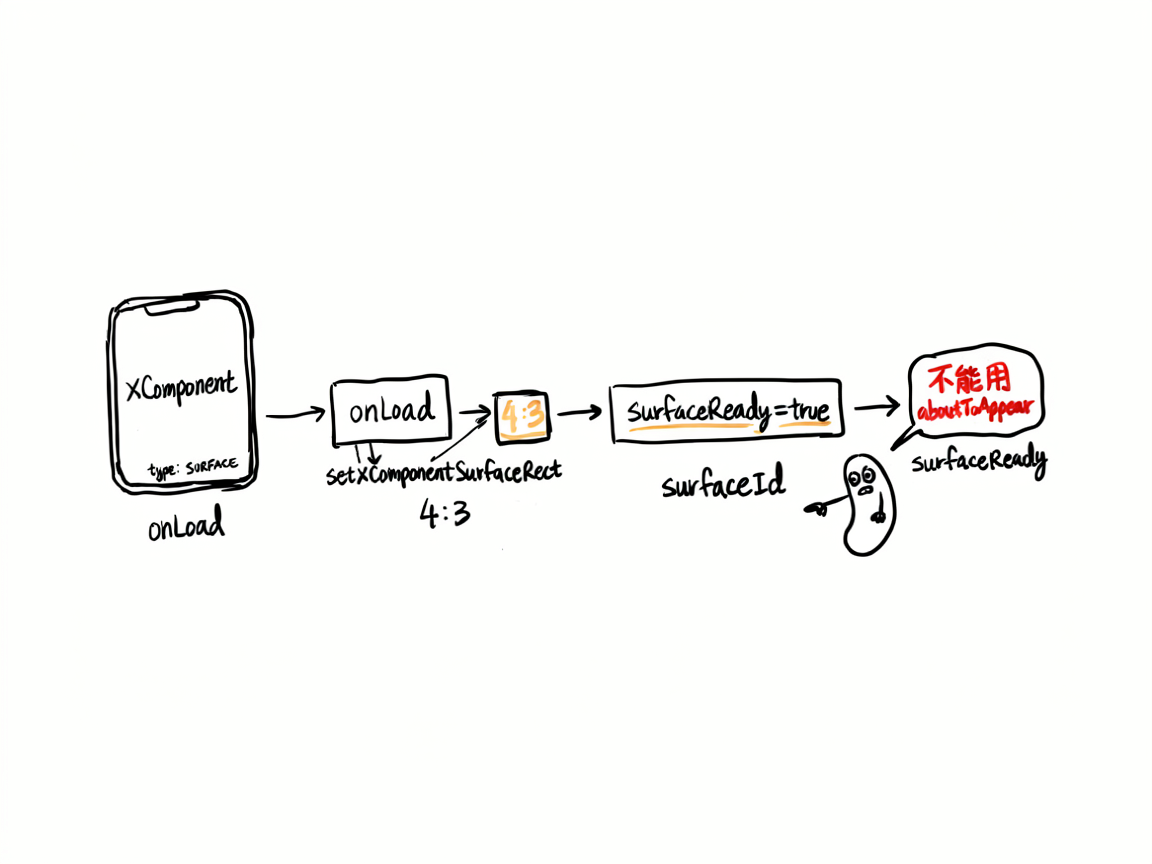
几个关键点:
-
onLoad回调里才能拿到 surfaceId。XComponent 还没加载完成时,getXComponentSurfaceId()返回空字符串,相机初始化一定失败。案例用surfaceReady标志位确保初始化时机正确。 -
setXComponentSurfaceRect设置 Surface 尺寸。4:3 是相机预览最常见的宽高比,高度按屏幕宽度计算:dh = dw * 4 / 3。这一步不能省——Surface 尺寸和预览分辨率不匹配时,画面会被拉伸或裁剪。 -
XComponentType.SURFACE是必须的。这个类型表示 XComponent 作为 Surface 容器使用,相机预览帧会渲染到这个 Surface 上。
为什么不用 aboutToAppear
aboutToAppear 时 XComponent 可能还没加载完成,getXComponentSurfaceId() 拿不到有效值。相机初始化必须在 onLoad 之后进行。案例的做法是 onLoad 里设 surfaceReady = true,用户点击"开始检测"按钮时再检查这个标志位。
相机初始化——从权限到会话启动
相机初始化是案例中最长的环节,但每一步都有明确的顺序依赖。
权限检查和申请
private checkPermission(): boolean {
  let atManager: abilityAccessCtrl.AtManager = abilityAccessCtrl.createAtManager();
  let bundleInfo: bundleManager.BundleInfo =
    bundleManager.getBundleInfoForSelfSync(bundleManager.BundleFlag.GET_BUNDLE_INFO_WITH_APPLICATION);
  let tokenID: number = bundleInfo.appInfo.accessTokenId;
  let grantStatus: number = atManager.checkAccessTokenSync(tokenID, 'ohos.permission.CAMERA');
  return grantStatus === abilityAccessCtrl.GrantStatus.PERMISSION_GRANTED;
}

private async requestPermission(): Promise<boolean> {
  if (this.checkPermission()) {
    return true;
  }
  let context: Context = this.getUIContext().getHostContext() as Context;
  let atManager: abilityAccessCtrl.AtManager = abilityAccessCtrl.createAtManager();
  try {
    let result = await atManager.requestPermissionsFromUser(context, ['ohos.permission.CAMERA']);
    return result.authResults[0] === 0;
  } catch (error) {
    return false;
  }
}
先同步检查权限状态,已授权直接跳过。未授权时再弹窗申请。checkAccessTokenSync 是同步方法,不会阻塞 UI;requestPermissionsFromUser 是异步方法,会弹出系统授权弹窗。
查找前置摄像头
let cameraDevices: Array<camera.CameraDevice> = mgr.getSupportedCameras();
let frontDevice: camera.CameraDevice = cameraDevices[0];
for (let i = 0; i < cameraDevices.length; i++) {
  if (cameraDevices[i].cameraPosition === camera.CameraPosition.CAMERA_POSITION_FRONT) {
    frontDevice = cameraDevices[i];
    break;
  }
}
人脸贴纸场景默认用前置摄像头。先取设备列表,再遍历找 CAMERA_POSITION_FRONT。找不到就用第一个设备兜底——某些设备可能只返回一个摄像头。
创建 MetadataOutput——人脸检测的关键
这是整篇文章最核心的部分。Camera Kit 的人脸检测能力通过 MetadataOutput 提供,不是单独的 API,而是相机会话的一个输出通道。
let cameraOutputCapability: camera.CameraOutputCapability =
  mgr.getSupportedOutputCapability(frontDevice, camera.SceneMode.NORMAL_PHOTO);

let metadataObjectTypes: Array<camera.MetadataObjectType> =
  cameraOutputCapability.supportedMetadataObjectTypes;
let mOutput: camera.MetadataOutput = mgr.createMetadataOutput(metadataObjectTypes);
这里有两步:
-
获取设备支持的元数据类型:
supportedMetadataObjectTypes返回当前设备支持的元数据类型列表。不同设备支持的能力可能不同,必须从设备能力里取,不能硬编码。 -
创建 MetadataOutput:把设备支持的类型传进去,创建元数据输出通道。相机在运行过程中,检测到对应类型的元数据时,会通过回调抛出来。
预览分辨率的筛选
let previewProfile: camera.Profile = cameraOutputCapability.previewProfiles[0];
for (let i = 0; i < cameraOutputCapability.previewProfiles.length; i++) {
  let p: camera.Profile = cameraOutputCapability.previewProfiles[i];
  if (p.size.width <= 1920 && p.size.width >= 640) {
    previewProfile = p;
    break;
  }
}
直接取 previewProfiles[0] 可能拿到 4K 分辨率,预览帧太大反而浪费性能。案例筛选宽度在 640~1920 之间的配置,这是预览流的合理区间。拍照分辨率可以更高,但预览流没必要。
会话配置和启动
let session: camera.PhotoSession = mgr.createSession<camera.PhotoSession>(camera.SceneMode.NORMAL_PHOTO);
session.beginConfig();
session.addInput(cInput);
if (pOutput) {
  session.addOutput(pOutput);
}
if (mOutput) {
  session.addOutput(mOutput);
}
if (this.photoOutput) {
  session.addOutput(this.photoOutput);
}
await session.commitConfig();
await session.start();

if (mOutput) {
  mOutput.start().then(() => {
    hilog.info(DOMAIN, TAG, 'metadataOutput started');
  }).catch((err: BusinessError) => {
    hilog.error(DOMAIN, TAG, `metadataOutput start error: ${err.code}`);
  });
}
会话配置的顺序:
beginConfig():开始配置addInput():加入相机输入addOutput():加入预览输出、元数据输出、拍照输出commitConfig():提交配置start():启动会话,预览画面开始渲染
MetadataOutput 要单独 start()。会话启动后,元数据输出不会自动开始检测,必须显式调用 mOutput.start()。这一步很容易漏——会话启动了,预览画面出来了,但人脸框不回调,大概率就是忘了 start()。
为什么会话要加三个 Output
- PreviewOutput:把预览帧渲染到 XComponent 的 Surface 上,用户看到画面
- MetadataOutput:从预览流中提取人脸框等元数据
- PhotoOutput:拍照功能,案例中创建但没有使用,预留扩展用
三个 Output 共享同一个相机输入流,不会互相冲突。
从 metadataObjectsAvailable 拿人脸框坐标
MetadataOutput 检测到人脸后,通过 metadataObjectsAvailable 回调抛出人脸信息。
注册回调
private onMetadataObjectsAvailable(metadataOutput: camera.MetadataOutput): void {
  metadataOutput.on('metadataObjectsAvailable', (_err: BusinessError,
    metadataObjectArr: Array<camera.MetadataObject>) => {
    if (metadataObjectArr.length > 0) {
      let box: camera.Rect = metadataObjectArr[0].boundingBox;
      let w: number = box.width * this.previewAreaWidth;
      let h: number = box.height * this.previewAreaHeight;
      let x: number = box.topLeftX * this.previewAreaWidth;
      let y: number = box.topLeftY * this.previewAreaHeight;
      this.faceX = x;
      this.faceY = y;
      this.faceW = w;
      this.faceH = h;
      this.hasFace = true;
    } else {
      this.hasFace = false;
    }
  });
}
这段代码做了三件事:
-
取第一个人脸:
metadataObjectArr[0]。多人脸场景下,这里只处理第一个检测到的人脸。 -
获取 boundingBox:
camera.Rect包含四个字段——topLeftX、topLeftY、width、height。这些都是归一化值,范围 0~1。 -
归一化坐标转像素坐标:乘以预览区域的宽高,得到实际像素位置。这一步是贴纸定位的关键。
归一化坐标为什么要乘以预览区域尺寸
boundingBox 返回的坐标不是像素值,而是归一化比例。比如 topLeftX = 0.3 表示人脸框左上角在画面横向 30% 的位置。这样做的好处是坐标和分辨率解耦——不管预览流是 640x480 还是 1920x1080,归一化值都是一样的。
但 ArkUI 的 .position() 需要像素值,所以必须乘以预览区域的实际尺寸:
let w: number = box.width * this.previewAreaWidth;
let h: number = box.height * this.previewAreaHeight;
let x: number = box.topLeftX * this.previewAreaWidth;
let y: number = box.topLeftY * this.previewAreaHeight;
previewAreaWidth 和 previewAreaHeight 在 onAreaChange 回调里获取:
.onAreaChange((_old: Area, newArea: Area) => {
  this.previewAreaWidth = Number(newArea.width);
  this.previewAreaHeight = Number(newArea.height);
})
为什么不在 aboutToAppear 里直接取屏幕尺寸?因为 XComponent 的实际渲染区域可能和屏幕尺寸不一致(有 padding、圆角等),onAreaChange 返回的是组件的实际布局尺寸,更准确。
前置摄像头的镜像问题
前置摄像头的预览画面是镜像的——用户看到的画面和实际坐标方向相反。Camera Kit 的人脸框坐标是基于传感器坐标系的,不是基于预览画面的。这意味着如果你直接用 topLeftX 乘以宽度作为贴纸的 x 位置,贴纸会出现在人脸的对面。
案例中没有显式处理镜像,因为在人脸贴纸场景中,贴纸(皇冠、兔耳朵等)是水平对称的,镜像对它们的位置影响不大。如果你的贴纸是非对称的(比如单侧翅膀),需要做 x = previewAreaWidth - x - faceW 的翻转。
贴纸定位——从人脸框到贴纸位置的计算
拿到人脸框坐标后,贴纸放在哪里?不是简单地放在人脸框上方,而是要根据不同头饰的特征做不同定位。
PasterConfig 的设计
interface PasterItem {
  name: string;
  emoji: string;
  overlapRatio: number;
  widthScale: number;
  heightScale: number;
}

class PasterConfig {
  items: PasterItem[] = [
    { name: '皇冠', emoji: '👑', overlapRatio: 0.3, widthScale: 1.3, heightScale: 0.6 },
    { name: '兔耳朵', emoji: '🐰', overlapRatio: 0.2, widthScale: 1.6, heightScale: 0.8 },
    { name: '猫耳朵', emoji: '🐱', overlapRatio: 0.2, widthScale: 1.5, heightScale: 0.7 },
    { name: '牛角', emoji: '🐂', overlapRatio: 0.25, widthScale: 1.4, heightScale: 0.6 },
    { name: '天使环', emoji: '😇', overlapRatio: 0.15, widthScale: 1.2, heightScale: 0.45 },
    { name: '恶魔角', emoji: '😈', overlapRatio: 0.25, widthScale: 1.3, heightScale: 0.6 },
  ];
}
每个贴纸有四个定位参数:
| 参数 | 含义 | 作用 |
|---|---|---|
widthScale | 贴纸宽度 = 人脸宽度 × widthScale | 控制贴纸横向大小,兔耳朵比人脸宽所以用 1.6 |
heightScale | 贴纸高度 = 人脸高度 × heightScale | 控制贴纸纵向大小,天使环很扁所以用 0.45 |
overlapRatio | 贴纸与人脸框的重叠比例 | 控制贴纸往下"嵌入"人脸的程度 |
overlapRatio 是什么
这是最关键的参数。贴纸不能完全浮在人脸框上方——那样会看起来像"悬空"。贴纸的底部需要和人脸的头部有一定的重叠,看起来才像"戴在头上"。
overlapRatio = 0.3 表示贴纸高度的 30% 和人脸框重叠。皇冠 overlapRatio 大(0.3),因为皇冠底座要卡在额头位置;天使环 overlapRatio 小(0.0.15),因为光环只是浮在头顶。
贴纸位置计算
private getPasterX(): number {
  let item: PasterItem = this.pasterConfig.items[this.selectedIndex];
  let w: number = this.faceW * item.widthScale;
  return this.faceX + (this.faceW - w) / 2;
}

private getPasterY(): number {
  let item: PasterItem = this.pasterConfig.items[this.selectedIndex];
  let pasterH: number = this.faceH * item.heightScale;
  return this.faceY - pasterH + pasterH * item.overlapRatio;
}
X 坐标:贴纸水平居中于人脸框。当 widthScale > 1(贴纸比人脸宽)时,贴纸会向左右两侧延伸;当 widthScale < 1 时,贴纸缩在人脸框内。居中公式是 faceX + (faceW - pasterW) / 2。
Y 坐标:这是重点。分两步理解:
faceY - pasterH:贴纸顶部紧贴人脸框顶部上方,即贴纸完全在人脸框上方,不重叠。+ pasterH * overlapRatio:往下移动贴纸高度 × 重叠比例,让贴纸底部和人脸框产生重叠。
最终效果是:贴纸的 overlapRatio 比例部分"嵌入"人脸框,剩余部分在人脸框上方。overlapRatio 越大,嵌入越深,看起来越像戴在头上。
贴纸尺寸
private getPasterW(): number {
  return this.faceW * this.pasterConfig.items[this.selectedIndex].widthScale;
}

private getPasterH(): number {
  return this.faceH * this.pasterConfig.items[this.selectedIndex].heightScale;
}
贴纸尺寸完全基于人脸框尺寸按比例缩放。这样做的优点是:不管人脸在画面中占多大比例,贴纸的大小都能自动适配——离摄像头近时人脸大、贴纸也大;离远时两者都小。
UI 层:Stack 叠放 + 绝对定位
预览区和贴纸的叠放
Stack({ alignContent: Alignment.TopStart }) {
  XComponent({
    type: XComponentType.SURFACE,
    controller: this.mXComponentController
  })
    .width('100%')
    .height('100%')

  if (this.hasFace && this.isDetecting) {
    Text()
      .position({ x: this.faceX, y: this.faceY })
      .width(this.faceW)
      .height(this.faceH)
      .border({ width: 2, color: '#4A90D980' })
      .borderRadius(4)

    Text(this.pasterConfig.items[this.selectedIndex].emoji)
      .fontSize(Math.max(28, this.getPasterH() * 0.7))
      .position({ x: this.getPasterX(), y: this.getPasterY() })
      .width(this.getPasterW())
      .height(this.getPasterH())
      .textAlign(TextAlign.Center)
  }
}
.width('100%')
.layoutWeight(1)
.clip(true)
这里用 Stack 把 XComponent(预览画面)、人脸框、贴纸三层叠放。几个设计要点:
-
Alignment.TopStart:Stack 的对齐方式设为左上角,这样.position()的坐标系原点就是 Stack 的左上角,和 Camera Kit 返回的坐标方向一致。 -
.position()绝对定位:人脸框和贴纸都用.position()而不是margin()或offset()定位。position是相对父容器左上角的绝对定位,和归一化坐标转出的像素值直接对应。 -
人脸框用空
Text():只设边框不设内容,纯做视觉反馈,让用户看到人脸被检测到了。 -
贴纸字号自适应:
fontSize(Math.max(28, this.getPasterH() * 0.7)),取 28vp 和贴纸高度 70% 中的较大值。贴纸太小时 emoji 会模糊,28vp 是下限保障。 -
.clip(true):Stack 裁剪超出边界的内容。贴纸可能延伸到 Stack 区域外(比如widthScale > 1时),clip 确保不会溢出到控制区。
贴纸选择栏
@Builder
pasterBarBuilder() {
  Scroll() {
    Row() {
      ForEach(this.pasterConfig.items, (item: PasterItem, index: number) => {
        Column() {
          Text(item.emoji)
            .fontSize(28)
          Text(item.name)
            .fontSize(10)
            .fontColor('#CCCCCC')
            .margin({ top: 2 })
        }
        .width(52)
        .height(58)
        .justifyContent(FlexAlign.Center)
        .alignItems(HorizontalAlign.Center)
        .borderRadius(10)
        .backgroundColor(this.selectedIndex === index ? '#4A90D9' : '#2A2A4A')
        .margin({ left: 3, right: 3 })
        .onClick(() => {
          this.selectedIndex = index;
        })
      }, (_item: PasterItem, index: number) => `${index}`)
    }
  }
  .scrollable(ScrollDirection.Horizontal)
  .scrollBar(BarState.Off)
  .width('100%')
  .height(70)
}
水平滚动的贴纸选择栏,点击切换 selectedIndex,下一帧回调里就会用新配置计算贴纸位置。切换是即时的,不需要重新初始化相机。
资源释放
private async releaseCamera(): Promise<void> {
  try {
    if (this.metadataOutput) {
      this.metadataOutput.release();
      this.metadataOutput = undefined;
    }
    if (this.cameraSession) {
      this.cameraSession.stop();
      this.cameraSession.release();
      this.cameraSession = undefined;
    }
    if (this.previewOutput) {
      this.previewOutput.release();
      this.previewOutput = undefined;
    }
    if (this.photoOutput) {
      this.photoOutput.release();
      this.photoOutput = undefined;
    }
    if (this.cameraInput) {
      this.cameraInput.close();
      this.cameraInput = undefined;
    }
  } catch (error) {
    let err: BusinessError = error as BusinessError;
    hilog.error(DOMAIN, TAG, `releaseCamera error: ${err.code}`);
  }
  this.isDetecting = false;
  this.hasFace = false;
}
释放顺序和创建顺序相反:先释放 Output,再释放 Session,最后关闭 Input。每个资源单独 try-catch,确保一个释放失败不影响其他资源。
相机是独占硬件资源,不释放的后果很严重:其他应用无法使用摄像头,下次进入页面初始化也可能失败。aboutToDisappear 里必须调用 releaseCamera()。
完整源码
import { camera } from '@kit.CameraKit';
import { BusinessError } from '@kit.BasicServicesKit';
import { image } from '@kit.ImageKit';
import { hilog } from '@kit.PerformanceAnalysisKit';
import { display } from '@kit.ArkUI';
import { abilityAccessCtrl, bundleManager, Permissions } from '@kit.AbilityKit';

const DOMAIN = 0x0000;
const TAG = 'FacePaster';

interface PasterItem {
  name: string;
  emoji: string;
  overlapRatio: number;
  widthScale: number;
  heightScale: number;
}

class PasterConfig {
  items: PasterItem[] = [
    { name: '皇冠', emoji: '👑', overlapRatio: 0.3, widthScale: 1.3, heightScale: 0.6 },
    { name: '兔耳朵', emoji: '🐰', overlapRatio: 0.2, widthScale: 1.6, heightScale: 0.8 },
    { name: '猫耳朵', emoji: '🐱', overlapRatio: 0.2, widthScale: 1.5, heightScale: 0.7 },
    { name: '牛角', emoji: '🐂', overlapRatio: 0.25, widthScale: 1.4, heightScale: 0.6 },
    { name: '天使环', emoji: '😇', overlapRatio: 0.15, widthScale: 1.2, heightScale: 0.45 },
    { name: '恶魔角', emoji: '😈', overlapRatio: 0.25, widthScale: 1.3, heightScale: 0.6 },
  ];
}

@Entry
@Component
struct FacePaster {
  @State faceX: number = 0;
  @State faceY: number = 0;
  @State faceW: number = 0;
  @State faceH: number = 0;
  @State hasFace: boolean = false;
  @State selectedIndex: number = 0;
  @State statusText: string = '点击开始检测人脸';
  @State isDetecting: boolean = false;
  @State surfaceReady: boolean = false;

  private pasterConfig: PasterConfig = new PasterConfig();
  private mXComponentController: XComponentController = new XComponentController();
  private cameraManager: camera.CameraManager | undefined = undefined;
  private cameraSession: camera.PhotoSession | undefined = undefined;
  private cameraInput: camera.CameraInput | undefined = undefined;
  private previewOutput: camera.PreviewOutput | undefined = undefined;
  private photoOutput: camera.PhotoOutput | undefined = undefined;
  private metadataOutput: camera.MetadataOutput | undefined = undefined;
  private xComponentSurfaceId: string = '';
  private previewAreaWidth: number = 0;
  private previewAreaHeight: number = 0;

  aboutToDisappear(): void {
    this.releaseCamera();
  }

  private checkPermission(): boolean {
    let atManager: abilityAccessCtrl.AtManager = abilityAccessCtrl.createAtManager();
    let bundleInfo: bundleManager.BundleInfo =
      bundleManager.getBundleInfoForSelfSync(bundleManager.BundleFlag.GET_BUNDLE_INFO_WITH_APPLICATION);
    let tokenID: number = bundleInfo.appInfo.accessTokenId;
    let grantStatus: number = atManager.checkAccessTokenSync(tokenID, 'ohos.permission.CAMERA');
    return grantStatus === abilityAccessCtrl.GrantStatus.PERMISSION_GRANTED;
  }

  private async requestPermission(): Promise<boolean> {
    if (this.checkPermission()) {
      return true;
    }
    let context: Context = this.getUIContext().getHostContext() as Context;
    let atManager: abilityAccessCtrl.AtManager = abilityAccessCtrl.createAtManager();
    try {
      let result = await atManager.requestPermissionsFromUser(context, ['ohos.permission.CAMERA']);
      return result.authResults[0] === 0;
    } catch (error) {
      return false;
    }
  }

  private async prepareCamera(): Promise<void> {
    this.statusText = '正在初始化相机...';

    let hasPermission: boolean = await this.requestPermission();
    if (!hasPermission) {
      this.statusText = '相机权限未授予';
      return;
    }

    if (!this.surfaceReady || this.xComponentSurfaceId === '') {
      this.statusText = '预览组件未就绪';
      return;
    }

    let context: Context = this.getUIContext().getHostContext() as Context;
    let mgr: camera.CameraManager | undefined = undefined;
    try {
      mgr = camera.getCameraManager(context);
    } catch (error) {
      this.statusText = '相机管理器创建失败';
      return;
    }
    if (!mgr) {
      this.statusText = '相机管理器创建失败';
      return;
    }
    this.cameraManager = mgr;

    let cameraDevices: Array<camera.CameraDevice> = [];
    try {
      cameraDevices = mgr.getSupportedCameras();
    } catch (error) {
      this.statusText = '获取相机设备失败';
      return;
    }
    if (cameraDevices.length === 0) {
      this.statusText = '未找到可用相机';
      return;
    }

    let frontDevice: camera.CameraDevice = cameraDevices[0];
    for (let i = 0; i < cameraDevices.length; i++) {
      if (cameraDevices[i].cameraPosition === camera.CameraPosition.CAMERA_POSITION_FRONT) {
        frontDevice = cameraDevices[i];
        break;
      }
    }

    let cInput: camera.CameraInput | undefined = undefined;
    try {
      cInput = mgr.createCameraInput(frontDevice);
    } catch (error) {
      this.statusText = '创建相机输入失败';
      return;
    }
    this.cameraInput = cInput;

    try {
      await cInput.open();
    } catch (error) {
      this.statusText = '打开相机失败';
      return;
    }

    let cameraOutputCapability: camera.CameraOutputCapability =
      mgr.getSupportedOutputCapability(frontDevice, camera.SceneMode.NORMAL_PHOTO);
    if (!cameraOutputCapability) {
      this.statusText = '获取相机能力失败';
      return;
    }

    let metadataObjectTypes: Array<camera.MetadataObjectType> = cameraOutputCapability.supportedMetadataObjectTypes;
    let mOutput: camera.MetadataOutput | undefined = undefined;
    try {
      mOutput = mgr.createMetadataOutput(metadataObjectTypes);
    } catch (error) {
      this.statusText = '创建元数据输出失败';
      return;
    }
    this.metadataOutput = mOutput;
    if (mOutput) {
      this.onMetadataObjectsAvailable(mOutput);
      this.onMetadataError(mOutput);
    }

    if (cameraOutputCapability.previewProfiles.length === 0) {
      this.statusText = '无可用预览配置';
      return;
    }
    let previewProfile: camera.Profile = cameraOutputCapability.previewProfiles[0];
    for (let i = 0; i < cameraOutputCapability.previewProfiles.length; i++) {
      let p: camera.Profile = cameraOutputCapability.previewProfiles[i];
      if (p.size.width <= 1920 && p.size.width >= 640) {
        previewProfile = p;
        break;
      }
    }
    hilog.info(DOMAIN, TAG, `previewProfile: ${previewProfile.size.width}x${previewProfile.size.height} fmt=${previewProfile.format}`);

    let pOutput: camera.PreviewOutput | undefined = undefined;
    try {
      pOutput = mgr.createPreviewOutput(previewProfile, this.xComponentSurfaceId);
    } catch (error) {
      let err: BusinessError = error as BusinessError;
      hilog.error(DOMAIN, TAG, `createPreviewOutput error: ${err.code}`);
      this.statusText = '创建预览输出失败';
      return;
    }
    this.previewOutput = pOutput;

    if (cameraOutputCapability.photoProfiles.length > 0) {
      let photoProfile: camera.Profile = cameraOutputCapability.photoProfiles[0];
      try {
        this.photoOutput = mgr.createPhotoOutput(photoProfile);
      } catch (error) {
        hilog.error(DOMAIN, TAG, 'createPhotoOutput error');
      }
    }

    let session: camera.PhotoSession | undefined = undefined;
    try {
      session = mgr.createSession<camera.PhotoSession>(camera.SceneMode.NORMAL_PHOTO);
    } catch (error) {
      this.statusText = '创建相机会话失败';
      return;
    }
    this.cameraSession = session;

    try {
      session.beginConfig();
      session.addInput(cInput);
      if (pOutput) {
        session.addOutput(pOutput);
      }
      if (mOutput) {
        session.addOutput(mOutput);
      }
      if (this.photoOutput) {
        session.addOutput(this.photoOutput);
      }
      await session.commitConfig();
      await session.start();

      if (mOutput) {
        mOutput.start().then(() => {
          hilog.info(DOMAIN, TAG, 'metadataOutput started');
        }).catch((err: BusinessError) => {
          hilog.error(DOMAIN, TAG, `metadataOutput start error: ${err.code}`);
        });
      }

      this.isDetecting = true;
      this.statusText = '正在检测人脸...';
    } catch (error) {
      let err: BusinessError = error as BusinessError;
      hilog.error(DOMAIN, TAG, `session error: ${err.code} ${err.message}`);
      this.statusText = `相机启动失败: ${err.code}`;
    }
  }

  private async releaseCamera(): Promise<void> {
    try {
      if (this.metadataOutput) {
        this.metadataOutput.release();
        this.metadataOutput = undefined;
      }
      if (this.cameraSession) {
        this.cameraSession.stop();
        this.cameraSession.release();
        this.cameraSession = undefined;
      }
      if (this.previewOutput) {
        this.previewOutput.release();
        this.previewOutput = undefined;
      }
      if (this.photoOutput) {
        this.photoOutput.release();
        this.photoOutput = undefined;
      }
      if (this.cameraInput) {
        this.cameraInput.close();
        this.cameraInput = undefined;
      }
    } catch (error) {
      let err: BusinessError = error as BusinessError;
      hilog.error(DOMAIN, TAG, `releaseCamera error: ${err.code}`);
    }
    this.isDetecting = false;
    this.hasFace = false;
  }

  private onMetadataObjectsAvailable(metadataOutput: camera.MetadataOutput): void {
    metadataOutput.on('metadataObjectsAvailable', (_err: BusinessError,
      metadataObjectArr: Array<camera.MetadataObject>) => {
      if (metadataObjectArr.length > 0) {
        let box: camera.Rect = metadataObjectArr[0].boundingBox;
        let w: number = box.width * this.previewAreaWidth;
        let h: number = box.height * this.previewAreaHeight;
        let x: number = box.topLeftX * this.previewAreaWidth;
        let y: number = box.topLeftY * this.previewAreaHeight;
        this.faceX = x;
        this.faceY = y;
        this.faceW = w;
        this.faceH = h;
        this.hasFace = true;
        this.statusText = '已检测到人脸,选择头饰添加';
      } else {
        this.hasFace = false;
        if (this.isDetecting) {
          this.statusText = '未检测到人脸,请正对摄像头';
        }
      }
    });
  }

  private onMetadataError(metadataOutput: camera.MetadataOutput): void {
    metadataOutput.on('error', (err: BusinessError) => {
      hilog.error(DOMAIN, TAG, `Metadata error: ${err.code}`);
    });
  }

  private getPasterX(): number {
    let item: PasterItem = this.pasterConfig.items[this.selectedIndex];
    let w: number = this.faceW * item.widthScale;
    return this.faceX + (this.faceW - w) / 2;
  }

  private getPasterY(): number {
    let item: PasterItem = this.pasterConfig.items[this.selectedIndex];
    let pasterH: number = this.faceH * item.heightScale;
    return this.faceY - pasterH + pasterH * item.overlapRatio;
  }

  private getPasterW(): number {
    return this.faceW * this.pasterConfig.items[this.selectedIndex].widthScale;
  }

  private getPasterH(): number {
    return this.faceH * this.pasterConfig.items[this.selectedIndex].heightScale;
  }

  @Builder
  pasterBarBuilder() {
    Scroll() {
      Row() {
        ForEach(this.pasterConfig.items, (item: PasterItem, index: number) => {
          Column() {
            Text(item.emoji)
              .fontSize(28)
            Text(item.name)
              .fontSize(10)
              .fontColor('#CCCCCC')
              .margin({ top: 2 })
          }
          .width(52)
          .height(58)
          .justifyContent(FlexAlign.Center)
          .alignItems(HorizontalAlign.Center)
          .borderRadius(10)
          .backgroundColor(this.selectedIndex === index ? '#4A90D9' : '#2A2A4A')
          .margin({ left: 3, right: 3 })
          .onClick(() => {
            this.selectedIndex = index;
          })
        }, (_item: PasterItem, index: number) => `${index}`)
      }
    }
    .scrollable(ScrollDirection.Horizontal)
    .scrollBar(BarState.Off)
    .width('100%')
    .height(70)
  }

  build() {
    Column() {
      Stack({ alignContent: Alignment.TopStart }) {
        XComponent({
          type: XComponentType.SURFACE,
          controller: this.mXComponentController
        })
          .backgroundColor('#1A1A2E')
          .onLoad(() => {
            let dw: number = display.getDefaultDisplaySync().width;
            let dh: number = Math.floor(dw * 4 / 3);
            this.mXComponentController.setXComponentSurfaceRect({
              surfaceWidth: dw,
              surfaceHeight: dh
            });
            this.xComponentSurfaceId = this.mXComponentController.getXComponentSurfaceId();
            this.surfaceReady = true;
            hilog.info(DOMAIN, TAG, `XComponent loaded, surfaceId=${this.xComponentSurfaceId}`);
          })
          .width('100%')
          .height('100%')

        if (this.hasFace && this.isDetecting) {
          Text()
            .position({ x: this.faceX, y: this.faceY })
            .width(this.faceW)
            .height(this.faceH)
            .border({ width: 2, color: '#4A90D980' })
            .borderRadius(4)

          Text(this.pasterConfig.items[this.selectedIndex].emoji)
            .fontSize(Math.max(28, this.getPasterH() * 0.7))
            .position({ x: this.getPasterX(), y: this.getPasterY() })
            .width(this.getPasterW())
            .height(this.getPasterH())
            .textAlign(TextAlign.Center)
        }
      }
      .width('100%')
      .layoutWeight(1)
      .clip(true)
      .onAreaChange((_old: Area, newArea: Area) => {
        this.previewAreaWidth = Number(newArea.width);
        this.previewAreaHeight = Number(newArea.height);
      })

      Column() {
        Text(this.statusText)
          .fontSize(14)
          .fontColor('#DDDDDD')
          .width('100%')
          .textAlign(TextAlign.Center)
          .padding({ top: 8, bottom: 4 })

        this.pasterBarBuilder()

        Button(this.isDetecting ? '停止检测' : '开始检测')
          .width('60%')
          .height(40)
          .fontSize(16)
          .fontColor('#FFFFFF')
          .backgroundColor(this.isDetecting ? '#FF6B35' : '#4A90D9')
          .borderRadius(20)
          .enabled(this.surfaceReady || this.isDetecting)
          .margin({ top: 4, bottom: 12 })
          .onClick(() => {
            if (this.isDetecting) {
              this.releaseCamera();
              this.statusText = '检测已停止';
            } else {
              this.prepareCamera();
            }
          })
      }
      .width('100%')
      .backgroundColor('#16162A')
      .borderRadius({ topLeft: 16, topRight: 16 })
      .padding({ left: 12, right: 12 })
    }
    .width('100%')
    .height('100%')
    .backgroundColor('#0D0D1A')
  }
}
总结
人脸贴纸的核心不是"贴纸"本身,而是"人脸在哪"和"贴纸怎么跟着人脸走"这两个问题。
Camera Kit 的 MetadataOutput 提供了最直接的人脸框坐标,比 AR Engine 轻量得多。拿到归一化坐标后乘以预览区域尺寸,再用 .position() 绝对定位,贴纸就能跟着人脸走。
贴纸定位的关键参数是 overlapRatio——它控制贴纸和人脸框的重叠程度,决定了贴纸是"浮在头顶"还是"卡在额头上"。不同头饰需要不同的 overlapRatio,这个值只能靠视觉调校。
整条链路就是:XComponent 拿 surfaceId → 相机会话加 MetadataOutput → metadataObjectsAvailable 回调拿人脸框 → 归一化坐标转像素 → 按 overlapRatio 计算贴纸位置 → Stack 叠放渲染。不需要 AR Engine,不需要 3D 场景,Camera Kit + ArkUI 定位就够了。

讨论HarmonyOS开发技术,专注于API与组件、DevEco Studio、测试、元服务和应用上架分发等。
更多推荐
 2
2 0
0- 0


 已为社区贡献385条内容

所有评论(0)