【共创稿事节】HarmonyOS7 文本搜图实战:CoreVisionKit 语义检索让图片查找告别关键词匹配
前言
文本搜图和文件名检索解决的是两类问题:前者根据图片内容与查询文本的语义关系排序,后者只匹配显式文字信息。HarmonyOS 7 的 @kit.CoreVisionKit 提供了 textSearchImage,可以把图片加入端侧索引,再用自然语言查询。本文重点处理索引生命周期、搜索结果加载,以及服务异常后的重建流程。
运行效果
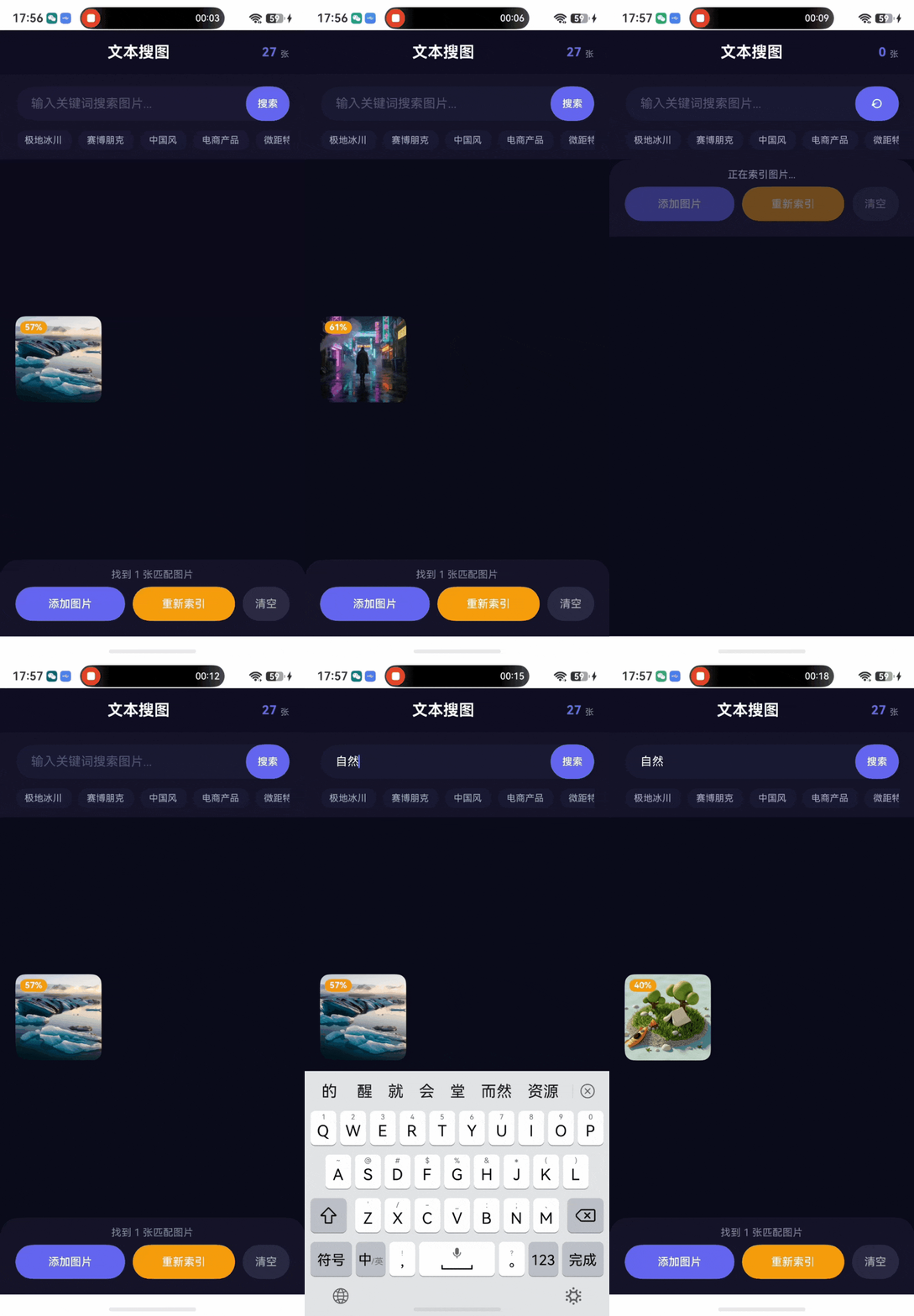
项目准备
创建工程
在 DevEco Studio 中新建 Empty Ability 工程,选择 Stage 模型,API 版本设为 26(HarmonyOS7)。本文代码使用 ArkTS。
准备示例图片
将用于索引的图片放入 entry/src/main/resources/rawfile/textSearchImages/ 目录:
resources/
└── rawfile/
    └── textSearchImages/
        ├── g01_1_1_aerial_wide_shot_of.png
        ├── g01_1_2_interior_of_a_natural.png
        ├── g01_1_3_minimalist_frozen_tundra_during.png
        ├── g02_2_1_rain_slicked_narrow_alley_in.png
        ├── ...
        └── g09_9_3_detailed_engineering_schematic_of.png
示例使用了 9 组共 27 张图片,涵盖极地冰川、赛博朋克、中国风、电商产品、微距特写、微缩黏土、深空星云、平面海报、蒸汽朋克等风格。你也可以使用自己的图片,只需修改 rawfileNames 数组中的文件名即可。图片文件名不影响搜索效果——搜索依赖的是图片的视觉内容,不是文件名。
权限配置
从相册添加图片需要读写权限,在 entry/src/main/module.json5 中声明:
{
  "module": {
    "requestPermissions": [
      {
        "name": "ohos.permission.READ_IMAGEVIDEO",
        "reason": "$string:read_imagevideo_reason",
        "usedScene": {
          "abilities": ["EntryAbility"],
          "when": "inuse"
        }
      },
      {
        "name": "ohos.permission.WRITE_IMAGEVIDEO",
        "reason": "$string:read_imagevideo_reason",
        "usedScene": {
          "abilities": ["EntryAbility"],
          "when": "inuse"
        }
      }
    ]
  }
}
READ_IMAGEVIDEO:从相册选择图片时需要读取权限WRITE_IMAGEVIDEO:保存处理后的图片需要写入权限
两个权限都是用户授权权限(user_grant),运行时系统会在首次选择图片时自动弹出授权弹窗。
检查清单
| 检查项 | 要求 | 出错表现 |
|---|---|---|
| API 版本 | API 26 | 无法识别 textSearchImage 相关接口 |
| 图片路径 | rawfile 下 textSearchImages/ 目录 | getRawFileContent 抛异常,索引数为 0 |
| 读写权限 | READ_IMAGEVIDEO + WRITE_IMAGEVIDEO | 从相册添加图片失败 |
核心实现:a2.ets 完整拆解
导入与常量
import { textSearchImage } from '@kit.CoreVisionKit';
import { hilog } from '@kit.PerformanceAnalysisKit';
import { BusinessError } from '@kit.BasicServicesKit';
import { fileIo, picker } from '@kit.CoreFileKit';
import { image } from '@kit.ImageKit';
import { common } from '@kit.AbilityKit';
各 Kit 的职责:
@kit.CoreVisionKit:核心——textSearchImage提供文本搜图的全部 API(init、insertImage、search、release、clearData)@kit.CoreFileKit:文件读写(fileIo)+ 图片选择器(picker.PhotoViewPicker)@kit.ImageKit:图片解码(ImageSource)、编码(ImagePacker)、PixelMap 操作@kit.AbilityKit:获取UIAbilityContext,用于沙箱路径和 rawfile 读取@kit.PerformanceAnalysisKit:日志输出@kit.BasicServicesKit:BusinessError类型用于错误处理
const DOMAIN = 0x0000;
const TAG = 'TextSearchImage';
const SCOPE = 'demo1';
const IMAGE_DIR = 'textSearchImages';
DOMAIN+TAG:hilog 的域和标签SCOPE:索引范围标识,insertImage和search必须使用同一个 scope 才能互相匹配。你可以理解为"数据库名"——不同 scope 的索引互不干扰IMAGE_DIR:rawfile 中图片的目录名,同时作为沙箱中存储图片的子目录名
接口定义
interface SearchResultItem {
  imagePath: string;
  similarity: number;
  pixelMap: PixelMap | undefined;
}
搜索结果的数据结构:
imagePath:图片在沙箱中的绝对路径,由textSearchImage.search返回similarity:语义相似度,0~1 的浮点数,1 表示完全匹配pixelMap:解码后的 PixelMap,用于界面展示。类型是undefined而非null,因为解码可能失败,此时为undefined
组件状态与数据
@Entry
@Component
struct A2 {
  @State searchQuery: string = '';
  @State searchResults: SearchResultItem[] = [];
  @State statusText: string = '正在初始化...';
  @State isSearching: boolean = false;
  @State isIndexing: boolean = false;
  @State indexedCount: number = 0;
  @State serviceReady: boolean = false;
  @State hasSearched: boolean = false;
  @State inputFocus: boolean = false;
状态分三组:
- 流程控制:
isSearching(搜索中)、isIndexing(索引中)、serviceReady(服务是否就绪)、hasSearched(是否已执行过搜索) - 数据:
searchQuery(搜索关键词)、searchResults(搜索结果列表)、indexedCount(已索引图片数) - UI 状态:
statusText(底部状态文本)、inputFocus(输入框是否聚焦)
接下来是组件的私有数据——图片文件名列表、快捷标签和查询增强映射:
  private rawfileNames: string[] = [
    'g01_1_1_aerial_wide_shot_of.png',
    'g01_1_2_interior_of_a_natural.png',
    'g01_1_3_minimalist_frozen_tundra_during.png',
    'g02_2_1_rain_slicked_narrow_alley_in.png',
    // ... 共 27 张
  ];
  private tagList: string[] = [
    '极地冰川', '赛博朋克', '中国风', '电商产品', '微距特写',
    '微缩黏土', '深空星云', '平面海报', '蒸汽朋克', '水彩绘本'
  ];
tagList 是搜索栏下方的快捷标签,用户点击直接搜索对应关键词。每个标签对应一组 3 张风格相近的图片。
查询增强:中英双语扩展
  private tagEnhanceMap: Record<string, string> = {
    '极地冰川': '极地冰川 frozen tundra glacier snow ice landscape',
    '赛博朋克': '赛博朋克 cyberpunk neon rain alley night city',
    '中国风': '中国风 traditional chinese gongbi ink wash dunhuang painting',
    '电商产品': '电商产品 skincare product flat lay commercial photography',
    '微距特写': '微距特写 macro photography close up detail insect',
    '微缩黏土': '微缩黏土 isometric miniature clay 3D illustration',
    '深空星云': '深空星云 deep space nebula galaxy black hole planet',
    '平面海报': '平面海报 poster design typography minimalist brand identity',
    '蒸汽朋克': '蒸汽朋克 steampunk airship engineering schematic mechanical',
    '水彩绘本': '水彩绘本 watercolor illustration storybook painting'
  };
  private enhanceQuery(query: string): string {
    let enhanced: string = this.tagEnhanceMap[query];
    if (enhanced) {
      return enhanced;
    }
    return query;
  }
这是提升搜索质量的关键设计。textSearchImage 支持中英双语检索,但纯中文或纯英文的查询覆盖面有限。tagEnhanceMap 为每个标签预设了中英混合的扩展查询——输入"极地冰川",实际搜索的是 极地冰川 frozen tundra glacier snow ice landscape,同时命中中文标签和英文语义。
enhanceQuery 的逻辑很简单:命中映射表就返回扩展后的查询,否则原样返回。这样用户自定义输入的关键词(如"星空")不会被动过,只有快捷标签才会增强。
服务初始化与资源释放
  async aboutToAppear(): Promise<void> {
    try {
      let initResult: boolean = await textSearchImage.init();
      hilog.info(DOMAIN, TAG, `Init result: ${initResult}`);
      if (initResult) {
        this.serviceReady = true;
        await this.prepareAndIndexImages();
      } else {
        this.statusText = '服务初始化失败';
      }
    } catch (error) {
      let err: BusinessError = error as BusinessError;
      hilog.error(DOMAIN, TAG, `Init failed: ${err.code}, ${err.message}`);
      this.statusText = '初始化异常';
    }
  }
textSearchImage.init() 初始化端侧语义检索服务,返回 boolean 表示是否成功。成功后立即调用 prepareAndIndexImages() 把示例图片加入索引库。初始化失败时,整个搜索功能不可用,serviceReady 保持 false,底部按钮全部禁用。
  async aboutToDisappear(): Promise<void> {
    try {
      await textSearchImage.release();
      hilog.info(DOMAIN, TAG, 'Service released');
    } catch (error) {
      let err: BusinessError = error as BusinessError;
      hilog.error(DOMAIN, TAG, `Release failed: ${err.code}`);
    }
    for (let i = 0; i < this.searchResults.length; i++) {
      if (this.searchResults[i].pixelMap) {
        this.searchResults[i].pixelMap!.release();
      }
    }
  }
页面销毁时做两件事:释放 textSearchImage 服务 + 释放所有搜索结果的 PixelMap。textSearchImage.release() 释放端侧 NPU 资源,如果忘了调用,下次进入页面可能初始化失败。PixelMap 是图片内存,不释放会导致内存泄漏。
图片准备与索引:rawfile → 沙箱 → insertImage
这是整个案例最长的流程,逐步拆解:
  private async prepareAndIndexImages(): Promise<void> {
    this.isIndexing = true;
    this.statusText = '正在索引图片...';
    let context: common.UIAbilityContext = getContext(this) as common.UIAbilityContext;
    let sandboxDir: string = `${context.filesDir}/${IMAGE_DIR}`;
先获取沙箱目录路径 context.filesDir/textSearchImages。
第一步:确保沙箱目录存在
    try {
      if (!fileIo.accessSync(sandboxDir)) {
        fileIo.mkdirSync(sandboxDir);
      }
    } catch (_e) {
      // directory might already exist
    }
fileIo.accessSync 检查目录是否存在,不存在则 mkdirSync 创建。这里用 try/catch 是因为 accessSync 在目录不存在时会抛异常(而不是返回 false),所以创建前先检查。创建操作本身也可能因并发等原因失败,但 catch 后不中断流程——索引时如果目录确实不存在,插入图片自然会报错。
第二步:逐张复制 rawfile → 沙箱 + 索引
    let insertedCount: number = 0;
    for (let i = 0; i < this.rawfileNames.length; i++) {
      let name: string = this.rawfileNames[i];
      let sandboxPath: string = `${sandboxDir}/${name}`;

      try {
        if (!fileIo.accessSync(sandboxPath)) {
          let content: Uint8Array = await context.resourceManager.getRawFileContent(
            `${IMAGE_DIR}/${name}`);
          let fd: number = fileIo.openSync(sandboxPath,
            fileIo.OpenMode.READ_WRITE | fileIo.OpenMode.CREATE).fd;
          fileIo.writeSync(fd, content.buffer);
          fileIo.closeSync(fd);
        }

        let insertResult: boolean = await textSearchImage.insertImage(sandboxPath, SCOPE);
        if (insertResult) {
          insertedCount++;
          hilog.info(DOMAIN, TAG, `Inserted: ${name}`);
        }
      } catch (error) {
        let err: BusinessError = error as BusinessError;
        hilog.error(DOMAIN, TAG, `Insert ${name} failed: ${err.code}`);
      }
    }
为什么不能直接用 rawfile 路径索引?因为 textSearchImage.insertImage 接收的是沙箱绝对路径,rawfile 路径($rawfile(...) 或 resource://)不被支持。所以必须先把图片从 rawfile 复制到沙箱目录,再用沙箱路径插入索引。
每张图片的处理分两步:
- 复制文件(仅在沙箱中不存在时):
resourceManager.getRawFileContent读取 rawfile 内容为Uint8Array→fileIo.openSync打开目标文件 →writeSync写入 →closeSync关闭 fd - 插入索引:
textSearchImage.insertImage(sandboxPath, SCOPE)将沙箱中的图片加入语义索引库,scope 指定索引范围
insertImage 返回 boolean,true 表示成功。27 张图片中任何一张插入失败都不影响其他图片——每张图片的 try/catch 是独立的。
第三步:更新状态
    this.indexedCount = insertedCount;
    this.isIndexing = false;
    this.statusText = insertedCount > 0 ? `已索引 ${insertedCount} 张图片,可开始搜索` : '索引完成,请添加图片';
  }
索引完成后更新 indexedCount 和状态文本。isIndexing = false 让底部按钮重新可用。
搜索结果加载:imagePath → PixelMap
  private async loadResultPixelMaps(results: Array<textSearchImage.ImageObject>): Promise<SearchResultItem[]> {
    let items: SearchResultItem[] = [];
    for (let i = 0; i < results.length; i++) {
      let item: SearchResultItem = {
        imagePath: results[i].imagePath,
        similarity: results[i].similarity,
        pixelMap: undefined
      };
      try {
        let fileSource = await fileIo.open(results[i].imagePath, fileIo.OpenMode.READ_ONLY);
        let imageSource: image.ImageSource = image.createImageSource(fileSource.fd);
        item.pixelMap = await imageSource.createPixelMap();
        await imageSource.release();
        await fileIo.close(fileSource);
      } catch (e) {
        hilog.warn(DOMAIN, TAG, `Load pixelMap failed for ${results[i].imagePath}`);
      }
      items.push(item);
    }
    return items;
  }
textSearchImage.search 返回的是 ImageObject 数组,只包含 imagePath(沙箱路径)和 similarity(相似度),没有 PixelMap。要展示图片,必须手动解码。
解码流程:fileIo.open 打开文件 → image.createImageSource(fd) 创建 ImageSource → createPixelMap() 解码 → 释放 ImageSource 和文件描述符。解码失败的图片 pixelMap 保持 undefined,界面显示"加载中"占位。
这里用 fileIo.open(异步)而非 fileIo.openSync,因为搜索结果可能很多,同步打开会阻塞 UI 线程。
搜索与自动重索引
这是整个案例逻辑最复杂的方法,核心处理流程 + 异常恢复:
  private async doSearch(): Promise<void> {
    if (!this.searchQuery || !this.serviceReady) {
      return;
    }
    this.isSearching = true;
    this.hasSearched = true;
    this.statusText = '搜索中...';
    await this.releaseOldResults();
前置检查:关键词为空或服务未就绪则直接返回。releaseOldResults 释放上次搜索结果的 PixelMap,避免内存泄漏。
首次搜索尝试
    let results: Array<textSearchImage.ImageObject> = [];
    let needReindex: boolean = false;

    try {
      try {
        await textSearchImage.release();
      } catch (_e) {
        hilog.warn(DOMAIN, TAG, 'Release before search failed, continue');
      }
      let reinitResult: boolean = await textSearchImage.init();
      if (!reinitResult) {
        this.statusText = '服务重置失败';
        this.isSearching = false;
        return;
      }
      results = await textSearchImage.search(this.enhanceQuery(this.searchQuery), SCOPE, 20);
      hilog.info(DOMAIN, TAG, `Search results: ${results.length}`);
这里有一个容易被忽视的设计:每次搜索前先 release 再 init。为什么?因为 textSearchImage 的服务在连续搜索后可能进入内部异常状态,release + init 重置服务可以避免状态累积问题。release 失败不影响后续流程——服务可能已经处于异常状态,release 报错是正常的,继续 init 即可。
search 的三个参数:
query:搜索关键词(经过enhanceQuery增强后)SCOPE:索引范围,必须和insertImage使用同一个 scope20:最多返回 20 条结果
异常检测
    } catch (error) {
      let err: BusinessError = error as BusinessError;
      hilog.error(DOMAIN, TAG, `Search failed: ${err.code}, ${err.message}`);
      if (err.code === 1013100003) {
        needReindex = true;
      } else {
        this.statusText = '搜索失败,请重试';
        this.isSearching = false;
        return;
      }
    }
错误码 1013100003 是 textSearchImage 的"索引数据异常"错误,表示端侧向量数据库的内部状态损坏。此时搜索不可用,必须清空数据重新索引。其他错误码直接提示失败,不触发重索引。
零结果检测
    if (results.length === 0 && this.indexedCount > 0 && !needReindex) {
      hilog.info(DOMAIN, TAG, '0 results after reinit, re-indexing...');
      needReindex = true;
    }
即使没有抛异常,如果 release + init 后搜索返回 0 结果,但 indexedCount > 0(说明之前成功索引过图片),这也可能是服务状态异常的表现——正常情况下至少应该返回低相似度的结果。此时同样触发重索引。
重索引流程
    if (needReindex) {
      this.statusText = '正在重新索引...';
      await this.clearDatabase();
      await this.prepareAndIndexImages();
      try {
        results = await textSearchImage.search(this.enhanceQuery(this.searchQuery), SCOPE, 20);
        hilog.info(DOMAIN, TAG, `Post-reindex results: ${results.length}`);
      } catch (error) {
        let err: BusinessError = error as BusinessError;
        hilog.error(DOMAIN, TAG, `Post-reindex search failed: ${err.code}`);
        this.statusText = '搜索失败,请重试';
        this.isSearching = false;
        return;
      }
    }
重索引分三步:clearDatabase() 清空向量数据库 → prepareAndIndexImages() 重新插入全量图片 → 再次搜索。重索引后再搜索失败,则直接报错——这属于更深层的问题,不是自动恢复能解决的。
结果处理
    this.searchResults = await this.loadResultPixelMaps(results);
    this.statusText = results.length > 0 ?
      `找到 ${results.length} 张匹配图片` : '未找到匹配图片,换个关键词试试';
    this.isSearching = false;
  }
把 ImageObject 转换为带 PixelMap 的 SearchResultItem,更新状态文本。零结果时给出友好提示。
从相册添加图片
  private async addImageFromGallery(): Promise<void> {
    try {
      let options = new picker.PhotoSelectOptions();
      options.MIMEType = picker.PhotoViewMIMETypes.IMAGE_TYPE;
      options.maxSelectNumber = 5;
      let photoPicker = new picker.PhotoViewPicker();
      let result: picker.PhotoSelectResult = await photoPicker.select(options);
      if (result.photoUris.length === 0) {
        return;
      }

      this.isIndexing = true;
      this.statusText = '正在添加图片...';
      let context: common.UIAbilityContext = getContext(this) as common.UIAbilityContext;
      let sandboxDir: string = `${context.filesDir}/${IMAGE_DIR}`;
      let added: number = 0;
用 PhotoViewPicker 选择图片,最多 5 张。选择后开始逐张处理。
逐张处理:URI → 编码 → 沙箱写入 → 索引
      for (let i = 0; i < result.photoUris.length; i++) {
        let uri: string = result.photoUris[i];
        let fileName: string = `user_${Date.now()}_${i}.jpg`;
        let sandboxPath: string = `${sandboxDir}/${fileName}`;

        try {
          let fileSource: fileIo.File = await fileIo.open(uri, fileIo.OpenMode.READ_ONLY);
          let imageSource: image.ImageSource = image.createImageSource(fileSource.fd);
          let pm: PixelMap = await imageSource.createPixelMap();
          await fileIo.close(fileSource);
          await imageSource.release();

          let packer: image.ImagePacker = image.createImagePacker();
          let packOpts: image.PackingOption = { format: 'image/jpeg', quality: 90 };
          let packData: ArrayBuffer = await packer.packing(pm, packOpts);
          await packer.release();
          await pm.release();

          let targetFd: number = fileIo.openSync(sandboxPath,
            fileIo.OpenMode.READ_WRITE | fileIo.OpenMode.CREATE).fd;
          fileIo.writeSync(targetFd, packData);
          fileIo.closeSync(targetFd);

          let insertResult: boolean = await textSearchImage.insertImage(sandboxPath, SCOPE);
          if (insertResult) {
            added++;
          }
        } catch (e) {
          hilog.warn(DOMAIN, TAG, `Add image failed: ${uri}`);
        }
      }
为什么不能直接复制 URI 对应的文件到沙箱?因为相册返回的 URI 可能指向 HEIF、PNG 等格式,而 textSearchImage.insertImage 对某些格式可能存在兼容性问题。统一编码为 JPEG 是更稳妥的做法。处理流程:
- 解码:
fileIo.open(uri)→ImageSource→PixelMap,然后立即释放文件描述符和 ImageSource - 编码:
ImagePacker将 PixelMap 编码为 JPEG(quality 90),释放 Packer 和 PixelMap - 写入沙箱:
fileIo.openSync+writeSync+closeSync同步写入(编码已完成,写入量不大,同步没问题) - 插入索引:
insertImage(sandboxPath, SCOPE)
文件名用 user_时间戳_序号.jpg 避免冲突。
      this.indexedCount += added;
      this.isIndexing = false;
      this.statusText = added > 0 ? `已添加 ${added} 张图片` : '添加失败';
    } catch (error) {
      let err: BusinessError = error as BusinessError;
      hilog.error(DOMAIN, TAG, `Gallery select failed: ${err.code}`);
      this.isIndexing = false;
      this.statusText = '选择图片失败';
    }
  }
添加完成后更新索引计数。indexedCount += added 而非 = added,因为新图片是在已有索引基础上追加的。
清空数据
  private async clearDatabase(): Promise<void> {
    try {
      let result: boolean = await textSearchImage.clearData();
      hilog.info(DOMAIN, TAG, `Clear data: ${result}`);
      this.indexedCount = 0;
      this.searchResults = [];
      this.hasSearched = false;
      this.statusText = '数据已清空,可重新索引';
    } catch (error) {
      let err: BusinessError = error as BusinessError;
      hilog.error(DOMAIN, TAG, `Clear failed: ${err.code}`);
      this.statusText = '清空失败';
    }
  }
textSearchImage.clearData() 清空端侧向量数据库的所有索引数据。清空后 indexedCount 重置为 0,搜索结果和搜索状态也一并重置。注意:清空操作不会删除沙箱中的图片文件,只删除语义索引。下次 prepareAndIndexImages 时,沙箱中已存在的图片会跳过复制步骤,只重新执行 insertImage。
相似度可视化辅助
  private getSimilarityColor(similarity: number): string {
    if (similarity >= 0.7) {
      return '#4ADE80';
    }
    if (similarity >= 0.4) {
      return '#F59E0B';
    }
    return '#EF4444';
  }

  private getSimilarityLabel(similarity: number): string {
    let percent: number = Math.round(Math.max(0, similarity) * 100);
    return `${percent}%`;
  }
相似度分三档着色:≥0.7 绿色(高匹配)、≥0.4 黄色(中等匹配)、<0.4 红色(低匹配)。Math.max(0, similarity) 防止异常负值导致显示问题。
UI 布局:标题栏
  @Builder
  headerBar() {
    Row() {
      Text('文本搜图')
        .fontSize(20)
        .fontWeight(FontWeight.Bold)
        .fontColor('#FFFFFF')
        .layoutWeight(1)
        .textAlign(TextAlign.Center)

      Row() {
        Text(`${this.indexedCount}`)
          .fontSize(16)
          .fontWeight(FontWeight.Bold)
          .fontColor('#6366F1')
        Text(' 张')
          .fontSize(11)
          .fontColor('#888899')
          .margin({ left: 2 })
      }
      .alignItems(VerticalAlign.Bottom)
    }
    .width('100%')
    .height(56)
    .padding({ left: 20, right: 20 })
    .alignItems(VerticalAlign.Center)
    .backgroundColor('#0F0F23')
  }
标题栏左侧标题居中,右侧显示已索引图片数量。数量用大号紫色数字 + 小号灰色"张"字,底部对齐形成主次关系。
UI 布局:搜索区
  @Builder
  searchSection() {
    Column() {
      Row() {
        TextInput({ placeholder: '输入关键词搜索图片...' })
          .layoutWeight(1)
          .height(44)
          .fontSize(15)
          .fontColor('#FFFFFF')
          .placeholderColor('#555577')
          .backgroundColor('#1A1A33')
          .borderRadius(22)
          .padding({ left: 20, right: 56 })
          .caretColor('#6366F1')
          .onChange((value: string) => {
            this.searchQuery = value;
          })
          .onSubmit(() => {
            void this.doSearch();
          })

        Row() {
          if (this.isSearching) {
            LoadingProgress()
              .width(20)
              .height(20)
              .color('#FFFFFF')
          } else {
            Text('搜索')
              .fontSize(13)
              .fontColor('#FFFFFF')
              .fontWeight(FontWeight.Medium)
          }
        }
        .width(56)
        .height(44)
        .borderRadius(22)
        .backgroundColor('#6366F1')
        .justifyContent(FlexAlign.Center)
        .margin({ left: -56 })
        .onClick(() => {
          void this.doSearch();
        })
      }
搜索栏的设计:TextInput 占满宽度,搜索按钮通过 margin({ left: -56 }) 叠加在输入框右侧。这样做的好处是输入框的 padding({ right: 56 }) 为按钮留出空间,视觉上按钮嵌入输入框内部。
搜索按钮在搜索中显示 LoadingProgress,非搜索状态显示"搜索"文字。
快捷标签横向滚动
      Scroll() {
        Row() {
          ForEach(this.tagList, (tag: string, index: number) => {
            Text(tag)
              .fontSize(12)
              .fontColor('#AAAACC')
              .backgroundColor('#1A1A33')
              .borderRadius(12)
              .padding({ left: 12, right: 12, top: 6, bottom: 6 })
              .margin({ left: index === 0 ? 0 : 8 })
              .onClick(() => {
                this.searchQuery = tag;
                void this.doSearch();
              })
          }, (_tag: string, index: number) => `${index}`)
        }
      }
      .scrollable(ScrollDirection.Horizontal)
      .scrollBar(BarState.Off)
      .width('100%')
      .margin({ top: 12 })
    }
    .width('100%')
    .padding({ left: 20, right: 20, top: 16, bottom: 12 })
    .backgroundColor('#141428')
  }
10 个标签横向排列在可滚动容器中,scrollBar(BarState.Off) 隐藏滚动条。点击标签直接设置 searchQuery 并触发搜索——标签对应的查询会被 enhanceQuery 自动增强为中英双语。
UI 布局:搜索结果网格
  @Builder
  resultsGrid() {
    if (this.searchResults.length > 0) {
      Scroll() {
        Grid() {
          ForEach(this.searchResults, (item: SearchResultItem, index: number) => {
            GridItem() {
              Column() {
                Stack() {
                  if (item.pixelMap) {
                    Image(item.pixelMap)
                      .width('100%')
                      .height('100%')
                      .objectFit(ImageFit.Cover)
                  } else {
                    Column() {
                      Text('加载中')
                        .fontSize(12)
                        .fontColor('#555577')
                    }
                    .width('100%')
                    .height('100%')
                    .justifyContent(FlexAlign.Center)
                    .backgroundColor('#1A1A33')
                  }

                  Column() {
                    Row() {
                      Text(this.getSimilarityLabel(item.similarity))
                        .fontSize(11)
                        .fontWeight(FontWeight.Bold)
                        .fontColor('#FFFFFF')
                    }
                    .backgroundColor(this.getSimilarityColor(item.similarity))
                    .borderRadius(8)
                    .padding({ left: 6, right: 6, top: 2, bottom: 2 })
                  }
                  .position({ x: 6, y: 6 })
                }
                .width('100%')
                .aspectRatio(1)
                .borderRadius(12)
                .clip(true)
              }
              .width('100%')
            }
          }, (_item: SearchResultItem, index: number) => `${index}`)
        }
        .columnsTemplate('1fr 1fr 1fr')
        .rowsGap(10)
        .columnsGap(10)
        .width('100%')
        .padding({ left: 20, right: 20, top: 4, bottom: 4 })
        .cachedCount(6)
      }
      .width('100%')
      .layoutWeight(1)
      .edgeEffect(EdgeEffect.Spring)
    }
  }
三列等宽网格(columnsTemplate('1fr 1fr 1fr')),每项是正方形(aspectRatio(1))+ 圆角(borderRadius(12))+ 裁切(clip(true))。每张图片左上角叠加相似度标签,用 position({ x: 6, y: 6 }) 绝对定位。
cachedCount(6) 预缓存 6 个 GridItem(2 行),减少滑动时的渲染延迟。edgeEffect(EdgeEffect.Spring) 给滚动添加弹性效果。
UI 布局:空状态
  @Builder
  emptyState() {
    if (this.searchResults.length === 0 && !this.isSearching) {
      Column() {
        if (this.hasSearched) {
          Text('未找到匹配图片')
            .fontSize(16)
            .fontColor('#AAAACC')
            .fontWeight(FontWeight.Medium)
          Text('尝试换个关键词搜索,或添加更多图片')
            .fontSize(13)
            .fontColor('#666688')
            .margin({ top: 8 })
        } else {
          Text('用文字搜索图片')
            .fontSize(18)
            .fontColor('#FFFFFF')
            .fontWeight(FontWeight.Medium)
          Text('输入关键词,从图库中找到语义匹配的图片')
            .fontSize(13)
            .fontColor('#888899')
            .margin({ top: 8 })

          Row() {
            Column() {
              Text('语义理解')
                .fontSize(12)
                .fontColor('#CCCCDD')
                .fontWeight(FontWeight.Medium)
              Text('理解文字含义')
                .fontSize(11)
                .fontColor('#666688')
                .margin({ top: 4 })
            }
            .layoutWeight(1)
            .alignItems(HorizontalAlign.Center)
            .padding({ top: 14, bottom: 14 })
            .backgroundColor('#1A1A33')
            .borderRadius(12)
            // ... 精准匹配、中英双语卡片同理
          }
          .width('100%')
          .margin({ top: 32 })
        }
      }
      .width('100%')
      .layoutWeight(1)
      .justifyContent(FlexAlign.Center)
      .alignItems(HorizontalAlign.Center)
      .padding({ left: 20, right: 20 })
    }
  }
空状态分两种:
- 未搜索过(
!hasSearched):显示引导页,标题"用文字搜索图片" + 三个功能卡片(语义理解 / 精准匹配 / 中英双语) - 搜索过但无结果(
hasSearched):显示"未找到匹配图片"提示,引导换关键词或添加图片
UI 布局:底部操作面板
  @Builder
  bottomPanel() {
    Column() {
      Row() {
        Text(this.statusText)
          .fontSize(13)
          .fontColor('#888899')
      }
      .width('100%')
      .justifyContent(FlexAlign.Center)
      .padding({ top: 12, bottom: 8 })

      Row() {
        Button('添加图片')
          .type(ButtonType.Capsule)
          .fontColor('#FFFFFF')
          .fontSize(14)
          .fontWeight(FontWeight.Medium)
          .backgroundColor('#6366F1')
          .layoutWeight(1)
          .height(44)
          .enabled(!this.isIndexing && this.serviceReady)
          .onClick(() => {
            void this.addImageFromGallery();
          })

        Button('重新索引')
          .type(ButtonType.Capsule)
          .fontColor('#FFFFFF')
          .fontSize(14)
          .fontWeight(FontWeight.Medium)
          .backgroundColor('#F59E0B')
          .layoutWeight(1)
          .height(44)
          .margin({ left: 10 })
          .enabled(!this.isIndexing && this.serviceReady)
          .onClick(() => {
            void this.clearDatabase().then(() => {
              void this.prepareAndIndexImages();
            });
          })

        Button('清空')
          .type(ButtonType.Capsule)
          .fontColor('#AAAAAA')
          .fontSize(14)
          .backgroundColor('#2A2A44')
          .width(60)
          .height(44)
          .margin({ left: 10 })
          .enabled(!this.isIndexing && this.serviceReady)
          .onClick(() => {
            void this.clearDatabase();
          })
      }
      .width('100%')
      .padding({ bottom: 20 })
    }
    .width('100%')
    .backgroundColor('#141428')
    .borderRadius({ topLeft: 24, topRight: 24 })
    .shadow({ radius: 12, color: '#00000033', offsetY: -2 })
    .padding({ left: 20, right: 20 })
  }
三个按钮的功能和颜色区分:
- 添加图片(紫色
#6366F1):从相册选图并加入索引,不清空已有数据 - 重新索引(黄色
#F59E0B):先清空数据库再重新插入全量图片,用于恢复异常状态 - 清空(灰色
#2A2A44):只清空索引数据,不重新索引
所有按钮在索引过程中禁用(!this.isIndexing),服务未就绪时也禁用(this.serviceReady)。
面板顶部圆角 borderRadius({ topLeft: 24, topRight: 24 }) + shadow({ offsetY: -2 }) 做出卡片浮起效果。
主布局
  build() {
    Column() {
      this.headerBar()
      this.searchSection()

      if (this.searchResults.length > 0) {
        this.resultsGrid()
      } else {
        this.emptyState()
      }

      this.bottomPanel()
    }
    .width('100%')
    .height('100%')
    .backgroundColor('#0A0A1A')
  }
纵向四层:标题栏(固定 56)→ 搜索区(固定高度)→ 内容区(layoutWeight(1) 填满,搜索结果网格或空状态)→ 底部面板(固定高度)。内容区根据 searchResults 是否为空切换显示。
整体深色主题,背景色 #0A0A1A,卡片/输入框 #1A1A33,强调色紫色 #6366F1。
常见问题与排查
初始化失败,serviceReady 为 false
textSearchImage.init() 返回 false,最常见的原因是设备不支持 CoreVisionKit 的文本搜图能力(部分低配置设备或模拟器可能不支持)。在真机上测试时,确认系统版本为 HarmonyOS7 及以上。如果确认设备支持但仍失败,检查是否有其他应用占用了端侧 AI 资源——重启设备后再试。
索引数为 0,indexedCount 始终为 0
逐项排查:rawfile 路径是否正确(textSearchImages/ 目录下是否有对应文件名)、insertImage 是否抛异常(查看 hilog 输出)。insertImage 对图片格式和尺寸有要求,过大的图片可能导致索引失败。建议使用宽度不超过 2048 像素的图片。
搜索返回错误码 1013100003
这是端侧向量数据库状态异常的错误。本案例已在 doSearch 中实现了自动检测和重索引逻辑,正常情况下用户不会看到这个错误。如果重索引后仍然失败,说明问题更深层——尝试重启应用或重启设备。
从相册添加图片后搜索不到
addImageFromGallery 中把相册图片编码为 JPEG 后存入沙箱再索引。如果某张图片编码失败(比如 HEIF 格式解码异常),该图片不会被索引。检查 hilog 中是否有 Add image failed 的警告。另外,添加图片后不需要重新索引——insertImage 会实时更新向量数据库。
搜索结果相似度都很低
textSearchImage 基于语义理解搜索,如果关键词和图片内容的语义距离较远,相似度自然会低。使用 enhanceQuery 进行中英双语扩展可以提升召回率。另外,索引的图片数量太少(比如只有 2-3 张)时,搜索结果的相关性也会受影响——建议至少索引 10 张以上的图片。
完整代码
以下是完整代码,可直接复制使用: 确保图片已放在前文约定的 rawfile 路径中:
import { textSearchImage } from '@kit.CoreVisionKit';
import { hilog } from '@kit.PerformanceAnalysisKit';
import { BusinessError } from '@kit.BasicServicesKit';
import { fileIo, picker } from '@kit.CoreFileKit';
import { image } from '@kit.ImageKit';
import { common } from '@kit.AbilityKit';

const DOMAIN = 0x0000;
const TAG = 'TextSearchImage';
const SCOPE = 'demo1';
const IMAGE_DIR = 'textSearchImages';

interface SearchResultItem {
  imagePath: string;
  similarity: number;
  pixelMap: PixelMap | undefined;
}

@Entry
@Component
struct A2 {
  @State searchQuery: string = '';
  @State searchResults: SearchResultItem[] = [];
  @State statusText: string = '正在初始化...';
  @State isSearching: boolean = false;
  @State isIndexing: boolean = false;
  @State indexedCount: number = 0;
  @State serviceReady: boolean = false;
  @State hasSearched: boolean = false;
  @State inputFocus: boolean = false;

  private rawfileNames: string[] = [
    'g01_1_1_aerial_wide_shot_of.png',
    'g01_1_2_interior_of_a_natural.png',
    'g01_1_3_minimalist_frozen_tundra_during.png',
    'g02_2_1_rain_slicked_narrow_alley_in.png',
    'g02_2_2_extreme_high_angle_view_from.png',
    'g02_2_3_close_up_portrait_of_a.png',
    'g03_3_1_traditional_chinese_gongbi_painting.png',
    'g03_3_2_classical_chinese_ink_wash.png',
    'g03_3_3_dunhuang_mogao_cave_ceiling.png',
    'g04_4_1_premium_skincare_product_key.png',
    'g04_4_2_top_down_flat_lay_of.png',
    'g04_4_3_fresh_summer_skincare_advertisement.png',
    'g05_5_1_extreme_macro_photograph_of.png',
    'g05_5_2_macro_shot_of_a.png',
    'g05_5_3_abstract_extreme_macro_of.png',
    'g06_6_1_isometric_d_illustration_of.png',
    'g06_6_2_isometric_miniature_world_of.png',
    'g06_6_3_isometric_d_render_of.png',
    'g07_7_1_ultra_detailed_deep_space_photograph.png',
    'g07_7_2_supermassive_black_hole_seen.png',
    'g07_7_3_a_banded_gas_giant.png',
    'g08_8_1_swiss_style_minimalist_concert_poster.png',
    'g08_8_2_experimental_typographic_exhibition_poster.png',
    'g08_8_3_minimal_brand_identity_board.png',
    'g09_9_1_technical_cutaway_illustration_of.png',
    'g09_9_2_a_colossal_steampunk_airship.png',
    'g09_9_3_detailed_engineering_schematic_of.png'
  ];
  private tagList: string[] = [
    '极地冰川', '赛博朋克', '中国风', '电商产品', '微距特写',
    '微缩黏土', '深空星云', '平面海报', '蒸汽朋克', '水彩绘本'
  ];
  private tagEnhanceMap: Record<string, string> = {
    '极地冰川': '极地冰川 frozen tundra glacier snow ice landscape',
    '赛博朋克': '赛博朋克 cyberpunk neon rain alley night city',
    '中国风': '中国风 traditional chinese gongbi ink wash dunhuang painting',
    '电商产品': '电商产品 skincare product flat lay commercial photography',
    '微距特写': '微距特写 macro photography close up detail insect',
    '微缩黏土': '微缩黏土 isometric miniature clay 3D illustration',
    '深空星云': '深空星云 deep space nebula galaxy black hole planet',
    '平面海报': '平面海报 poster design typography minimalist brand identity',
    '蒸汽朋克': '蒸汽朋克 steampunk airship engineering schematic mechanical',
    '水彩绘本': '水彩绘本 watercolor illustration storybook painting'
  };
  private enhanceQuery(query: string): string {
    let enhanced: string = this.tagEnhanceMap[query];
    if (enhanced) {
      return enhanced;
    }
    return query;
  }

  async aboutToAppear(): Promise<void> {
    try {
      let initResult: boolean = await textSearchImage.init();
      hilog.info(DOMAIN, TAG, `Init result: ${initResult}`);
      if (initResult) {
        this.serviceReady = true;
        await this.prepareAndIndexImages();
      } else {
        this.statusText = '服务初始化失败';
      }
    } catch (error) {
      let err: BusinessError = error as BusinessError;
      hilog.error(DOMAIN, TAG, `Init failed: ${err.code}, ${err.message}`);
      this.statusText = '初始化异常';
    }
  }

  async aboutToDisappear(): Promise<void> {
    try {
      await textSearchImage.release();
      hilog.info(DOMAIN, TAG, 'Service released');
    } catch (error) {
      let err: BusinessError = error as BusinessError;
      hilog.error(DOMAIN, TAG, `Release failed: ${err.code}`);
    }
    for (let i = 0; i < this.searchResults.length; i++) {
      if (this.searchResults[i].pixelMap) {
        this.searchResults[i].pixelMap!.release();
      }
    }
  }

  private async prepareAndIndexImages(): Promise<void> {
    this.isIndexing = true;
    this.statusText = '正在索引图片...';
    let context: common.UIAbilityContext = getContext(this) as common.UIAbilityContext;
    let sandboxDir: string = `${context.filesDir}/${IMAGE_DIR}`;

    try {
      if (!fileIo.accessSync(sandboxDir)) {
        fileIo.mkdirSync(sandboxDir);
      }
    } catch (_e) {
      // directory might already exist
    }

    let insertedCount: number = 0;
    for (let i = 0; i < this.rawfileNames.length; i++) {
      let name: string = this.rawfileNames[i];
      let sandboxPath: string = `${sandboxDir}/${name}`;

      try {
        if (!fileIo.accessSync(sandboxPath)) {
          let content: Uint8Array = await context.resourceManager.getRawFileContent(
            `${IMAGE_DIR}/${name}`);
          let fd: number = fileIo.openSync(sandboxPath,
            fileIo.OpenMode.READ_WRITE | fileIo.OpenMode.CREATE).fd;
          fileIo.writeSync(fd, content.buffer);
          fileIo.closeSync(fd);
        }

        let insertResult: boolean = await textSearchImage.insertImage(sandboxPath, SCOPE);
        if (insertResult) {
          insertedCount++;
          hilog.info(DOMAIN, TAG, `Inserted: ${name}`);
        }
      } catch (error) {
        let err: BusinessError = error as BusinessError;
        hilog.error(DOMAIN, TAG, `Insert ${name} failed: ${err.code}`);
      }
    }

    this.indexedCount = insertedCount;
    this.isIndexing = false;
    this.statusText = insertedCount > 0 ? `已索引 ${insertedCount} 张图片,可开始搜索` : '索引完成,请添加图片';
  }

  private async loadResultPixelMaps(results: Array<textSearchImage.ImageObject>): Promise<SearchResultItem[]> {
    let items: SearchResultItem[] = [];
    for (let i = 0; i < results.length; i++) {
      let item: SearchResultItem = {
        imagePath: results[i].imagePath,
        similarity: results[i].similarity,
        pixelMap: undefined
      };
      try {
        let fileSource = await fileIo.open(results[i].imagePath, fileIo.OpenMode.READ_ONLY);
        let imageSource: image.ImageSource = image.createImageSource(fileSource.fd);
        item.pixelMap = await imageSource.createPixelMap();
        await imageSource.release();
        await fileIo.close(fileSource);
      } catch (e) {
        hilog.warn(DOMAIN, TAG, `Load pixelMap failed for ${results[i].imagePath}`);
      }
      items.push(item);
    }
    return items;
  }

  private async releaseOldResults(): Promise<void> {
    for (let i = 0; i < this.searchResults.length; i++) {
      if (this.searchResults[i].pixelMap) {
        this.searchResults[i].pixelMap!.release();
      }
    }
    this.searchResults = [];
  }

  private async doSearch(): Promise<void> {
    if (!this.searchQuery || !this.serviceReady) {
      return;
    }
    this.isSearching = true;
    this.hasSearched = true;
    this.statusText = '搜索中...';
    await this.releaseOldResults();

    let results: Array<textSearchImage.ImageObject> = [];
    let needReindex: boolean = false;

    try {
      try {
        await textSearchImage.release();
      } catch (_e) {
        hilog.warn(DOMAIN, TAG, 'Release before search failed, continue');
      }
      let reinitResult: boolean = await textSearchImage.init();
      if (!reinitResult) {
        this.statusText = '服务重置失败';
        this.isSearching = false;
        return;
      }
      results = await textSearchImage.search(this.enhanceQuery(this.searchQuery), SCOPE, 20);
      hilog.info(DOMAIN, TAG, `Search results: ${results.length}`);
    } catch (error) {
      let err: BusinessError = error as BusinessError;
      hilog.error(DOMAIN, TAG, `Search failed: ${err.code}, ${err.message}`);
      if (err.code === 1013100003) {
        needReindex = true;
      } else {
        this.statusText = '搜索失败,请重试';
        this.isSearching = false;
        return;
      }
    }

    if (results.length === 0 && this.indexedCount > 0 && !needReindex) {
      hilog.info(DOMAIN, TAG, '0 results after reinit, re-indexing...');
      needReindex = true;
    }

    if (needReindex) {
      this.statusText = '正在重新索引...';
      await this.clearDatabase();
      await this.prepareAndIndexImages();
      try {
        results = await textSearchImage.search(this.enhanceQuery(this.searchQuery), SCOPE, 20);
        hilog.info(DOMAIN, TAG, `Post-reindex results: ${results.length}`);
      } catch (error) {
        let err: BusinessError = error as BusinessError;
        hilog.error(DOMAIN, TAG, `Post-reindex search failed: ${err.code}`);
        this.statusText = '搜索失败,请重试';
        this.isSearching = false;
        return;
      }
    }

    this.searchResults = await this.loadResultPixelMaps(results);
    this.statusText = results.length > 0 ?
      `找到 ${results.length} 张匹配图片` : '未找到匹配图片,换个关键词试试';
    this.isSearching = false;
  }

  private async addImageFromGallery(): Promise<void> {
    try {
      let options = new picker.PhotoSelectOptions();
      options.MIMEType = picker.PhotoViewMIMETypes.IMAGE_TYPE;
      options.maxSelectNumber = 5;
      let photoPicker = new picker.PhotoViewPicker();
      let result: picker.PhotoSelectResult = await photoPicker.select(options);
      if (result.photoUris.length === 0) {
        return;
      }

      this.isIndexing = true;
      this.statusText = '正在添加图片...';
      let context: common.UIAbilityContext = getContext(this) as common.UIAbilityContext;
      let sandboxDir: string = `${context.filesDir}/${IMAGE_DIR}`;
      let added: number = 0;

      for (let i = 0; i < result.photoUris.length; i++) {
        let uri: string = result.photoUris[i];
        let fileName: string = `user_${Date.now()}_${i}.jpg`;
        let sandboxPath: string = `${sandboxDir}/${fileName}`;

        try {
          let fileSource: fileIo.File = await fileIo.open(uri, fileIo.OpenMode.READ_ONLY);
          let imageSource: image.ImageSource = image.createImageSource(fileSource.fd);
          let pm: PixelMap = await imageSource.createPixelMap();
          await fileIo.close(fileSource);
          await imageSource.release();

          let packer: image.ImagePacker = image.createImagePacker();
          let packOpts: image.PackingOption = { format: 'image/jpeg', quality: 90 };
          let packData: ArrayBuffer = await packer.packing(pm, packOpts);
          await packer.release();
          await pm.release();

          let targetFd: number = fileIo.openSync(sandboxPath,
            fileIo.OpenMode.READ_WRITE | fileIo.OpenMode.CREATE).fd;
          fileIo.writeSync(targetFd, packData);
          fileIo.closeSync(targetFd);

          let insertResult: boolean = await textSearchImage.insertImage(sandboxPath, SCOPE);
          if (insertResult) {
            added++;
          }
        } catch (e) {
          hilog.warn(DOMAIN, TAG, `Add image failed: ${uri}`);
        }
      }

      this.indexedCount += added;
      this.isIndexing = false;
      this.statusText = added > 0 ? `已添加 ${added} 张图片` : '添加失败';
    } catch (error) {
      let err: BusinessError = error as BusinessError;
      hilog.error(DOMAIN, TAG, `Gallery select failed: ${err.code}`);
      this.isIndexing = false;
      this.statusText = '选择图片失败';
    }
  }

  private async clearDatabase(): Promise<void> {
    try {
      let result: boolean = await textSearchImage.clearData();
      hilog.info(DOMAIN, TAG, `Clear data: ${result}`);
      this.indexedCount = 0;
      this.searchResults = [];
      this.hasSearched = false;
      this.statusText = '数据已清空,可重新索引';
    } catch (error) {
      let err: BusinessError = error as BusinessError;
      hilog.error(DOMAIN, TAG, `Clear failed: ${err.code}`);
      this.statusText = '清空失败';
    }
  }

  private getSimilarityColor(similarity: number): string {
    if (similarity >= 0.7) {
      return '#4ADE80';
    }
    if (similarity >= 0.4) {
      return '#F59E0B';
    }
    return '#EF4444';
  }

  private getSimilarityLabel(similarity: number): string {
    let percent: number = Math.round(Math.max(0, similarity) * 100);
    return `${percent}%`;
  }

  @Builder
  headerBar() {
    Row() {
      Text('文本搜图')
        .fontSize(20)
        .fontWeight(FontWeight.Bold)
        .fontColor('#FFFFFF')
        .layoutWeight(1)
        .textAlign(TextAlign.Center)

      Row() {
        Text(`${this.indexedCount}`)
          .fontSize(16)
          .fontWeight(FontWeight.Bold)
          .fontColor('#6366F1')
        Text(' 张')
          .fontSize(11)
          .fontColor('#888899')
          .margin({ left: 2 })
      }
      .alignItems(VerticalAlign.Bottom)
    }
    .width('100%')
    .height(56)
    .padding({ left: 20, right: 20 })
    .alignItems(VerticalAlign.Center)
    .backgroundColor('#0F0F23')
  }

  @Builder
  searchSection() {
    Column() {
      Row() {
        TextInput({ placeholder: '输入关键词搜索图片...' })
          .layoutWeight(1)
          .height(44)
          .fontSize(15)
          .fontColor('#FFFFFF')
          .placeholderColor('#555577')
          .backgroundColor('#1A1A33')
          .borderRadius(22)
          .padding({ left: 20, right: 56 })
          .caretColor('#6366F1')
          .onChange((value: string) => {
            this.searchQuery = value;
          })
          .onSubmit(() => {
            void this.doSearch();
          })

        Row() {
          if (this.isSearching) {
            LoadingProgress()
              .width(20)
              .height(20)
              .color('#FFFFFF')
          } else {
            Text('搜索')
              .fontSize(13)
              .fontColor('#FFFFFF')
              .fontWeight(FontWeight.Medium)
          }
        }
        .width(56)
        .height(44)
        .borderRadius(22)
        .backgroundColor('#6366F1')
        .justifyContent(FlexAlign.Center)
        .margin({ left: -56 })
        .onClick(() => {
          void this.doSearch();
        })
      }
      .width('100%')
      .alignItems(VerticalAlign.Center)

      Scroll() {
        Row() {
          ForEach(this.tagList, (tag: string, index: number) => {
            Text(tag)
              .fontSize(12)
              .fontColor('#AAAACC')
              .backgroundColor('#1A1A33')
              .borderRadius(12)
              .padding({ left: 12, right: 12, top: 6, bottom: 6 })
              .margin({ left: index === 0 ? 0 : 8 })
              .onClick(() => {
                this.searchQuery = tag;
                void this.doSearch();
              })
          }, (_tag: string, index: number) => `${index}`)
        }
      }
      .scrollable(ScrollDirection.Horizontal)
      .scrollBar(BarState.Off)
      .width('100%')
      .margin({ top: 12 })
    }
    .width('100%')
    .padding({ left: 20, right: 20, top: 16, bottom: 12 })
    .backgroundColor('#141428')
  }

  @Builder
  resultsGrid() {
    if (this.searchResults.length > 0) {
      Scroll() {
        Grid() {
          ForEach(this.searchResults, (item: SearchResultItem, index: number) => {
            GridItem() {
              Column() {
                Stack() {
                  if (item.pixelMap) {
                    Image(item.pixelMap)
                      .width('100%')
                      .height('100%')
                      .objectFit(ImageFit.Cover)
                  } else {
                    Column() {
                      Text('加载中')
                        .fontSize(12)
                        .fontColor('#555577')
                    }
                    .width('100%')
                    .height('100%')
                    .justifyContent(FlexAlign.Center)
                    .backgroundColor('#1A1A33')
                  }

                  Column() {
                    Row() {
                      Text(this.getSimilarityLabel(item.similarity))
                        .fontSize(11)
                        .fontWeight(FontWeight.Bold)
                        .fontColor('#FFFFFF')
                    }
                    .backgroundColor(this.getSimilarityColor(item.similarity))
                    .borderRadius(8)
                    .padding({ left: 6, right: 6, top: 2, bottom: 2 })
                  }
                  .position({ x: 6, y: 6 })
                }
                .width('100%')
                .aspectRatio(1)
                .borderRadius(12)
                .clip(true)
              }
              .width('100%')
            }
          }, (_item: SearchResultItem, index: number) => `${index}`)
        }
        .columnsTemplate('1fr 1fr 1fr')
        .rowsGap(10)
        .columnsGap(10)
        .width('100%')
        .padding({ left: 20, right: 20, top: 4, bottom: 4 })
        .cachedCount(6)
      }
      .width('100%')
      .layoutWeight(1)
      .edgeEffect(EdgeEffect.Spring)
    }
  }

  @Builder
  emptyState() {
    if (this.searchResults.length === 0 && !this.isSearching) {
      Column() {
        if (this.hasSearched) {
          Text('未找到匹配图片')
            .fontSize(16)
            .fontColor('#AAAACC')
            .fontWeight(FontWeight.Medium)
          Text('尝试换个关键词搜索,或添加更多图片')
            .fontSize(13)
            .fontColor('#666688')
            .margin({ top: 8 })
        } else {
          Text('用文字搜索图片')
            .fontSize(18)
            .fontColor('#FFFFFF')
            .fontWeight(FontWeight.Medium)
          Text('输入关键词,从图库中找到语义匹配的图片')
            .fontSize(13)
            .fontColor('#888899')
            .margin({ top: 8 })

          Row() {
            Column() {
              Text('语义理解')
                .fontSize(12)
                .fontColor('#CCCCDD')
                .fontWeight(FontWeight.Medium)
              Text('理解文字含义')
                .fontSize(11)
                .fontColor('#666688')
                .margin({ top: 4 })
            }
            .layoutWeight(1)
            .alignItems(HorizontalAlign.Center)
            .padding({ top: 14, bottom: 14 })
            .backgroundColor('#1A1A33')
            .borderRadius(12)

            Column() {
              Text('精准匹配')
                .fontSize(12)
                .fontColor('#CCCCDD')
                .fontWeight(FontWeight.Medium)
              Text('相似度排序')
                .fontSize(11)
                .fontColor('#666688')
                .margin({ top: 4 })
            }
            .layoutWeight(1)
            .alignItems(HorizontalAlign.Center)
            .padding({ top: 14, bottom: 14 })
            .backgroundColor('#1A1A33')
            .borderRadius(12)
            .margin({ left: 8, right: 8 })

            Column() {
              Text('中英双语')
                .fontSize(12)
                .fontColor('#CCCCDD')
                .fontWeight(FontWeight.Medium)
              Text('混合检索')
                .fontSize(11)
                .fontColor('#666688')
                .margin({ top: 4 })
            }
            .layoutWeight(1)
            .alignItems(HorizontalAlign.Center)
            .padding({ top: 14, bottom: 14 })
            .backgroundColor('#1A1A33')
            .borderRadius(12)
          }
          .width('100%')
          .margin({ top: 32 })
        }
      }
      .width('100%')
      .layoutWeight(1)
      .justifyContent(FlexAlign.Center)
      .alignItems(HorizontalAlign.Center)
      .padding({ left: 20, right: 20 })
    }
  }

  @Builder
  bottomPanel() {
    Column() {
      Row() {
        Text(this.statusText)
          .fontSize(13)
          .fontColor('#888899')
      }
      .width('100%')
      .justifyContent(FlexAlign.Center)
      .padding({ top: 12, bottom: 8 })

      Row() {
        Button('添加图片')
          .type(ButtonType.Capsule)
          .fontColor('#FFFFFF')
          .fontSize(14)
          .fontWeight(FontWeight.Medium)
          .backgroundColor('#6366F1')
          .layoutWeight(1)
          .height(44)
          .enabled(!this.isIndexing && this.serviceReady)
          .onClick(() => {
            void this.addImageFromGallery();
          })

        Button('重新索引')
          .type(ButtonType.Capsule)
          .fontColor('#FFFFFF')
          .fontSize(14)
          .fontWeight(FontWeight.Medium)
          .backgroundColor('#F59E0B')
          .layoutWeight(1)
          .height(44)
          .margin({ left: 10 })
          .enabled(!this.isIndexing && this.serviceReady)
          .onClick(() => {
            void this.clearDatabase().then(() => {
              void this.prepareAndIndexImages();
            });
          })

        Button('清空')
          .type(ButtonType.Capsule)
          .fontColor('#AAAAAA')
          .fontSize(14)
          .backgroundColor('#2A2A44')
          .width(60)
          .height(44)
          .margin({ left: 10 })
          .enabled(!this.isIndexing && this.serviceReady)
          .onClick(() => {
            void this.clearDatabase();
          })
      }
      .width('100%')
      .padding({ bottom: 20 })
    }
    .width('100%')
    .backgroundColor('#141428')
    .borderRadius({ topLeft: 24, topRight: 24 })
    .shadow({ radius: 12, color: '#00000033', offsetY: -2 })
    .padding({ left: 20, right: 20 })
  }

  build() {
    Column() {
      this.headerBar()
      this.searchSection()

      if (this.searchResults.length > 0) {
        this.resultsGrid()
      } else {
        this.emptyState()
      }

      this.bottomPanel()
    }
    .width('100%')
    .height('100%')
    .backgroundColor('#0A0A1A')
  }
}
总结
这个文本搜图案例的核心可以归纳为三条主线:
1. textSearchImage 的 API 使用范式。 init 初始化服务 → insertImage 将图片加入索引库(必须使用沙箱路径,rawfile 路径不支持)→ search 执行语义搜索 → clearData 清空索引 → release 释放服务。其中 insertImage 和 search 必须使用同一个 scope 才能匹配。scope 的概念类似"数据库名",不同 scope 的索引互不干扰,可以在同一个应用中维护多组独立的图片库。
2. 索引生命周期与异常恢复。 这是实际开发中最容易踩坑的地方。textSearchImage 的服务在连续操作后可能进入异常状态(错误码 1013100003),必须在搜索前 release + init 重置服务状态;搜索失败后自动检测异常码并触发 clearData + prepareAndIndexImages 全量重索引;零结果但在已有索引的情况下也判定为异常并重索引。这套三层防御确保用户不会因为服务内部状态问题而无法搜索。
3. 查询增强策略。 textSearchImage 支持中英双语检索,但纯中文或纯英文的覆盖面有限。tagEnhanceMap 为预设标签扩展中英混合查询,输入"极地冰川"实际搜索 极地冰川 frozen tundra glacier snow ice landscape,同时命中中文语义和英文语义。自定义输入的关键词不做增强,保持灵活性。
后续可以在当前结构上扩展:分页加载搜索结果、支持图片预览大图、索引进度回调、自定义 scope 管理多组图库、搜索历史记录。无论扩展哪一项,建议保留本文的两个关键约束:搜索前 release + init 重置服务状态,以及异常码驱动的自动重索引逻辑。

讨论HarmonyOS开发技术,专注于API与组件、DevEco Studio、测试、元服务和应用上架分发等。
更多推荐

 1
1 0
0- 0


 已为社区贡献396条内容

所有评论(0)