HarmonyOS-服务卡片
·
1. 服务卡片
1.1. 什么是服务卡片
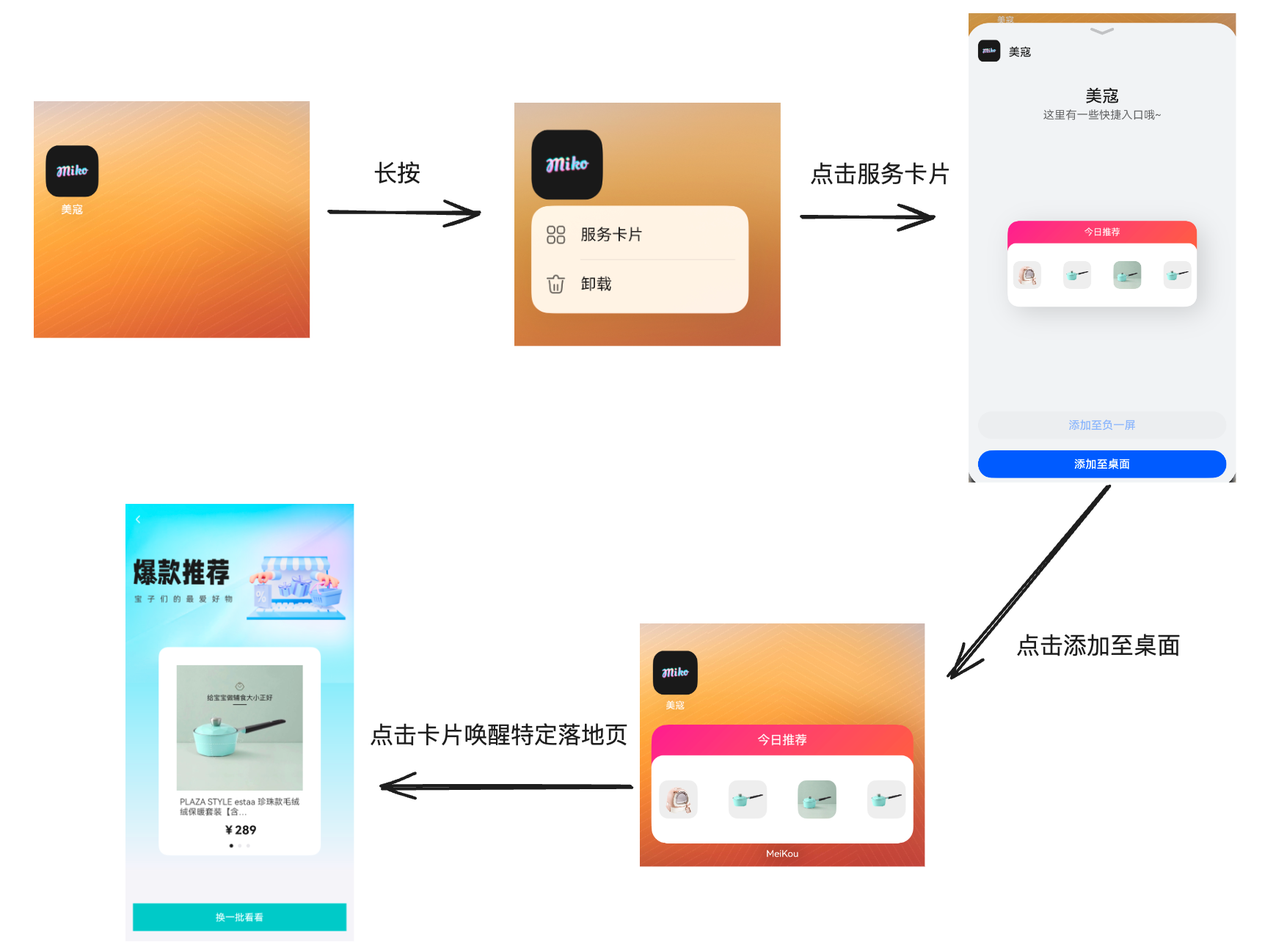
服务卡片提供了一种界面展示形式,可以将应用的重要信息或操作前置到服务卡片以达到服务直达、减少跳转层级的体验效果。有些类似于创建了一种 “快键方式”,比如下面的卡片流程图:
1.2. 添加基础卡片
右键入口模块按照图示新增卡片
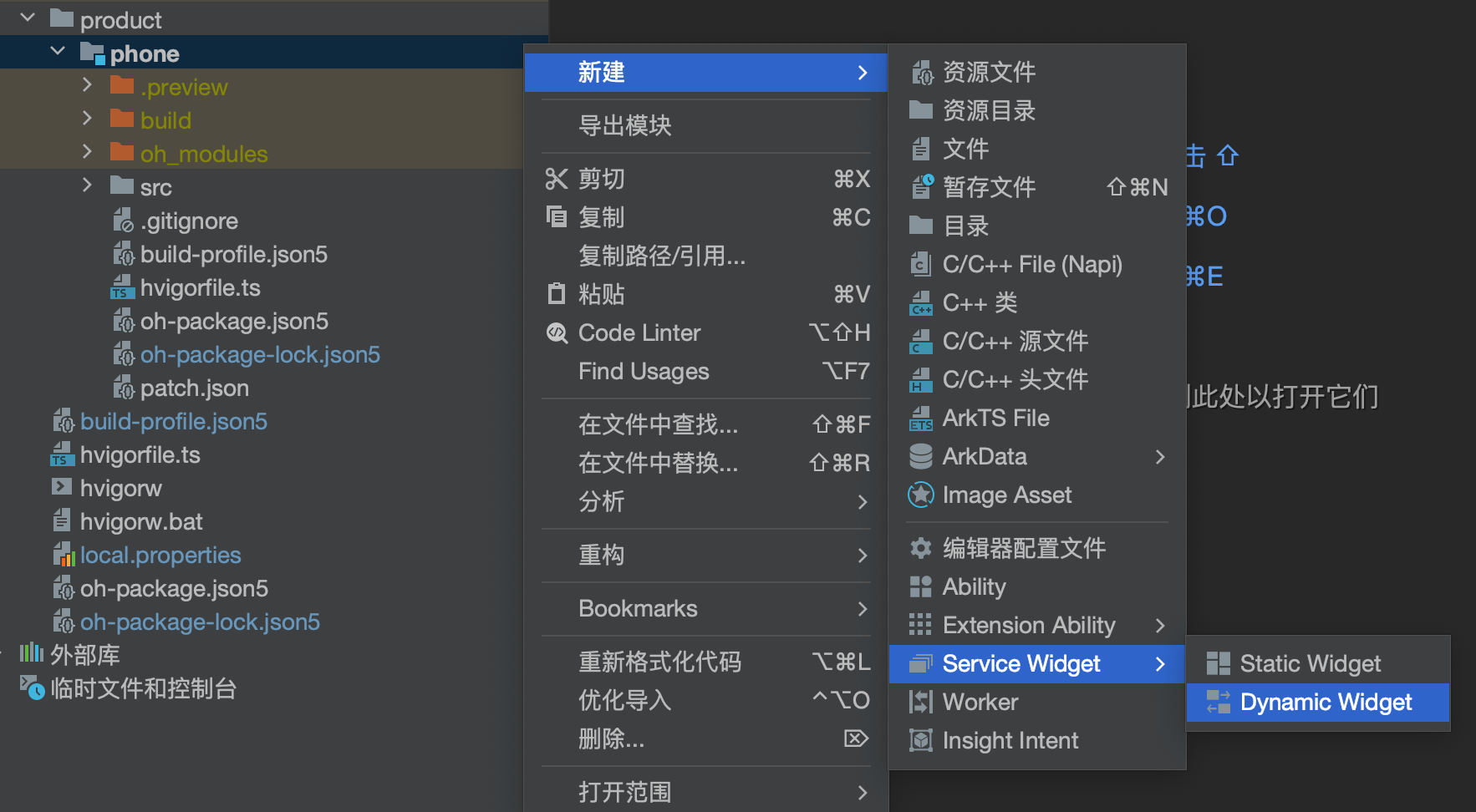
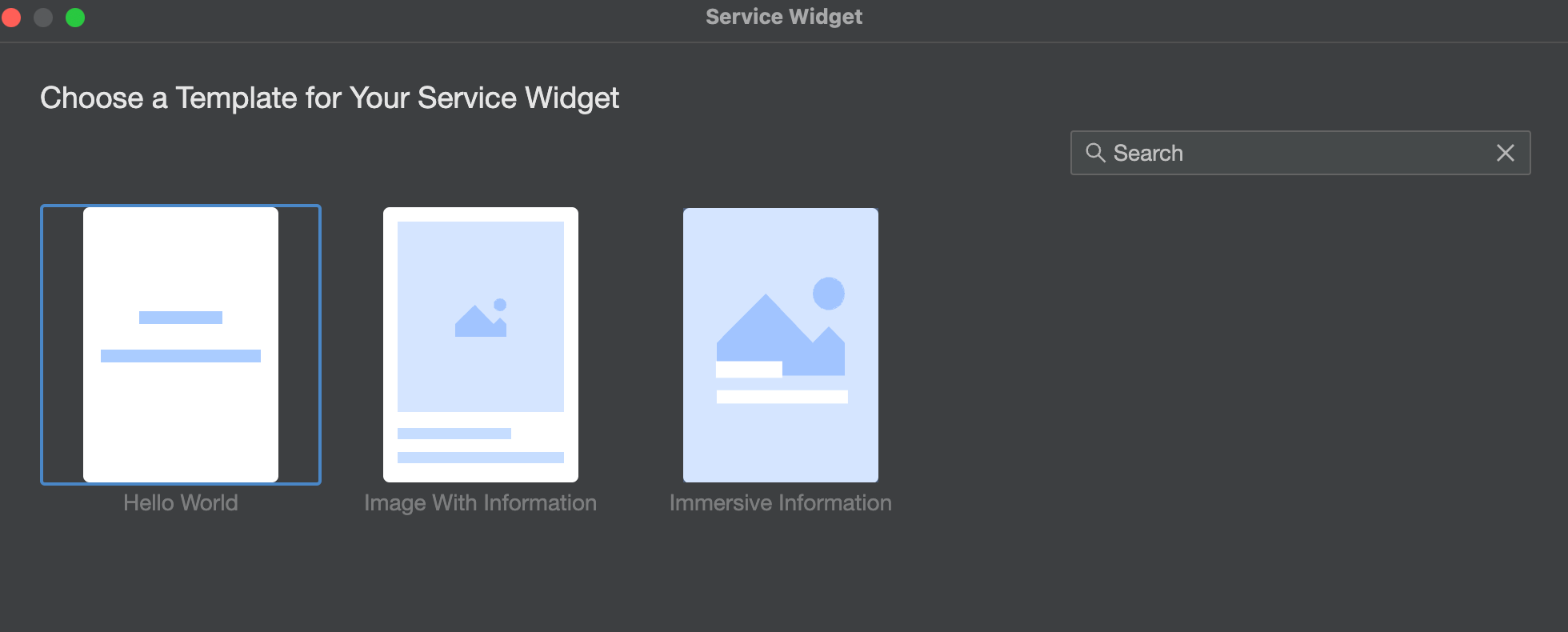
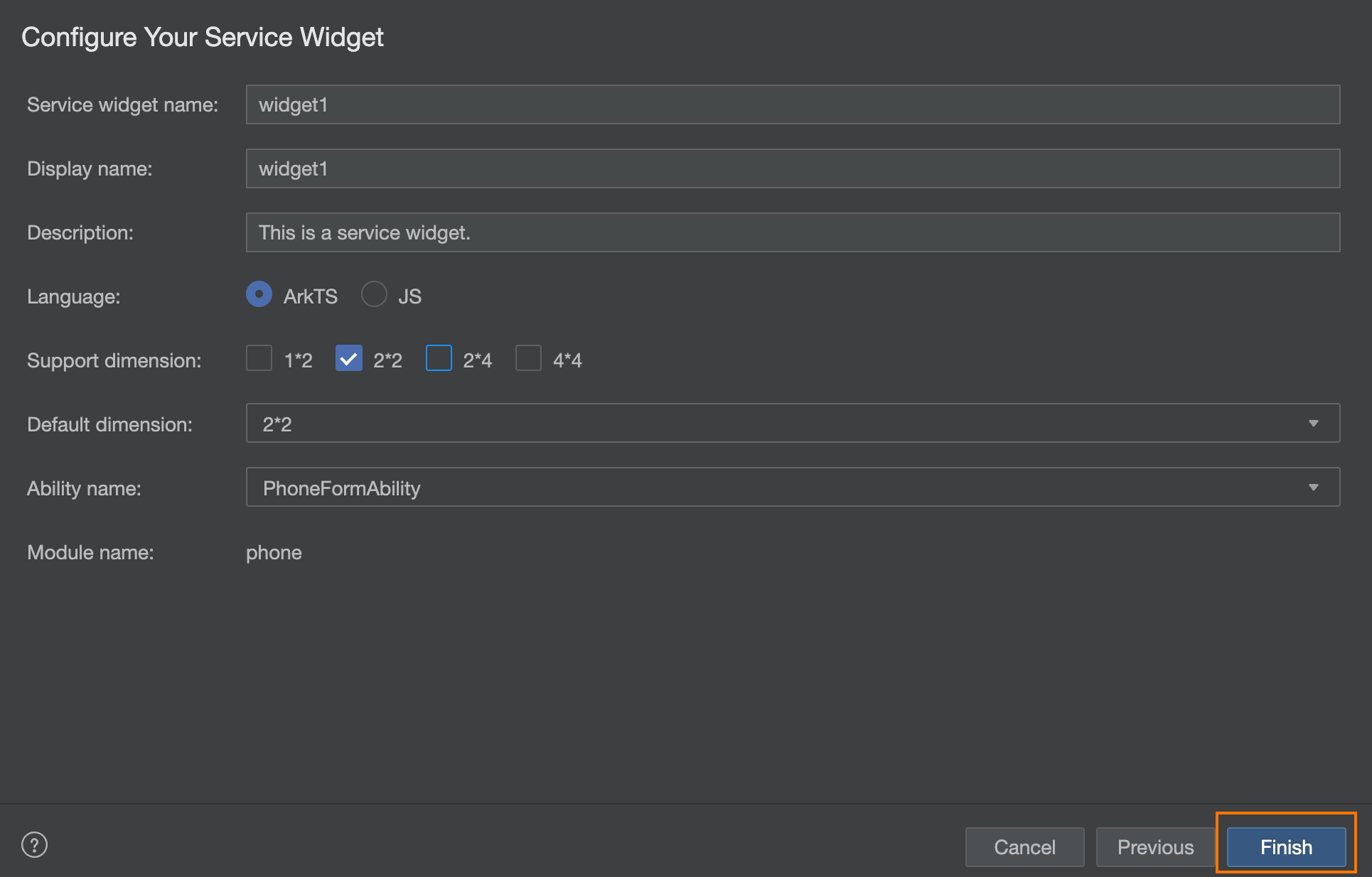
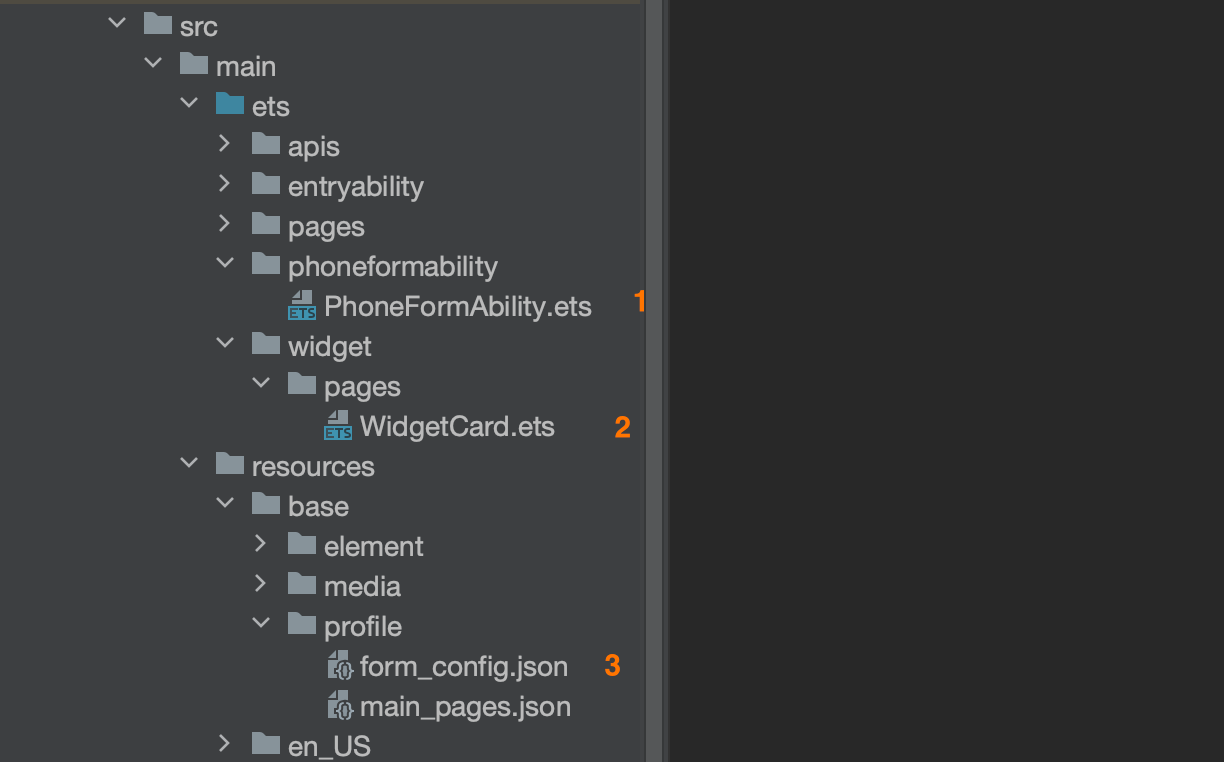
ArkTS卡片创建完成后,工程中会新增如下卡片相关文件:卡片生命周期管理文件(PhoneFormAbility.ets)、卡片页面文件(WidgetCard.ets)和卡片配置文件(form_config.json)
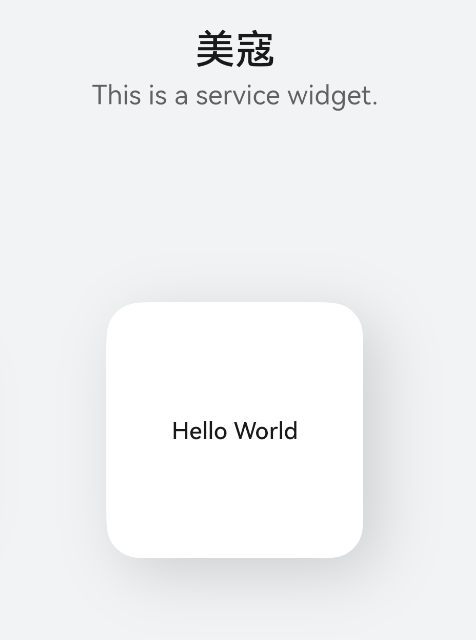
长按应用图标会出现Hello Word 基础卡片,代表卡片添加成功
1.3. 修改卡片UI
卡片的UI可以像一个一般组件一样进行基础布局,很方便就可以做定制修改,打开WidgetCard.ets文件进行修改即可
/*
 * The title.
 */
readonly TITLE: string = '我是一个卡片';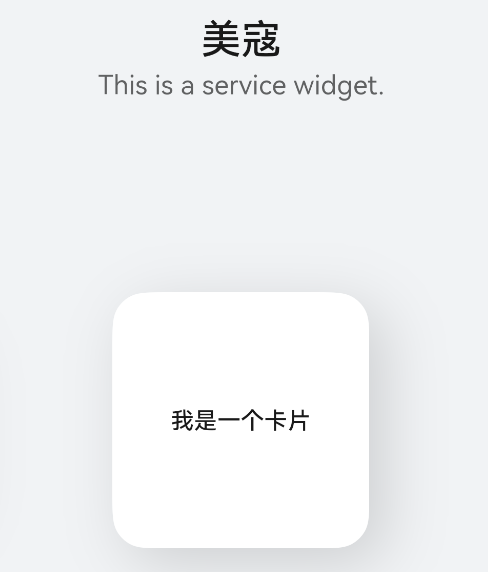
1.4. 定制样式
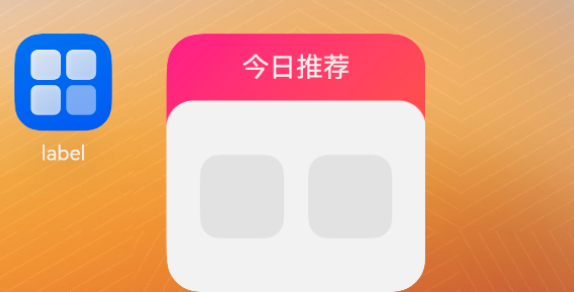
卡片的样式定制和普通组件的写法没有任何区别,按照实际需要进行UI改写即可
@Entry()
@Component
struct WidgetCard {
  fileNameList: string[] = new Array(2).fill('')

  build() {
    Column() {
      Row() {
        Text('今日推荐')
          .fontColor('#fff')
          .fontSize(16)
      }
      .height(40)
      .width('100%')
      .justifyContent(FlexAlign.Center)

      Row() {
        ForEach(
          this.fileNameList,
          (url: string) => {
            Row() {
              Image('')
                .borderRadius(12)
                .width(50)
                .aspectRatio(1)
            }
            .backgroundColor('#eee')
            .borderRadius(12)
          }
        )
      }
      .justifyContent(FlexAlign.SpaceBetween)
      .width('100%')
      .layoutWeight(1)
      .padding({
        left: 20,
        right: 20
      })
      .backgroundColor('#fff')
      .borderRadius({
        topRight: 16,
        topLeft: 16
      })
      .onClick(() => {

      })
    }
    .linearGradient({
      angle: '135',
      colors: [
        ['#FD3F8F', '0%'],
        ['#FF773C', '100%']
      ]
    })
    .height('100%')
  }
}
2. 点击卡片唤起特定页
2.1. 业务需求
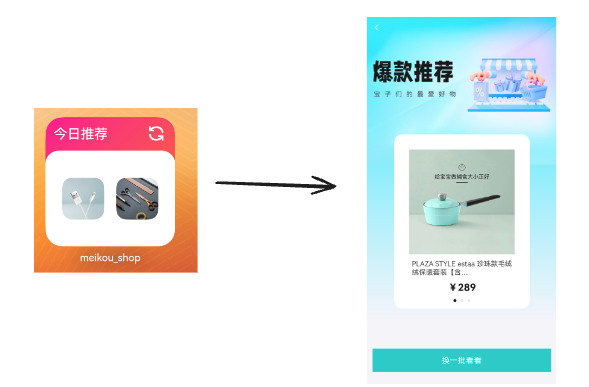
当我们点击卡片主体内容的时候,期望可以唤起特定的落地页
2.2. 基础实现原理
- 卡片组件点击之后通过
postCardAction触发router事件并携带参数 - 在应用的UIAbility中接收router事件,解析参数完成跳转

2.3. 准备落地页
- 视图:📎落地页图片.zip
import { router } from '@kit.ArkUI'
import { MkNavBar } from '@mk/basic'

interface HotGoodsType {
  id: string
  name: string
  price: string
  picture: string
}

@Entry
@Component
export struct RecommendView {
  build() {
    Column() {
      Column() {
        this.topBanner()
        this.swiperContainer()
      }
      .height('80%')
      .justifyContent(FlexAlign.Start)
      .linearGradient({
        angle: 180,
        colors: [
          ['#51E1F8', 0],
          ['#F5F4F9', 1]
        ]
      })

      Row() {
        Row() {
          Text('换一批看看')
            .fontSize(16)
            .fontColor('#fff')
        }
        .width('100%')
        .height(46)
        .justifyContent(FlexAlign.Center)
        .backgroundColor('#00C6C6')
        .onClick(() => {

        })
      }
      .width('100%')
      .padding({
        left: 16,
        right: 16
      })
      .layoutWeight(1)
      .backgroundColor('#F5F4F9')
    }
  }

  // 顶部banner
  @Builder
  topBanner() {
    Stack({ alignContent: Alignment.TopStart }) {
      Image($r("app.media.ic_public_hot_banner_bg"))
        .width('100%')
      MkNavBar({
        bg: Color.Transparent,
        leftClickHandler: () => {
          router.replaceUrl({
            url: 'pages/Index'
          })
        }
      })
    }
  }

  // 轮播图
  swiperController: SwiperController = new SwiperController()

  @Builder
  swiperContainer() {
    Column() {
      Swiper(this.swiperController) {
        ForEach(
          new Array<HotGoodsType>(3).fill({
            id: '1001',
            name: 'PLAZA STYLE estaa 珍珠款毛绒绒保暖套装【含…',
            price: '289',
            picture: 'http://yjy-xiaotuxian-dev.oss-cn-beijing.aliyuncs.com/picture/2021-04-05/6fdcac19-dd44-442c-9212-f7ec3cf3ed18.jpg'
          }),
          (item: HotGoodsType) => {
            Column() {
              Image(item.picture)
                .width('100%')

              Text(item.name)
                .margin({
                  top: 10
                })
                .fontSize(14)
                .fontColor('#434343')

              Text(`¥${item.price}`)
                .margin({
                  top: 10
                })
                .fontSize(20)
                .fontColor('#191919')
                .fontWeight(700)
            }
            .padding(30)
            .backgroundColor('#fff')
          }
        )
      }
      .width(270)
      .borderRadius(16)
      .indicator(
        new DotIndicator()
          .itemWidth(6)
          .itemHeight(6)
          .selectedItemWidth(6)
          .selectedItemHeight(6)
          .color('#E9E8EC')
          .selectedColor('#191919')
      )
    }
    .margin({
      top: -60
    })
  }
}- 页面
import { RecommendView } from '@mk/my'

@Entry
@Component
struct RecommendPage {
  build() {
    Column() {
      RecommendView()
    }
    .width('100%')
    .height('100%')
  }
}
2.4. 跳转打开落地页
import { AbilityConstant, UIAbility, Want } from '@kit.AbilityKit';
import { hilog } from '@kit.PerformanceAnalysisKit';
import { promptAction, window } from '@kit.ArkUI';
import { Log } from '@abner/log';
import { deviceInfo } from '@kit.BasicServicesKit';
import { auth } from '@mk/basic';

export default class EntryAbility extends UIAbility {
  // 保存 传递的信息
  private selectPage: string = ''
  // 保存当前的  WindowStage 对象
  private currentWindowStage: window.WindowStage | null = null;

  onCreate(want: Want, launchParam: AbilityConstant.LaunchParam): void {
    hilog.info(0x0000, 'testTag', '%{public}s', 'Ability onCreate');

    if (want.parameters !== undefined) {
      let params: Record<string, string> = JSON.parse(JSON.stringify(want.parameters));
      this.selectPage = params.targetPage;
      Log.info(this.selectPage)
    }

    Log.info('onCreate-run')
  }

  onNewWant(want: Want, launchParam: AbilityConstant.LaunchParam): void {
    // hilog.info(DOMAIN_NUMBER, TAG, `onNewWant Want: ${JSON.stringify(want)}`);
    // Log.info('onNewWant-run')
    if (want.parameters?.params !== undefined) {
      let params: Record<string, string> = JSON.parse(JSON.stringify(want.parameters));
      this.selectPage = params.targetPage;
    }
    // 如果 window 对象存在, 人为的调用 onWindowStageCreate 传入 window 对象
    if (this.currentWindowStage !== null) {
      // 根据设置的页面 拉起对应的 Page
      this.onWindowStageCreate(this.currentWindowStage);
    }
  }

  onDestroy(): void {
    hilog.info(0x0000, 'testTag', '%{public}s', 'Ability onDestroy');
  }

  onWindowStageCreate(windowStage: window.WindowStage): void {
    // Main window is created, set main page for this ability
    hilog.info(0x0000, 'testTag', '%{public}s', 'Ability onWindowStageCreate');
    // const pageName = this.selectPage != '' ? this.selectPage : 'pages/Index';

    // 保存 window 对象 后续 通过该对象 拉起指定的页面
    if (this.currentWindowStage === null) {
      // 第一次启动 保存
      this.currentWindowStage = windowStage
    }

    windowStage.loadContent(this.selectPage || 'pages/Index', (err) => {
      if (err.code) {
        hilog.error(0x0000, 'testTag', 'Failed to load the content. Cause: %{public}s', JSON.stringify(err) ?? '');
        return;
      }
      hilog.info(0x0000, 'testTag', 'Succeeded in loading the content.');

      // 清空 传递进来的 页面名称,避免重复打开即可
      this.selectPage = ''

      // 2in1设备,不需要全屏
      if (deviceInfo.deviceType != '2in1') {
        // 开启全屏
        const win = windowStage.getMainWindowSync()
        win.setWindowLayoutFullScreen(true)
        // 获取安全区域
        const top = win.getWindowAvoidArea(window.AvoidAreaType.TYPE_SYSTEM)
          .topRect
        AppStorage.setOrCreate<number>('safeTop', px2vp(top.height))
        const bottom = win.getWindowAvoidArea(window.AvoidAreaType.TYPE_NAVIGATION_INDICATOR)
          .bottomRect
        AppStorage.setOrCreate<number>('safeBottom', px2vp(bottom.height))
      }
    });
  }

  onWindowStageDestroy(): void {
    // Main window is destroyed, release UI related resources
    hilog.info(0x0000, 'testTag', '%{public}s', 'Ability onWindowStageDestroy');
  }

  onForeground(): void {
    // Ability has brought to foreground
    hilog.info(0x0000, 'testTag', '%{public}s', 'Ability onForeground');
  }

  onBackground(): void {
    // Ability has back to background
    hilog.info(0x0000, 'testTag', '%{public}s', 'Ability onBackground');
  }
}
@Entry
@Component
struct WidgetCard {
  /*
   * The title.
   */
  readonly TITLE: string = '我是一个卡片';
  /*
   * The action type.
   */
  readonly ACTION_TYPE: string = 'router';
  /*
   * The ability name.
   */
  readonly ABILITY_NAME: string = 'EntryAbility';
  /*
   * The message.
   */
  readonly MESSAGE: string = 'add detail';
  /*
   * The width percentage setting.
   */
  readonly FULL_WIDTH_PERCENT: string = '100%';
  /*
   * The height percentage setting.
   */
  readonly FULL_HEIGHT_PERCENT: string = '100%';
  fileNameList: string[] = new Array(2).fill('')

  build() {
    Column() {
      Row() {
        Text('今日推荐')
          .fontColor('#fff')
          .fontSize(16)
      }
      .height(40)
      .width('100%')
      .justifyContent(FlexAlign.Center)

      Row() {
        ForEach(
          this.fileNameList,
          (url: string) => {
            Row() {
              Image('')
                .borderRadius(12)
                .width(50)
                .aspectRatio(1)
            }
            .backgroundColor('#eee')
            .borderRadius(12)
          }
        )
      }
      .justifyContent(FlexAlign.SpaceBetween)
      .width('100%')
      .layoutWeight(1)
      .padding({
        left: 20,
        right: 20
      })
      .backgroundColor('#fff')
      .borderRadius({
        topRight: 16,
        topLeft: 16
      })
      .onClick(() => {
        // postCardAction 卡片可以使用 和应用通信的一个 api
        postCardAction(this, {
          action: 'router', // 通信的方式 是 router
          abilityName: 'EntryAbility', // ability 的名字,当前应用写这个即可
          params: { targetPage: 'pages/RecommendPage' } // 传递的参数
        });
      })
    }
    .linearGradient({
      angle: '135',
      colors: [
        ['#FD3F8F', 0],
        ['#FF773C', 1]
      ]
    })
    .height('100%')
  }
}
2.5. 优化拉起逻辑
需求:
- 如果应用已经运行到后台,点击图标拉起原页面
  onNewWant(want: Want, launchParam: AbilityConstant.LaunchParam): void {
    // hilog.info(DOMAIN_NUMBER, TAG, `onNewWant Want: ${JSON.stringify(want)}`);
    // Log.info('onNewWant-run')
    if (want.parameters?.params !== undefined) {
      let params: Record<string, string> = JSON.parse(JSON.stringify(want.parameters));
      this.selectPage = params.targetPage;
    }
    // 如果 window 对象存在, 人为的调用 onWindowStageCreate 传入 window 对象
    if (this.currentWindowStage !== null&&this.selectPage!='') {
      // 根据设置的页面 拉起对应的 Page
      this.onWindowStageCreate(this.currentWindowStage);
    }
  }
git 记录
卡片-优化拉起逻辑
3. 设置网络图片
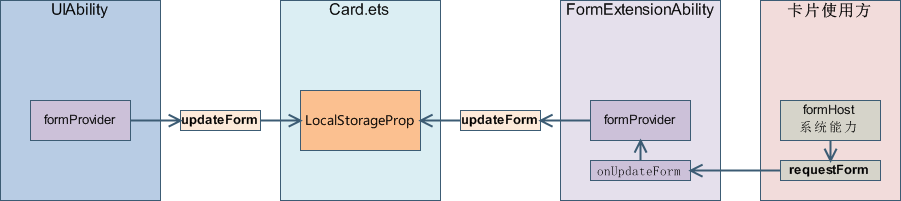
关键步骤:
- FormExtensionAbility 负责下载图片资源,并处理为标准的数据格式,然后通过调用formProvider.updateForm方法下发内容
- 卡片组件中通过
@localStorage获取下发的数据,然后使用Image组件通过入参memory://fileName来进行远端内存图片显示,其中fileName需要和EntryFormAbility传递对象{ formImages: {key: fd} } 中的 key相对应
3.1. 创建卡片时设置

- 图片加载工具
import type fileFs from '@ohos.file.fs'
import fs from '@ohos.file.fs'
import { formBindingData, FormExtensionAbility } from '@kit.FormKit'
import { request } from '@kit.BasicServicesKit'

/**
 * 将下载的图片资源处理为适用于card组件的标准格式
 */
class FormData {
  fileNameList: string[]
  formImages: Record<string, string | number>

  /**
   * 构造函数
   * @param fileNameList 图片文件名列表
   * @param formImages 存储图片的记录
   */
  constructor(fileNameList: string[], formImages: Record<string, string | number>) {
    this.fileNameList = fileNameList
    this.formImages = formImages
  }
}

/**
 * 处理图片下载并生成FormData对象的类
 */
export class LoadImageForFormData {
  // 要下载的图片列表
  private imageUrls: string[]
  // 图片下载完毕执行函数
  private finishCb: (formInfo: formBindingData.FormBindingData) => void
  // 当前Ability
  private ability: FormExtensionAbility
  // 当前正在下载的图片下标
  private curIndex: number = 0
  // 本地地址
  private tempDir: string = ''
  // 内存中的图片对象
  private formImages: Record<string, string | number> = {}
  // 图片文件的名称列表
  private fileNameList: string[] = []
  // 初始FormData数据
  initialFormData = new FormData([], {})

  /**
   * 构造函数
   * @param imageUrls 图片URL列表
   * @param finishCb 下载完成后的回调函数
   * @param ability 当前的Ability实例
   */
  constructor(imageUrls: string[], finishCb: (formInfo: formBindingData.FormBindingData) => void,
    ability: FormExtensionAbility) {
    this.imageUrls = imageUrls
    this.finishCb = finishCb
    this.ability = ability
    this.tempDir = ability.context.getApplicationContext()
      .tempDir
  }

  /**
   * 动态添加要下载的图片列表
   * @param imageUrls 新的图片URL列表
   * @returns 返回LoadImageForFormData实例,用于链式调用
   */
  addImage(imageUrls: string[]) {
    this.imageUrls = imageUrls
    return this
  }

  /**
   * 开始下载图片
   */
  startLoad() {
    if (this.imageUrls.length === 0) {
      console.error('please provide download imglist')
      return
    }
    let netFile = this.imageUrls[this.curIndex] // 需要在此处使用真实的网络图片下载链接
    let fileName = 'file' + Date.now()
    let tmpFile = this.tempDir + '/' + fileName
    // tmpFile: /data/storage/el2/base/temp/file1708331593898
    request.downloadFile(
      this.ability.context,
      {
        url: netFile,
        filePath: tmpFile,
        enableMetered: true,
        enableRoaming: true
      }
    )
      .then((task) => {
        task.on('complete', () => {
          let file: fileFs.File
          try {
            // fs资源读取模块
            file = fs.openSync(tmpFile)
            this.formImages[fileName] = file.fd
          } catch (e) {
            console.error(`openSync failed: ${JSON.stringify(e)}`)
          }
          this.fileNameList.push(fileName)
          this.curIndex++
          if (this.curIndex < this.imageUrls.length) {
            // 如果还没下载完毕,继续下载
            this.startLoad()
          } else {
            // 全部下载完毕更新数据
            this.initialFormData.fileNameList = this.fileNameList
            this.initialFormData.formImages = this.formImages
            let formInfo = formBindingData.createFormBindingData(this.initialFormData)
            this.finishCb(formInfo)
          }
        })
      })
      .catch(() => {

      })
  }
}
注意导出
2. 使用工具下载并传递数据给卡片
- 创建 LoadImageForFormData 实例 lf,用于处理图片加载。
- 设置回调:找到要更新的卡片 ID,并根据 ID 和信息更新卡片内容。
- 启动图片下载。
- 返回初始表单数据。
import { formBindingData, FormExtensionAbility, formInfo, formProvider } from '@kit.FormKit';
import { Want } from '@kit.AbilityKit';
import { LoadImageForFormData } from '@mk/basic';

const goodsList = [
  'http://yjy-xiaotuxian-dev.oss-cn-beijing.aliyuncs.com/picture/2021-04-05/6fdcac19-dd44-442c-9212-f7ec3cf3ed18.jpg',
  'https://yanxuan-item.nosdn.127.net/31a81e6c7e4c173d1cf19d5abeb97550.png'
]

// 卡片的 生命周期
export default class PhoneFormAbility extends FormExtensionAbility {
  // 卡片创建时执行的生命周期钩子
  onAddForm(want: Want): formBindingData.FormBindingData {
    const lf = new LoadImageForFormData(
      goodsList,
      (formInfo: formBindingData.FormBindingData) => {
        // 找到要更新的卡片id
        const formId = want.parameters && want.parameters['ohos.extra.param.key.form_identity'].toString()
        // 根据卡片id和信息更新卡片内容
        formProvider.updateForm(formId, formInfo)
      },
      this
    )

    // 开启下载
    lf.startLoad()

    return formBindingData.createFormBindingData(lf.initialFormData);
}- 消费图片
let storageWidgetImageUpdate = new LocalStorage()

@Entry(storageWidgetImageUpdate)
@Component
struct WidgetCard {
  // fileNameList: string[] = new Array(2).fill('')
  @LocalStorageProp('fileNameList') fileNameList: string[] = []

  build() {
    Column() {
      Row() {
        Text('今日推荐')
          .fontColor('#fff')
          .fontSize(16)

      }
      .height(40)
      .width('100%')
      .justifyContent(FlexAlign.Center)

      Row() {
        ForEach(
          this.fileNameList,
          (url: string) => {
            Row() {
              Image(`memory://${url}`)
                .borderRadius(12)
                .width(50)
                .aspectRatio(1)
            }
            .backgroundColor('#eee')
            .borderRadius(12)
          }
        )
      }
      .justifyContent(FlexAlign.SpaceBetween)
      .width('100%')
      .layoutWeight(1)
      .padding({
        left: 20,
        right: 20
      })
      .backgroundColor('#fff')
      .borderRadius({
        topRight: 16,
        topLeft: 16
      })
      .onClick(() => {
        // postCardAction 卡片可以使用 和应用通信的一个 api
        postCardAction(this, {
          action: 'router', // 通信的方式 是 router
          abilityName: 'EntryAbility', // ability 的名字,当前应用写这个即可
          params: { targetPage: 'pages/RecommendPage' } // 传递的参数
        });
      })
    }
    .linearGradient({
      angle: '135',
      colors: [
        ['#FD3F8F', 0],
        ['#FF773C', 1]
      ]
    })
    .height('100%')
  }
}
git记录
卡片-创建卡片时设置网络图片
3.2. 刷新图片
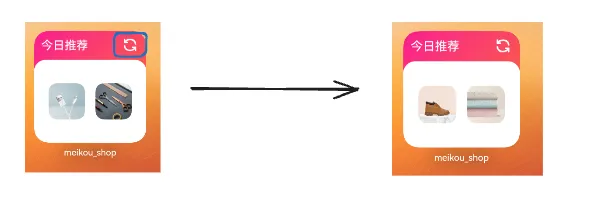
刷新卡片图片我们可以通过【message】事件来完成
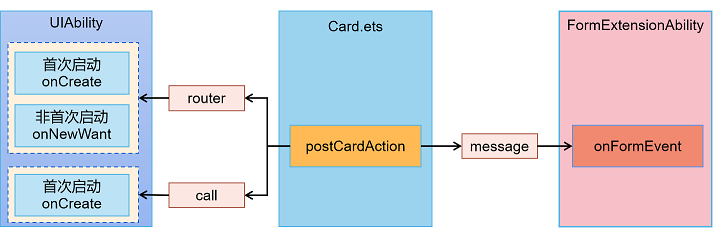
- 调整卡片结构并卡片触发 message 事件:📎刷新图标.zip
Row({ space: 10 }) {
  Text('今日推荐')
    .fontColor('#fff')
    .fontSize(16)
  Image($r('app.media.ic_public_refresh'))
    .fillColor(Color.White)
    .width(30)
    .onClick(() => {
      postCardAction(this, {
        action: 'message'
      });
    })
}
.height(40)
.width('100%')
.justifyContent(FlexAlign.Center)
.padding(5)- onFormEvent中刷新图片并回传给卡片
  onFormEvent(formId: string, message: string) {
    const newGoodsList = [
      'https://yanxuan-item.nosdn.127.net/0a388c49c2769e2bf32313b799f340c7.png',
      'https://yanxuan-item.nosdn.127.net/605d71caa460e3c05cb2fd1b2885b9b4.jpg'
    ]
    // Called when a specified message event defined by the form provider is triggered.
    const lF = new LoadImageForFormData(
      newGoodsList,
      (formInfo: formBindingData.FormBindingData) => {
        // 根据卡片id和信息更新卡片内容
        formProvider.updateForm(formId, formInfo)
      },
      this
    )

    lF.startLoad()
  }
git记录
卡片-刷新图片
3.3. 使用真实接口数据
需求:
- 将写死的卡片数据,替换为正式的接口数据实现动态变化

- 数据接口使用已经抽取的
import { RequestAxios } from '../utils/http'
import { GoodsItems } from '../viewmodel'

/**
 * 获取猜你喜欢数据
 */
export const getGuessLikeApi = (limit: number = 10) => {
  return RequestAxios.get<GoodsItems>('/home/goods/guessLike', {
    params: {
      limit
    }
  })
}- 调整卡片获取数据的逻辑(初始及事件交互)
import { getGuessLikeApi } from '@mk/basic/src/main/ets/apis/index';

// 获取 2 个随机图片的函数
function getRandomImages(images: string[]) {
  if (images.length < 2) {
    throw new Error('Array must contain at least two images.')
  }
  let index1: number, index2: number
  do {
    index1 = Math.floor(Math.random() * images.length)
    index2 = Math.floor(Math.random() * images.length)
  } while (index1 === index2); // 确保两个索引不相同true

  return [images[index1], images[index2]]
}


onAddForm(want: Want): formBindingData.FormBindingData {
    const lf = new LoadImageForFormData(
      [],
      (formInfo: formBindingData.FormBindingData) => {
        // 找到要更新的卡片id
        const formId = want.parameters && want.parameters['ohos.extra.param.key.form_identity'].toString()
        // 根据卡片id和信息更新卡片内容
        formProvider.updateForm(formId, formInfo)
      },
      this
    )

    // 使用 Async 会改变函数的返回值,这里用 then 的方式编写
    getGuessLikeApi()
      .then(res => {
        const imgs = res.data.result.items.map(v => v.picture as string)
        const addImgs = getRandomImages(imgs)
        lf.addImage(addImgs)
          .startLoad()
      })


    return formBindingData.createFormBindingData(lF.initialFormData);
  }


  onFormEvent(formId: string, message: string) {
    const newGoodsList = [
      'https://yanxuan-item.nosdn.127.net/0a388c49c2769e2bf32313b799f340c7.png',
      'https://yanxuan-item.nosdn.127.net/605d71caa460e3c05cb2fd1b2885b9b4.jpg'
    ]
    // Called when a specified message event defined by the form provider is triggered.
    const lf = new LoadImageForFormData(
      [],
      (formInfo: formBindingData.FormBindingData) => {
        // 根据卡片id和信息更新卡片内容
        formProvider.updateForm(formId, formInfo)
      },
      this
    )
    getGuessLikeApi()
      .then(res => {
        const imgs = res.data.result.items.map(v => v.picture as string)
        const addImgs = getRandomImages(imgs)
        lf.addImage(addImgs)
          .startLoad()
      })

    // lF.startLoad()
  }
git 记录
卡片-使用真实接口数据

讨论HarmonyOS开发技术,专注于API与组件、DevEco Studio、测试、元服务和应用上架分发等。
更多推荐



 25
25 0
0- 0


 已为社区贡献4条内容

所有评论(0)