HarmonyOS 6 ArkUI框架:打造丝滑动画转场

目录
- 前言
- ArkUI 动画体系概述
- 动画分类架构
- 转场动画的核心优势
- 核心动画 API 详解
- 1. animateTo
- 2. transition
- 实战案例:卡片转场动画
- 效果展示
- 案例场景设计
- 完整代码实现
- 报错解析
- 动画效果分析
- 1. 共享元素转场(geometryTransition)
- 2. 组合转场效果(并为每个效果指定动画参数)
- 动画性能优化
- 1. 合理使用 renderGroup
- 2. 动画参数统一管理
- 3. 避免频繁的状态更新
- 动画曲线对比分析
- 总结
前言
在移动应用开发中,动画不仅仅是视觉上的装饰,更是提升用户体验的重要手段。HarmonyOS 6 的 ArkUI 框架为开发者提供了强大的动画能力,特别是在转场动画方面,能够实现流畅自然的界面切换效果。
ArkUI 动画体系概述
动画分类架构
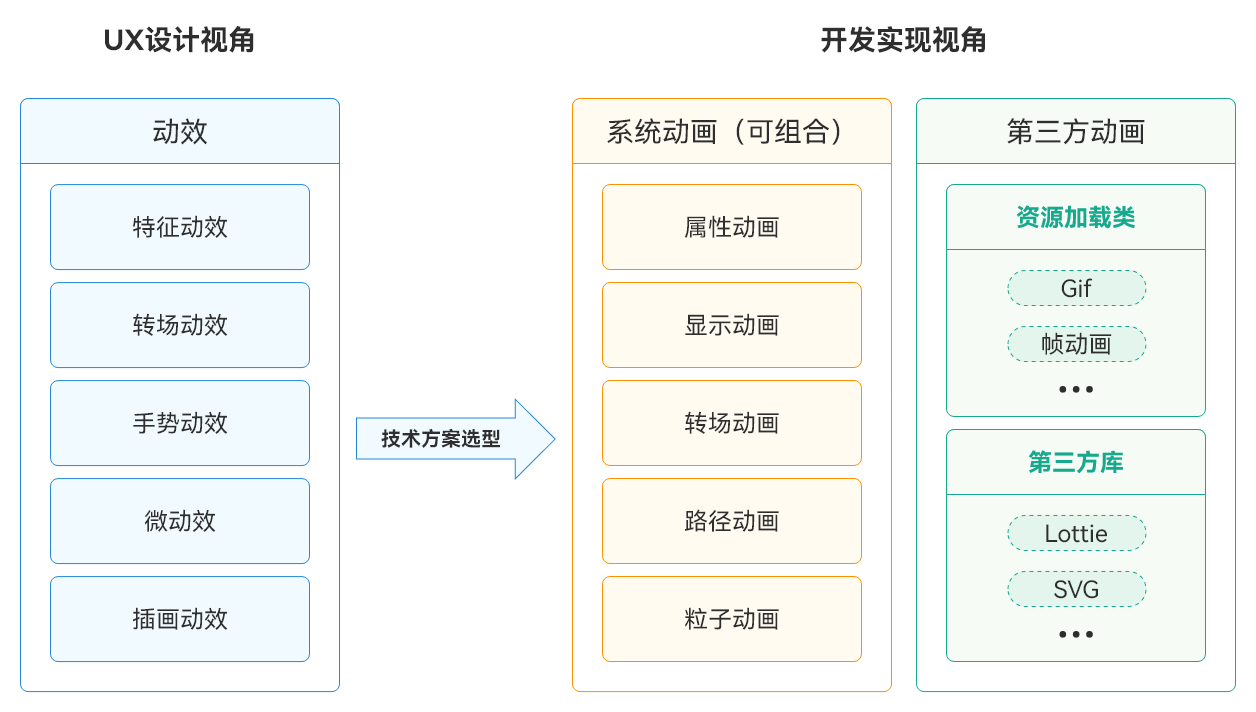
HarmonyOS 的 ArkUI 框架提供了完整的动画解决方案,主要包括:
- 属性动画:通过更改组件的属性值实现渐变过渡效果,例如缩放、旋转、平移等。支持的属性包括
width、height、backgroundColor、opacity、scale、rotate、translate等。 - 转场动画:组件出现/消失时的过渡效果(插入/删除/可见性变化时触发)。
- 显式动画:通过
animateTo接口触发的动画,统一管理一段状态变更的过渡。 - 关键帧动画:在
UIContext中提供keyframeAnimateTo接口来指定若干个关键帧状态,实现分段动画。 - 路径动画:对象沿指定路径移动,例如曲线运动、圆周运动等。
- 粒子动画:通过大量小颗粒的运动,叠加颜色、透明度、大小、速度、加速度、自旋角等维度变化营造氛围感。
转场动画的核心优势
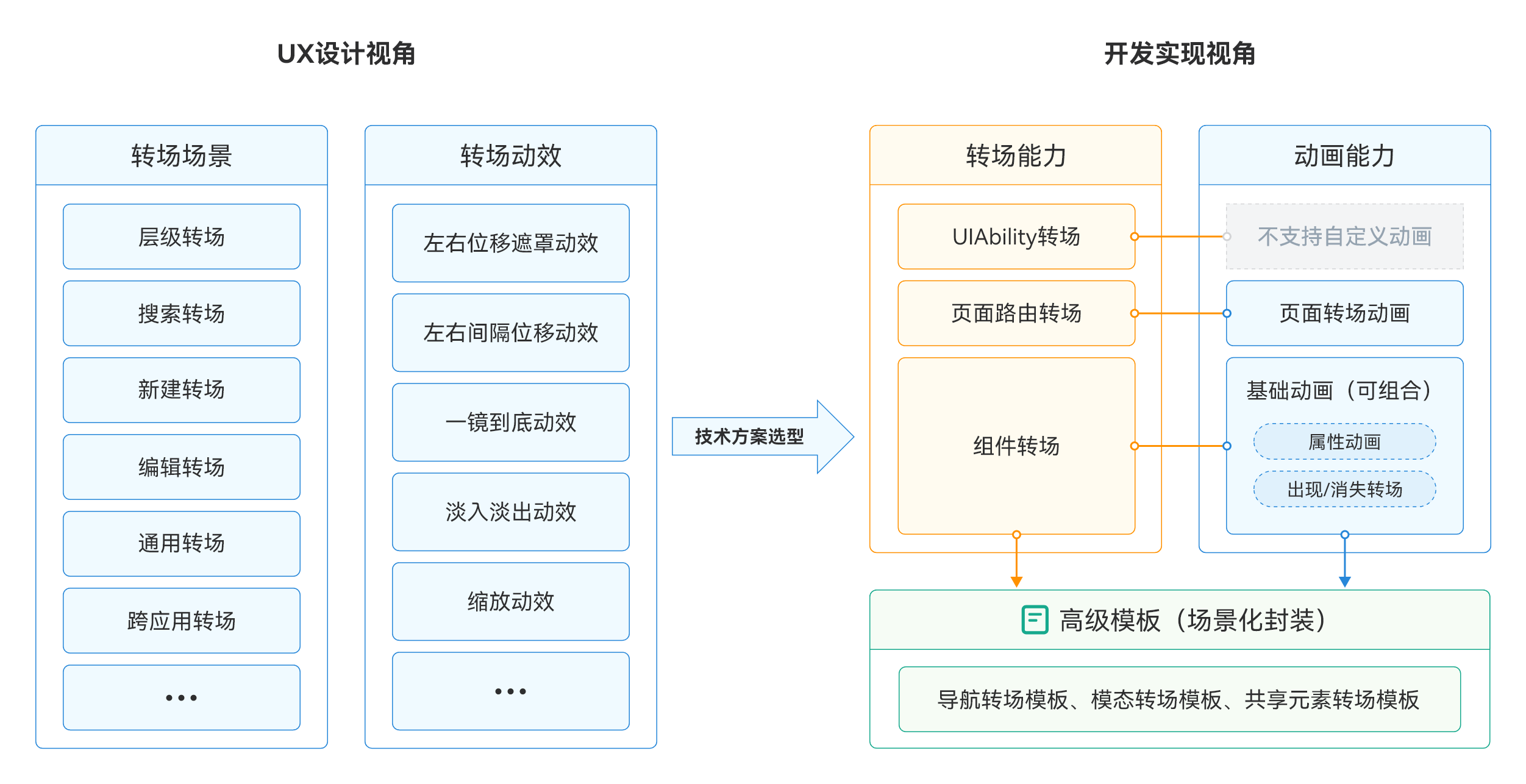
转场动画的设计理念是让开发者从繁重的节点管理中解放出来。传统的属性动画需要开发者手动管理组件的生命周期,而转场动画在组件插入/删除/可见性变化时自动处理节点过渡。
// 传统属性动画的问题:需要手动管理组件状态和清理工作
animateTo({
  duration: 300,
  onFinish: () => {
    // 需要手动判断和清理节点
    if (shouldRemoveNode) {
      this.removeComponent();
    }
  }
}, () => {
  this.opacity = 0;
});
⚠️ 注意:很多场景下不用强制配合
animateTo,转场也会触发;但animateTo常用于统一时长/曲线/延时或批量状态变更,让体验更一致。若既无animateTo也未给转场设置animation(...),可能出现“直接显隐”或使用默认过渡的情况(依环境而定)。
核心动画 API 详解
1. animateTo
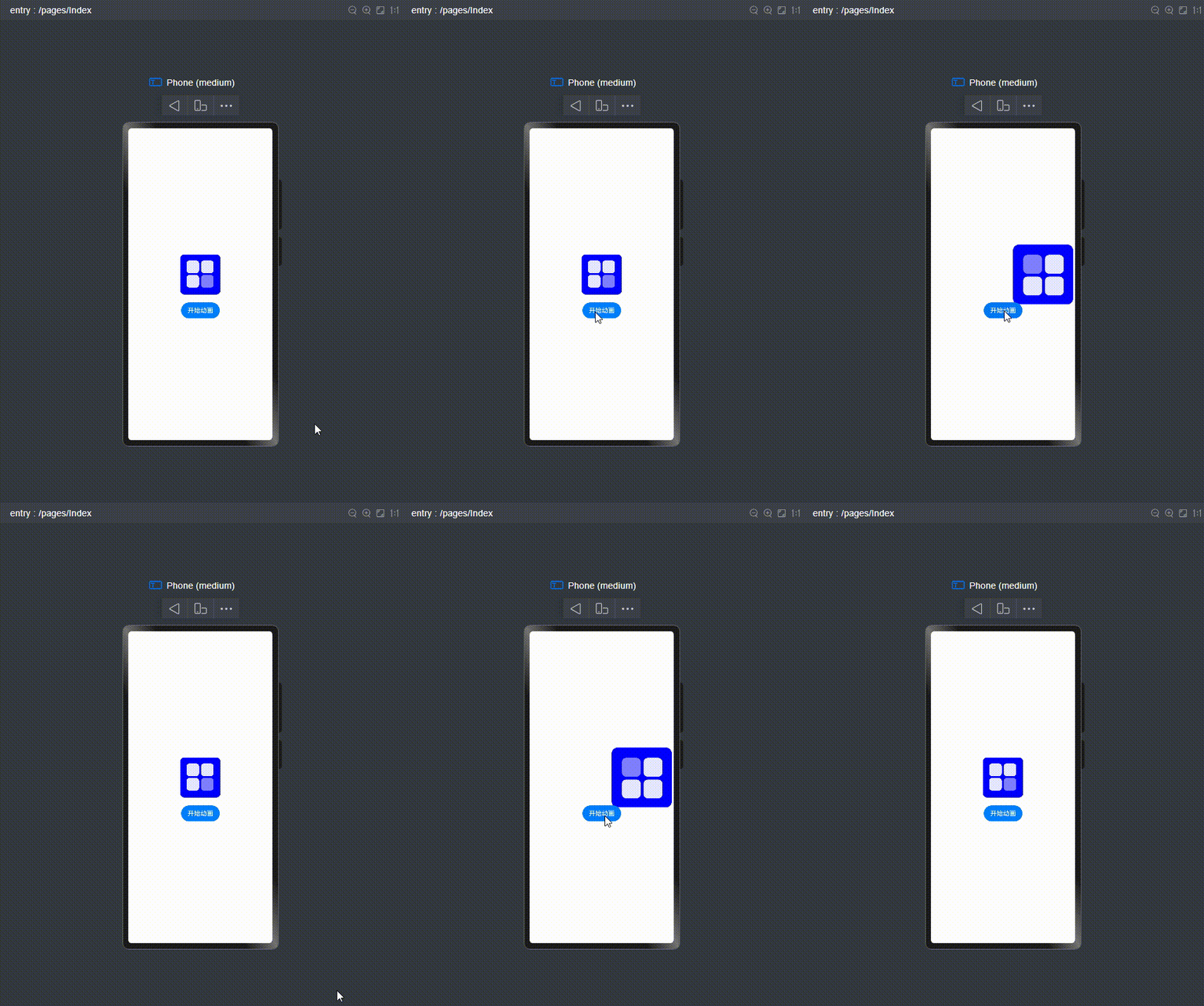
animateTo 能把一段状态变化转换为平滑的动画效果。
基础语法:
animateTo(value: AnimateParam, event: () => void): void
参数:
AnimateParam:动画配置参数(duration、curve、iterations、playMode、delay等)event:状态变化的回调函数(在其中修改状态变量)
@Entry
@Component
struct AnimationDemo {
  @State private scaleValue: number = 1;
  @State private rotateAngle: number = 0;
  @State private translateX: number = 0;

  build() {
    Column({ space: 20 }) {
      Image($r('app.media.foreground'))
        .width(100).height(100)
        .scale({ x: this.scaleValue, y: this.scaleValue })
        .rotate({ angle: this.rotateAngle })
        .translate({ x: this.translateX })
        .backgroundColor(Color.Blue)
        .borderRadius(10)

      Button('开始动画')
        .onClick(() => {
          animateTo({
            duration: 1000,
            curve: Curve.EaseInOut,
            iterations: 1,
            playMode: PlayMode.Normal,
            delay: 100
          }, () => {
            this.scaleValue = this.scaleValue === 1 ? 1.5 : 1;
            this.rotateAngle = this.rotateAngle + 180;
            this.translateX = this.translateX === 0 ? 100 : 0;
          });
        })
    }
    .width('100%')
    .height('100%')
    .justifyContent(FlexAlign.Center)
  }
}
2. transition
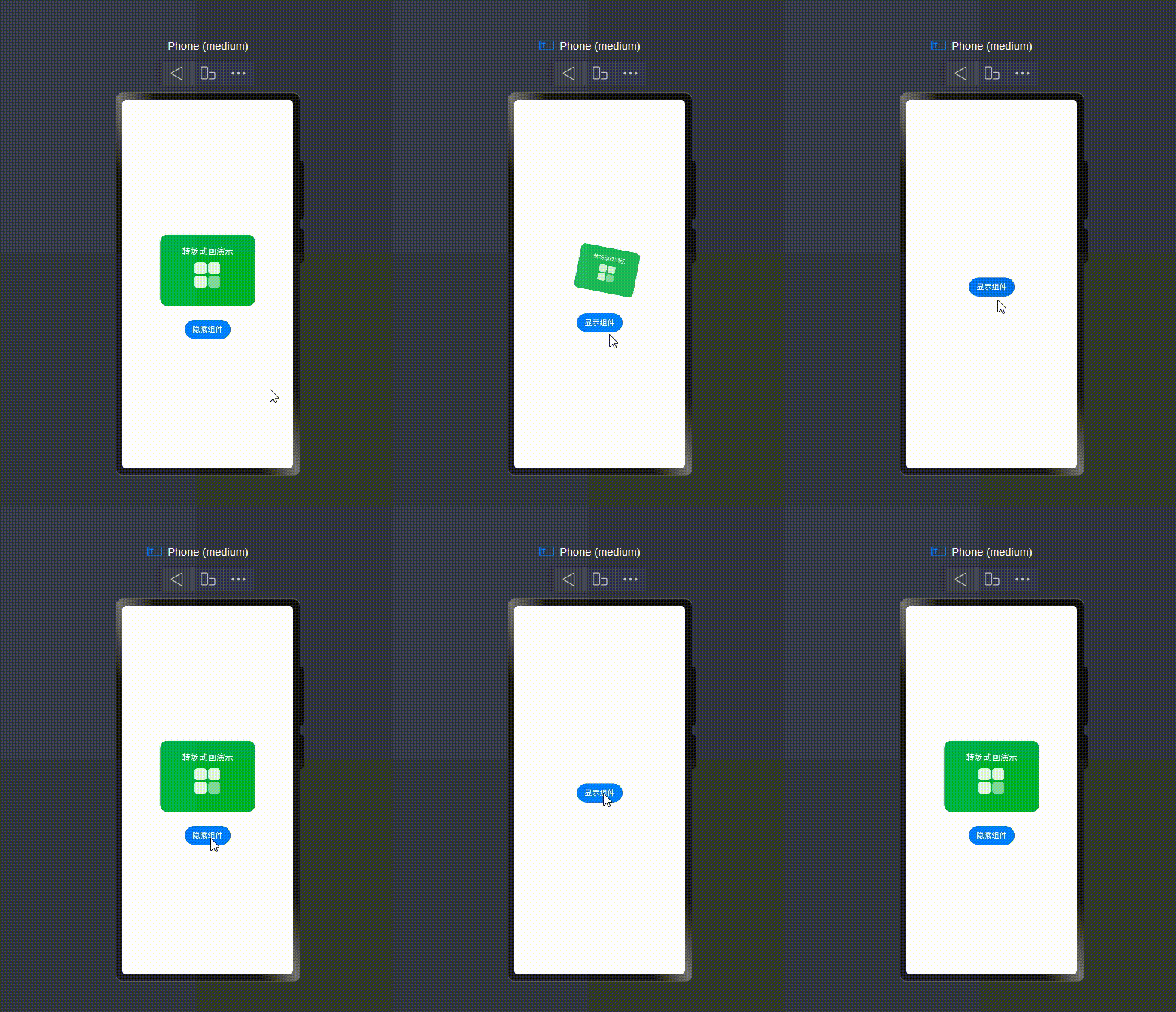
transition 属性是实现转场的关键,通常配合 animateTo 或直接通过自身的 animation(...) 配置时长与曲线。
✅ **每个转场效果都可以链式设置 **
animation(...),从而拥有不同的时长/曲线;其参数对该效果“就近覆盖”外层animateTo的参数。
内建转场效果:TransitionEffect.OPACITY / SLIDE / SLIDE_SWITCH / IDENTITY / translate / scale / rotate ...
@Entry
@Component
struct TransitionDemo {
  @State private isVisible: boolean = true;

  build() {
    Column({ space: 30 }) {
      if (this.isVisible) {
        Column() {
          Text('转场动画演示')
            .fontSize(18)
            .fontColor(Color.White)

          Image($r('app.media.foreground'))
            .width(80).height(80)
        }
        .width(200).height(150)
        .backgroundColor('#4CAF50')
        .borderRadius(15)
        .justifyContent(FlexAlign.Center)
        .transition(
          TransitionEffect
            .OPACITY.animation({ duration: 600, curve: Curve.EaseIn })
            .combine(
              TransitionEffect.scale({ x: 0, y: 0 })
                .animation({ duration: 700, curve: Curve.EaseOut })
            )
            .combine(
              // rotate 在转场中推荐指定轴向;
              TransitionEffect.rotate({ angle: 90 })
                .animation({ duration: 700, curve: Curve.EaseInOut })
            )
            .combine(
              TransitionEffect.translate({ x: 100 })
                .animation({ duration: 800, curve: Curve.FastOutSlowIn })
            )
        )
      }

      Button(this.isVisible ? '隐藏组件' : '显示组件')
        .onClick(() => {
          // 可统一提供默认参数,也可完全依赖各自的 animation(...)
          animateTo({ duration: 800, curve: Curve.FastOutSlowIn }, () => {
            this.isVisible = !this.isVisible;
          });
        })
    }
    .width('100%').height('100%')
    .justifyContent(FlexAlign.Center)
  }
}
实战案例:卡片转场动画
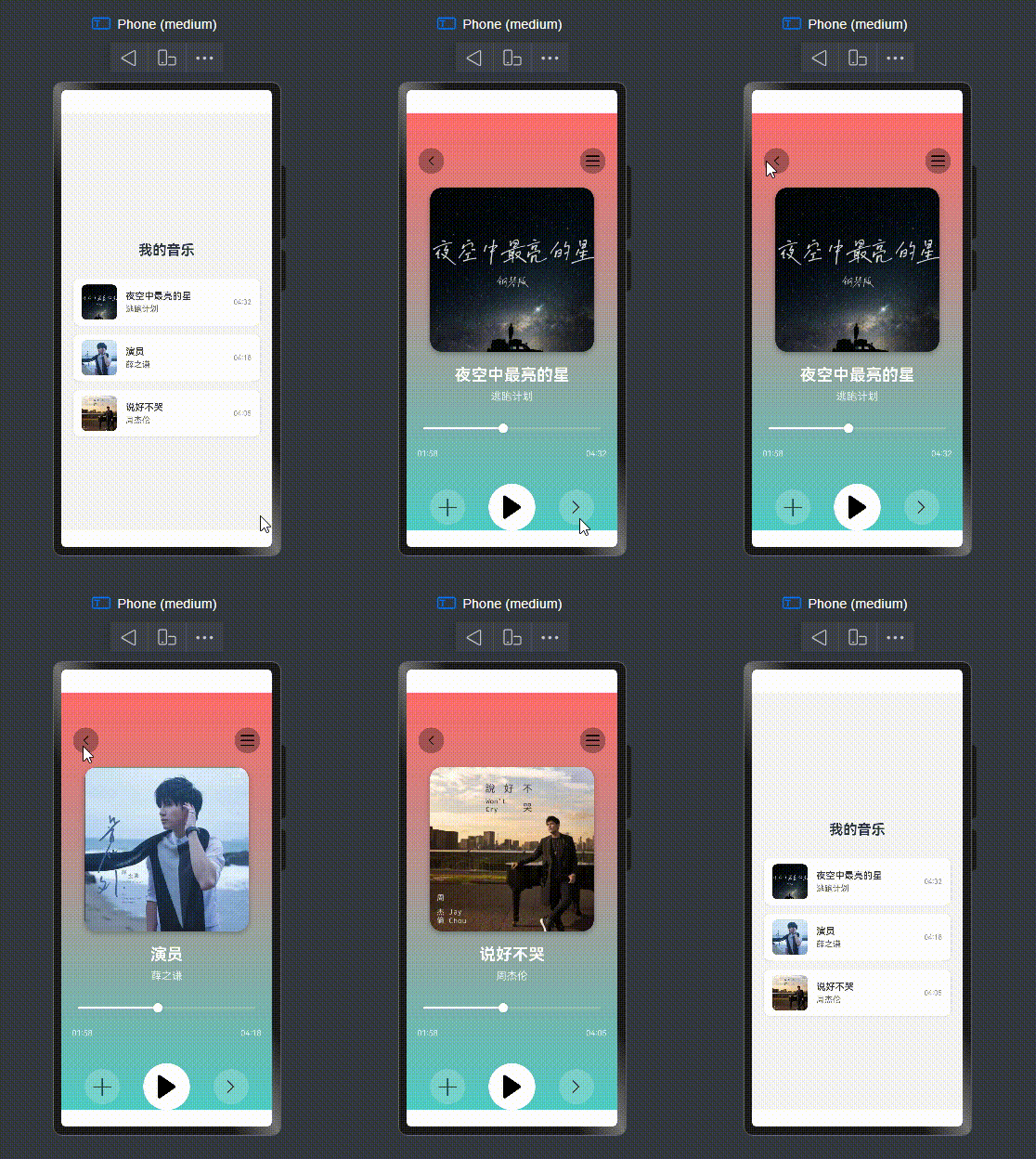
效果展示
案例场景设计
实现一个音乐播放器的卡片列表,点击卡片后展开到详情页面,具有以下特性:
- 卡片从小到大的缩放动画
- 背景色的渐变过渡
- 内容的淡入淡出效果
- 平滑的位置变换
- 封面“共享元素”一镜到底
完整代码实现
@Entry
@Component
struct MusicCardTransition {
  @State private selectedCardId: string = '';
  @State private showDetailView: boolean = false;
  @State private selectedMusic: MusicItem | null = null;  // 用状态存储选中的歌曲

  private musicList: MusicItem[] = [
    { id: '001', title: '夜空中最亮的星', artist: '逃跑计划', cover: $r('app.media.music_cover_1'), duration: '04:32' },
    { id: '002', title: '演员',           artist: '薛之谦',   cover: $r('app.media.music_cover_2'), duration: '04:18' },
    { id: '003', title: '说好不哭',       artist: '周杰伦',   cover: $r('app.media.music_cover_3'), duration: '04:05' }
  ];

  onInit() {
    // 在初始化时,默认选择第一首歌
    this.selectedMusic = this.musicList[0];
  }

  build() {
    Stack() {
      if (!this.showDetailView) {
        this.buildMusicList();
      }
      if (this.showDetailView && this.selectedMusic) {
        this.buildMusicDetail(this.selectedMusic);
      }
    }
    .width('100%')
    .height('100%')
    .backgroundColor('#F5F5F5');
  }

  // 列表
  @Builder
  buildMusicList() {
    Column({ space: 15 }) {
      Text('我的音乐')
        .fontSize(24).fontWeight(FontWeight.Bold)
        .margin({ top: 60, bottom: 20 })

      ForEach(this.musicList, (item: MusicItem, index: number) => {
        this.buildMusicCard(item, index)
      })
    }
    .width('100%')
    .padding({ left: 20, right: 20 })
    .transition(
      TransitionEffect
        .OPACITY.animation({ duration: 300, curve: Curve.EaseOut })
        .combine(
          TransitionEffect.translate({ x: -50 })
            .animation({ duration: 400, curve: Curve.FastOutSlowIn })
        )
    )
  }

  // 单卡片
  @Builder
  buildMusicCard(item: MusicItem, index: number) {
    Row({ space: 15 }) {
      Image(item.cover)
        .width(60).height(60)
        .borderRadius(8)
        .geometryTransition(item.id)

      Column({ space: 5 }) {
        Text(item.title)
          .fontSize(16).fontWeight(FontWeight.Medium)
          .fontColor('#333333')
          .maxLines(1)
          .textOverflow({ overflow: TextOverflow.Ellipsis })

        Text(item.artist)
          .fontSize(14).fontColor('#666666')
          .maxLines(1)
      }
      .alignItems(HorizontalAlign.Start)
      .layoutWeight(1)

      Text(item.duration)
        .fontSize(12).fontColor('#999999')
    }
    .width('100%').height(80)
    .padding(15)
    .backgroundColor(Color.White)
    .borderRadius(12)
    .shadow({ radius: 8, color: '#1A000000', offsetX: 0, offsetY: 2 })
    .onClick(() => this.handleCardClick(item.id))
    .gesture(
      TapGesture()
        .onAction(() => {
          animateTo({ duration: 150, curve: Curve.Sharp }, () => {
            // 点击完成后的轻微反馈
          });
        })
    )
  }

  // 详情
  @Builder
  buildMusicDetail(selectedMusic: MusicItem) {
    Column({ space: 30 }) {
      // 顶部导航
      Row() {
        Button() {
          Image($r('app.media.ic_back')).width(24).height(24).fillColor(Color.White)
        }
        .type(ButtonType.Circle)
        .backgroundColor('rgba(0,0,0,0.3)')
        .width(44).height(44)
        .onClick(() => this.handleBackClick())

        Blank()

        Button() {
          Image($r('app.media.ic_more')).width(24).height(24).fillColor(Color.White)
        }
        .type(ButtonType.Circle)
        .backgroundColor('rgba(0,0,0,0.3)')
        .width(44).height(44)
      }
      .width('100%')
      .padding({ left: 20, right: 20 })
      .margin({ top: 60 })

      // 封面
      Image(selectedMusic.cover)
        .width(280).height(280)
        .borderRadius(20)
        .geometryTransition(selectedMusic.id)
        .shadow({ radius: 25, color: '#4D000000', offsetX: 0, offsetY: 10 })

      // 歌曲信息
      Column({ space: 10 }) {
        Text(selectedMusic.title)
          .fontSize(28).fontWeight(FontWeight.Bold)
          .fontColor(Color.White)
          .textAlign(TextAlign.Center)
          .maxLines(2)

        Text(selectedMusic.artist)
          .fontSize(18).fontColor('#CCFFFFFF')
          .textAlign(TextAlign.Center)
      }
      .width('100%')

      // 进度
      Column({ space: 15 }) {
        Slider({ value: 45, min: 0, max: 100, style: SliderStyle.OutSet })
          .width('90%')
          .trackColor('#33FFFFFF')
          .selectedColor(Color.White)
          .blockColor(Color.White)
          .onChange((value: number, mode: SliderChangeMode) => {})

        Row() {
          Text('01:58').fontSize(14).fontColor('#CCFFFFFF')
          Blank()
          Text(selectedMusic.duration).fontSize(14).fontColor('#CCFFFFFF')
        }
        .width('90%')
      }

      // 控制按钮
      Row({ space: 40 }) {
        Button() { Image($r('app.media.ic_previous')).width(32).height(32).fillColor(Color.White) }
        .type(ButtonType.Circle)
        .backgroundColor('rgba(255,255,255,0.2)')
        .width(60).height(60)

        Button() { Image($r('app.media.ic_play')).width(40).height(40).fillColor('#333333') }
        .type(ButtonType.Circle)
        .backgroundColor(Color.White)
        .width(80).height(80)

        Button() { Image($r('app.media.ic_next')).width(32).height(32).fillColor(Color.White) }
        .type(ButtonType.Circle)
        .backgroundColor('rgba(255,255,255,0.2)')
        .width(60).height(60)
      }
      .margin({ top: 20 })
    }
    .width('100%').height('100%')
    .justifyContent(FlexAlign.SpaceBetween)
    .linearGradient({
      direction: GradientDirection.Bottom,
      colors: [['#FF6B6B', 0.0], ['#4ECDC4', 1.0]]
    })
    .transition(
      TransitionEffect
        .OPACITY.animation({ duration: 250, curve: Curve.EaseOut })
        .combine(
          TransitionEffect.translate({ y: 50 })
            .animation({ duration: 400, curve: Curve.FastOutSlowIn })
        )
    )
  }

  private handleCardClick(cardId: string) {
    this.selectedCardId = cardId;
    this.selectedMusic = this.musicList.find(item => item.id === cardId) || null; // 更新 selectedMusic
    animateTo({ duration: 600, curve: Curve.FastOutSlowIn, playMode: PlayMode.Normal }, () => {
      this.showDetailView = true;
    });
  }

  private handleBackClick() {
    animateTo({ duration: 500, curve: Curve.FastOutSlowIn }, () => {
      this.showDetailView = false;
    });
  }
}

interface MusicItem {
  id: string;
  title: string;
  artist: string;
  cover: Resource;
  duration: string;
}
报错解析
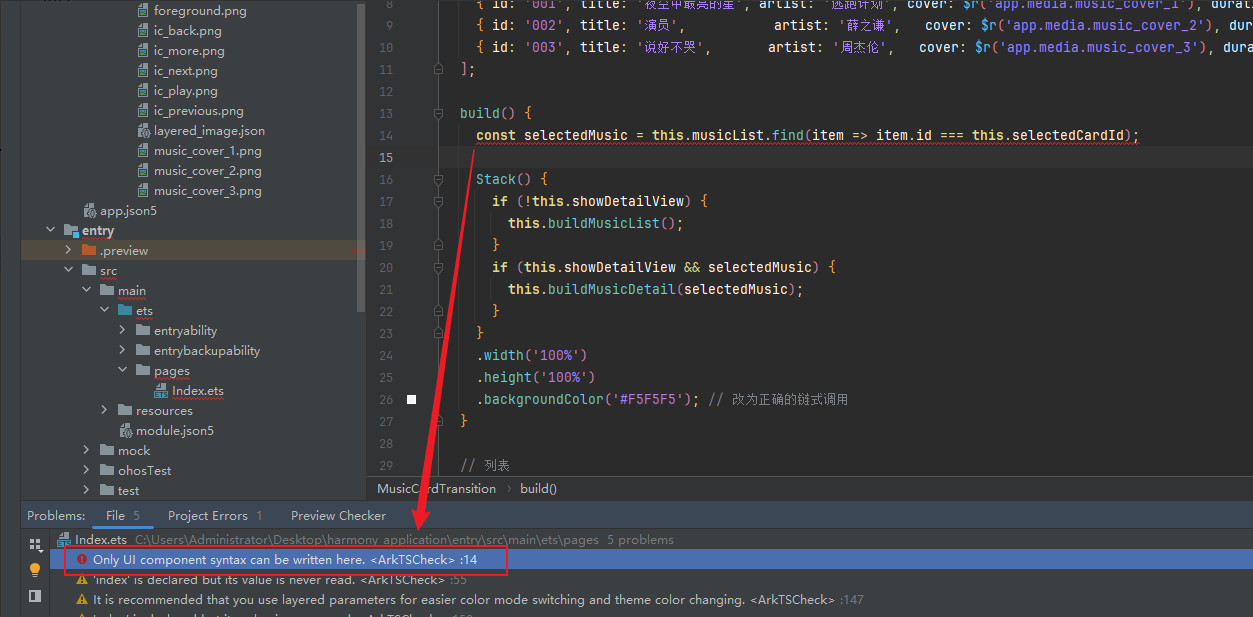
Only UI component syntax can be written here.
这个错误提示 Only UI component syntax can be written here. <ArkTSCheck> 表示在使用 DevEco 编程时,在 UI 组件的构建方法中写了非 UI 组件相关的逻辑(比如常规的 JavaScript 或 TypeScript 代码),这会导致编译器报错。
在 ArkTS 中,所有的逻辑需要遵循 UI 组件构建的规则,避免直接使用传统的 TypeScript 代码,特别是涉及到数据处理等部分。解决这个问题的方法是将一些逻辑封装在 UI 组件的生命周期方法中,或者使用数据绑定方式来处理。
动画效果分析
1. 共享元素转场(geometryTransition)
// 列表中的专辑封面
Image(item.cover).geometryTransition(item.id)

// 详情页中的专辑封面
Image(selectedMusic.cover).geometryTransition(selectedMusic.id)
工作原理:
- 系统自动识别相同 ID 的元素
- 计算两个元素之间的位置、大小差异
- 自动生成平滑的过渡动画
💡 若后续扩展到页面/路由间切换(
Navigator/NavDestination),也可用共享元素。注意必要时关闭默认页面转场,避免与自定义共享元素动画叠加。

2. 组合转场效果(并为每个效果指定动画参数)
.transition(
  TransitionEffect
    .OPACITY.animation({ duration: 250, curve: Curve.EaseOut })
    .combine(TransitionEffect.translate({ x: -50 }).animation({ duration: 400 }))
    .combine(TransitionEffect.scale({ x: 0.8, y: 0.8 }).animation({ duration: 350 }))
)
- OPACITY:淡入淡出
- translate:滑动进入
- scale:缩放过渡
- combine:将多个效果组合为复合动画
- **animation(...)**:就近覆盖外层
animateTo的参数
动画性能优化
1. 合理使用 renderGroup
Column() {
  // 复杂的 UI 内容
}
.renderGroup(true)
优化原理:
- 将多个组件合并为一个渲染节点
- 减少渲染层级,提升动画性能
- 适用前提:内容相对固定、子项不需要独立动效;频繁更新或子项有独立动画时滥用,可能降低缓存复用率
2. 动画参数统一管理
const ANIMATION_CONFIG = {
  FAST:   { duration: 200, curve: Curve.Sharp },
  NORMAL: { duration: 400, curve: Curve.EaseInOut },
  SLOW:   { duration: 600, curve: Curve.FastOutSlowIn }
};

animateTo(ANIMATION_CONFIG.NORMAL, () => {
  this.updateState();
});
3. 避免频繁的状态更新
// ❌ 错误做法:频繁更新状态
Button('快速动画')
  .onClick(() => {
    for (let i = 0; i < 10; i++) {
      setTimeout(() => {
        animateTo({ duration: 100 }, () => {
          this.value += 1; // 频繁触发重绘
        });
      }, i * 50);
    }
  })

// ✅ 正确做法:批量更新
Button('优化动画')
  .onClick(() => {
    animateTo({ duration: 500 }, () => {
      this.value += 10; // 一次性更新
    });
  })
动画曲线对比分析
| 曲线类型 | 特点 | 适用场景 | 视觉效果 |
|---|---|---|---|
Curve.Linear | 匀速运动 | 进度条、加载动画 | 机械感强 |
Curve.EaseIn | 慢启动 | 元素消失动画 | 自然淡出 |
Curve.EaseOut | 慢结束 | 元素出现动画 | 自然淡入 |
Curve.EaseInOut | 慢启动+慢结束 | 通用转场动画 | 最自然 |
Curve.FastOutSlowIn | 快启动+慢结束 | 响应式交互 | 灵敏响应 |
Curve.Sharp | 锐利变化 | 快速反馈 | 即时响应 |
总结
HarmonyOS 6 的 ArkUI 框架为开发者提供了强大的动画支持,使得实现流畅且复杂的转场效果变得更加简单。理解动画的核心原理,特别是状态驱动动画的思想,是实现高质量动画的关键。在具体实现时,合理选择 API 非常重要:animateTo 用于实现统一的过渡效果,transition 则专注于插入、删除和显隐的转场动画,而在某些复杂场景下,您可以为每个转场单独配置动画效果。在性能优化方面,可以通过使用 renderGroup 来合并渲染、集中管理参数配置,从而提升性能,避免频繁的状态变更。遵循设计规范,选择合适的动画曲线,确保动画效果自然、统一且一致,进而为用户提供流畅的体验。快来上手试一试吧,打造出精彩的动画效果!

讨论HarmonyOS开发技术,专注于API与组件、DevEco Studio、测试、元服务和应用上架分发等。
更多推荐

 24
24 23
23- 0


 已为社区贡献22条内容

所有评论(0)