[HarmonyOS]——文本输入框组件(TextField)
文本输入框组件(TextField),是Text文本组件的子类一、基本复现点击按钮获取文本输入框的基本内容基本属性:hint:默认提示文本信息,相当于以往前端中的placeholderhint-color:默认提示文本的颜色Ability中定义组件:<?xml version="1.0" encoding="utf-8"?><DirectionalLayoutxmlns:ohos
·
文本输入框组件(TextField),是Text文本组件的子类
一、基本复现
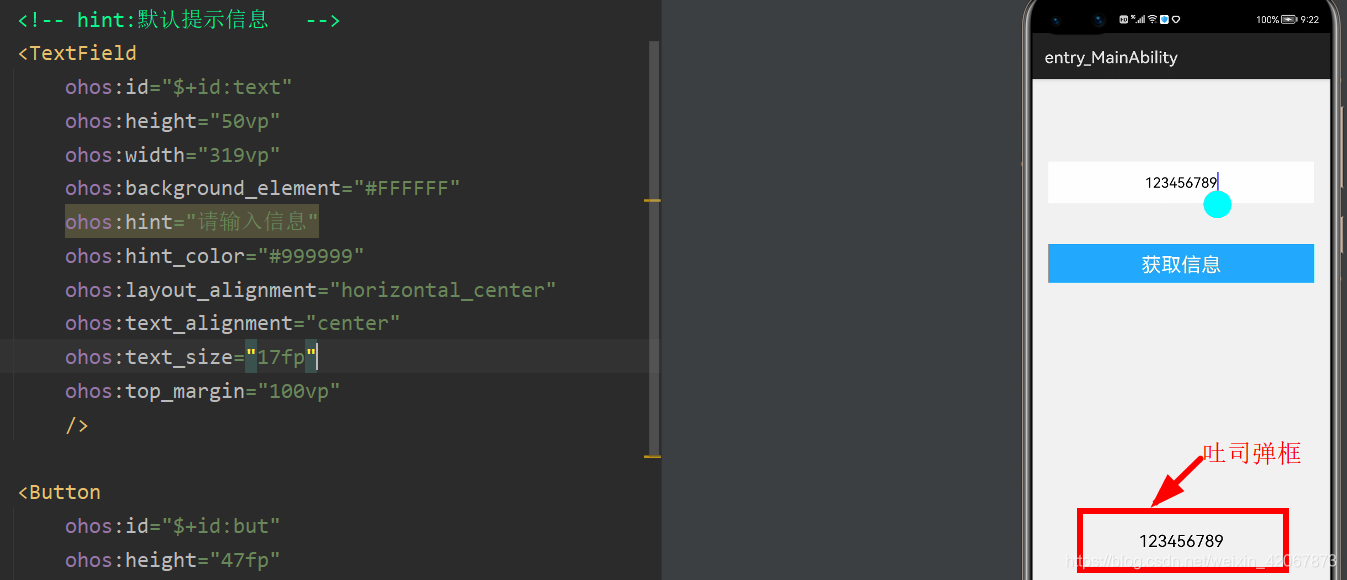
点击按钮获取文本输入框的基本内容
基本属性:
- hint:默认提示文本信息,相当于以往前端中的placeholder
- hint-color:默认提示文本的颜色
Ability中定义组件:
<?xml version="1.0" encoding="utf-8"?>
<DirectionalLayout
    xmlns:ohos="http://schemas.huawei.com/res/ohos"
    ohos:height="match_parent"
    ohos:width="match_parent"
    ohos:background_element="#f2f2f2"
    ohos:orientation="vertical">

    <!-- hint:默认提示信息   -->
    <TextField
        ohos:id="$+id:text"
        ohos:height="50vp"
        ohos:width="319vp"
        ohos:background_element="#FFFFFF"
        ohos:hint="请输入信息"
        ohos:hint_color="#999999"
        ohos:layout_alignment="horizontal_center"
        ohos:text_alignment="center"
        ohos:text_size="17fp"
        ohos:top_margin="100vp"
        />

    <Button
        ohos:id="$+id:but"
        ohos:height="47fp"
        ohos:width="319vp"
        ohos:background_element="#21a8fd"
        ohos:layout_alignment="center"
        ohos:text="获取信息"
        ohos:text_alignment="center"
        ohos:text_color="#fefefe"
        ohos:text_size="24fp"
        ohos:top_margin="50vp"
        />
</DirectionalLayout>
Java代码撰写逻辑操纵组件:
public class MainAbilitySlice extends AbilitySlice implements Component.ClickedListener {
    TextField tf = null;
    Button but = null;
    @Override
    public void onStart(Intent intent) {
        super.onStart(intent);
        super.setUIContent(ResourceTable.Layout_ability_main);

        //找到组件
        tf = (TextField) findComponentById(ResourceTable.Id_text);
        but = (Button) findComponentById(ResourceTable.Id_but);

        //绑定事件
        but.setClickedListener(this);
    }

    @Override
    public void onActive() {
        super.onActive();
    }

    @Override
    public void onForeground(Intent intent) {
        super.onForeground(intent);
    }

    @Override
    public void onClick(Component component) {
        //当点击了按钮后,获取文本输入框中的内容
        String text = tf.getText();

        //利用吐司弹出信息
        ToastDialog td = new ToastDialog(this);
        //吐司大小不用设置,默认是包裹内容的,持续时间默认是两秒
        //吐司的背景,透明
        td.setTransparent(true);
        //位置(居中)
        td.setAlignment(LayoutAlignment.BOTTOM);
        //设置一个偏移,X轴不动,Y轴稍微上面点
        td.setOffset(0, 200);
        //设置吐司的内容
        td.setText(text);
        //吐司弹框显示
        td.show();
    }
}
二、组件高级用法
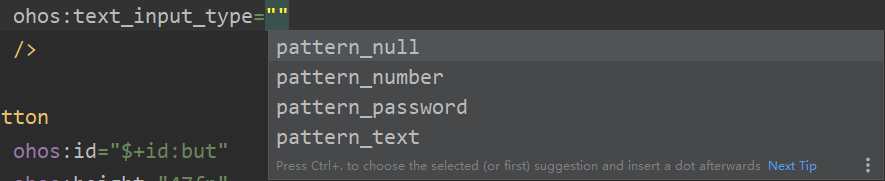
1、密码密文显示
属性:text_input_type——》pattern_password
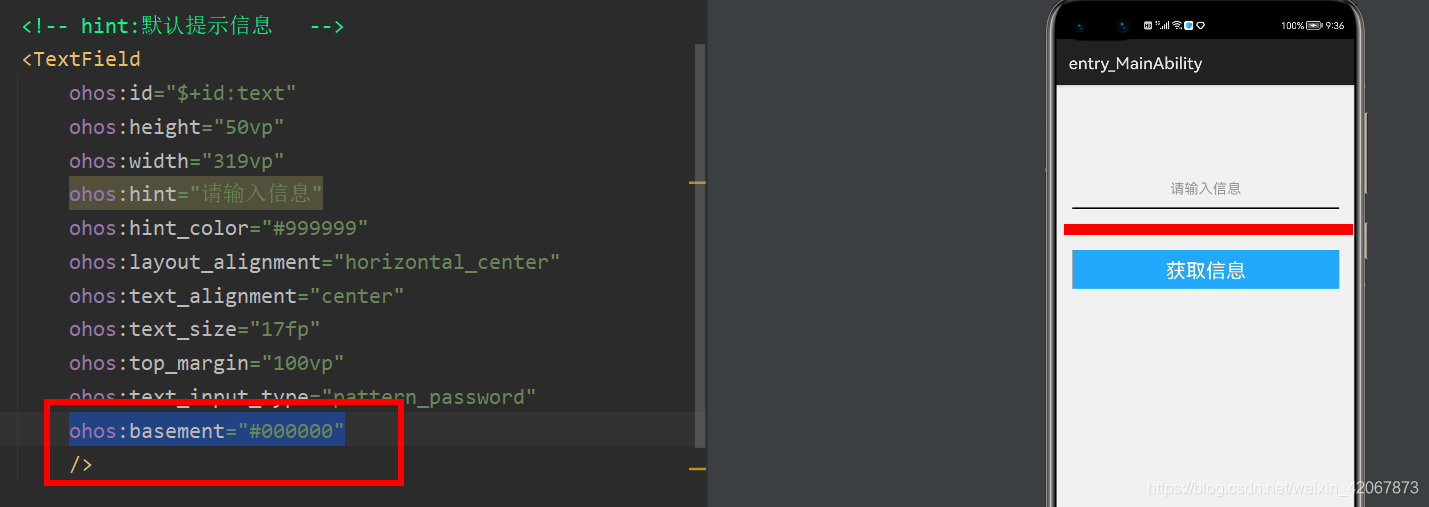
2、基线显示
属性:ohos:basement="#000000" ,用来设置基线的颜色
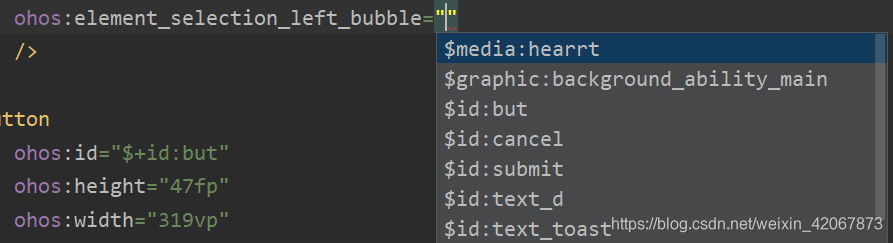
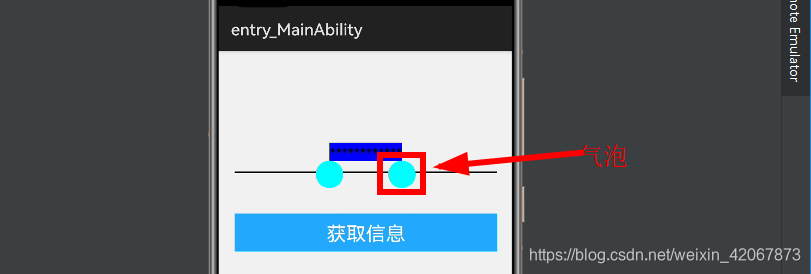
3、鼠标长按文本拷贝(气泡修改、背景色修改)
拷贝时显示的气泡是可以修改的,可以分别对左右的气泡进行自定义,属性分别为:
ohos:element_selection_left_bubble="Id",长按选中时左边显示的气泡ohos:element_selection_right_bubble="Id",长按选中时右边显示的气泡ohos:element_cursor_bubble="Id",默认输入时显示的气泡ohos:selection_color="color hex",长按选中后选中区域的背景色- 具体赋值就是在资源列表中查找自己需要的,即自己需要图片放到media目录中
三、密码铭文/密文切换
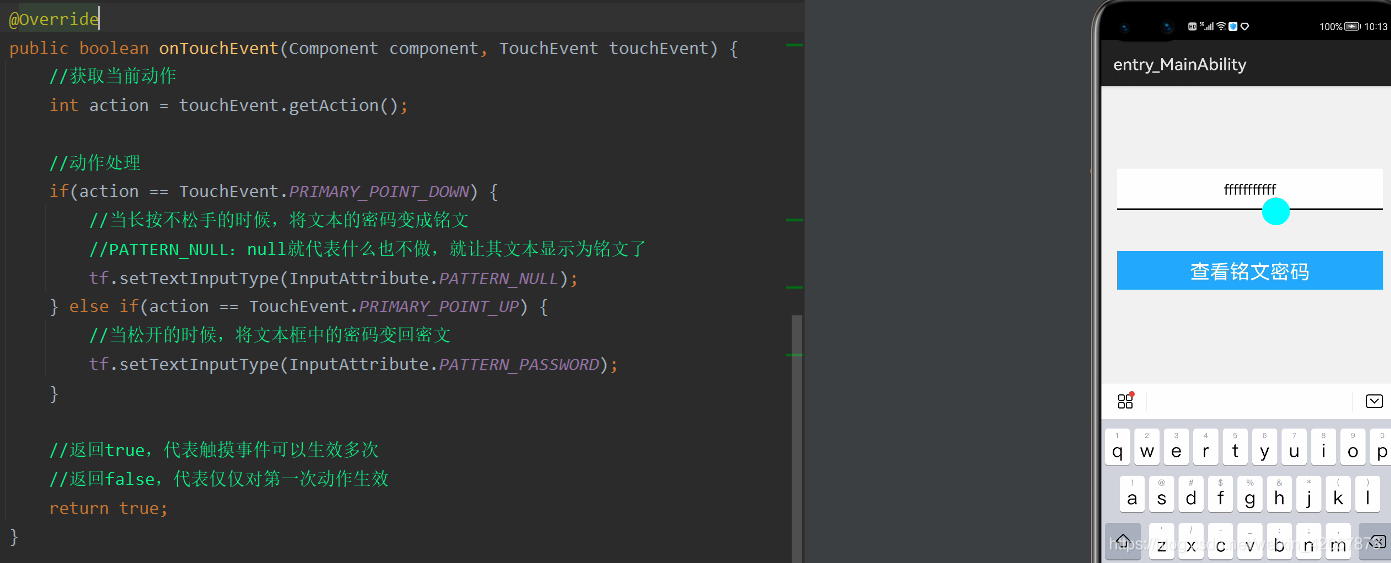
长按按钮,进行密码铭文与密文之间的切换,即:(1)当长按不松手的时候,将文本的密码变成铭文;(2)当松手后恢复成密文
- 默认情况下进行密文显示
Ability中定义组件:
<?xml version="1.0" encoding="utf-8"?>
<DirectionalLayout
    xmlns:ohos="http://schemas.huawei.com/res/ohos"
    ohos:height="match_parent"
    ohos:width="match_parent"
    ohos:background_element="#f2f2f2"
    ohos:orientation="vertical">

    <!-- hint:默认提示信息   -->
    <TextField
        ohos:id="$+id:text"
        ohos:height="50vp"
        ohos:width="319vp"
        ohos:hint="请输入密码"
        ohos:hint_color="#999999"
        ohos:layout_alignment="horizontal_center"
        ohos:text_alignment="center"
        ohos:text_size="17fp"
        ohos:top_margin="100vp"
        ohos:basement="#000000"
        ohos:background_element="#FFFFFF"
        ohos:text_input_type="pattern_password"
        />

    <Button
        ohos:id="$+id:but"
        ohos:height="47fp"
        ohos:width="319vp"
        ohos:background_element="#21a8fd"
        ohos:layout_alignment="center"
        ohos:text="查看铭文密码"
        ohos:text_alignment="center"
        ohos:text_color="#fefefe"
        ohos:text_size="24fp"
        ohos:top_margin="50vp"
        />
</DirectionalLayout>
Java中定义逻辑代码操纵组件:
package com.example.demo1.slice;

import com.example.demo1.ResourceTable;
import com.example.demo1.dialogutils.MyDialog;
import com.example.demo1.dialogutils.MyToast;
import ohos.aafwk.ability.AbilitySlice;
import ohos.aafwk.content.Intent;
import ohos.agp.components.*;
import ohos.agp.utils.LayoutAlignment;
import ohos.agp.window.dialog.CommonDialog;
import ohos.agp.window.dialog.IDialog;
import ohos.agp.window.dialog.ToastDialog;
import ohos.data.resultset.ResultSetIndexOutOfRangeException;
import ohos.multimodalinput.event.TouchEvent;

import java.util.ArrayList;
import java.util.Random;

public class MainAbilitySlice extends AbilitySlice implements Component.TouchEventListener {
    TextField tf = null;
    Button but = null;
    @Override
    public void onStart(Intent intent) {
        super.onStart(intent);
        super.setUIContent(ResourceTable.Layout_ability_main);

        //找到组件
        tf = (TextField) findComponentById(ResourceTable.Id_text);
        but = (Button) findComponentById(ResourceTable.Id_but);

        //绑定触摸事件,为了获取长按不松手
        but.setTouchEventListener(this);
    }

    @Override
    public void onActive() {
        super.onActive();
    }

    @Override
    public void onForeground(Intent intent) {
        super.onForeground(intent);
    }

    @Override
    public boolean onTouchEvent(Component component, TouchEvent touchEvent) {
        //获取当前动作
        int action = touchEvent.getAction();

        //动作处理
        if(action == TouchEvent.PRIMARY_POINT_DOWN) {
            //当长按不松手的时候,将文本的密码变成铭文
            //PATTERN_NULL:null就代表什么也不做,就让其文本显示为铭文了
            tf.setTextInputType(InputAttribute.PATTERN_NULL);
        } else if(action == TouchEvent.PRIMARY_POINT_UP) {
            //当松开的时候,将文本框中的密码变回密文
            tf.setTextInputType(InputAttribute.PATTERN_PASSWORD);
        }

        //返回true,代表触摸事件可以生效多次
        //返回false,代表仅仅对第一次动作生效
        return true;
    }
}

讨论HarmonyOS开发技术,专注于API与组件、DevEco Studio、测试、元服务和应用上架分发等。
更多推荐



 0
0 0
0- 0


 已为社区贡献4条内容

所有评论(0)