小白3天精通跨平台React Native鸿蒙开发:React Native Bug提示:requireNativeComponent:“RNSScreenContentWrappe
本文分析了React Native项目中常见的"RNSScreenContentWrapper未找到"错误。该错误通常由react-native-screens库未正确安装或版本不兼容导致。解决方案包括:1)确保正确安装所有依赖包;2)检查版本兼容性;3)清理构建缓存。文章还提供了React Navigation v6的配置示例和登录页面代码实现,展示了如何正确使用Naviga
错误提示:
requireNativeComponent:"RNSScreenContentWrapper was not found in the UIManager"
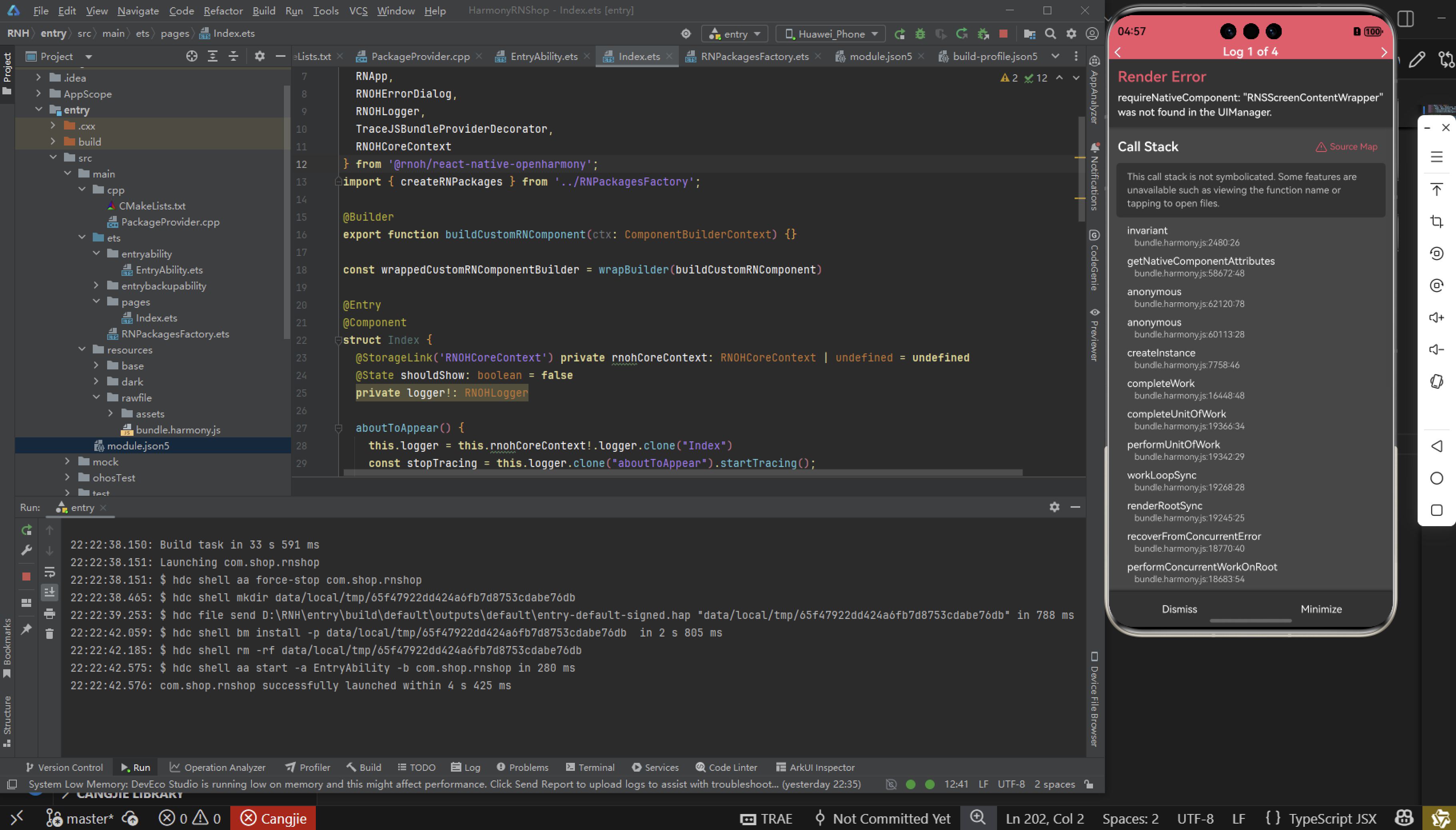
这个错误信息表明React Native在尝试加载一个名为RNSScreenContentWrapper的原生组件时失败了,因为该组件没有在UIManager中注册。这种情况通常发生在React Navigation和react-native-screens库的配置或版本兼容性问题上。
问题的核心在于react-native-screens库的原生模块没有被正确链接或安装到项目中。当开发服务器端已经通过npm安装了某个模块,但该模块的原生部分没有正确打包安装到手机中,就会导致App运行时"界面管理器"找不到可用的组件。
根本原因分析
这个错误通常由几个关键因素导致。首先是依赖包安装不完整,虽然通过npm i安装了react-native-screens,但其原生依赖(iOS的pod或Android的gradle依赖)没有正确安装。其次是版本兼容性问题,不同版本的react-native-screens与React Navigation版本之间可能存在冲突
。另外,缓存问题也会导致旧的构建缓存干扰新组件的正确注册。
从技术实现层面看,React Native的UIManager负责管理所有可用的原生组件。当JavaScript代码通过requireNativeComponent请求一个组件时,UIManager会在其注册表中查找对应的组件。如果找不到,就会抛出这个明确的错误信息。
具体解决方案
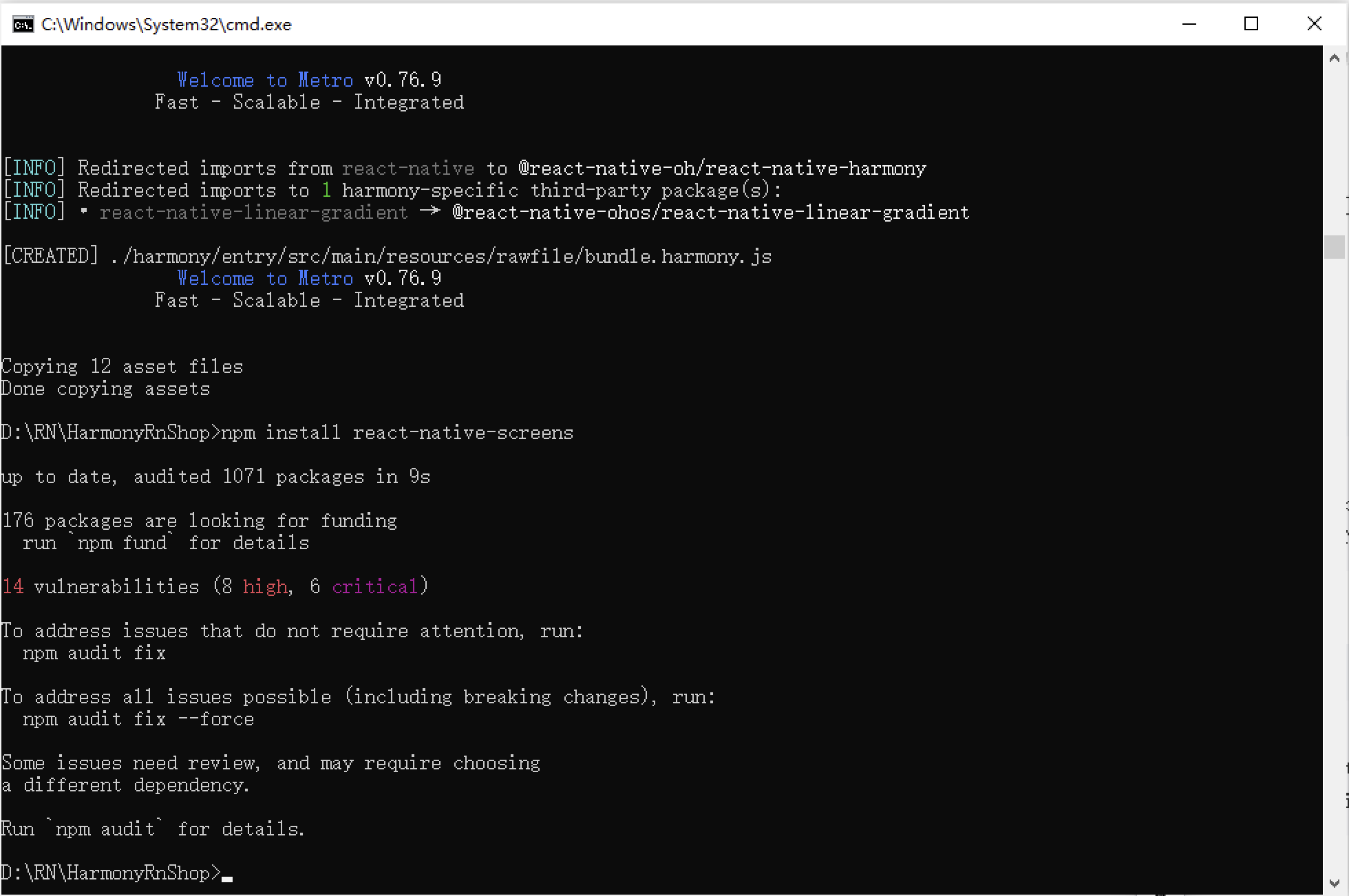
在React Navigation v6中,确保正确安装了所有必需的依赖包:@react-navigation/native、react-native-screens、react-native-safe-area-context等。安装命令应该包括:
npm i @react-navigation/native
npm i react-native-screens
npm i react-native-safe-area-context
npm i @react-navigation/native-stack

项目改造:
import { NavigationContainer } from '@react-navigation/native';
import { createStackNavigator } from '@react-navigation/stack';
import { SafeAreaProvider } from 'react-native-safe-area-context';
import LoginPath from './src/login/index';

const Stack = createStackNavigator();

function App() {
  return (
    <SafeAreaProvider>
      <NavigationContainer>
        <Stack.Navigator initialRouteName="Login">
          <Stack.Screen name="Login" component={LoginPath} />
        </Stack.Navigator>
      </NavigationContainer>
    </SafeAreaProvider>
  );
}

export default App;
import React from 'react';
import { View, Text, Dimensions, StyleSheet, Image, TextInput, TouchableOpacity, Alert } from 'react-native';
import { Modal, ModalContent, ModalPortal } from 'react-native-modals';

//获取屏幕的宽高
const screenHight =Math.round( Dimensions.get('window').height);
import axios from 'axios';

const AppStyles = StyleSheet.create({
  wrap: {
    width: '100%',
    height: screenHight,
    backgroundColor: '#85BDFF'
  },
  title: {
    width: '100%',
    height: 72,
    fontFamily: 'OPPOSans, OPPOSans',
    fontWeight: 'normal',
    paddingTop: 50,
    fontSize: 36,
    color: '#304057',
    lineHeight: 72,
    textAlign: 'center',
    fontStyle: 'normal'
  },
  banner: {
    paddingTop: 50,
    paddingRight: 32,
    paddingLeft: 32,
  },
  bannerItem: {
    paddingTop: 10,
    display: 'flex',
    flexDirection:'row',
    alignItems: 'center',
    justifyContent: 'center',
    width: '50%',
  },
  loginBox: {
    position: 'relative',
    width: '100%',
    paddingTop: 29,
    paddingLeft: 20,
    paddingRight: 20,
    borderTopRightRadius: 30,
    borderTopLeftRadius: 30,
    backgroundColor: '#F2F8FF',
    flex: 1
  },
  loginBoxCode: {
    marginTop: 20,
    position: 'relative',
    width: '100%',
  },
  loginBoxCodeBtn: {
    position: 'absolute',
    right: 4,
    top: 4,
    width: 110,
    height: 40,
    lineHeight: 40,
    borderRadius: 10,
    backgroundColor: '#1669E3',
    textAlign: 'center',
    fontWeight: 'bold',
    fontSize: 14,
    color: '#FFFFFF',
  },
  loginBtn: {
    position: 'absolute',
    left: 20,
    bottom: 30,
    width: '100%',
    height: 48,
    lineHeight: 48,
    borderRadius: 10,
    backgroundColor: '#1669E3',
    textAlign: 'center',
    fontWeight: 'bold',
    fontSize: 14,
    color: '#FFFFFF',
  }
})
function Login() {
  const [phone, onChangePhone] = React.useState('');
  const [code, onChangeCode] = React.useState('');
  const [visible, setVisible] = React.useState(false);
  const submitLogin = () => {
    console.log('submitLogin', phone, code);
    var regex = /^1[3-9]\d{9}$/;
    if (!regex.test(phone)) {
      Alert.alert('请输入正确的手机号码');
      return;
    }
    var regex = /^\d{6}$/;
    if (!regex.test(code)) {
      Alert.alert('请输入正确的验证码');
      return;
    }
    // setVisible(true);
    axios.get('https://xxxxx/id_type?t=1764427207873', {
      headers: {
        'Content-Type': 'application/json',
        'projectid': 'xxxxxx'
      }
    })
    .then(function (response) {
      console.log("get id_type success:", JSON.stringify(response));
      Alert.alert(JSON.stringify(response));
      // navigation.navigate('IndexPath')
    })
    .catch(function (error) {
      console.log(error);
    });
  }

  return (
    <View style={AppStyles.wrap}>
      <Text style={AppStyles.title}>鸿蒙ReactNative系统</Text>
      <View style={AppStyles.banner}>
        <View style={{display:'flex',flexDirection:'row',justifyContent:'space-between'}}>
          <View style={AppStyles.bannerItem}>
            <Image style={{width:27,height:27}} source={require('../../images/checked.png')}></Image>
            <Text style={{paddingLeft: 4}}>实时业绩便捷查询</Text>
          </View>
          <View style={AppStyles.bannerItem}>
            <Image style={{width:27,height:27}} source={require('../../images/checked.png')}></Image>
            <Text style={{paddingLeft: 4}}>订单状态轻松把控</Text>
          </View>
        </View>
        <View style={{display:'flex',flexDirection:'row',justifyContent:'space-between'}}>
          <View style={AppStyles.bannerItem}>
            <Image style={{width:27,height:27}} source={require('../../images/checked.png')}></Image>
            <Text style={{paddingLeft: 4}}>宣传数据全程管理</Text>
          </View>
          <View style={AppStyles.bannerItem}>
            <Image style={{width:27,height:27}} source={require('../../images/checked.png')}></Image>
            <Text style={{paddingLeft: 4}}>海量素材一站转发</Text>
          </View>
        </View>
      </View>

      <Image style={{width:289, height: 182, display: 'flex', alignSelf: 'center', margin: 20}} source={require('../../images/login-bg.png')}></Image>

      <View style={AppStyles.loginBox}>
        <TextInput style={{width: '100%', height: 48, borderRadius: 10, backgroundColor: '#FFFFFF', paddingLeft: 16, paddingRight: 16, fontSize: 14, color: '#304057'}}
         placeholder="请输入手机号" onChangeText={onChangePhone} value={phone}
         keyboardType="numeric"
         maxLength={11}></TextInput>

        <View style={AppStyles.loginBoxCode}>
          <TextInput style={{width: '100%', height: 48, borderRadius: 10, backgroundColor: '#FFFFFF', paddingLeft: 16, paddingRight: 16, fontSize: 14, color: '#304057'}}
          placeholder="请输入验证码" onChangeText={onChangeCode} value={code}
          keyboardType="numeric"
          maxLength={6}></TextInput>
          <Text style={AppStyles.loginBoxCodeBtn}>获取验证码</Text>
        </View>

        <TouchableOpacity style={AppStyles.loginBtn} onPress={submitLogin}>
          <Text style={{fontSize: 14, color: '#FFFFFF', lineHeight: 48, textAlign: 'center', fontWeight: 'bold'}}>登陆</Text>
        </TouchableOpacity>
      </View>

      <ModalPortal>
        <Modal
          visible={visible}
          onTouchOutside={() => {
            setVisible(false)
          }}
          onSwipeOut={() => setVisible(false)}
        >
          <ModalContent>
            <Text>登录成功!欢迎使用我们的应用。</Text>
            <Text>手机号:{phone}</Text>
            <TouchableOpacity
              style={{marginTop: 20, padding: 10, backgroundColor: '#1669E3', borderRadius: 5}}
              onPress={() => setVisible(false)}
            >
              <Text style={{color: '#FFFFFF', textAlign: 'center'}}>确定</Text>
            </TouchableOpacity>
          </ModalContent>
        </Modal>
      </ModalPortal>
    </View>
  );
}

export default Login;
import React from 'react';
import { View } from 'react-native';

class Index extends React.Component {
    render() {
        return (<View>首页内容</View>)
    }
}
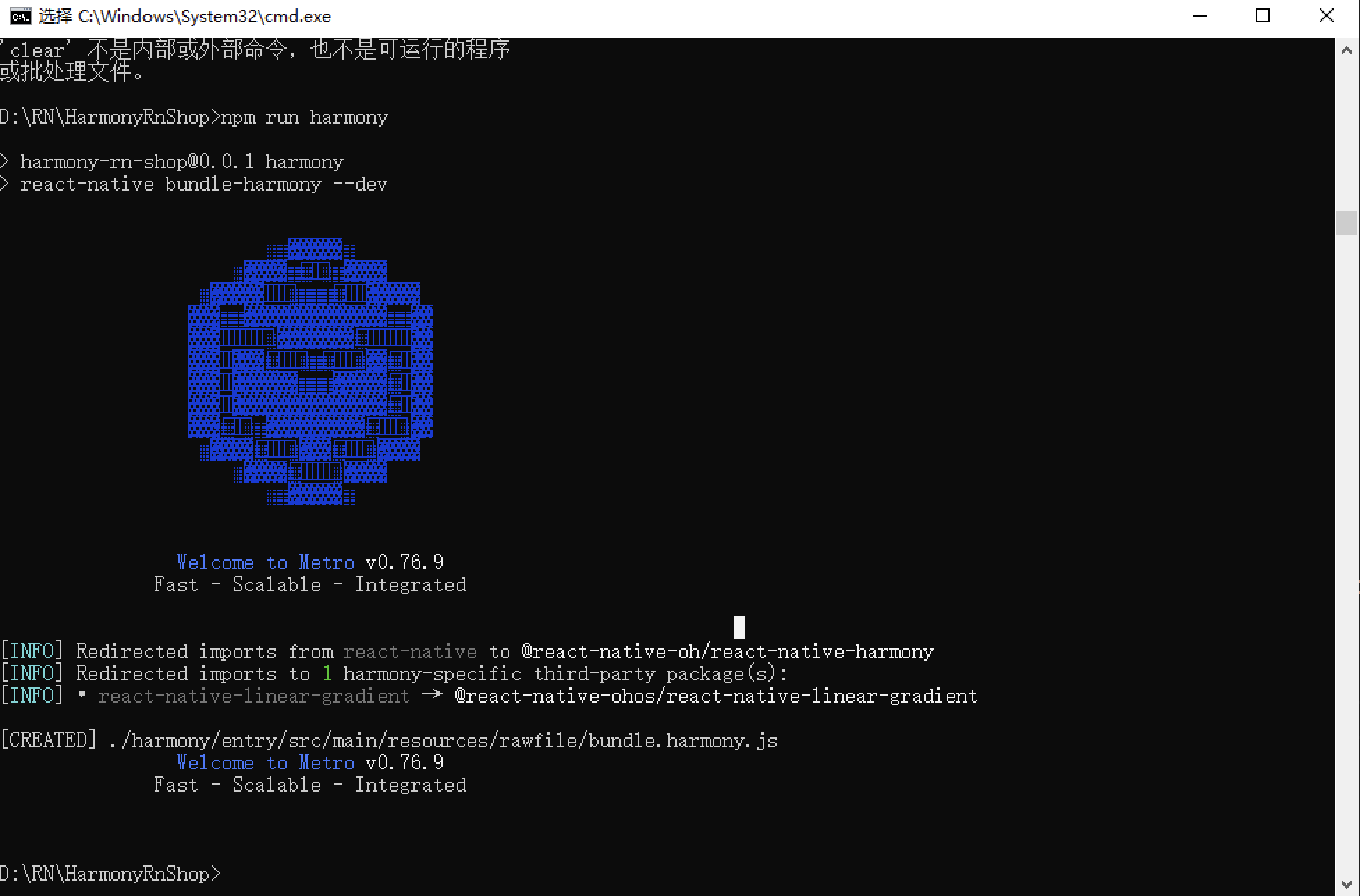
接下来通过打包命令npn run harmony将reactNative的代码打包成为bundle,这样可以进行在开源鸿蒙OpenHarmony中进行使用。
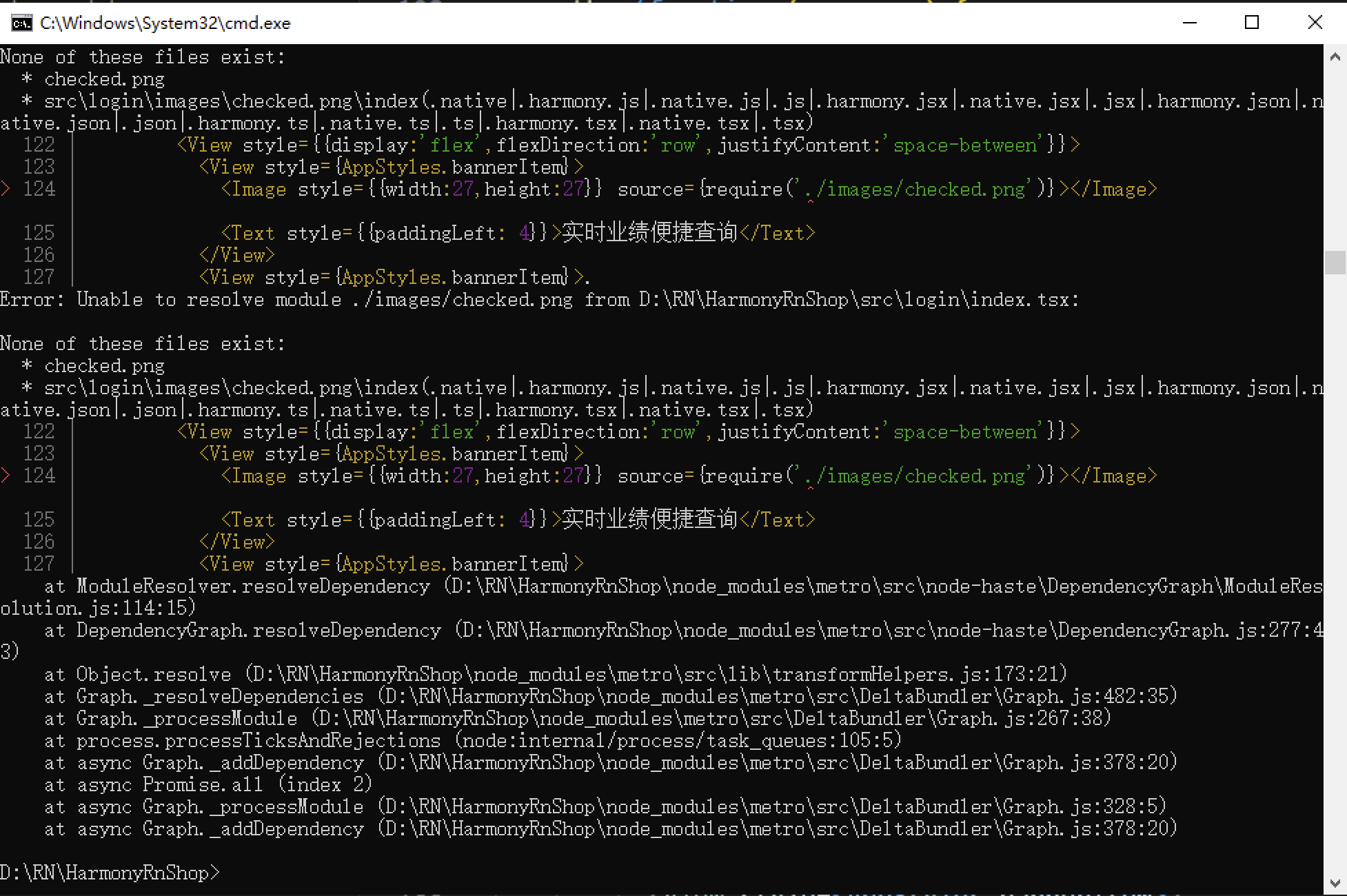
接下来将bundle文件复制到鸿蒙的项目工程中进行引入,然后,正常打包后,可以看到以下的运行效果:
欢迎大家加入开源鸿蒙跨平台开发者社区,一起共建开源鸿蒙跨平台生态。

讨论HarmonyOS开发技术,专注于API与组件、DevEco Studio、测试、元服务和应用上架分发等。
更多推荐



 4
4 0
0- 0


 已为社区贡献22条内容

所有评论(0)