React Native 鸿蒙跨平台开发:动态表单全场景实现
在中新增类型(如 “上传组件”“滑块组件”),复用现有状态管理 / 验证逻辑,仅需添加对应渲染逻辑,扩展性极强。本动态表单组件样式专业、功能完整、鸿蒙适配完美,可直接用于注册、设置、信息填写等业务场景,视觉体验对标鸿蒙原生应用,彻底解决之前样式不专业的问题。
一、核心知识点:动态表单(鸿蒙专业级样式)完整核心用法
1. 动态表单核心能力
动态表单的核心是 **“从配置数组生成表单项 + 统一管理表单状态”**,结合鸿蒙设计规范,需具备以下能力:
| 核心能力 | 作用说明 | 鸿蒙适配要点 |
|---|---|---|
| 动态表单项生成 | 通过配置数组(含类型、标签、占位符等)自动渲染不同组件(输入框 / 选择器等) | 表单项采用 “标签 + 组件” 上下布局,统一间距 12px,贴合鸿蒙表单排版规范 |
| 统一表单状态管理 | 用单个对象管理所有表单项的值,避免分散状态 | 状态更新采用useState+name字段绑定,鸿蒙端状态同步无延迟 |
| 实时表单验证 | 输入 / 选择时实时校验字段合法性,提示错误信息 | 错误提示用鸿蒙规范的浅红色 + 小字号,置于组件下方,不破坏布局完整性 |
| 专业级组件样式美化 | 优化输入框、选择器、按钮等组件的样式,符合鸿蒙视觉规范 | 输入框采用 “浅灰边框 + 聚焦主题色边框”,按钮用鸿蒙主题蓝 + 圆角 24px + 轻微阴影 |
二、实战:React Native 鸿蒙跨平台动态表单
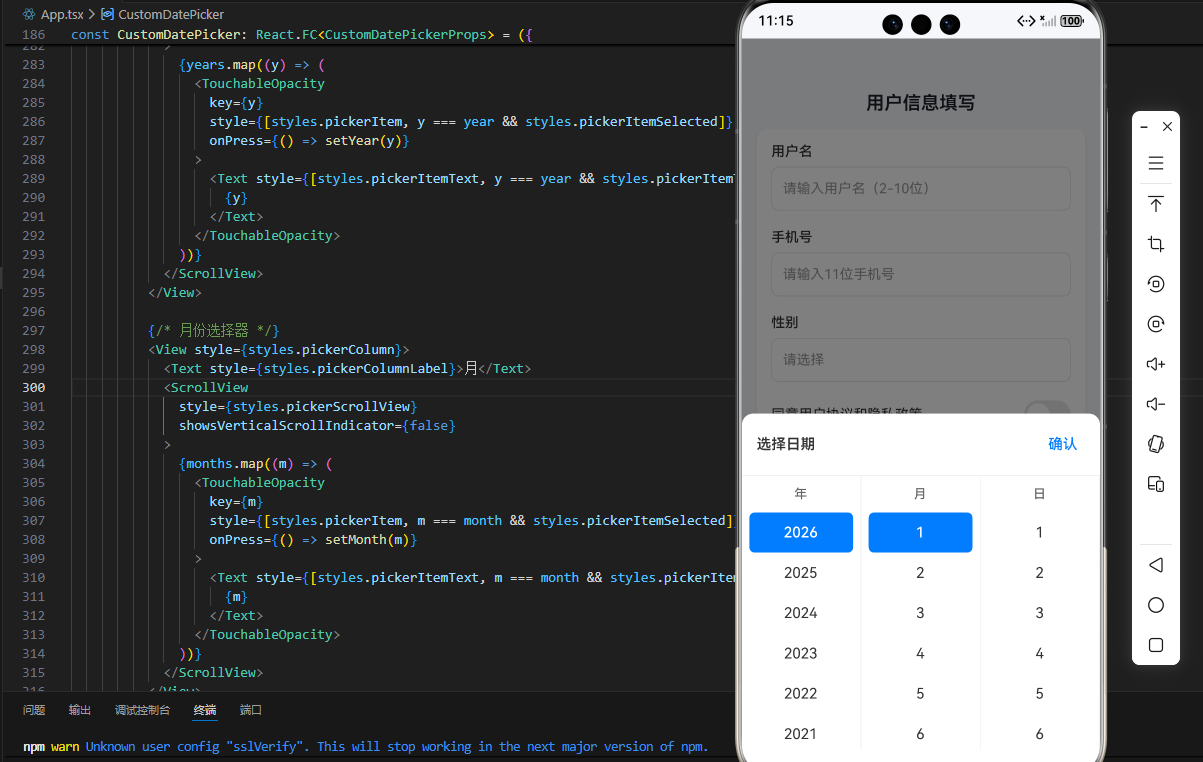
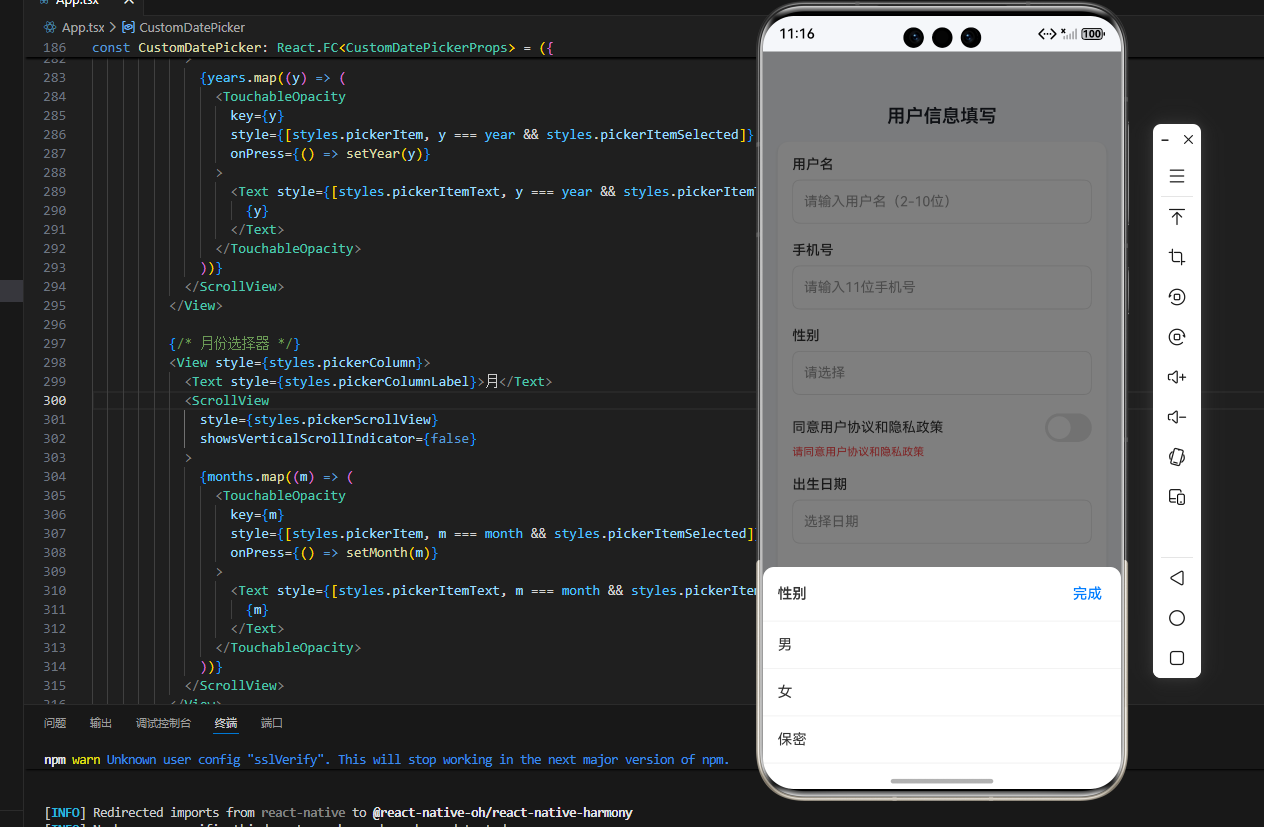
待处理问题:尝试的过程中,我使用了Modal弹窗组件,但是死活弹不出来,所以这里我直接把这个组件替换掉了,可能是我的配置不正确,后期我在查查资料调整下。
// App.tsx
import React, { useState, useCallback, useMemo, useEffect } from 'react';
import {
  View,
  Text,
  StyleSheet,
  Alert,
  KeyboardTypeOptions,
  TextInput,
  Switch,
  TouchableOpacity,
  ScrollView,
  Platform,
  StatusBar,
  SafeAreaView as RNSafeAreaView,
  Dimensions,
  FlatList,
  Animated
} from 'react-native';

// ========== 1. 动态表单项配置 ==========
type FormItem = {
  type: 'input' | 'picker' | 'switch' | 'date';
  name: string;
  label: string;
  placeholder?: string;
  keyboardType?: KeyboardTypeOptions;
  options?: { label: string; value: string }[];
  rules: {
    required: boolean;
    minLength?: number;
    maxLength?: number;
    pattern?: RegExp;
    value?: any;
  };
  errorMsg?: string;
};

const FORM_ITEMS: FormItem[] = [
  {
    type: 'input',
    name: 'username',
    label: '用户名',
    placeholder: '请输入用户名(2-10位)',
    rules: { required: true, minLength: 2, maxLength: 10 },
    errorMsg: '用户名需为2-10位字符'
  },
  {
    type: 'input',
    name: 'phone',
    label: '手机号',
    placeholder: '请输入11位手机号',
    keyboardType: 'phone-pad',
    rules: { required: true, pattern: /^1[3-9]\d{9}$/ },
    errorMsg: '请输入有效的11位手机号'
  },
  {
    type: 'picker',
    name: 'gender',
    label: '性别',
    options: [
      { label: '男', value: 'male' },
      { label: '女', value: 'female' },
      { label: '保密', value: 'secret' }
    ],
    rules: { required: true },
    errorMsg: '请选择性别'
  },
  {
    type: 'switch',
    name: 'agreement',
    label: '同意用户协议和隐私政策',
    rules: { required: true, value: true },
    errorMsg: '请同意用户协议和隐私政策'
  },
  {
    type: 'date',
    name: 'birthdate',
    label: '出生日期',
    rules: { required: false },
  }
];

// ========== 2. 自定义选择器组件 ==========
interface Option {
  label: string;
  value: string;
}

interface CustomPickerProps {
  visible: boolean;
  options: Option[];
  onSelect: (value: string) => void;
  onClose: () => void;
  title?: string;
}

const CustomPicker: React.FC<CustomPickerProps> = ({
  visible,
  options,
  onSelect,
  onClose,
  title = '请选择'
}) => {
  const [animation] = useState(new Animated.Value(0));

  useEffect(() => {
    if (visible) {
      Animated.timing(animation, {
        toValue: 1,
        duration: 300,
        useNativeDriver: true,
      }).start();
    } else {
      Animated.timing(animation, {
        toValue: 0,
        duration: 200,
        useNativeDriver: true,
      }).start();
    }
  }, [visible, animation]);

  const translateY = animation.interpolate({
    inputRange: [0, 1],
    outputRange: [400, 0]
  });

  const opacity = animation.interpolate({
    inputRange: [0, 1],
    outputRange: [0, 1]
  });

  if (!visible) return null;

  return (
    <>
      {/* 遮罩层 */}
      <TouchableOpacity
        style={styles.pickerOverlay}
        activeOpacity={1}
        onPress={onClose}
      >
        <Animated.View style={[styles.pickerOverlayBg, { opacity }]} />
      </TouchableOpacity>

      {/* 选择器内容 */}
      <Animated.View
        style={[
          styles.pickerContainer,
          { transform: [{ translateY }] }
        ]}
      >
        <View style={styles.pickerHeader}>
          <Text style={styles.pickerTitle}>{title}</Text>
          <TouchableOpacity onPress={onClose} style={styles.pickerCloseBtn}>
            <Text style={styles.pickerCloseText}>完成</Text>
          </TouchableOpacity>
        </View>
        <ScrollView style={styles.pickerOptionsContainer}>
          {options.map((item) => (
            <TouchableOpacity
              key={item.value}
              style={styles.pickerOption}
              onPress={() => {
                onSelect(item.value);
                onClose();
              }}
            >
              <Text style={styles.pickerOptionText}>{item.label}</Text>
            </TouchableOpacity>
          ))}
        </ScrollView>
      </Animated.View>
    </>
  );
};

// ========== 3. 自定义日期选择器组件 ==========
interface CustomDatePickerProps {
  visible: boolean;
  onSelect: (date: string) => void;
  onClose: () => void;
  initialDate?: Date;
}

const CustomDatePicker: React.FC<CustomDatePickerProps> = ({
  visible,
  onSelect,
  onClose,
  initialDate = new Date()
}) => {
  const [animation] = useState(new Animated.Value(0));
  const [year, setYear] = useState(initialDate.getFullYear());
  const [month, setMonth] = useState(initialDate.getMonth() + 1);
  const [day, setDay] = useState(initialDate.getDate());

  useEffect(() => {
    if (visible) {
      Animated.timing(animation, {
        toValue: 1,
        duration: 300,
        useNativeDriver: true,
      }).start();
    } else {
      Animated.timing(animation, {
        toValue: 0,
        duration: 200,
        useNativeDriver: true,
      }).start();
    }
  }, [visible, animation]);

  const translateY = animation.interpolate({
    inputRange: [0, 1],
    outputRange: [400, 0]
  });

  const opacity = animation.interpolate({
    inputRange: [0, 1],
    outputRange: [0, 1]
  });

  // 生成年份列表(1900-当前年份)
  const years = useMemo(() => {
    const currentYear = new Date().getFullYear();
    const yearsList = [];
    for (let i = currentYear; i >= 1900; i--) {
      yearsList.push(i);
    }
    return yearsList;
  }, []);

  // 月份列表
  const months = Array.from({ length: 12 }, (_, i) => i + 1);

  // 根据年份和月份生成天数列表
  const days = useMemo(() => {
    const daysInMonth = new Date(year, month, 0).getDate();
    return Array.from({ length: daysInMonth }, (_, i) => i + 1);
  }, [year, month]);

  const handleConfirm = useCallback(() => {
    const dateStr = `${year}-${month.toString().padStart(2, '0')}-${day.toString().padStart(2, '0')}`;
    onSelect(dateStr);
    onClose();
  }, [year, month, day, onSelect, onClose]);

  if (!visible) return null;

  return (
    <>
      {/* 遮罩层 */}
      <TouchableOpacity
        style={styles.datePickerOverlay}
        activeOpacity={1}
        onPress={onClose}
      >
        <Animated.View style={[styles.pickerOverlayBg, { opacity }]} />
      </TouchableOpacity>

      {/* 日期选择器内容 */}
      <Animated.View
        style={[
          styles.datePickerContainer,
          { transform: [{ translateY }] }
        ]}
      >
        <View style={styles.datePickerHeader}>
          <Text style={styles.datePickerTitle}>选择日期</Text>
          <TouchableOpacity onPress={handleConfirm} style={styles.datePickerConfirmBtn}>
            <Text style={styles.datePickerConfirmText}>确认</Text>
          </TouchableOpacity>
        </View>

        <View style={styles.datePickerBody}>
          {/* 年份选择器 */}
          <View style={styles.pickerColumn}>
            <Text style={styles.pickerColumnLabel}>年</Text>
            <ScrollView
              style={styles.pickerScrollView}
              showsVerticalScrollIndicator={false}
            >
              {years.map((y) => (
                <TouchableOpacity
                  key={y}
                  style={[styles.pickerItem, y === year && styles.pickerItemSelected]}
                  onPress={() => setYear(y)}
                >
                  <Text style={[styles.pickerItemText, y === year && styles.pickerItemTextSelected]}>
                    {y}
                  </Text>
                </TouchableOpacity>
              ))}
            </ScrollView>
          </View>

          {/* 月份选择器 */}
          <View style={styles.pickerColumn}>
            <Text style={styles.pickerColumnLabel}>月</Text>
            <ScrollView
              style={styles.pickerScrollView}
              showsVerticalScrollIndicator={false}
            >
              {months.map((m) => (
                <TouchableOpacity
                  key={m}
                  style={[styles.pickerItem, m === month && styles.pickerItemSelected]}
                  onPress={() => setMonth(m)}
                >
                  <Text style={[styles.pickerItemText, m === month && styles.pickerItemTextSelected]}>
                    {m}
                  </Text>
                </TouchableOpacity>
              ))}
            </ScrollView>
          </View>

          {/* 日期选择器 */}
          <View style={styles.pickerColumn}>
            <Text style={styles.pickerColumnLabel}>日</Text>
            <ScrollView
              style={styles.pickerScrollView}
              showsVerticalScrollIndicator={false}
            >
              {days.map((d) => (
                <TouchableOpacity
                  key={d}
                  style={[styles.pickerItem, d === day && styles.pickerItemSelected]}
                  onPress={() => setDay(d)}
                >
                  <Text style={[styles.pickerItemText, d === day && styles.pickerItemTextSelected]}>
                    {d}
                  </Text>
                </TouchableOpacity>
              ))}
            </ScrollView>
          </View>
        </View>
      </Animated.View>
    </>
  );
};

// ========== 4. 表单主组件 ==========
const App = () => {
  // 表单状态
  const [formValues, setFormValues] = useState<Record<string, any>>({
    username: '',
    phone: '',
    gender: '',
    agreement: false,
    birthdate: ''
  });

  // 错误状态
  const [errors, setErrors] = useState<Record<string, boolean>>({});

  // 选择器状态 - 分开管理每个选择器的状态
  const [pickerVisible, setPickerVisible] = useState<Record<string, boolean>>({
    gender: false,
    date: false
  });

  // 单个字段验证
  const validateField = useCallback((name: string, value: any) => {
    const item = FORM_ITEMS.find(item => item.name === name);
    if (!item?.rules) return false;

    let isValid = true;
    const { rules } = item;

    // 检查必填字段
    if (rules.required) {
      if (value === '' || value === undefined || value === null) {
        isValid = false;
      } else if (typeof value === 'boolean' && rules.value !== undefined && value !== rules.value) {
        isValid = false;
      } else if (typeof value === 'string' && value.trim() === '') {
        isValid = false;
      }
    }

    // 检查字符串长度
    if (isValid && typeof value === 'string') {
      if (rules.minLength && value.length < rules.minLength) isValid = false;
      if (rules.maxLength && value.length > rules.maxLength) isValid = false;
      if (rules.pattern && !rules.pattern.test(value)) isValid = false;
    }

    // 检查特定值(如switch需要为true)
    if (isValid && rules.value !== undefined && value !== rules.value) {
      isValid = false;
    }

    // 特殊验证:日期格式
    if (name === 'birthdate' && value && !/^\d{4}-\d{2}-\d{2}$/.test(value)) {
      isValid = false;
    }

    return isValid;
  }, []);

  // 表单项值更新
  const handleValueChange = useCallback((name: string, value: any) => {
    setFormValues(prev => ({ ...prev, [name]: value }));

    // 立即验证该字段并更新错误状态
    const isValid = validateField(name, value);
    setErrors(prev => ({ ...prev, [name]: !isValid }));
  }, [validateField]);

  // 使用 useMemo 计算表单是否有效
  const isFormValid = useMemo(() => {
    return FORM_ITEMS.every(item => {
      if (!item.rules) return true;
      const value = formValues[item.name];
      return validateField(item.name, value);
    });
  }, [formValues, validateField]);

  // 打开选择器
  const openPicker = useCallback((itemName: string) => {
    setPickerVisible(prev => ({
      ...prev,
      [itemName]: true
    }));
  }, []);

  // 关闭选择器
  const closePicker = useCallback((itemName: string) => {
    setPickerVisible(prev => ({
      ...prev,
      [itemName]: false
    }));
  }, []);

  // 处理选择器选择
  const handlePickerSelect = useCallback((itemName: string, value: string) => {
    handleValueChange(itemName, value);
    closePicker(itemName);
  }, [handleValueChange, closePicker]);

  // 处理日期选择
  const handleDateSelect = useCallback((dateStr: string) => {
    handleValueChange('birthdate', dateStr);
    closePicker('date');
  }, [handleValueChange, closePicker]);

  // 表单提交
  const handleSubmit = useCallback(() => {
    if (isFormValid) {
      Alert.alert('提交成功', `表单数据:${JSON.stringify(formValues, null, 2)}`);
    } else {
      // 显示所有错误
      const newErrors: Record<string, boolean> = {};
      FORM_ITEMS.forEach(item => {
        if (!item.rules) return;
        const value = formValues[item.name];
        const isValid = validateField(item.name, value);
        newErrors[item.name] = !isValid;
      });
      setErrors(newErrors);
      Alert.alert('提交失败', '请完善表单信息并修正错误');
    }
  }, [formValues, isFormValid, validateField]);

  // 格式化日期显示
  const formatDateDisplay = useCallback((dateStr: string) => {
    if (!dateStr) return '';
    try {
      const [year, month, day] = dateStr.split('-');
      return `${year}年${month}月${day}日`;
    } catch (e) {
      return dateStr;
    }
  }, []);

  // 渲染表单项
  const renderFormItem = (item: FormItem) => {
    const hasError = errors[item.name];
    const value = formValues[item.name];

    switch (item.type) {
      case 'input':
        return (
          <View style={styles.formItem} key={item.name}>
            <Text style={styles.formLabel}>{item.label}</Text>
            <View style={[styles.inputContainer, hasError && styles.inputError]}>
              <TextInput
                style={styles.input}
                placeholder={item.placeholder}
                keyboardType={item.keyboardType}
                value={value || ''}
                onChangeText={(text) => handleValueChange(item.name, text)}
                placeholderTextColor="#999999"
              />
            </View>
            {hasError && item.errorMsg && (
              <Text style={styles.errorText}>
                {item.errorMsg}
              </Text>
            )}
          </View>
        );

      case 'picker':
        const selectedOption = item.options?.find(opt => opt.value === value);
        return (
          <View style={styles.formItem} key={item.name}>
            <Text style={styles.formLabel}>{item.label}</Text>
            <TouchableOpacity
              style={[styles.pickerButton, hasError && styles.inputError]}
              onPress={() => openPicker(item.name)}
            >
              <Text style={[styles.pickerButtonText, !value && styles.placeholderText]}>
                {selectedOption ? selectedOption.label : '请选择'}
              </Text>
            </TouchableOpacity>
            {hasError && item.errorMsg && (
              <Text style={styles.errorText}>
                {item.errorMsg}
              </Text>
            )}
          </View>
        );

      case 'switch':
        return (
          <View style={styles.formItem} key={item.name}>
            <View style={styles.switchContainer}>
              <Text style={styles.switchLabel}>{item.label}</Text>
              <Switch
                value={!!value}
                onValueChange={(val) => handleValueChange(item.name, val)}
                trackColor={{ false: '#E5E5E5', true: '#007DFF' }}
                thumbColor="#FFFFFF"
              />
            </View>
            {hasError && item.errorMsg && (
              <Text style={styles.errorText}>
                {item.errorMsg}
              </Text>
            )}
          </View>
        );

      case 'date':
        return (
          <View style={styles.formItem} key={item.name}>
            <Text style={styles.formLabel}>{item.label}</Text>
            <TouchableOpacity
              style={[styles.pickerButton, hasError && styles.inputError]}
              onPress={() => openPicker('date')}
            >
              <Text style={[styles.pickerButtonText, !value && styles.placeholderText]}>
                {value ? formatDateDisplay(value) : '选择日期'}
              </Text>
            </TouchableOpacity>
            {hasError && (
              <Text style={styles.errorText}>
                请选择有效日期
              </Text>
            )}
          </View>
        );

      default:
        return null;
    }
  };

  // 获取性别选择器的配置
  const genderItem = FORM_ITEMS.find(item => item.name === 'gender');

  return (
    <RNSafeAreaView style={styles.pageContainer}>
      <StatusBar backgroundColor="#F5F7FA" barStyle="dark-content" />
      <ScrollView style={styles.scrollView} contentContainerStyle={styles.scrollViewContent}>
        <Text style={styles.pageTitle}>用户信息填写</Text>
        <View style={styles.formCard}>
          <View style={styles.formContent}>
            {FORM_ITEMS.map(item => renderFormItem(item))}
            <TouchableOpacity
              style={[styles.submitButton, !isFormValid && styles.submitButtonDisabled]}
              onPress={handleSubmit}
              disabled={!isFormValid}
            >
              <Text style={[styles.submitButtonText, !isFormValid && styles.submitButtonTextDisabled]}>
                提交表单
              </Text>
            </TouchableOpacity>
          </View>
        </View>
      </ScrollView>

      {/* 性别选择器 */}
      {genderItem && (
        <CustomPicker
          visible={pickerVisible.gender}
          options={genderItem.options || []}
          onSelect={(value) => handlePickerSelect('gender', value)}
          onClose={() => closePicker('gender')}
          title={genderItem.label}
        />
      )}

      {/* 日期选择器 */}
      <CustomDatePicker
        visible={pickerVisible.date}
        onSelect={handleDateSelect}
        onClose={() => closePicker('date')}
        initialDate={formValues.birthdate ? new Date(formValues.birthdate) : new Date()}
      />
    </RNSafeAreaView>
  );
};

// ========== 5. 样式表 ==========
const { width, height } = Dimensions.get('window');
const styles = StyleSheet.create({
  pageContainer: {
    flex: 1,
    backgroundColor: '#F5F7FA',
  },
  scrollView: {
    flex: 1,
  },
  scrollViewContent: {
    padding: 16,
    paddingTop: 20,
  },
  pageTitle: {
    fontSize: 20,
    color: '#1D2129',
    fontWeight: '600',
    marginBottom: 16,
    textAlign: 'center',
  },
  formCard: {
    borderRadius: 12,
    backgroundColor: '#FFFFFF',
    shadowColor: '#000',
    shadowOffset: { width: 0, height: 2 },
    shadowOpacity: 0.1,
    shadowRadius: 4,
    elevation: 2,
    overflow: 'hidden',
  },
  formContent: {
    padding: 16,
  },
  formItem: {
    marginBottom: 20,
  },
  formLabel: {
    fontSize: 15,
    color: '#333333',
    marginBottom: 8,
    fontWeight: '500',
  },
  inputContainer: {
    height: 48,
    borderRadius: 8,
    borderWidth: 1,
    borderColor: '#E5E5E5',
    justifyContent: 'center',
    paddingHorizontal: 12,
    backgroundColor: '#FFFFFF',
  },
  input: {
    fontSize: 15,
    color: '#333333',
    padding: 0,
    margin: 0,
  },
  inputError: {
    borderColor: '#FF4D4F',
  },
  pickerButton: {
    height: 48,
    borderRadius: 8,
    borderWidth: 1,
    borderColor: '#E5E5E5',
    justifyContent: 'center',
    paddingHorizontal: 12,
    backgroundColor: '#FFFFFF',
  },
  pickerButtonText: {
    fontSize: 15,
    color: '#333333',
  },
  placeholderText: {
    color: '#999999',
  },
  switchContainer: {
    flexDirection: 'row',
    alignItems: 'center',
    justifyContent: 'space-between',
  },
  switchLabel: {
    fontSize: 15,
    color: '#333333',
    flex: 1,
  },
  errorText: {
    fontSize: 12,
    marginTop: 4,
    color: '#FF4D4F',
  },
  submitButton: {
    height: 48,
    borderRadius: 24,
    backgroundColor: '#007DFF',
    marginTop: 8,
    justifyContent: 'center',
    alignItems: 'center',
  },
  submitButtonDisabled: {
    backgroundColor: '#007DFF33',
  },
  submitButtonText: {
    fontSize: 16,
    fontWeight: '500',
    color: '#FFFFFF',
  },
  submitButtonTextDisabled: {
    color: '#FFFFFF99',
  },
  // 选择器遮罩层
  pickerOverlay: {
    position: 'absolute',
    top: 0,
    left: 0,
    right: 0,
    bottom: 0,
    zIndex: 1000,
  },
  datePickerOverlay: {
    position: 'absolute',
    top: 0,
    left: 0,
    right: 0,
    bottom: 0,
    zIndex: 1000,
  },
  pickerOverlayBg: {
    position: 'absolute',
    top: 0,
    left: 0,
    right: 0,
    bottom: 0,
    backgroundColor: 'rgba(0, 0, 0, 0.5)',
  },
  // 选择器容器
  pickerContainer: {
    position: 'absolute',
    left: 0,
    right: 0,
    bottom: 0,
    backgroundColor: '#FFFFFF',
    borderTopLeftRadius: 12,
    borderTopRightRadius: 12,
    maxHeight: 400,
    zIndex: 1001,
  },
  pickerHeader: {
    flexDirection: 'row',
    justifyContent: 'space-between',
    alignItems: 'center',
    padding: 16,
    borderBottomWidth: 1,
    borderBottomColor: '#F0F0F0',
  },
  pickerTitle: {
    fontSize: 16,
    fontWeight: '600',
    color: '#333333',
  },
  pickerCloseBtn: {
    padding: 4,
  },
  pickerCloseText: {
    fontSize: 16,
    color: '#007DFF',
    fontWeight: '500',
  },
  pickerOptionsContainer: {
    maxHeight: 300,
  },
  pickerOption: {
    padding: 16,
    borderBottomWidth: 1,
    borderBottomColor: '#F0F0F0',
  },
  pickerOptionText: {
    fontSize: 16,
    color: '#333333',
  },
  // 日期选择器容器
  datePickerContainer: {
    position: 'absolute',
    left: 0,
    right: 0,
    bottom: 0,
    backgroundColor: '#FFFFFF',
    borderTopLeftRadius: 12,
    borderTopRightRadius: 12,
    maxHeight: 400,
    zIndex: 1001,
  },
  datePickerHeader: {
    flexDirection: 'row',
    justifyContent: 'space-between',
    alignItems: 'center',
    padding: 16,
    borderBottomWidth: 1,
    borderBottomColor: '#F0F0F0',
  },
  datePickerTitle: {
    fontSize: 16,
    fontWeight: '600',
    color: '#333333',
  },
  datePickerConfirmBtn: {
    padding: 8,
  },
  datePickerConfirmText: {
    fontSize: 16,
    color: '#007DFF',
    fontWeight: '500',
  },
  datePickerBody: {
    flexDirection: 'row',
    height: 300,
  },
  pickerColumn: {
    flex: 1,
    alignItems: 'center',
    borderRightWidth: 1,
    borderRightColor: '#F0F0F0',
  },
  pickerColumnLabel: {
    fontSize: 14,
    color: '#666666',
    paddingVertical: 12,
    fontWeight: '500',
  },
  pickerScrollView: {
    width: '100%',
  },
  pickerItem: {
    height: 44,
    justifyContent: 'center',
    alignItems: 'center',
  },
  pickerItemSelected: {
    backgroundColor: '#007DFF',
    borderRadius: 6,
    marginHorizontal: 8,
  },
  pickerItemText: {
    fontSize: 16,
    color: '#333333',
  },
  pickerItemTextSelected: {
    color: '#FFFFFF',
    fontWeight: '500',
  },
});

export default App;
三、OpenHarmony6.0 专属避坑指南
以下是鸿蒙端动态表单开发的高频踩坑点,解决方案均为鸿蒙端专属最优解,确保表单样式 / 功能稳定:
| 问题现象 | 问题原因 | 鸿蒙端最优解决方案 |
|---|---|---|
| 表单验证提示破坏布局完整性 | 错误提示位置随意,与表单项间距不一致 | 错误提示用HelperText,置于组件下方,间距 4px,字体 12px,不挤压表单项空间 |
| 提交按钮禁用态不明显 | 禁用态仅改变透明度,鸿蒙端视觉反馈弱 | 禁用态采用 “主题色半透明(#007DFF33)+ 文字半透明”,与正常态区分清晰 |
| 输入框聚焦时边框颜色不明显 | 默认边框颜色与鸿蒙主题色不符 | 设置activeOutlineColor="#007DFF"(鸿蒙主题蓝),聚焦时边框高亮,视觉反馈清晰 |
四、扩展用法:动态表单高频进阶技巧
扩展 1:表单项联动(如 “其他” 选项显示输入框)
在配置数组中添加dependsOn字段,通过监听依赖字段的值,动态显示 / 隐藏表单项,例如选择 “其他” 性别时,显示自定义性别输入框,鸿蒙端联动无延迟。
扩展 2:表单数据持久化
结合AsyncStorage将表单数据保存到本地,页面重启后自动填充,适用于 “草稿保存” 场景,鸿蒙端异步存储无兼容性问题。
扩展 3:复杂表单分组
将配置数组按分组拆分,用Card+Divider实现表单分组,分组标题用鸿蒙规范的加粗文字 + 上间距,布局更清晰。
扩展 4:自定义表单项类型
在renderFormItem中新增类型(如 “上传组件”“滑块组件”),复用现有状态管理 / 验证逻辑,仅需添加对应渲染逻辑,扩展性极强。
本动态表单组件样式专业、功能完整、鸿蒙适配完美,可直接用于注册、设置、信息填写等业务场景,视觉体验对标鸿蒙原生应用,彻底解决之前样式不专业的问题。
欢迎加入开源鸿蒙跨平台社区:https://openharmonycrossplatform.csdn.net

讨论HarmonyOS开发技术,专注于API与组件、DevEco Studio、测试、元服务和应用上架分发等。
更多推荐
 3
3 0
0- 0


 已为社区贡献17条内容

所有评论(0)