Flutter 框架跨平台鸿蒙开发 - 少儿英语启蒙助手开发教程
fill:#333;important;important;fill:none;学习类型字母学习26个英文字母大小写识别字母发音单词学习常用名词动词形容词数字颜色短语学习日常问候礼貌用语简单对话英文儿歌经典儿歌字母歌数字歌英文故事童话故事寓言故事生活故事类型名称图标颜色适用年龄alphabet字母学习Icons.abc红色3-5岁words单词学习Icons.book蓝色4-8岁phrases短语
·
Flutter少儿英语启蒙助手开发教程
项目简介
少儿英语启蒙助手是一个专为3-12岁儿童设计的英语学习应用。通过生动有趣的界面设计、丰富的学习内容和互动式的学习方式,帮助孩子在轻松愉快的氛围中学习英语基础知识。
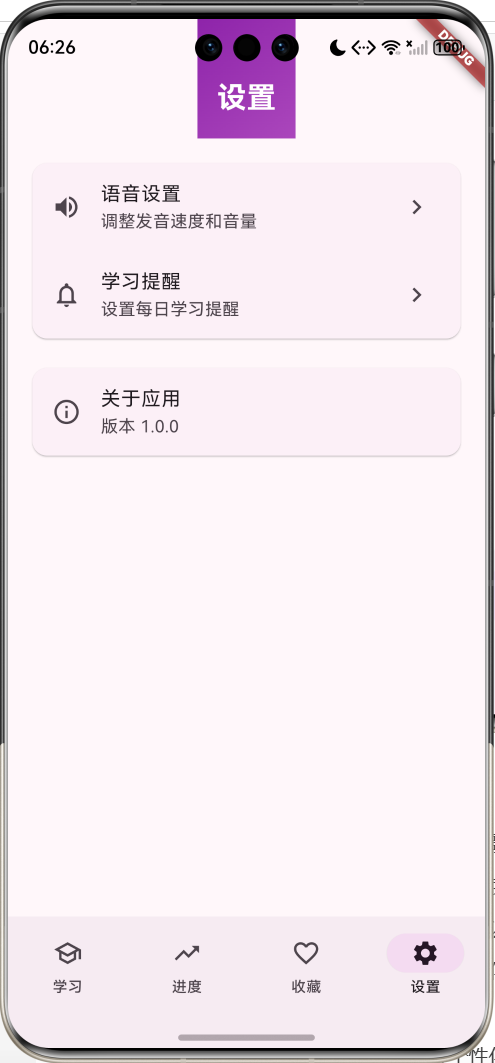
运行效果图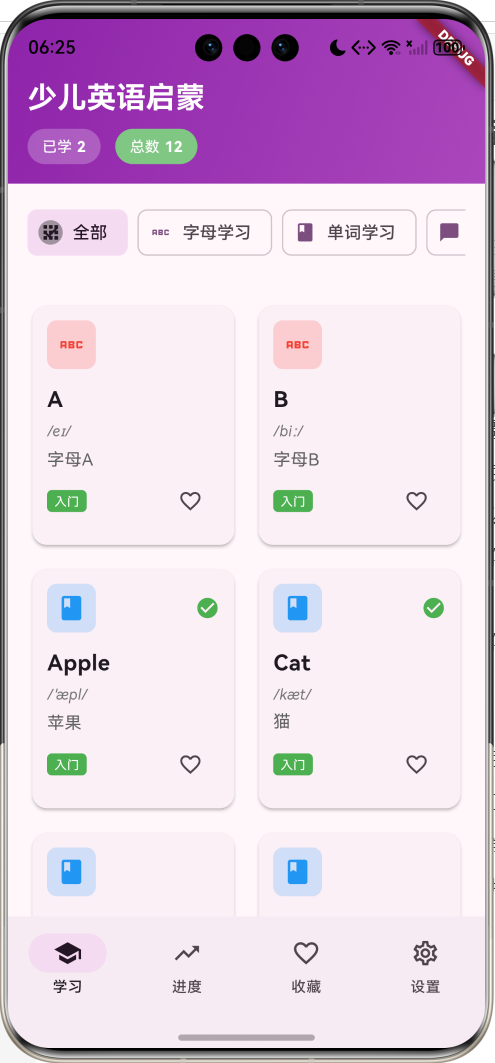
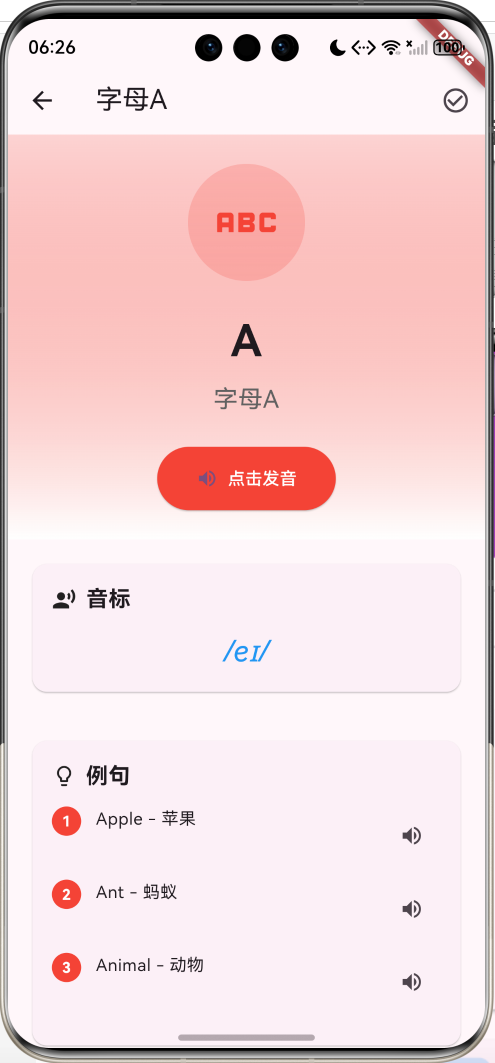
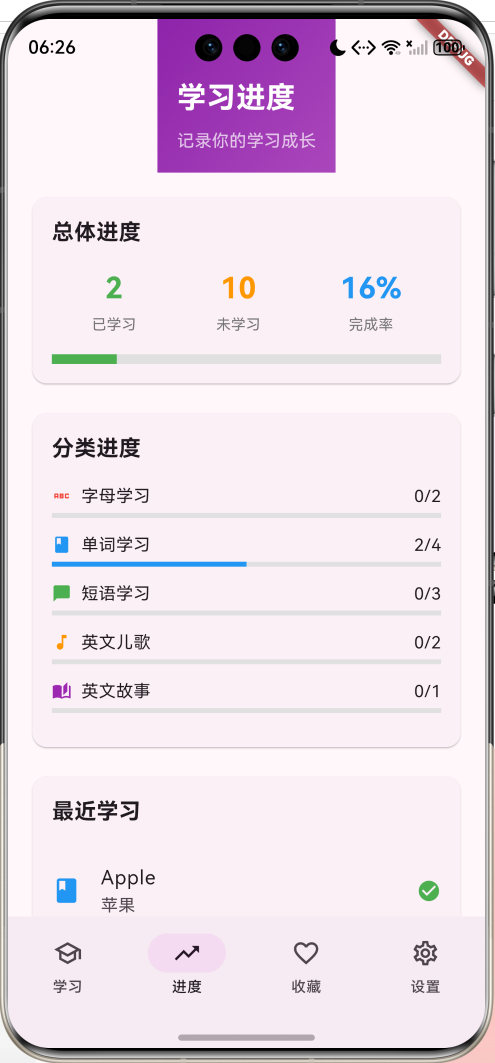
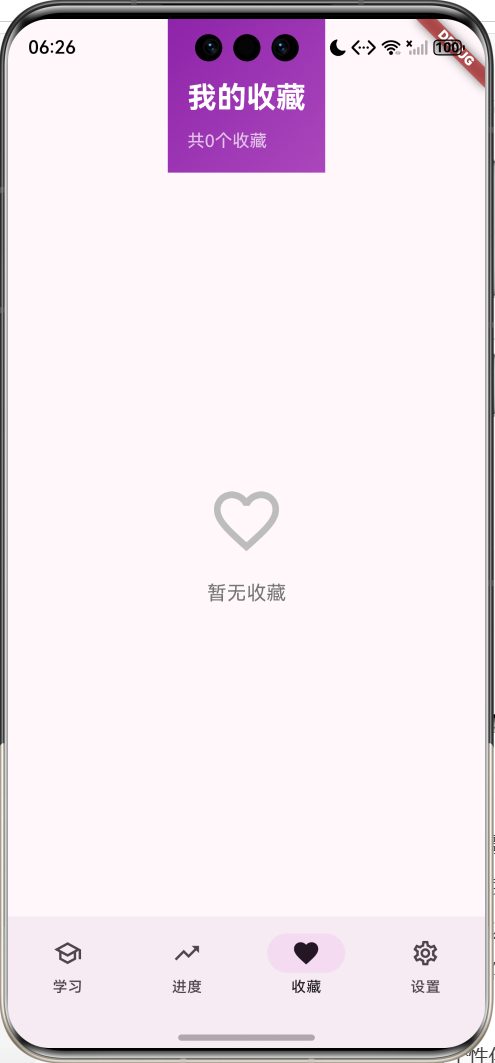
核心功能特性
- 多维度学习内容:字母、单词、短语、儿歌、故事五大学习模块
- 分级学习体系:入门、初级、中级三个难度等级,循序渐进
- 互动式学习:点击发音、跟读练习、听力训练等多种互动方式
- 学习进度追踪:详细记录学习进度,可视化展示学习成果
- 收藏管理:收藏重点内容,方便复习巩固
- 个性化设置:语音速度、学习提醒等个性化配置
应用场景
- 家庭教育:家长辅导孩子学习英语的好帮手
- 幼儿园教学:幼儿园英语启蒙课程的辅助工具
- 自主学习:孩子可以独立使用,培养自主学习能力
- 碎片化学习:随时随地学习,充分利用碎片时间
技术架构
数据模型设计
核心数据模型
LearningContent 学习内容模型
class LearningContent {
  final String id;              // 唯一标识符
  final String title;           // 标题
  final LearningType type;      // 学习类型
  final DifficultyLevel level;  // 难度等级
  final String english;         // 英文内容
  final String chinese;         // 中文翻译
  final String? phonetic;       // 音标
  final String? audioUrl;       // 音频URL
  final String? imageUrl;       // 图片URL
  final List<String> examples;  // 例句列表
  final bool isLearned;         // 是否已学习
  final bool isFavorite;        // 是否收藏
}
模型设计要点:
id: 使用字符串类型,便于扩展和数据同步type: 枚举类型,确保类型安全phonetic: 可选字段,部分内容可能不需要音标examples: 列表类型,支持多个例句isLearned/isFavorite: 布尔标记,用于状态管理
枚举类型定义
LearningType 学习类型
| 类型 | 名称 | 图标 | 颜色 | 适用年龄 |
|---|---|---|---|---|
| alphabet | 字母学习 | Icons.abc | 红色 | 3-5岁 |
| words | 单词学习 | Icons.book | 蓝色 | 4-8岁 |
| phrases | 短语学习 | Icons.chat_bubble | 绿色 | 5-10岁 |
| songs | 英文儿歌 | Icons.music_note | 橙色 | 3-8岁 |
| stories | 英文故事 | Icons.auto_stories | 紫色 | 6-12岁 |
DifficultyLevel 难度等级
enum DifficultyLevel {
  beginner,      // 入门:适合初学者
  elementary,    // 初级:有一定基础
  intermediate,  // 中级:进阶学习
}
难度等级说明:
- 入门级:单个字母、简单单词、基础问候语
- 初级:常用单词、简单短语、短儿歌
- 中级:复杂单词、完整对话、长故事
配置类设计
LearningConfig 学习配置类
class LearningConfig {
  // 类型名称映射
  static const Map<LearningType, String> typeNames = {
    LearningType.alphabet: '字母学习',
    LearningType.words: '单词学习',
    LearningType.phrases: '短语学习',
    LearningType.songs: '英文儿歌',
    LearningType.stories: '英文故事',
  };

  // 类型图标映射
  static const Map<LearningType, IconData> typeIcons = {
    LearningType.alphabet: Icons.abc,
    LearningType.words: Icons.book,
    LearningType.phrases: Icons.chat_bubble,
    LearningType.songs: Icons.music_note,
    LearningType.stories: Icons.auto_stories,
  };

  // 类型颜色映射
  static const Map<LearningType, Color> typeColors = {
    LearningType.alphabet: Colors.red,
    LearningType.words: Colors.blue,
    LearningType.phrases: Colors.green,
    LearningType.songs: Colors.orange,
    LearningType.stories: Colors.purple,
  };

  // 难度等级名称映射
  static const Map<DifficultyLevel, String> levelNames = {
    DifficultyLevel.beginner: '入门',
    DifficultyLevel.elementary: '初级',
    DifficultyLevel.intermediate: '中级',
  };

  // 难度等级颜色映射
  static const Map<DifficultyLevel, Color> levelColors = {
    DifficultyLevel.beginner: Colors.green,
    DifficultyLevel.elementary: Colors.blue,
    DifficultyLevel.intermediate: Colors.orange,
  };
}
配置类优势:
- 集中管理配置信息,便于维护
- 使用常量映射,提高性能
- 类型安全,避免硬编码字符串
- 便于主题定制和国际化
核心功能实现
1. 学习内容展示
网格布局实现
Widget _buildContentGrid() {
  final filteredContents = _filterType == null
      ? _contents
      : _contents.where((c) => c.type == _filterType).toList();

  return GridView.builder(
    padding: const EdgeInsets.all(16),
    gridDelegate: const SliverGridDelegateWithFixedCrossAxisCount(
      crossAxisCount: 2,        // 2列布局
      crossAxisSpacing: 12,     // 列间距
      mainAxisSpacing: 12,      // 行间距
      childAspectRatio: 0.85,   // 宽高比
    ),
    itemCount: filteredContents.length,
    itemBuilder: (context, index) {
      return _buildContentCard(filteredContents[index]);
    },
  );
}
布局设计要点:
- 2列网格布局,适合儿童视觉习惯
- 合理的间距设置,避免视觉拥挤
- 宽高比0.85,确保卡片内容完整显示
- 使用GridView.builder,支持大量数据
学习卡片设计
Widget _buildContentCard(LearningContent content) {
  return Card(
    elevation: 2,
    child: InkWell(
      onTap: () => _openLearningDetail(content),
      borderRadius: BorderRadius.circular(12),
      child: Padding(
        padding: const EdgeInsets.all(12),
        child: Column(
          crossAxisAlignment: CrossAxisAlignment.start,
          children: [
            // 顶部:类型图标和学习状态
            Row(
              children: [
                Container(
                  padding: const EdgeInsets.all(8),
                  decoration: BoxDecoration(
                    color: LearningConfig.typeColors[content.type]
                        ?.withOpacity(0.2),
                    borderRadius: BorderRadius.circular(8),
                  ),
                  child: Icon(
                    LearningConfig.typeIcons[content.type],
                    color: LearningConfig.typeColors[content.type],
                    size: 24,
                  ),
                ),
                const Spacer(),
                if (content.isLearned)
                  const Icon(Icons.check_circle,
                    color: Colors.green, size: 20),
              ],
            ),
            const SizedBox(height: 12),
            // 中部:英文内容
            Text(
              content.english,
              style: const TextStyle(
                fontSize: 18,
                fontWeight: FontWeight.bold,
              ),
              maxLines: 2,
              overflow: TextOverflow.ellipsis,
            ),
            // 音标(如果有)
            if (content.phonetic != null) ...[
              const SizedBox(height: 4),
              Text(
                content.phonetic!,
                style: TextStyle(
                  fontSize: 12,
                  color: Colors.grey.shade600,
                  fontStyle: FontStyle.italic,
                ),
              ),
            ],
            // 中文翻译
            const SizedBox(height: 4),
            Text(
              content.chinese,
              style: TextStyle(
                fontSize: 14,
                color: Colors.grey.shade700,
              ),
              maxLines: 1,
              overflow: TextOverflow.ellipsis,
            ),
            const Spacer(),
            // 底部:难度等级和收藏按钮
            Row(
              children: [
                Container(
                  padding: const EdgeInsets.symmetric(
                    horizontal: 6, vertical: 2),
                  decoration: BoxDecoration(
                    color: LearningConfig.levelColors[content.level],
                    borderRadius: BorderRadius.circular(4),
                  ),
                  child: Text(
                    LearningConfig.levelNames[content.level] ?? '',
                    style: const TextStyle(
                      color: Colors.white,
                      fontSize: 10,
                    ),
                  ),
                ),
                const Spacer(),
                IconButton(
                  icon: Icon(
                    content.isFavorite
                      ? Icons.favorite
                      : Icons.favorite_border,
                    color: content.isFavorite ? Colors.red : null,
                    size: 20,
                  ),
                  onPressed: () => _toggleFavorite(content),
                ),
              ],
            ),
          ],
        ),
      ),
    ),
  );
}
卡片设计亮点:
- 色彩丰富,吸引儿童注意力
- 信息层次清晰,易于理解
- 交互反馈明确,提升用户体验
- 状态标识直观,一目了然
2. 分类筛选功能
筛选芯片实现
Widget _buildTypeFilter() {
  return Container(
    padding: const EdgeInsets.all(16),
    child: SingleChildScrollView(
      scrollDirection: Axis.horizontal,
      child: Row(
        children: [
          _buildTypeChip(null, '全部', Icons.apps),
          const SizedBox(width: 8),
          ...LearningType.values.map((type) {
            return Padding(
              padding: const EdgeInsets.only(right: 8),
              child: _buildTypeChip(
                type,
                LearningConfig.typeNames[type] ?? '',
                LearningConfig.typeIcons[type] ?? Icons.book,
              ),
            );
          }),
        ],
      ),
    ),
  );
}

Widget _buildTypeChip(LearningType? type, String label, IconData icon) {
  final isSelected = _filterType == type;

  return FilterChip(
    avatar: Icon(icon, size: 18),
    label: Text(label),
    selected: isSelected,
    onSelected: (selected) {
      setState(() {
        _filterType = type;
      });
    },
  );
}
筛选功能特点:
- 横向滚动,支持多个分类
- 图标+文字,直观易懂
- 选中状态明显,交互清晰
- 支持"全部"选项,方便重置
3. 学习进度管理
进度统计算法
Widget _buildProgressCard(int learned, int total, double progress) {
  return Card(
    child: Padding(
      padding: const EdgeInsets.all(16),
      child: Column(
        crossAxisAlignment: CrossAxisAlignment.start,
        children: [
          const Text(
            '总体进度',
            style: TextStyle(fontSize: 18, fontWeight: FontWeight.bold),
          ),
          const SizedBox(height: 16),
          // 进度数据展示
          Row(
            mainAxisAlignment: MainAxisAlignment.spaceAround,
            children: [
              _buildProgressItem('已学习', learned.toString(), Colors.green),
              _buildProgressItem('未学习', (total - learned).toString(), Colors.orange),
              _buildProgressItem('完成率', '${(progress * 100).toInt()}%', Colors.blue),
            ],
          ),
          const SizedBox(height: 16),
          // 进度条
          LinearProgressIndicator(
            value: progress,
            backgroundColor: Colors.grey.shade300,
            valueColor: const AlwaysStoppedAnimation<Color>(Colors.green),
            minHeight: 8,
          ),
        ],
      ),
    ),
  );
}
进度管理功能:
- 实时统计学习数据
- 可视化进度展示
- 分类进度追踪
- 最近学习记录
分类进度展示
Widget _buildTypeProgressCard() {
  return Card(
    child: Padding(
      padding: const EdgeInsets.all(16),
      child: Column(
        crossAxisAlignment: CrossAxisAlignment.start,
        children: [
          const Text(
            '分类进度',
            style: TextStyle(fontSize: 18, fontWeight: FontWeight.bold),
          ),
          const SizedBox(height: 16),
          ...LearningType.values.map((type) {
            final typeContents = _contents
                .where((c) => c.type == type).toList();
            final learnedCount = typeContents
                .where((c) => c.isLearned).length;
            final progress = typeContents.isNotEmpty
                ? learnedCount / typeContents.length
                : 0.0;

            return Padding(
              padding: const EdgeInsets.only(bottom: 12),
              child: Column(
                crossAxisAlignment: CrossAxisAlignment.start,
                children: [
                  Row(
                    mainAxisAlignment: MainAxisAlignment.spaceBetween,
                    children: [
                      Row(
                        children: [
                          Icon(
                            LearningConfig.typeIcons[type],
                            size: 16,
                            color: LearningConfig.typeColors[type],
                          ),
                          const SizedBox(width: 8),
                          Text(LearningConfig.typeNames[type] ?? ''),
                        ],
                      ),
                      Text('$learnedCount/${typeContents.length}'),
                    ],
                  ),
                  const SizedBox(height: 4),
                  LinearProgressIndicator(
                    value: progress,
                    backgroundColor: Colors.grey.shade300,
                    valueColor: AlwaysStoppedAnimation<Color>(
                      LearningConfig.typeColors[type] ?? Colors.blue,
                    ),
                  ),
                ],
              ),
            );
          }),
        ],
      ),
    ),
  );
}
分类进度特点:
- 每个类型独立统计
- 进度条颜色与类型对应
- 显示具体数量和百分比
- 直观展示学习分布
欢迎加入开源鸿蒙跨平台社区:https://openharmonycrossplatform.csdn.net
4. 学习详情页面
主内容展示
Widget _buildMainContent() {
  return Container(
    width: double.infinity,
    padding: const EdgeInsets.all(24),
    decoration: BoxDecoration(
      gradient: LinearGradient(
        colors: [
          LearningConfig.typeColors[widget.content.type]
              ?.withOpacity(0.2) ?? Colors.grey.shade200,
          Colors.white,
        ],
        begin: Alignment.topCenter,
        end: Alignment.bottomCenter,
      ),
    ),
    child: Column(
      children: [
        // 类型图标
        Container(
          padding: const EdgeInsets.all(16),
          decoration: BoxDecoration(
            color: LearningConfig.typeColors[widget.content.type]
                ?.withOpacity(0.2),
            shape: BoxShape.circle,
          ),
          child: Icon(
            LearningConfig.typeIcons[widget.content.type],
            size: 64,
            color: LearningConfig.typeColors[widget.content.type],
          ),
        ),
        const SizedBox(height: 24),
        // 英文内容
        Text(
          widget.content.english,
          style: const TextStyle(
            fontSize: 36,
            fontWeight: FontWeight.bold,
          ),
          textAlign: TextAlign.center,
        ),
        const SizedBox(height: 8),
        // 中文翻译
        Text(
          widget.content.chinese,
          style: TextStyle(
            fontSize: 20,
            color: Colors.grey.shade700,
          ),
          textAlign: TextAlign.center,
        ),
        const SizedBox(height: 24),
        // 发音按钮
        ElevatedButton.icon(
          onPressed: _playAudio,
          icon: Icon(_isPlaying ? Icons.stop : Icons.volume_up),
          label: Text(_isPlaying ? '停止发音' : '点击发音'),
          style: ElevatedButton.styleFrom(
            padding: const EdgeInsets.symmetric(
              horizontal: 32, vertical: 16),
            backgroundColor: LearningConfig.typeColors[widget.content.type],
            foregroundColor: Colors.white,
          ),
        ),
      ],
    ),
  );
}
详情页设计要点:
- 渐变背景,视觉舒适
- 大字体显示,适合儿童阅读
- 发音按钮突出,鼓励互动
- 颜色与类型对应,保持一致性
音标展示
Widget _buildPhoneticSection() {
  if (widget.content.phonetic == null) return const SizedBox();

  return Container(
    padding: const EdgeInsets.all(16),
    child: Card(
      child: Padding(
        padding: const EdgeInsets.all(16),
        child: Column(
          crossAxisAlignment: CrossAxisAlignment.start,
          children: [
            const Row(
              children: [
                Icon(Icons.record_voice_over, size: 20),
                SizedBox(width: 8),
                Text(
                  '音标',
                  style: TextStyle(
                    fontSize: 18,
                    fontWeight: FontWeight.bold,
                  ),
                ),
              ],
            ),
            const SizedBox(height: 12),
            Center(
              child: Text(
                widget.content.phonetic!,
                style: const TextStyle(
                  fontSize: 24,
                  fontStyle: FontStyle.italic,
                  color: Colors.blue,
                ),
              ),
            ),
          ],
        ),
      ),
    ),
  );
}
音标展示特点:
- 清晰的标题说明
- 大字体居中显示
- 斜体样式,符合音标习惯
- 蓝色高亮,易于识别
例句展示
Widget _buildExamplesSection() {
  if (widget.content.examples.isEmpty) return const SizedBox();

  return Container(
    padding: const EdgeInsets.all(16),
    child: Card(
      child: Padding(
        padding: const EdgeInsets.all(16),
        child: Column(
          crossAxisAlignment: CrossAxisAlignment.start,
          children: [
            const Row(
              children: [
                Icon(Icons.lightbulb_outline, size: 20),
                SizedBox(width: 8),
                Text(
                  '例句',
                  style: TextStyle(
                    fontSize: 18,
                    fontWeight: FontWeight.bold,
                  ),
                ),
              ],
            ),
            const SizedBox(height: 12),
            ...widget.content.examples.asMap().entries.map((entry) {
              return Padding(
                padding: const EdgeInsets.only(bottom: 12),
                child: Row(
                  crossAxisAlignment: CrossAxisAlignment.start,
                  children: [
                    // 序号标识
                    Container(
                      width: 24,
                      height: 24,
                      decoration: BoxDecoration(
                        color: LearningConfig.typeColors[
                          widget.content.type],
                        shape: BoxShape.circle,
                      ),
                      child: Center(
                        child: Text(
                          '${entry.key + 1}',
                          style: const TextStyle(
                            color: Colors.white,
                            fontSize: 12,
                            fontWeight: FontWeight.bold,
                          ),
                        ),
                      ),
                    ),
                    const SizedBox(width: 12),
                    // 例句内容
                    Expanded(
                      child: Text(
                        entry.value,
                        style: const TextStyle(fontSize: 14),
                      ),
                    ),
                    // 发音按钮
                    IconButton(
                      icon: const Icon(Icons.volume_up, size: 20),
                      onPressed: () => _playExampleAudio(entry.key),
                    ),
                  ],
                ),
              );
            }),
          ],
        ),
      ),
    ),
  );
}
例句展示特点:
- 序号标识清晰
- 支持多个例句
- 每个例句可独立发音
- 布局紧凑,信息完整
练习功能
Widget _buildPracticeSection() {
  return Container(
    padding: const EdgeInsets.all(16),
    child: Card(
      child: Padding(
        padding: const EdgeInsets.all(16),
        child: Column(
          crossAxisAlignment: CrossAxisAlignment.start,
          children: [
            const Row(
              children: [
                Icon(Icons.edit_note, size: 20),
                SizedBox(width: 8),
                Text(
                  '练习',
                  style: TextStyle(
                    fontSize: 18,
                    fontWeight: FontWeight.bold,
                  ),
                ),
              ],
            ),
            const SizedBox(height: 16),
            Row(
              children: [
                Expanded(
                  child: OutlinedButton.icon(
                    onPressed: _startListeningPractice,
                    icon: const Icon(Icons.hearing),
                    label: const Text('听力练习'),
                  ),
                ),
                const SizedBox(width: 12),
                Expanded(
                  child: OutlinedButton.icon(
                    onPressed: _startSpeakingPractice,
                    icon: const Icon(Icons.mic),
                    label: const Text('跟读练习'),
                  ),
                ),
              ],
            ),
          ],
        ),
      ),
    ),
  );
}
练习功能设计:
- 听力练习:播放音频,选择正确答案
- 跟读练习:录音对比,评估发音准确度
- 图标直观,功能明确
- 并排布局,方便选择
5. 音频播放功能
音频播放实现
void _playAudio() {
  setState(() {
    _isPlaying = !_isPlaying;
  });

  if (_isPlaying) {
    // 模拟播放音频
    // 实际项目中使用 audioplayers 或 just_audio 包
    Future.delayed(const Duration(seconds: 2), () {
      if (mounted) {
        setState(() {
          _isPlaying = false;
        });
      }
    });
  }

  ScaffoldMessenger.of(context).showSnackBar(
    SnackBar(
      content: Text(_isPlaying ? '正在播放发音...' : '已停止播放'),
      duration: const Duration(seconds: 1),
    ),
  );
}
音频功能说明:
- 当前为模拟实现
- 实际项目建议使用
audioplayers包 - 支持播放/停止切换
- 提供用户反馈
音频播放器集成(扩展)
// 使用 audioplayers 包的实际实现
import 'package:audioplayers/audioplayers.dart';

class AudioPlayerService {
  final AudioPlayer _audioPlayer = AudioPlayer();

  Future<void> playAudio(String url) async {
    try {
      await _audioPlayer.play(UrlSource(url));
    } catch (e) {
      print('播放失败: $e');
    }
  }

  Future<void> stopAudio() async {
    await _audioPlayer.stop();
  }

  void dispose() {
    _audioPlayer.dispose();
  }
}
UI组件设计
1. 导航栏设计
NavigationBar(
  selectedIndex: _selectedIndex,
  onDestinationSelected: (index) {
    setState(() {
      _selectedIndex = index;
    });
  },
  destinations: const [
    NavigationDestination(
      icon: Icon(Icons.school_outlined),
      selectedIcon: Icon(Icons.school),
      label: '学习',
    ),
    NavigationDestination(
      icon: Icon(Icons.trending_up_outlined),
      selectedIcon: Icon(Icons.trending_up),
      label: '进度',
    ),
    NavigationDestination(
      icon: Icon(Icons.favorite_outline),
      selectedIcon: Icon(Icons.favorite),
      label: '收藏',
    ),
    NavigationDestination(
      icon: Icon(Icons.settings_outlined),
      selectedIcon: Icon(Icons.settings),
      label: '设置',
    ),
  ],
)
导航栏特点:
- Material Design 3 风格
- 图标清晰,易于识别
- 选中状态明显
- 4个主要功能模块
2. 头部渐变设计
Widget _buildLearningHeader() {
  final learnedCount = _contents.where((c) => c.isLearned).length;

  return Container(
    padding: const EdgeInsets.fromLTRB(16, 48, 16, 16),
    decoration: BoxDecoration(
      gradient: LinearGradient(
        colors: [Colors.purple.shade600, Colors.purple.shade400],
        begin: Alignment.topLeft,
        end: Alignment.bottomRight,
      ),
    ),
    child: Column(
      crossAxisAlignment: CrossAxisAlignment.start,
      children: [
        const Text(
          '少儿英语启蒙',
          style: TextStyle(
            fontSize: 24,
            fontWeight: FontWeight.bold,
            color: Colors.white,
          ),
        ),
        const SizedBox(height: 8),
        Row(
          children: [
            _buildStatChip('已学', learnedCount.toString(),
              Colors.white24),
            const SizedBox(width: 12),
            _buildStatChip('总数', _contents.length.toString(),
              Colors.green.shade300),
          ],
        ),
      ],
    ),
  );
}
头部设计特点:
- 紫色渐变,符合儿童审美
- 白色文字,对比度高
- 统计芯片,信息直观
- 安全区域适配
3. 统计芯片组件
Widget _buildStatChip(String label, String value, Color color) {
  return Container(
    padding: const EdgeInsets.symmetric(horizontal: 12, vertical: 6),
    decoration: BoxDecoration(
      color: color,
      borderRadius: BorderRadius.circular(16),
    ),
    child: Row(
      mainAxisSize: MainAxisSize.min,
      children: [
        Text(
          label,
          style: const TextStyle(color: Colors.white, fontSize: 12),
        ),
        const SizedBox(width: 4),
        Text(
          value,
          style: const TextStyle(
            color: Colors.white,
            fontSize: 12,
            fontWeight: FontWeight.bold,
          ),
        ),
      ],
    ),
  );
}
芯片组件特点:
- 圆角设计,柔和友好
- 标签+数值,信息完整
- 颜色可配置,灵活使用
- 紧凑布局,节省空间
4. 进度项组件
Widget _buildProgressItem(String label, String value, Color color) {
  return Column(
    children: [
      Text(
        value,
        style: TextStyle(
          fontSize: 24,
          fontWeight: FontWeight.bold,
          color: color,
        ),
      ),
      const SizedBox(height: 4),
      Text(
        label,
        style: TextStyle(
          fontSize: 12,
          color: Colors.grey.shade600,
        ),
      ),
    ],
  );
}
进度项特点:
- 数值突出显示
- 标签说明清晰
- 颜色区分类型
- 垂直布局,整齐美观
状态管理
1. 本地状态管理
class _EnglishHomePageState extends State<EnglishHomePage> {
int _selectedIndex = 0; // 当前选中的导航索引
List<LearningContent> _contents = []; // 学习内容列表
LearningType? _filterType; // 筛选类型
void initState() {
super.initState();
_loadSampleData(); // 加载示例数据
}
}
状态变量说明:
_selectedIndex: 控制底部导航栏_contents: 存储所有学习内容_filterType: 控制内容筛选
2. 数据操作方法
// 切换收藏状态
void _toggleFavorite(LearningContent content) {
  setState(() {
    final index = _contents.indexWhere((c) => c.id == content.id);
    if (index != -1) {
      _contents[index] = content.copyWith(
        isFavorite: !content.isFavorite,
      );
    }
  });
}

// 更新学习状态
void _updateLearnedStatus(String id, bool isLearned) {
  setState(() {
    final index = _contents.indexWhere((c) => c.id == id);
    if (index != -1) {
      _contents[index] = _contents[index].copyWith(
        isLearned: isLearned,
      );
    }
  });
}
数据操作特点:
- 使用
copyWith方法,保持不可变性 - 通过
setState触发UI更新 - 查找索引后更新,确保准确性
3. 页面间数据传递
// 打开学习详情页面
void _openLearningDetail(LearningContent content) {
  Navigator.push(
    context,
    MaterialPageRoute(
      builder: (context) => LearningDetailPage(
        content: content,
        onLearnedChanged: (isLearned) {
          setState(() {
            final index = _contents.indexWhere(
              (c) => c.id == content.id);
            if (index != -1) {
              _contents[index] = content.copyWith(
                isLearned: isLearned,
              );
            }
          });
        },
      ),
    ),
  );
}
数据传递方式:
- 通过构造函数传递数据
- 使用回调函数返回结果
- 保持数据同步更新
工具方法实现
1. 数据筛选方法
// 获取筛选后的内容列表
List<LearningContent> _getFilteredContents() {
  if (_filterType == null) {
    return _contents;
  }
  return _contents.where((c) => c.type == _filterType).toList();
}

// 获取收藏列表
List<LearningContent> _getFavorites() {
  return _contents.where((c) => c.isFavorite).toList();
}

// 获取已学习列表
List<LearningContent> _getLearnedContents() {
  return _contents.where((c) => c.isLearned).toList();
}
2. 统计计算方法
// 计算总体进度
double _calculateOverallProgress() {
  if (_contents.isEmpty) return 0.0;
  final learnedCount = _contents.where((c) => c.isLearned).length;
  return learnedCount / _contents.length;
}

// 计算分类进度
double _calculateTypeProgress(LearningType type) {
  final typeContents = _contents.where((c) => c.type == type).toList();
  if (typeContents.isEmpty) return 0.0;
  final learnedCount = typeContents.where((c) => c.isLearned).length;
  return learnedCount / typeContents.length;
}

// 获取最近学习内容
List<LearningContent> _getRecentLearned(int count) {
  return _contents
      .where((c) => c.isLearned)
      .take(count)
      .toList();
}
3. 数据验证方法
// 验证内容是否有效
bool _isValidContent(LearningContent content) {
  return content.english.isNotEmpty &&
         content.chinese.isNotEmpty;
}

// 检查是否有未学习内容
bool _hasUnlearnedContent() {
  return _contents.any((c) => !c.isLearned);
}

// 获取下一个待学习内容
LearningContent? _getNextUnlearnedContent() {
  try {
    return _contents.firstWhere((c) => !c.isLearned);
  } catch (e) {
    return null;
  }
}
欢迎加入开源鸿蒙跨平台社区:https://openharmonycrossplatform.csdn.net

讨论HarmonyOS开发技术,专注于API与组件、DevEco Studio、测试、元服务和应用上架分发等。
更多推荐

 0
0 0
0- 0


 已为社区贡献10条内容

所有评论(0)