HarmonyOS App开发
——鸿蒙音乐播放机应用App开发
1 鸿蒙音乐播放器应用App概述
本文介绍使用ArkTS语言实现鸿蒙音乐播放器,主要包括音乐获取和音乐播放功能:获取本地音乐通过AVPlayer进行音乐播放。
2 获取本地音乐
2.1 准备资源文件
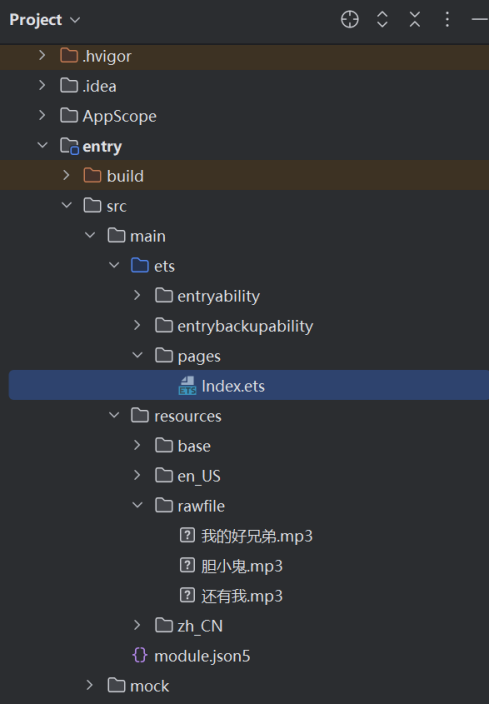
在resources下面的rawfile文件夹里放置MP3音乐文件作为本例的音乐素材,如图所示:
2.2 创建音乐文件接口
在Index.ets文件中,创建音乐文件接口Song,用来表示音乐的信息,代码如下:
|
export default interface Song {
id: number; // 索引
title: string; // 标题
author: string // 作者
path: string; // 文件路径
} |
2.3 定义音乐数组
定义音乐数组songArray,代码如下:
|
// 资源放在resources目录下的rawfile文件夹中
const SONGS: Song[] = [
{
id: 1,
title: '我的好兄弟',
author: '小沈阳',
path: '我的好兄弟.mp3'
},
{
id: 2,
title: '胆小鬼',
author: '梁咏琪',
path: '胆小鬼.mp3'
},
{
id: 3,
title: '还有我',
author: '任贤齐',
path: '还有我.mp3'
}]
|
3 音乐播放控制
3.1 构建AVPlayer实例对象
在Index.ets文件中,使用AVPlayer前需要在onPageShow()中构建一个AVPlayer实例对象,并为AVPlayer实例绑定状态随机变化回调函数。
|
import { common } from '@kit.AbilityKit';
import { media } from '@kit.MediaKit';
@Entry
@Component
struct Index {
private avPlayer: media.AVPlayer | null = null;
private isPlaying: boolean = false;
@State playerState: string = '暂停'
@State selectedSong: Song = {
id: -1,
title: '',
author: '',
path: ''
};
async onPageShow() {
// 创建avPlayer实例对象
this.avPlayer = await media.createAVPlayer();
// 创建状态机变化回调函数
this.setAVPlayerCallback();
console.info('播放器准备完成')
}
setAVPlayerCallback() {
if (this.avPlayer !== null) {
this.avPlayer.on('error', (err) => {
console.error(`播放器发生错误,错误码:${err.code}, 错误信息:${err.message}`);
this.avPlayer?.reset();
});
this.avPlayer.on('stateChange', async (state, reason) => {
switch (state) {
case 'initialized':
console.info('资源初始化完成');
this.avPlayer?.prepare();
break;
case 'prepared':
console.info('资源准备完成');
this.avPlayer?.play();
break;
case 'completed':
console.info('播放完成');
this.avPlayer?.stop();
break;
}
});
}
}
} |
3.2 切换音乐
切换音乐后,使用资源管理接口获取打包在HAP内的媒体资源文件并通过fdSrc属性进行播放,avPlayer.fdSrc会重新赋值新的音乐文件。
|
import { common } from '@kit.AbilityKit';
// 以下为使用资源管理接口获取打包在HAP内的媒体资源文件并通过fdSrc属性进行播放
async changeSong(song: Song) {
if (this.avPlayer !== null) {
this.avPlayer?.reset()
// 创建状态机变化回调函数
this.setAVPlayerCallback();
// 通过UIAbilityContext的resourceManager成员的getRawFd接口获取媒体资源播放地址
// 返回类型为{fd,offset,length},fd为HAP包fd地址,offset为媒体资源偏移量,length为播放长度
let context = getContext(this) as common.UIAbilityContext;
let fileDescriptor = await context.resourceManager.getRawFd(song.path);
// 为fdSrc赋值触发initialized状态机上报
this.avPlayer.fdSrc = fileDescriptor;
}
} |
3.3 创建播放器界面
创建播放器界面,Index.ets代码如下:
|
private avPlayer: media.AVPlayer | null = null;
private isPlaying: boolean = false;
@State playerState: string = '暂停'
@State selectedSong: Song = {
id: -1,
title: '',
author: '',
path: ''
};
build() {
Column() {
Row() {
Row() {
Text('音乐播放器')
.fontColor(Color.White).fontSize(32)
}.margin({ left: 20 })
}.backgroundColor(Color.Green).height('8%').width('100%')
Column() {
List() {
ForEach(SONGS, (song: Song) => {
ListItem() {
Row() {
Button({ type: ButtonType.Normal }) {
Row() {
Text(song.id + '')
.fontSize(32)
Column() {
Text(song.title).fontSize(20).fontWeight(700)
Text(song.author).fontSize(14)
}.alignItems(HorizontalAlign.Start)
.margin({ left: 20 })
}.justifyContent(FlexAlign.Start)
.width('90%')
}
.backgroundColor(Color.White)
.width("100%")
.height(50)
.margin({ top: 10 })
.onClick(() => {
this.playerState = '暂停';
this.isPlaying = true;
this.onPageShow();
this.changeSong(song);
this.selectedSong = song;
})
}
}
})
}.width('100%')
}.height('84%')
Row() {
Row() {
if (this.selectedSong.id == -1) {
Text('点击歌曲开始播放')
.fontSize(20).fontColor(Color.White)
} else {
Column() {
Text(this.selectedSong.title)
.fontSize(20).fontColor(Color.White)
}.width('70%').alignItems(HorizontalAlign.Start)
Column() {
Button({ type: ButtonType.Normal, stateEffect: true }) {
Text(this.playerState)
.fontSize(20).fontColor(Color.White)
}
.borderRadius(8)
.height(26)
.width(70)
.backgroundColor(Color.Orange)
.onClick(() => {
if (this.avPlayer !== null && this.isPlaying == true) {
this.avPlayer.pause()
this.playerState = '继续'
this.isPlaying = false
} else {
this.avPlayer?.play()
this.playerState = '暂停'
this.isPlaying = true
}
})
}.width('20%')
}
}.width('99%').margin({ left: 15 })
}.backgroundColor(Color.Green).height('8%').width('100%')
}.height('100%').width('100%')
} |
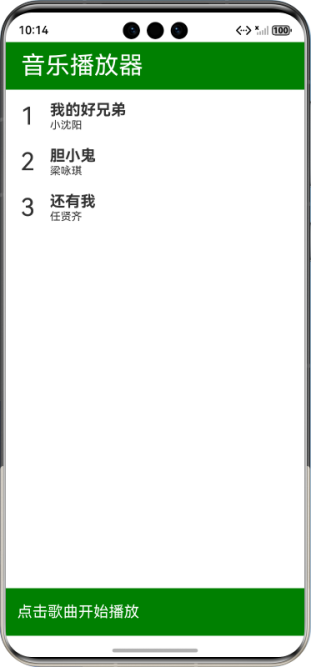
上述界面主题分为以下3部分:
(1)应用标题
(2)音乐列表:采用List和Listltem组件实现。只要选中音乐列表中的音乐条目,就会自动进行播放。
(3)音乐控制器:用于控制所选中的音乐的播放或者暂停。
3.4 运行
运行应用,可以看到音乐播放器运行效果,如图所示:
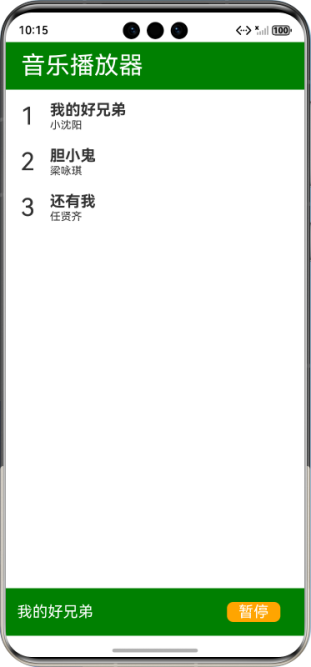
选中音乐列表里面的任意音乐条目,则会执行播放,效果如图所示:
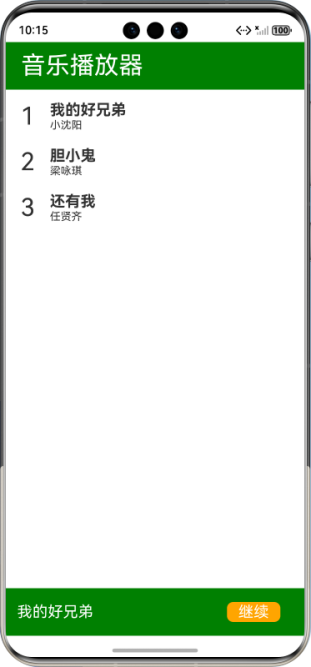
单击“暂停”按钮来执行音乐播放的暂停,效果如图所示:
4.小结
本文介绍了多媒体开发,内容包括音频、视频、图片等的开发。这里通过一个实战案例介绍音乐播放器的实现过程。

 17
17 0
0


 已为社区贡献34条内容

所有评论(0)