HarmonyOS6半年磨一剑 - RcImage组件预览功能与交互体验优化(二)
完整的配置体系: 从基础到高级,满足各种场景需求智能的状态管理: 预览状态、缩放比例、索引位置协同工作流畅的动画效果: 200ms EaseInOut 动画,提供丝滑体验强大的切换功能: 循环索引算法,支持无限图片列表完善的事件系统: 5 类事件回调,灵活的扩展能力优异的性能表现: 条件渲染、预加载、动画优化这些特性使得 RcImage 不仅是一个简单的图片展示组件,更是一个功能完整、体验优秀的图
·
文章目录
接上一篇文章 传送门:
HarmonyOS6半年磨一剑 - RcImage组件预览功能与交互体验优化
第六章: 关闭按钮设计
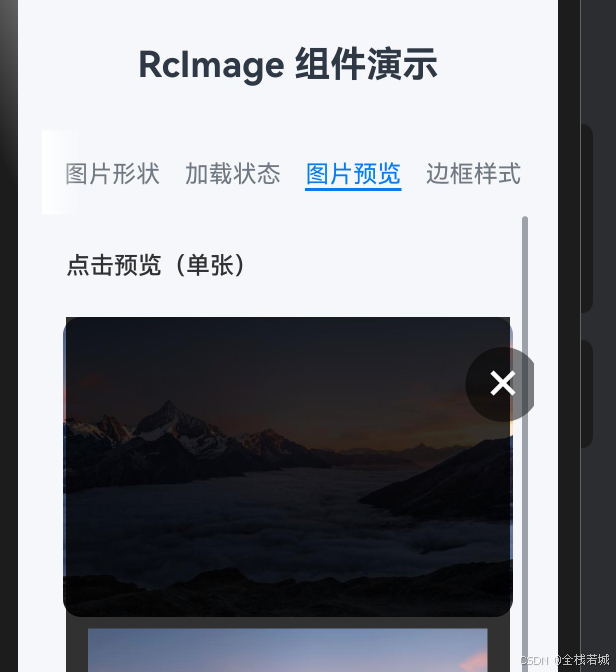
6.1 关闭按钮实现
// 关闭按钮(可配置是否显示)
if (this.previewOptions.showClose !== false) {
  Text('×')
    .fontSize(40)
    .fontColor(Color.White)
    .width(50)
    .height(50)
    .textAlign(TextAlign.Center)
    .borderRadius(25)  // 圆形按钮
    .backgroundColor('rgba(0, 0, 0, 0.5)')
    .position({ x: '90%', y: 20 })  // 右上角
    .onClick(() => {
      this.closePreview()
    })
}
关闭按钮特点:
- 醒目位置: 右上角,符合用户习惯
- 大字符: 40px 的
×符号,易于点击 - 圆形设计: 50×50 的圆形按钮,视觉舒适
- 可配置:
showClose: false可隐藏关闭按钮
6.2 多种关闭方式
RcImage 提供 3 种关闭预览的方式:
// 方式1: 点击关闭按钮
Text('×')
  .onClick(() => this.closePreview())

// 方式2: 点击遮罩层
Column()
  .backgroundColor('rgba(0, 0, 0, 0.8)')
  .onClick(() => this.closePreview())

// 方式3: 通过事件回调(外部控制)
RcImage({
  previewable: true,
  onPreviewOpen: () => {
    // 外部可以监听并提供其他关闭方式
    // 例如: 按返回键关闭
  }
})
第七章: 事件回调系统
7.1 事件回调分类
RcImage 提供 5 类事件回调:
// 1. 基础交互事件
@Param onImageClick: () => void = () => {}

// 2. 加载状态事件
@Param onImageLoad: () => void = () => {}
@Param onImageError: (error: string) => void = () => {}

// 3. 预览功能事件
@Param onPreviewOpen: () => void = () => {}
@Param onPreviewClose: () => void = () => {}
7.2 预览事件完整流程
// 打开预览事件链
用户点击图片
    ↓
handleImageClick()
    ↓
openPreview()
    ↓
onPreviewOpen() 回调  ← 外部监听预览打开
    ↓
显示预览弹窗

// 关闭预览事件链
用户点击关闭/遮罩
    ↓
closePreview()
    ↓
onPreviewClose() 回调  ← 外部监听预览关闭
    ↓
previewOptions.onClose() 回调  ← 配置级回调
    ↓
隐藏预览弹窗
7.3 事件回调应用场景
// 场景1: 统计预览次数
RcImage({
  imageSrc: 'photo.jpg',
  previewable: true,
  onPreviewOpen: () => {
    console.log('预览打开')
    // 上报统计数据
    analytics.track('image_preview', { imageUrl: 'photo.jpg' })
  }
})

// 场景2: 控制页面滚动
@Component
struct ImagePreviewDemo {
  @State isPreviewOpen: boolean = false

  build() {
    Scroll() {
      Column() {
        RcImage({
          imageSrc: 'photo.jpg',
          previewable: true,
          onPreviewOpen: () => {
            this.isPreviewOpen = true
            // 禁用页面滚动
          },
          onPreviewClose: () => {
            this.isPreviewOpen = false
            // 恢复页面滚动
          }
        })
      }
    }
    .scrollEnabled(!this.isPreviewOpen)
  }
}

// 场景3: 预览前检查权限
RcImage({
  imageSrc: 'premium-photo.jpg',
  previewable: true,
  onImageClick: () => {
    if (!user.isPremium) {
      showPremiumDialog()
      return false  // 阻止默认预览
    }
  },
  onPreviewOpen: () => {
    console.log('高级用户预览高清图片')
  }
})

// 场景4: 预览关闭后刷新数据
RcImage({
  imageSrc: 'photo.jpg',
  previewable: true,
  previewOptions: {
    onClose: () => {
      // 预览关闭后刷新相关数据
      refreshGalleryData()
    }
  }
})
第八章: 动画效果优化
8.1 缩放动画配置
Image(this.getCurrentPreviewImage())
  .scale({ x: this.previewScale, y: this.previewScale })
  .animation({
    duration: 200,              // 动画时长
    curve: Curve.EaseInOut      // 缓动曲线
  })
动画参数对比:
| 参数 | 当前值 | 其他选项 | 效果 |
|---|---|---|---|
duration |
200ms | 100ms / 300ms | 200ms 流畅且不拖沓 |
curve |
EaseInOut |
Linear / EaseIn |
两端缓动,中间匀速 |
8.2 动画曲线对比
// 1. Linear - 线性动画
.animation({ curve: Curve.Linear })
// 特点: 匀速运动,机械感强
// 适用: 旋转、进度条

// 2. EaseIn - 先慢后快
.animation({ curve: Curve.EaseIn })
// 特点: 开始慢,结束快
// 适用: 元素消失

// 3. EaseOut - 先快后慢
.animation({ curve: Curve.EaseOut })
// 特点: 开始快,结束慢
// 适用: 元素出现

// 4. EaseInOut - 两端慢中间快(推荐)
.animation({ curve: Curve.EaseInOut })
// 特点: 开始和结束都慢,中间快
// 适用: 缩放、移动等大部分场景
8.3 图片切换动画
// 当前实现: 即时切换
this.currentPreviewIndex = newIndex
// → 图片立即更新

// 可优化: 淡入淡出动画
@Local imageOpacity: number = 1

private changePreviewImageWithFade(direction: 'prev' | 'next') {
  // 1. 淡出当前图片
  this.imageOpacity = 0

  // 2. 等待淡出完成
  setTimeout(() => {
    // 3. 切换图片
    this.changePreviewImage(direction)

    // 4. 淡入新图片
    this.imageOpacity = 1
  }, 200)
}

// 应用动画
Image(this.getCurrentPreviewImage())
  .opacity(this.imageOpacity)
  .animation({
    duration: 200,
    curve: Curve.EaseInOut
  })
第九章: 性能优化策略
9.1 条件渲染优化
@Builder
renderPreviewDialog() {
  // ✅ 推荐: 条件渲染
  if (this.showPreviewDialog) {
    Stack() {
      // 预览内容
    }
  }
}

// ❌ 不推荐: 始终渲染但隐藏
@Builder
renderPreviewDialog() {
  Stack() {
    // 预览内容
  }
  .visibility(this.showPreviewDialog ? Visibility.Visible : Visibility.Hidden)
}
性能对比:
| 方式 | 未显示时内存占用 | 渲染开销 | 推荐度 |
|---|---|---|---|
| 条件渲染 | 0 | 无 | ⭐⭐⭐⭐⭐ |
| 隐藏方式 | 全量 | 全量 | ⭐ |
9.2 图片预加载
// 在打开预览前预加载图片
private preloadPreviewImages() {
  if (this.previewList.length > 0) {
    this.previewList.forEach((imageUrl) => {
      Image(imageUrl)  // 触发预加载
        .width(0)
        .height(0)
        .visibility(Visibility.Hidden)
    })
  }
}
9.3 大图片优化
// ✅ 推荐: 使用缩略图 + 高清图模式
@Local previewImageUrl: string = ''

private openPreview() {
  // 1. 先显示缩略图
  this.previewImageUrl = this.getThumbnailUrl(this.imageSrc)
  this.showPreviewDialog = true

  // 2. 后台加载高清图
  this.loadHighResImage(this.imageSrc).then((url) => {
    this.previewImageUrl = url
  })
}

// ❌ 不推荐: 直接加载原图(可能很大)
Image(this.imageSrc)  // 可能是 5MB 的高清图
第十章: 交互体验增强
10.1 手势支持扩展
// 当前实现: 按钮缩放
Text('+').onClick(() => this.scalePreviewImage('in'))
Text('−').onClick(() => this.scalePreviewImage('out'))

// 增强实现: 双击放大/缩小
Image(this.getCurrentPreviewImage())
  .gesture(
    TapGesture({ count: 2 })
      .onAction(() => {
        if (this.previewScale === 1) {
          this.previewScale = 2  // 双击放大到 2x
        } else {
          this.previewScale = 1  // 双击还原到 1x
        }
      })
  )

// 进阶实现: 双指缩放
Image(this.getCurrentPreviewImage())
  .gesture(
    PinchGesture()
      .onActionUpdate((event) => {
        const scale = this.previewScale * event.scale
        this.previewScale = Math.max(
          this.previewOptions.minScale || 0.5,
          Math.min(scale, this.previewOptions.maxScale || 3)
        )
      })
  )
10.2 左右滑动切换
Image(this.getCurrentPreviewImage())
  .gesture(
    SwipeGesture({ direction: SwipeDirection.Horizontal })
      .onAction((event) => {
        if (event.angle > 0) {
          // 向右滑动 → 上一张
          this.changePreviewImage('prev')
        } else {
          // 向左滑动 → 下一张
          this.changePreviewImage('next')
        }
      })
  )
10.3 拖拽平移
@Local offsetX: number = 0
@Local offsetY: number = 0

Image(this.getCurrentPreviewImage())
  .translate({ x: this.offsetX, y: this.offsetY })
  .gesture(
    PanGesture()
      .onActionUpdate((event) => {
        // 仅在放大状态下允许拖拽
        if (this.previewScale > 1) {
          this.offsetX += event.offsetX
          this.offsetY += event.offsetY
        }
      })
      .onActionEnd(() => {
        // 拖拽结束后重置位置
        if (this.previewScale === 1) {
          this.offsetX = 0
          this.offsetY = 0
        }
      })
  )
总结
RcImage 组件的预览功能通过精心设计的交互系统,为 HarmonyOS6 应用提供了专业级的图片预览体验:
- 完整的配置体系: 从基础到高级,满足各种场景需求
- 智能的状态管理: 预览状态、缩放比例、索引位置协同工作
- 流畅的动画效果: 200ms EaseInOut 动画,提供丝滑体验
- 强大的切换功能: 循环索引算法,支持无限图片列表
- 完善的事件系统: 5 类事件回调,灵活的扩展能力
- 优异的性能表现: 条件渲染、预加载、动画优化
这些特性使得 RcImage 不仅是一个简单的图片展示组件,更是一个功能完整、体验优秀的图片预览解决方案,值得在项目中广泛应用。

讨论HarmonyOS开发技术,专注于API与组件、DevEco Studio、测试、元服务和应用上架分发等。
更多推荐
 11
11 0
0- 0


 已为社区贡献76条内容

所有评论(0)