【Flutter x HarmonyOS 6】魔方计时APP——挑战页面的UI设计
上一篇我们聊了记录页面的 UI 设计,这篇继续看看导航栏中的另一个页面——挑战页面。挑战功能是计时器应用的一个重要特色:用户可以设定目标时间,进行目标驱动的沉浸训练。这篇我们从 UI 设计的角度,看看这个功能是如何呈现的。挑战页面作为底部导航的一个 Tab,整体结构与记录页面类似,使用包裹。页面结构分为三部分:当用户还没有创建任何挑战时,显示空状态提示:空状态的设计要点:每个挑战以卡片形式展示,包
上一篇我们聊了记录页面的 UI 设计,这篇继续看看导航栏中的另一个页面——挑战页面。
挑战功能是计时器应用的一个重要特色:用户可以设定目标时间,进行目标驱动的沉浸训练。这篇我们从 UI 设计的角度,看看这个功能是如何呈现的。
一、挑战列表页面
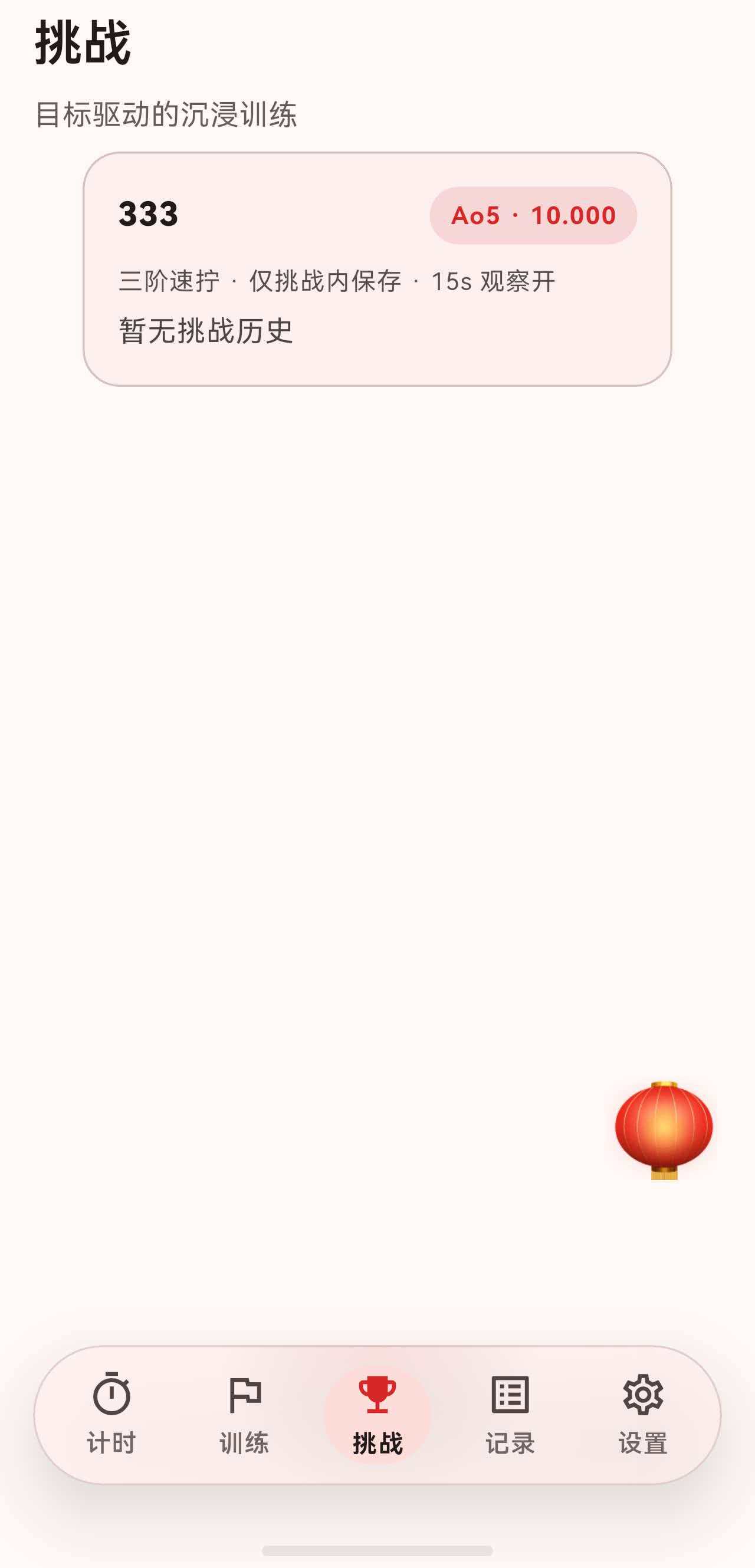
挑战页面作为底部导航的一个 Tab,整体结构与记录页面类似,使用 SectionedPage 包裹。
class ChallengesPage extends StatelessWidget {
Widget build(BuildContext context) {
return Stack(
children: [
SectionedPage(
title: '挑战',
subtitle: const Text('目标驱动的沉浸训练'),
child: Consumer<ChallengesController>(
builder: (context, controller, _) {
if (!controller.isInitialized) {
return const Center(child: CircularProgressIndicator());
}
final challenges = controller.challenges;
if (challenges.isEmpty) {
return _EmptyState(onCreate: () => showChallengeFormSheet(context));
}
return ListView.separated(
physics: const BouncingScrollPhysics(),
padding: const EdgeInsets.fromLTRB(16, 0, 16, 24),
itemBuilder: (context, index) {
final challenge = challenges[index];
return _ChallengeTile(
challengeId: challenge.id,
onTap: () {
Navigator.of(context).push(
MaterialPageRoute<void>(
builder: (_) => ChallengeDetailPage(challengeId: challenge.id),
),
);
},
);
},
separatorBuilder: (_, __) => const SizedBox(height: 12),
itemCount: challenges.length,
);
},
),
),
GripAwareNewFab(
tooltip: '新建挑战',
icon: Icons.add,
onPressed: () => showChallengeFormSheet(context),
),
],
);
}
}
页面结构分为三部分:
- 标题区域:标题"挑战" + 副标题"目标驱动的沉浸训练"。
- 内容区域:挑战列表或空状态提示。
- 悬浮按钮:新建挑战的入口。
二、空状态设计
当用户还没有创建任何挑战时,显示空状态提示:
class _EmptyState extends StatelessWidget {
const _EmptyState({required this.onCreate});
final VoidCallback onCreate;
Widget build(BuildContext context) {
final theme = Theme.of(context);
return Center(
child: Padding(
padding: const EdgeInsets.all(24),
child: Column(
mainAxisSize: MainAxisSize.min,
children: [
Icon(Icons.emoji_events_outlined, size: 44, color: theme.colorScheme.primary),
const SizedBox(height: 12),
Text(
'还没有挑战',
style: theme.textTheme.titleLarge?.copyWith(fontWeight: FontWeight.w800),
),
const SizedBox(height: 8),
Text(
'创建一个目标时间,让训练更沉浸、更有方向。',
style: theme.textTheme.bodyMedium?.copyWith(
color: theme.textTheme.bodyMedium?.color?.withOpacity(0.75),
),
textAlign: TextAlign.center,
),
const SizedBox(height: 16),
FilledButton.icon(
onPressed: onCreate,
icon: const Icon(Icons.add_circle_outline),
label: const Text('新建挑战'),
),
],
),
),
);
}
}
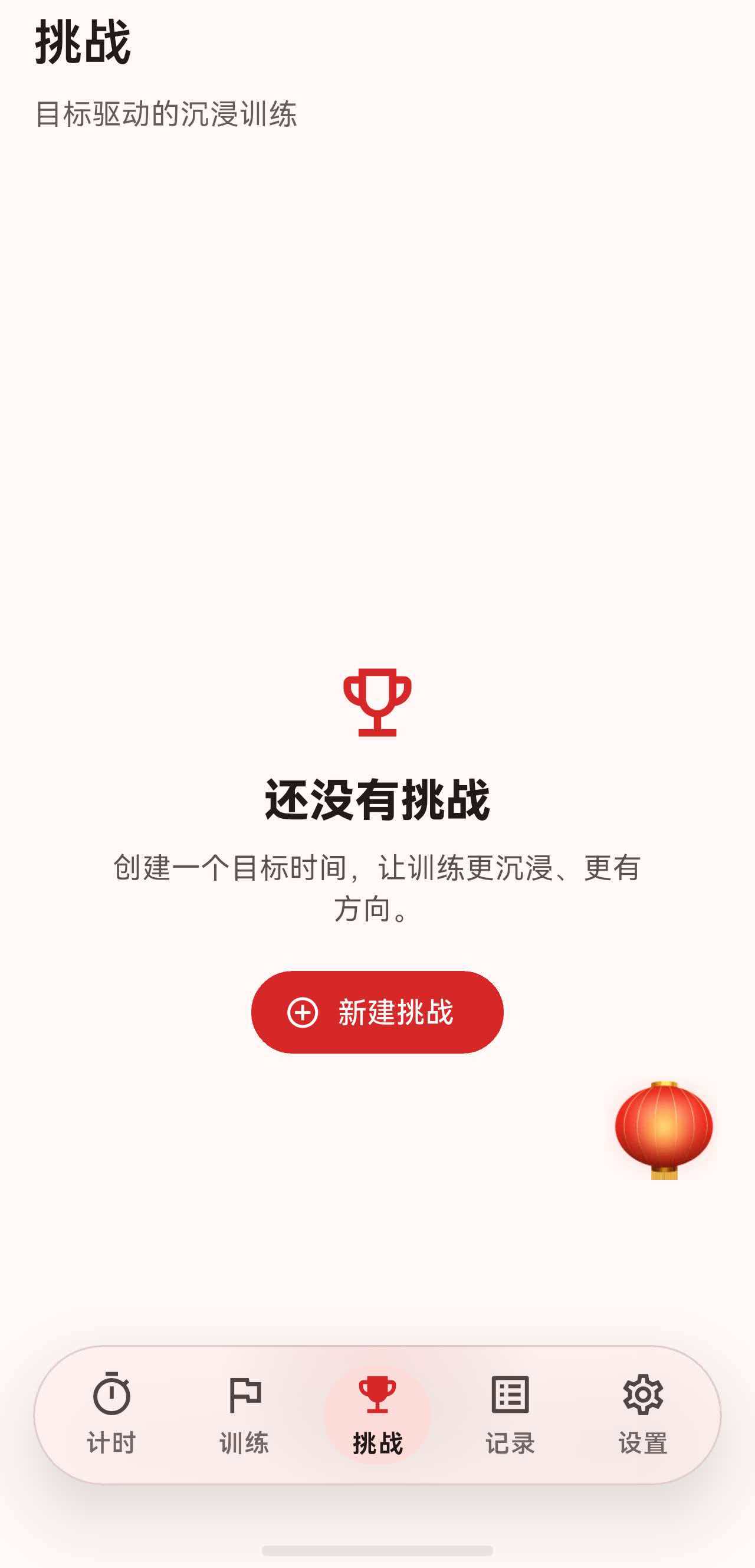
空状态的设计要点:
- 图标:使用奖杯图标
emoji_events_outlined,呼应"挑战"主题。 - 引导文案:说明挑战功能的价值——“让训练更沉浸、更有方向”。
- 行动按钮:直接提供"新建挑战"按钮,减少用户操作步骤。
三、挑战列表项设计
每个挑战以卡片形式展示,包含丰富的信息:
class _ChallengeTile extends StatelessWidget {
Widget build(BuildContext context) {
final theme = Theme.of(context);
final controller = context.watch<ChallengesController>();
final challenge = controller.findChallengeById(challengeId);
// 获取最近一次挑战历史
final attempts = controller.attemptsForChallenge(challengeId);
ChallengeAttempt? latestFinished;
for (final attempt in attempts) {
if (attempt.isFinished) {
latestFinished = attempt;
break;
}
}
// 生成副标题文案
String? caption;
if (latestFinished == null) {
caption = '暂无挑战历史';
} else {
final succeeded = latestFinished.succeeded ?? false;
final statusText = succeeded ? '成功' : '未达标';
final avgText = latestFinished.averageDuration == null
? 'DNF'
: _formatDuration(latestFinished.averageDuration);
caption = '最近:$statusText · ${challenge.averageType.label} $avgText';
}
return InkWell(
borderRadius: BorderRadius.circular(18),
onTap: onTap,
child: Container(
padding: const EdgeInsets.all(16),
decoration: BoxDecoration(
borderRadius: BorderRadius.circular(18),
color: theme.colorScheme.surfaceVariant.withOpacity(0.35),
border: Border.all(color: theme.colorScheme.outlineVariant),
),
child: Column(
crossAxisAlignment: CrossAxisAlignment.start,
children: [
Row(
  children: [
    Expanded(
      child: Text(
        challenge.name,
        style: theme.textTheme.titleMedium?.copyWith(
          fontWeight: FontWeight.w800,
        ),
      ),
    ),
    Container(
      padding: const EdgeInsets.symmetric(horizontal: 10, vertical: 6),
      decoration: BoxDecoration(
        borderRadius: BorderRadius.circular(999),
        color: theme.colorScheme.primary.withOpacity(0.12),
      ),
      child: Text(
        '${challenge.averageType.label} · ${_formatDuration(challenge.targetDuration)}',
        style: theme.textTheme.labelMedium?.copyWith(
          color: theme.colorScheme.primary,
          fontWeight: FontWeight.w700,
        ),
      ),
    ),
  ],
),
const SizedBox(height: 10),
Text(
  '${challenge.event.chineseName} · ${challenge.includeInRecords ? '计入统计' : '仅挑战内保存'} · ${challenge.enableInspectionAndPenalty ? '15s 观察开' : '15s 观察关'}',
  style: theme.textTheme.bodySmall?.copyWith(
    color: theme.textTheme.bodySmall?.color?.withOpacity(0.75),
  ),
),
const SizedBox(height: 6),
Text(
caption,
style: theme.textTheme.bodyMedium?.copyWith(
color: theme.textTheme.bodyMedium?.color?.withOpacity(0.8),
),
),
],
),
),
);
}
}
3.1 卡片布局
卡片内容分为三行:
第一行:挑战名称 + 目标标签
Row(
children: [
Expanded(
child: Text(
challenge.name,
style: theme.textTheme.titleMedium?.copyWith(
fontWeight: FontWeight.w800,
),
),
),
Container(
padding: const EdgeInsets.symmetric(horizontal: 10, vertical: 6),
decoration: BoxDecoration(
borderRadius: BorderRadius.circular(999),
color: theme.colorScheme.primary.withOpacity(0.12),
),
child: Text(
'${challenge.averageType.label} · ${_formatDuration(challenge.targetDuration)}',
style: theme.textTheme.labelMedium?.copyWith(
color: theme.colorScheme.primary,
fontWeight: FontWeight.w700,
),
),
),
],
),
目标标签使用胶囊形状(borderRadius: 999),显示挑战类型和目标时间,如 “ao5 · 10.000”。
第二行:挑战配置信息
Text(
'${challenge.event.chineseName} · ${challenge.includeInRecords ? '计入统计' : '仅挑战内保存'} · ${challenge.enableInspectionAndPenalty ? '15s 观察开' : '15s 观察关'}',
style: theme.textTheme.bodySmall?.copyWith(
color: theme.textTheme.bodySmall?.color?.withOpacity(0.75),
),
),
这里显示三个配置项:
- 项目名称(如"三阶魔方")
- 是否计入统计
- 是否启用 15 秒观察
第三行:最近挑战结果
Text(
  caption,  // 如 "最近:成功 · ao5 9.234"
  style: theme.textTheme.bodyMedium?.copyWith(
    color: theme.textTheme.bodyMedium?.color?.withOpacity(0.8),
  ),
),
3.2 点击效果
整个卡片用 InkWell 包裹,点击时有水波纹效果:
InkWell(
  borderRadius: BorderRadius.circular(18),  // 与卡片圆角一致
  onTap: onTap,
  child: Container(...),
)
四、挑战详情页面
点击挑战卡片后,进入挑战详情页面 ChallengeDetailPage。
class ChallengeDetailPage extends StatelessWidget {
Widget build(BuildContext context) {
final controller = context.watch<ChallengesController>();
final challenge = controller.findChallengeById(challengeId);
final attempts = controller.attemptsForChallenge(challengeId);
// 检查是否有进行中的挑战
ChallengeAttempt? ongoingAttempt;
for (final attempt in attempts) {
if (!attempt.isFinished) {
ongoingAttempt = attempt;
break;
}
}
final finishedAttempts = attempts.where((a) => a.isFinished).toList();
return SectionedPage(
title: challenge.name,
subtitle: Text('${challenge.event.chineseName} · ${challenge.averageType.label}'),
actions: [
SectionHeaderIconButton(
tooltip: '删除挑战',
icon: Icons.delete_outline,
onPressed: () => _confirmDelete(context, challenge),
),
],
child: ListView(
physics: const BouncingScrollPhysics(),
padding: const EdgeInsets.fromLTRB(16, 0, 16, 24),
children: [
_ChallengeSummaryCard(challenge: challenge),
const SizedBox(height: 12),
if (ongoingAttempt != null) ...[
_OngoingAttemptCard(...),
const SizedBox(height: 12),
],
FilledButton.icon(
onPressed: () { /* 开始或继续挑战 */ },
icon: const Icon(Icons.play_arrow_rounded),
label: Text(ongoingAttempt == null ? '开始挑战' : '继续挑战'),
style: FilledButton.styleFrom(padding: const EdgeInsets.symmetric(vertical: 14)),
),
const SizedBox(height: 20),
Text('挑战历史', style: Theme.of(context).textTheme.titleMedium?.copyWith(fontWeight: FontWeight.w800)),
const SizedBox(height: 10),
// 历史列表...
],
),
);
}
}
4.1 挑战摘要卡片
摘要卡片展示挑战的核心配置:
class _ChallengeSummaryCard extends StatelessWidget {
Widget build(BuildContext context) {
final theme = Theme.of(context);
return Container(
padding: const EdgeInsets.all(16),
decoration: BoxDecoration(
borderRadius: BorderRadius.circular(18),
color: theme.colorScheme.surfaceVariant.withOpacity(0.35),
border: Border.all(color: theme.colorScheme.outlineVariant),
),
child: Column(
crossAxisAlignment: CrossAxisAlignment.start,
children: [
Row(
children: [
Expanded(
child: Text(
'目标:${challenge.averageType.label} ≤ ${_formatDuration(challenge.targetDuration)}',
style: theme.textTheme.titleMedium?.copyWith(fontWeight: FontWeight.w800),
),
),
],
),
const SizedBox(height: 8),
Text('项目:${challenge.event.chineseName}', style: theme.textTheme.bodyMedium),
const SizedBox(height: 4),
Text('记录:${challenge.includeInRecords ? '计入记录/统计' : '仅挑战内保存'}', style: theme.textTheme.bodyMedium),
const SizedBox(height: 4),
Text('规则:${challenge.enableInspectionAndPenalty ? '启用 15s 观察(超时自动判罚)' : '不启用 15s 观察'}', style: theme.textTheme.bodyMedium),
],
),
);
}
}
4.2 进行中的挑战卡片
如果有未完成的挑战,会显示一个特殊的卡片:
class _OngoingAttemptCard extends StatelessWidget {
Widget build(BuildContext context) {
final theme = Theme.of(context);
final done = attempt.solves.length;
final progressText = '进行中:$done / $total';
final startedText = '开始:${_formatDate(attempt.startedAt)}';
return Container(
padding: const EdgeInsets.all(14),
decoration: BoxDecoration(
borderRadius: BorderRadius.circular(18),
color: theme.colorScheme.primary.withOpacity(0.08),
border: Border.all(color: theme.colorScheme.outlineVariant),
),
child: Column(
crossAxisAlignment: CrossAxisAlignment.start,
children: [
Text(
progressText,
style: theme.textTheme.titleMedium?.copyWith(
fontWeight: FontWeight.w800,
),
),
const SizedBox(height: 4),
Text(
startedText,
style: theme.textTheme.bodySmall?.copyWith(
color: theme.textTheme.bodySmall?.color?.withOpacity(0.75),
),
),
const SizedBox(height: 12),
Row(
children: [
Expanded(
child: OutlinedButton(
onPressed: onAbandon,
child: const Text('放弃本轮'),
),
),
const SizedBox(width: 12),
Expanded(
child: FilledButton(
onPressed: onContinue,
child: const Text('继续'),
),
),
],
),
],
),
);
}
}
这个卡片的特点:
- 使用主色半透明背景,视觉上更突出。
- 显示进度(如 “进行中:3 / 5”)。
- 提供两个操作:放弃本轮 / 继续。
4.3 挑战历史列表
每次完成的挑战会显示在历史列表中:
class _AttemptTile extends StatelessWidget {
Widget build(BuildContext context) {
final theme = Theme.of(context);
final succeeded = attempt.succeeded ?? false;
final statusText = succeeded ? '挑战成功' : '未达标';
final avgText = attempt.averageDuration == null ? 'DNF' : _formatDuration(attempt.averageDuration);
return InkWell(
borderRadius: BorderRadius.circular(18),
onTap: onTap,
child: Container(
padding: const EdgeInsets.all(14),
decoration: BoxDecoration(
borderRadius: BorderRadius.circular(18),
color: theme.colorScheme.surface,
border: Border.all(color: theme.colorScheme.outlineVariant),
),
child: Row(
children: [
Container(
width: 12,
height: 12,
decoration: BoxDecoration(
color: succeeded ? Colors.green : theme.colorScheme.error,
shape: BoxShape.circle,
),
),
const SizedBox(width: 10),
Expanded(
child: Column(
crossAxisAlignment: CrossAxisAlignment.start,
children: [
Text(
'$statusText · ${challenge.averageType.label} $avgText',
style: theme.textTheme.titleSmall?.copyWith(fontWeight: FontWeight.w700),
),
const SizedBox(height: 2),
Text(
_formatDate(attempt.startedAt),
style: theme.textTheme.bodySmall?.copyWith(
color: theme.textTheme.bodySmall?.color?.withOpacity(0.7),
),
),
],
),
),
const Icon(Icons.chevron_right),
],
),
),
);
}
}
历史项的设计:
- 左侧圆点:成功显示绿色,失败显示红色。
- 中间:状态 + 平均时间 + 开始时间。
- 右侧:箭头指示可点击。
五、新建挑战表单
点击新建按钮后,弹出底部表单:
Future<void> showChallengeFormSheet(BuildContext context) {
  return showModalBottomSheet<void>(
    context: context,
    isScrollControlled: true,
    useSafeArea: true,
    builder: (context) {
      return ScaffoldMessenger(
        child: Scaffold(
          backgroundColor: Colors.transparent,
          body: const _ChallengeFormSheet(),
        ),
      );
    },
  );
}
5.1 表单结构
表单包含多个配置项:
Column(
  crossAxisAlignment: CrossAxisAlignment.start,
  children: [
    TextField(
      controller: _nameController,
      textInputAction: TextInputAction.next,
      decoration: const InputDecoration(
        labelText: '挑战名称',
        hintText: '例如:三阶冲 9 秒 / 金字塔稳 6 秒',
      ),
    ),
    const SizedBox(height: 16),
    Text('训练项目', style: theme.textTheme.titleMedium),
    const SizedBox(height: 12),
    Wrap(
      spacing: 8,
      runSpacing: 8,
      children: WcaEventX.officialOrder
          .map(
            (event) => ChoiceChip(
              label: Text(event.chineseName),
              selected: _selectedEvent == event,
              onSelected: (selected) {
                if (!selected) return;
                setState(() {
                  _selectedEvent = event;
                });
              },
            ),
          )
          .toList(),
    ),
    const SizedBox(height: 24),
    Text('挑战类型', style: theme.textTheme.titleMedium),
    const SizedBox(height: 12),
    Wrap(
      spacing: 12,
      children: ChallengeAverageType.values
          .map(
            (type) => ChoiceChip(
              label: Text(type.label),
              selected: _averageType == type,
              onSelected: (selected) {
                if (!selected) return;
                setState(() => _averageType = type);
              },
            ),
          )
          .toList(),
    ),
    // 目标时间、是否计入记录、是否启用观察...
  ],
),
5.2 项目选择器
使用 ChoiceChip 实现项目选择:
Wrap(
  spacing: 8,
  runSpacing: 8,
  children: WcaEventX.officialOrder
      .map(
        (event) => ChoiceChip(
          label: Text(event.chineseName),
          selected: _selectedEvent == event,
          onSelected: (selected) {
            if (!selected) return;
            setState(() {
              _selectedEvent = event;
            });
          },
        ),
      )
      .toList(),
),
Wrap 组件让选项自动换行,适应不同屏幕宽度。
5.3 目标时间选择器
目标时间使用 Cupertino 风格的滚轮选择器:
Future<void> _pickTargetDuration() async {
  final selected = await showModalBottomSheet<Duration>(
    context: context,
    useSafeArea: true,
    isScrollControlled: false,
    builder: (context) {
      return SizedBox(
        height: 340,
        child: Column(
          children: [
            // 顶部:取消 / 预览 / 确定
            Padding(
              padding: const EdgeInsets.fromLTRB(16, 12, 16, 8),
              child: Row(
                children: [
                  TextButton(
                    onPressed: () => Navigator.of(context).pop(),
                    child: const Text('取消'),
                  ),
                  const Spacer(),
                  Text(
                    _formatDurationForPicker(preview),
                    style: theme.textTheme.titleMedium?.copyWith(
                      fontWeight: FontWeight.w800,
                    ),
                  ),
                  const Spacer(),
                  FilledButton(
                    onPressed: () => Navigator.of(context).pop(preview),
                    child: const Text('确定'),
                  ),
                ],
              ),
            ),
            const Divider(height: 1),
            // 滚轮选择器
            Expanded(
              child: Row(
                children: [
                  buildColumn(label: '分', picker: CupertinoPicker(...)),
                  buildColumn(label: '秒', picker: CupertinoPicker(...)),
                  buildColumn(label: '毫秒', picker: CupertinoPicker(...)),
                ],
              ),
            ),
          ],
        ),
      );
    },
  );

  if (selected == null) return;
  setState(() => _targetDuration = selected);
}
三个滚轮分别选择分钟、秒、毫秒,顶部实时显示预览值。
5.4 开关选项
表单中有两个开关选项:
SwitchListTile.adaptive(
  contentPadding: EdgeInsets.zero,
  value: _includeInRecords,
  onChanged: (value) => setState(() => _includeInRecords = value),
  title: const Text('计入记录/统计'),
  subtitle: Text(
    '开启后,挑战中的每一把成绩会写入记录页并参与统计。',
    style: theme.textTheme.bodySmall?.copyWith(
      color: theme.textTheme.bodySmall?.color?.withOpacity(0.7),
    ),
  ),
),
SwitchListTile.adaptive 会根据平台自动选择 Material 或 Cupertino 风格的开关。
六、总结
这篇我们从 UI 设计的角度,梳理了挑战页面的整体结构:
- 挑战列表页面:SectionedPage + 悬浮按钮,空状态有引导。
- 挑战列表项:卡片形式,显示名称、目标、配置、最近结果。
- 挑战详情页面:摘要卡片 + 进行中卡片 + 开始按钮 + 历史列表。
- 新建挑战表单:底部 Sheet,包含名称、项目、类型、目标时间、开关选项。
挑战功能的 UI 设计,核心是让用户快速理解挑战的配置和状态,同时提供清晰的操作入口。下一篇我们可以深入聊聊挑战功能的业务逻辑实现。

讨论HarmonyOS开发技术,专注于API与组件、DevEco Studio、测试、元服务和应用上架分发等。
更多推荐


 14
14 0
0- 0


 已为社区贡献18条内容

所有评论(0)