HarmonyOS APP<<古今职鉴定>>开源教程第9篇:组件状态管理:从 @State 到 @Link
本篇深入学习组件状态管理,掌握父子组件间的数据传递
·
本篇深入学习组件状态管理,掌握父子组件间的数据传递
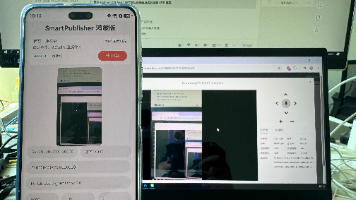
图:古今职鉴开源教程封面。本篇围绕「组件状态管理:从 @State 到 @Link」展开。
学习目标
完成本篇后,你将能够:
- ✅ 深入理解 @State 状态管理
- ✅ 使用 @Prop 实现父传子单向数据流
- ✅ 使用 @Link 实现父子双向绑定
- ✅ 使用 @Watch 监听状态变化
- ✅ 使用 @Provide/@Consume 跨层级传递
预计学习时间
约 90 分钟
---
实战一:@State 组件内部状态
第一步:创建 lesson09 目录和文件
在 products/jiaocheng/src/main/ets/ 下创建 lesson09 文件夹,新建 Lesson09Page.ets:
// 文件路径:products/jiaocheng/src/main/ets/lesson09/Lesson09Page.ets

@Entry
@Component
struct Lesson09Page {
  // @State 声明响应式状态
  @State count: number = 0;

  build() {
    Column({ space: 20 }) {
      Text('状态管理演示')
        .fontSize(20)
        .fontWeight(FontWeight.Bold)
        .fontColor('#1e293b')

      Text(`计数: ${this.count}`)
        .fontSize(32)
        .fontColor('#c41e3a')

      Button('增加')
        .onClick(() => {
          // 修改状态,UI 自动更新
          this.count++;
        })
    }
    .width('100%')
    .height('100%')
    .justifyContent(FlexAlign.Center)
    .backgroundColor('#f8f6f5')
  }
}
第二步:理解 @State 的工作原理
@State count: number = 0;关键点:
@State声明的变量是响应式的- 变量值变化时,依赖它的 UI 自动更新
- 只能在组件内部使用
第三步:@State 支持的类型
// ✅ 基本类型
@State count: number = 0;
@State name: string = '';
@State isActive: boolean = false;

// ✅ 对象类型(需要定义接口)
interface UserInfo {
  name: string;
  age: number;
}
@State user: UserInfo = { name: '张三', age: 25 };

// ✅ 数组类型
@State items: string[] = [];

// ❌ 不支持 any 类型
// @State data: any = {};  // 编译错误
第四步:运行验证
hvigorw assembleHap --no-daemon预期效果:
- 点击按钮,计数增加
- UI 自动更新显示新值
---
实战二:@Prop 父传子单向数据流
第一步:理解 @Prop 的作用
@Prop 用于接收父组件传递的数据,是单向数据流:
- 父组件数据变化 → 子组件自动更新
- 子组件修改 → 不影响父组件
第二步:创建子组件
// 子组件
@Component
struct CounterDisplay {
  // @Prop 接收父组件数据
  @Prop count: number = 0;
  @Prop title: string = '';

  build() {
    Column() {
      Text(this.title)
        .fontSize(14)
        .fontColor('#64748b')

      Text(`${this.count}`)
        .fontSize(32)
        .fontColor('#c41e3a')
        .fontWeight(FontWeight.Bold)
    }
    .padding(16)
    .backgroundColor(Color.White)
    .borderRadius(12)
  }
}
第三步:在父组件中使用
@Entry
@Component
struct Lesson09Page {
  @State parentCount: number = 0;

  build() {
    Column({ space: 20 }) {
      Text('父组件')
        .fontSize(18)
        .fontWeight(FontWeight.Bold)

      // 传递数据给子组件
      CounterDisplay({
        title: '子组件显示',
        count: this.parentCount
      })

      Button('父组件增加')
        .onClick(() => {
          this.parentCount++;
          // 子组件会自动更新
        })
    }
    .width('100%')
    .height('100%')
    .justifyContent(FlexAlign.Center)
    .backgroundColor('#f8f6f5')
  }
}
第四步:理解单向数据流
@Component
struct ChildComponent {
  @Prop value: number = 0;

  build() {
    Column() {
      Text(`值: ${this.value}`)

      Button('子组件修改')
        .onClick(() => {
          // ⚠️ 可以修改,但不会同步回父组件
          this.value++;
          // 父组件的值不变
        })
    }
  }
}
第五步:运行验证
hvigorw assembleHap --no-daemon---
实战三:@Link 父子双向绑定
第一步:理解 @Link 的作用
@Link 实现父子组件的双向数据绑定:
- 父组件修改 → 子组件更新
- 子组件修改 → 父组件也更新
第二步:创建使用 @Link 的子组件
@Component
struct CounterEditor {
  // @Link 双向绑定(不能有默认值)
  @Link count: number;

  build() {
    Column({ space: 12 }) {
      Text('子组件编辑器')
        .fontSize(14)
        .fontColor('#64748b')

      Text(`${this.count}`)
        .fontSize(32)
        .fontColor('#4169e1')

      Row({ space: 12 }) {
        Button('-')
          .width(50)
          .onClick(() => {
            // 修改会同步到父组件
            this.count--;
          })

        Button('+')
          .width(50)
          .onClick(() => {
            this.count++;
          })
      }
    }
    .padding(16)
    .backgroundColor('#e3f2fd')
    .borderRadius(12)
  }
}
第三步:在父组件中使用 $ 语法
@Entry
@Component
struct Lesson09Page {
  @State parentCount: number = 0;

  build() {
    Column({ space: 20 }) {
      Text(`父组件值: ${this.parentCount}`)
        .fontSize(18)

      // 使用 $ 前缀传递 @Link
      CounterEditor({ count: $parentCount })

      Button('父组件重置')
        .onClick(() => {
          this.parentCount = 0;
        })
    }
    .width('100%')
    .height('100%')
    .justifyContent(FlexAlign.Center)
    .backgroundColor('#f8f6f5')
  }
}
第四步:对比 @Prop 和 @Link
| 特性 | @Prop | @Link |
|---|---|---|
| 数据流向 | 单向(父→子) | 双向 |
| 子组件修改 | 不影响父组件 | 同步到父组件 |
| 传递语法 | 直接传值 | 使用 $ 前缀 |
| 默认值 | 可以有 | 不能有 |
第五步:运行验证
hvigorw assembleHap --no-daemon预期效果:
- 子组件点击 +/- 按钮
- 父组件的值同步变化
---
实战四:@Watch 状态监听
第一步:理解 @Watch 的作用
@Watch 用于监听状态变化并执行回调函数。
第二步:添加 @Watch 监听
@Entry
@Component
struct Lesson09Page {
  @State @Watch('onCountChange') count: number = 0;
  @State message: string = '';

  // 监听函数
  onCountChange() {
    if (this.count >= 10) {
      this.message = '已达到上限!';
    } else if (this.count <= 0) {
      this.message = '已达到下限!';
    } else {
      this.message = '';
    }
  }

  build() {
    Column({ space: 20 }) {
      Text(`计数: ${this.count}`)
        .fontSize(32)

      if (this.message) {
        Text(this.message)
          .fontSize(14)
          .fontColor('#c41e3a')
      }

      Row({ space: 12 }) {
        Button('-')
          .onClick(() => {
            if (this.count > 0) this.count--;
          })

        Button('+')
          .onClick(() => {
            if (this.count < 10) this.count++;
          })
      }
    }
    .width('100%')
    .height('100%')
    .justifyContent(FlexAlign.Center)
    .backgroundColor('#f8f6f5')
  }
}
第三步:@Watch 注意事项
// ⚠️ 避免在 @Watch 中修改被监听的状态
@State @Watch('onCountChange') count: number = 0;

onCountChange() {
  // ❌ 错误:可能导致无限循环
  // this.count = this.count + 1;

  // ✅ 正确:修改其他状态
  this.message = `值变为: ${this.count}`;
}
第四步:运行验证
hvigorw assembleHap --no-daemon---
实战五:@Provide/@Consume 跨层级传递
第一步:理解跨层级传递的需求
当组件层级较深时,逐层传递很繁琐:
GrandParent → Parent → Child → GrandChild
     ↓          ↓        ↓         ↓
   @State    @Prop    @Prop     @Prop
@Provide/@Consume 可以跨层级直接传递。
第二步:创建多层组件结构
// 顶层组件
@Entry
@Component
struct Lesson09Page {
  // @Provide 提供数据
  @Provide('themeColor') themeColor: string = '#c41e3a';

  build() {
    Column({ space: 20 }) {
      Text('顶层组件')
        .fontSize(18)
        .fontWeight(FontWeight.Bold)

      MiddleComponent()

      Row({ space: 12 }) {
        Button('红色')
          .onClick(() => { this.themeColor = '#c41e3a'; })
        Button('蓝色')
          .onClick(() => { this.themeColor = '#4169e1'; })
        Button('绿色')
          .onClick(() => { this.themeColor = '#228b22'; })
      }
    }
    .width('100%')
    .height('100%')
    .justifyContent(FlexAlign.Center)
    .backgroundColor('#f8f6f5')
  }
}

// 中间组件(不需要处理数据)
@Component
struct MiddleComponent {
  build() {
    Column() {
      Text('中间组件')
        .fontSize(14)
        .fontColor('#64748b')

      DeepComponent()
    }
    .padding(16)
    .backgroundColor(Color.White)
    .borderRadius(12)
  }
}

// 深层组件
@Component
struct DeepComponent {
  // @Consume 消费数据
  @Consume('themeColor') themeColor: string;

  build() {
    Column() {
      Text('深层组件')
        .fontSize(14)
        .fontColor('#64748b')

      Column()
        .width(100)
        .height(100)
        .backgroundColor(this.themeColor)
        .borderRadius(12)
    }
    .padding(16)
  }
}
第三步:理解 @Provide/@Consume
// 提供方(祖先组件)
@Provide('aliasName') value: Type = initialValue;

// 消费方(后代组件)
@Consume('aliasName') value: Type;特点:
- 默认双向同步
- 中间组件不需要处理
- 别名必须匹配
第四步:运行验证
hvigorw assembleHap --no-daemon预期效果:
- 点击顶层按钮切换颜色
- 深层组件的方块颜色同步变化
- 中间组件不需要任何代码
---
完整代码
// 文件路径:products/jiaocheng/src/main/ets/lesson09/Lesson09Page.ets

// 子组件:使用 @Prop
@Component
struct CounterDisplay {
  @Prop count: number = 0;

  build() {
    Column() {
      Text('只读显示')
        .fontSize(12)
        .fontColor('#64748b')
      Text(`${this.count}`)
        .fontSize(24)
        .fontColor('#c41e3a')
    }
    .padding(12)
    .backgroundColor(Color.White)
    .borderRadius(8)
  }
}

// 子组件:使用 @Link
@Component
struct CounterEditor {
  @Link count: number;

  build() {
    Column({ space: 8 }) {
      Text('可编辑')
        .fontSize(12)
        .fontColor('#64748b')
      Text(`${this.count}`)
        .fontSize(24)
        .fontColor('#4169e1')
      Row({ space: 8 }) {
        Button('-').width(40).onClick(() => { this.count--; })
        Button('+').width(40).onClick(() => { this.count++; })
      }
    }
    .padding(12)
    .backgroundColor('#e3f2fd')
    .borderRadius(8)
  }
}

// 深层组件:使用 @Consume
@Component
struct DeepChild {
  @Consume('sharedCount') count: number;

  build() {
    Column() {
      Text('深层组件')
        .fontSize(12)
        .fontColor('#64748b')
      Text(`${this.count}`)
        .fontSize(24)
        .fontColor('#228b22')
    }
    .padding(12)
    .backgroundColor('#e8f5e9')
    .borderRadius(8)
  }
}

// 中间组件
@Component
struct MiddleChild {
  build() {
    Column() {
      Text('中间组件(不处理数据)')
        .fontSize(12)
        .fontColor('#64748b')
      DeepChild()
    }
    .padding(12)
  }
}

@Entry
@Component
struct Lesson09Page {
  @State @Watch('onCountChange') count: number = 0;
  @State message: string = '';
  @Provide('sharedCount') sharedCount: number = 0;

  onCountChange() {
    this.sharedCount = this.count;
    this.message = this.count >= 10 ? '已达上限' : '';
  }

  build() {
    Column({ space: 16 }) {
      Text('状态管理演示')
        .fontSize(20)
        .fontWeight(FontWeight.Bold)
        .fontColor('#1e293b')

      Text(`父组件值: ${this.count}`)
        .fontSize(16)

      if (this.message) {
        Text(this.message)
          .fontSize(14)
          .fontColor('#c41e3a')
      }

      Row({ space: 16 }) {
        CounterDisplay({ count: this.count })
        CounterEditor({ count: $count })
      }

      MiddleChild()

      Button('父组件增加')
        .onClick(() => {
          if (this.count < 10) this.count++;
        })
    }
    .width('100%')
    .height('100%')
    .justifyContent(FlexAlign.Center)
    .backgroundColor('#f8f6f5')
  }
}

@Builder
export function Lesson09PageBuilder() {
  Lesson09Page()
}
---
本课小结
核心知识点
| 装饰器 | 用途 | 数据流向 |
|---|---|---|
| @State | 组件内部状态 | - |
| @Prop | 父传子 | 单向 |
| @Link | 父子绑定 | 双向 |
| @Watch | 状态监听 | - |
| @Provide | 跨层级提供 | 双向 |
| @Consume | 跨层级消费 | 双向 |
选择建议
| 场景 | 推荐方案 |
|---|---|
| 组件内部数据 | @State |
| 父传子只读 | @Prop |
| 父子需要同步 | @Link |
| 状态变化触发逻辑 | @Watch |
| 跨多层组件传递 | @Provide/@Consume |
---
课后练习
练习1:实现购物车数量同步
父组件显示总数,子组件可以增减单个商品数量。
练习2:使用 @Watch 实现表单验证
监听输入框内容变化,实时显示验证结果。
---
下一课预告
第10课我们将学习全局状态与持久化存储,包括:
- AppStorage 深度解析
- Preferences 本地持久化
- 收藏功能与错题本实现
项目开源地址

讨论HarmonyOS开发技术,专注于API与组件、DevEco Studio、测试、元服务和应用上架分发等。
更多推荐
 1
1 0
0- 0


 已为社区贡献122条内容

所有评论(0)