从零开始:HarmonyOS 倒计时器应用开发完整记录
🎯 从零开始:HarmonyOS 倒计时器应用开发完整记录
基于 HarmonyOS NEXT 空白模版,纯 ArkUI + ArkTS,不引入任何第三方依赖
一、为什么选倒计时器?
拿到一个全新的 HarmonyOS 空白模版,想快速验证自己掌握了 HarmonyOS 开发的核心技能。选择倒计时器是因为它能串联起 ArkUI 中几个关键特性:
- @State 状态管理 — 数据变化驱动 UI 自动刷新
- Progress 圆环组件 — 可视化进度展示
- setInterval 定时器 — 精确秒级倒计时
- 条件渲染 — 同一个位置切换开始/暂停按钮
- Stack 层叠布局 — 圆环 + 数字叠加显示
功能简单,代码量适中,学到的东西却很扎实。
二、项目结构一览
模版创建后,目录结构非常清晰,只需要关心以下两个核心目录:
entry/src/main/
├── ets/
│   ├── entryability/
│   │   └── EntryAbility.ets       # 应用入口,管理 UIAbility 生命周期
│   ├── entrybackupability/
│   │   └── EntryBackupAbility.ets # 备份扩展能力(模版自带,无需改动)
│   └── pages/
│       └── Index.ets              # ★ 主页,所有业务逻辑在这里
├── module.json5                    # 模块配置,声明了 EntryAbility
└── resources/                     # 资源目录(字符串、颜色、图片等)

AppScope/
├── app.json5                      # 全局应用配置(包名、版本等)
└── resources/                     # 全局资源
💡 模版的
AppScope目录存放应用级别的全局资源,entry/src/main/resources存放模块级别的资源。合理分层,职责清晰。
三、技术方案设计
3.1 状态建模
倒计时器的状态并不复杂,但需要区分清楚每个变量的含义:
@State totalSeconds: number = 300;      // 当前设定的总时长(秒),重置时恢复此值
@State remainingSeconds: number = 300;   // 剩余秒数,随计时递减
@State isRunning: boolean = false;        // 是否正在运行
@State isFinished: boolean = false;      // 是否已结束(倒计时归零)
@State customMinutes: string = '';       // 用户自定义输入(分钟)
@State customSeconds: string = '';       // 用户自定义输入(秒)
其中 totalSeconds 和 remainingSeconds 是一对关联状态——totalSeconds 是锚定值,决定了进度条的总量;remainingSeconds 是实时值,随计时器递减。这样设计的好处是:暂停后继续、重新开始都能正确恢复进度。
3.2 定时器生命周期管理
定时器的启停必须和组件生命周期挂钩,否则会遇到"页面关闭了定时器还在跑"这种 bug。ArkUI 提供了 aboutToAppear() 和 aboutToDisappear() 两个生命周期回调,非常适合做这件事:
aboutToAppear(): void {
  // 组件即将显示,初始化状态
  this.resetTimer(300); // 默认 5 分钟
}

aboutToDisappear(): void {
  // 组件即将销毁,清理定时器
  this.clearTimer();
}

clearTimer(): void {
  if (this.timerId !== -1) {
    clearInterval(this.timerId);
    this.timerId = -1;
  }
}
3.3 计时核心逻辑
startTimer(): void {
  // 防止在已结束状态下重复启动
  if (this.isFinished || this.remainingSeconds <= 0) {
    return;
  }
  this.isRunning = true;
  this.isFinished = false;

  this.timerId = setInterval(() => {
    this.remainingSeconds--;
    if (this.remainingSeconds <= 0) {
      this.remainingSeconds = 0;
      this.clearTimer();
      this.isRunning = false;
      this.isFinished = true;
    }
  }, 1000);
}
这里的要点:
- 防重复启动:已结束或剩余时间为 0 时直接 return,防止定时器重复创建
- 边界处理:倒计时到 0 时主动清零,而不是留下
-1这种异常值 - 状态联动:
isRunning、isFinished和remainingSeconds三者联动,确保 UI 始终反映真实状态
3.4 计算属性设计
ArkTS 支持 get 关键字定义计算属性,非常适合这种"由状态派生 UI 信息"的场景:
// 格式化时间 MM:SS
get formattedTime(): string {
  const min = Math.floor(this.remainingSeconds / 60);
  const sec = this.remainingSeconds % 60;
  return `${min.toString().padStart(2, '0')}:${sec.toString().padStart(2, '0')}`;
}

// 进度百分比 0-100
get progressValue(): number {
  if (this.totalSeconds <= 0) return 0;
  return ((this.totalSeconds - this.remainingSeconds) / this.totalSeconds) * 100;
}

// 动态状态文字
get statusText(): string {
  if (this.isFinished) return '⏰ 时间到!';
  if (this.isRunning) return '倒计时中…';
  if (this.remainingSeconds < this.totalSeconds) return '已暂停';
  return '准备就绪';
}

// 动态圆环颜色
get ringColor(): ResourceColor {
  if (this.isFinished) return '#FF4444';
  if (this.remainingSeconds <= 10 && this.isRunning) return '#FF6B35';
  return '#FF6B35';
}
计算属性最大的好处是:状态变了,结果自动更新,不需要手动同步。只要 this.remainingSeconds 变了,formattedTime 和 progressValue 立即重新计算,UI 随之刷新。
四、UI 布局实现
4.1 整体架构
页面采用单列布局(Column),从上到下依次排列:标题 → 圆环进度 → 预设按钮 → 自定义输入 → 控制按钮。全局背景用浅灰色 #FAFAFA,内容居中,视觉上清爽干净。
Column() {
  // 标题
  // 圆环 + 时间
  // 快捷预设
  // 自定义输入
  // 控制按钮
}
.width('100%')
.height('100%')
.padding({ left: 24, right: 24 })
.alignItems(HorizontalAlign.Center)
.backgroundColor('#FAFAFA')
4.2 圆环进度条
圆环是整个 UI 的视觉焦点。使用 Stack 将 Progress 组件和数字叠加在一起:
Stack() {
  // 底层的进度圆环
  Progress({
    value: this.progressValue,
    total: 100,
    type: ProgressType.Ring
  })
    .width(240)
    .height(240)
    .style({ strokeWidth: 14 })
    .color(this.ringColor)
    .backgroundColor('#E8E8E8')

  // 顶层的时间 + 状态文字
  Column({ space: 4 }) {
    Text(this.formattedTime)
      .fontSize(56)
      .fontWeight(FontWeight.Bold)
    Text(this.statusText)
      .fontSize(15)
      .fontColor(this.statusColor)
  }
}
⚠️ 踩坑记录:
Progress组件的type是构造参数,必须写在Progress({...})构造函数里。如果写成.type(ProgressType.Ring)链式调用,编译时会报错:Property 'type' does not exist on type Progress。
4.3 条件渲染按钮
开始和暂停逻辑上互斥,但物理位置相同。ArkUI 的 if 条件渲染正好满足这个需求:
Row({ space: 20 }) {
  if (!this.isRunning) {
    Button('▶ 开始')
      .width(130).height(52)
      .fontSize(17).fontWeight(FontWeight.Medium)
      .fontColor('#FFFFFF')
      .backgroundColor('#FF6B35')
      .borderRadius(26)
      .onClick(() => this.startTimer())
  } else {
    Button('⏸ 暂停')
      .width(130).height(52)
      .fontSize(17).fontWeight(FontWeight.Medium)
      .fontColor('#FFFFFF')
      .backgroundColor('#FFA500')
      .borderRadius(26)
      .onClick(() => this.pauseTimer())
  }

  Button('↺ 重置')
    .width(130).height(52)
    .fontSize(17).fontWeight(FontWeight.Medium)
    .fontColor('#FFFFFF')
    .backgroundColor('#666666')
    .borderRadius(26)
    .onClick(() => this.resetToCurrentTotal())
}
同一个 Row 容器内,if 根据 isRunning 切换渲染开始按钮还是暂停按钮。重置按钮始终显示。
4.4 数字输入框
自定义时间输入用 TextInput 组件,限制只能输入数字,并设置居中对齐:
Row({ space: 8 }) {
  TextInput({ text: this.customMinutes, placeholder: '分' })
    .width(72).height(44)
    .type(InputType.Number)
    .backgroundColor('#F5F5F5')
    .borderRadius(10)
    .textAlign(TextAlign.Center)
    .onChange((value: string) => {
      this.customMinutes = value;
    })

  Text('分').fontSize(16).fontColor('#666')

  TextInput({ text: this.customSeconds, placeholder: '秒' })
    .width(72).height(44)
    .type(InputType.Number)
    .backgroundColor('#F5F5F5')
    .borderRadius(10)
    .textAlign(TextAlign.Center)
    .onChange((value: string) => {
      this.customSeconds = value;
    })

  Text('秒').fontSize(16).fontColor('#666')

  Button('设定')
    .fontSize(14)
    .fontColor('#FFFFFF')
    .backgroundColor('#FF6B35')
    .borderRadius(20)
    .height(44)
    .onClick(() => this.applyCustomTime())
}
设置输入校验逻辑:
applyCustomTime(): void {
  const min = parseInt(this.customMinutes) || 0;
  const sec = parseInt(this.customSeconds) || 0;
  const total = min * 60 + sec;
  // 限制最大 24 小时(86400 秒)
  if (total > 0 && total <= 86400) {
    this.resetTimer(total);
  }
}
五、应用名称修改
模版默认的应用名是 “Entry”,需要改成我们想要的名称。修改 AppScope/resources/base/element/string.json:
{
  "string": [
    {
      "name": "app_name",
      "value": "倒计时器"
    }
  ]
}
六、最终效果
运行后界面如截图所示: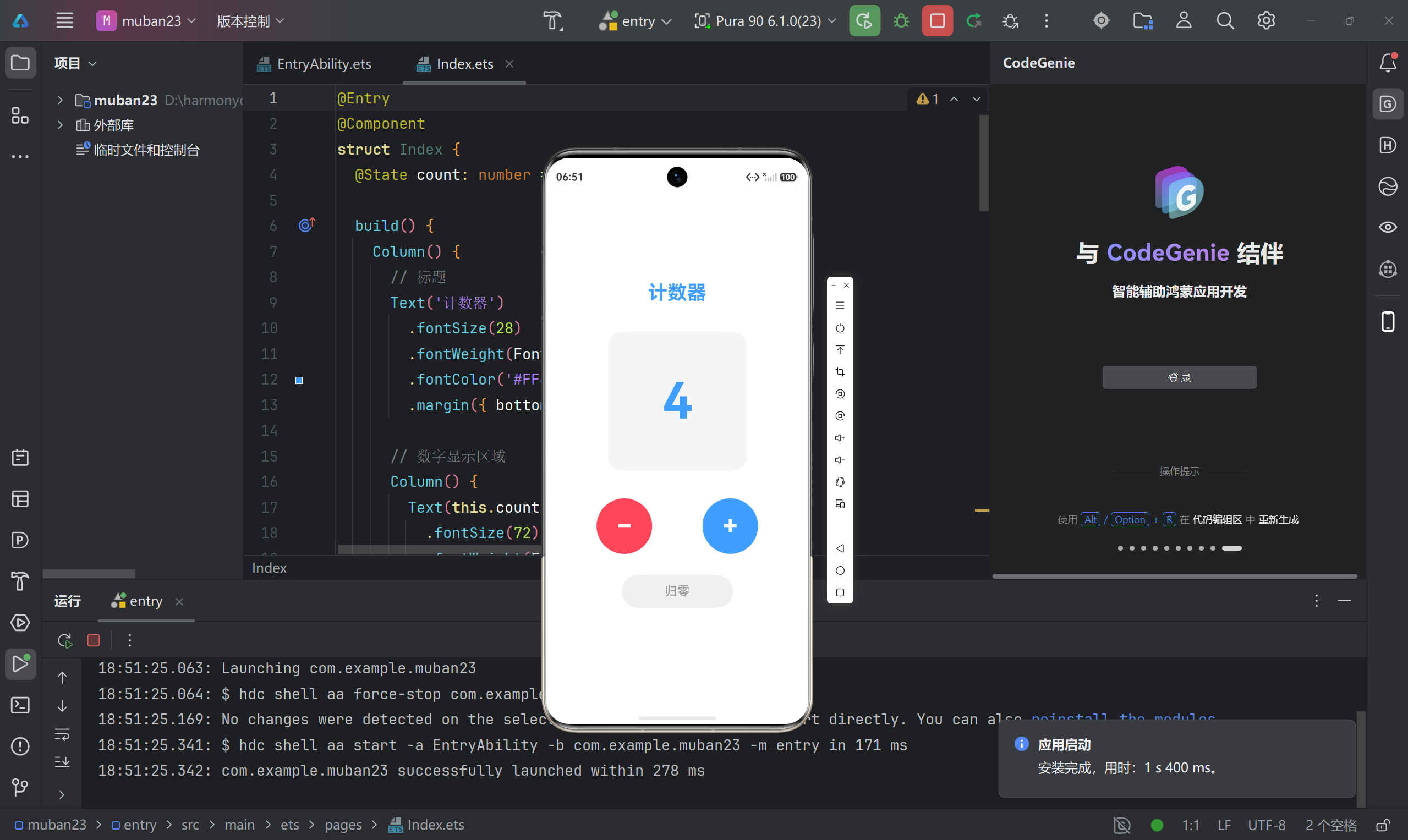
- 顶部:
⏱ 倒计时器大标题 - 中间:240dp 圆环 + 居中的
05:00数字 + 状态文字"准备就绪" - 快捷预设:四个橙色调按钮(1分、3分、5分、10分)
- 自定义输入:数字输入框 + "设定"按钮
- 底部控制:开始按钮 + 重置按钮
计时进行中时,状态文字变为"倒计时中…“,圆环逐步填充,剩余时间实时递减。倒计时到 0 时,显示红色"⏰ 时间到!”,进度条变为红色。
七、开发心得总结
| 维度 | 体验 |
|---|---|
| 语言 | ArkTS 和 TypeScript 几乎一致,上手无门槛 |
| UI 框架 | ArkUI 声明式写法很直观,状态驱动渲染省心 |
| 调试 | DevEco Studio 实时预览很实用,修改代码后立即刷新 |
| 组件生态 | 基础组件覆盖足够,不用引入第三方库 |
| 定时器 | setInterval / clearInterval 和 Web 标准一致 |
| 踩坑 | Progress 的 type 参数位置需要注意,容易习惯性链式调用报错 |
整个应用只修改了 2 个文件:
entry/src/main/ets/pages/Index.ets— 约 260 行,实现全部倒计时逻辑和 UIAppScope/resources/base/element/string.json— 修改应用名称
纯鸿蒙原生,无任何第三方依赖。
八、完整代码
entry/src/main/ets/pages/Index.ets 完整源码如下:
@Entry
@Component
struct CountdownTimer {
  @State totalSeconds: number = 300;
  @State remainingSeconds: number = 300;
  @State isRunning: boolean = false;
  @State isFinished: boolean = false;
  @State customMinutes: string = '';
  @State customSeconds: string = '';

  private timerId: number = -1;

  aboutToAppear(): void {
    this.resetTimer(300);
  }

  aboutToDisappear(): void {
    this.clearTimer();
  }

  clearTimer(): void {
    if (this.timerId !== -1) {
      clearInterval(this.timerId);
      this.timerId = -1;
    }
  }

  resetTimer(seconds: number): void {
    this.clearTimer();
    this.totalSeconds = seconds;
    this.remainingSeconds = seconds;
    this.isRunning = false;
    this.isFinished = false;
  }

  startTimer(): void {
    if (this.isFinished || this.remainingSeconds <= 0) return;
    this.isRunning = true;
    this.isFinished = false;
    this.timerId = setInterval(() => {
      this.remainingSeconds--;
      if (this.remainingSeconds <= 0) {
        this.remainingSeconds = 0;
        this.clearTimer();
        this.isRunning = false;
        this.isFinished = true;
      }
    }, 1000);
  }

  pauseTimer(): void {
    this.clearTimer();
    this.isRunning = false;
  }

  resetToCurrentTotal(): void {
    this.clearTimer();
    this.remainingSeconds = this.totalSeconds;
    this.isRunning = false;
    this.isFinished = false;
  }

  applyCustomTime(): void {
    const min = parseInt(this.customMinutes) || 0;
    const sec = parseInt(this.customSeconds) || 0;
    const total = min * 60 + sec;
    if (total > 0 && total <= 86400) {
      this.resetTimer(total);
    }
  }

  get formattedTime(): string {
    const min = Math.floor(this.remainingSeconds / 60);
    const sec = this.remainingSeconds % 60;
    return `${min.toString().padStart(2, '0')}:${sec.toString().padStart(2, '0')}`;
  }

  get progressValue(): number {
    if (this.totalSeconds <= 0) return 0;
    return ((this.totalSeconds - this.remainingSeconds) / this.totalSeconds) * 100;
  }

  get statusText(): string {
    if (this.isFinished) return '⏰ 时间到!';
    if (this.isRunning) return '倒计时中…';
    if (this.remainingSeconds < this.totalSeconds) return '已暂停';
    return '准备就绪';
  }

  get statusColor(): ResourceColor {
    if (this.isFinished) return '#FF4444';
    return '#999999';
  }

  get ringColor(): ResourceColor {
    if (this.isFinished) return '#FF4444';
    if (this.remainingSeconds <= 10 && this.isRunning) return '#FF6B35';
    return '#FF6B35';
  }

  build() {
    Column() {
      Text('⏱ 倒计时器')
        .fontSize(28).fontWeight(FontWeight.Bold).fontColor('#1a1a2e')
        .margin({ top: 48, bottom: 32 })

      Stack() {
        Progress({ value: this.progressValue, total: 100, type: ProgressType.Ring })
          .width(240).height(240)
          .style({ strokeWidth: 14 })
          .color(this.ringColor)
          .backgroundColor('#E8E8E8')

        Column({ space: 4 }) {
          Text(this.formattedTime)
            .fontSize(56).fontWeight(FontWeight.Bold).fontColor('#1a1a2e')
          Text(this.statusText)
            .fontSize(15).fontColor(this.statusColor)
        }
        .alignItems(HorizontalAlign.Center)
      }
      .margin({ bottom: 36 })

      Row({ space: 12 }) {
        Button('1 分').fontSize(14).fontColor('#FF6B35')
          .backgroundColor('#FFF0E6').borderRadius(20).height(40)
          .onClick(() => this.resetTimer(60))
        Button('3 分').fontSize(14).fontColor('#FF6B35')
          .backgroundColor('#FFF0E6').borderRadius(20).height(40)
          .onClick(() => this.resetTimer(180))
        Button('5 分').fontSize(14).fontColor('#FF6B35')
          .backgroundColor('#FFF0E6').borderRadius(20).height(40)
          .onClick(() => this.resetTimer(300))
        Button('10 分').fontSize(14).fontColor('#FF6B35')
          .backgroundColor('#FFF0E6').borderRadius(20).height(40)
          .onClick(() => this.resetTimer(600))
      }
      .margin({ bottom: 28 })

      Row({ space: 8 }) {
        TextInput({ text: this.customMinutes, placeholder: '分' })
          .width(72).height(44).type(InputType.Number)
          .backgroundColor('#F5F5F5').borderRadius(10)
          .textAlign(TextAlign.Center)
          .onChange((value: string) => { this.customMinutes = value; })

        Text('分').fontSize(16).fontColor('#666')

        TextInput({ text: this.customSeconds, placeholder: '秒' })
          .width(72).height(44).type(InputType.Number)
          .backgroundColor('#F5F5F5').borderRadius(10)
          .textAlign(TextAlign.Center)
          .onChange((value: string) => { this.customSeconds = value; })

        Text('秒').fontSize(16).fontColor('#666')

        Button('设定').fontSize(14).fontColor('#FFFFFF')
          .backgroundColor('#FF6B35').borderRadius(20).height(44)
          .onClick(() => this.applyCustomTime())
      }
      .margin({ bottom: 36 })

      Row({ space: 20 }) {
        if (!this.isRunning) {
          Button('▶ 开始').width(130).height(52).fontSize(17).fontWeight(FontWeight.Medium)
            .fontColor('#FFFFFF').backgroundColor('#FF6B35').borderRadius(26)
            .onClick(() => this.startTimer())
        } else {
          Button('⏸ 暂停').width(130).height(52).fontSize(17).fontWeight(FontWeight.Medium)
            .fontColor('#FFFFFF').backgroundColor('#FFA500').borderRadius(26)
            .onClick(() => this.pauseTimer())
        }
        Button('↺ 重置').width(130).height(52).fontSize(17).fontWeight(FontWeight.Medium)
          .fontColor('#FFFFFF').backgroundColor('#666666').borderRadius(26)
          .onClick(() => this.resetToCurrentTotal())
      }
    }
    .width('100%').height('100%')
    .padding({ left: 24, right: 24 })
    .alignItems(HorizontalAlign.Center)
    .backgroundColor('#FAFAFA')
  }
}
项目路径:D:\harmonyos\deepseekv4\project3\muban23
运行平台:HarmonyOS NEXT | IDE:DevEco Studio

讨论HarmonyOS开发技术,专注于API与组件、DevEco Studio、测试、元服务和应用上架分发等。
更多推荐
 7
7 0
0- 0


 已为社区贡献14条内容

所有评论(0)