鸿蒙开发ArkTs语法基础03
1、设计资源 - 图标库
作用:提供丰富图标,可自定义颜色、大小
两大宝藏库:HarmonyOS 图标库(官方自带,命名以 ic_开头)
IconFont 图标库(第三方,下载后需改命名)
使用步骤:下载 SVG 格式图标,存到 resources/base/media/用 Image 组件显示,通过 fillColor 改颜色
2. 布局属性
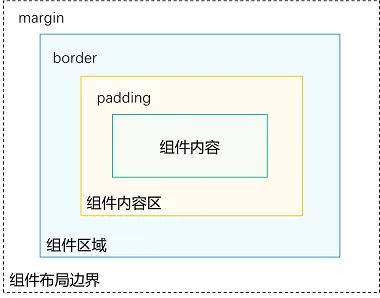
组件布局
|
属性 |
描述 |
|
padding |
内边距 |
|
margin |
外边距 |
|
border |
边框线 |
|
borderRadius |
边框圆角 |
内边距 padding
作用:在组件内添加间距,拉开内容与组件边缘之间的距离
用法:属性:数字 或 对象{}
- 数字:上下左右内边距相同
- 对象{}:配合 left、right、top、bottom 单独设置某个方向内边距
@Entry
@Component
struct Index {
  build() {
    Column() {
      Text('文字')
        .backgroundColor(Color.Pink)
        // 单值:四个方向padding相同
        .padding(20)
        // 对象:单独设置某个方向
        .padding({
          top: 10,
          right: 20,
          bottom: 40,
          left: 80
        })
    }
  }
}
外边距 margin
作用:在组件外面添加间距,拉开两个组件之间的距离
用法:属性:数字 或 对象{}
- 数字:上下左右边外距相同
- 对象{}:配合 left、right、top、bottom 单独设置某个方向外边距
@Entry
@Component
struct Index {
  build() {
    Column() {
      Row() {
        Text('文字1')
          .backgroundColor(Color.Pink)
          .margin(20)
        Text('文字2')
          .backgroundColor(Color.Orange)
          .margin({
            top: 10,
            right: 20,
            bottom: 40,
            left: 80
          })
      }
    }
  }
}
3、边框属性
四个方向边框相同
属性:border()
参数:{width?: 数字, color?: '', style?: BorderStyle},
-
width:边框宽度,边框宽度默认值为0,即不显示边框
-
color:边框颜色
-
style:边框样式,
BorderStyle为枚举类型
-
-
Solid:实线(默认)
-
Dashed:虚线
-
Dotted:点线
-
@Entry
@Component
struct Index {
  build() {
    Column() {
      Text('边框线')
        .width(100)
        .height(40)
        .textAlign(TextAlign.Center)
        // 黑色 实线 边框
        .border({width: 1})
        // 红色 实线 边框
        .border({width: 1, color: 'red'})
        // 红色 虚线 边框
        .border({width: 1, color: 'red', style: BorderStyle.Dashed})
    }
      .padding(20)
  }
}
四个方向边框不同
书写方法
.border({
  width: {},
  color: {},
  style: {}
})
width、color、style 均可以通过top、right、bottom、left设置各个方向边框外观
@Entry
@Component
struct Index {
  build() {
    Column() {
      Text('边框线')
        .width(100)
        .height(40)
        .textAlign(TextAlign.Center)
          // 边框 - 四个方向效果不同
        .border({
          width: {left: 1, top: 3, right: 5, bottom: 7},
          color: {left: 'red', top: '#ff0', right: '#f60', bottom: '#ccc'},
          style: {top: BorderStyle.Dashed, right: BorderStyle.Dotted}
        })
    }
    .padding(20)
  }
}
边框圆角
属性:borderRadius(圆角半径)
参数:数值 或 { }
-
topLeft:左上角
-
topRight:右上角
-
bottomLeft:左下角
-
bottomRight:右下角
@Entry
@Component
struct Index {
  build() {
    Column({space: 20}) {
      Text('圆角1')
        .width(100)
        .height(40)
        .backgroundColor('#f60')
        .borderRadius(5)

      // 胶囊状 圆角半径 = 高度 / 2
      Text('圆角2')
        .width(100)
        .height(40)
        .backgroundColor('#fc0')
        .borderRadius(20)

      // 正圆 圆角半径 = 正方形尺寸 / 2
      Image($r('app.media.avatar'))
        .width(100)
        .aspectRatio(1)
        .borderRadius(50)

      // 四个角半径不同写法
      Text('圆角3')
        .width(100)
        .height(40)
        .backgroundColor('#fc0')
        .borderRadius({
          topLeft: 5,
          topRight: 10,
          bottomRight: 20,
          bottomLeft: 40
        })

    }
    .padding(20)
  }
}
4、 背景属性
|
属性 |
描述 |
|
backgroundColor |
背景色 |
|
backgroundImage |
背景图 |
|
backgroundImageSize |
背景图尺寸 |
|
backgroundImagePosition |
背景图位置 |
backgroundColor
设置组件的背景色
@Entry
@Component
struct Index {
  build() {
    Column() {
      Text('组件')
        .width(300)
        .height(100)
        .backgroundColor(Color.Pink)
    }
    .padding(20)
  }
}
组件添加宽高属性或有内容才能观察到背景色
backgroundImage
属性:backgroundImage(背景图地址, 背景图平铺方式 ImageRepeat)
背景图平铺方式:(可省略)
- NoRepeat:不平铺,默认值
- X:水平平铺
- Y:垂直平铺
- XY:水平垂直均平铺
@Entry
@Component
struct Index {
  build() {
    Column() {
      Text('组件')
        .width(300)
        .height(100)
        .backgroundColor(Color.Pink)
        .backgroundImage($r('app.media.flower'))
        .backgroundImage($r('app.media.flower'), ImageRepeat.X)
    }
    .padding(20)
  }
}
backgroundImageSize
作用:背景图缩放
属性:backgroundImageSize
参数:
-
设置背景图宽高尺寸:
{width: 数值, height: 数值}(只设置宽或高,另一个尺寸等比例缩放) -
枚举
ImageSize:
-
-
Cover:等比例缩放背景图至图片完全覆盖组件范围
-
Contain:等比例缩放背景图,当宽或高与组件尺寸相同则停止缩放
-
Auto:默认,原图尺寸
-
@Entry
@Component
struct Index {
  build() {
    Column() {
      Text('组件')
        .width(300)
        .height(100)
        .backgroundColor(Color.Pink)
        .backgroundImage($r('app.media.flower'))
        .backgroundImageSize({width: 100})
        .backgroundImageSize(ImageSize.Cover)
        .backgroundImageSize(ImageSize.Contain)
    }
    .padding(20)
  }
}
backgroundImagePosition
作用:调整背景图在组件内的显示位置,默认显示位置为组件左上角
属性:backgroundImagePosition()
参数:
- 位置坐标:
{x: 位置, y: 位置} - 枚举
Alignment
|
名称 |
描述 |
|
TopStart |
顶部起始端(默认位置) |
|
Top |
顶部横向居中 |
|
TopEnd |
顶部尾端 |
|
Start |
起始端纵向居中 |
|
Center |
居中 |
|
End |
尾端纵向居中 |
|
BottomStart |
底部起始端 |
|
Bottom |
底部横向居中 |
|
BottomEnd |
底部尾端 |
@Entry
@Component
struct Index {
  build() {
    Column() {
      Text('组件')
        .width(300)
        .height(100)
        .backgroundColor(Color.Pink)
        .backgroundImage($r('app.media.flower'))
        .backgroundImagePosition({x: 100, y: 50})
        .backgroundImagePosition(Alignment.Center)
    }
    .padding(20)
  }
}
5、 颜色渐变
作用:设置组件颜色渐变效果
分类:线性渐变 和 径向渐变
线性渐变
属性:linearGradient()
参数写法
{
	angle?:  线性渐变的起始角度,
	direction?: 线性渐变的方向,
	colors: [[颜色1, 颜色1所处位置], [颜色2, 颜色2所处位置], ......],
	repeating?: 是否重复着色
}angle:线性渐变的起始角度。0点方向顺时针旋转为正向角度,默认值:180direction: 线性渐变的方向,设置 angle 后不生效,值为 枚举类型GradientDirection
-
- Left:从右向左
- Top:从下向上
- Right:从左向右
- Bottom:从上向下
- LeftTop:从右下 到 左上
- LeftBottom:从右上 到 左下
- RightTop:从左下 到 右上
- RightBottom:从左上 到 右下
@Entry
@Component
struct Index {
  build() {
    Column({ space: 10}) {
      Text('线性')
        .width(100).height(50).backgroundColor(Color.Pink)
        .linearGradient({
          direction: GradientDirection.Right,
          colors: [['red', 0.1], ['#fc0', 0.8]]
        })
    }
      .padding(20)
  }
}
径向渐变
属性:radialGradient()
参数写法
{
	center:  径向渐变的中心点坐标,
	radius: 径向渐变的半径,
	colors: [[颜色1, 颜色1所处位置], [颜色2, 颜色2所处位置], ......],
	repeating?: 是否重复着色
}-
径向渐变的中心点,即相对于当前组件左上角的坐标,写法
[x坐标, y坐标]
@Entry
@Component
struct Index {
  build() {
    Column({ space: 10}) {
      Text('径向')
        .width(100).height(50).backgroundColor(Color.Pink)
        .radialGradient({
          center: [40, 0],
          radius: 40,
          // colors: [['red', 0.1], ['#fc0', '0.8']],
          colors: [
            ['rgba(255, 255, 255, 0.6)', 0],
            ['rgba(255, 255, 255, 0)', 1]
          ]
          // repeating:true
        })
    }
      .padding(20)
  }
}
6、阴影
作用:为组件添加阴影效果
属性:shadow()
{
  radius: 模糊半径,
  type?: 阴影类型,
  color?: 阴影颜色,
  offsetX?: X轴偏移,
  offsetY?: Y轴偏移,
  fill?: 是否内部填充
}
示例:
@Entry
@Component
struct Index {
  build() {
    Column() {
      Row() {}
        .width('100%').height(200).backgroundColor('#fff')
        .shadow({
          // 模糊半径
          radius: 20,
          // 阴影类型
          type: ShadowType.COLOR,
          // 阴影颜色
          color: 'rgba(0,0,0,0.5)',
          // X 轴偏移
          offsetX: 0,
          // Y 轴偏移
          offsetY: 0,
          // 是否内部填充,值为布尔型,默认为flase
          fill: false
        })
    }
      .padding(20)
  }
}

讨论HarmonyOS开发技术,专注于API与组件、DevEco Studio、测试、元服务和应用上架分发等。
更多推荐


 12
12 0
0- 0


 已为社区贡献6条内容

所有评论(0)