HarmonyOS实战:从零构建笔记应用——完整开发记录
前言
笔记应用是移动开发中最经典的项目之一,它涵盖了数据存储、列表展示、页面跳转、用户交互等核心技术点。本文将基于HarmonyOS ArkUI框架,从零开始构建一个功能完整的笔记应用,帮助读者掌握HarmonyOS应用开发的核心技能。
笔记应用看似简单,但要做到"好用"并不容易。一个优秀的笔记应用需要解决以下核心问题:
- 数据如何持久化存储?
- 如何实现列表的动态渲染?
- 如何在多个页面间传递数据?
- 如何实现笔记的增删改查?
本文将逐一解答这些问题,并提供完整的代码实现。
项目概述
项目信息
| 项目信息 | 内容 |
|---|---|
| 项目名称 | NotesApp(我的笔记) |
| 开发工具 | DevEco Studio 6.0及其以上 |
| 开发语言 | ArkTS(TypeScript的HarmonyOS定制版) |
| UI框架 | ArkUI(声明式开发范式) |
| API版本 | 23 |
| 包名 | com.example.notesapp |
| 项目路径 | E:\HMproject\Project\Notesapp |
核心功能
| 功能模块 | 功能描述 | 技术要点 |
|---|---|---|
| 笔记列表 | 展示所有笔记,按时间倒序排列 | List组件、ForEach渲染 |
| 新建笔记 | 创建新的笔记 | 页面路由、数据持久化 |
| 编辑笔记 | 修改已有笔记 | 路由参数传递、数据更新 |
| 删除笔记 | 删除不需要的笔记 | 数组操作、状态更新 |
| 数据持久化 | 应用关闭后数据不丢失 | @StorageLink装饰器 |
项目结构
Notesapp/
├── entry/
│   └── src/main/
│       ├── ets/
│       │   ├── entryability/
│       │   │   └── EntryAbility.ets     # 应用入口
│       │   └── pages/
│       │       ├── Index.ets             # 主页面(笔记列表)
│       │       └── NoteDetail.ets        # 详情页(编辑笔记)
│       ├── resources/
│       │   ├── base/
│       │   │   ├── element/
│       │   │   │   ├── color.json        # 颜色配置
│       │   │   │   ├── float.json        # 浮点数配置
│       │   │   │   └── string.json       # 字符串配置
│       │   │   ├── media/
│       │   │   │   ├── background.png    # 背景图片
│       │   │   │   ├── foreground.png    # 前景图片
│       │   │   │   └── startIcon.png     # 启动图标
│       │   │   └── profile/
│       │   │       └── main_pages.json   # 页面路由配置
│       │   └── dark/
│       │       └── element/
│       │           └── color.json        # 深色模式颜色配置
│       └── module.json5                   # 模块配置
├── AppScope/
│   └── app.json5                         # 应用全局配置
└── build-profile.json5                    # 构建配置
第一部分:需求分析与架构设计
1.1 需求分析
笔记应用的核心需求如下:
功能性需求:
| 需求编号 | 需求描述 | 优先级 |
|---|---|---|
| FR-001 | 用户可以查看所有笔记的列表 | 高 |
| FR-002 | 用户可以创建新笔记 | 高 |
| FR-003 | 用户可以编辑已有笔记 | 高 |
| FR-004 | 用户可以删除笔记 | 高 |
| FR-005 | 笔记按修改时间倒序排列 | 中 |
| FR-006 | 笔记数据在应用关闭后保持 | 高 |
非功能性需求:
| 需求编号 | 需求描述 |
|---|---|
| NFR-001 | 界面简洁美观,符合iOS深色模式风格 |
| NFR-002 | 操作流畅,响应时间小于100ms |
| NFR-003 | 数据安全,不丢失用户数据 |
1.2 数据模型设计
笔记应用的核心数据模型非常简单,每条笔记包含以下字段:
interface Note {
  id: number        // 唯一标识符
  title: string     // 标题
  content: string   // 内容
  timestamp: number // 时间戳(毫秒)
}
设计说明:
- id:笔记的唯一标识符,用于查找、更新、删除操作。采用自增整数。
- title:笔记标题,可选字段。如果为空,显示"无标题"。
- content:笔记正文,存储用户输入的主要内容。
- timestamp:最后修改时间,用于排序和显示。
1.3 架构设计
本应用采用双页面架构:
┌─────────────────────────────────────────┐
│           Index(主页面)                │
│  ┌─────────────────────────────────┐   │
│  │  笔记列表                        │   │
│  │  ┌─────┐ ┌─────┐ ┌─────┐       │   │
│  │  │Note1│ │Note2│ │Note3│ ...   │   │
│  │  └─────┘ └─────┘ └─────┘       │   │
│  └─────────────────────────────────┘   │
│  [➕ 新建] 按钮                          │
└─────────────────────────────────────────┘
           │
           │ router.pushUrl()
           │ params: { noteId }
           ↓
┌─────────────────────────────────────────┐
│        NoteDetail(详情页)              │
│  [← 返回]              [💾 保存]         │
│  ┌─────────────────────────────────┐   │
│  │  TextInput(标题)               │   │
│  └─────────────────────────────────┘   │
│  ┌─────────────────────────────────┐   │
│  │  TextArea(正文)                │   │
│  │                                 │   │
│  │                                 │   │
│  └─────────────────────────────────┘   │
└─────────────────────────────────────────┘
页面说明:
- Index(主页面):展示笔记列表,提供新建按钮和删除功能。
- NoteDetail(详情页):编辑笔记内容,提供保存和返回功能。
1.4 技术选型
数据持久化方案:
HarmonyOS提供了多种数据存储方案:
| 方案 | 适用场景 | 优点 | 缺点 | 是否选用 |
|---|---|---|---|---|
| @StorageLink | 简单键值对存储 | 简单易用,自动持久化 | 只能存字符串 | ✅ 选用 |
| Preferences | 轻量级键值对存储 | API丰富 | 需要异步调用 | ❌ |
| RDB | 关系型数据库 | 功能强大,支持复杂查询 | 复杂度高 | ❌ |
| 文件存储 | 大文件存储 | 无大小限制 | 需要手动管理 | ❌ |
本应用选择@StorageLink装饰器,因为:
- 笔记数据量不大,序列化为JSON字符串存储即可。
@StorageLink会自动触发UI刷新,无需手动管理状态同步。- 数据会自动持久化到本地,应用重启后数据不丢失。
页面路由方案:
HarmonyOS提供了@ohos.router模块实现页面跳转:
import router from '@ohos.router'

// 跳转到详情页,传递参数
router.pushUrl({
  url: 'pages/NoteDetail',
  params: { noteId: 123 }
})

// 获取路由参数
const params = router.getParams() as Record<string, Object>
const noteId = params['noteId'] as number
第二部分:项目搭建与基础配置
2.1 创建项目
- 打开DevEco Studio
- 点击 Create Project
- 选择 Application → Empty Ability
- 填写项目信息:
- Project Name: Notesapp
- Bundle Name: com.example.notesapp
- Save Location: E:\HMproject\Project\Notesapp
- Compile SDK: 23
- Model: Stage模型
- 点击 Finish,等待项目创建完成
2.2 配置应用信息
修改 AppScope/app.json5:
{
  "app": {
    "bundleName": "com.example.notesapp",
    "vendor": "example",
    "versionCode": 1000000,
    "versionName": "1.0.0",
    "buildVersion": "1",
    "icon": "$media:layered_image",
    "label": "$string:app_name"
  }
}
2.3 配置页面路由
修改 entry/src/main/resources/base/profile/main_pages.json:
{
  "src": [
    "pages/Index",
    "pages/NoteDetail"
  ]
}
说明:
pages/Index:主页面(笔记列表)pages/NoteDetail:详情页(编辑笔记)
第三部分:主页面实现(笔记列表)
3.1 数据结构定义
在 Index.ets 中定义笔记数据结构:
interface Note {
  id: number        // 唯一标识符
  title: string     // 标题
  content: string   // 内容
  timestamp: number // 时间戳
}
3.2 状态变量定义
@Entry
@Component
struct Index {
  @State notes: Note[] = []                        // 笔记列表
  @StorageLink('notes_data') savedNotes: string = '[]'  // 持久化存储

  private nextId: number = 1  // 下一个笔记的ID
设计说明:
- @State notes:组件内部状态,存储笔记数组,用于列表渲染。
- @StorageLink(‘notes_data’):应用级持久化存储,数据会自动保存到本地。
- nextId:下一个笔记的ID,用于生成唯一标识符。
3.3 数据加载与保存
加载数据:
aboutToAppear(): void {
  this.loadNotes()
}

onPageShow(): void {
  this.loadNotes()  // 每次页面显示时刷新列表
}

private loadNotes(): void {
  if (this.savedNotes && this.savedNotes !== '[]') {
    this.notes = JSON.parse(this.savedNotes)

    // 计算下一个ID
    let maxId = 0
    for (let i = 0; i < this.notes.length; i++) {
      if (this.notes[i].id > maxId) {
        maxId = this.notes[i].id
      }
    }
    this.nextId = maxId + 1
  }
}
保存数据:
private saveNotes(): void {
  this.savedNotes = JSON.stringify(this.notes)
}
技术要点:
aboutToAppear():组件即将出现时调用,初始化数据。onPageShow():页面每次显示时调用,用于从详情页返回时刷新列表。JSON.parse()/JSON.stringify():序列化和反序列化JSON数据。
3.4 排序计算属性
get sortedNotes(): Note[] {
  const result: Note[] = []
  for (let i = this.notes.length - 1; i >= 0; i--) {
    result.push(this.notes[i])
  }
  return result
}
说明:将笔记按时间倒序排列(最新的在最前面)。由于笔记是按时间顺序添加的,直接反转数组即可。
3.5 删除笔记
private deleteNote(id: number): void {
  const newNotes: Note[] = []
  for (let i = 0; i < this.notes.length; i++) {
    if (this.notes[i].id !== id) {
      newNotes.push(this.notes[i])
    }
  }
  this.notes = newNotes
  this.saveNotes()
}
说明:创建新数组,过滤掉要删除的笔记,然后更新状态并保存。
3.6 页面跳转
新建笔记:
private openNewNote(): void {
  router.pushUrl({
    url: 'pages/NoteDetail',
    params: { noteId: -1 }  // -1 表示新建
  })
}
编辑笔记:
private openNote(id: number): void {
  router.pushUrl({
    url: 'pages/NoteDetail',
    params: { noteId: id }
  })
}
技术要点:
router.pushUrl():跳转到新页面,支持返回。params:传递参数对象。noteId: -1:表示新建笔记;其他值表示编辑对应ID的笔记。
3.7 工具方法
格式化日期:
private formatDate(ts: number): string {
  const date = new Date(ts)
  const month = String(date.getMonth() + 1).padStart(2, '0')
  const day = String(date.getDate()).padStart(2, '0')
  const hour = String(date.getHours()).padStart(2, '0')
  const min = String(date.getMinutes()).padStart(2, '0')
  return `${month}-${day} ${hour}:${min}`
}
生成预览文本:
private getPreview(text: string): string {
  if (text.length <= 40) return text
  return text.substring(0, 40) + '...'
}
3.8 UI布局
build() {
  Column() {
    // ── 顶部标题栏 ──
    Row() {
      Text('📝 我的笔记')
        .fontSize(26).fontWeight(FontWeight.Bold).fontColor(Color.White)
      Blank()
      Button('➕ 新建')
        .fontSize(16).fontWeight(FontWeight.Medium)
        .height(36).borderRadius(18)
        .backgroundColor('#FF9F0A').fontColor(Color.White)
        .onClick(() => { this.openNewNote() })
    }
    .width('100%').padding(20)

    // ── 空状态提示 ──
    if (this.notes.length === 0) {
      Column() {
        Text('📄').fontSize(64)
        Text('还没有笔记,点右上角新建')
          .fontSize(16).fontColor('#8E8E93')
          .margin({ top: 12 })
      }
      .layoutWeight(1)
      .justifyContent(FlexAlign.Center)
      .width('100%')
    } else {
      // ── 笔记列表 ──
      List({ space: 10 }) {
        ForEach(this.sortedNotes, (note: Note) => {
          ListItem() {
            Row() {
              Column() {
                Text(note.title.length > 0 ? note.title : '无标题')
                  .fontSize(18).fontWeight(FontWeight.Medium)
                  .fontColor(Color.White)
                  .maxLines(1).textOverflow({ overflow: TextOverflow.Ellipsis })
                  .width('100%')

                Text(this.getPreview(note.content))
                  .fontSize(14).fontColor('#8E8E93')
                  .maxLines(1).textOverflow({ overflow: TextOverflow.Ellipsis })
                  .width('100%').margin({ top: 4 })

                Text(this.formatDate(note.timestamp))
                  .fontSize(12).fontColor('#555555')
                  .width('100%').margin({ top: 4 })
              }
              .layoutWeight(1)

              Button('🗑️')
                .fontSize(18).width(40).height(40)
                .backgroundColor(Color.Transparent)
                .onClick(() => { this.deleteNote(note.id) })
            }
            .width('100%').padding(16)
            .backgroundColor('#1C1C1E').borderRadius(12)
            .onClick(() => { this.openNote(note.id) })
          }
        }, (note: Note) => note.id.toString())
      }
      .layoutWeight(1).width('100%')
      .padding({ left: 20, right: 20 })
    }
  }
  .width('100%').height('100%').backgroundColor('#000000')
}
UI设计说明:
- 顶部标题栏:左侧显示应用标题,右侧显示"新建"按钮。
- 空状态提示:当没有笔记时,显示提示文字。
- 笔记列表:使用
List+ForEach渲染笔记列表。 - 笔记卡片:
- 标题(支持溢出省略)
- 内容预览(最多40字符)
- 时间戳
- 删除按钮
第四部分:详情页实现(编辑笔记)
4.1 状态变量定义
@Entry
@Component
struct NoteDetail {
  @State titleText: string = ''
  @State contentText: string = ''
  @StorageLink('notes_data') savedNotes: string = '[]'

  private noteId: number = -1  // 当前笔记的ID,-1表示新建
4.2 获取路由参数
aboutToAppear(): void {
  const params = router.getParams() as Record<string, Object>
  if (params) {
    this.noteId = params['noteId'] as number
  }
  if (this.noteId !== -1) {
    this.loadNote()  // 编辑模式,加载笔记内容
  }
}
说明:
router.getParams():获取路由传递的参数。noteId === -1:新建模式,不加载内容。noteId !== -1:编辑模式,加载对应笔记的内容。
4.3 加载笔记内容
private loadNote(): void {
  if (this.savedNotes && this.savedNotes !== '[]') {
    const notes: Note[] = JSON.parse(this.savedNotes)
    for (let i = 0; i < notes.length; i++) {
      if (notes[i].id === this.noteId) {
        this.titleText = notes[i].title
        this.contentText = notes[i].content
        break
      }
    }
  }
}
4.4 保存笔记
private saveNote(): void {
  let notes: Note[] = []
  if (this.savedNotes && this.savedNotes !== '[]') {
    notes = JSON.parse(this.savedNotes)
  }

  if (this.noteId === -1) {
    // 新建笔记
    let maxId = 0
    for (let i = 0; i < notes.length; i++) {
      if (notes[i].id > maxId) {
        maxId = notes[i].id
      }
    }
    const newNote: Note = {
      id: maxId + 1,
      title: this.titleText,
      content: this.contentText,
      timestamp: Date.now()
    }
    notes = [newNote].concat(notes)  // 新笔记放在最前面
  } else {
    // 更新笔记
    const newNotes: Note[] = []
    for (let i = 0; i < notes.length; i++) {
      if (notes[i].id === this.noteId) {
        newNotes.push({
          id: notes[i].id,
          title: this.titleText,
          content: this.contentText,
          timestamp: Date.now()
        })
      } else {
        newNotes.push(notes[i])
      }
    }
    notes = newNotes
  }

  this.savedNotes = JSON.stringify(notes)
  router.back()  // 返回主页
}
逻辑说明:
-
新建笔记:
- 计算新的ID(当前最大ID + 1)
- 创建新笔记对象
- 将新笔记插入到数组最前面
- 保存并返回
-
更新笔记:
- 遍历笔记数组
- 找到对应ID的笔记,更新其内容
- 保存并返回
4.5 UI布局
build() {
  Column() {
    // ── 顶部工具栏 ──
    Row() {
      Button('← 返回')
        .fontSize(16).fontColor('#FF9F0A')
        .backgroundColor(Color.Transparent)
        .onClick(() => { this.goBack() })
      Blank()
      Button('💾 保存')
        .fontSize(16).fontWeight(FontWeight.Medium)
        .height(36).borderRadius(18)
        .backgroundColor('#FF9F0A').fontColor(Color.White)
        .onClick(() => { this.saveNote() })
    }
    .width('100%').padding(16)

    // ── 标题输入框 ──
    TextInput({ placeholder: '输入标题...', text: this.titleText })
      .fontSize(22).fontWeight(FontWeight.Bold)
      .fontColor(Color.White).placeholderColor('#555555')
      .backgroundColor(Color.Transparent).height(56)
      .padding({ left: 16, right: 16 })
      .onChange((value: string) => { this.titleText = value })

    Divider().height(1).color('#333333').width('92%').margin({ top: 4, bottom: 4 })

    // ── 内容输入框 ──
    TextArea({ placeholder: '开始记录...', text: this.contentText })
      .fontSize(16).fontColor(Color.White).placeholderColor('#555555')
      .backgroundColor(Color.Transparent).layoutWeight(1)
      .padding({ left: 16, right: 16 })
      .onChange((value: string) => { this.contentText = value })
  }
  .width('100%').height('100%').backgroundColor('#000000')
}
UI设计说明:
- 顶部工具栏:左侧"返回"按钮,右侧"保存"按钮。
- 标题输入框:使用
TextInput组件,单行输入。 - 分割线:使用
Divider组件,分隔标题和内容。 - 内容输入框:使用
TextArea组件,多行输入,占据剩余空间。
第五部分:踩坑记录与解决方案
坑1:@State数组直接修改不触发UI刷新
问题描述:
在HarmonyOS ArkUI中,直接修改@State装饰的数组元素,不会触发UI刷新。
错误代码:
// ❌ 不会触发UI刷新
this.notes.push(newNote)
this.notes[0].title = '新标题'
解决方案:
必须重新赋值整个数组:
// ✅ 会触发UI刷新
this.notes = [...this.notes, newNote]
this.notes = this.notes.map(note =>
  note.id === targetId ? { ...note, title: '新标题' } : note
)
或使用函数式更新:
private deleteNote(id: number): void {
  const newNotes: Note[] = []
  for (let i = 0; i < this.notes.length; i++) {
    if (this.notes[i].id !== id) {
      newNotes.push(this.notes[i])
    }
  }
  this.notes = newNotes  // 重新赋值,触发刷新
  this.saveNotes()
}
坑2:页面返回后列表不刷新
问题描述:
从详情页返回主页后,笔记列表不刷新,新保存的笔记没有显示。
原因分析:
aboutToAppear()只在组件首次创建时调用,页面返回时不会再次调用。
解决方案:
使用onPageShow()生命周期方法:
aboutToAppear(): void {
  this.loadNotes()  // 首次加载
}

onPageShow(): void {
  this.loadNotes()  // 每次显示时刷新
}
说明:
aboutToAppear():组件即将出现时调用,适合一次性初始化。onPageShow():页面每次显示时调用,适合刷新数据。
坑3:ForEach的key生成函数返回不稳定值
问题描述:
使用ForEach渲染列表时,如果key生成函数返回的值不稳定(例如返回索引),会导致列表刷新时出现异常。
错误代码:
// ❌ 使用索引作为key
ForEach(this.notes, (note: Note, index: number) => {
  // ...
}, (note: Note, index: number) => index.toString())
解决方案:
使用稳定的唯一标识符(如id)作为key:
// ✅ 使用id作为key
ForEach(this.sortedNotes, (note: Note) => {
  // ...
}, (note: Note) => note.id.toString())
说明:
- key的作用:帮助框架识别列表项,实现高效的增量更新。
- key的要求:稳定、唯一、不可变。
坑4:@StorageLink的初始值问题
问题描述:
首次启动应用时,@StorageLink('notes_data')的初始值为'[]',但应用读取后显示为空字符串。
解决方案:
在读取前检查值是否有效:
private loadNotes(): void {
  if (this.savedNotes && this.savedNotes !== '[]') {
    this.notes = JSON.parse(this.savedNotes)
    // ...
  }
}
坑5:TextInput和TextArea的onChange回调
问题描述:
TextInput和TextArea的onChange回调接收的是字符串值,而不是事件对象。
错误代码:
// ❌ 错误:onChange接收的是字符串,不是事件对象
.onChange((event) => {
  this.titleText = event.target.value
})
正确代码:
// ✅ 正确:onChange直接接收字符串值
.onChange((value: string) => {
  this.titleText = value
})
第六部分:完整代码清单
6.1 主页面代码(Index.ets)
import router from '@ohos.router'

interface Note {
  id: number
  title: string
  content: string
  timestamp: number
}

@Entry
@Component
struct Index {
  @State notes: Note[] = []
  @StorageLink('notes_data') savedNotes: string = '[]'

  private nextId: number = 1

  get sortedNotes(): Note[] {
    const result: Note[] = []
    for (let i = this.notes.length - 1; i >= 0; i--) {
      result.push(this.notes[i])
    }
    return result
  }

  aboutToAppear(): void {
    this.loadNotes()
  }

  onPageShow(): void {
    this.loadNotes()
  }

  private loadNotes(): void {
    if (this.savedNotes && this.savedNotes !== '[]') {
      this.notes = JSON.parse(this.savedNotes)
      let maxId = 0
      for (let i = 0; i < this.notes.length; i++) {
        if (this.notes[i].id > maxId) {
          maxId = this.notes[i].id
        }
      }
      this.nextId = maxId + 1
    }
  }

  private saveNotes(): void {
    this.savedNotes = JSON.stringify(this.notes)
  }

  private deleteNote(id: number): void {
    const newNotes: Note[] = []
    for (let i = 0; i < this.notes.length; i++) {
      if (this.notes[i].id !== id) {
        newNotes.push(this.notes[i])
      }
    }
    this.notes = newNotes
    this.saveNotes()
  }

  private openNewNote(): void {
    router.pushUrl({
      url: 'pages/NoteDetail',
      params: { noteId: -1 }
    })
  }

  private openNote(id: number): void {
    router.pushUrl({
      url: 'pages/NoteDetail',
      params: { noteId: id }
    })
  }

  private formatDate(ts: number): string {
    const date = new Date(ts)
    const month = String(date.getMonth() + 1).padStart(2, '0')
    const day = String(date.getDate()).padStart(2, '0')
    const hour = String(date.getHours()).padStart(2, '0')
    const min = String(date.getMinutes()).padStart(2, '0')
    return `${month}-${day} ${hour}:${min}`
  }

  private getPreview(text: string): string {
    if (text.length <= 40) return text
    return text.substring(0, 40) + '...'
  }

  build() {
    Column() {
      Row() {
        Text('📝 我的笔记')
          .fontSize(26).fontWeight(FontWeight.Bold).fontColor(Color.White)
        Blank()
        Button('➕ 新建')
          .fontSize(16).fontWeight(FontWeight.Medium)
          .height(36).borderRadius(18)
          .backgroundColor('#FF9F0A').fontColor(Color.White)
          .onClick(() => { this.openNewNote() })
      }
      .width('100%').padding(20)

      if (this.notes.length === 0) {
        Column() {
          Text('📄').fontSize(64)
          Text('还没有笔记,点右上角新建')
            .fontSize(16).fontColor('#8E8E93')
            .margin({ top: 12 })
        }
        .layoutWeight(1)
        .justifyContent(FlexAlign.Center)
        .width('100%')
      } else {
        List({ space: 10 }) {
          ForEach(this.sortedNotes, (note: Note) => {
            ListItem() {
              Row() {
                Column() {
                  Text(note.title.length > 0 ? note.title : '无标题')
                    .fontSize(18).fontWeight(FontWeight.Medium)
                    .fontColor(Color.White)
                    .maxLines(1).textOverflow({ overflow: TextOverflow.Ellipsis })
                    .width('100%')

                  Text(this.getPreview(note.content))
                    .fontSize(14).fontColor('#8E8E93')
                    .maxLines(1).textOverflow({ overflow: TextOverflow.Ellipsis })
                    .width('100%').margin({ top: 4 })

                  Text(this.formatDate(note.timestamp))
                    .fontSize(12).fontColor('#555555')
                    .width('100%').margin({ top: 4 })
                }
                .layoutWeight(1)

                Button('🗑️')
                  .fontSize(18).width(40).height(40)
                  .backgroundColor(Color.Transparent)
                  .onClick(() => { this.deleteNote(note.id) })
              }
              .width('100%').padding(16)
              .backgroundColor('#1C1C1E').borderRadius(12)
              .onClick(() => { this.openNote(note.id) })
            }
          }, (note: Note) => note.id.toString())
        }
        .layoutWeight(1).width('100%')
        .padding({ left: 20, right: 20 })
      }
    }
    .width('100%').height('100%').backgroundColor('#000000')
  }
}
6.2 详情页代码(NoteDetail.ets)
import router from '@ohos.router'

interface Note {
  id: number
  title: string
  content: string
  timestamp: number
}

@Entry
@Component
struct NoteDetail {
  @State titleText: string = ''
  @State contentText: string = ''
  @StorageLink('notes_data') savedNotes: string = '[]'

  private noteId: number = -1

  aboutToAppear(): void {
    const params = router.getParams() as Record<string, Object>
    if (params) {
      this.noteId = params['noteId'] as number
    }
    if (this.noteId !== -1) {
      this.loadNote()
    }
  }

  private loadNote(): void {
    if (this.savedNotes && this.savedNotes !== '[]') {
      const notes: Note[] = JSON.parse(this.savedNotes)
      for (let i = 0; i < notes.length; i++) {
        if (notes[i].id === this.noteId) {
          this.titleText = notes[i].title
          this.contentText = notes[i].content
          break
        }
      }
    }
  }

  private saveNote(): void {
    let notes: Note[] = []
    if (this.savedNotes && this.savedNotes !== '[]') {
      notes = JSON.parse(this.savedNotes)
    }

    if (this.noteId === -1) {
      let maxId = 0
      for (let i = 0; i < notes.length; i++) {
        if (notes[i].id > maxId) {
          maxId = notes[i].id
        }
      }
      const newNote: Note = {
        id: maxId + 1,
        title: this.titleText,
        content: this.contentText,
        timestamp: Date.now()
      }
      notes = [newNote].concat(notes)
    } else {
      const newNotes: Note[] = []
      for (let i = 0; i < notes.length; i++) {
        if (notes[i].id === this.noteId) {
          newNotes.push({
            id: notes[i].id,
            title: this.titleText,
            content: this.contentText,
            timestamp: Date.now()
          })
        } else {
          newNotes.push(notes[i])
        }
      }
      notes = newNotes
    }

    this.savedNotes = JSON.stringify(notes)
    router.back()
  }

  private goBack(): void {
    router.back()
  }

  build() {
    Column() {
      Row() {
        Button('← 返回')
          .fontSize(16).fontColor('#FF9F0A')
          .backgroundColor(Color.Transparent)
          .onClick(() => { this.goBack() })
        Blank()
        Button('💾 保存')
          .fontSize(16).fontWeight(FontWeight.Medium)
          .height(36).borderRadius(18)
          .backgroundColor('#FF9F0A').fontColor(Color.White)
          .onClick(() => { this.saveNote() })
      }
      .width('100%').padding(16)

      TextInput({ placeholder: '输入标题...', text: this.titleText })
        .fontSize(22).fontWeight(FontWeight.Bold)
        .fontColor(Color.White).placeholderColor('#555555')
        .backgroundColor(Color.Transparent).height(56)
        .padding({ left: 16, right: 16 })
        .onChange((value: string) => { this.titleText = value })

      Divider().height(1).color('#333333').width('92%').margin({ top: 4, bottom: 4 })

      TextArea({ placeholder: '开始记录...', text: this.contentText })
        .fontSize(16).fontColor(Color.White).placeholderColor('#555555')
        .backgroundColor(Color.Transparent).layoutWeight(1)
        .padding({ left: 16, right: 16 })
        .onChange((value: string) => { this.contentText = value })
    }
    .width('100%').height('100%').backgroundColor('#000000')
  }
}
第七部分:运行截图
截图1:空状态提示
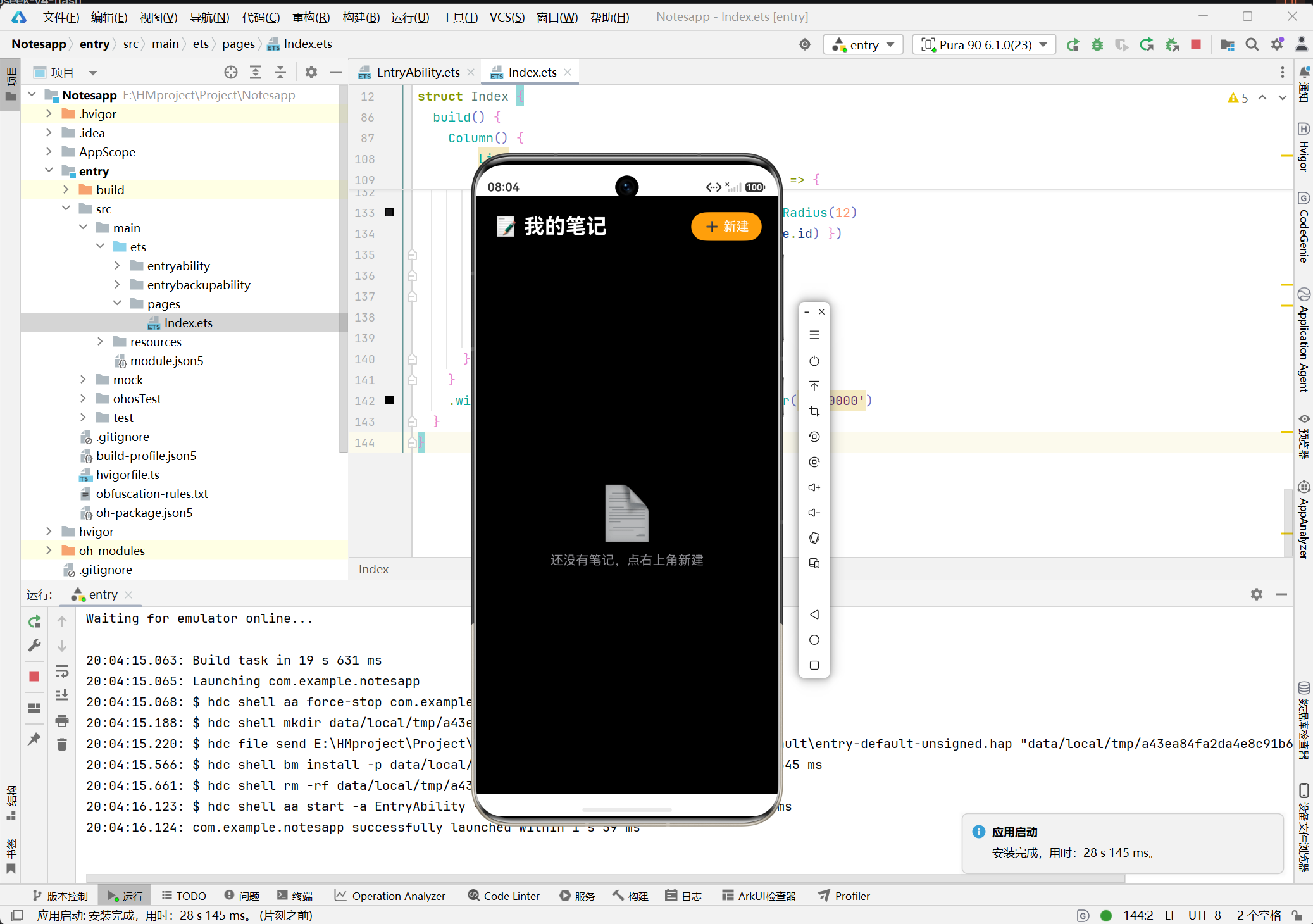
说明:
- 首次启动应用,显示空状态提示
- 提示用户点击右上角"新建"按钮
截图2:新建笔记页面
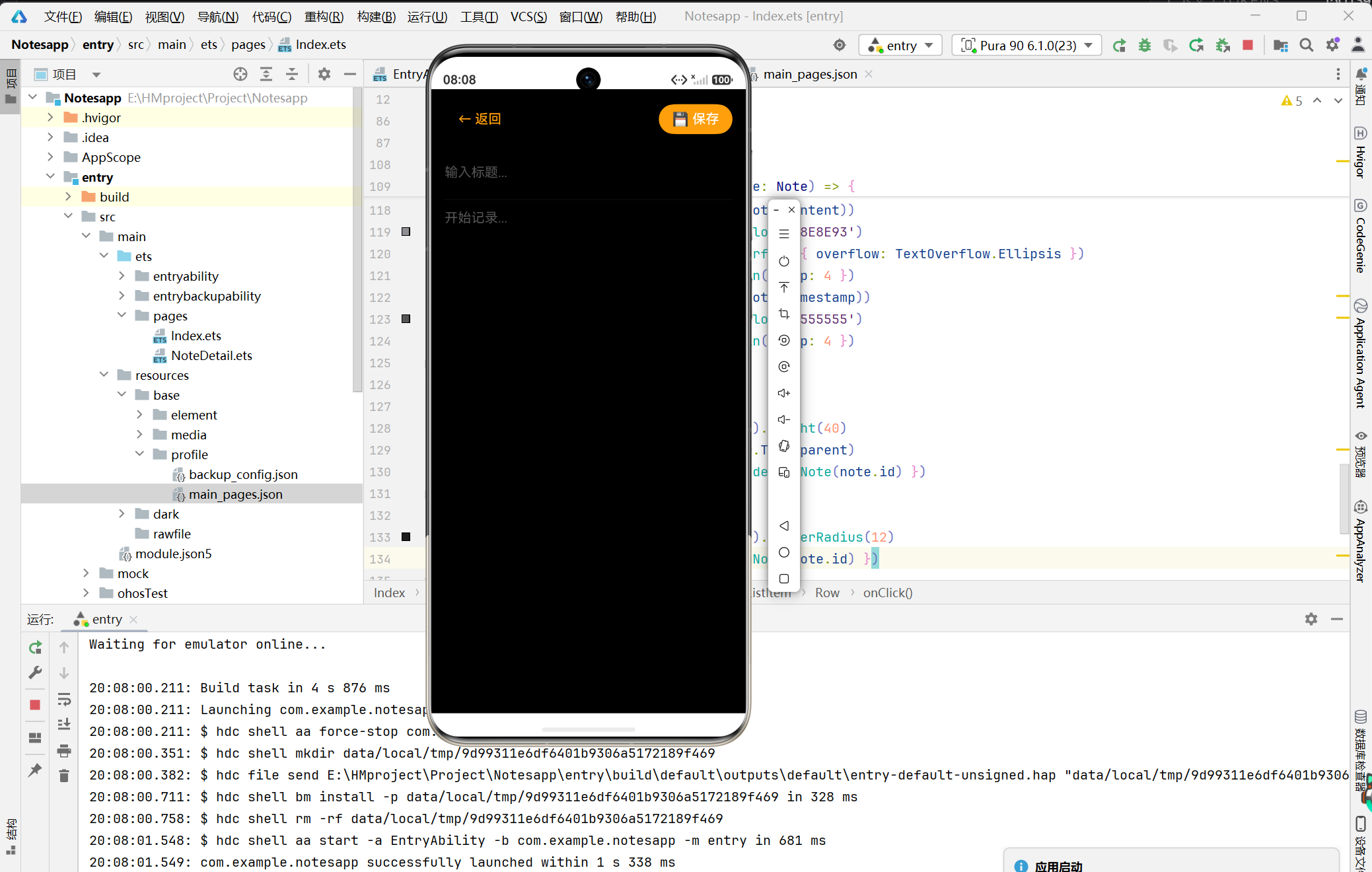
说明:
- 标题输入框(可选)
- 内容输入框(支持多行)
- 顶部显示"返回"和"保存"按钮
截图3:编辑笔记
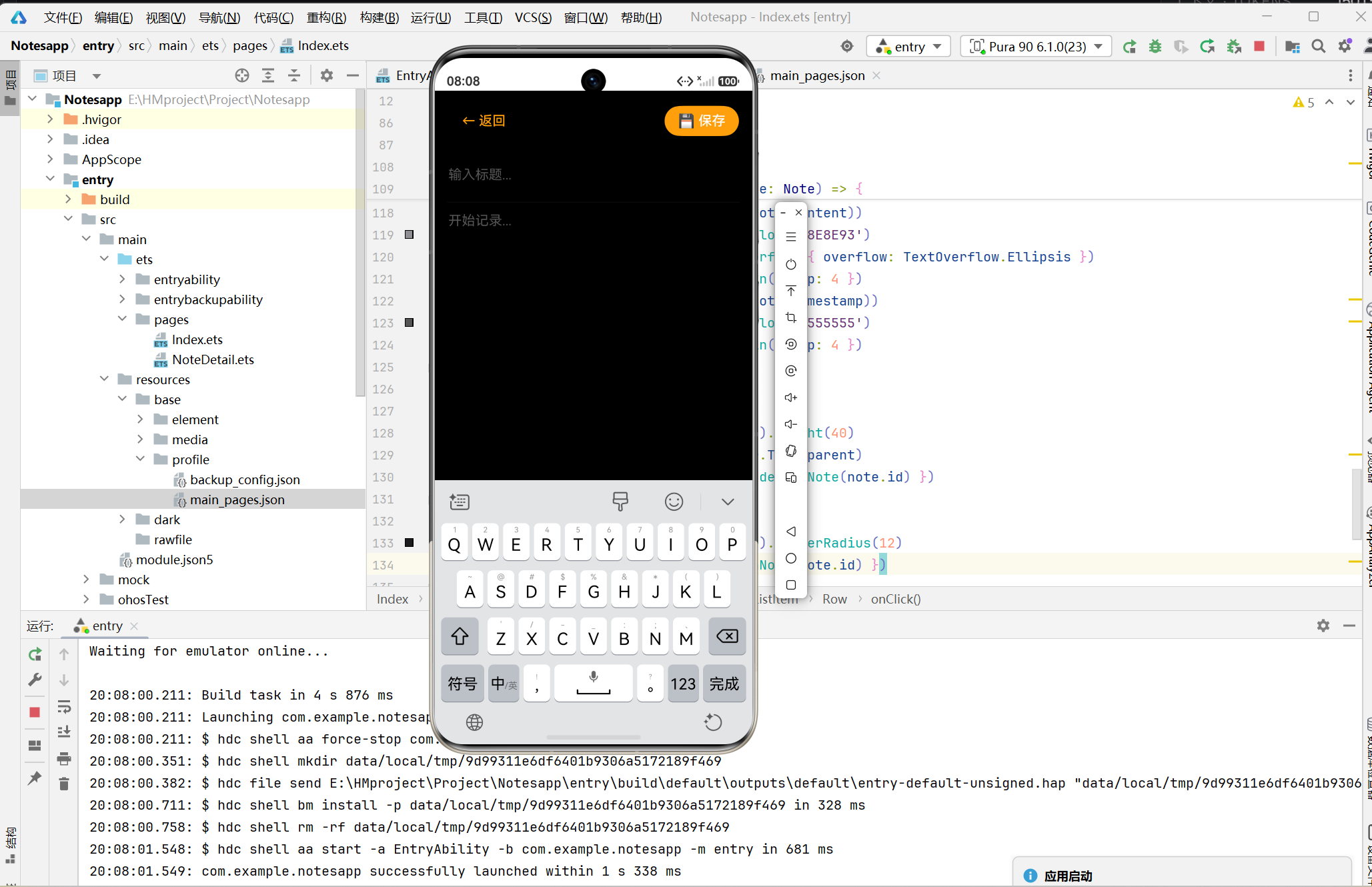
说明:
- 点击笔记进入编辑页面
- 自动加载笔记内容
- 修改后点击"保存"返回
第八部分:性能优化与未来改进
8.1 性能优化
| 优化项 | 当前方案 | 优化建议 |
|---|---|---|
| 列表渲染 | ForEach | 数据量大时可使用LazyForEach |
| 数据加载 | 同步加载 | 可改为异步加载 |
| 内存管理 | 全量加载 | 可实现分页加载 |
8.2 未来改进方向
| 功能 | 描述 | 优先级 |
|---|---|---|
| 搜索功能 | 支持按标题或内容搜索笔记 | 高 |
| 分类标签 | 支持给笔记添加标签 | 中 |
| 云同步 | 支持多设备同步 | 中 |
| 富文本编辑 | 支持Markdown或富文本格式 | 低 |
| 图片附件 | 支持在笔记中插入图片 | 低 |
第九部分:总结
本文详细记录了使用HarmonyOS ArkUI框架开发笔记应用的完整过程,主要内容包括:
- 需求分析:明确了笔记应用的功能需求和非功能需求。
- 架构设计:设计了双页面架构和数据模型。
- 核心功能实现:实现了笔记的增删改查和数据持久化。
- 页面跳转:使用
@ohos.router实现页面跳转和参数传递。 - 列表渲染:使用
List+ForEach渲染笔记列表。 - 踩坑记录:总结了开发过程中遇到的问题及解决方案。
通过本文的学习,读者可以掌握HarmonyOS ArkUI框架的核心使用方法,包括:
- 状态管理(@State、@StorageLink装饰器)
- 页面路由(@ohos.router模块)
- 列表渲染(List + ForEach)
- 数据持久化(@StorageLink)
- 组件生命周期(aboutToAppear、onPageShow)
相关资源
- 华为开发者官网:https://developer.harmonyos.com
- ArkUI官方文档:https://developer.harmonyos.com/cn/docs/documentation/doc-guides/arkui
- ArkTS语言参考:https://developer.harmonyos.com/cn/docs/documentation/doc-references

讨论HarmonyOS开发技术,专注于API与组件、DevEco Studio、测试、元服务和应用上架分发等。
更多推荐



 8
8 0
0- 0


 已为社区贡献4条内容

所有评论(0)