第69篇 | HarmonyOS ShareKit 能力注册:碰一碰和隔空抓取如何接入相机
第 69 篇进入近场分享能力。双镜记忆相机不是只把照片保存在本机,它还要让刚拍好的记忆能在身边设备之间自然流转。HarmonyOS 的 ShareKit 提供了碰一碰和隔空抓取这样的入口,但真正落到项目里时,关键不是简单调用一个分享按钮,而是要把页面生命周期、窗口能力、分享回调和 UI 状态放在同一条链路里。 这一篇先不急着看文件如何被分享出去,而是把能力注册讲透。我们要知道什
第69篇 | HarmonyOS ShareKit 能力注册:碰一碰和隔空抓取如何接入相机
第 69 篇进入近场分享能力。双镜记忆相机不是只把照片保存在本机,它还要让刚拍好的记忆能在身边设备之间自然流转。HarmonyOS 的 ShareKit 提供了碰一碰和隔空抓取这样的入口,但真正落到项目里时,关键不是简单调用一个分享按钮,而是要把页面生命周期、窗口能力、分享回调和 UI 状态放在同一条链路里。
这一篇先不急着看文件如何被分享出去,而是把能力注册讲透。我们要知道什么时候注册、什么时候注销、为什么隔空抓取需要 windowId、失败时怎样不打扰用户,以及页面上如何提示“已就绪”还是“未开启”。把这些基础打稳,后面的 SharedData、系统分享降级和保险箱隐私边界才不会混在一起。
本篇目标
- 理解 ShareKit 的
knockShare和gesturesShare在页面生命周期中的注册时机。 - 掌握隔空抓取为什么需要
SendCapabilityRegistry.windowId。 - 把能力注册状态同步到页面卡片,避免用户不知道当前设备是否可用。
- 建立注销监听的习惯,防止页面隐藏后仍然响应近场分享。
对应源码位置
superImage/entry/src/main/ets/pages/Index.etssuperImage/entry/src/main/module.json5
先看相册详情里的近场入口
在产品体验上,近场分享更适合出现在照片详情页,而不是藏在设置或二级菜单里。用户刚浏览到一组双镜照片时,页面底部会同时出现系统分享、保险箱、删除和“碰一碰 / 隔空抓取”状态。这个位置很重要:它告诉用户当前分享对象就是正在浏览的照片,而不是整本相册。
工程上,这个入口只显示状态,不直接塞入业务数据。真正的数据选择、SharedData 构造和异常处理都放在回调和服务函数中完成。这样 UI 只负责表达“准备中”或“已就绪”,不会因为近场能力不可用而阻塞相册浏览。
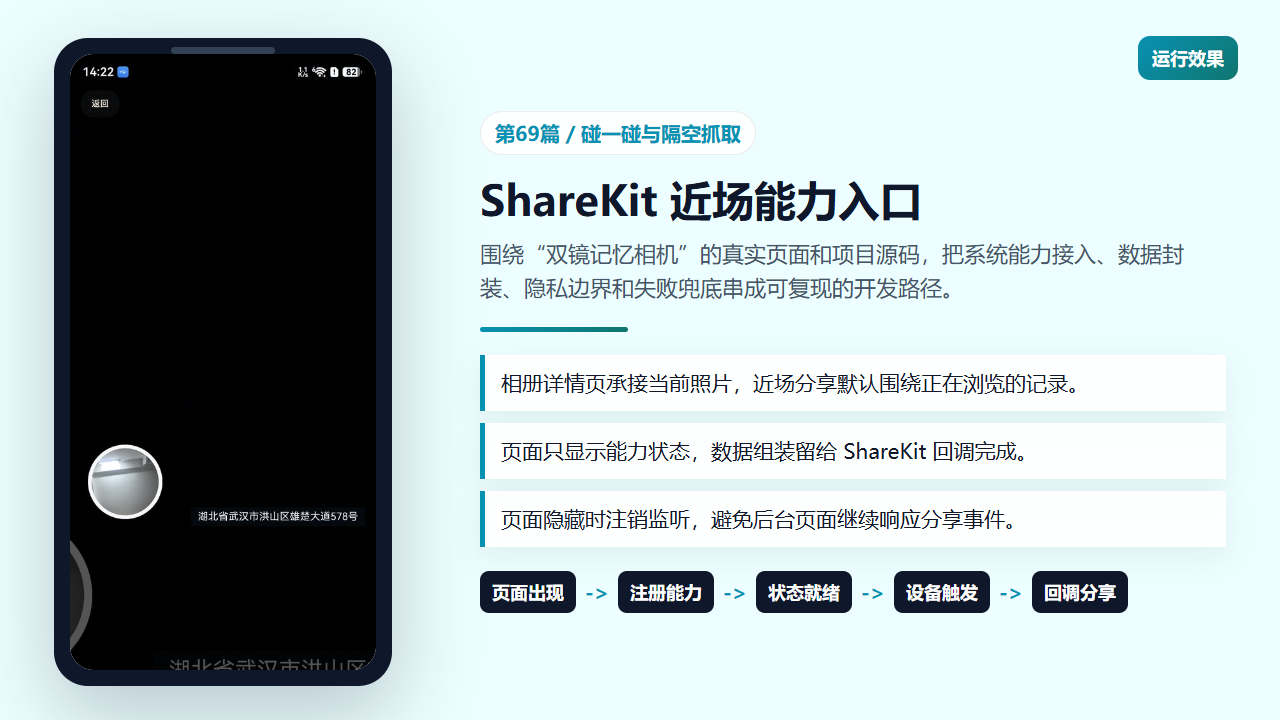
相册详情页里的近场分享状态和照片操作区
页面出现时注册,页面隐藏时清理
aboutToAppear 和 onPageShow 都会调用 registerNearbyShareListeners,这是为了覆盖首次进入页面和从后台回到前台两种场景。相机、地图、相册这些页面状态会频繁切换,如果只在初始化时注册一次,页面恢复后很容易出现状态和实际能力不一致。
onPageHide 里同时调用 unregisterNearbyShareListeners 和 stopGalleryAntiPeepProtection,说明这个项目把“系统监听类能力”都放在页面可见性边界内管理。这样的写法可以减少后台资源占用,也能避免用户已经离开当前照片后,外部设备仍然触发旧页面的分享逻辑。
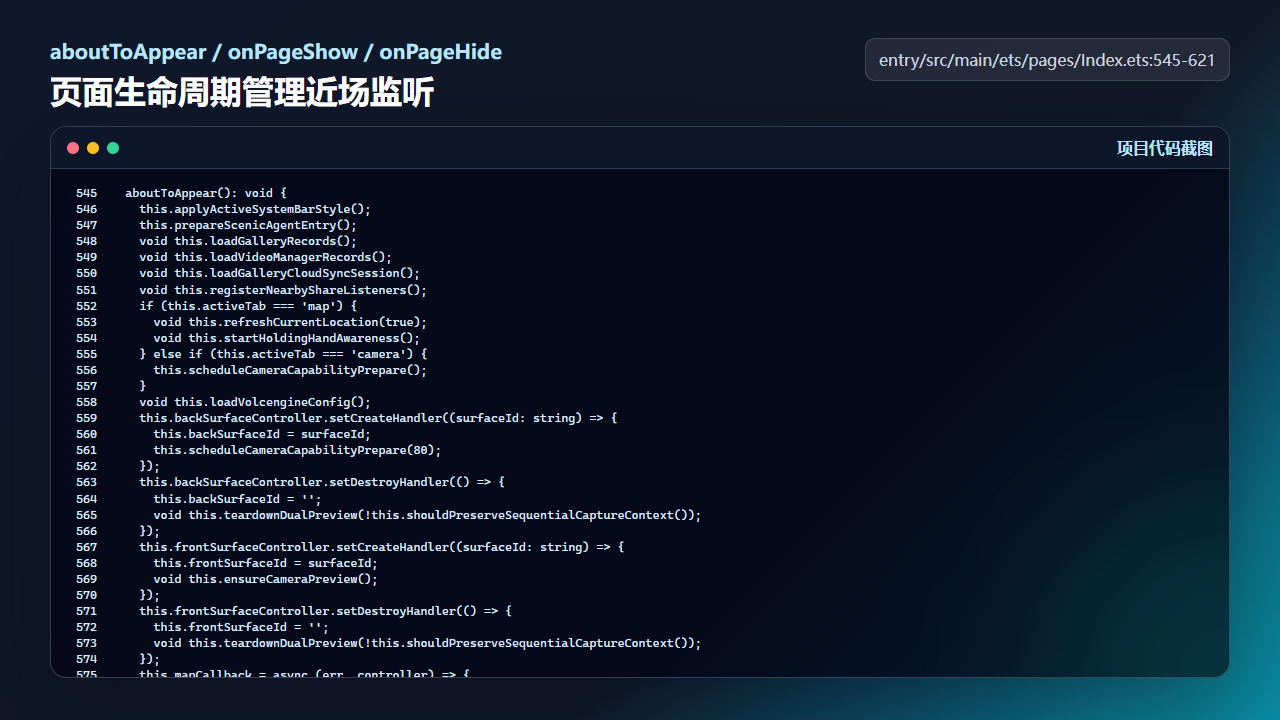
页面显示时注册近场能力,页面隐藏时注销监听
  aboutToAppear(): void {
    this.applyActiveSystemBarStyle();
    this.prepareScenicAgentEntry();
    void this.loadGalleryRecords();
    void this.loadVideoManagerRecords();
    void this.loadGalleryCloudSyncSession();
    void this.registerNearbyShareListeners();
    if (this.activeTab === 'map') {
      void this.refreshCurrentLocation(true);
      void this.startHoldingHandAwareness();
    } else if (this.activeTab === 'camera') {
      this.scheduleCameraCapabilityPrepare();
    }
    void this.loadVolcengineConfig();
    this.backSurfaceController.setCreateHandler((surfaceId: string) => {
      this.backSurfaceId = surfaceId;
      this.scheduleCameraCapabilityPrepare(80);
    });
    this.backSurfaceController.setDestroyHandler(() => {
      this.backSurfaceId = '';
      void this.teardownDualPreview(!this.shouldPreserveSequentialCaptureContext());
    });
    this.frontSurfaceController.setCreateHandler((surfaceId: string) => {
      this.frontSurfaceId = surfaceId;
      void this.ensureCameraPreview();
    });
    this.frontSurfaceController.setDestroyHandler(() => {
      this.frontSurfaceId = '';
      void this.teardownDualPreview(!this.shouldPreserveSequentialCaptureContext());
    });
    this.mapCallback = async (err, controller) => {
      if (err) {
        const message = err.message && err.message.length > 0 ? err.message : JSON.stringify(err);
        this.mapReady = false;
        this.mapErrorText = `记忆地图初始化失败 ${err.code ?? -1}:${message}`;
        console.error(`[superImage][map] init failed code=${err.code ?? -1} message=${message}`);
        return;
      }

      this.mapController = controller;
      this.mapEventManager = this.mapController.getEventManager();
      this.mapReady = true;
      this.mapErrorText = '';
      this.showMapControllerIfActive();
      this.bindMarkerClickEvent();
      await this.primeMapCameraAtUserLocation();
      await this.syncMapMarkers();
      if (this.hasLiveLocation()) {
        this.focusMapAtCoordinate(this.currentLatitude, this.currentLongitude, false);
      } else {
        void this.refreshCurrentLocation(true);
      }
    };
  }

  onPageShow(): void {
    this.applyActiveSystemBarStyle();
    this.prepareScenicAgentEntry();
    void this.loadGalleryRecords();
    void this.loadVideoManagerRecords();
    void this.loadGalleryCloudSyncSession();
    void this.registerNearbyShareListeners();
    if (this.activeTab === 'map') {
      void this.refreshCurrentLocation(true);
      void this.startHoldingHandAwareness();
    } else if (this.activeTab === 'camera') {
      this.scheduleCameraCapabilityPrepare();
    }
    void this.loadVolcengineConfig();
    this.showMapControllerIfActive();
  }

  onPageHide(): void {
    this.clearCameraCapabilityPrepareTimer();
    this.unregisterNearbyShareListeners();
    this.stopGalleryAntiPeepProtection();
    this.hideMapController();
隔空抓取需要绑定当前窗口
碰一碰只需要注册回调,隔空抓取还需要一个 SendCapabilityRegistry。项目里先通过 window.getLastWindow 拿到当前窗口属性,再把 properties.id 放进 registry。这样系统知道哪个窗口可以作为发送端参与隔空手势交互。
这里还有一个很实用的失败策略:如果隔空抓取注册失败,但碰一碰已经注册成功,页面仍然可以认为近场分享“可用”。如果两个入口都不可用,再根据错误码更新状态。这样用户不会因为某一种能力不支持,就失去所有分享入口。
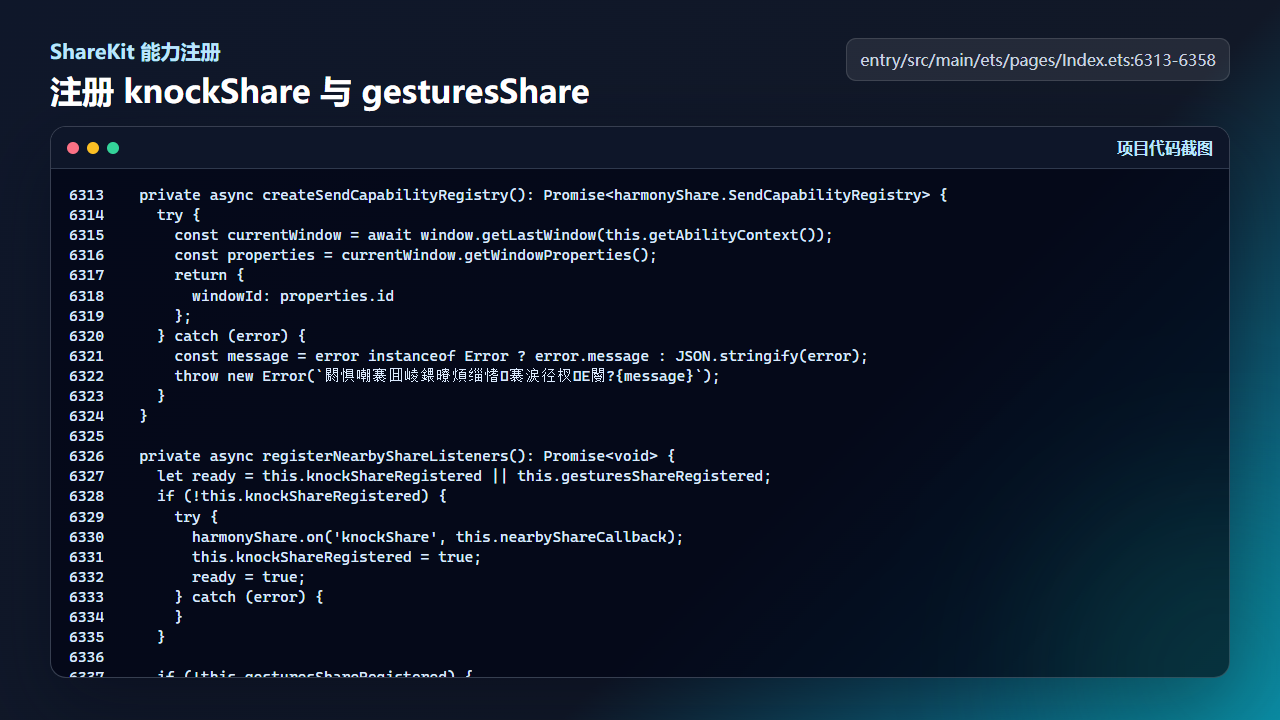
ShareKit 近场能力注册和错误码兜底
private async createSendCapabilityRegistry(): Promise<harmonyShare.SendCapabilityRegistry> {
try {
const currentWindow = await window.getLastWindow(this.getAbilityContext());
const properties = currentWindow.getWindowProperties();
return {
windowId: properties.id
};
} catch (error) {
const message = error instanceof Error ? error.message : JSON.stringify(error);
throw new Error(`閼惧嘲褰囬崚鍡曢煩缁愭褰涙径杈Е閿?{message}`);
}
}
private async registerNearbyShareListeners(): Promise<void> {
let ready = this.knockShareRegistered || this.gesturesShareRegistered;
if (!this.knockShareRegistered) {
try {
harmonyShare.on('knockShare', this.nearbyShareCallback);
this.knockShareRegistered = true;
ready = true;
} catch (error) {
}
}
if (!this.gesturesShareRegistered) {
try {
const registry = await this.createSendCapabilityRegistry();
harmonyShare.on('gesturesShare', registry, this.nearbyShareCallback);
this.gesturesShareRegistry = registry;
this.gesturesShareRegistered = true;
ready = true;
} catch (error) {
if (!this.knockShareRegistered) {
const err = error as BusinessError;
this.nearbyShareStatusText = err.code === 801
? ''
: `附近分享初始化失败:${err.message ?? err.code ?? -1}`;
}
}
}
this.nearbyShareReady = ready;
if (ready) {
this.nearbyShareStatusText = '';
}
}
注销监听要和注册一样认真
很多近场能力的 bug 并不是注册失败,而是注销不完整。这个项目用 knockShareRegistered、gesturesShareRegistered 和 gesturesShareRegistry 三个字段记录注册状态,注销时逐个判断并恢复默认值。即使 off 抛异常,finally 也会把状态清掉。
这样写的好处是页面下一次出现时可以重新注册,不会因为本地状态误以为“已经注册过”而跳过真正的系统注册。对训练营项目来说,这类状态闭环比单纯展示 API 更有价值,因为它直接决定功能在多次前后台切换后是否稳定。
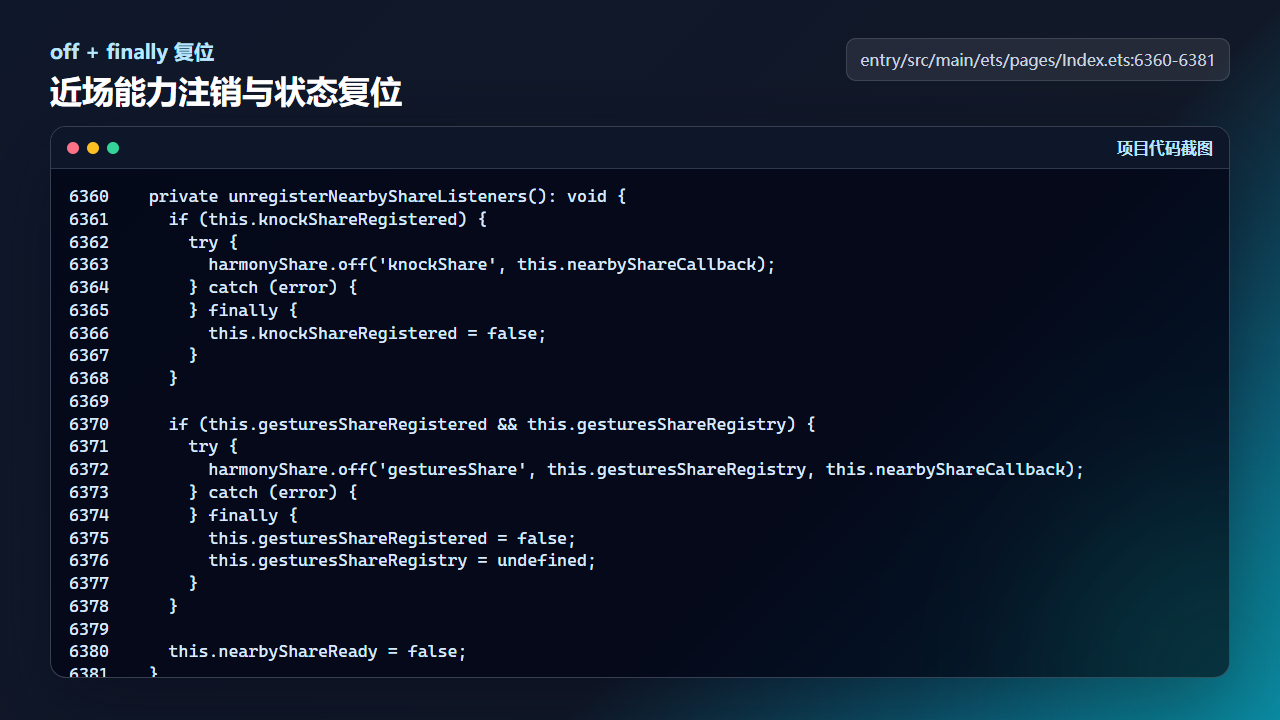
注销 knockShare 和 gesturesShare 后同步恢复页面状态
  private unregisterNearbyShareListeners(): void {
    if (this.knockShareRegistered) {
      try {
        harmonyShare.off('knockShare', this.nearbyShareCallback);
      } catch (error) {
      } finally {
        this.knockShareRegistered = false;
      }
    }

    if (this.gesturesShareRegistered && this.gesturesShareRegistry) {
      try {
        harmonyShare.off('gesturesShare', this.gesturesShareRegistry, this.nearbyShareCallback);
      } catch (error) {
      } finally {
        this.gesturesShareRegistered = false;
        this.gesturesShareRegistry = undefined;
      }
    }

    this.nearbyShareReady = false;
  }
UI 卡片只表达能力状态
buildNearbyShareCard 没有直接处理分享数据,它只读取 nearbyShareReady 并切换文案与颜色。这种设计能把“系统能力是否已注册”和“照片文件如何分享”拆开:前者属于页面状态,后者属于回调和数据封装。
开发时可以用这个卡片做第一层验证:进入相册详情后是否从“未开启”变为“已就绪”;切到后台再返回是否仍能恢复;设备不支持隔空抓取时是否保持安静降级。确认这些后,再进入下一篇处理真正的分享回调。
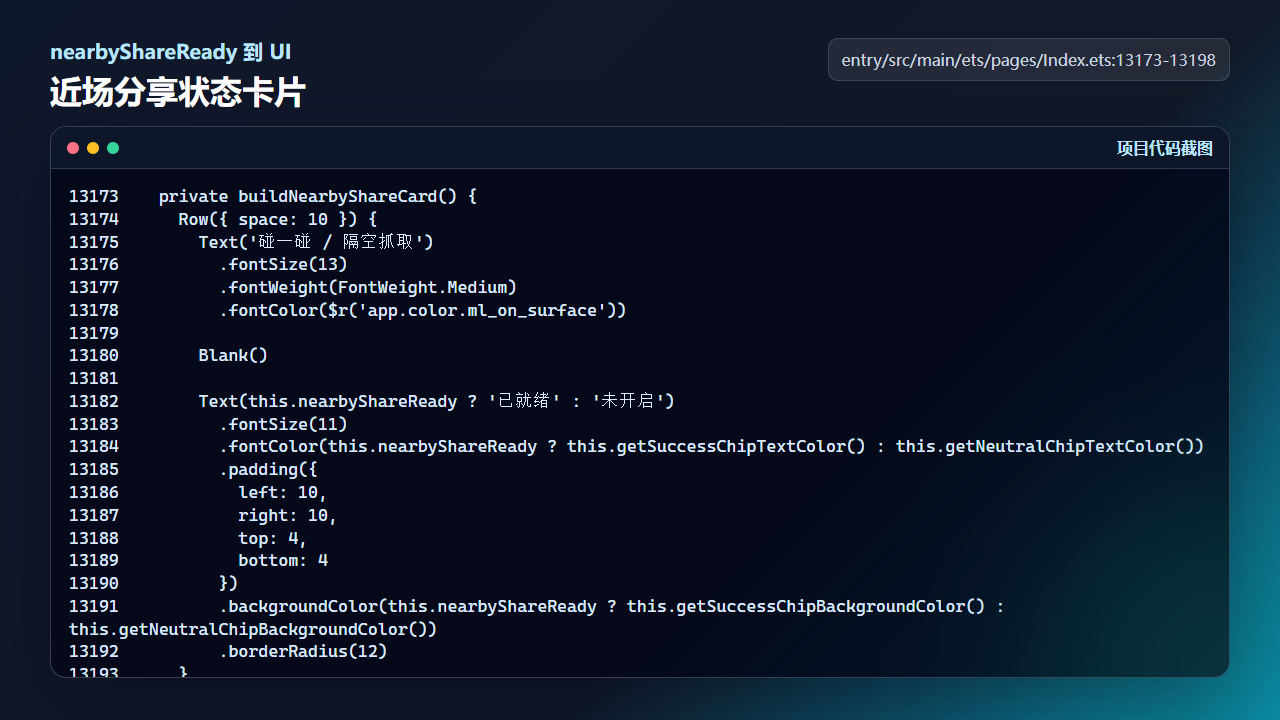
近场分享卡片根据 ready 状态展示已就绪或未开启
  private buildNearbyShareCard() {
    Row({ space: 10 }) {
      Text('碰一碰 / 隔空抓取')
        .fontSize(13)
        .fontWeight(FontWeight.Medium)
        .fontColor($r('app.color.ml_on_surface'))

      Blank()

      Text(this.nearbyShareReady ? '已就绪' : '未开启')
        .fontSize(11)
        .fontColor(this.nearbyShareReady ? this.getSuccessChipTextColor() : this.getNeutralChipTextColor())
        .padding({
          left: 10,
          right: 10,
          top: 4,
          bottom: 4
        })
        .backgroundColor(this.nearbyShareReady ? this.getSuccessChipBackgroundColor() : this.getNeutralChipBackgroundColor())
        .borderRadius(12)
    }
    .width('100%')
    .padding(12)
    .backgroundColor(this.getOverlayPanelColor())
    .borderRadius(18)
  }
工程检查清单
module.json5中确认需要的手势感知权限已经声明。- 页面进入和返回前台都能调用注册逻辑。
- 页面隐藏时能注销 knockShare 和 gesturesShare。
- UI 只展示 ready 状态,不把分享文件组装写在卡片里。
今日练习
- 在
registerNearbyShareListeners里临时记录两个注册标志,观察碰一碰和隔空抓取分别是否成功。 - 把页面切到后台再回来,确认
nearbyShareReady可以恢复。 - 模拟
gesturesShare注册失败,验证碰一碰成功时页面仍然保持可用状态。
训练营里的每一篇都建议按同一个节奏复盘:先看页面行为,再回到源码定位状态和服务层,最后自己改一个很小的参数验证结果。这样写文章时不会停留在 API 名词,读者也能沿着真实工程把功能跑通。

讨论HarmonyOS开发技术,专注于API与组件、DevEco Studio、测试、元服务和应用上架分发等。
更多推荐

 23
23 0
0- 0


 已为社区贡献223条内容

所有评论(0)