HarmonyOS 图片选择与裁切组件技术实践
HarmonyOS 图片选择与裁切组件技术实践
基于「喵屿」App 真实项目提炼,涵盖图片选取、裁剪、保存全链路可复用方案。
一、前言
在移动应用开发中,图片处理是高频需求——用户头像上传、日记附图等场景都需要一套完整的图片处理流程。HarmonyOS 提供了 @kit.MediaLibraryKit、@kit.ImageKit 等系统级 API,但在实际项目中直接使用往往面临以下挑战:
- 裁剪交互复杂:需要可拖拽缩放的裁剪框 + 遮罩层 + 实时预览
- 文件持久化:
PhotoViewPicker返回的 URI 权限是临时的,必须复制到沙箱 - 坐标转换:显示坐标(vp)与像素坐标(px)的变换需通过 scale 精确计算
本文以「喵屿」App 中的头像裁剪为实战案例,从 API 基础讲起,逐步拆解每一步的实现细节,并提炼出可直接复用的完整组件代码。
二、相关知识介绍
2.1 图片选取 —— photoAccessHelper.PhotoViewPicker
HarmonyOS 中推荐使用 photoAccessHelper.PhotoViewPicker 调起系统相册:
import { photoAccessHelper } from '@kit.MediaLibraryKit';

const options = new photoAccessHelper.PhotoSelectOptions();
options.MIMEType = photoAccessHelper.PhotoViewMIMETypes.IMAGE_TYPE;
options.maxSelectNumber = 1;

const picker = new photoAccessHelper.PhotoViewPicker();
const result: photoAccessHelper.PhotoSelectResult = await picker.select(options);
const uris: string[] = result.photoUris;
注意:
select()返回的 URI 仅具有临时只读权限,需复制到应用沙箱才能持久化使用。
2.2 图片解码与裁剪 —— image.PixelMap + image.Region
PixelMap 是 HarmonyOS 图像处理的核心对象,类似 Android 的 Bitmap。
从 URI 加载可编辑的 PixelMap:
import { image } from '@kit.ImageKit';
import { fileIo as fs } from '@kit.CoreFileKit';

// 以只读方式打开文件
const file: fs.File = fs.openSync(uri, fs.OpenMode.READ_ONLY);
const imageSource: image.ImageSource = image.createImageSource(file.fd);
// editable: true 必须设置,否则 cropSync() 将失败
const decodingOptions: image.DecodingOptions = { editable: true };
const pixelMap: image.PixelMap = await imageSource.createPixelMap(decodingOptions);
fs.closeSync(file.fd); // 用完后关闭

// 获取原始像素尺寸
const imageInfo = await pixelMap.getImageInfo();
const pixelW = imageInfo.size.width;
const pixelH = imageInfo.size.height;
执行裁剪:
// Region 使用像素坐标,需从显示坐标转换而来
const region: image.Region = {
  x: cropPxX,   // 裁剪区域左上角 X(像素)
  y: cropPxY,   // 裁剪区域左上角 Y(像素)
  size: { width: cropPxW, height: cropPxH }
};
pixelMap.cropSync(region); // 同步裁剪,直接修改原 PixelMap
2.3 图片保存 —— image.ImagePacker.packToFile
ImagePacker 负责将 PixelMap 编码为指定格式并写入文件:
import { image } from '@kit.ImageKit';
import { fileIo as fs } from '@kit.CoreFileKit';

const packOpts: image.PackingOption = { format: "image/png", quality: 100 };
const file = fs.openSync(filePath, fs.OpenMode.READ_WRITE | fs.OpenMode.CREATE);
const packer = image.createImagePacker();
await packer.packToFile(pixelMap, file.fd, packOpts)
  .finally(() => packer.release()); // 确保释放
fs.closeSync(file.fd);
注意:
fs.accessSync(path)在路径不存在时会抛出异常而非返回 false,需用 try-catch 判断。
2.4 保存到沙箱
import { fileIo as fs } from '@kit.CoreFileKit';
import { common } from '@kit.AbilityKit';

const context = getContext() as common.UIAbilityContext;
const dir = context.filesDir + '/Avatar';
try { fs.mkdirSync(dir, true); } catch (_) {} // 确保目录存在
try { fs.unlinkSync(filePath); } catch (_) {} // 覆盖旧文件

// 写入文件后返回 file:// 协议的沙箱 URI
return "file://" + filePath;
三、项目实战 —— 喵屿头像裁剪
「喵屿」App 中宠物头像上传采用选择 → 裁剪 → 保存三步流程。
3.1 图片选取
封装 pickImages 方法,返回选中图片的 URI 数组:
static async pickImages(maxCount: number = 1): Promise<string[]> {
  try {
    const options = new photoAccessHelper.PhotoSelectOptions();
    options.MIMEType = photoAccessHelper.PhotoViewMIMETypes.IMAGE_TYPE;
    options.maxSelectNumber = maxCount;
    const picker = new photoAccessHelper.PhotoViewPicker();
    const result = await picker.select(options);
    return result.photoUris;
  } catch (err) {
    return [];
  }
}
3.2 裁剪布局计算
裁剪页面的核心挑战是屏幕尺寸 → 显示尺寸 → 像素尺寸的三层坐标转换。将布局计算提取为独立方法:
static computeCropLayout(
  windowWidth: number, windowHeight: number,
  statusBarHeight: number, imagePixelW: number, imagePixelH: number
): CropLayout {
  // 预留标题栏(56vp)、提示文字(38vp)、按钮区(80vp)的空间
  const titleH = statusBarHeight + 56;
  const instrH = 38;
  const btnH = 80;
  const previewTop = titleH + instrH;
  const previewH = windowHeight - previewTop - btnH;

  // 裁剪框取屏幕宽度的 78% 和可用高度的 72% 中的较小值
  const cropSize = Math.min(windowWidth * 0.78, previewH * 0.72);
  const cropLeft = (windowWidth - cropSize) / 2;

  // 图片显示宽度占满(留 40vp 边距),等比缩放
  let displayW = windowWidth - 40;
  let displayH = displayW * (imagePixelH / imagePixelW);
  // 确保图片至少为裁剪框的 1.5 倍,给拖动留足空间
  if (displayH < cropSize * 1.5) {
    displayH = cropSize * 1.5;
    displayW = displayH * (imagePixelW / imagePixelH);
  }

  // 最小缩放比 = 恰好填满裁剪框的倍数
  const minScale = Math.max(cropSize / displayW, cropSize / displayH);
  const baseScale = Math.max(minScale, 1.0);

  // 计算初始偏移:图片居中于裁剪框
  const scaledW = displayW * baseScale;
  const scaledH = displayH * baseScale;
  const offsetX = cropLeft + cropSize / 2 - scaledW / 2;
  const offsetY = previewTop + (previewH - scaledH) / 2;

  return { cropSize, cropLeft, displayW, displayH, minScale, baseScale, offsetX, offsetY };
}
3.3 显示坐标 → 像素坐标转换
用户拖拽缩放后,需要将裁剪窗口的显示坐标转为图片的像素坐标:
static displayToPixelRegion(
  displayX: number, displayY: number,
  displayW: number, displayH: number,
  imageDisplayW: number, imageDisplayH: number,
  imagePixelW: number, imagePixelH: number,
  imageOffsetX: number = 0, imageOffsetY: number = 0
): image.Region {
  // 缩放比 = 原始像素 / 当前显示尺寸
  const scaleX = imagePixelW / imageDisplayW;
  const scaleY = imagePixelH / imageDisplayH;
  // 裁剪区域在图片上的偏移 = (显示坐标 - 图片偏移) × 缩放比
  return {
    x: Math.round((displayX - imageOffsetX) * scaleX),
    y: Math.round((displayY - imageOffsetY) * scaleY),
    size: {
      width: Math.round(displayW * scaleX),
      height: Math.round(displayH * scaleY)
    }
  };
}
3.4 裁剪 + 保存
static async cropAndSave(
  pixelMap: image.PixelMap, region: image.Region,
  fileName: string, subDir: string
): Promise<string> {
  pixelMap.cropSync(region); // 同步裁剪
  return await ImagePickerUtil.savePixelMap(pixelMap, fileName, subDir);
}
3.5 UI 层 —— 可拖拽缩放的裁剪界面
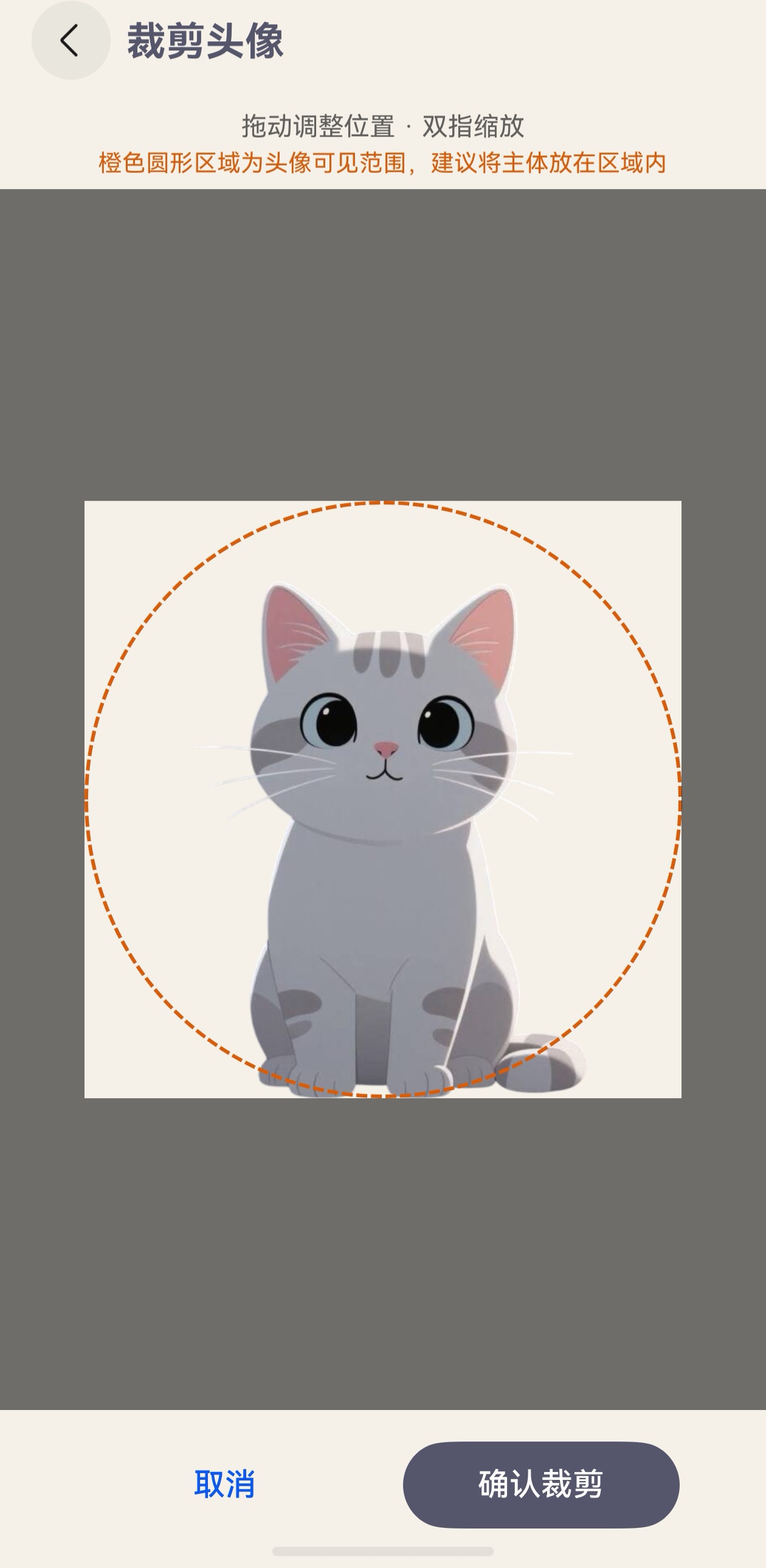
裁剪页面的 UI 核心是 Stack 叠放:
关键设计:手势加在 Image 上,遮罩层设置 hitTestBehavior(HitTestMode.None) 让手势穿透。不能将 Image 包裹在 Column 中再对 Column 加手势(会导致坐标计算错位)。喵屿项目中实际截图页面截图如下。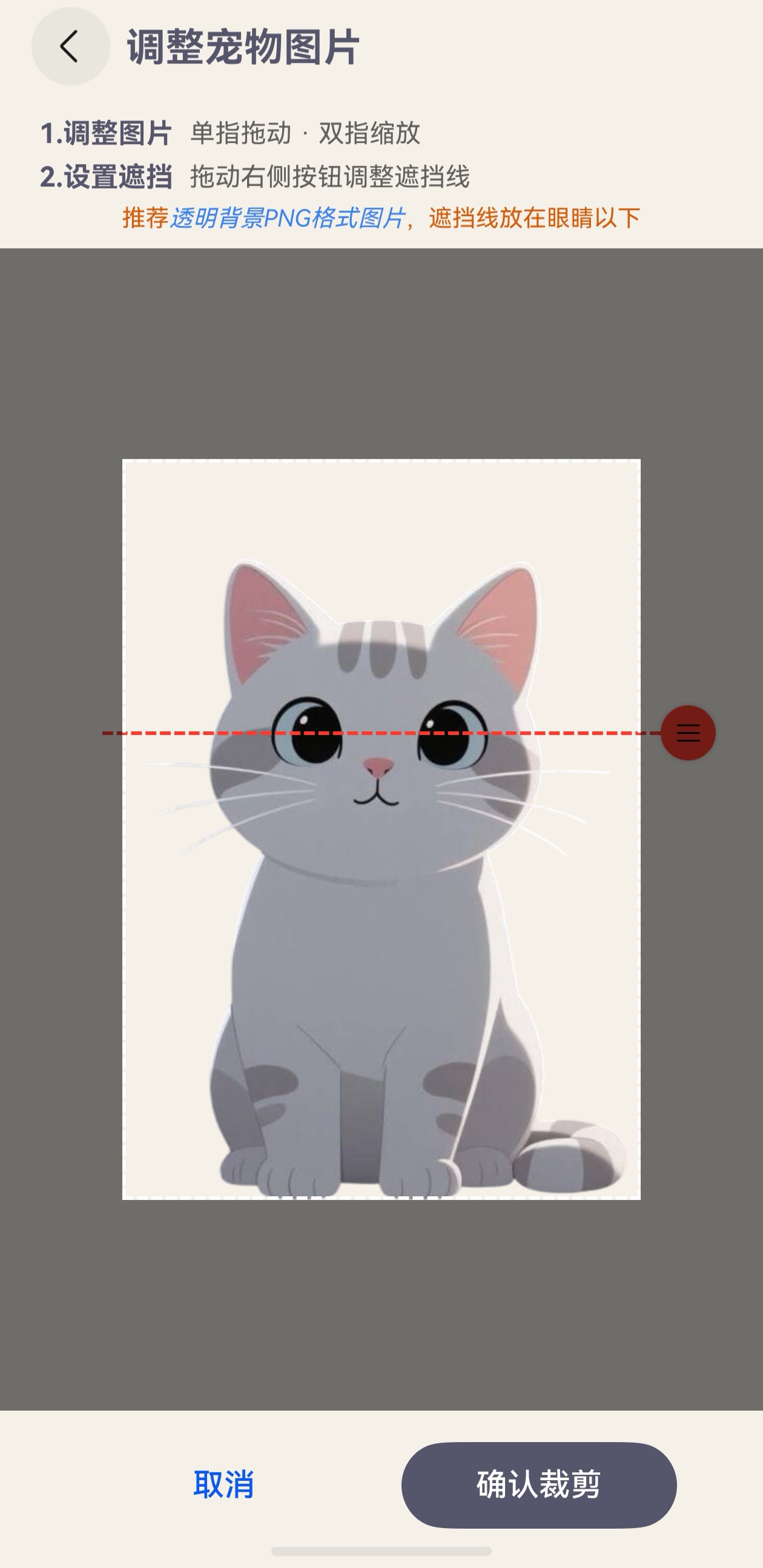
四、完整可复用代码
以下代码可直接运行。将 ImagePickerUtil.ets 和 AvatarCropPage.ets 放入项目,注册路由即可。
4.1 工具类 —— ImagePickerUtil.ets
/*
 * HarmonyOS 图片选择与裁切工具
 * 依赖:@kit.MediaLibraryKit, @kit.ImageKit, @kit.CoreFileKit, @kit.AbilityKit
 * ArkTS 兼容:返回类型使用显式声明的接口,避免 untyped-obj-literals 编译错误
 */

import { photoAccessHelper } from '@kit.MediaLibraryKit';
import { image } from '@kit.ImageKit';
import { fileIo as fs } from '@kit.CoreFileKit';
import { common } from '@kit.AbilityKit';

/** 图片加载结果,ArkTS 要求使用显式声明的接口 */
export interface LoadedPixelMap {
  pixelMap: image.PixelMap;
  width: number;
  height: number;
}

/** 裁剪布局计算结果,包含所有布局相关尺寸和偏移 */
export interface CropLayout {
  cropSize: number;   // 裁剪框边长
  cropLeft: number;   // 裁剪框左边界
  displayW: number;   // 图片显示宽度
  displayH: number;   // 图片显示高度
  minScale: number;   // 最小缩放比(恰好填满裁剪框)
  baseScale: number;  // 初始缩放比
  offsetX: number;    // 图片初始 X 偏移
  offsetY: number;    // 图片初始 Y 偏移
}

export class ImagePickerUtil {

  // ==================== 1. 图片选择 ====================

  /** 调起系统相册,返回选中图片的 URI 数组 */
  static async pickImages(maxCount: number = 1): Promise<string[]> {
    try {
      const options = new photoAccessHelper.PhotoSelectOptions();
      options.MIMEType = photoAccessHelper.PhotoViewMIMETypes.IMAGE_TYPE;
      options.maxSelectNumber = maxCount;
      const picker = new photoAccessHelper.PhotoViewPicker();
      const result = await picker.select(options);
      return result.photoUris;
    } catch (err) {
      return [];
    }
  }

  // ==================== 2. 图片加载 ====================

  /**
   * 从 file:// URI 加载可编辑 PixelMap
   * @returns 包含 PixelMap 和原始尺寸的 LoadedPixelMap,失败返回 null
   */
  static async loadEditablePixelMap(uri: string): Promise<LoadedPixelMap | null> {
    try {
      const file = fs.openSync(uri, fs.OpenMode.READ_ONLY);
      const imageSource = image.createImageSource(file.fd);
      // editable: true 是关键,否则 cropSync() 会抛异常
      const decodingOptions: image.DecodingOptions = { editable: true };
      const pixelMap = await imageSource.createPixelMap(decodingOptions);
      const info = await pixelMap.getImageInfo();
      fs.closeSync(file.fd);

      const result: LoadedPixelMap = {
        pixelMap: pixelMap,
        width: info.size.width,
        height: info.size.height
      };
      return result;
    } catch (err) {
      return null;
    }
  }

  // ==================== 3. 裁剪布局计算 ====================

  /**
   * 根据屏幕尺寸和图片原始像素尺寸,计算裁剪页面的完整布局参数
   * 所有尺寸单位均为 vp
   */
  static computeCropLayout(
    windowWidth: number, windowHeight: number,
    statusBarHeight: number, imagePixelW: number, imagePixelH: number
  ): CropLayout {
    // 预留系统 UI 空间
    const titleH = statusBarHeight + 56;
    const instrH = 38;
    const btnH = 80;
    const previewTop = titleH + instrH;
    const previewH = windowHeight - previewTop - btnH;

    // 裁剪框:取可用空间的合适比例
    const cropSize = Math.min(windowWidth * 0.78, previewH * 0.72);
    const cropLeft = (windowWidth - cropSize) / 2;

    // 图片显示尺寸:宽度占满(留 40vp),等比缩放
    let displayW = windowWidth - 40;
    let displayH = displayW * (imagePixelH / imagePixelW);
    // 确保图片至少为裁剪框的 1.5 倍,给拖拽留空间
    if (displayH < cropSize * 1.5) {
      displayH = cropSize * 1.5;
      displayW = displayH * (imagePixelW / imagePixelH);
    }

    // 缩放比:恰好填满裁剪框的比例
    const minScale = Math.max(cropSize / displayW, cropSize / displayH);
    const baseScale = Math.max(minScale, 1.0);

    // 初始偏移:图片居中于裁剪框
    const scaledW = displayW * baseScale;
    const scaledH = displayH * baseScale;
    const offsetX = cropLeft + cropSize / 2 - scaledW / 2;
    const offsetY = previewTop + (previewH - scaledH) / 2;

    const layout: CropLayout = {
      cropSize, cropLeft, displayW, displayH,
      minScale, baseScale, offsetX, offsetY
    };
    return layout;
  }

  // ==================== 4. 坐标转换 ====================

  /**
   * 将显示坐标(vp)转换为像素坐标(px)的裁剪区域
   * 缩放比 = 原始像素尺寸 / 当前显示尺寸
   */
  static displayToPixelRegion(
    displayX: number, displayY: number,
    displayW: number, displayH: number,
    imageDisplayW: number, imageDisplayH: number,
    imagePixelW: number, imagePixelH: number,
    imageOffsetX: number = 0, imageOffsetY: number = 0
  ): image.Region {
    const scaleX = imagePixelW / imageDisplayW;
    const scaleY = imagePixelH / imageDisplayH;
    const region: image.Region = {
      x: Math.round((displayX - imageOffsetX) * scaleX),
      y: Math.round((displayY - imageOffsetY) * scaleY),
      size: {
        width: Math.round(displayW * scaleX),
        height: Math.round(displayH * scaleY)
      }
    };
    return region;
  }

  // ==================== 5. 图片保存 ====================

  /**
   * 将 PixelMap 编码并保存到应用沙箱目录
   * @param pixelMap   待保存的 PixelMap
   * @param fileName   文件名(含扩展名)
   * @param subDir     沙箱子目录,如 "Avatar"
   * @param format     编码格式,默认 image/png
   * @returns          file:// 协议的沙箱 URI
   */
  static async savePixelMap(
    pixelMap: image.PixelMap, fileName: string, subDir: string,
    format: string = 'image/png'
  ): Promise<string> {
    const context = getContext() as common.UIAbilityContext;
    const dir = context.filesDir + '/' + subDir;
    const filePath = dir + '/' + fileName;

    // 确保目录存在,覆盖同名文件
    try { fs.mkdirSync(dir, true); } catch (_) {}
    try { fs.unlinkSync(filePath); } catch (_) {}

    const packOpts: image.PackingOption = { format, quality: 100 };
    const file = fs.openSync(filePath, fs.OpenMode.READ_WRITE | fs.OpenMode.CREATE);
    const packer = image.createImagePacker();
    await packer.packToFile(pixelMap, file.fd, packOpts)
      .finally(() => packer.release()); // 无论成功失败都释放
    fs.closeSync(file.fd);
    return 'file://' + filePath;
  }

  // ==================== 6. 便利方法 ====================

  /** 裁剪 PixelMap 并直接保存(合并裁剪 + 保存两步) */
  static async cropAndSave(
    pixelMap: image.PixelMap, region: image.Region,
    fileName: string, subDir: string
  ): Promise<string> {
    pixelMap.cropSync(region);
    return await ImagePickerUtil.savePixelMap(pixelMap, fileName, subDir);
  }
}
4.2 头像裁剪页面 —— AvatarCropPage.ets
/*
 * AvatarCropPage.ets — 头像裁剪页面(1:1 圆形裁剪)
 * 依赖:ImagePickerUtil.ets,需注册到 main_pages.json
 * 数据传递:调用方通过 AppStorage.avatarCropUri 传入图片 URI
 *          裁剪结果通过 AppStorage.avatarCropResult 回传
 */

import { image } from '@kit.ImageKit';
import { display, router } from '@kit.ArkUI';
import { ImagePickerUtil, LoadedPixelMap, CropLayout } from './ImagePickerCropUtil';

@Entry
@Component
export struct AvatarCropPage {
  // ---- UI 状态 ----
  @State imageUri: string = '';       // 待裁剪图片的 file:// URI
  @State isProcessing: boolean = false; // 防止重复点击
  @State statusBarHeight: number = 40;  // 状态栏高度(vp)
  @State windowWidth: number = 0;
  @State windowHeight: number = 0;
  // ---- 显示状态 ----
  @State imageScale: number = 1;        // 当前缩放比
  @State offsetX: number = 0;           // 图片 X 偏移
  @State offsetY: number = 0;           // 图片 Y 偏移
  @State cropSize: number = 0;          // 裁剪框边长
  @State cropLeft: number = 0;          // 裁剪框左边界
  @State displayW: number = 0;          // 图片显示宽度
  @State displayH: number = 0;          // 图片显示高度
  @State stackHeight: number = 0;       // 裁剪预览区实际高度
  // ---- 内部状态(不触发 UI 刷新)----
  private positionX: number = 0;        // 手势起始基准 X
  private positionY: number = 0;        // 手势起始基准 Y
  private baseScale: number = 1;        // 捏合手势起始基准缩放
  private minScale: number = 1;         // 最小缩放比
  private loadResult: LoadedPixelMap | null = null;
  private pixelMap?: image.PixelMap;

  // ---- 生命周期 ----

  aboutToAppear(): void {
    // 获取屏幕尺寸(px → vp 转换)
    const pxWidth = display.getDefaultDisplaySync().width;
    const pxHeight = display.getDefaultDisplaySync().height;
    this.windowWidth = this.getUIContext().px2vp(pxWidth);
    this.windowHeight = this.getUIContext().px2vp(pxHeight);

    // 从 AppStorage 读取调用方传入的图片 URI
    const uri = AppStorage.get<string>('avatarCropUri');
    if (uri && uri.length > 0) {
      this.imageUri = uri;
      AppStorage.setOrCreate('avatarCropUri', ''); // 清理,防止重复加载
      this.loadImage();
    }
  }

  // ---- 图片处理(委托给 ImagePickerUtil)----

  async loadImage(): Promise<void> {
    // 使用 util 加载可编辑 PixelMap
    const result = await ImagePickerUtil.loadEditablePixelMap(this.imageUri);
    if (result) {
      this.loadResult = result;
      this.pixelMap = result.pixelMap;
      this.applyLayout(result.width, result.height);
    }
  }

  /** 将 util 计算的布局参数应用到页面状态 */
  applyLayout(pixelW: number, pixelH: number): void {
    const layout: CropLayout = ImagePickerUtil.computeCropLayout(
      this.windowWidth, this.windowHeight, this.statusBarHeight, pixelW, pixelH
    );
    this.cropSize = layout.cropSize;
    this.cropLeft = layout.cropLeft;
    this.displayW = layout.displayW;
    this.displayH = layout.displayH;
    this.minScale = layout.minScale;
    this.baseScale = layout.baseScale;
    this.imageScale = layout.baseScale;
    this.offsetX = layout.offsetX;
    this.offsetY = layout.offsetY;
    this.positionX = layout.offsetX;
    this.positionY = layout.offsetY;
  }

  /** 获取裁剪预览区的实际高度(考虑 onAreaChange 回调更新) */
  getStackHeight(): number {
    if (this.stackHeight > 0) return this.stackHeight;
    return this.windowHeight - (this.statusBarHeight + 56) - 38 - 80;
  }

  /** 限制图片偏移不超出裁剪框范围 */
  clampOffsets(): void {
    const imgW = this.displayW * this.imageScale;
    const imgH = this.displayH * this.imageScale;
    const sh = this.getStackHeight();
    const top = (sh - this.cropSize) / 2;
    // X: 图片不能露出左侧空白,也不能露出右侧空白
    this.offsetX = Math.max(this.cropLeft + this.cropSize - imgW,
      Math.min(this.cropLeft, this.offsetX));
    // Y: 同理
    this.offsetY = Math.max(top + this.cropSize - imgH,
      Math.min(top, this.offsetY));
  }

  /** 确认裁剪:坐标转换 → 裁剪 → 保存 → 回传结果 → 返回上一页 */
  async confirmCrop(): Promise<void> {
    if (!this.pixelMap || !this.loadResult || this.isProcessing) return;
    this.isProcessing = true;
    try {
      const imgW = this.displayW * this.imageScale;
      const imgH = this.displayH * this.imageScale;
      const sh = this.getStackHeight();
      const top = (sh - this.cropSize) / 2;

      // 转换为像素坐标的裁剪区域
      const region = ImagePickerUtil.displayToPixelRegion(
        this.cropLeft, top, this.cropSize, this.cropSize,
        imgW, imgH, this.loadResult.width, this.loadResult.height,
        this.offsetX, this.offsetY
      );

      // 裁剪并保存到沙箱 Avatar/ 目录
      const fileName = `avatar_${Date.now()}.png`;
      const savedUri = await ImagePickerUtil.cropAndSave(
        this.pixelMap, region, fileName, 'Avatar'
      );

      // 结果通过 AppStorage 回传给调用方
      AppStorage.setOrCreate('avatarCropResult', savedUri);
      this.pixelMap.release(); // 释放 PixelMap
      router.back();
    } catch (err) {
      this.isProcessing = false;
    }
  }

  // ---- UI 构建 ----

  build() {
    Column() {
      // 标题栏
      Row({ space: 8 }) {
        Image($r('app.media.ic_back'))
          .size({ width: 40, height: 40 })
          .onClick(() => {
            if (this.pixelMap) this.pixelMap.release();
            router.back();
          });
        Text('裁剪头像')
          .fontSize(20).fontWeight(FontWeight.Bold)
          .fontColor($r('app.color.fontColor_gray'));
      }
      .width('100%').height(56)
      .padding({ bottom: 5, left: 16, right: 16 })
      .margin({ top: this.statusBarHeight });

      // 操作提示
      Text('拖动调整位置 · 双指缩放')
        .fontSize(13).fontColor($r('app.color.font_color_level2'))
        .width('100%').textAlign(TextAlign.Center)
        .padding({ top: 6, bottom: 2 });

      Text('橙色圆形区域为头像可见范围,建议将主体放在区域内')
        .fontSize(12).fontColor('#d75d0b')
        .width('100%').textAlign(TextAlign.Center)
        .padding({ top: 2, bottom: 6 });

      // 裁剪预览区:Stack 叠放图片 + 遮罩
      Stack({ alignContent: Alignment.TopStart }) {
        if (this.imageUri && this.cropSize > 0) {
          // 底层:可拖拽缩放的图片
          Image(this.imageUri)
            .width(this.displayW * this.imageScale)
            .height(this.displayH * this.imageScale)
            .objectFit(ImageFit.Fill)
            .offset({ x: this.offsetX, y: this.offsetY })
            .gesture(
              GestureGroup(GestureMode.Parallel, // 并行手势:同时支持拖动和缩放
                // 单指拖动
                PanGesture({ fingers: 1, direction: PanDirection.All, distance: 1 })
                  .onActionUpdate((event: GestureEvent) => {
                    this.offsetX = this.positionX + event.offsetX;
                    this.offsetY = this.positionY + event.offsetY;
                    this.clampOffsets();
                  })
                  .onActionEnd(() => {
                    this.positionX = this.offsetX;
                    this.positionY = this.offsetY;
                  }),
                // 双指缩放
                PinchGesture({ fingers: 2, distance: 1 })
                  .onActionUpdate((event: GestureEvent) => {
                    if (event.scale !== undefined) {
                      // 以图片中心为缩放原点
                      const newScale = Math.max(this.minScale,
                        Math.min(3, this.baseScale * event.scale));
                      const dw = this.displayW * (newScale - this.imageScale);
                      const dh = this.displayH * (newScale - this.imageScale);
                      this.imageScale = newScale;
                      this.offsetX -= dw / 2;
                      this.offsetY -= dh / 2;
                      this.clampOffsets();
                    }
                  })
                  .onActionEnd(() => {
                    this.baseScale = this.imageScale;
                    this.clampOffsets();
                    this.positionX = this.offsetX;
                    this.positionY = this.offsetY;
                  })
              )
            );

          // 顶层:遮罩(hitTestBehavior=None 让手势穿透到图片)
          Column() {
            // 上半遮罩
            Row().width('100%').layoutWeight(1)
              .hitTestBehavior(HitTestMode.None)
              .backgroundColor('rgba(0,0,0,0.55)');
            // 中间:左右遮罩 + 圆形裁剪窗口
            Row() {
              Row().width(this.cropLeft).height(this.cropSize)
                .hitTestBehavior(HitTestMode.None)
                .backgroundColor('rgba(0,0,0,0.55)');
              Row().width(this.cropSize).height(this.cropSize)
                .hitTestBehavior(HitTestMode.None)
                .border({ width: 2, color: '#d75d0b', style: BorderStyle.Dashed })
                .borderRadius('50%'); // 圆形裁剪框
              Row().width(this.cropLeft).height(this.cropSize)
                .hitTestBehavior(HitTestMode.None)
                .backgroundColor('rgba(0,0,0,0.55)');
            }.hitTestBehavior(HitTestMode.None).width('100%');
            // 下半遮罩
            Row().width('100%').layoutWeight(1)
              .hitTestBehavior(HitTestMode.None)
              .backgroundColor('rgba(0,0,0,0.55)');
          }
          .hitTestBehavior(HitTestMode.None).width('100%').height('100%');
        }
      }
      .width('100%').layoutWeight(1).clip(true)
      .onAreaChange((_: Area, newArea: Area) => {
        // 记录裁剪预览区的实际高度(用于手势边界计算)
        const h = newArea.height as number;
        if (h > 0) this.stackHeight = h;
      });

      // 底部按钮
      Row({ space: 20 }) {
        Button('取消', { type: ButtonType.Capsule })
          .width(140).height(44).fontSize(16).fontWeight(FontWeight.Medium)
          .fontColor('#0A59F7').backgroundColor(Color.Transparent)
          .onClick(() => {
            if (this.pixelMap) this.pixelMap.release();
            router.back();
          });
        Button('确认裁剪', { type: ButtonType.Capsule })
          .width(140).height(44).fontSize(16).fontWeight(FontWeight.Medium)
          .fontColor(Color.White).backgroundColor($r('app.color.bg_gray'))
          .borderRadius(20).enabled(!this.isProcessing)
          .onClick(() => { this.confirmCrop(); });
      }
      .width('100%').justifyContent(FlexAlign.Center)
      .padding({ top: 16, bottom: 20 });
    }
    .width('100%').height('100%')
    .backgroundColor($r('app.color.start_window_background'));
  }
}
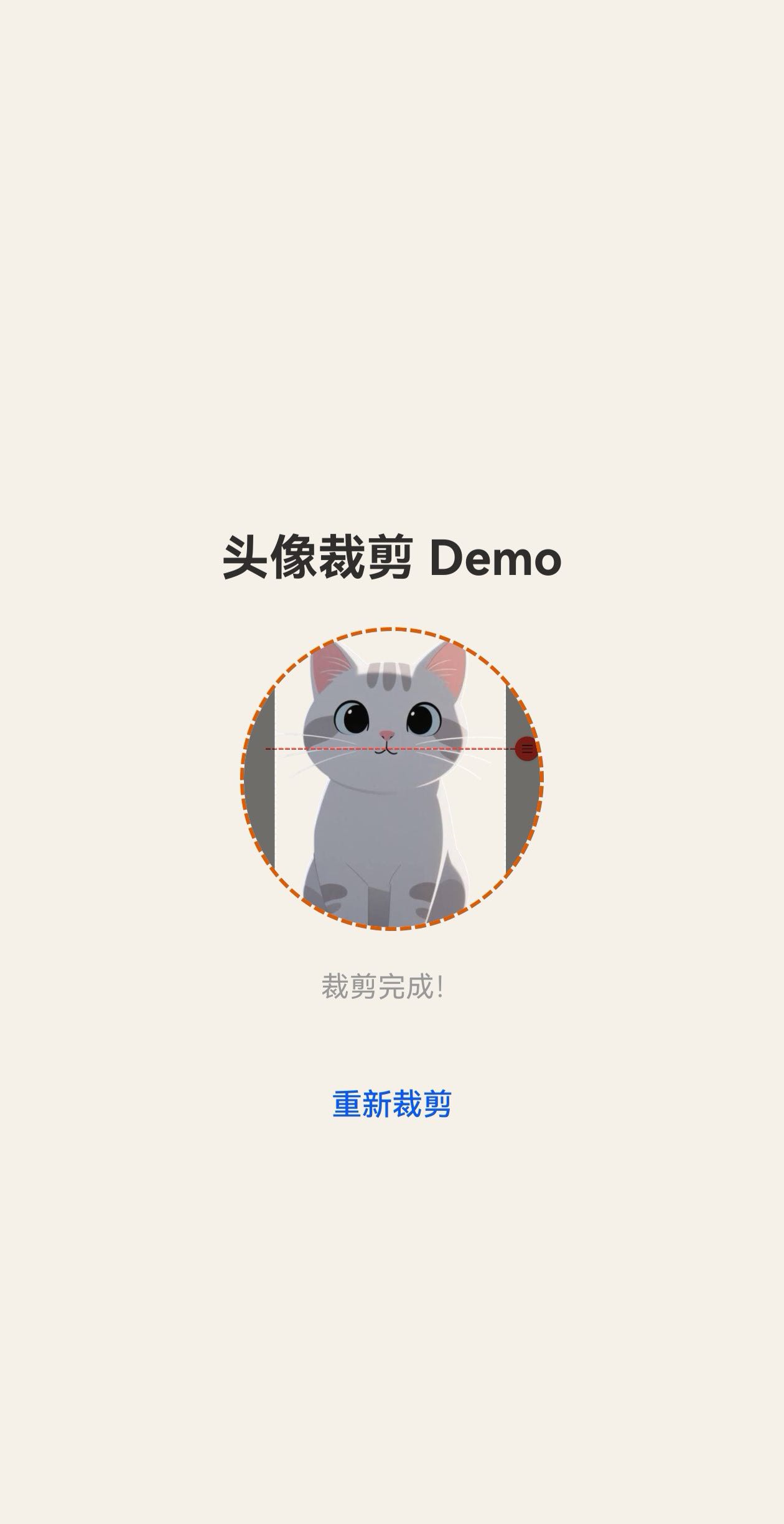
4.3 调用示例
// ===== 入口页(Index.ets)=====
@Entry
@Component
struct Index {
  @State croppedUri: string = '';

  // router 跳转返回后触发,读取裁剪结果
  onPageShow(): void {
    const uri = AppStorage.get<string>('avatarCropResult');
    if (uri && uri.length > 0) {
      this.croppedUri = uri;
      AppStorage.setOrCreate('avatarCropResult', '');
    }
  }

  build() {
    Column() {
      if (this.croppedUri) {
        // 展示裁剪结果(圆形头像)
        Image(this.croppedUri)
          .size({ width: 150, height: 150 })
          .objectFit(ImageFit.Cover).borderRadius(75)
          .border({ width: 2, color: '#d75d0b', style: BorderStyle.Dashed });
      }
      Button('选择图片并裁剪')
        .onClick(() => { this.startCrop(); });
    }
  }

  async startCrop(): Promise<void> {
    // 1. 选择图片
    const uris = await ImagePickerUtil.pickImages(1);
    if (uris.length > 0) {
      // 2. 传 URI 给裁剪页
      AppStorage.setOrCreate('avatarCropUri', uris[0]);
      // 3. 跳转裁剪页
      router.pushUrl({ url: 'pages/ImagePickerDemoPage' });
    }
  }
}
五、总结
本文从 HarmonyOS的图片处理 API 出发,结合「喵屿」App 的真实业务场景,完整覆盖了图片选取、裁剪、保存的全链路实现。
核心要点回顾:
| 环节 | 关键 API | 注意事项 |
|---|---|---|
| 选取 | photoAccessHelper.PhotoViewPicker |
URI 仅临时权限,需复制到沙箱 |
| 解码 | createImageSource() + createPixelMap() |
裁剪需 editable: true |
| 裁剪 | pixelMap.cropSync(region) |
显示坐标→像素坐标通过 scale 换算 |
| 保存 | ImagePacker.packToFile() |
API 13+ 废弃 packing();沙箱用 filesDir |
| 布局 | computeCropLayout() |
三层坐标转换:屏幕→显示→像素 |
设计取舍:
- 手势架构:
Stack(Image + 遮罩),手势加在 Image 上,遮罩hitTestNone穿透 - 坐标解耦:
displayToPixelRegion()独立转换,裁剪逻辑与 UI 无关

讨论HarmonyOS开发技术,专注于API与组件、DevEco Studio、测试、元服务和应用上架分发等。
更多推荐
 8
8 0
0- 0


 已为社区贡献21条内容

所有评论(0)