《从零开始学HarmonyOS ArkTS:打造NBA球员猜谜小程序》

一、HarmonyOS生态系统概述
1.1 什么是HarmonyOS
HarmonyOS是华为公司自主研发的分布式操作系统,旨在为多种设备提供统一的操作系统体验。它采用微内核设计,支持分布式软总线、分布式数据管理、分布式任务调度等核心能力。
1.2 HarmonyOS的技术特性
- 分布式架构 :支持跨设备协同,实现硬件能力共享
- 微内核设计 :高安全性、高可靠性
- 方舟引擎 :高性能的应用运行时
- ArkUI框架 :声明式UI开发框架
- ArkTS语言 :TypeScript的超集,专为HarmonyOS设计
1.3 应用开发模式
HarmonyOS支持多种应用开发模式:
- 原子化服务 :轻量级、免安装的服务
- 传统应用 :完整功能的应用程序
- 元服务 :基于元能力的服务组合
二、ArkTS语言基础
2.1 ArkTS简介
ArkTS是HarmonyOS主推的应用开发语言,它是TypeScript的超集,扩展了声明式UI语法和状态管理能力。
2.2 基本语法 2.2.1 类型系统
// 基本类型
let count: number = 10
let name: string = 'HarmonyOS'
let isActive: boolean = true

// 数组和对象
let numbers: number[] = [1, 2, 3]
let user: { name: string; age: number } = { name:
'John', age: 30 }

// 联合类型
let value: string | number = 'hello'
value = 42
```2.2.2 函数定义
function greet(name: string): string {
return Hello, ${name}!
}
const add = (a: number, b: number): number => a + b
interface MathOperation {
(x: number, y: number): number
}
const multiply: MathOperation = (x, y) => x * y
interface Shape {
area(): number
perimeter(): number
}
class Rectangle implements Shape {
constructor(private width: number, private height:
number) {}
area(): number {
return this.width * this.height
}
perimeter(): number {
return 2 * (this.width + this.height)
}
}
### 2.3 声明式UI语法
ArkTS引入了声明式UI语法,使UI开发更加直观:
@Entry
@Component
struct HelloWorld {
@State message: string = ‘Hello HarmonyOS’
build() {
Column() {
Text(this.message)
.fontSize(30)
.fontWeight(FontWeight.Bold)
.textAlign(TextAlign.Center)
}
.width(‘100%’)
.height(‘100%’)
.justifyContent(FlexAlign.Center)
}
}
## 三、ArkUI组件开发
### 3.1 基础组件 3.1.1 Text组件
Text(‘Hello World’)
.fontSize(28)
.fontWeight(FontWeight.Bold)
.fontColor(‘#ffd700’)
.textAlign(TextAlign.Center)
.decoration({ type: TextDecorationType.Underline })
Button(‘点击按钮’)
.width(200)
.height(50)
.backgroundColor(‘#4ecdc4’)
.fontColor(‘#ffffff’)
.fontSize(20)
.borderRadius(25)
.onClick(() => {
console.log(‘按钮被点击’)
})
Image(‘https://example.com/image.jpg’)
.width(200)
.height(200)
.objectFit(ImageFit.Cover)
.borderRadius(10)
### 3.2 容器组件 3.2.1 Column和Row
Column({ space: 20 }) {
Text(‘第一行’)
Text(‘第二行’)
Text(‘第三行’)
}
.width(‘100%’)
.height(‘100%’)
.padding(20)
.justifyContent(FlexAlign.Center)
Row({ space: 15 }) {
Text(‘左’)
Text(‘中’)
Text(‘右’)
}
.width(‘100%’)
.justifyContent(FlexAlign.SpaceBetween)
Stack() {
Image(‘background.jpg’)
.width(‘100%’)
.height(‘100%’)
Text(‘叠加文字’)
.fontSize(32)
.fontColor(‘#ffffff’)
}
.width(‘100%’)
.height(300)
### 3.3 列表组件
@Entry
@Component
struct ListExample {
private items: string[] = [‘Item 1’, ‘Item 2’, ‘Item
3’, ‘Item 4’, ‘Item 5’]
build() {
Column() {
List({ space: 10 }) {
ForEach(this.items, (item: string) => {
ListItem() {
Text(item)
.fontSize(20)
.padding(15)
.backgroundColor(‘#f0f0f0’)
.borderRadius(8)
}
})
}
.width(‘100%’)
.height(300)
}
.padding(20)
}
}
## 四、状态管理
### 4.1 @State装饰器
@State 用于管理组件内部状态:
@Entry
@Component
struct Counter {
@State count: number = 0
build() {
Column({ space: 20 }) {
Text(计数: ${this.count})
.fontSize(28)
  Row({ space: 10 }) {
    Button('+')
      .width(60)
      .height(60)
      .fontSize(30)
      .onClick(() => this.count++)

    Button('-')
      .width(60)
      .height(60)
      .fontSize(30)
      .onClick(() => this.count--)
  }
}
.width('100%')
.height('100%')
.justifyContent(FlexAlign.Center)
}
}
### 4.2 @Prop装饰器
@Prop 用于单向数据传递:
@Component
struct ChildComponent {
@Prop value: number
build() {
Text(子组件值: ${this.value})
.fontSize(20)
}
}
@Entry
@Component
struct ParentComponent {
@State parentValue: number = 100
build() {
Column({ space: 20 }) {
ChildComponent({ value: this.parentValue })
  Button('修改值')
    .onClick(() => this.parentValue += 10)
}
.padding(20)
}
}
### 4.3 @Link装饰器
@Link 用于双向数据绑定:
@Component
struct ChildComponent {
@Link count: number
build() {
Button(子组件: ${this.count})
.onClick(() => this.count++)
}
}
@Entry
@Component
struct ParentComponent {
@State parentCount: number = 0
build() {
Column({ space: 20 }) {
Text(父组件: ${this.parentCount})
ChildComponent({ count: $parentCount })
}
.padding(20)
}
}
### 4.4 状态容器
对于复杂应用,可以使用状态容器进行集中状态管理:
class AppState {
private _userName: string = ‘’
get userName(): string {
return this._userName
}
set userName(value: string) {
this._userName = value
}
}
export const appState = new AppState()
## 五、NBA球员猜谜小程序实战
### 5.1 需求分析
根据业务/产品描述,我们需要开发一个NBA现役球员猜谜问答交互小程序,核心需求包括:

1. 游戏机制 :系统随机抽取1位NBA现役球员,分四轮依次释放独立提示
2. 作答规则 :每轮30秒作答倒计时,超时判定失败
3. 胜负判定 :四轮全错则失败,任意一轮答对则成功
4. 计分规则 :依据猜对时消耗的提示轮数核算分值
### 5.2 数据模型设计
export interface NBAPlayer {
name: string // 球员姓名
team: string // 所属球队
hasChampionship: boolean // 是否有总冠军
hasMVP: boolean // 是否获得MVP
draftYear: number // 选秀年份
position: string // 场上位置
signatureSkill: string // 标志性技术
trophies: string[] // 荣誉奖杯
}
### 5.3 球员数据
export const nbaPlayers: NBAPlayer[] = [
{
name: ‘LeBron James’,
team: ‘Los Angeles Lakers’,
hasChampionship: true,
hasMVP: true,
draftYear: 2003,
position: ‘小前锋’,
signatureSkill: ‘战斧扣篮、追身盖帽’,
trophies: [‘4次总冠军’, ‘4次FMVP’, ‘4次MVP’]
},
{
name: ‘Stephen Curry’,
team: ‘Golden State Warriors’,
hasChampionship: true,
hasMVP: true,
draftYear: 2009,
position: ‘控球后卫’,
signatureSkill: ‘超远三分球’,
trophies: [‘4次总冠军’, ‘2次MVP’, ‘1次FMVP’]
},
// … 更多球员数据
]
### 5.4 核心功能实现 5.4.1 随机获取球员
export function getRandomPlayer(): NBAPlayer {
const index = Math.floor(Math.random() * nbaPlayers.
length)
return nbaPlayers[index]
}
export function generateHints(player: NBAPlayer): string
[] {
const hints: string[] = []
hints.push(所属球队:${player.team})
hints.push(player.hasChampionship ? ‘拥有总冠军戒指’ : ’
尚未获得总冠军’)
hints.push(player.hasMVP ? ‘曾斩获MVP荣誉’ : ‘尚未获得
MVP’)
hints.push(入行年份:${player.draftYear}年)
hints.push(场上位置:${player.position})
hints.push(标志性技术:${player.signatureSkill})
hints.push(主要荣誉:${player.trophies.join('、')})
return hints
}
### 5.5 主界面开发 5.5.1 游戏状态管理
@Entry
@Component
struct Index {
@State gameState: ‘idle’ | ‘playing’ | ‘win’ | ‘lose’
= ‘idle’
@State currentPlayer: NBAPlayer | null = null
@State hints: string[] = []
@State currentRound: number = 0
@State userAnswer: string = ‘’
@State timer: number = 30
@State score: number = 0
@State showHint: boolean = false
@State wrongAttempts: number = 0
private timerInterval: number | null = null
private timeoutId: number | null = null
}
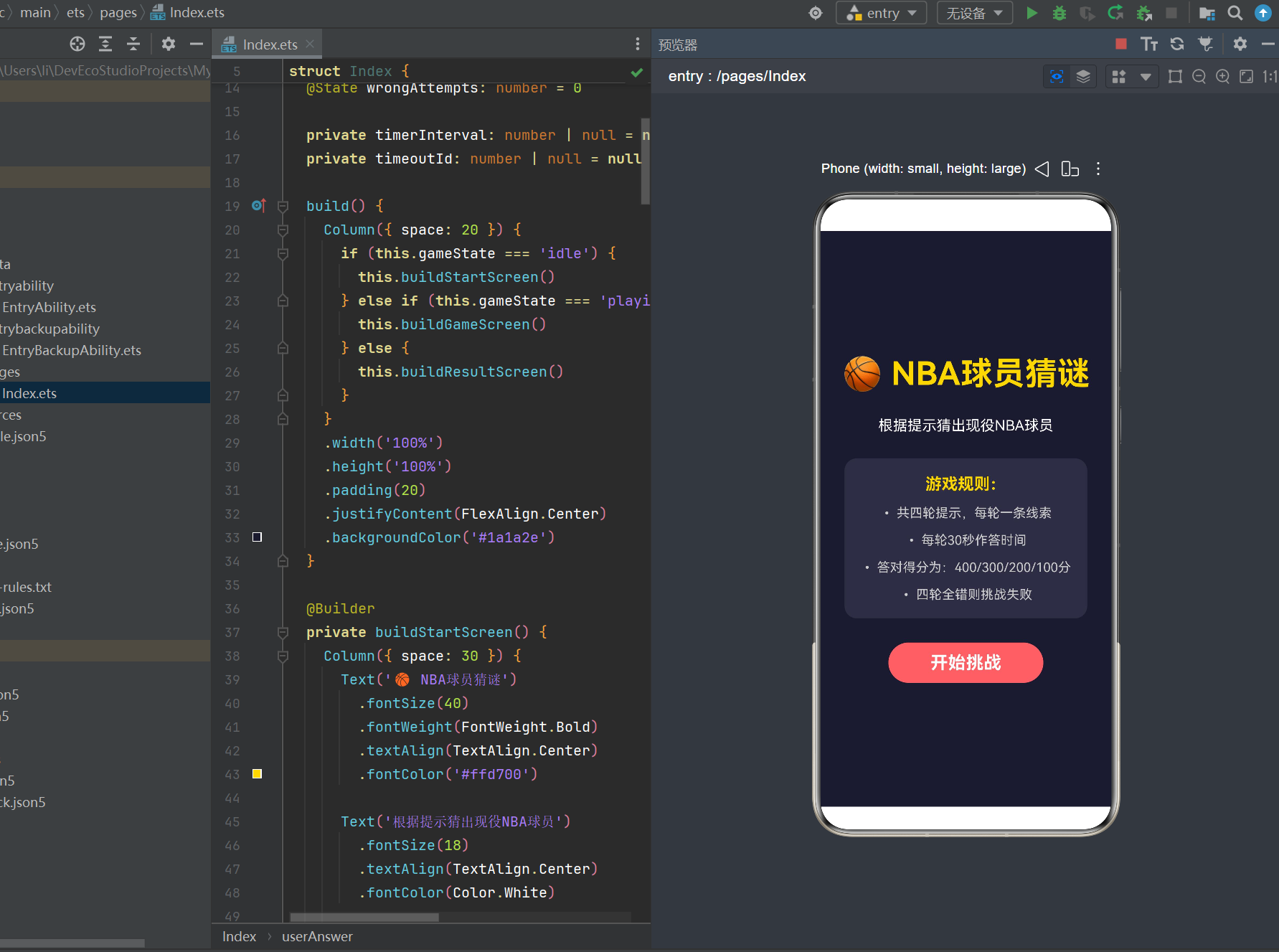
@Builder
private buildStartScreen() {
Column({ space: 30 }) {
Text(‘🏀 NBA球员猜谜’)
.fontSize(40)
.fontWeight(FontWeight.Bold)
.textAlign(TextAlign.Center)
.fontColor(‘#ffd700’)
Text('根据提示猜出现役NBA球员')
  .fontSize(18)
  .textAlign(TextAlign.Center)
  .fontColor('#ffffff')

// 游戏规则说明
Column({ space: 15 }) {
  Text('游戏规则:')
    .fontSize(20)
    .fontWeight(FontWeight.Bold)
    .fontColor('#ffd700')

  Text('• 共四轮提示,每轮一条线索')
    .fontSize(16)
    .fontColor('#cccccc')

  Text('• 每轮30秒作答时间')
    .fontSize(16)
    .fontColor('#cccccc')

  Text('• 答对得分为:400/300/200/100分')
    .fontSize(16)
    .fontColor('#cccccc')

  Text('• 四轮全错则挑战失败')
    .fontSize(16)
    .fontColor('#cccccc')
}
.padding(20)
.backgroundColor('#2d2d44')
.borderRadius(15)

Button('开始挑战')
  .width('60%')
  .height(50)
  .fontSize(22)
  .fontWeight(FontWeight.Bold)
  .backgroundColor('#ff6b6b')
  .fontColor('#ffffff')
  .borderRadius(25)
  .onClick(() => this.startGame())
}
}
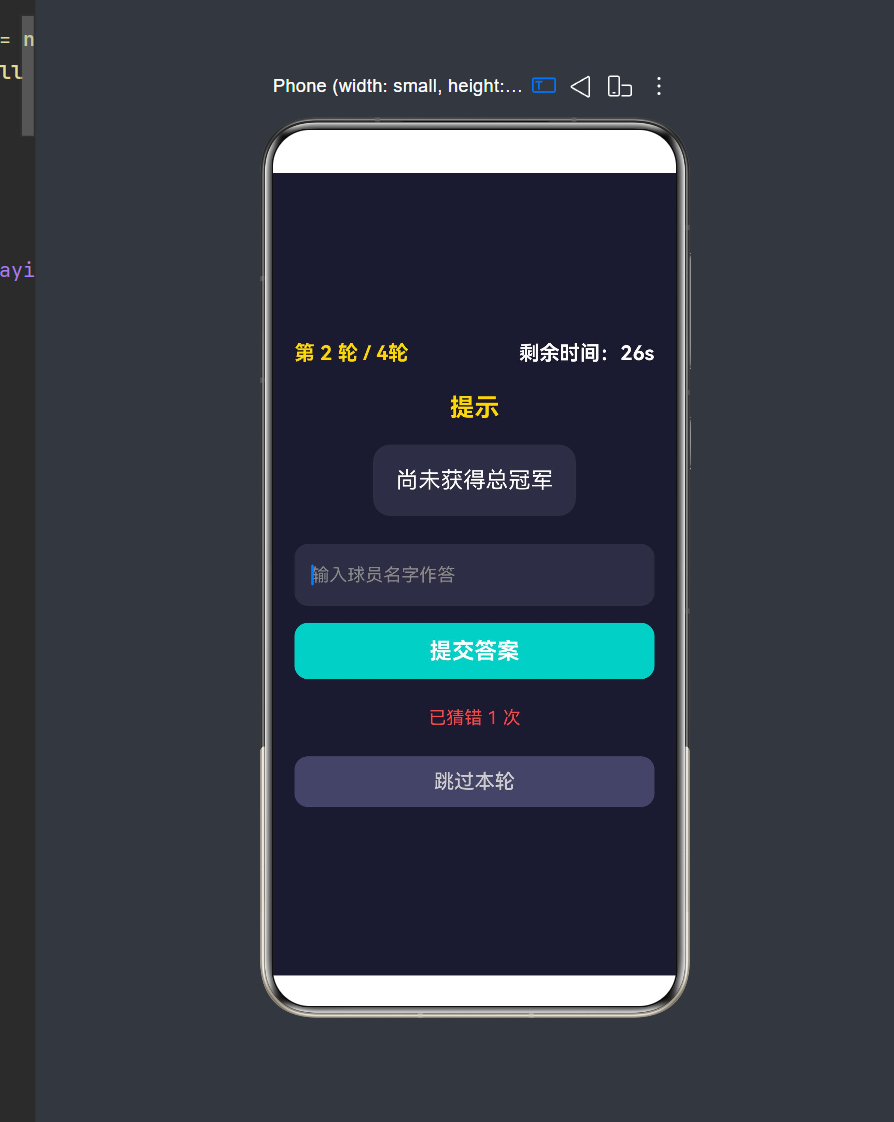
@Builder
private buildGameScreen() {
Column({ space: 25 }) {
// 顶部信息栏
Row() {
Text(第 ${this.currentRound} 轮 / 4轮)
.fontSize(18)
.fontWeight(FontWeight.Bold)
.fontColor(‘#ffd700’)
  Text(`剩余时间:${this.timer}s`)
    .fontSize(18)
    .fontWeight(FontWeight.Bold)
    .fontColor(this.timer <= 10 ? '#ff4444' :
    '#ffffff')
}
.width('100%')
.justifyContent(FlexAlign.SpaceBetween)

// 提示区域
Column({ space: 20 }) {
  Text('提示')
    .fontSize(22)
    .fontWeight(FontWeight.Bold)
    .fontColor('#ffd700')
    .textAlign(TextAlign.Center)

  if (this.showHint && this.currentRound > 0) {
    Text(this.hints[this.currentRound - 1])
      .fontSize(20)
      .textAlign(TextAlign.Center)
      .fontColor('#ffffff')
      .padding(20)
      .backgroundColor('#2d2d44')
      .borderRadius(15)
      .animation({
        duration: 500,
        curve: Curve.EaseOut
      })
  }
}

// 输入区域
Column({ space: 15 }) {
  TextInput({ placeholder: '输入球员名字作答', text:
  this.userAnswer })
    .width('100%')
    .height(55)
    .fontSize(18)
    .padding(15)
    .backgroundColor('#2d2d44')
    .borderRadius(12)
    .placeholderColor('#888888')
    .fontColor('#ffffff')
    .onChange((value: string) => {
      this.userAnswer = value
    })

  Button('提交答案')
    .width('100%')
    .height(50)
    .fontSize(20)
    .fontWeight(FontWeight.Bold)
    .backgroundColor('#4ecdc4')
    .fontColor('#ffffff')
    .borderRadius(12)
    .onClick(() => this.checkAnswer())
}

// 错误次数提示
if (this.wrongAttempts > 0) {
  Text(`已猜错 ${this.wrongAttempts} 次`)
    .fontSize(16)
    .fontColor('#ff4444')
    .textAlign(TextAlign.Center)
}

// 跳过按钮
Button('跳过本轮')
  .width('100%')
  .height(45)
  .fontSize(18)
  .backgroundColor('#444466')
  .fontColor('#cccccc')
  .borderRadius(12)
  .onClick(() => this.nextRound())
}
}
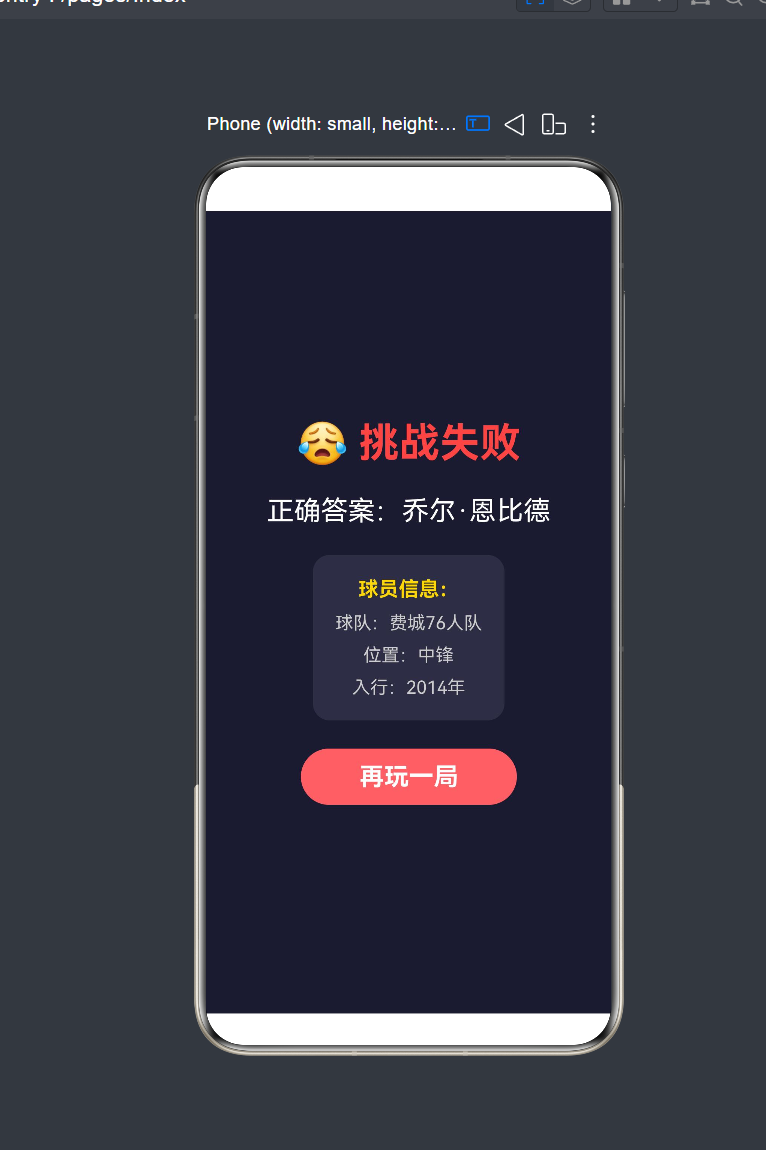
@Builder
private buildResultScreen() {
Column({ space: 25 }) {
if (this.gameState === ‘win’) {
Text(‘🎉 恭喜答对!’)
.fontSize(36)
.fontWeight(FontWeight.Bold)
.textAlign(TextAlign.Center)
.fontColor(‘#ffd700’)
  Text(`正确答案:${this.currentPlayer?.name || ''}`)
    .fontSize(24)
    .textAlign(TextAlign.Center)
    .fontColor('#ffffff')

  Text(`得分:${this.score} 分`)
    .fontSize(32)
    .fontWeight(FontWeight.Bold)
    .textAlign(TextAlign.Center)
    .fontColor('#4ecdc4')

  Text(`使用了 ${this.currentRound} 轮提示`)
    .fontSize(18)
    .textAlign(TextAlign.Center)
    .fontColor('#cccccc')
} else {
  Text('😢 挑战失败')
    .fontSize(36)
    .fontWeight(FontWeight.Bold)
    .textAlign(TextAlign.Center)
    .fontColor('#ff4444')

  Text(`正确答案:${this.currentPlayer?.name || ''}`)
    .fontSize(24)
    .textAlign(TextAlign.Center)
    .fontColor('#ffffff')

  // 球员信息展示
  Column({ space: 10 }) {
    Text('球员信息:')
      .fontSize(18)
      .fontWeight(FontWeight.Bold)
      .fontColor('#ffd700')

    if (this.currentPlayer) {
      Text(`球队:${this.currentPlayer.team}`)
        .fontSize(16)
        .fontColor('#cccccc')

      Text(`位置:${this.currentPlayer.position}`)
        .fontSize(16)
        .fontColor('#cccccc')

      Text(`入行:${this.currentPlayer.draftYear}年`)
        .fontSize(16)
        .fontColor('#cccccc')
    }
  }
  .padding(20)
  .backgroundColor('#2d2d44')
  .borderRadius(15)
}

Button('再玩一局')
  .width('60%')
  .height(50)
  .fontSize(22)
  .fontWeight(FontWeight.Bold)
  .backgroundColor('#ff6b6b')
  .fontColor('#ffffff')
  .borderRadius(25)
  .onClick(() => this.startGame())
}
}
### 5.6 游戏逻辑实现 5.6.1 开始游戏
private startGame(): void {
this.gameState = ‘playing’
this.currentPlayer = getRandomPlayer()
this.hints = generateHints(this.currentPlayer)
this.currentRound = 1
this.userAnswer = ‘’
this.timer = 30
this.score = 0
this.showHint = false
this.wrongAttempts = 0
this.timeoutId = setTimeout(() => {
this.showHint = true
this.startTimer()
}, 500)
}
private startTimer(): void {
this.stopTimer()
this.timer = 30
this.timerInterval = setInterval(() => {
if (this.timer > 0) {
this.timer–
} else {
this.timeout()
}
}, 1000)
}
private stopTimer(): void {
if (this.timerInterval !== null) {
clearInterval(this.timerInterval)
this.timerInterval = null
}
if (this.timeoutId !== null) {
clearTimeout(this.timeoutId)
this.timeoutId = null
}
}
private checkAnswer(): void {
if (!this.userAnswer.trim()) {
return
}
this.stopTimer()
if (this.userAnswer.trim().toLowerCase() === this.
currentPlayer?.name.toLowerCase()) {
const scores: number[] = [0, 400, 300, 200, 100]
this.score = scores[this.currentRound]
this.gameOver(true)
} else {
this.wrongAttempts++
this.userAnswer = ‘’
if (this.wrongAttempts >= 4) {
  this.gameOver(false)
} else {
  this.nextRound()
}
}
}
private nextRound(): void {
if (this.currentRound >= 4) {
this.gameOver(false)
return
}
this.currentRound++
this.userAnswer = ‘’
this.showHint = false
this.timeoutId = setTimeout(() => {
this.showHint = true
this.startTimer()
}, 500)
}
private gameOver(won: boolean): void {
this.stopTimer()
this.gameState = won ? ‘win’ : ‘lose’
}
## 六、性能优化技巧
### 6.1 组件懒加载
使用 LazyForEach 优化列表渲染性能:
List({ space: 10 }) {
LazyForEach(this.dataSource, (item: Item) => {
ListItem() {
ItemComponent({ item: item })
}
})
}
### 6.2 状态管理优化
避免不必要的状态更新:
@State count: number = 0
// 推荐:使用条件判断
updateCount(newValue: number) {
if (newValue !== this.count) {
this.count = newValue
}
}
### 6.3 图片资源优化
Image(‘resource://rawfile/image.png’)
.width(200)
.height(200)
.interpolation(ImageInterpolation.High)
.quality(ImageQuality.High)
## 七、测试与调试
### 7.1 单元测试
import { describe, it, expect } from ‘@ohos/hypium’
describe(‘NBA Players Test’, () => {
it(‘getRandomPlayer should return a player’, () => {
const player = getRandomPlayer()
expect(player.name).toBeTruthy()
})
it(‘generateHints should return 7 hints’, () => {
const player = {
name: ‘Test Player’,
team: ‘Test Team’,
hasChampionship: true,
hasMVP: false,
draftYear: 2020,
position: ‘小前锋’,
signatureSkill: ‘测试技术’,
trophies: [‘测试荣誉’]
}
const hints = generateHints(player)
expect(hints.length).toBe(7)
})
})
### 7.2 调试技巧
1. 日志输出 :使用 console.log() 输出调试信息
2. 断点调试 :在DevEco Studio中设置断点
3. 性能分析 :使用Profiler工具分析性能瓶颈
## 八、发布与部署
### 8.1 构建应用
使用DevEco Studio构建HAP包:

1. 选择Build > Build HAP(s)
2. 选择构建类型(debug/release)
3. 等待构建完成
### 8.2 签名配置
在发布前需要配置应用签名:

1. 打开Project Structure
2. 选择Signing Configs
3. 创建或导入签名证书
### 8.3 发布到应用市场
1. 登录HarmonyOS应用市场
2. 创建应用信息
3. 上传HAP包
4. 提交审核
## 九、总结
通过本文的学习,我们掌握了HarmonyOS ArkTS应用开发的核心技能:

1. ArkTS语言基础 :类型系统、函数、类和接口
2. ArkUI组件 :基础组件、容器组件、列表组件
3. 状态管理 :@State、@Prop、@Link装饰器
4. 实战项目 :完整的NBA球员猜谜小程序开发

讨论HarmonyOS开发技术,专注于API与组件、DevEco Studio、测试、元服务和应用上架分发等。
更多推荐

 6
6 0
0- 0


 已为社区贡献1条内容

所有评论(0)