HarmonyOS6 PC端组合动画——5个属性同时变化,做出弹入旋转弹出等酷炫特效
前面几篇我们一个一个属性地学,opacity单独玩、scale单独玩、rotate单独玩。但说实话,真正让界面"活"起来的,从来不是单个属性的动画,而是多个属性同时变化的组合效果。今天就来搞组合动画,在一个animateTo里同时修改5个属性,做出那种一看就"哇"的效果。
为什么要做组合动画
单属性动画就像弹一个音符,组合动画才是弹一首曲子。你想想iOS的弹窗出现效果:它不只是opacity从0到1,而是同时从小变大(scale)、从透明变不透明(opacity)、可能还带一点位移(translate)。这三个属性同时变化,才构成了那个"弹出来"的感觉。
在PC端的大屏幕上,组合动画的视觉冲击力更强。因为屏幕大,用户对视觉变化的感知更敏锐,一个只有opacity变化的动画在大屏上可能看起来"太平淡"了。加上scale和translate的联动,整个动画就有了"层次感"。
组合动画的实现其实超简单

坦白讲,组合动画听起来很厉害,但实现方式简单得让人意外——你只需要在animateTo的回调函数里同时修改多个状态变量就行了。框架会自动追踪所有被修改的属性,然后同时给它们加动画。
也就是说,如果你想在缩放的同时旋转+变色,只要在回调里同时改scaleX、angle、backgroundColor三个变量。不需要什么"组合动画API",animateTo天生就支持这个能力。
预设效果的设计思路
这个demo我设计了四个预设效果:弹入(bounce-in)、旋转弹出(rotate-pop)、综合特效、重置。每个预设都是一组精心调配的属性组合,直接点按钮就能看到效果。
弹入效果模拟的是经典的"弹性出现"——元素从透明+缩小+偏移的状态,弹到正常状态。旋转弹出则是反过来——元素旋转着飞出去,同时缩小变透明。综合特效更夸张,5个属性全部联动,做出一个"炸裂"的感觉。
完整案例代码
@Entry
@Component
struct ComboAnimDemo {
  @State boxOpacity: number = 1.0
  @State scaleX: number = 1.0
  @State scaleY: number = 1.0
  @State angle: number = 0
  @State translateX: number = 0
  @State translateY: number = 0
  @State bgColor: string = '#6c5ce7'
  @State currentEffect: string = '初始状态'

  build() {
    Column({ space: 16 }) {
      Text('HarmonyOS6 PC 组合动画')
        .fontSize(22)
        .fontWeight(FontWeight.Bold)
        .fontColor('#1a1a2e')
        .margin({ top: 20 })

      Text('5个属性同时变化 = 酷炫特效')
        .fontSize(14)
        .fontColor('#888888')

      // 动画展示区域
      Stack() {
        // 参考虚线框
        Column()
          .width(100)
          .height(100)
          .borderRadius(16)
          .border({ width: 2, color: '#dfe6e9', style: BorderStyle.Dashed })

        // 动画元素
        Column() {
          Text('★')
            .fontSize(28)
            .fontColor('#ffffff')
          Text('Combo')
            .fontSize(11)
            .fontColor('#ffffffcc')
            .margin({ top: 2 })
        }
        .width(100)
        .height(100)
        .borderRadius(16)
        .backgroundColor(this.bgColor)
        .justifyContent(FlexAlign.Center)
        .opacity(this.boxOpacity)
        .scale({ x: this.scaleX, y: this.scaleY })
        .rotate({ angle: this.angle })
        .translate({ x: this.translateX, y: this.translateY })
        .shadow({ radius: 16, color: '#00000020', offsetX: 0, offsetY: 6 })
      }
      .width('85%')
      .height(240)
      .borderRadius(16)
      .backgroundColor('#f1f2f6')

      // 当前效果名
      Text(this.currentEffect)
        .fontSize(16)
        .fontWeight(FontWeight.Bold)
        .fontColor('#2d3436')

      // 当前属性值一览
      Row({ space: 12 }) {
        this.attrTag('透明度', this.boxOpacity.toFixed(1))
        this.attrTag('缩放', this.scaleX.toFixed(1))
        this.attrTag('旋转', `${this.angle.toFixed(0)}°`)
        this.attrTag('X位移', this.translateX.toFixed(0))
        this.attrTag('Y位移', this.translateY.toFixed(0))
      }

      // 预设效果按钮
      Text('预设效果')
        .fontSize(14)
        .fontColor('#666666')
        .margin({ top: 8 })

      Column({ space: 10 }) {
        Row({ space: 10 }) {
          Button('弹入 Bounce-In')
            .fontSize(13)
            .height(38)
            .layoutWeight(1)
            .backgroundColor('#00b894')
            .onClick(() => {
              this.doBounceIn()
            })

          Button('旋转弹出 Rotate-Pop')
            .fontSize(13)
            .height(38)
            .layoutWeight(1)
            .backgroundColor('#e17055')
            .onClick(() => {
              this.doRotatePop()
            })
        }

        Row({ space: 10 }) {
          Button('综合特效 Combo')
            .fontSize(13)
            .height(38)
            .layoutWeight(1)
            .backgroundColor('#6c5ce7')
            .onClick(() => {
              this.doComboEffect()
            })

          Button('重置 Reset')
            .fontSize(13)
            .height(38)
            .layoutWeight(1)
            .backgroundColor('#636e72')
            .onClick(() => {
              this.doReset()
            })
        }
      }
      .width('85%')

      // 自定义动画
      Text('自定义参数')
        .fontSize(14)
        .fontColor('#666666')
        .margin({ top: 8 })

      Row({ space: 10 }) {
        Button('缩小+旋转+变色')
          .fontSize(12)
          .height(34)
          .backgroundColor('#fd79a8')
          .onClick(() => {
            this.currentEffect = '自定义:缩小旋转'
            animateTo({
              duration: 800,
              curve: Curve.Rhythm,
              iterations: 1
            }, () => {
              this.scaleX = 0.6
              this.scaleY = 0.6
              this.angle = -120
              this.bgColor = '#fd79a8'
              this.translateX = 50
            })
          })

        Button('放大+透明+下移')
          .fontSize(12)
          .height(34)
          .backgroundColor('#00cec9')
          .onClick(() => {
            this.currentEffect = '自定义:放大透明'
            animateTo({
              duration: 700,
              curve: Curve.FastOutSlowIn,
              iterations: 1
            }, () => {
              this.scaleX = 1.5
              this.scaleY = 1.5
              this.boxOpacity = 0.3
              this.translateY = 60
              this.bgColor = '#00cec9'
            })
          })
      }

      Button('来回弹跳序列')
        .fontSize(13)
        .height(36)
        .width('60%')
        .backgroundColor('#fdcb6e')
        .fontColor('#2d3436')
        .margin({ top: 8 })
        .onClick(() => {
          this.doBounceSequence()
        })
    }
    .width('100%')
    .height('100%')
    .backgroundColor('#ffffff')
  }

  @Builder
  attrTag(label: string, value: string) {
    Column({ space: 2 }) {
      Text(label)
        .fontSize(10)
        .fontColor('#999999')
      Text(value)
        .fontSize(12)
        .fontWeight(FontWeight.Medium)
        .fontColor('#2d3436')
    }
    .padding({ left: 8, right: 8, top: 4, bottom: 4 })
    .borderRadius(6)
    .backgroundColor('#f1f2f6')
  }

  doBounceIn() {
    this.currentEffect = '弹入 Bounce-In'
    // 先设置初始状态(无动画)
    this.boxOpacity = 0.0
    this.scaleX = 0.3
    this.scaleY = 0.3
    this.translateY = 80
    this.angle = 0
    this.bgColor = '#00b894'
    this.translateX = 0

    // 延迟一帧后启动动画
    setTimeout(() => {
      animateTo({
        duration: 800,
        curve: Curve.Rhythm,
        iterations: 1
      }, () => {
        this.boxOpacity = 1.0
        this.scaleX = 1.0
        this.scaleY = 1.0
        this.translateY = 0
      })
    }, 50)
  }

  doRotatePop() {
    this.currentEffect = '旋转弹出 Rotate-Pop'
    // 从正常状态开始
    this.boxOpacity = 1.0
    this.scaleX = 1.0
    this.scaleY = 1.0
    this.translateX = 0
    this.translateY = 0
    this.angle = 0
    this.bgColor = '#e17055'

    setTimeout(() => {
      animateTo({
        duration: 1000,
        curve: Curve.FastOutSlowIn,
        iterations: 1
      }, () => {
        this.boxOpacity = 0.0
        this.scaleX = 0.1
        this.scaleY = 0.1
        this.angle = 720
        this.translateX = 100
        this.translateY = -80
        this.bgColor = '#fdcb6e'
      })
    }, 50)
  }

  doComboEffect() {
    this.currentEffect = '综合特效 Combo'
    // 初始状态
    this.boxOpacity = 0.0
    this.scaleX = 2.0
    this.scaleY = 0.2
    this.translateX = -100
    this.translateY = 60
    this.angle = -180
    this.bgColor = '#fd79a8'

    setTimeout(() => {
      animateTo({
        duration: 1200,
        curve: Curve.Rhythm,
        iterations: 1
      }, () => {
        this.boxOpacity = 1.0
        this.scaleX = 1.0
        this.scaleY = 1.0
        this.translateX = 0
        this.translateY = 0
        this.angle = 0
        this.bgColor = '#6c5ce7'
      })
    }, 50)
  }

  doReset() {
    this.currentEffect = '重置 Reset'
    animateTo({
      duration: 600,
      curve: Curve.EaseInOut,
      iterations: 1
    }, () => {
      this.boxOpacity = 1.0
      this.scaleX = 1.0
      this.scaleY = 1.0
      this.angle = 0
      this.translateX = 0
      this.translateY = 0
      this.bgColor = '#6c5ce7'
    })
  }

  doBounceSequence() {
    this.currentEffect = '弹跳序列 Step 1'
    // 弹上去
    animateTo({
      duration: 400,
      curve: Curve.EaseOut,
      iterations: 1
    }, () => {
      this.translateY = -80
      this.scaleY = 1.2
      this.scaleX = 0.85
      this.bgColor = '#e17055'
    })
    // 弹回来
    setTimeout(() => {
      this.currentEffect = '弹跳序列 Step 2'
      animateTo({
        duration: 400,
        curve: Curve.EaseIn,
        iterations: 1
      }, () => {
        this.translateY = 0
        this.scaleY = 0.8
        this.scaleX = 1.2
        this.bgColor = '#00b894'
      })
    }, 450)
    // 再弹
    setTimeout(() => {
      this.currentEffect = '弹跳序列 Step 3'
      animateTo({
        duration: 350,
        curve: Curve.EaseOut,
        iterations: 1
      }, () => {
        this.translateY = -40
        this.scaleY = 1.1
        this.scaleX = 0.9
        this.bgColor = '#3498db'
      })
    }, 900)
    // 最终稳定
    setTimeout(() => {
      this.currentEffect = '弹跳序列 完成'
      animateTo({
        duration: 500,
        curve: Curve.Rhythm,
        iterations: 1
      }, () => {
        this.translateY = 0
        this.scaleX = 1.0
        this.scaleY = 1.0
        this.angle = 0
        this.bgColor = '#6c5ce7'
      })
    }, 1300)
  }
}
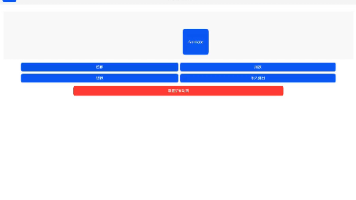
运行效果如图:
代码解析
组合动画的代码量比之前多了不少,但核心逻辑没变——每个预设效果就是一个函数,在animateTo回调里同时修改多个属性。
弹入效果(bounce-in)的设计要点:先把元素设到一个"消失"的初始状态(opacity=0、scale=0.3、translateY=80),然后延迟50毫秒再启动动画。为什么要延迟50毫秒?因为如果你在同一帧里先改状态再启动animateTo,框架可能把初始状态的设置也"吞"进动画里,导致看不到效果。延迟50毫秒确保初始状态已经渲染完毕。
旋转弹出(rotate-pop)是弹入的"反过程"——从正常状态飞到"消失"状态。注意angle设成了720度(两整圈),配合FastOutSlowIn曲线,前两圈快速旋转然后慢慢消失,视觉效果很有冲击力。
综合特效更夸张——初始状态是"拉伸变形+偏移+旋转+透明",然后在1200毫秒内恢复到正常状态。因为用了Curve.Rhythm弹性曲线,恢复过程中会有"过冲"的弹跳感,整个效果看起来很"Q弹"。
属性变化的顺序很重要
组合动画有个容易被忽略的点:虽然属性是"同时"变化的,但因为每个属性的起始值和目标值差距不同,变化幅度大的属性会显得更"突出"。
比如综合特效里,scaleX从2.0变到1.0(变化1.0),而translateY从60变到0(变化60vp)。虽然时间一样,但视觉上scale的变化可能更引人注意,因为它是相对值(从两倍缩到一倍,变化率100%),而60vp的位移在大屏上可能只是很小一段距离。
所以在设计组合动画时,要注意各属性变化幅度的平衡。某个属性变化太大可能会"抢戏",让其他属性的变化不明显。
PC端的组合动画性能
5个属性同时动画,在PC端完全不是问题。scale、rotate、opacity、translate都是GPU加速的属性,不需要重新计算布局。只有backgroundColor的变化涉及到颜色插值计算,但这个开销可以忽略不计。
坦白讲,在PC端你就是同时动画20个属性,性能也不会有明显影响。瓶颈不在渲染端,而在你的创意端——能不能设计出好看的组合效果才是关键。
写在最后
组合动画是属性动画的"集大成者"。把前面学到的opacity、scale、rotate、translate、backgroundColor组合在一起,就能创造出各种丰富的视觉效果。
下一篇来专门聊弹簧曲线,Curve.FastOutSlowIn和Curve.Rhythm在弹性运动场景下的表现真的很不一样,做个弹簧球的demo来直观对比。

讨论HarmonyOS开发技术,专注于API与组件、DevEco Studio、测试、元服务和应用上架分发等。
更多推荐
 1
1 0
0- 0


 已为社区贡献461条内容

所有评论(0)