HarmonyOS ArkTS 实战:实现一个校园失物招领信息板应用
项目效果
本文实现的是一个基于 HarmonyOS 和 ArkTS 的校园失物招领信息板应用。项目中使用 ArkUI 组件完成页面布局,通过 @State 管理失物招领数据,实现信息发布、类型切换、物品分类、状态标记、信息筛选、记录删除和数据统计等功能。
最终运行效果如下:
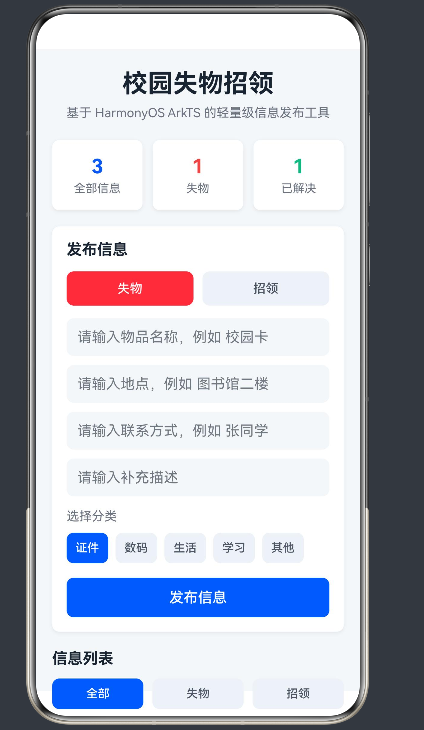
页面主要包含以下内容:
- 顶部应用标题;
- 全部信息数量统计;
- 失物信息数量统计;
- 招领信息数量统计;
- 信息类型切换;
- 物品分类选择;
- 物品名称输入;
- 地点输入;
- 联系方式输入;
- 信息描述输入;
- 发布信息按钮;
- 全部、失物、招领筛选;
- 信息列表展示;
- 标记已解决;
- 删除单条信息;
- 空状态提示;
- 页面整体采用 ArkUI 声明式布局。
本文重点是演示如何在 HarmonyOS 项目中使用 ArkTS 和 ArkUI 实现一个完整的校园信息管理类单页面应用。项目代码主要写在 entry/src/main/ets/pages/Index.ets 文件中,适合作为 HarmonyOS ArkTS 入门到进阶之间的练习案例。
为了避免文章检测时出现链接占比过高的问题,本文不直接放图片链接。发布时可以在 CSDN 编辑器中手动插入一张应用运行总效果图。
前言
在校园生活中,丢失物品和捡到物品都是比较常见的情况。比如校园卡、水杯、耳机、钥匙、书本、雨伞等物品,经常会出现在教室、图书馆、食堂、操场和宿舍楼附近。如果没有一个统一的信息展示页面,失主和拾到者之间很难快速匹配。
从应用开发角度来看,失物招领信息板是一个很适合练习 HarmonyOS ArkTS 的小项目。它不需要复杂后端,也不需要数据库,但可以完整练习输入框绑定、按钮交互、数组管理、列表渲染、条件筛选、状态更新和页面动态刷新。
本文基于 HarmonyOS 和 ArkTS 实现一个校园失物招领信息板应用。用户可以发布失物信息,也可以发布招领信息;可以选择物品分类,填写地点、联系方式和描述;发布后,信息会显示在列表中。用户还可以按类型筛选信息,并将已经处理完成的信息标记为“已解决”。
这个项目的重点不是简单展示几条文本,而是通过状态变量维护完整的信息列表。每一次发布、筛选、标记和删除,本质上都是对状态数据的操作。状态变化后,页面会自动更新,这正是 ArkUI 声明式开发的核心特点。
一、项目目标
本次实践主要实现以下目标:
- 创建 HarmonyOS ArkTS 页面;
- 使用
@Entry和@Component定义页面组件; - 使用
@State管理页面数据; - 使用
TextInput接收物品名称、地点、联系方式和描述; - 使用
Button实现信息类型切换; - 使用
Button实现物品分类选择; - 使用数组保存失物招领信息;
- 使用
List和ForEach渲染信息列表; - 支持发布失物信息;
- 支持发布招领信息;
- 支持按全部、失物、招领筛选信息;
- 支持将信息标记为已解决;
- 支持删除单条信息;
- 根据数组动态统计信息数量;
- 使用空状态提示优化无数据页面;
- 使用
@Builder封装统计卡片、类型按钮、分类按钮和信息卡片; - 完成一个可以运行的校园失物招领页面。
这个项目虽然是单页面应用,但它具备完整的数据增删改查雏形。对于学习 ArkTS 页面开发来说,比静态页面更有练习价值。
二、技术栈
| 类型 | 内容 |
|---|---|
| 开发方向 | HarmonyOS 应用开发 |
| 开发语言 | ArkTS |
| UI 框架 | ArkUI |
| SDK 版本 | HarmonyOS API 23 及以上 |
| 工程模型 | Stage 模型 |
| 核心组件 | Text / TextInput / Button / Column / Row / List / ForEach |
| 状态管理 | @State |
| 数据处理 | 数组遍历 / map / filter / 条件判断 |
| 项目入口 | entry/src/main/ets/pages/Index.ets |
| 运行平台 | 模拟器或真机 |
本项目是 HarmonyOS 原生 ArkTS 项目。页面主体由 ArkUI 组件构建,核心逻辑写在 Index.ets 文件中,不依赖后端接口,也不需要额外配置数据库。
三、为什么选择失物招领项目
校园失物招领信息板适合作为 ArkTS 练习项目,主要有以下几个原因。
第一,业务场景真实。校园中经常会出现丢失物品或捡到物品的情况,信息发布和信息查询都有实际意义。
第二,交互流程完整。用户需要选择信息类型、选择分类、填写物品名称、填写地点、填写联系方式、填写描述并发布信息。发布后还需要筛选、标记和删除,整个流程比较完整。
第三,适合练习数组操作。每一条失物招领信息都是数组中的一个对象。发布信息就是向数组中添加对象,删除信息就是过滤数组,标记已解决就是更新数组中的指定对象。
第四,适合理解状态管理。当前类型、当前分类、输入内容、筛选条件和信息列表都属于页面状态。状态变化后,页面内容会自动刷新。
第五,扩展空间比较大。基础功能完成后,还可以继续增加本地存储、图片上传、关键词搜索、时间排序、详情页和消息通知等功能。
在本项目中,items 是最核心的数据源。页面中的信息列表、统计卡片、筛选结果和状态显示都依赖这个数组。
四、功能规则说明
本文实现的失物招领信息主要分为两类:
| 类型 | 含义 |
|---|---|
| 失物 | 用户丢失了物品,希望发布寻找信息 |
| 招领 | 用户捡到了物品,希望发布招领信息 |
物品分类包含:
| 分类 | 示例 |
|---|---|
| 证件 | 学生证、校园卡、身份证 |
| 数码 | 耳机、充电器、U盘 |
| 生活 | 水杯、雨伞、钥匙 |
| 学习 | 书本、笔记本、文具 |
| 其他 | 无法归类的物品 |
信息状态分为两类:
| 状态 | 含义 |
|---|---|
| 处理中 | 信息仍然有效,物品还未找回或未认领 |
| 已解决 | 物品已经找回或已经完成认领 |
筛选规则如下:
全部:显示所有失物招领信息
失物:只显示类型为“失物”的信息
招领:只显示类型为“招领”的信息
统计规则如下:
全部数量 = 当前信息数组总长度
失物数量 = 类型为失物的信息数量
招领数量 = 类型为招领的信息数量
每次发布、删除或修改状态后,页面统计数据都会重新计算。
五、项目结构
本项目主要修改首页文件:
entry
└── src
    └── main
        └── ets
            └── pages
                └── Index.ets
其中:
| 文件 | 作用 |
|---|---|
| Index.ets | 编写页面结构、状态数据和信息处理逻辑 |
本文不涉及复杂路由,也不需要额外创建多个页面。对于练习项目来说,把主要逻辑集中在一个 Index.ets 文件中更方便理解。
如果后续继续扩展,可以考虑把发布表单、统计区域、筛选区域和信息卡片拆分成独立组件。
六、核心实现思路
本项目的核心流程如下:
- 定义失物招领信息数据结构;
- 使用
@State保存输入内容、当前类型、当前分类、筛选条件和信息数组; - 用户选择信息类型;
- 用户选择物品分类;
- 用户输入物品名称、地点、联系方式和描述;
- 点击发布按钮后生成新的信息记录;
- 使用数组保存全部信息;
- 根据筛选条件展示不同类型的信息;
- 使用
ForEach渲染信息列表; - 点击“标记解决”后修改对应记录状态;
- 点击删除按钮后删除指定记录;
- 当筛选结果为空时显示空状态提示;
- 顶部统计卡片根据数据自动更新。
项目中最重要的状态变量如下:
@State itemName: string = ''
@State placeName: string = ''
@State contactText: string = ''
@State detailText: string = ''
@State infoType: string = '失物'
@State category: string = '证件'
@State filterType: string = '全部'
@State items: LostFoundItem[] = []
@State nextId: number = 1
其中:
| 状态变量 | 作用 |
|---|---|
| itemName | 保存物品名称 |
| placeName | 保存地点信息 |
| contactText | 保存联系方式 |
| detailText | 保存补充描述 |
| infoType | 保存当前发布类型 |
| category | 保存当前物品分类 |
| filterType | 保存当前筛选类型 |
| items | 保存失物招领信息数组 |
| nextId | 生成信息唯一编号 |
items 是本项目中最重要的数据。所有统计、筛选和列表渲染都围绕它完成。
七、Index.ets 完整代码
打开文件:
entry/src/main/ets/pages/Index.ets
将其中内容替换为下面代码:
interface LostFoundItem {
  id: number
  name: string
  type: string
  category: string
  place: string
  contact: string
  detail: string
  status: string
  time: string
}

@Entry
@Component
struct Index {
  @State itemName: string = ''
  @State placeName: string = ''
  @State contactText: string = ''
  @State detailText: string = ''
  @State infoType: string = '失物'
  @State category: string = '证件'
  @State filterType: string = '全部'
  @State nextId: number = 4

  @State items: LostFoundItem[] = [
    {
      id: 1,
      name: '校园卡',
      type: '失物',
      category: '证件',
      place: '图书馆二楼',
      contact: '张同学',
      detail: '蓝色卡套,可能遗失在自习区。',
      status: '处理中',
      time: '09:30'
    },
    {
      id: 2,
      name: '黑色耳机',
      type: '招领',
      category: '数码',
      place: '教学楼 A203',
      contact: '李同学',
      detail: '课桌抽屉里发现一副黑色无线耳机。',
      status: '处理中',
      time: '11:20'
    },
    {
      id: 3,
      name: '雨伞',
      type: '招领',
      category: '生活',
      place: '食堂门口',
      contact: '王同学',
      detail: '透明长柄伞,放在食堂入口处。',
      status: '已解决',
      time: '13:10'
    }
  ]

  private publishItem(): void {
    let name: string = this.itemName.trim()
    let place: string = this.placeName.trim()
    let contact: string = this.contactText.trim()
    let detail: string = this.detailText.trim()

    if (name.length === 0 || place.length === 0 || contact.length === 0) {
      return
    }

    if (detail.length === 0) {
      detail = '暂无补充描述'
    }

    let item: LostFoundItem = {
      id: this.nextId,
      name: name,
      type: this.infoType,
      category: this.category,
      place: place,
      contact: contact,
      detail: detail,
      status: '处理中',
      time: this.getCurrentTime()
    }

    this.items = [item, ...this.items]
    this.nextId++
    this.itemName = ''
    this.placeName = ''
    this.contactText = ''
    this.detailText = ''
  }

  private deleteItem(id: number): void {
    this.items = this.items.filter((item: LostFoundItem) => item.id !== id)
  }

  private markSolved(id: number): void {
    this.items = this.items.map((item: LostFoundItem) => {
      if (item.id === id) {
        return {
          id: item.id,
          name: item.name,
          type: item.type,
          category: item.category,
          place: item.place,
          contact: item.contact,
          detail: item.detail,
          status: '已解决',
          time: item.time
        }
      }

      return item
    })
  }

  private getFilteredItems(): LostFoundItem[] {
    if (this.filterType === '失物') {
      return this.items.filter((item: LostFoundItem) => item.type === '失物')
    }

    if (this.filterType === '招领') {
      return this.items.filter((item: LostFoundItem) => item.type === '招领')
    }

    return this.items
  }

  private getTypeCount(type: string): number {
    return this.items.filter((item: LostFoundItem) => item.type === type).length
  }

  private getSolvedCount(): number {
    return this.items.filter((item: LostFoundItem) => item.status === '已解决').length
  }

  private getCurrentTime(): string {
    let date = new Date()
    let hour = date.getHours()
    let minute = date.getMinutes()

    return `${this.formatTwo(hour)}:${this.formatTwo(minute)}`
  }

  private formatTwo(value: number): string {
    if (value < 10) {
      return '0' + value.toString()
    }

    return value.toString()
  }

  private getTypeColor(type: string): string {
    if (type === '失物') {
      return '#EF4444'
    }

    return '#10B981'
  }

  private getStatusColor(status: string): string {
    if (status === '已解决') {
      return '#6B7280'
    }

    return '#0A59F7'
  }

  @Builder
  StatCard(title: string, value: string, color: string) {
    Column() {
      Text(value)
        .fontSize(22)
        .fontWeight(FontWeight.Bold)
        .fontColor(color)

      Text(title)
        .fontSize(13)
        .fontColor('#6B7280')
        .margin({ top: 4 })
    }
    .width('31%')
    .height(78)
    .justifyContent(FlexAlign.Center)
    .backgroundColor(Color.White)
    .borderRadius(16)
    .shadow({
      radius: 10,
      color: '#12000000',
      offsetX: 0,
      offsetY: 4
    })
  }

  @Builder
  TypeButton(text: string) {
    Button(text)
      .height(38)
      .layoutWeight(1)
      .fontSize(14)
      .fontColor(this.infoType === text ? Color.White : '#4B5563')
      .backgroundColor(this.infoType === text ? this.getTypeColor(text) : '#EEF2F8')
      .borderRadius(19)
      .onClick(() => {
        this.infoType = text
      })
  }

  @Builder
  CategoryButton(text: string) {
    Button(text)
      .height(34)
      .fontSize(13)
      .fontColor(this.category === text ? Color.White : '#4B5563')
      .backgroundColor(this.category === text ? '#0A59F7' : '#EEF2F8')
      .borderRadius(17)
      .onClick(() => {
        this.category = text
      })
  }

  @Builder
  FilterButton(text: string) {
    Button(text)
      .height(34)
      .layoutWeight(1)
      .fontSize(13)
      .fontColor(this.filterType === text ? Color.White : '#4B5563')
      .backgroundColor(this.filterType === text ? '#0A59F7' : '#EEF2F8')
      .borderRadius(17)
      .onClick(() => {
        this.filterType = text
      })
  }

  @Builder
  InfoCard(item: LostFoundItem) {
    Column() {
      Row() {
        Column() {
          Text(`${item.type} · ${item.category}`)
            .fontSize(13)
            .fontColor(this.getTypeColor(item.type))

          Text(item.name)
            .fontSize(18)
            .fontWeight(FontWeight.Bold)
            .fontColor('#182431')
            .margin({ top: 6 })

          Text(`地点:${item.place}`)
            .fontSize(13)
            .fontColor('#6B7280')
            .margin({ top: 6 })

          Text(`联系:${item.contact}`)
            .fontSize(13)
            .fontColor('#6B7280')
            .margin({ top: 4 })

          Text(item.detail)
            .fontSize(13)
            .fontColor('#9CA3AF')
            .lineHeight(20)
            .margin({ top: 6 })
        }
        .alignItems(HorizontalAlign.Start)
        .layoutWeight(1)

        Column() {
          Text(item.status)
            .fontSize(12)
            .fontColor(Color.White)
            .backgroundColor(this.getStatusColor(item.status))
            .borderRadius(12)
            .padding({ left: 9, right: 9, top: 5, bottom: 5 })

          Text(item.time)
            .fontSize(12)
            .fontColor('#9CA3AF')
            .margin({ top: 8 })
        }
        .alignItems(HorizontalAlign.End)
      }
      .width('100%')

      Row() {
        if (item.status === '处理中') {
          Button('标记解决')
            .height(32)
            .fontSize(13)
            .fontColor('#0A59F7')
            .backgroundColor('#EEF6FF')
            .borderRadius(14)
            .onClick(() => {
              this.markSolved(item.id)
            })
        }

        Blank()

        Button('删除')
          .height(32)
          .fontSize(13)
          .fontColor('#EF4444')
          .backgroundColor('#FEF2F2')
          .borderRadius(14)
          .onClick(() => {
            this.deleteItem(item.id)
          })
      }
      .width('100%')
      .margin({ top: 12 })
    }
    .width('100%')
    .padding(14)
    .margin({ bottom: 12 })
    .backgroundColor(Color.White)
    .borderRadius(16)
    .shadow({
      radius: 10,
      color: '#12000000',
      offsetX: 0,
      offsetY: 3
    })
  }

  build() {
    Column() {
      Text('校园失物招领')
        .fontSize(28)
        .fontWeight(FontWeight.Bold)
        .fontColor('#182431')
        .margin({ top: 22 })

      Text('基于 HarmonyOS ArkTS 的轻量级信息发布工具')
        .fontSize(14)
        .fontColor('#6B7280')
        .margin({ top: 8, bottom: 22 })

      Row() {
        this.StatCard('全部信息', `${this.items.length}`, '#0A59F7')
        this.StatCard('失物', `${this.getTypeCount('失物')}`, '#EF4444')
        this.StatCard('已解决', `${this.getSolvedCount()}`, '#10B981')
      }
      .width('100%')
      .justifyContent(FlexAlign.SpaceBetween)

      Column() {
        Text('发布信息')
          .fontSize(17)
          .fontWeight(FontWeight.Bold)
          .fontColor('#182431')
          .width('100%')
          .margin({ bottom: 14 })

        Row() {
          this.TypeButton('失物')
          Blank().width(10)
          this.TypeButton('招领')
        }
        .width('100%')
        .margin({ bottom: 14 })

        TextInput({
          placeholder: '请输入物品名称,例如 校园卡',
          text: this.itemName
        })
          .height(42)
          .fontSize(14)
          .backgroundColor('#F5F7FA')
          .borderRadius(12)
          .padding({ left: 12, right: 12 })
          .onChange((value: string) => {
            this.itemName = value
          })

        TextInput({
          placeholder: '请输入地点,例如 图书馆二楼',
          text: this.placeName
        })
          .height(42)
          .fontSize(14)
          .backgroundColor('#F5F7FA')
          .borderRadius(12)
          .padding({ left: 12, right: 12 })
          .margin({ top: 10 })
          .onChange((value: string) => {
            this.placeName = value
          })

        TextInput({
          placeholder: '请输入联系方式,例如 张同学',
          text: this.contactText
        })
          .height(42)
          .fontSize(14)
          .backgroundColor('#F5F7FA')
          .borderRadius(12)
          .padding({ left: 12, right: 12 })
          .margin({ top: 10 })
          .onChange((value: string) => {
            this.contactText = value
          })

        TextInput({
          placeholder: '请输入补充描述',
          text: this.detailText
        })
          .height(42)
          .fontSize(14)
          .backgroundColor('#F5F7FA')
          .borderRadius(12)
          .padding({ left: 12, right: 12 })
          .margin({ top: 10 })
          .onChange((value: string) => {
            this.detailText = value
          })

        Text('选择分类')
          .fontSize(14)
          .fontColor('#6B7280')
          .width('100%')
          .margin({ top: 14, bottom: 10 })

        Row() {
          this.CategoryButton('证件')
          this.CategoryButton('数码')
          this.CategoryButton('生活')
          this.CategoryButton('学习')
          this.CategoryButton('其他')
        }
        .width('100%')
        .justifyContent(FlexAlign.SpaceBetween)

        Button('发布信息')
          .height(44)
          .fontSize(16)
          .fontColor(Color.White)
          .backgroundColor('#0A59F7')
          .borderRadius(14)
          .width('100%')
          .margin({ top: 16 })
          .onClick(() => {
            this.publishItem()
          })
      }
      .width('100%')
      .padding(16)
      .backgroundColor(Color.White)
      .borderRadius(18)
      .margin({ top: 18 })
      .shadow({
        radius: 10,
        color: '#12000000',
        offsetX: 0,
        offsetY: 4
      })

      Row() {
        Text('信息列表')
          .fontSize(17)
          .fontWeight(FontWeight.Bold)
          .fontColor('#182431')

        Blank()
      }
      .width('100%')
      .margin({ top: 20, bottom: 12 })

      Row() {
        this.FilterButton('全部')
        Blank().width(10)
        this.FilterButton('失物')
        Blank().width(10)
        this.FilterButton('招领')
      }
      .width('100%')
      .margin({ bottom: 12 })

      if (this.getFilteredItems().length === 0) {
        Column() {
          Text('暂无相关信息')
            .fontSize(16)
            .fontColor('#6B7280')

          Text('可以在上方填写内容并发布新的失物招领信息。')
            .fontSize(13)
            .fontColor('#9CA3AF')
            .margin({ top: 8 })
        }
        .width('100%')
        .padding(24)
        .backgroundColor(Color.White)
        .borderRadius(16)
      } else {
        List() {
          ForEach(this.getFilteredItems(), (item: LostFoundItem) => {
            ListItem() {
              this.InfoCard(item)
            }
          }, (item: LostFoundItem) => item.id.toString())
        }
        .width('100%')
        .layoutWeight(1)
        .scrollBar(BarState.Off)
      }
    }
    .width('100%')
    .height('100%')
    .padding({ left: 18, right: 18 })
    .backgroundColor('#F5F7FA')
  }
}
八、代码实现说明
1. 定义失物招领数据结构
项目中使用 LostFoundItem 接口描述每一条信息:
interface LostFoundItem {
  id: number
  name: string
  type: string
  category: string
  place: string
  contact: string
  detail: string
  status: string
  time: string
}
字段说明如下:
| 字段 | 作用 |
|---|---|
| id | 信息唯一编号 |
| name | 物品名称 |
| type | 信息类型 |
| category | 物品分类 |
| place | 丢失或拾到地点 |
| contact | 联系方式 |
| detail | 补充描述 |
| status | 处理状态 |
| time | 发布时间 |
其中 id 用来区分不同记录,type 用来区分失物和招领,status 用来判断信息是否已经解决。
2. 使用 @State 管理页面数据
本项目中使用多个状态变量:
@State itemName: string = ''
@State placeName: string = ''
@State contactText: string = ''
@State detailText: string = ''
@State infoType: string = '失物'
@State category: string = '证件'
@State filterType: string = '全部'
@State items: LostFoundItem[] = []
这些状态变量分别保存输入内容、发布类型、物品分类、筛选条件和信息数组。
当用户输入内容、切换类型、选择分类、发布信息、标记解决或删除记录时,状态数据都会发生变化。ArkUI 会根据最新状态自动刷新页面。
3. 发布信息功能
发布信息通过 publishItem 方法实现:
private publishItem(): void {
  let name: string = this.itemName.trim()
  let place: string = this.placeName.trim()
  let contact: string = this.contactText.trim()
  let detail: string = this.detailText.trim()

  if (name.length === 0 || place.length === 0 || contact.length === 0) {
    return
  }

  if (detail.length === 0) {
    detail = '暂无补充描述'
  }

  let item: LostFoundItem = {
    id: this.nextId,
    name: name,
    type: this.infoType,
    category: this.category,
    place: place,
    contact: contact,
    detail: detail,
    status: '处理中',
    time: this.getCurrentTime()
  }

  this.items = [item, ...this.items]
}
这里先读取用户输入,并对必填项进行校验。物品名称、地点和联系方式不能为空,否则不发布信息。
如果描述为空,则默认设置为“暂无补充描述”,避免卡片中出现空白内容。
4. 按类型筛选信息
信息筛选通过 filterType 和 getFilteredItems 方法实现:
private getFilteredItems(): LostFoundItem[] {
  if (this.filterType === '失物') {
    return this.items.filter((item: LostFoundItem) => item.type === '失物')
  }

  if (this.filterType === '招领') {
    return this.items.filter((item: LostFoundItem) => item.type === '招领')
  }

  return this.items
}
筛选规则如下:
| 筛选条件 | 显示内容 |
|---|---|
| 全部 | 显示所有信息 |
| 失物 | 只显示失物信息 |
| 招领 | 只显示招领信息 |
筛选不会改变原始数组,只是改变页面当前展示内容。
5. 标记已解决功能
当某条信息已经完成处理时,可以点击“标记解决”。
private markSolved(id: number): void {
  this.items = this.items.map((item: LostFoundItem) => {
    if (item.id === id) {
      return {
        id: item.id,
        name: item.name,
        type: item.type,
        category: item.category,
        place: item.place,
        contact: item.contact,
        detail: item.detail,
        status: '已解决',
        time: item.time
      }
    }

    return item
  })
}
这里使用 map() 更新指定记录的状态。状态更新后,页面中的状态标签和统计数量会同步变化。
6. 删除信息功能
删除信息通过 deleteItem 方法实现:
private deleteItem(id: number): void {
  this.items = this.items.filter((item: LostFoundItem) => item.id !== id)
}
这里使用 id 删除信息,而不是使用物品名称。因为不同信息可能出现同名物品,使用唯一编号更安全。
7. 统计信息数量
失物数量通过下面的方法计算:
private getTypeCount(type: string): number {
  return this.items.filter((item: LostFoundItem) => item.type === type).length
}
已解决数量通过下面的方法计算:
private getSolvedCount(): number {
  return this.items.filter((item: LostFoundItem) => item.status === '已解决').length
}
当用户发布、删除或标记信息时,统计卡片会根据最新数组重新计算。
8. 空状态提示
当筛选后没有对应信息时,页面会显示空状态提示:
if (this.getFilteredItems().length === 0) {
  Column() {
    Text('暂无相关信息')
    Text('可以在上方填写内容并发布新的失物招领信息。')
  }
}
这样可以避免列表区域直接空白,让用户知道当前没有符合条件的数据。
9. 使用 @Builder 封装页面结构
本项目中使用 @Builder 封装了多个页面片段:
@Builder
StatCard(title: string, value: string, color: string)
用于构建统计卡片。
@Builder
TypeButton(text: string)
用于构建失物和招领类型按钮。
@Builder
CategoryButton(text: string)
用于构建物品分类按钮。
@Builder
FilterButton(text: string)
用于构建筛选按钮。
@Builder
InfoCard(item: LostFoundItem)
用于构建信息卡片。
这样可以减少 build() 方法中的代码堆叠,让页面结构更加清晰,也方便后续维护。
九、运行项目
代码编写完成后,在 DevEco Studio 中选择模拟器或真机运行项目。
运行成功后,页面会显示“校园失物招领”。用户可以选择“失物”或“招领”,填写物品名称、地点、联系方式和描述,然后发布信息。
可以按照以下步骤进行测试:
- 打开应用,检查页面是否正常显示;
- 查看默认失物招领信息是否显示;
- 查看全部信息、失物信息和已解决数量是否正确;
- 输入物品名称,例如 水杯;
- 输入地点,例如 教学楼 B305;
- 输入联系方式,例如 陈同学;
- 输入补充描述;
- 选择物品分类;
- 点击“发布信息”,检查信息是否新增成功;
- 点击“失物”筛选,检查是否只显示失物信息;
- 点击“招领”筛选,检查是否只显示招领信息;
- 点击“标记解决”,检查状态是否变化;
- 删除某条信息,检查列表是否更新;
- 筛选结果为空时,检查空状态提示是否显示。
测试结果如下:
| 测试功能 | 测试结果 |
|---|---|
| 页面正常显示 | 成功 |
| 默认信息加载 | 成功 |
| 发布失物信息 | 成功 |
| 发布招领信息 | 成功 |
| 信息分类选择 | 成功 |
| 信息筛选 | 成功 |
| 标记已解决 | 成功 |
| 删除信息 | 成功 |
| 数量统计 | 成功 |
| 空状态提示 | 成功 |
经过测试,应用主要功能可以正常运行,页面状态也能根据用户操作及时刷新。
十、开发中遇到的问题
1. 必填内容需要校验
发布信息时,物品名称、地点和联系方式是必要内容。如果这些字段为空,就不应该发布。
if (name.length === 0 || place.length === 0 || contact.length === 0) {
  return
}
这样可以避免无效信息进入列表。
2. 描述为空时需要默认文字
补充描述不是必填项,但如果为空,卡片中可能会出现空白区域。因此项目中设置了默认描述:
if (detail.length === 0) {
  detail = '暂无补充描述'
}
这样可以保证卡片展示完整。
3. 筛选不能破坏原始数组
筛选失物或招领时,不能直接修改原始 items 数组。否则切换回“全部”时数据可能丢失。
因此项目中使用 getFilteredItems() 返回筛选结果,而不是直接改变 items 本身。
4. 标记状态需要更新指定记录
标记已解决时,只应该更新当前点击的信息,不应该影响其他记录。因此项目中通过 id 找到目标记录,再使用 map() 生成新的数组。
5. 删除记录需要使用唯一编号
不同信息可能有相同物品名称,例如都叫“校园卡”或“雨伞”。如果用名称删除,容易误删。因此项目中使用 id 作为唯一编号。
十一、总结
本文基于 HarmonyOS 和 ArkTS 实现了一个校园失物招领信息板应用。项目通过 @State 管理页面数据,使用 ArkUI 组件完成页面布局,并实现了信息发布、类型切换、分类选择、信息筛选、状态标记、删除记录、数量统计和空状态提示等功能。
通过本次实践,主要完成了以下内容:
- 使用
@Entry和@Component创建页面组件; - 使用
@State保存输入内容、筛选条件和信息数据; - 使用
TextInput获取物品名称、地点、联系方式和描述; - 使用
Button实现类型切换、分类选择、发布、标记和删除操作; - 使用
List和ForEach渲染信息列表; - 使用
filter()筛选不同类型的信息; - 使用
map()修改指定信息状态; - 使用条件渲染显示空状态;
- 使用
@Builder封装页面局部结构; - 完成一个可以运行的 HarmonyOS 校园信息工具页面。
这个项目虽然是一个单页面练习,但完整展示了 ArkTS 页面开发中的输入处理、数据记录、状态更新、列表渲染、动态统计和条件展示流程。
后续可以在这个基础上继续扩展,例如:
- 增加本地数据持久化;
- 增加图片上传;
- 增加关键词搜索;
- 增加发布时间排序;
- 增加信息详情页;
- 增加我的发布页面;
- 增加联系按钮;
- 增加地点分类筛选;
- 增加深色模式适配;
- 增加消息提醒功能。
整体来看,校园失物招领信息板应用非常适合作为 HarmonyOS ArkTS 的练习项目。它功能清晰、代码量适中、运行效果直观,能够帮助初学者理解 ArkUI 声明式开发和 @State 状态驱动页面刷新的基本思想。

讨论HarmonyOS开发技术,专注于API与组件、DevEco Studio、测试、元服务和应用上架分发等。
更多推荐
 7
7 0
0- 0


 已为社区贡献8条内容

所有评论(0)