CustomSingleChildLayout 在 HarmonyOS NEXT 中的实现与原理分析
CustomSingleChildLayout 在 HarmonyOS NEXT 中的实现与原理分析
一、前言
在移动端跨平台开发领域,Flutter 以其先进的渲染架构和丰富的布局组件而著称。其中 CustomSingleChildLayout 配合 SingleChildLayoutDelegate 是一对极为灵活的布局工具,允许开发者完全控制单个子组件在父容器中的位置和尺寸。对于从 Flutter 转向 HarmonyOS NEXT(API 24)的开发者而言,如何在 ArkTS 中实现同等灵活度的自定义约束布局是一个高频问题。
本文从 Flutter 设计哲学出发,剖析其在 HarmonyOS NEXT 中的等价实现方案,涵盖 Stack + .position()、RelativeContainer 和 CustomLayout 三种途径。
二、Flutter CustomSingleChildLayout 回顾
2.1 核心概念
CustomSingleChildLayout 签名:
CustomSingleChildLayout({
  required SingleChildLayoutDelegate delegate,
  Widget? child,
})
布局流程:
- 获取约束:
delegate.getConstraints(BoxConstraints)返回调整后的约束。 - 确定位置:
delegate.getPosition(Size)返回子组件偏移量 Offset。 - 重排判断:
delegate.shouldRelayout(oldDelegate)决定是否重新布局。
2.2 典型场景
- 子组件相对于父容器某条边或锚点定位。
- 子组件尺寸根据父容器动态计算。
- 子组件跟随状态变化改变位置。
2.3 与其他布局的对比
| 对比维度 | CustomSingleChildLayout | Stack | Align |
|---|---|---|---|
| 定位粒度 | 完全可控(任意公式) | 九宫格对齐 | 九宫格对齐 |
| 尺寸约束 | 可自定义调整 | 继承父容器 | 继承父容器 |
| 重排判断 | 提供 shouldRelayout | 每次重建 | 每次重建 |
| 性能开销 | 较低 | 较低 | 最低 |
三、HarmonyOS NEXT (API 24) 布局体系概述
3.1 ArkUI 布局层次
ArkUI 布局体系分三个层次:
- 基础布局组件:
Column、Row、Stack、Flex、Grid、RelativeContainer等。 - 高级布局:
List、Swiper、Tabs等。 - 自定义布局:
CustomLayout(API 12+)配合onPlaceChildren回调实现。
3.2 位置控制 API
| API | 功能 | 相对于谁 |
|---|---|---|
.position({ x, y }) |
绝对定位,相对于父容器左上角 | 父容器 |
.offset({ x, y }) |
相对偏移,不影响原始布局流 | 自身原始位置 |
.align(Alignment) |
在父容器内对齐 | 父容器 |
.alignRules({}) |
基于锚点的约束对齐(RelativeContainer 专用) | 锚点组件 |
3.3 尺寸监听机制
.onAreaChange((oldArea: Area, newArea: Area) => {
  // newArea.width/height 类型为 Length,需用 Number() 转换
})
Area 类型定义:
interface Area {
  width: Length;   // string | number | Resource
  height: Length;
  position?: Position;
}
Length 是联合类型,赋值给 number 时必须用 Number() 显式转换。
四、方案一:Stack + .position() — 最直接实现
4.1 设计思路
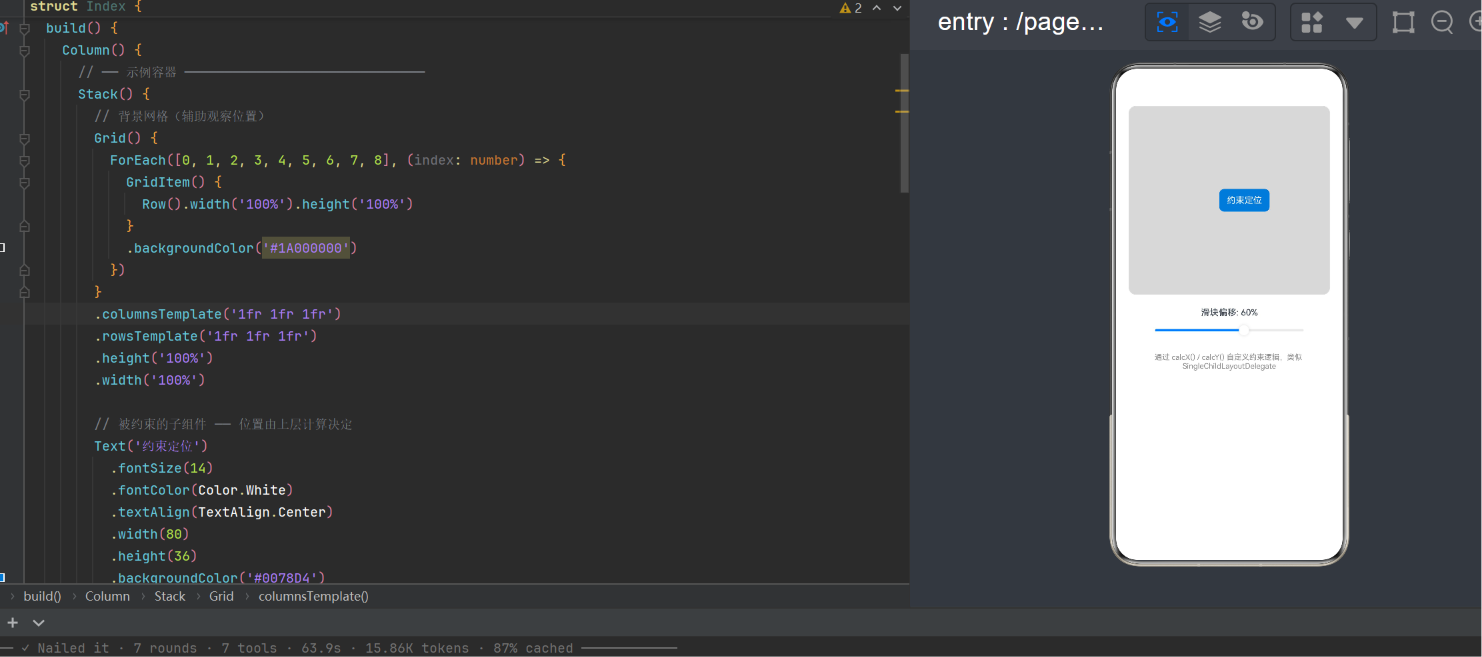
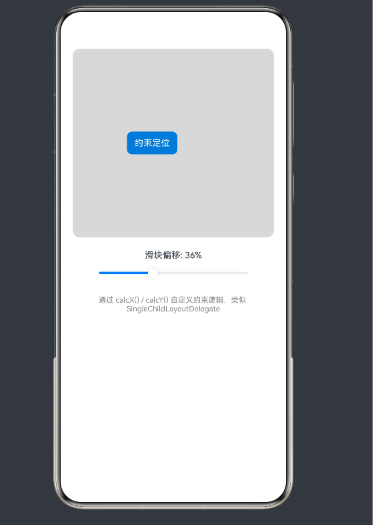
用 Stack 作为父容器,子组件通过 .position({ x, y }) 实现绝对定位,x/y 值由自定义计算函数实时生成——对应 getPosition() 逻辑。
4.2 完整代码
@Entry
@Component
struct Index {
  @State containerWidth: number = 0;
  @State containerHeight: number = 0;
  @State sliderValue: number = 50;

  build() {
    Column() {
      Stack() {
        // 背景网格 3x3
        Grid() {
          ForEach([0, 1, 2, 3, 4, 5, 6, 7, 8], (index: number) => {
            GridItem() {
              Row().width('100%').height('100%')
            }
            .backgroundColor('#1A000000')
          })
        }
        .columnsTemplate('1fr 1fr 1fr')
        .rowsTemplate('1fr 1fr 1fr')
        .height('100%')
        .width('100%')

        // 受约束的子组件
        Text('约束定位')
          .fontSize(14)
          .fontColor(Color.White)
          .textAlign(TextAlign.Center)
          .width(80).height(36)
          .backgroundColor('#0078D4')
          .borderRadius(8)
          .position({
            x: this.calcX(),
            y: this.calcY()
          })
      }
      .width('100%')
      .height(300)
      .backgroundColor('#F0F0F0')
      .borderRadius(12)
      .border({ width: 1, color: '#DDD' })
      .clip(true)
      .onAreaChange((_old, newArea) => {
        this.containerWidth = Number(newArea.width);
        this.containerHeight = Number(newArea.height);
      })

      Text(`滑块偏移: ${this.sliderValue}%`)
        .fontSize(14)
        .margin({ top: 20 })

      Slider({
        value: this.sliderValue,
        min: 0, max: 100, step: 1,
        style: SliderStyle.OutSet
      })
      .onChange((val: number) => { this.sliderValue = val; })
      .width('80%')

      Text('通过 calcX()/calcY() 自定义约束,类似 SingleChildLayoutDelegate')
        .fontSize(12).fontColor('#888')
        .margin({ top: 16 })
        .textAlign(TextAlign.Center)
        .width('90%')
    }
    .width('100%').height('100%')
    .padding(20)
    .justifyContent(FlexAlign.Start)
  }

  calcX(): number {
    const containerW = this.containerWidth;
    if (containerW <= 0) return 0;
    return (containerW - 80) * (this.sliderValue / 100);
  }

  calcY(): number {
    const containerH = this.containerHeight;
    if (containerH <= 0) return 0;
    return (containerH - 36) / 2;
  }
}
4.3 逐段解读
4.3.1 状态定义
@State containerWidth: number = 0;
@State containerHeight: number = 0;
@State sliderValue: number = 50;
@State 装饰器使变量成为响应式状态。值变化时,依赖它们的表达式重新求值,驱动 UI 刷新。
4.3.2 Stack 容器
Stack 是最灵活的容器,子组件按声明顺序从下到上堆叠。背景 Grid 最先声明作为视觉参考,Text 后声明覆盖其上。
4.3.3 背景网格
Grid() {
  ForEach([0, 1, 2, 3, 4, 5, 6, 7, 8], (index: number) => {
    GridItem() { Row().width('100%').height('100%') }
    .backgroundColor('#1A000000')
  })
}
.columnsTemplate('1fr 1fr 1fr')
.rowsTemplate('1fr 1fr 1fr')
使用 Grid 创建 3×3 网格,1fr 表示三等分,半透明着色形成九宫格参考线。
4.3.4 核心定位
.position({ x: this.calcX(), y: this.calcY() })
.position() 使子组件相对于 Stack 左上角偏移 (x, y),相当于 SingleChildLayoutDelegate.getPosition() 的返回值。
4.3.5 尺寸监听
.onAreaChange((_old, newArea) => {
  this.containerWidth = Number(newArea.width);
  this.containerHeight = Number(newArea.height);
})
onAreaChange 在容器尺寸变化时触发,Number() 将 Length 类型转换为 number。
4.3.6 计算函数
- calcX:子组件宽 80px,偏移范围
[0, containerW - 80],滑块百分比映射到该范围。 - calcY:取
(containerH - 36) / 2,垂直居中。演示 x/y 可应用不同策略。
4.4 与 Flutter 的对应关系
| Flutter 概念 | 本方案等价实现 |
|---|---|
CustomSingleChildLayout |
Stack |
delegate.getPosition(size) |
calcX() / calcY() |
delegate.getConstraints(constraints) |
子组件固定 width/height |
delegate.shouldRelayout(old) |
@State 自动触发重建 |
| 父容器约束 | Stack 的 .width/.height |
4.5 优点与局限
优点:API 门槛低,仅需 Stack + .position(),兼容 API 9+;逻辑清晰,响应式天然支持。
局限:无法自定义子组件尺寸约束;仅适用于单子组件;超出边界需手动 clip(true)。
五、方案二:RelativeContainer + alignRules — 声明式约束
5.1 基本用法
RelativeContainer() {
  Text('目标组件')
    .alignRules({
      top: { anchor: '__container__', align: VerticalAlign.Top },
      left: { anchor: '__container__', align: HorizontalAlign.Start },
      center: { anchor: '__container__', align: VerticalAlign.Center },
      middle: { anchor: '__container__', align: HorizontalAlign.Center }
    })
}
每个方向规则包含 anchor(锚点组件 id)和 align(对齐位置)。__container__ 表示父容器。
5.2 动态约束的限制
alignRules 可接受变量,但无法表达任意数学公式:
// ❌ 不支持表达式或函数
.left({ value: this.sliderValue / 100 * containerWidth })
因此 RelativeContainer 适用于位置规则固定的场景。
5.3 场景对照
| 场景 | 推荐方案 |
|---|---|
| 固定在右上角 | RelativeContainer + alignRules |
| 居中 | RelativeContainer |
| 按百分比偏移 | Stack + .position() + 计算函数 |
| 跟随拖拽手势 | Stack + .position() + @State |
| 响应键盘弹起 | Stack + .position() + onAreaChange |
六、方案三:CustomLayout — 全自由度自定义布局(API 12+)
6.1 基本用法
CustomLayout() {
  Text('子组件 A').id('childA').fontSize(16)
  Text('子组件 B').id('childB').fontSize(16)
}
.onPlaceChildren((children: Array<LayoutChild>) => {
  for (let child of children) {
    let size = child.measure({
      minWidth: 0, maxWidth: this.containerWidth,
      minHeight: 0, maxHeight: Infinity
    });
    child.layout(size, {
      x: (this.containerWidth - size.width) / 2,
      y: (this.containerHeight - size.height) / 2
    });
  }
})
onPlaceChildren 接收 LayoutChild 数组,分两阶段:
- 测量:调用
child.measure(constraint)获取期望尺寸。 - 布局:调用
child.layout(size, position)设置最终位置。
6.2 方案对比
| 对比维度 | Stack + .position() | CustomLayout |
|---|---|---|
| 最低 API | API 9 | API 12 |
| 多子组件 | 需 Stack 嵌套 | 原生支持 |
| 尺寸测量 | 子组件固定尺寸 | 可按需测量 |
| 约束调整 | 传递父容器约束 | 可自定义约束 |
| 代码量 | 少 | 相对多 |
6.3 选择建议
- API 9-11:只能用
Stack + .position()。 - API 12+ 需自定义子组件尺寸:用
CustomLayout。 - API 12+ 只需固定尺寸灵活定位:仍推荐
Stack + .position()。 - 需复杂多子组件测量布局:
CustomLayout。
七、响应式更新机制
7.1 @State 工作流程
@State 变量变化时:
- 组件标记为"脏"状态,下一帧触发重建。
- 重新执行
build(),Diff 算法对比新旧树,只更新变化部分。
.position() 中的 this.calcX() 在 build 阶段调用,读取 @State 变量的当前值,因此滑块拖动 → sliderValue 变化 → build 重建 → calcX/Y 返回新值 → Text 在新位置渲染。
7.2 onAreaChange 触发时机
- 组件首次挂载。
- 组件尺寸实际变化。
- 组件从隐藏变为可见且重新计算尺寸。
不每帧触发,性能可靠。
7.3 性能优化
- 公式保持 O(1) 时间复杂度。
- 用
.constraintSize限制子组件最大尺寸。 - 超出边界时加
.clip(true)。 - 不需要改变布局流时优先用
.offset()。
八、实战案例扩展
8.1 案例一:边界约束 Tooltip
calcTooltipX(): number {
  return Math.min(this.rawX, this.containerWidth - 120);
}
calcTooltipY(): number {
  return Math.min(this.rawY, this.containerHeight - 40);
}
确保 Tooltip 不超出容器边界。
8.2 案例二:拖拽跟随
@State dragX: number = 0;
@State dragY: number = 0;

Stack() {
  Text('拖拽我')
    .width(60).height(60).backgroundColor('#0078D4').borderRadius(30)
    .position({ x: this.dragX, y: this.dragY })
    .gesture(
      PanGesture()
        .onActionUpdate((event: GestureEvent) => {
          this.dragX = event.offsetX;
          this.dragY = event.offsetY;
        })
    )
}
8.3 案例三:键盘弹起适配
@State keyboardHeight: number = 0;

Stack() {
  TextInput({ placeholder: '输入消息' })
    .width('100%').height(48)
    .position({ x: 0, y: this.containerHeight - 48 - this.keyboardHeight })
}
.onKeyboardHeightChange((height: number) => {
  this.keyboardHeight = height;
})
九、API 版本兼容性
| API 版本 | HarmonyOS | 可用方案 |
|---|---|---|
| API 9 | 3.1 | Stack + .position() |
| API 10 | 4.0 | Stack + .position() |
| API 11 | 4.1 | + RelativeContainer |
| API 12+ | NEXT | 全部方案 |
注意事项:ForEach 数字字面量安全;Text 上 borderRadius API 10+ 可用。
十、常见问题排查
Q1:编译报错 “columnsTemplate 不存在于 GridRowAttribute”
原因:GridRow 不支持 columnsTemplate,Grid 才支持。
解决:GridRow + GridCol 替换为 Grid + GridItem。
Q2:编译报错 “Type ‘Length’ is not assignable to type ‘number’”
原因:onAreaChange 中 newArea.width 类型为 Length,不能直接赋值给 number。
解决:使用 Number(newArea.width) 显式转换。
Q3:子组件超出 Stack 边界
原因:默认裁切超出部分。
解决:不加 .clip(true) 或 calcX/Y 中加边界判断。
Q4:@State 更新但 UI 不变
原因:最常见的是修改对象属性而非替换对象。@State 对基本类型深度监听。
解决:基本类型直接赋值即可触发 UI 更新。
十一、总结
本文探讨了在 HarmonyOS NEXT (API 24) 中实现 Flutter CustomSingleChildLayout + SingleChildLayoutDelegate 功能的三种方案,核心结论如下:
-
Stack + .position()是最通用方案,兼容 API 9-24,覆盖 95% 场景。calcX()/calcY()=getPosition(),@State=shouldRelayout()。 -
RelativeContainer适合声明式固定约束,不支持动态公式。 -
CustomLayout提供最大自由度,支持自定义测量和多子组件,需 API 12+。 -
类型注意:
Length到number的显式转换是从 Flutter 迁移时最容易踩的坑。 -
响应式模型:
@State+build()天然支持"状态变化 → 重算 → UI 刷新"的单向数据流。
无论是 Flutter 还是 HarmonyOS,自定义布局的核心始终相同:将布局逻辑从组件树中分离,放入可独立测试的计算函数中。
十二、参考资源
- HarmonyOS ArkUI 布局文档:https://developer.harmonyos.com/cn/docs/documentation/doc-guides/arkts-layout-development-0000001820879917
- Flutter CustomSingleChildLayout:https://api.flutter.dev/flutter/widgets/CustomSingleChildLayout-class.html
- ArkTS 编程规范:https://developer.harmonyos.com/cn/docs/documentation/doc-guides/arkts-get-started-0000001820880089

讨论HarmonyOS开发技术,专注于API与组件、DevEco Studio、测试、元服务和应用上架分发等。
更多推荐
 4
4 0
0- 0


 已为社区贡献8条内容

所有评论(0)