HarmonyOS NEXT 实战:从零开发「石头剪刀布」小游戏
HarmonyOS NEXT 实战:从零开发「石头剪刀布」小游戏
本文记录了使用 HarmonyOS NEXT 和 ArkTS 开发一个完整的石头剪刀布对战游戏的完整过程,适合初学者快速上手鸿蒙应用开发。
一、项目背景
石头剪刀布是最经典的小游戏之一,规则简单但乐趣无穷。选择这个项目作为实战案例,主要基于以下几点考虑:
- 功能完整:包含用户交互、状态管理、动画效果等移动应用核心要素
- 逻辑清晰:胜负判定逻辑简单,适合理解 ArkTS 的编程范式
- UI 友好:涉及布局、样式、图标等前端开发常见场景
- 易于扩展:可以在基础上添加更多功能(如历史记录、多玩家模式等)
二、开发环境
- 操作系统:Windows 10/11
- 开发工具:DevEco Studio 5.0+
- HarmonyOS SDK:API 23(6.1.0(23))
- 目标 SDK:API 24(6.1.1(24))
- 开发语言:ArkTS(基于 TypeScript)
- 运行环境:HarmonyOS NEXT 手机/模拟器
三、项目结构解析
创建项目后,DevEco Studio 会自动生成标准的项目结构:
MyApplication/
├── AppScope/                    # 应用全局资源
│   └── resources/
│       └── base/
│           ├── element/
│           │   └── string.json  # 应用名称等全局字符串
│           └── media/
│               └── layered_image.json
├── entry/                       # 主模块
│   ├── src/
│   │   ├── main/
│   │   │   ├── ets/
│   │   │   │   ├── entryability/
│   │   │   │   │   └── EntryAbility.ets  # 应用入口
│   │   │   │   └── pages/
│   │   │   │       └── Index.ets         # 主页面
│   │   │   └── resources/
│   │   │       ├── base/
│   │   │       │   ├── element/
│   │   │       │   │   ├── color.json    # 颜色资源
│   │   │       │   │   ├── float.json    # 尺寸资源
│   │   │       │   │   └── string.json   # 字符串资源
│   │   │       │   ├── media/            # 图片资源
│   │   │       │   └── profile/
│   │   │       │       └── main_pages.json  # 页面路由配置
│   │   │       └── dark/                 # 暗色主题资源
│   │   ├── ohosTest/                     # UI 测试
│   │   └── test/                         # 单元测试
│   ├── build-profile.json5               # 模块构建配置
│   └── hvigorfile.ts                     # 构建脚本
├── build-profile.json5                   # 应用构建配置
└── hvigorfile.ts                         # 全局构建脚本
关键文件说明:
EntryAbility.ets:应用生命周期管理,相当于 Android 的 ApplicationIndex.ets:主页面 UI 和业务逻辑main_pages.json:页面路由表,所有页面都需要在这里注册module.json5:模块配置,包含权限、Ability 声明等
四、核心代码实现
4.1 数据模型设计
首先定义选择项的数据结构,使用 interface 关键字:
interface Choice {
  emoji: string;   // 显示的表情符号
  label: string;   // 文字标签
  value: string;   // 值(rock/paper/scissors)
}
这种设计将显示文本、图标和业务值解耦,便于后续维护和国际化。
4.2 组件状态管理
ArkTS 使用 @State 装饰器声明响应式状态变量,当状态变化时 UI 会自动更新:
@Entry
@Component
struct Index {
  // 游戏状态
  @State playerChoice: string = '❔';      // 玩家选择显示
  @State computerChoice: string = '❔';    // 电脑选择显示
  @State result: string = '选择你的出拳';  // 结果文本

  // 分数统计
  @State playerScore: number = 0;    // 玩家胜场
  @State computerScore: number = 0;  // 电脑胜场
  @State draws: number = 0;          // 平局次数
  @State roundCount: number = 0;     // 总局数

  // 样式状态
  @State resultColor: string = '#8E8E93';

  // 选项数据
  readonly choices: Choice[] = [
    { emoji: '✊', label: '石头', value: 'rock' },
    { emoji: '✋', label: '布', value: 'paper' },
    { emoji: '✌️', label: '剪刀', value: 'scissors' }
  ];
}
要点说明:
@Entry:标记为页面入口组件@Component:声明这是一个 UI 组件@State:状态变量,变化时自动触发 UI 刷新readonly:常量数组,不需要响应式更新
4.3 游戏核心逻辑
4.3.1 电脑随机选择
getComputerChoice(): string {
  const randomIndex = Math.floor(Math.random() * 3);
  return this.choices[randomIndex].value;
}
使用 Math.random() 生成 0-2 的随机索引,从选项数组中随机取值。
4.3.2 胜负判定
play(playerValue: string): void {
  const computerValue: string = this.getComputerChoice();

  // 设置 emoji 显示
  const playerEmoji = this.choices.find(c => c.value === playerValue)?.emoji ?? '❔';
  const computerEmoji = this.choices.find(c => c.value === computerValue)?.emoji ?? '❔';

  this.playerChoice = playerEmoji;
  this.computerChoice = computerEmoji;
  this.roundCount++;

  // 判定胜负
  if (playerValue === computerValue) {
    // 平局
    this.result = '🤝 平局!';
    this.resultColor = '#8E8E93';
    this.draws++;
  } else if (
    (playerValue === 'rock' && computerValue === 'scissors') ||
    (playerValue === 'scissors' && computerValue === 'paper') ||
    (playerValue === 'paper' && computerValue === 'rock')
  ) {
    // 玩家获胜
    this.result = '🎉 你赢了!';
    this.resultColor = '#34C759';
    this.playerScore++;
  } else {
    // 电脑获胜
    this.result = '😅 电脑赢了!';
    this.resultColor = '#FF3B30';
    this.computerScore++;
  }
}
胜负规则:
| 玩家 | 电脑 | 结果 |
|---|---|---|
| 石头 ✊ | 剪刀 ✌️ | 玩家胜 |
| 剪刀 ✌️ | 布 ✋ | 玩家胜 |
| 布 ✋ | 石头 ✊ | 玩家胜 |
| 相同 | 相同 | 平局 |
| 其他 | 其他 | 电脑胜 |
4.4 UI 布局实现
4.4.1 主容器布局
build() {
  Column() {
    // 标题区域
    // 对战区域
    // 结果显示
    // 出拳按钮
    // 统计信息
    // 重置按钮
  }
  .width('100%')
  .height('100%')
  .backgroundColor('#FFFFFF')
  .padding(20)
  .alignItems(HorizontalAlign.Center)
}
使用 Column 作为主容器,垂直排列所有元素。
4.4.2 标题区域
Text('✂️ 石头剪刀布')
  .fontSize(26)
  .fontWeight(FontWeight.Bold)
  .fontColor('#1C1C1E')
  .margin({ top: 30, bottom: 8 })

Text('和电脑对战!')
  .fontSize(14)
  .fontColor('#8E8E93')
  .margin({ bottom: 24 })
4.4.3 对战区域
Row() {
  // 玩家
  Column() {
    Text('🧑 你')
      .fontSize(14)
      .fontColor('#8E8E93')
      .margin({ bottom: 8 })
    Text(this.playerChoice)
      .fontSize(64)
      .animation({ duration: 300 })
    Text(`${this.playerScore} 胜`)
      .fontSize(16)
      .fontWeight(FontWeight.Bold)
      .fontColor('#34C759')
      .margin({ top: 6 })
  }
  .layoutWeight(1)
  .alignItems(HorizontalAlign.Center)

  // VS
  Column() {
    Text('VS')
      .fontSize(20)
      .fontWeight(FontWeight.Bold)
      .fontColor('#FF3B30')
  }
  .layoutWeight(0.5)
  .alignItems(HorizontalAlign.Center)

  // 电脑
  Column() {
    Text('🤖 电脑')
      .fontSize(14)
      .fontColor('#8E8E93')
      .margin({ bottom: 8 })
    Text(this.computerChoice)
      .fontSize(64)
      .animation({ duration: 300 })
    Text(`${this.computerScore} 胜`)
      .fontSize(16)
      .fontWeight(FontWeight.Bold)
      .fontColor('#FF3B30')
      .margin({ top: 6 })
  }
  .layoutWeight(1)
  .alignItems(HorizontalAlign.Center)
}
.width('100%')
.padding(20)
.backgroundColor('#F2F2F7')
.borderRadius(16)
.margin({ bottom: 16 })
布局要点:
Row水平排列玩家、VS、电脑三个区域layoutWeight按比例分配宽度animation为选择变化添加动画效果- 灰色背景 + 圆角营造卡片效果
4.4.4 结果显示
Text(this.result)
  .fontSize(22)
  .fontWeight(FontWeight.Bold)
  .fontColor(this.resultColor)
  .margin({ top: 4, bottom: 24 })
结果颜色根据胜负动态变化:
- 🟢 胜利:
#34C759(绿色) - 🔴 失败:
#FF3B30(红色) - ⚪ 平局:
#8E8E93(灰色)
4.4.5 出拳按钮组
Row() {
  ForEach(this.choices, (choice: Choice) => {
    Column() {
      Text(choice.emoji)
        .fontSize(44)
      Text(choice.label)
        .fontSize(14)
        .fontColor('#1C1C1E')
        .margin({ top: 4 })
    }
    .width(96)
    .height(110)
    .backgroundColor('#F2F2F7')
    .borderRadius(16)
    .justifyContent(FlexAlign.Center)
    .alignItems(HorizontalAlign.Center)
    .onClick(() => {
      this.play(choice.value);
    })
  })
}
.width('100%')
.justifyContent(FlexAlign.SpaceEvenly)
.margin({ bottom: 24 })
关键点:
ForEach循环渲染按钮,避免重复代码- 卡片式按钮设计,易于点击
- 点击触发
play()方法进行游戏
4.4.6 统计信息
if (this.roundCount > 0) {
  Row() {
    Text(`共 ${this.roundCount} 局`)
      .fontSize(14)
      .fontColor('#8E8E93')
    Blank()
    Text(`平局 ${this.draws} 次`)
      .fontSize(14)
      .fontColor('#8E8E93')
  }
  .width('100%')
  .padding({ left: 20, right: 20 })
  .margin({ bottom: 16 })
}
使用条件渲染 if,只有在游戏开始后才显示统计信息。
4.4.7 重置按钮
Button('🔄 重新开始')
  .type(ButtonType.Capsule)
  .width(180)
  .height(44)
  .backgroundColor('#8E8E93')
  .fontSize(16)
  .fontWeight(FontWeight.Medium)
  .onClick(() => {
    this.resetGame();
  })
点击后调用 resetGame() 重置所有状态:
resetGame(): void {
  this.playerChoice = '❔';
  this.computerChoice = '❔';
  this.result = '选择你的出拳';
  this.resultColor = '#8E8E93';
  this.playerScore = 0;
  this.computerScore = 0;
  this.draws = 0;
  this.roundCount = 0;
}
五、配置文件详解
5.1 页面路由配置
entry/src/main/resources/base/profile/main_pages.json:
{
  "src": [
    "pages/Index"
  ]
}
所有页面路径都需要在这里注册,支持多页面应用。
5.2 模块配置
entry/src/main/module.json5:
{
  "module": {
    "name": "entry",
    "type": "entry",
    "description": "$string:module_desc",
    "mainElement": "EntryAbility",
    "deviceTypes": [
      "phone"
    ],
    "deliveryWithInstall": true,
    "installationFree": false,
    "pages": "$profile:main_pages",
    "abilities": [
      {
        "name": "EntryAbility",
        "srcEntry": "./ets/entryability/EntryAbility.ets",
        "description": "$string:EntryAbility_desc",
        "icon": "$media:layered_image",
        "label": "$string:EntryAbility_label",
        "startWindowIcon": "$media:startIcon",
        "startWindowBackground": "$color:start_window_background",
        "exported": true,
        "skills": [
          {
            "entities": [
              "entity.system.home"
            ],
            "actions": [
              "ohos.want.action.home"
            ]
          }
        ]
      }
    ]
  }
}
关键字段说明:
deviceTypes:支持的设备类型(phone/tablet/tv 等)abilities:Ability 声明,相当于 Android 的 Activityskills:定义 Ability 可以响应的 Intentexported:是否允许其他应用调用
5.3 构建配置
build-profile.json5:
{
  "app": {
    "products": [
      {
        "name": "default",
        "targetSdkVersion": "6.1.1(24)",
        "compatibleSdkVersion": "6.1.0(23)",
        "runtimeOS": "HarmonyOS"
      }
    ]
  }
}
版本说明:
compatibleSdkVersion:最低兼容版本(API 23)targetSdkVersion:目标 SDK 版本(API 24)
六、运行与调试
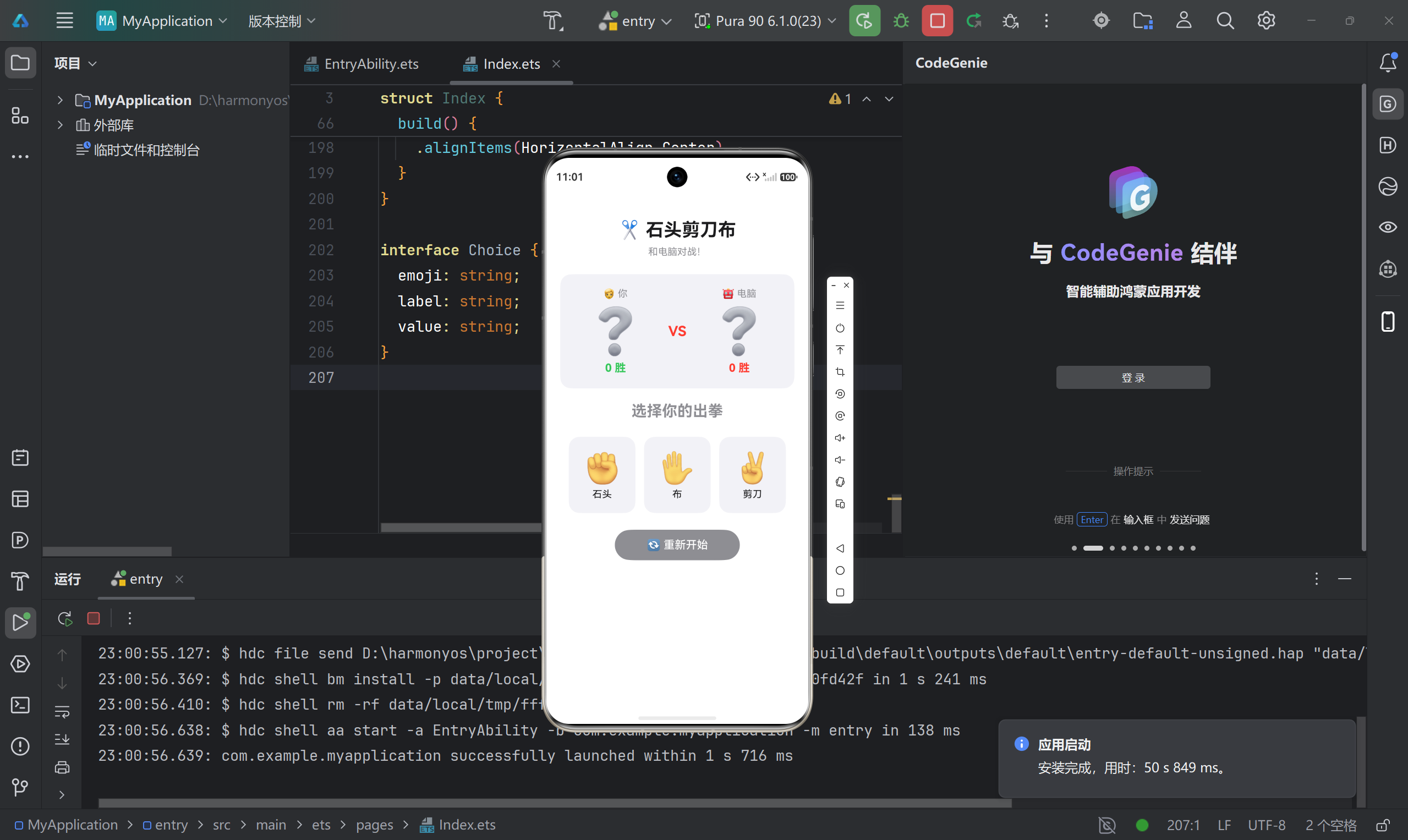
6.1 本地预览
七、功能演示
7.1 游戏流程
-
初始状态:显示默认图标 ❔,提示"选择你的出拳"
-
点击出拳:点击石头/布/剪刀按钮
- 玩家和电脑的选择同时显示
- 结果文字和颜色即时更新
- 分数统计自动累加
-
多局对战:持续点击进行多轮对战
- 统计信息实时显示总局数和平局次数
- 双方胜场数持续累计
-
重新开始:点击"重新开始"按钮,所有数据归零
八、踩坑记录与解决方案
8.1 状态变量类型问题
问题: 初次使用 ArkTS 时,容易混淆 @State 的类型声明。
// ❌ 错误写法
@State playerScore = 0;  // 类型推断可能不准确

// ✅ 正确写法
@State playerScore: number = 0;  // 显式声明类型
解决: 始终显式声明 @State 变量的类型,避免类型推断问题。
8.2 条件渲染语法
问题: ArkTS 的条件渲染语法与 React/Vue 不同。
// ❌ 错误写法
this.roundCount > 0 && Text('显示内容')

// ✅ 正确写法
if (this.roundCount > 0) {
  Text('显示内容')
}
解决: ArkTS 使用原生 if 语句进行条件渲染,不能使用逻辑运算符。
8.3 事件处理函数绑定
问题: 在 ForEach 中绑定点击事件时,参数传递容易出错。
// ❌ 错误写法
.onClick(this.play(choice.value))  // 直接调用,而不是绑定

// ✅ 正确写法
.onClick(() => {
  this.play(choice.value);
})
解决: 使用箭头函数包装事件处理逻辑,确保参数正确传递。
8.4 资源引用语法
问题: 引用资源文件时语法与原生 Android 不同。
// module.json5 中的引用
"description": "$string:module_desc"  // 引用 string.json 中的资源
"icon": "$media:layered_image"        // 引用 media 目录下的图片
"startWindowBackground": "$color:start_window_background"  // 引用颜色
解决: 使用 $type:name 格式引用资源,注意冒号后没有空格。
8.5 布局权重使用
问题: layoutWeight 的使用场景和效果理解有偏差。
Row() {
  Column() { /* 玩家 */ }
    .layoutWeight(1)  // 占据剩余空间的 1 份

  Column() { /* VS */ }
    .layoutWeight(0.5)  // 占据剩余空间的 0.5 份

  Column() { /* 电脑 */ }
    .layoutWeight(1)  // 占据剩余空间的 1 份
}
解决: layoutWeight 按比例分配父容器的剩余空间,总比例 = 1 + 0.5 + 1 = 2.5。
九、项目总结
9.1 技术要点回顾
| 技术点 | 说明 |
|---|---|
| 组件声明 | @Entry + @Component 装饰器 |
| 状态管理 | @State 响应式数据 |
| UI 布局 | Column/Row 线性布局 |
| 事件处理 | .onClick(() => {}) 箭头函数 |
| 条件渲染 | 原生 if 语句 |
| 循环渲染 | ForEach 数组遍历 |
| 样式设置 | 链式调用方法 |
9.2 收获与体会
- ArkTS 语法简洁:相比传统 Android 开发,ArkTS 的声明式 UI 更加直观
- 状态驱动 UI:只需关注数据变化,UI 自动更新,降低了心智负担
- 组件化开发:
@Component装饰器让代码组织更清晰 - 实时预览:DevEco Studio 的 Previewer 功能大大提升开发效率
9.3 后续优化方向
- 数据持久化:使用
Preferences保存最高分和历史记录 - 多页面导航:添加设置页面、历史记录页面
- 动画增强:出拳时添加翻转动画、胜负时添加特效
- 音效支持:使用
AVPlayer添加音效反馈 - 多玩家模式:支持双人本地对战或在线对战
附录:常见问题 FAQ
Q1: DevEco Studio 编译报错 “SDK not found”?
A: 检查 SDK 路径配置:File → Settings → SDK → HarmonyOS SDK,确保已下载 API 23+ 版本。
Q2: 预览器显示空白?
A: 检查 main_pages.json 中是否正确注册了页面路径。
Q3: 真机调试无法安装?
A: 确保手机系统版本 >= API 23,且已签名配置。可以在 build-profile.json5 中配置自动签名。
Q4: 如何适配暗色模式?
A: 在 resources/dark/ 目录下创建对应的资源文件,系统会自动切换。
项目信息:
- 最低 SDK:API 23(6.1.0)
- 开发工具:DevEco Studio 5.0+

讨论HarmonyOS开发技术,专注于API与组件、DevEco Studio、测试、元服务和应用上架分发等。
更多推荐
 5
5 0
0- 0


 已为社区贡献68条内容

所有评论(0)