【鸿蒙开发实战】打造炫酷掷骰子App - ArkUI动画与状态管理详解
📖 前言
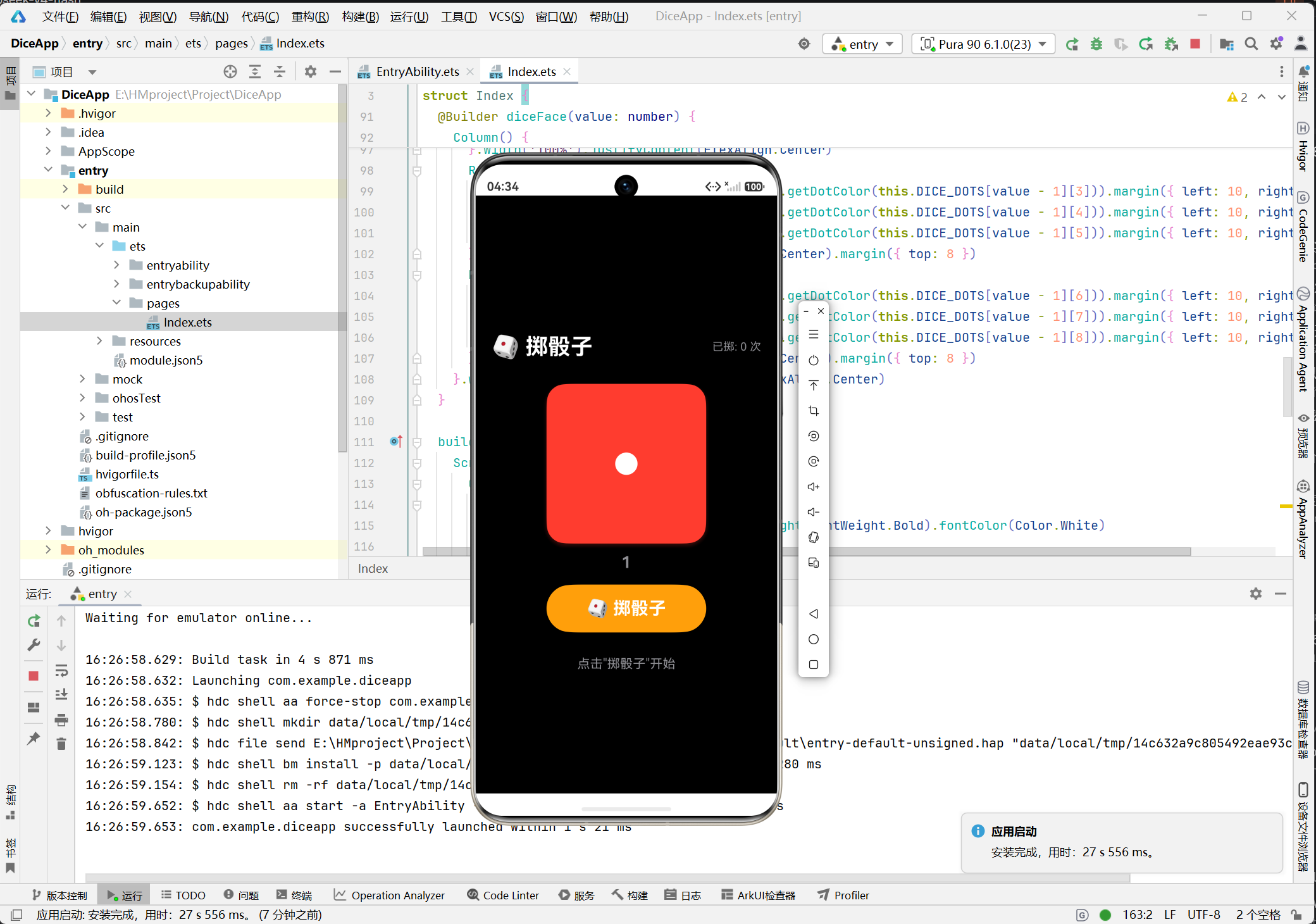
最近在学习鸿蒙原生开发,想着从一个小Demo入手练练手。考虑到日常玩游戏时经常需要掷骰子,就决定开发一个简洁美观的掷骰子应用。本文将详细记录整个开发过程,包括项目创建、UI设计、状态管理、动画实现等核心内容,希望能帮到正在学习鸿蒙开发的小伙伴们!
先看最终效果:
一、项目概述
1.1 功能需求
这个掷骰子App虽然简单,但我希望它能具备以下功能:
- ✅ 点击按钮掷骰子
- ✅ 骰子点数随机变化(1-6点)
- ✅ 掷骰子动画效果(快速切换显示)
- ✅ 统计掷骰子次数
- ✅ 重置计数功能
- ✅ 简洁美观的UI设计
1.2 技术栈
| 技术 | 说明 |
|---|---|
| 开发框架 | ArkUI(声明式UI) |
| 开发语言 | ArkTS(TypeScript扩展) |
| API版本 | HarmonyOS Next |
| 开发工具 | DevEco Studio |
| 项目模型 | Stage模型 |
二、项目创建与环境配置
2.1 创建新项目
- 打开 DevEco Studio,选择 Create Project
- 选择 Empty Ability 模板(适用于纯应用开发)
- 填写项目信息:
- Project name: DiceApp
- Bundle name: com.example.diceapp
- Save location: E:\HMproject\Project\DiceApp
- Compile SDK: 选择最新的 HarmonyOS Next SDK
- Model: Stage
点击 Finish 完成项目创建。
2.2 项目结构分析
创建完成后,项目目录结构如下:
DiceApp/
├── AppScope/                 # 应用全局配置
│   ├── app.json5            # 应用配置(包名、版本、图标等)
│   └── resources/           # 全局资源
├── entry/                    # 主模块
│   ├── src/main/
│   │   ├── ets/             # ArkTS源码
│   │   │   ├── entryability/
│   │   │   │   └── EntryAbility.ets    # 应用入口
│   │   │   └── pages/
│   │   │       └── Index.ets           # 主页面
│   │   └── resources/       # 资源文件
│   │       ├── base/element/   # 字符串、颜色等
│   │       ├── base/media/     # 图片资源
│   │       └── base/profile/   # 配置文件
│   ├── build-profile.json5  # 构建配置
│   └── module.json5         # 模块配置
├── oh_modules/              # 依赖包
└── build-profile.json5      # 项目构建配置
2.3 核心配置文件解读
app.json5 - 应用全局配置
{
  "app": {
    "bundleName": "com.example.diceapp",    // 应用包名,唯一标识
    "vendor": "example",                     // 开发者名称
    "versionCode": 1000000,                  // 版本号(数值)
    "versionName": "1.0.0",                  // 版本名(字符串)
    "icon": "$media:layered_image",          // 应用图标
    "label": "$string:app_name"              // 应用名称
  }
}
module.json5 - 模块配置
这个文件定义了应用的基本能力(Ability)和页面路由:
{
  "module": {
    "name": "entry",
    "type": "entry",
    "deviceTypes": ["phone"],               // 支持设备类型
    "pages": "$profile:main_pages",         // 页面路由配置
    "abilities": [
      {
        "name": "EntryAbility",
        "srcEntry": "./ets/entryability/EntryAbility.ets",
        "exported": true,
        "skills": [
          {
            "entities": ["entity.system.home"],
            "actions": ["ohos.want.action.home"]
          }
        ]
      }
    ]
  }
}
三、UI设计与实现
3.1 设计思路
骰子App的UI设计我采用了以下风格:
- 暗色主题: 黑色背景,红色骰子,营造高级感
- 卡片式设计: 骰子作为主体,带有阴影效果
- 状态反馈: 按钮颜色变化、文字提示等
3.2 骰子点数实现原理
骰子是一个3x3的点阵,每个位置可能有点或无点。我用一个二维数组来表示6种点数:
骰子点阵布局:
[0] [1] [2]
[3] [4] [5]
[6] [7] [8]
对于每个点数(1-6),定义9个位置的显示状态:
private readonly DICE_DOTS: boolean[][] = [
  // 1点:只有中心
  [false, false, false, false, true,  false, false, false, false],
  // 2点:左上和右下
  [false, false, true,  false, false, false, true,  false, false],
  // 3点:对角线
  [false, false, true,  false, true,  false, true,  false, false],
  // 4点:四角
  [true,  false, true,  false, false, false, true,  false, true],
  // 5点:四角+中心
  [true,  false, true,  false, true,  false, true,  false, true],
  // 6点:左右两列
  [true,  false, true,  true,  false, true,  true,  false, true]
]
3.3 页面布局实现
主页面使用 Column 和 Row 进行布局,整体结构如下:
@Entry
@Component
struct Index {
  // 状态变量
  @State currentValue: number = 1      // 当前点数
  @State isRolling: boolean = false    // 是否正在掷骰子
  @State rollCount: number = 0         // 掷骰子次数

  build() {
    Scroll() {
      Column() {
        // 1. 顶部标题栏
        Row() {
          Text('🎲 掷骰子')
          Blank()
          Text('共掷 ' + this.rollCount + ' 次')
        }

        // 2. 骰子展示区域
        Column() {
          // 3x3圆点矩阵
        }

        // 3. 点数显示
        Text('点数: ' + this.currentValue)

        // 4. 操作按钮
        Button('🎲 掷骰子')
        Button('🔄 重置计数')
      }
    }
  }
}
3.4 骰子点阵UI实现
使用9个 Circle 组件组成骰子的点阵:
private dotColor(i: number): ResourceColor {
  return this.DICE_DOTS[this.currentValue - 1][i] ? Color.White : Color.Transparent
}

Column() {
  Row() {
    Circle().width(26).height(26).fill(this.dotColor(0))
    Circle().width(26).height(26).fill(this.dotColor(1))
    Circle().width(26).height(26).fill(this.dotColor(2))
  }
  Row() {
    Circle().width(26).height(26).fill(this.dotColor(3))
    Circle().width(26).height(26).fill(this.dotColor(4))
    Circle().width(26).height(26).fill(this.dotColor(5))
  }
  Row() {
    Circle().width(26).height(26).fill(this.dotColor(6))
    Circle().width(26).height(26).fill(this.dotColor(7))
    Circle().width(26).height(26).fill(this.dotColor(8))
  }
}
.width(180).height(180)
.backgroundColor('#FF3B30')          // 红色背景
.borderRadius(24)                   // 圆角
.shadow({                           // 阴影效果
  radius: 20,
  color: '#40FF3B30',
  offsetX: 0,
  offsetY: 8
})
效果说明:
- 骰子主体为红色背景(#FF3B30)
- 圆角设计(24vp)更现代
- 添加阴影增加立体感
四、状态管理与动画实现
4.1 状态变量详解
ArkUI 使用 @State 装饰器声明状态变量,当状态变化时UI会自动更新:
@State currentValue: number = 1      // 当前点数
@State isRolling: boolean = false    // 掷骰子状态
@State rollCount: number = 0         // 掷骰子总次数
4.2 掷骰子动画实现
这是本App的核心功能!通过 setInterval 实现快速切换点数的动画效果:
private rollIntervalId: number = -1

private rollDice(): void {
  if (this.isRolling) return    // 防止重复点击

  this.isRolling = true
  let count = 0

  this.rollIntervalId = setInterval(() => {
    count++
    this.currentValue = Math.floor(Math.random() * 6) + 1  // 随机1-6

    if (count >= 8) {
      clearInterval(this.rollIntervalId)     // 停止动画
      this.rollIntervalId = -1
      this.isRolling = false
      this.rollCount++                       // 累计次数
    }
  }, 100)  // 每100ms切换一次
}
动画参数解析:
- 切换间隔:100ms(快速闪烁效果)
- 切换次数:8次(总时长800ms)
- 随机算法:
Math.random() * 6 + 1生成1-6的随机数
4.3 生命周期管理
很重要!在组件销毁时清除定时器,避免内存泄漏:
aboutToDisappear(): void {
  if (this.rollIntervalId !== -1) {
    clearInterval(this.rollIntervalId)
  }
}
4.4 重置功能
private clearCount(): void {
  this.rollCount = 0
  this.currentValue = 1
}
五、完整代码实现
5.1 主页面完整代码(Index.ets)
@Entry
@Component
struct Index {
  // 骰子点数映射表
  private readonly DICE_DOTS: boolean[][] = [
    [false, false, false, false, true,  false, false, false, false],  // 1
    [false, false, true,  false, false, false, true,  false, false],  // 2
    [false, false, true,  false, true,  false, true,  false, false],  // 3
    [true,  false, true,  false, false, false, true,  false, true],   // 4
    [true,  false, true,  false, true,  false, true,  false, true],   // 5
    [true,  false, true,  true,  false, true,  true,  false, true]    // 6
  ]

  // 状态变量
  @State currentValue: number = 1
  @State isRolling: boolean = false
  @State rollCount: number = 0

  private rollIntervalId: number = -1

  // 生命周期:组件销毁时清理
  aboutToDisappear(): void {
    if (this.rollIntervalId !== -1) {
      clearInterval(this.rollIntervalId)
    }
  }

  // 掷骰子方法
  private rollDice(): void {
    if (this.isRolling) return
    this.isRolling = true
    let count = 0
    this.rollIntervalId = setInterval(() => {
      count++
      this.currentValue = Math.floor(Math.random() * 6) + 1
      if (count >= 8) {
        clearInterval(this.rollIntervalId)
        this.rollIntervalId = -1
        this.isRolling = false
        this.rollCount++
      }
    }, 100)
  }

  // 重置计数
  private clearCount(): void {
    this.rollCount = 0
    this.currentValue = 1
  }

  // 获取点的颜色
  private dotColor(i: number): ResourceColor {
    return this.DICE_DOTS[this.currentValue - 1][i] ? Color.White : Color.Transparent
  }

  build() {
    Scroll() {
      Column() {
        // 顶部标题栏
        Row() {
          Text('🎲 掷骰子')
            .fontSize(28)
            .fontWeight(FontWeight.Bold)
            .fontColor(Color.White)
          Blank()
          Text('共掷 ' + this.rollCount + ' 次')
            .fontSize(14)
            .fontColor('#8E8E93')
        }
        .width('100%')
        .padding(20)

        // 骰子展示
        Column() {
          Row() {
            Circle().width(26).height(26).fill(this.dotColor(0)).margin({ left: 6, right: 6 })
            Circle().width(26).height(26).fill(this.dotColor(1)).margin({ left: 6, right: 6 })
            Circle().width(26).height(26).fill(this.dotColor(2)).margin({ left: 6, right: 6 })
          }.width('100%').justifyContent(FlexAlign.Center)

          Row() {
            Circle().width(26).height(26).fill(this.dotColor(3)).margin({ left: 6, right: 6 })
            Circle().width(26).height(26).fill(this.dotColor(4)).margin({ left: 6, right: 6 })
            Circle().width(26).height(26).fill(this.dotColor(5)).margin({ left: 6, right: 6 })
          }.width('100%').justifyContent(FlexAlign.Center).margin({ top: 6 })

          Row() {
            Circle().width(26).height(26).fill(this.dotColor(6)).margin({ left: 6, right: 6 })
            Circle().width(26).height(26).fill(this.dotColor(7)).margin({ left: 6, right: 6 })
            Circle().width(26).height(26).fill(this.dotColor(8)).margin({ left: 6, right: 6 })
          }.width('100%').justifyContent(FlexAlign.Center).margin({ top: 6 })
        }
        .width(180)
        .height(180)
        .backgroundColor('#FF3B30')
        .borderRadius(24)
        .justifyContent(FlexAlign.Center)
        .shadow({ radius: 20, color: '#40FF3B30', offsetX: 0, offsetY: 8 })
        .margin({ top: 24 })

        // 点数显示
        Text('点数: ' + this.currentValue)
          .fontSize(20)
          .fontWeight(FontWeight.Bold)
          .fontColor('#8E8E93')
          .margin({ top: 12 })

        // 掷骰子按钮
        Button(this.isRolling ? '🎲 掷动中...' : '🎲 掷骰子')
          .fontSize(22)
          .fontWeight(FontWeight.Bold)
          .width(220)
          .height(60)
          .borderRadius(30)
          .backgroundColor(this.isRolling ? '#555555' : '#FF9F0A')
          .fontColor(Color.White)
          .enabled(!this.isRolling)
          .margin({ top: 20 })
          .onClick(() => { this.rollDice() })

        // 重置按钮(条件显示)
        if (this.rollCount > 0) {
          Button('🔄 重置计数')
            .fontSize(16)
            .height(44)
            .borderRadius(22)
            .backgroundColor('#333333')
            .fontColor('#8E8E93')
            .margin({ top: 16 })
            .onClick(() => { this.clearCount() })
        }

        // 提示文字(初始状态)
        if (this.rollCount === 0) {
          Text('点击"掷骰子"开始')
            .fontSize(16)
            .fontColor('#8E8E93')
            .margin({ top: 40 })
        }
      }
      .width('100%')
      .backgroundColor('#000000')
    }
    .width('100%')
    .height('100%')
    .backgroundColor('#000000')
  }
}
5.2 入口Ability(EntryAbility.ets)
这是应用的生命周期管理类,负责加载主页面:
import { AbilityConstant, UIAbility, Want } from '@kit.AbilityKit';
import { hilog } from '@kit.PerformanceAnalysisKit';
import { window } from '@kit.ArkUI';

export default class EntryAbility extends UIAbility {
  onCreate(want: Want, launchParam: AbilityConstant.LaunchParam): void {
    hilog.info(0x0000, 'DiceApp', 'Ability onCreate');
  }

  onWindowStageCreate(windowStage: window.WindowStage): void {
    windowStage.loadContent('pages/Index', (err) => {
      if (err.code) {
        hilog.error(0x0000, 'DiceApp', 'Failed to load content');
        return;
      }
      hilog.info(0x0000, 'DiceApp', 'Succeeded in loading content');
    });
  }

  // 其他生命周期方法...
}
六、运行与调试
6.1 构建项目
在 DevEco Studio 中:
- 点击菜单 Build > Build Hap(s)/APP(s) > Build Hap(s)
- 或使用快捷键构建项目
6.2 运行应用
方式一:模拟器运行
- 点击 Tools > Device Manager
- 创建或启动一个 Phone 模拟器
- 点击运行按钮(绿色三角形)
方式二:真机运行
- 连接华为手机(开启开发者模式)
- 在设备列表中选择真机
- 点击运行
6.3 运行效果展示
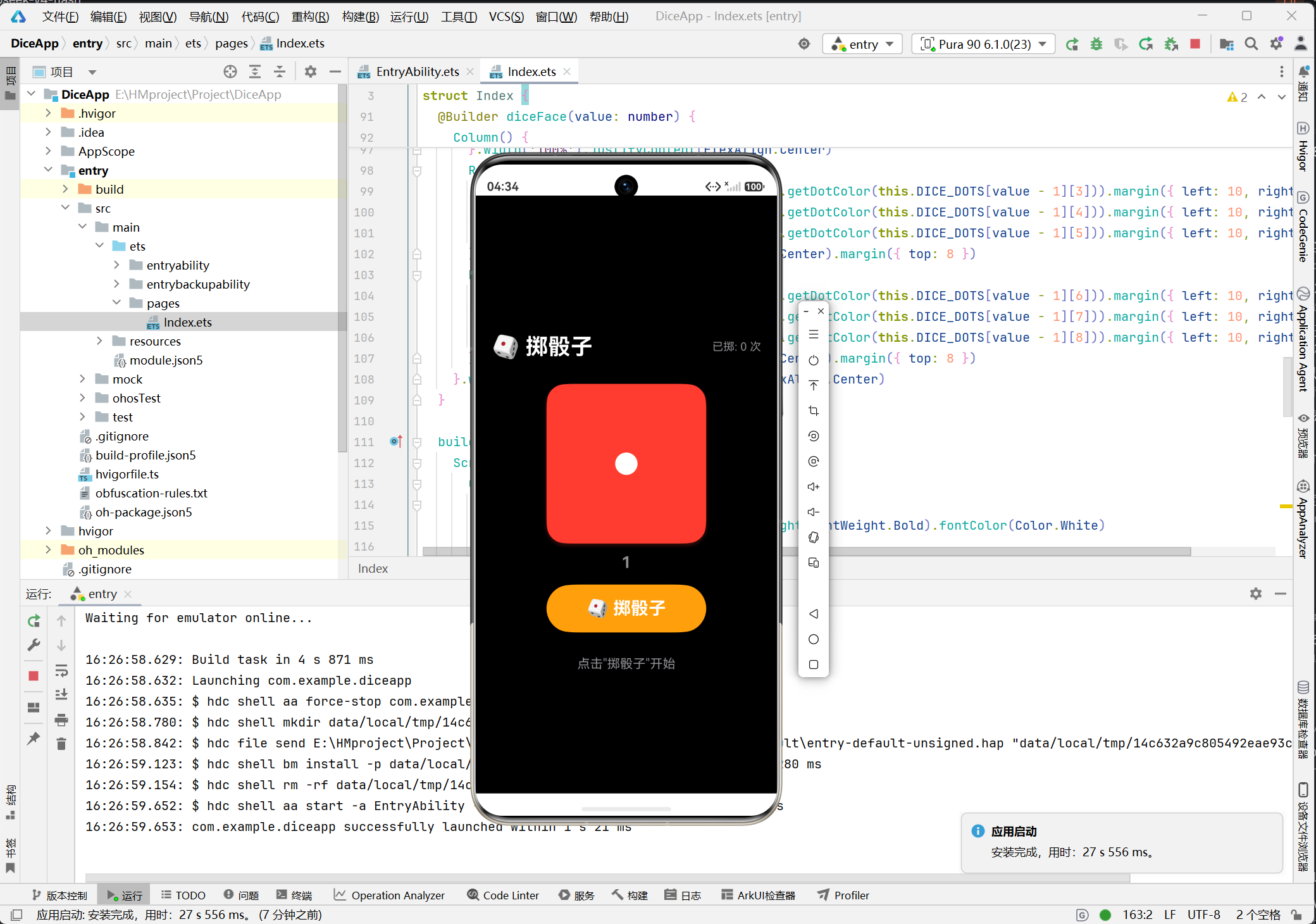
运行成功后,可以看到:
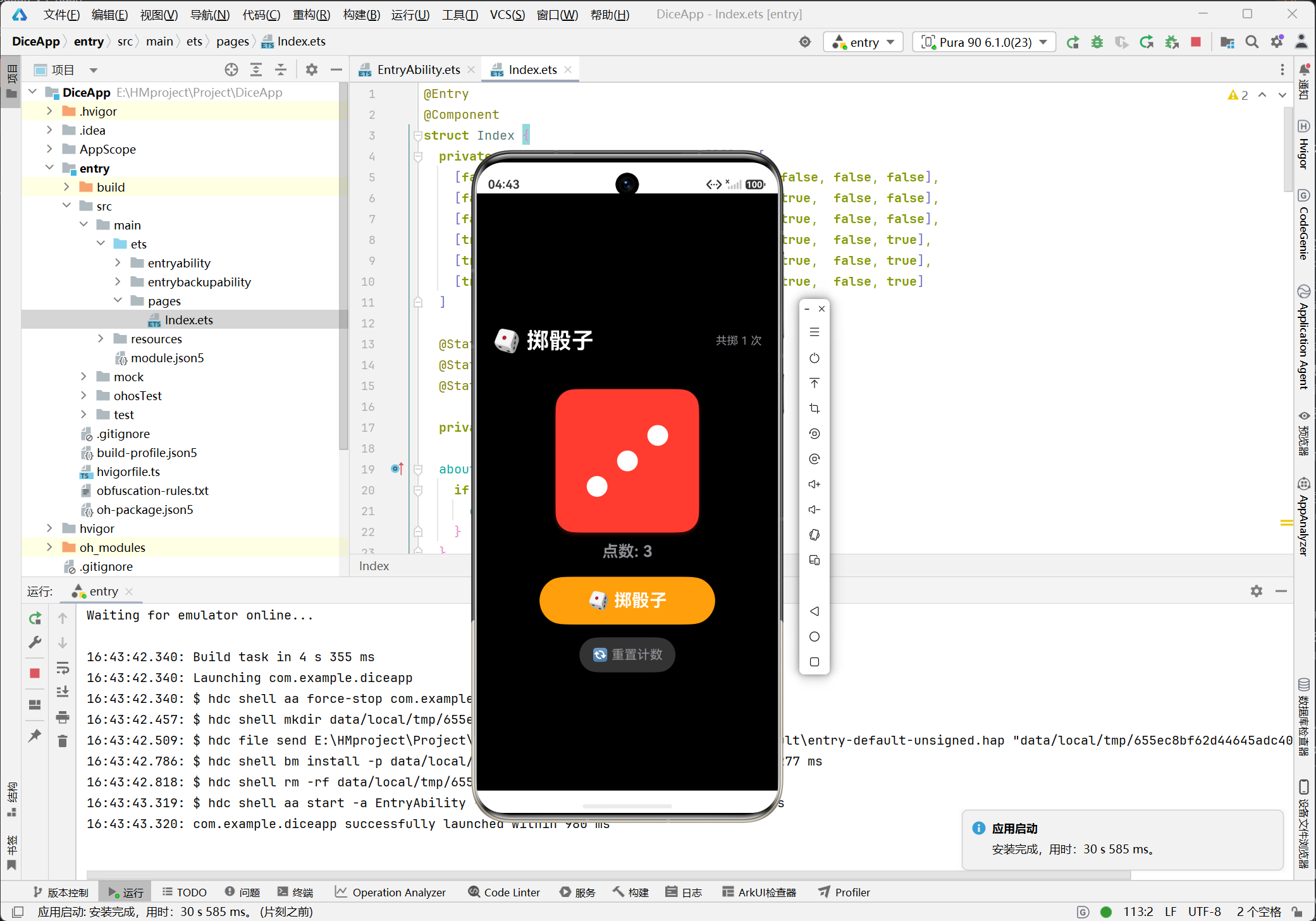
点击"掷骰子"按钮:
七、核心知识点总结
7.1 ArkUI 声明式UI
@Entry                    // 页面入口装饰器
@Component               // 组件装饰器
@State                   // 状态变量装饰器
7.2 常用组件
| 组件 | 用途 |
|---|---|
Column | 垂直布局容器 |
Row | 水平布局容器 |
Text | 文本显示 |
Button | 按钮 |
Circle | 圆形(用于骰子点) |
Scroll | 可滚动容器 |
7.3 状态驱动UI
ArkUI 采用状态驱动的方式,当 @State 变量改变时,UI会自动刷新:
@State currentValue: number = 1

// 改变状态
this.currentValue = 5  // UI自动更新为5点
7.4 条件渲染
使用 if 语句控制组件的显示/隐藏:
if (this.rollCount > 0) {
  Button('🔄 重置计数')
}
八、扩展思路
这个Demo还可以继续扩展,比如:
- 多种骰子类型 - 添加D20、D12等不同面数的骰子
- 多骰子模式 - 同时掷多个骰子
- 历史记录 - 记录每次的点数
- 音效 - 添加掷骰子的音效
- 震动反馈 - 利用手机振动增强体验
- 自定义主题 - 允许用户切换骰子颜色、背景等
九、常见问题
Q1: setInterval 为什么不停止?
确保在 aboutToDisappear 生命周期中清理定时器,否则可能导致内存泄漏。
Q2: 按钮连续点击会怎样?
代码中通过 if (this.isRolling) return 防止重复触发,同时按钮设置 enabled(!this.isRolling) 禁用状态。
Q3: 如何修改骰子颜色?
修改 backgroundColor('#FF3B30') 中的颜色值即可。
十、总结
通过这个掷骰子App的开发,我学习了:
✅ HarmonyOS项目结构和配置
✅ ArkUI声明式UI开发模式
✅ 状态管理(@State装饰器)
✅ 定时器实现动画效果
✅ 条件渲染和动态UI
✅ 组件生命周期管理
虽然功能简单,但涵盖了鸿蒙开发的核心概念。希望这篇博文能帮助到正在学习鸿蒙开发的小伙伴们!
参考资料
如果这篇文章对你有帮助,欢迎点赞、收藏、评论!你的支持是我创作的动力! 🎲

讨论HarmonyOS开发技术,专注于API与组件、DevEco Studio、测试、元服务和应用上架分发等。
更多推荐
 7
7 0
0- 0


 已为社区贡献17条内容

所有评论(0)