HarmonyOS NEXT 实战:从零开发 BMI 健康计算器
·
HarmonyOS NEXT 实战:从零开发 BMI 健康计算器
包名:
com.example.myapplication
API版本:HarmonyOS NEXT (API 23+)
开发工具:DevEco Studio
一、前言:为什么要做 BMI 计算器?
BMI(Body Mass Index,身体质量指数)是衡量人体胖瘦程度以及是否健康的一个常用指标。随着人们健康意识的提升,BMI 计算器成为各类健康管理 App 的标配功能。
作为一个练手项目,BMI 计算器非常适合入门:
- 功能明确:输入身高体重,计算并展示结果
- 涉及技术全面:状态管理、输入校验、条件渲染、UI布局
- 实用性强:开发完自己就能用
本文将详细记录从设计到实现的完整过程,适合正在学习鸿蒙开发的同学参考。
二、BMI 基础知识
2.1 BMI 计算公式
BMI = 体重(kg) ÷ 身高(m)²
示例:身高 175cm,体重 70kg
BMI = 70 ÷ (1.75)² = 70 ÷ 3.0625 = 22.86
2.2 BMI 分类标准(WHO)
| 分类 | BMI 范围 | 健康建议 |
|---|---|---|
| 偏瘦 | < 18.5 | 注意营养摄入 |
| 正常 | 18.5 ~ 24.9 | 保持良好习惯 |
| 超重 | 25 ~ 29.9 | 适当控制饮食 |
| 肥胖 | ≥ 30 | 建议咨询医生 |
2.3 功能设计
| 功能模块 | 描述 |
|---|---|
| 身高输入 | 数字键盘,单位 cm |
| 体重输入 | 数字键盘,单位 kg |
| BMI 计算 | 点击按钮触发计算 |
| 结果展示 | BMI 数值 + 分类标签 |
| 参考范围 | 可视化展示分类区间 |
| 输入校验 | 空值、非法值、范围检查 |
2.4 UI 设计
┌─────────────────────────────┐
│     BMI 健康计算器          │
│     Body Mass Index         │
├─────────────────────────────┤
│  ┌─────────────────────┐   │
│  │ 👤 身高      ___ cm │   │
│  │ ───────────────────│   │
│  │ ⚖️ 体重      ___ kg │   │
│  └─────────────────────┘   │
│                             │
│       [ 计算 BMI ]          │
│                             │
│  ┌─────────────────────┐   │
│  │    您的 BMI         │   │
│  │      22.9           │   │
│  │    [ 正常 ]         │   │
│  │                     │   │
│  │  BMI 参考范围       │   │
│  │ [偏瘦][正常][超重]  │   │
│  └─────────────────────┘   │
└─────────────────────────────┘
三、项目初始化
3.1 创建项目
打开 DevEco Studio,选择 Empty Ability 模板:
- 项目名称:MyApplication
- Bundle Name:com.example.myapplication
- Compile SDK:API 23(HarmonyOS NEXT)
- Model:Stage 模型
3.2 项目结构
MyApplication/
├── AppScope/
│   └── app.json5                 # 应用配置
├── entry/
│   └── src/main/
│       ├── ets/
│       │   ├── entryability/
│       │   │   └── EntryAbility.ets
│       │   └── pages/
│       │       └── Index.ets     # 主页面 ⭐
│       ├── resources/
│       │   └── base/element/
│       │       └── string.json
│       └── module.json5
└── build-profile.json5
四、数据结构设计
4.1 BMI 分类接口
定义分类的数据结构,包含标签、范围、颜色和阈值:
interface BmiCategory {
  label: string      // 分类名称,如"正常"
  range: string      // 范围描述,如"18.5~24.9"
  color: Color       // 显示颜色
  min: number        // 最小阈值
  max: number        // 最大阈值
}
4.2 分类数据
private readonly categories: BmiCategory[] = [
  { label: '偏瘦', range: '<18.5', color: Color.Orange, min: 0, max: 18.5 },
  { label: '正常', range: '18.5~24.9', color: Color.Green, min: 18.5, max: 25 },
  { label: '超重', range: '25~29.9', color: Color.Orange, min: 25, max: 30 },
  { label: '肥胖', range: '≥30', color: Color.Red, min: 30, max: 999 }
]
设计思路:
- 使用
min和max定义区间,方便判断 BMI 所属分类 max: 999是一个足够大的值,表示无上限- 颜色区分:绿色表示正常,橙色表示需注意,红色表示警示
五、状态管理
5.1 状态变量定义
@Entry
@Component
struct Index {
  // 用户输入
  @State heightValue: string = ''
  @State weightValue: string = ''

  // 计算结果
  @State bmiResult: number = 0
  @State category: string = '—'
  @State categoryColor: Color = Color.Gray

  // UI 状态
  @State showResult: boolean = false
  @State errorMsg: string = ''
}
状态说明:
| 变量 | 类型 | 用途 |
|---|---|---|
heightValue |
string | 绑定身高输入框 |
weightValue |
string | 绑定体重输入框 |
bmiResult |
number | 计算后的 BMI 值 |
category |
string | 分类标签文字 |
categoryColor |
Color | 分类标签颜色 |
showResult |
boolean | 控制结果区域显示 |
errorMsg |
string | 错误提示信息 |
5.2 状态联动
当用户修改输入时,隐藏之前的结果:
TextInput({ placeholder: '请输入身高', text: this.heightValue })
  .onChange((value: string) => {
    this.heightValue = value
    this.showResult = false    // 隐藏结果
    this.errorMsg = ''         // 清除错误
  })
六、BMI 计算逻辑
6.1 计算函数
handleCalculate(): void {
  const height = parseFloat(this.heightValue)
  const weight = parseFloat(this.weightValue)

  // 输入校验
  if (this.heightValue === '' || this.weightValue === '') {
    this.errorMsg = '⚠️ 请完整填写身高和体重'
    return
  }
  if (isNaN(height) || isNaN(weight) || height <= 0 || weight <= 0) {
    this.errorMsg = '⚠️ 请输入有效的正数数值'
    return
  }
  if (height > 300 || weight > 500) {
    this.errorMsg = '⚠️ 数值超出合理范围'
    return
  }

  this.errorMsg = ''

  // BMI 计算
  const heightM = height / 100  // cm 转 m
  const bmi = weight / (heightM * heightM)
  this.bmiResult = Math.round(bmi * 10) / 10  // 保留一位小数

  // 判断分类
  for (const cat of this.categories) {
    if (bmi >= cat.min && bmi < cat.max) {
      this.category = cat.label
      this.categoryColor = cat.color
      break
    }
  }

  this.showResult = true
}
6.2 校验逻辑详解
校验层次:
| 层次 | 校验内容 | 错误提示 |
|---|---|---|
| 第一层 | 空值检查 | 请完整填写身高和体重 |
| 第二层 | 有效性检查 | 请输入有效的正数数值 |
| 第三层 | 范围检查 | 数值超出合理范围 |
范围设定的依据:
- 身高上限 300cm:世界上最高的人约 272cm
- 体重上限 500kg:人类极限体重约 500kg+
6.3 BMI 计算
const heightM = height / 100  // 厘米转米
const bmi = weight / (heightM * heightM)
this.bmiResult = Math.round(bmi * 10) / 10
精度处理:
Math.round(bmi * 10) / 10保留一位小数- 例如:22.857… → 22.9
6.4 分类判断
for (const cat of this.categories) {
  if (bmi >= cat.min && bmi < cat.max) {
    this.category = cat.label
    this.categoryColor = cat.color
    break
  }
}
判断逻辑:
- 遍历分类数组,找到 BMI 所在的区间
min <= BMI < max,左闭右开- 找到后立即
break,提高效率
七、UI 布局实现
7.1 整体结构
build() {
  Column() {
    Scroll() {
      Column() {
        // 顶部标题区
        Column() { ... }

        // 输入卡片
        Column() { ... }

        // 计算按钮
        Button('计算 BMI')

        // 结果区域(条件渲染)
        if (this.showResult) {
          Column() { ... }
        }
      }
    }
  }
  .width('100%')
  .height('100%')
  .backgroundColor('#F1F8E9')  // 浅绿色背景
}
7.2 标题区域
Column() {
  Text('BMI 健康计算器')
    .fontSize(26)
    .fontWeight(FontWeight.Bold)
    .fontColor('#2E7D32')  // 深绿色

  Text('Body Mass Index')
    .fontSize(14)
    .fontColor('#81C784')  // 浅绿色
    .margin({ top: 4 })
}
.padding({ top: 32, bottom: 20 })
.width('100%')
设计要点:
- 主标题用深绿色,突出健康主题
- 副标题用浅绿色,层次分明
- 居中对齐,简洁大方
7.3 输入卡片
Column() {
  // 身高输入行
  Row() {
    Text('👤').fontSize(24)
    Text('身高').fontSize(16).margin({ left: 10 })

    Flex({ justifyContent: FlexAlign.End }) {
      TextInput({ placeholder: '请输入身高', text: this.heightValue })
        .width(140)
        .height(40)
        .type(InputType.Number)
        .textAlign(TextAlign.End)
        .onChange((value: string) => {
          this.heightValue = value
          this.showResult = false
          this.errorMsg = ''
        })
    }

    Text('cm').fontSize(15).fontColor('#666').margin({ left: 6 })
  }
  .width('100%')
  .padding({ top: 8, bottom: 8 })

  Divider().height(1).color('#E8F5E9')

  // 体重输入行(结构类似)
  Row() { ... }
}
.padding(20)
.backgroundColor(Color.White)
.borderRadius(16)
.shadow({ radius: 8, color: '#1A000000', offsetY: 4 })
.margin({ left: 20, right: 20 })
布局技巧:
- 使用
Flex将输入框推到右侧 TextInput设置textAlign(TextAlign.End)让数字右对齐- 分隔线使用浅绿色,与主题呼应
- 卡片添加阴影,增加层次感
7.4 计算按钮
Button('计算 BMI')
  .width(200)
  .height(48)
  .backgroundColor('#4CAF50')  // Material 绿色
  .borderRadius(24)             // 胶囊形状
  .fontSize(17)
  .fontWeight(FontWeight.Medium)
  .margin({ top: 24, bottom: 8 })
  .onClick(() => this.handleCalculate())
设计要点:
- 使用 Material Design 的绿色
- 圆角设置为高度的一半,形成胶囊形状
- 点击触发计算函数
7.5 错误提示
if (this.errorMsg !== '') {
  Text(this.errorMsg)
    .fontSize(13)
    .fontColor(Color.Red)
    .margin({ top: 4 })
}
7.6 结果区域
if (this.showResult) {
  Column() {
    // BMI 数值
    Text('您的 BMI')
      .fontSize(15)
      .fontColor('#666')

    Text(`${this.bmiResult.toFixed(1)}`)
      .fontSize(52)
      .fontWeight(FontWeight.Bold)
      .fontColor(this.categoryColor)  // 颜色根据分类变化
      .margin({ top: 4 })

    // 分类标签
    Text(this.category)
      .fontSize(20)
      .fontWeight(FontWeight.Bold)
      .fontColor(Color.White)
      .padding({ left: 28, right: 28, top: 6, bottom: 6 })
      .backgroundColor(this.categoryColor)
      .borderRadius(20)
      .margin({ top: 6 })

    // 参考范围条
    Column() {
      Text('BMI 参考范围')
        .fontSize(13)
        .fontColor('#888')
        .margin({ bottom: 8 })

      Row() {
        Text('偏瘦\n<18.5')
          .fontSize(11)
          .textAlign(TextAlign.Center)
          .width(70)
          .height(36)
          .backgroundColor('#FFF3E0')  // 浅橙
          .borderRadius({ topLeft: 8, bottomLeft: 8 })

        Text('正常\n18.5~24.9')
          .fontSize(11)
          .textAlign(TextAlign.Center)
          .width(90)
          .height(36)
          .backgroundColor('#E8F5E9')  // 浅绿

        Text('超重\n25~29.9')
          .fontSize(11)
          .textAlign(TextAlign.Center)
          .width(80)
          .height(36)
          .backgroundColor('#FFF3E0')  // 浅橙

        Text('肥胖\n≥30')
          .fontSize(11)
          .textAlign(TextAlign.Center)
          .width(60)
          .height(36)
          .backgroundColor('#FFEBEE')  // 浅红
          .borderRadius({ topRight: 8, bottomRight: 8 })
      }
      .width('100%')
    }
    .width('100%')
    .padding(16)
    .backgroundColor('#FAFAFA')
    .borderRadius(12)
    .margin({ top: 16 })
  }
  .width('100%')
  .padding(24)
  .backgroundColor(Color.White)
  .borderRadius(16)
  .shadow({ radius: 8, color: '#1A000000', offsetY: 4 })
  .margin({ left: 20, right: 20, top: 20 })
  .alignItems(HorizontalAlign.Center)
}
设计要点:
- BMI 数值用大字号(52)突出显示
- 数值颜色随分类变化,直观传达健康状态
- 分类标签使用圆角矩形,颜色与数值一致
- 参考范围条使用不同背景色区分各区间
八、运行效果
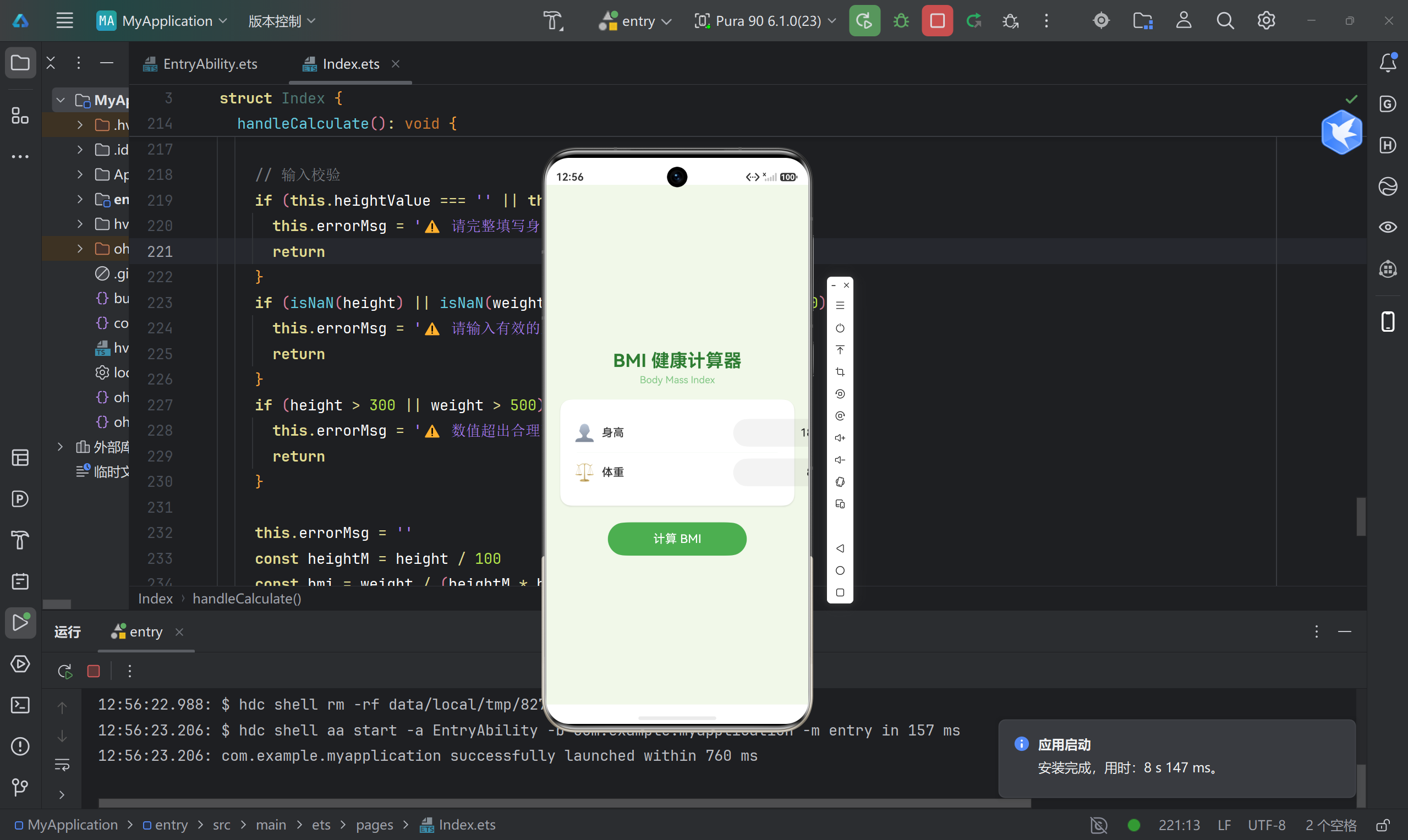
九、踩坑记录
9.1 踩坑一:输入框绑定问题
问题:修改输入后,heightValue 没有更新。
原因:忘记在 onChange 回调中更新状态。
解决:
.onChange((value: string) => {
  this.heightValue = value  // 必须显式更新
})
9.2 踩坑二:数字键盘不显示
问题:点击输入框弹出的是全键盘。
原因:没有设置 type 属性。
解决:
TextInput({ placeholder: '请输入身高' })
  .type(InputType.Number)  // 指定数字键盘
9.3 踩坑三:结果不更新
问题:修改输入后,之前的结果仍然显示。
原因:没有重置 showResult 状态。
解决:
.onChange((value: string) => {
  this.heightValue = value
  this.showResult = false  // 隐藏旧结果
})
9.4 踩坑四:颜色类型错误
问题:设置 categoryColor 时报类型错误。
原因:使用了字符串 '#FF0000',但声明的是 Color 类型。
解决:统一使用 Color 枚举:
color: Color.Red    // 正确
color: Color.Green  // 正确
// color: '#FF0000' // 错误
9.5 踩坑五:精度问题
问题:BMI 显示为 22.857142857142858,小数位太长。
原因:浮点数除法精度问题。
解决:
// 方法一:toFixed + 转换
this.bmiResult = Math.round(bmi * 10) / 10

// 方法二:显示时格式化
Text(`${this.bmiResult.toFixed(1)}`)
十、优化建议
10.1 功能扩展
- 保存记录:使用 Preferences 存储历史 BMI 记录
- 趋势图表:绘制 BMI 变化曲线
- 健康建议:根据分类给出具体建议
- 年龄/性别因素:考虑不同人群的 BMI 标准
10.2 用户体验
- 实时计算:输入完成自动计算,无需点击按钮
- 滑动输入:使用 Slider 组件代替输入框
- 动画效果:结果区域添加过渡动画
- 深色模式:适配系统暗黑主题
10.3 数据科学
- 体脂率计算:结合年龄、性别估算体脂率
- 腰围指数:增加腰围输入,计算腰臀比
- 个性化标准:针对不同人群的 BMI 标准
十一、总结
11.1 技术要点回顾
| 类别 | 知识点 |
|---|---|
| 状态管理 | @State 装饰器、状态联动 |
| 输入校验 | 空值、格式、范围多层校验 |
| 条件渲染 | if 控制结果区域显示 |
| UI布局 | Column、Row、Flex 组合 |
| 数据结构 | interface 定义分类 |
11.2 项目亮点
- ✅ 完整的输入校验逻辑
- ✅ 动态颜色变化的分类标签
- ✅ 可视化的参考范围条
- ✅ 清新健康的 UI 风格
- ✅ 卡片式布局设计
11.3 代码统计
- 核心代码:约 180 行(
Index.ets单文件) - 状态定义:约 10 行
- 计算逻辑:约 30 行
- UI 布局:约 140 行
十二、附录
12.1 BMI 计算公式
BMI = weight / (height / 100)²
12.2 分类判断代码
for (const cat of this.categories) {
  if (bmi >= cat.min && bmi < cat.max) {
    this.category = cat.label
    this.categoryColor = cat.color
    break
  }
}
12.3 完整状态定义
@State heightValue: string = ''
@State weightValue: string = ''
@State bmiResult: number = 0
@State category: string = '—'
@State categoryColor: Color = Color.Gray
@State showResult: boolean = false
@State errorMsg: string = ''

讨论HarmonyOS开发技术,专注于API与组件、DevEco Studio、测试、元服务和应用上架分发等。
更多推荐
 13
13 0
0- 0


 已为社区贡献68条内容

所有评论(0)