第47篇|详情页大图浏览:Swiper、页码和控制层如何协作
第47篇|详情页大图浏览:Swiper、页码和控制层如何协作
相册卡片解决的是浏览入口,详情页解决的是沉浸查看。双镜照片不只有一张图:可能有后摄主图、前摄图,也可能同组里还有多张记录。详情页要把这些内容转成可滑动帧。
这一篇看详情页的大图结构。重点是 MediaPreviewFrame 如何生成,Swiper 如何驱动索引变化,控制层如何在不遮挡图片的情况下展示标题、地点、备注、保存和分享动作。
这一篇继续围绕 21 天「智能相机开发实战」训练营展开。内容只使用当前项目里的 ArkTS、服务层代码和真实页面截图来讲,不把封面图放进正文。阅读时可以先看截图理解用户侧效果,再顺着函数名回到工程定位实现。
本篇目标
- 理解详情页为什么要把记录转换成 frame。
- 掌握 getGalleryDetailFrames 的数据准备逻辑。
- 读懂 Swiper、页码和控制层的协作关系。
- 知道切换图片时如何同步相册选中记录。
对应源码位置
entry/src/main/ets/pages/Index.ets
一、详情页先把记录变成可浏览帧
一条 GalleryMoment 可能包含后摄和前摄两张图。详情页不能只展示 backUri,否则双镜作品的一半信息会被隐藏。项目先把记录转换成 MediaPreviewFrame,每个 frame 有 id、uri、label 和可选 recordId。
有了 frame,Swiper 就不需要理解 GalleryMoment 的内部字段。它只渲染一组图片帧,控制层再根据 frame 找回对应记录。
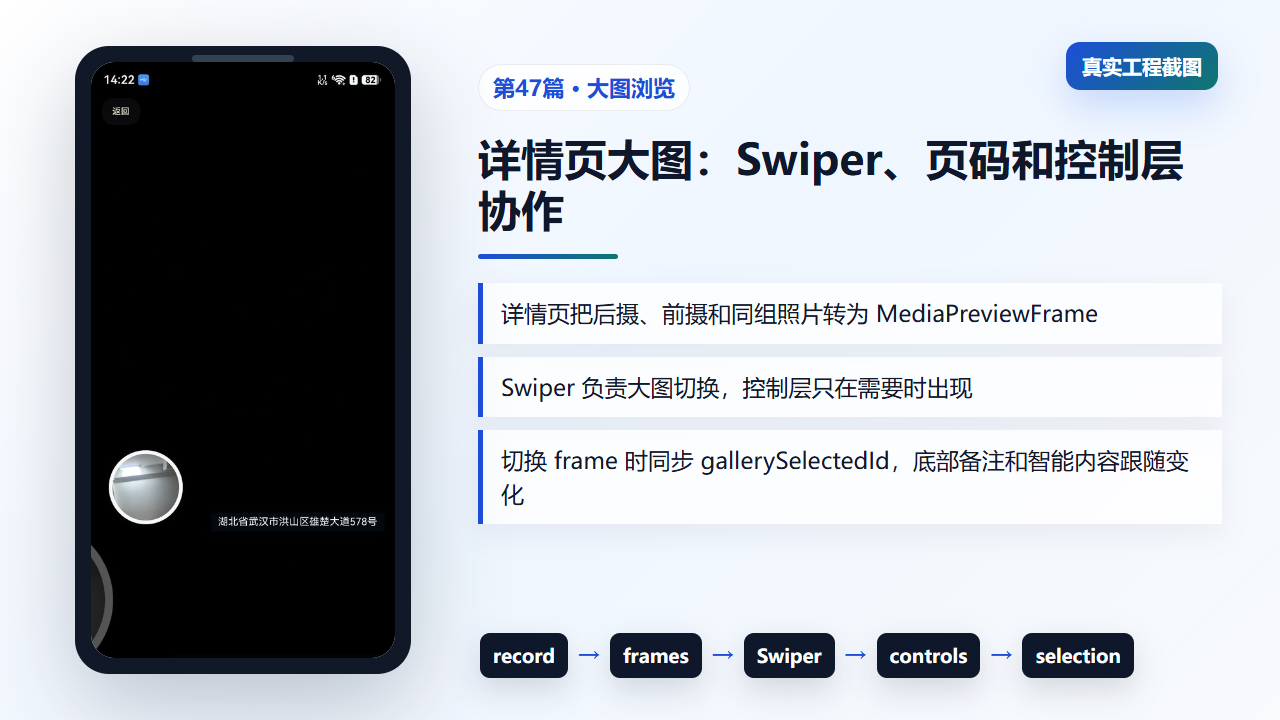
图1 详情页大图浏览中的 Swiper、页码和控制层
二、getGalleryDetailFrames 生成后摄、前摄和同组帧
函数先加入当前记录的后摄图,再判断前摄图是否存在且不同于后摄图。如果双镜作品有前摄图,就追加第二个 frame。这样单拍和双拍都能进入同一个详情页组件。
同组照片还可以继续补充到帧列表,形成“同一地点同一天”的连续浏览体验。
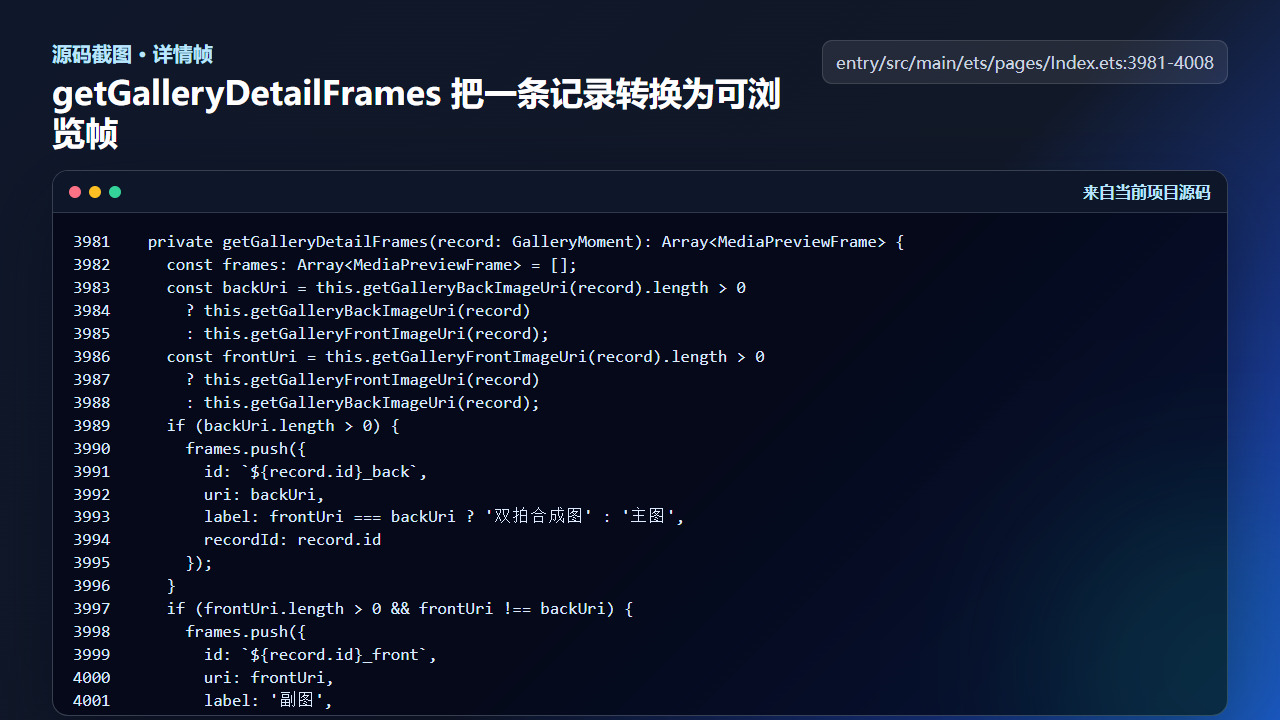
图2 getGalleryDetailFrames 把一条记录转换为可浏览帧
  private getGalleryDetailFrames(record: GalleryMoment): Array<MediaPreviewFrame> {
    const frames: Array<MediaPreviewFrame> = [];
    const backUri = this.getGalleryBackImageUri(record).length > 0
      ? this.getGalleryBackImageUri(record)
      : this.getGalleryFrontImageUri(record);
    const frontUri = this.getGalleryFrontImageUri(record).length > 0
      ? this.getGalleryFrontImageUri(record)
      : this.getGalleryBackImageUri(record);
    if (backUri.length > 0) {
      frames.push({
        id: `${record.id}_back`,
        uri: backUri,
        label: frontUri === backUri ? '双拍合成图' : '主图',
        recordId: record.id
      });
    }
    if (frontUri.length > 0 && frontUri !== backUri) {
      frames.push({
        id: `${record.id}_front`,
        uri: frontUri,
        label: '副图',
        recordId: record.id
      });
    }
    return frames;
  }

  private getGalleryGroupDetailFrames(): Array<MediaPreviewFrame> {
这个函数是详情页数据适配层。后续加入视频帧或 AI 生成图,也应先转换为类似 frame,再交给 UI。
三、Swiper 负责大图切换,状态负责同步选择
buildGalleryDetailFullScreenPage 使用 Swiper 渲染 getFeaturedGalleryFrames()。每次 onChange 更新 galleryDetailPhotoIndex,并调用 syncGallerySelectionFromDetailFrame,让底部信息和当前图片保持一致。
如果只更新 Swiper 索引,不同步选中记录,用户看到第二张图时,备注、标题、分享对象可能仍然指向第一条记录。
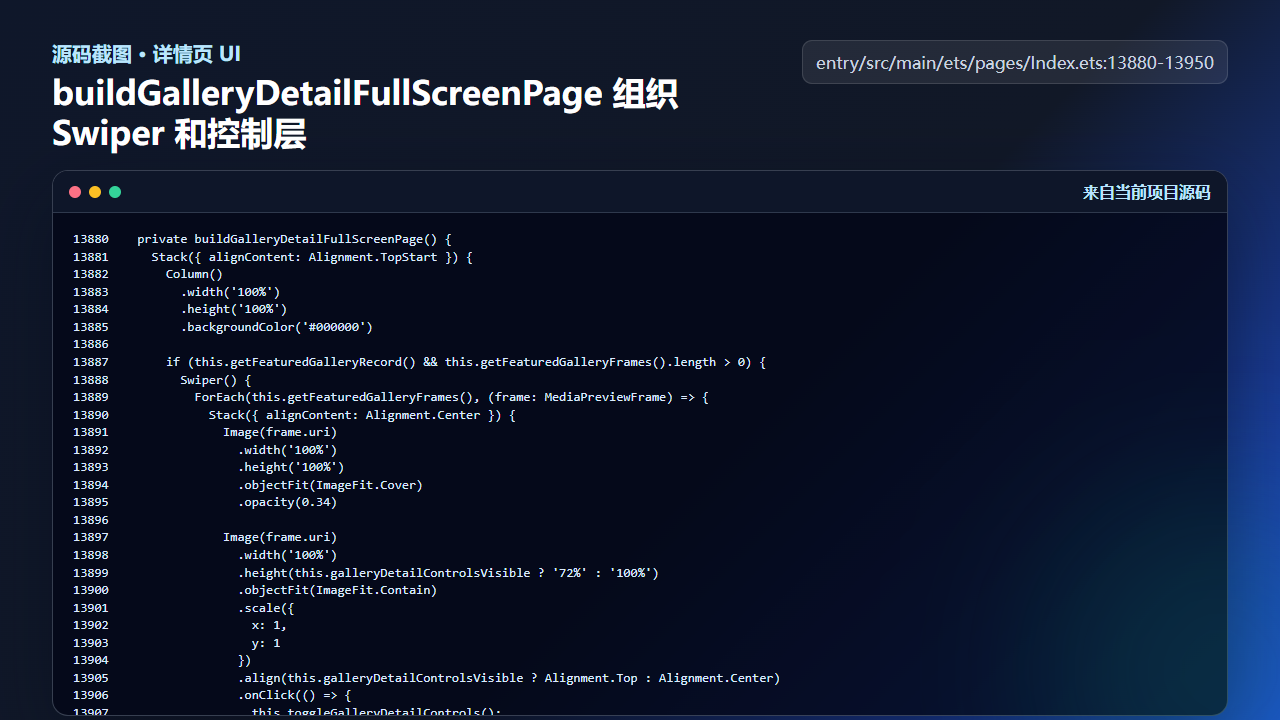
图3 buildGalleryDetailFullScreenPage 组织 Swiper 和控制层
  private buildGalleryDetailFullScreenPage() {
    Stack({ alignContent: Alignment.TopStart }) {
      Column()
        .width('100%')
        .height('100%')
        .backgroundColor('#000000')

      if (this.getFeaturedGalleryRecord() && this.getFeaturedGalleryFrames().length > 0) {
        Swiper() {
          ForEach(this.getFeaturedGalleryFrames(), (frame: MediaPreviewFrame) => {
            Stack({ alignContent: Alignment.Center }) {
              Image(frame.uri)
                .width('100%')
                .height('100%')
                .objectFit(ImageFit.Cover)
                .opacity(0.34)

              Image(frame.uri)
                .width('100%')
                .height(this.galleryDetailControlsVisible ? '72%' : '100%')
                .objectFit(ImageFit.Contain)
                .scale({
                  x: 1,
                  y: 1
                })
                .align(this.galleryDetailControlsVisible ? Alignment.Top : Alignment.Center)
                .onClick(() => {
                  this.toggleGalleryDetailControls();
                })

              if (this.galleryDetailControlsVisible && frame.label.length > 0) {
                Text(frame.label)
                  .fontSize(11)
                  .fontColor('#FFF7E6')
                  .maxLines(1)
                  .padding({
                    left: 10,
                    right: 10,
                    top: 6,
                    bottom: 6
                  })
                  .backgroundColor('#80111317')
                  .borderRadius(12)
                  .margin({
                    right: 18,
                    bottom: this.getPageBottomPadding(18)
                  })
                  .align(Alignment.BottomEnd)
              }
            }
            .width('100%')
            .height('100%')
            .backgroundColor('#000000')
            .onClick(() => {
              this.toggleGalleryDetailControls();
            })
          }, (frame: MediaPreviewFrame) => frame.id)
        }
        .width('100%')
        .height('100%')
        .index(this.galleryDetailPhotoIndex)
        .autoPlay(false)
        .loop(this.getFeaturedGalleryFrames().length > 1)
        .indicator(this.getFeaturedGalleryFrames().length > 1)
        .onClick(() => {
          this.toggleGalleryDetailControls();
        })
        .onChange((index: number) => {
          this.galleryDetailPhotoIndex = index;
          this.syncGallerySelectionFromDetailFrame(index);
          this.galleryDetailImageZoomed = false;
大图浏览的难点不是把图片放大,而是图像索引、记录选择和控制层内容同步。
四、控制层只在需要时出现,承接操作闭环
详情控制层展示返回、页码、标题、地点、时间、备注编辑、保存、移入保险箱、分享、删除等动作。它不应该一直遮挡图片,所以项目通过 galleryDetailControlsVisible 控制显示。
控制层里的动作都基于当前 getFeaturedGalleryRecord()。这意味着 Swiper 切换后,控制层操作对象也随之变化,避免用户分享或删除错照片。
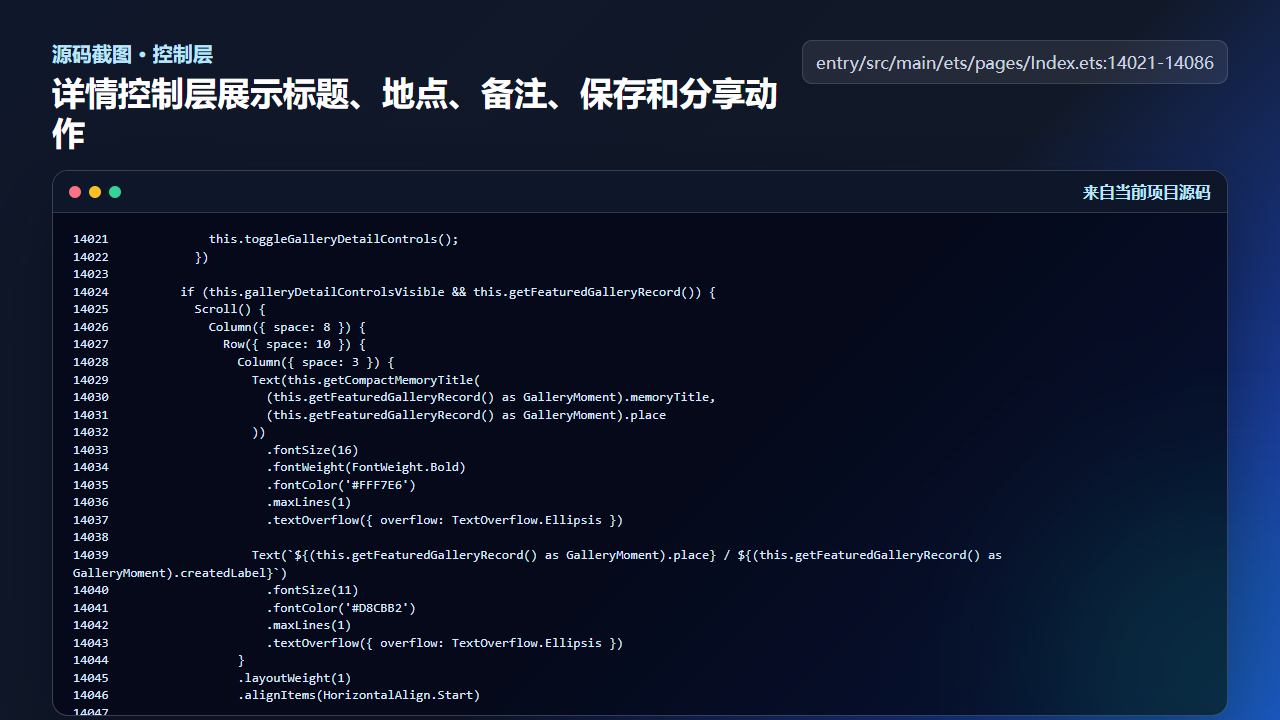
图4 详情控制层展示标题、地点、备注、保存和分享动作
            this.toggleGalleryDetailControls();
          })

        if (this.galleryDetailControlsVisible && this.getFeaturedGalleryRecord()) {
          Scroll() {
            Column({ space: 8 }) {
              Row({ space: 10 }) {
                Column({ space: 3 }) {
                  Text(this.getCompactMemoryTitle(
                    (this.getFeaturedGalleryRecord() as GalleryMoment).memoryTitle,
                    (this.getFeaturedGalleryRecord() as GalleryMoment).place
                  ))
                    .fontSize(16)
                    .fontWeight(FontWeight.Bold)
                    .fontColor('#FFF7E6')
                    .maxLines(1)
                    .textOverflow({ overflow: TextOverflow.Ellipsis })

                  Text(`${(this.getFeaturedGalleryRecord() as GalleryMoment).place} / ${(this.getFeaturedGalleryRecord() as GalleryMoment).createdLabel}`)
                    .fontSize(11)
                    .fontColor('#D8CBB2')
                    .maxLines(1)
                    .textOverflow({ overflow: TextOverflow.Ellipsis })
                }
                .layoutWeight(1)
                .alignItems(HorizontalAlign.Start)

                if (this.getFeaturedGalleryCurrentFrame()) {
                  Text((this.getFeaturedGalleryCurrentFrame() as MediaPreviewFrame).label)
                    .fontSize(11)
                    .fontColor('#E9B65E')
                    .padding({ left: 10, right: 10, top: 5, bottom: 5 })
                    .backgroundColor('#4A111317')
                    .borderRadius(12)
                }
              }
              .width('100%')

              this.buildPreviewRemarkEditor(this.getFeaturedGalleryRecord() as GalleryMoment)

              if (this.galleryNoticeText.trim().length > 0) {
                Text(this.galleryNoticeText)
                  .fontSize(12)
                  .lineHeight(18)
                  .fontColor('#F7D58A')
                  .maxLines(2)
                  .textOverflow({ overflow: TextOverflow.Ellipsis })
                  .width('100%')
                  .padding({ left: 10, right: 10, top: 7, bottom: 7 })
                  .backgroundColor('#332F77B4')
                  .borderRadius(14)
              }

              Row({ space: 8 }) {
                this.buildGalleryDetailSaveAction(!this.mediaExportBusy && !this.systemShareBusy && !this.vaultAuthBusy)
                this.buildPhotoRoundAction('□', '保险箱', '#3B4256',
                  !this.mediaExportBusy && !this.systemShareBusy && !this.vaultAuthBusy, () => {
                    void this.moveRecordToVault((this.getFeaturedGalleryRecord() as GalleryMoment).id);
                  })
                this.buildPhotoRoundAction('↗', '分享', '#2E5B42',
                  !this.mediaExportBusy && !this.systemShareBusy && !this.vaultAuthBusy, () => {
                    void this.shareRecordWithSystemShare(this.getFeaturedGalleryRecord() as GalleryMoment, 'gallery');
                  })
                this.buildPhotoRoundAction('×', '删除', '#5A2B31',
                  !this.mediaExportBusy && !this.systemShareBusy && !this.vaultAuthBusy, () => {
                    void this.deleteGalleryRecord((this.getFeaturedGalleryRecord() as GalleryMoment).id);
详情页要经常真机检查:图片比例、控制层遮挡、底部安全区、返回手势和删除确认都容易在小屏上出现问题。
工程检查清单
- 详情页先把记录转换成 MediaPreviewFrame,再交给 Swiper。
- 双拍记录要同时支持后摄主图和前摄图。
- Swiper 切换时同步 galleryDetailPhotoIndex 和 gallerySelectedId。
- 控制层显示隐藏不能遮挡核心图片。
- 分享、保存、删除动作必须基于当前选中记录。
今日练习
- 给一条双拍记录手动写出它的 frame 列表。
- 真机点击详情页图片,观察控制层显示隐藏是否影响滑动。
- 设计一个“只看主图”的过滤开关,思考它应该作用在 frame 生成还是 Swiper 渲染。
训练营后面的内容会继续按“真实页面效果 → 源码定位 → 状态闭环 → 可验证结果”的节奏推进。每一篇都尽量让你能拿着代码直接回到项目里复现,而不是只停留在概念说明。

讨论HarmonyOS开发技术,专注于API与组件、DevEco Studio、测试、元服务和应用上架分发等。
更多推荐


 51
51 0
0- 0


 已为社区贡献281条内容

所有评论(0)