《HarmonyOS技术精讲-Core File Kit》第18篇:结合UI——文件选择器开发
《HarmonyOS技术精讲-Core File Kit》第18篇:结合UI——文件选择器开发
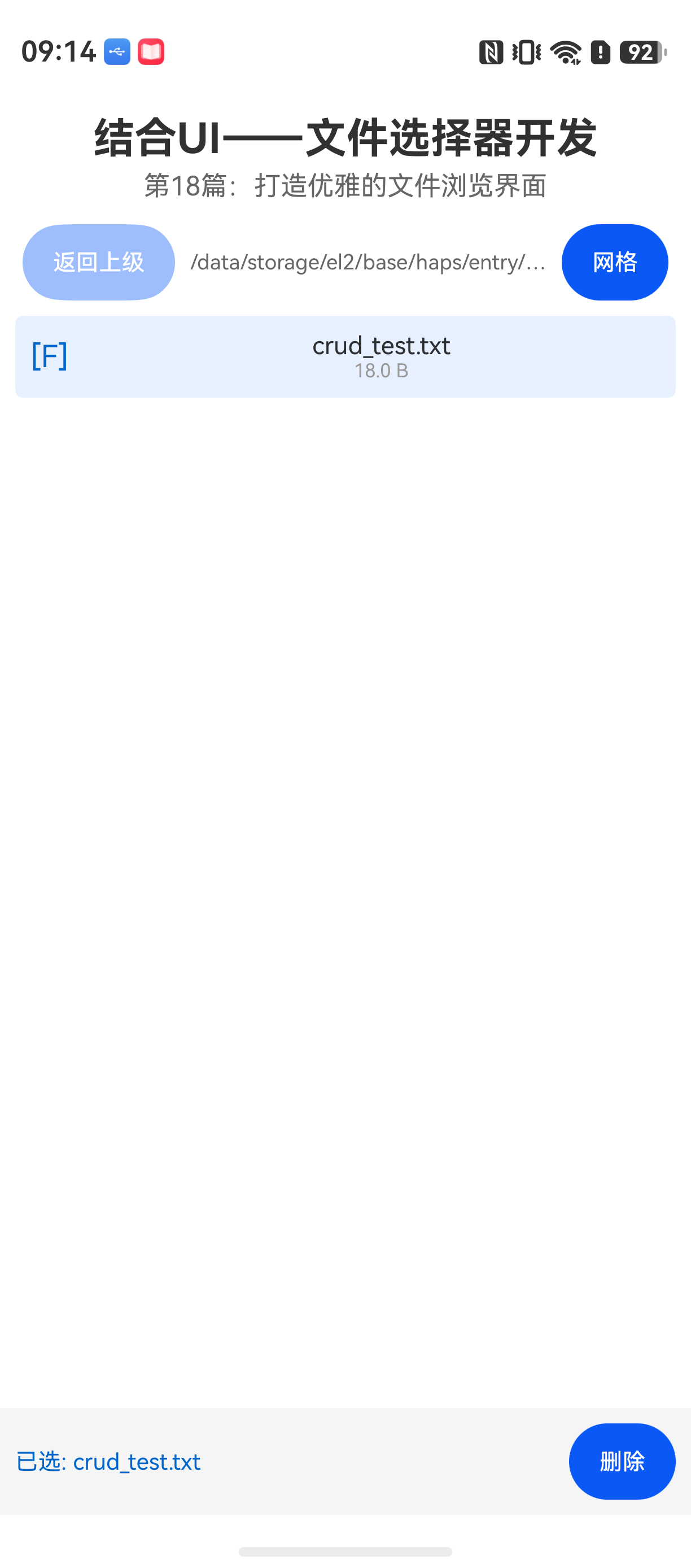
HarmonyOS NEXT 开发中,文件选择是一个很常见的基础需求。官方提供的 fileManager API 能完成文件列表获取,但直接用在 UI 上,需要处理的问题比想象中多。目录导航、视图切换、状态同步、权限处理,这些细节不处理好,功能就跑不起来。
很多人的做法是直接用系统弹窗选择文件。但如果你需要自定义 UI、支持多视图、目录自由导航、长按菜单这些能力,就必须自己实现一个文件选择器组件。这篇文章会从零开始实现一个支持列表/网格切换、目录导航、文件预览、长按菜单的文件选择器。
实际场景
比如一个本地文件管理功能,需要用户浏览设备存储目录、选择文件进行处理。系统文件选择器不能满足复杂交互需求,就需要自定义实现。这个场景在文件管理、云盘客户端、上传工具类应用里都会遇到。
环境说明
DevEco Studio 版本:DevEco Studio 6.1.0 及以上
HarmonyOS SDK 版本:HarmonyOS 6.1.0(23) 及以上
目标设备:手机
核心实现
整个实现分为四个部分:文件列表获取、目录导航、UI 渲染、交互菜单。下面一步步完成。
文件列表获取
fileManager.listFile 是最核心的 API。它的作用是指定目录路径,返回该目录下的文件和子目录列表。这里的坑是:返回值是 FileInfo 对象数组,不是字符串路径,必须自己解析。
// FileList.ets
import { fileManager } from '@kit.CoreFileKit';
import { systemCapability } from '@kit.AbilityKit';

export class FileList {
  static async getFileList(dirPath: string): Promise<Array<fileManager.FileInfo>> {
    try {
      // 检查目录是否存在
      if (!fs.statSync(dirPath).isDirectory()) {
        return [];
      }
      const files = await fileManager.listFile(dirPath, {
        recursive: false, // 不递归子目录
        filter: undefined
      });
      return files;
    } catch (error) {
      console.error(`listFile error: ${error.message}`);
      return [];
    }
  }
}
注意 recursive 参数默认是 false,如果需要子目录遍历,要改成 true。这里设置为 false 是因为我们只需要当前目录一层,目录导航由路径栈控制。
路径栈管理
目录导航的核心是一个栈结构。每次进入子目录 push 一次,返回上一级 pop 一次。当前路径就是栈顶元素。
// PathStack.ets
export class PathStack {
  private stack: Array<string> = [];

  constructor(initialPath: string) {
    this.stack.push(initialPath);
  }

  getCurrentPath(): string {
    return this.stack[this.stack.length - 1];
  }

  push(path: string): void {
    this.stack.push(path);
  }

  pop(): string | undefined {
    if (this.stack.length > 1) {
      return this.stack.pop();
    }
    return undefined;
  }

  canBack(): boolean {
    return this.stack.length > 1;
  }

  clear(): void {
    this.stack = [this.stack[0]];
  }
}
不要用数组的 shift 做栈操作,性能差且逻辑复杂。这里用 push/pop 是最简单的。
UI 组件
UI 组件需要支持列表和网格两种视图模式。用一个 @State 变量控制视图类型。
// FileSelector.ets
import { fileManager } from '@kit.CoreFileKit';
import { PathStack } from './PathStack';

@Entry
@Component
struct FileSelector {
  @State fileList: Array<fileManager.FileInfo> = [];
  @State isGridView: boolean = false;
  @State currentPath: string = '/storage/emulated/0';
  private pathStack: PathStack = new PathStack(this.currentPath);

  aboutToAppear(): void {
    this.loadFiles(this.currentPath);
  }

  async loadFiles(dirPath: string): Promise<void> {
    try {
      const files = await fileManager.listFile(dirPath, {
        recursive: false
      });
      this.fileList = files;
    } catch (error) {
      console.error(`loadFiles failed: ${error.message}`);
    }
  }

  onDirectoryTap(file: fileManager.FileInfo): void {
    if (file.isDirectory) {
      const newPath = `${this.currentPath}/${file.name}`;
      this.pathStack.push(newPath);
      this.currentPath = newPath;
      this.loadFiles(newPath);
    }
  }

  onBackTap(): void {
    if (this.pathStack.canBack()) {
      const parentPath = this.pathStack.pop();
      if (parentPath) {
        this.currentPath = parentPath;
        this.loadFiles(parentPath);
      }
    }
  }

  build() {
    Column() {
      // 导航栏
      Row() {
        Button('返回')
          .enabled(this.pathStack.canBack())
          .onClick(() => this.onBackTap())
        Text(this.currentPath)
          .fontSize(14)
          .fontWeight(FontWeight.Medium)
          .margin({ left: 10 })
      }
      .width('100%')
      .padding(10)

      // 视图切换
      Row() {
        Button('列表')
          .onClick(() => this.isGridView = false)
        Button('网格')
          .onClick(() => this.isGridView = true)
      }
      .width('100%')
      .padding(10)
      .justifyContent(FlexAlign.End)

      // 文件列表
      if (this.isGridView) {
        Grid() {
          ForEach(this.fileList, (item: fileManager.FileInfo) => {
            GridItem() {
              this.FileItemView(item)
            }
          })
        }
        .columnsTemplate('1fr 1fr 1fr')
        .columnsGap(8)
        .rowsGap(8)
        .padding(10)
      } else {
        List() {
          ForEach(this.fileList, (item: fileManager.FileInfo) => {
            ListItem() {
              this.FileItemView(item)
            }
          })
        }
        .padding(10)
      }
    }
    .width('100%')
    .height('100%')
  }

  @Builder
  FileItemView(item: fileManager.FileInfo) {
    Column() {
      // 文件图标(根据isDirectory显示不同图标)
      Image($r('app.media.ic_file'))
        .width(40)
        .height(40)
        .objectFit(ImageFit.Contain)
      Text(item.name)
        .fontSize(14)
        .lineHeight(20)
        .maxLines(1)
        .textOverflow({ overflow: TextOverflow.Ellipsis })
    }
    .width('100%')
    .padding(10)
    .onClick(() => {
      if (item.isDirectory) {
        this.onDirectoryTap(item);
      } else {
        // 文件预览
        this.previewFile(item);
      }
    })
    .onLongPress(() => {
      this.showFileMenu(item);
    })
  }

  previewFile(file: fileManager.FileInfo): void {
    // 简单预览:弹窗显示文件大小和信息
    AlertDialog.show({
      title: '文件信息',
      message: `文件名: ${file.name}\n大小: ${file.size} bytes\n修改时间: ${file.modifyTime}`,
      confirm: {
        value: '关闭',
        action: () => {}
      }
    })
  }

  showFileMenu(file: fileManager.FileInfo): void {
    // 弹出菜单:分享/删除
    ActionSheet.show({
      title: file.name,
      items: [
        { value: '分享', action: () => this.shareFile(file) },
        { value: '删除', action: () => this.deleteFile(file) }
      ]
    })
  }

  async shareFile(file: fileManager.FileInfo): Promise<void> {
    // 分享功能需要调用对应API,这里只做占位
    console.info(`share file: ${file.name}`);
  }

  async deleteFile(file: fileManager.FileInfo): Promise<void> {
    try {
      const filePath = `${this.currentPath}/${file.name}`;
      if (file.isDirectory) {
        await fs.rmdirSync(filePath);
      } else {
        await fs.unlinkSync(filePath);
      }
      // 重新加载当前目录
      this.loadFiles(this.currentPath);
    } catch (error) {
      console.error(`delete failed: ${error.message}`);
    }
  }
}
关键点:
aboutToAppear里初始加载,保证页面创建后自动显示文件列表- 点击目录时同步更新
currentPath和栈 - 视图切换通过
@State isGridView控制,ArkUI 会自动重建组件 - 长按使用
onLongPress触发菜单
文件图标处理
上面用了一个固定图标,实际开发中需要根据文件类型显示不同图标。简单做法:
getFileIcon(name: string): Resource {
  const ext = name.split('.').pop()?.toLowerCase();
  switch (ext) {
    case 'jpg':
    case 'png':
      return $r('app.media.ic_image');
    case 'mp4':
      return $r('app.media.ic_video');
    case 'pdf':
      return $r('app.media.ic_pdf');
    default:
      return $r('app.media.ic_file');
  }
}
踩坑记录
问题 1:权限问题导致文件列表为空
现象:真机上运行,listFile 返回空数组,没有报错。
原因:fileManager.listFile 需要声明权限 ohos.permission.READ_MEDIA 和 ohos.permission.WRITE_MEDIA。如果只在 module.json5 里声明,没有在代码中动态申请,API 会静默失败。
解决方案:
import { abilityAccessCtrl } from '@kit.AbilityKit';

async requestPermission(): Promise<void> {
  const atManager = abilityAccessCtrl.createAtManager();
  const grants = await atManager.requestPermissionsFromUser(
    this.context,
    ['ohos.permission.READ_MEDIA', 'ohos.permission.WRITE_MEDIA']
  );
  if (grants.length === 0) {
    // 权限被拒绝,需要提示用户
    console.error('permission denied');
  }
}
问题 2:异步回调与页面生命周期冲突
现象:快速切换页面时,loadFiles 返回后设置 this.fileList,但页面已经销毁,导致报错。
原因:loadFiles 是异步函数,执行完毕时页面可能已经不在前台。修改 @State 变量会触发无效的 UI 更新,甚至崩溃。
解决方案:
private isActive: boolean = true;

aboutToAppear(): void {
  this.isActive = true;
  this.loadFiles(this.currentPath);
}

aboutToDisappear(): void {
  this.isActive = false;
}

async loadFiles(dirPath: string): Promise<void> {
  try {
    const files = await fileManager.listFile(dirPath, { recursive: false });
    if (this.isActive) {
      this.fileList = files;
    }
  } catch (error) {
    if (this.isActive) {
      console.error(`loadFiles failed: ${error.message}`);
    }
  }
}
用 isActive 标志位控制,页面销毁后不再处理回调。
最佳实践
1. 不要在 build() 中频繁创建 FileList 实例
每次组件的 build 被触发,如果创建了 FileList 对象,会导致不必要的内存分配。建议在 aboutToAppear 或构造函数中创建。
2. 使用 @Observed 管理文件数据
如果文件列表数据量较大,推荐用 @Observed 装饰类,避免整个列表都用一个 @State。这样可以只更新变化的行。
3. 异步回调里检查页面状态
所有 listFile、delete 等异步操作结束后,务必检查页面是否仍然存活,否则更新状态可能引发异常。
Demo 入口
// Index.ets
@Entry
@Component
struct Index {
  build() {
    Stack() {
      FileSelector()
    }
    .width('100%')
    .height('100%')
  }
}
FAQ
Q:为什么真机正常,模拟器不生效?
A:模拟器的 /storage/emulated/0 可能不存在或没有充分模拟文件系统。建议使用 getExternalStorageDirectory 获取正确的存储路径。
import { systemCapability } from '@kit.AbilityKit';
const storageDir = await fileManager.getExternalStorageDirectory();
Q:为什么页面返回后文件列表状态丢失?
A:FileSelector 组件被销毁后,所有状态自然丢失。如果需要在页面回退后保持状态,可以考虑使用 Tabs 保持在后台或使用 AppStorage 持久化。
Q:为什么长按菜单没有弹出?
A:检查 onLongPress 事件是否被父容器拦截。Grid/List 的滑动事件可能抢占触控。可以尝试设置 .enableScroll(false) 或调整触摸优先级。
示例代码地址:项目地址

讨论HarmonyOS开发技术,专注于API与组件、DevEco Studio、测试、元服务和应用上架分发等。
更多推荐

 4
4 0
0- 0


 已为社区贡献24条内容

所有评论(0)