《卡片添加至桌面》三、@ohos.file.storageStatistics使用指南
HarmonyOS @ohos.file.storageStatistics(应用空间统计)使用指南
摘要:本文详细介绍 HarmonyOS
@ohos.file.storageStatistics模块的使用方法,涵盖存储容量统计 API 的属性说明、同步/异步调用方式、完整代码示例,以及在桌面卡片中展示存储信息的实战方案。
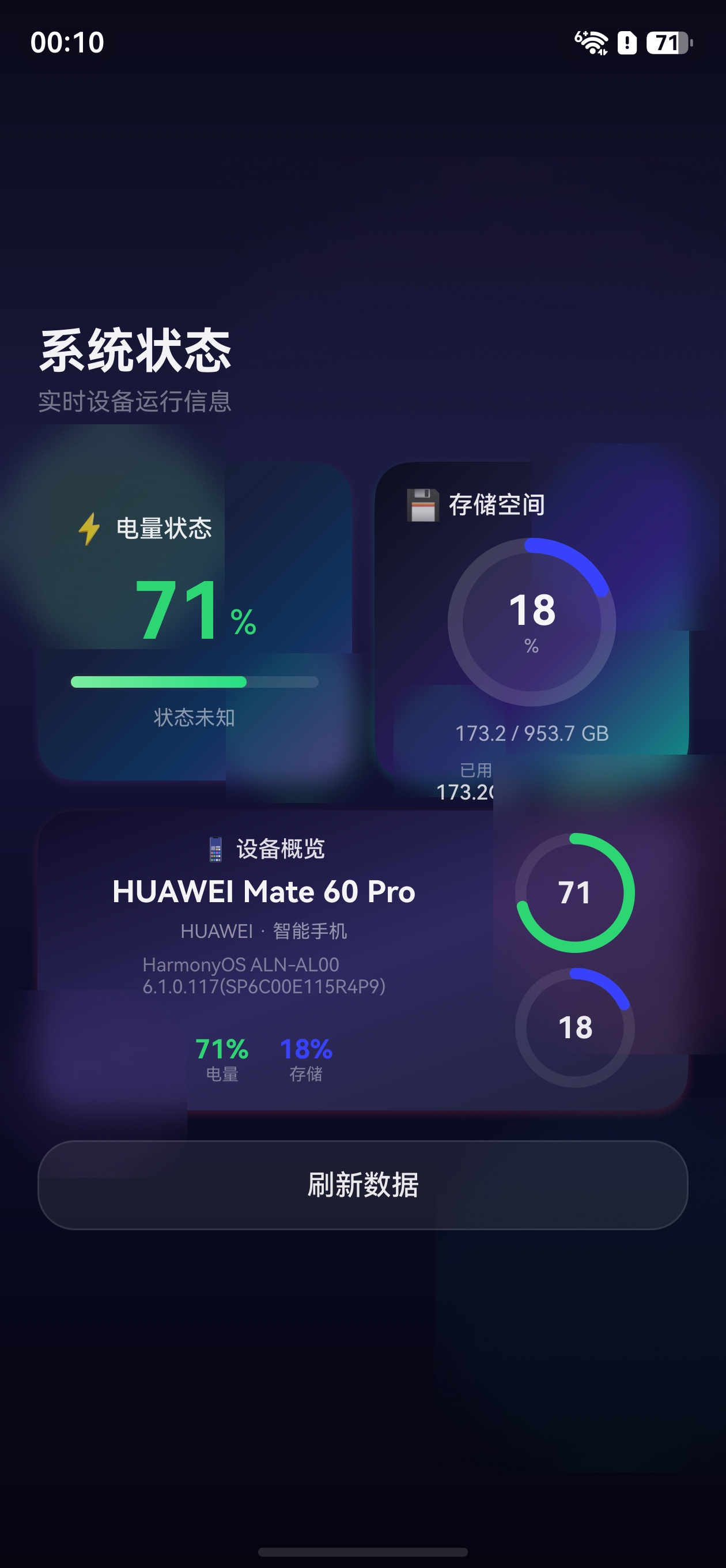
效果
一、模块概述
@ohos.file.storageStatistics 是 HarmonyOS 提供的存储空间统计模块,属于 @kit.CoreFileKit,用于查询设备的总存储空间、可用空间和已用空间。支持同步和异步两种调用方式,适用于存储信息展示、空间清理提醒等场景。
1.1 适用场景
- 设备存储信息展示页
- 桌面卡片(Widget)显示存储使用情况
- 存储空间不足预警
- 应用存储占用统计
1.2 模块归属
| 属性 | 值 |
|---|---|
| 模块名 | @ohos.file.storageStatistics |
| Kit | @kit.CoreFileKit |
| 引入方式 | import { storageStatistics } from '@kit.CoreFileKit' |
二、核心 API 详解
2.1 属性与同步方法
| API | 类型 | 说明 | 返回值 |
|---|---|---|---|
totalSize |
属性 | 设备总存储容量(字节) | number |
freeSize |
属性 | 可用存储容量(字节) | number |
getTotalSizeSync() |
方法 | 同步获取总存储容量(字节) | number |
getFreeSizeSync() |
方法 | 同步获取可用存储容量(字节) | number |
2.2 异步方法
| API | 说明 | 返回值 |
|---|---|---|
getTotalSize() |
异步获取总存储容量 | Promise<number> |
getFreeSize() |
异步获取可用存储容量 | Promise<number> |
2.3 单位换算
存储 API 返回值的单位为字节(Byte),常见换算方式:
const KB = 1024;
const MB = 1024 * KB;
const GB = 1024 * MB;
const TB = 1024 * GB;

// 字节转 GB
function bytesToGB(bytes: number): number {
  return bytes / (1024 * 1024 * 1024);
}
三、权限说明
storageStatistics 模块的基础属性和方法无需额外权限。但涉及应用级存储统计的高级 API 可能需要对应权限。
四、基础示例:存储空间信息展示
4.1 创建项目
使用 DevEco Studio 新建 ArkTS 项目,选择 Empty Ability 模板。
4.2 同步方式获取存储信息
在 entry/src/main/ets/pages/Index.ets 中编写如下代码:
import { storageStatistics } from '@kit.CoreFileKit';

@Entry
@Component
struct StorageInfoDemo {
  @State totalGB: number = 0;
  @State freeGB: number = 0;
  @State usedGB: number = 0;
  @State usedPercent: number = 0;

  aboutToAppear(): void {
    this.refreshStorageInfo();
  }

  refreshStorageInfo(): void {
    // 同步获取存储信息(单位:字节)
    let totalBytes = storageStatistics.getTotalSizeSync();
    let freeBytes = storageStatistics.getFreeSizeSync();

    // 转换为 GB
    this.totalGB = totalBytes / (1024 * 1024 * 1024);
    this.freeGB = freeBytes / (1024 * 1024 * 1024);
    this.usedGB = this.totalGB - this.freeGB;
    this.usedPercent = Math.round((this.usedGB / this.totalGB) * 100);
  }

  // 根据使用率返回颜色
  getStorageColor(): string {
    if (this.usedPercent >= 90) {
      return '#E84026';  // 红色 - 存储几乎满了
    } else if (this.usedPercent >= 70) {
      return '#FFB74D';  // 橙色 - 存储较高
    }
    return '#4FC3F7';    // 蓝色 - 存储充足
  }

  build() {
    Column({ space: 20 }) {
      Text('存储空间信息')
        .fontSize(24)
        .fontWeight(FontWeight.Bold)

      Column({ space: 16 }) {
        // 已用存储量
        Text(`${this.usedGB.toFixed(1)} GB`)
          .fontSize(36)
          .fontWeight(FontWeight.Bold)
          .fontColor(this.getStorageColor())

        Text(`已使用 ${this.usedPercent}% / 共 ${this.totalGB.toFixed(1)} GB`)
          .fontSize(14)
          .fontColor('#666666')

        // 存储进度条
        Progress({
          value: this.usedGB,
          total: this.totalGB,
          type: ProgressType.Linear
        })
          .width('80%')
          .height(12)
          .color(this.getStorageColor())
          .backgroundColor('#E0E0E0')

        // 详细信息
        Row() {
          Column({ space: 4 }) {
            Text('已用空间')
              .fontSize(12)
              .fontColor('#999999')
            Text(`${this.usedGB.toFixed(2)} GB`)
              .fontSize(16)
              .fontWeight(FontWeight.Medium)
          }
          .layoutWeight(1)

          Column({ space: 4 }) {
            Text('可用空间')
              .fontSize(12)
              .fontColor('#999999')
            Text(`${this.freeGB.toFixed(2)} GB`)
              .fontSize(16)
              .fontWeight(FontWeight.Medium)
          }
          .layoutWeight(1)

          Column({ space: 4 }) {
            Text('总容量')
              .fontSize(12)
              .fontColor('#999999')
            Text(`${this.totalGB.toFixed(2)} GB`)
              .fontSize(16)
              .fontWeight(FontWeight.Medium)
          }
          .layoutWeight(1)
        }
        .width('100%')
        .justifyContent(FlexAlign.SpaceEvenly)
      }
      .width('90%')
      .padding(24)
      .backgroundColor(Color.White)
      .borderRadius(16)
      .shadow({ radius: 8, color: '#1A000000', offsetY: 4 })

      Button('刷新')
        .fontSize(16)
        .width('60%')
        .onClick(() => {
          this.refreshStorageInfo();
        })
    }
    .width('100%')
    .height('100%')
    .justifyContent(FlexAlign.Center)
    .backgroundColor('#F5F5F5')
  }
}
4.3 异步方式获取存储信息
async refreshStorageInfoAsync(): Promise<void> {
  try {
    // 异步获取存储信息
    let totalBytes = await storageStatistics.getTotalSize();
    let freeBytes = await storageStatistics.getFreeSize();

    this.totalGB = totalBytes / (1024 * 1024 * 1024);
    this.freeGB = freeBytes / (1024 * 1024 * 1024);
    this.usedGB = this.totalGB - this.freeGB;
    this.usedPercent = Math.round((this.usedGB / this.totalGB) * 100);
  } catch (error) {
    console.error(`获取存储信息失败: ${JSON.stringify(error)}`);
  }
}
4.4 同步 vs 异步对比
| 方式 | 优点 | 缺点 | 推荐场景 |
|---|---|---|---|
同步 getTotalSizeSync() |
代码简洁,无需 async/await | 可能阻塞主线程 | 快速展示,数据量小 |
异步 getTotalSize() |
不阻塞主线程 | 需要 async/await | 复杂业务,多接口并行 |
五、进阶:使用 Gauge 组件展示存储环形图
HarmonyOS 提供了 Gauge 组件,非常适合展示存储使用率的环形图效果:
import { storageStatistics } from '@kit.CoreFileKit';

@Entry
@Component
struct StorageGaugeDemo {
  @State usedGB: number = 0;
  @State totalGB: number = 0;

  aboutToAppear(): void {
    this.usedGB = (storageStatistics.getTotalSizeSync() -
      storageStatistics.getFreeSizeSync()) / (1024 * 1024 * 1024);
    this.totalGB = storageStatistics.getTotalSizeSync() / (1024 * 1024 * 1024);
  }

  build() {
    Column() {
      Gauge({ value: this.usedGB, min: 1, max: this.totalGB }) {
        Column() {
          Text(`${this.usedGB.toFixed(1)}`)
            .fontSize(32)
            .fontWeight(FontWeight.Bold)
            .fontColor('#333333')

          Text(`总计:${this.totalGB.toFixed(1)} GB`)
            .fontSize(12)
            .fontColor('#999999')
        }
        .width('100%')
        .height('100%')
        .justifyContent(FlexAlign.Center)
      }
      .value(this.usedGB)
      .startAngle(210)
      .endAngle(150)
      .strokeWidth(24)
      .width(200)
      .height(200)
    }
    .width('100%')
    .height('100%')
    .justifyContent(FlexAlign.Center)
  }
}
六、在应用卡片中使用存储信息
6.1 主应用端获取并保存
import { storageStatistics } from '@kit.CoreFileKit';
import { preferences } from '@kit.ArkData';

// 获取存储信息
let totalGB = storageStatistics.getTotalSizeSync() / (1024 * 1024 * 1024);
let freeGB = storageStatistics.getFreeSizeSync() / (1024 * 1024 * 1024);
let usedGB = totalGB - freeGB;
let storageInfo = `${usedGB.toFixed(1)} / ${totalGB.toFixed(1)}GB`;

// 保存到 Preferences
let prefs = preferences.getPreferencesSync(context, { name: 'myStore' });
prefs.putSync('totalStorageGB', totalGB);
prefs.putSync('freeStorageGB', freeGB);
prefs.putSync('usedStorageGB', usedGB);
prefs.putSync('storageInfo', storageInfo);
prefs.flush();
6.2 卡片 UI 展示
@Component
struct StorageWidgetCard {
  @LocalStorageProp('usedStorageGB') usedGB: number = 0;
  @LocalStorageProp('totalStorageGB') totalGB: number = 0;

  build() {
    Stack() {
      Gauge({ value: this.usedGB, min: 1, max: this.totalGB }) {
        Column() {
          Text(`${this.usedGB.toFixed(1)}`)
            .fontSize(20)
            .fontWeight(FontWeight.Bold)
          Text(`总计:${this.totalGB.toFixed(1)}GB`)
            .fontSize(8)
            .fontColor('rgba(0,0,0,0.6)')
        }
        .justifyContent(FlexAlign.Center)
      }
      .startAngle(210)
      .endAngle(150)
      .strokeWidth(20)
    }
    .width('100%')
    .height('100%')
  }
}
七、常见问题与注意事项
7.1 返回值单位是什么?
所有存储容量 API 返回值的单位为字节(Byte),需要自行转换为 KB/MB/GB。
7.2 同步方法是否会阻塞 UI?
getTotalSizeSync() 和 getFreeSizeSync() 为同步调用,在大多数设备上响应很快。但如果需要频繁调用或在低端设备上使用,建议使用异步版本。
7.3 存储信息不准确?
系统存储会因缓存、临时文件等原因产生波动,建议每次获取时重新计算,避免使用缓存的旧数据。
八、总结
| 知识点 | 内容 |
|---|---|
| 模块导入 | import { storageStatistics } from '@kit.CoreFileKit' |
| 获取总容量 | storageStatistics.getTotalSizeSync() (字节) |
| 获取可用容量 | storageStatistics.getFreeSizeSync() (字节) |
| 单位换算 | 字节 ÷ (1024³) = GB |
| 异步版本 | getTotalSize() / getFreeSize() |
| 权限要求 | 基础属性无需额外权限 |
| UI 展示 | 结合 Gauge 组件实现环形图 |
掌握 storageStatistics 模块后,配合 batteryInfo 和 deviceInfo,即可构建完整的设备信息展示应用和桌面卡片。

讨论HarmonyOS开发技术,专注于API与组件、DevEco Studio、测试、元服务和应用上架分发等。
更多推荐

 8
8 0
0- 0



 已为社区贡献27条内容

所有评论(0)