Flutter框架跨平台鸿蒙开发 —— Text Widget:文本展示的艺术
在 Flutter 跨平台鸿蒙开发中,Text Widget 是最基础也是最重要的组件之一。很多初学者能够快速使用 Text 显示文字,但对于文本的样式定制、富文本处理、鸿蒙适配技巧以及性能优化缺乏深入理解。Text 不仅仅是文字的容器,它是用户与应用沟通的第一窗口。优秀的文本处理能让应用更具可读性和专业感。本文将从 Text 的核心属性出发,通过实际应用场景(天气应用、新闻列表、用户资料等)的示
示例代码和效果图
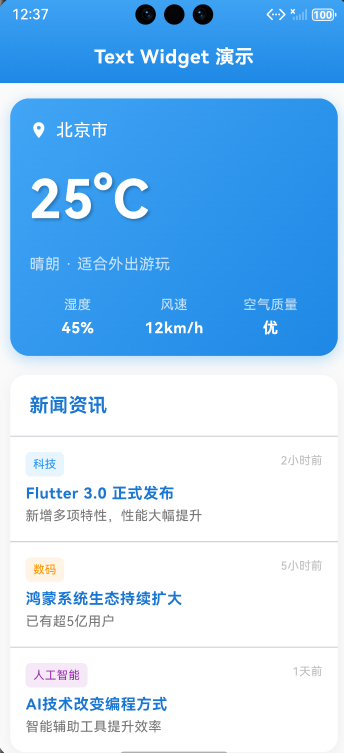
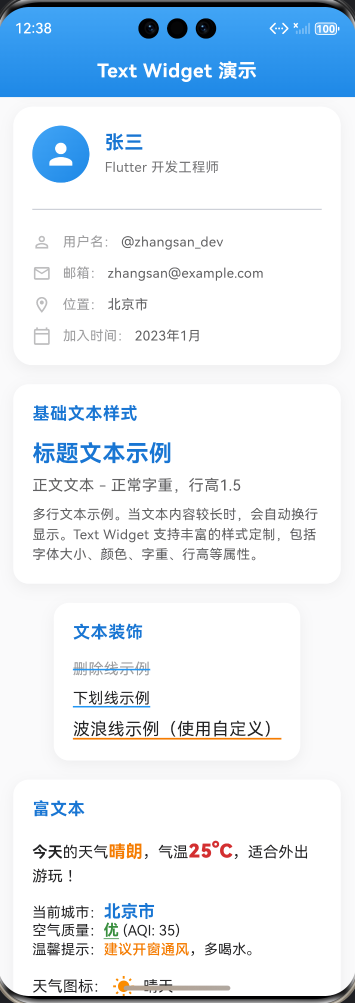
import 'package:flutter/material.dart';
import 'text_examples.dart';
void main() {
runApp(const TextDemoApp());
}
/// Text Widget 演示应用
class TextDemoApp extends StatelessWidget {
const TextDemoApp({Key? key}) : super(key: key);
Widget build(BuildContext context) {
return MaterialApp(
debugShowCheckedModeBanner: false,
title: 'Text Widget 演示',
theme: ThemeData(
primarySwatch: Colors.blue,
useMaterial3: true,
colorScheme: ColorScheme.fromSeed(
seedColor: Colors.blue,
brightness: Brightness.light,
),
),
home: const MainPage(),
);
}
}
/// 主页面 - Text Widget 演示
class MainPage extends StatelessWidget {
const MainPage({Key? key}) : super(key: key);
Widget build(BuildContext context) {
return Scaffold(
backgroundColor: Colors.grey[50],
appBar: AppBar(
title: const HarmonyTitle(
text: 'Text Widget 演示',
fontSize: 20,
color: Colors.white,
),
centerTitle: true,
elevation: 0,
backgroundColor: Colors.transparent,
flexibleSpace: Container(
decoration: BoxDecoration(
gradient: LinearGradient(
begin: Alignment.topCenter,
end: Alignment.bottomCenter,
colors: [
Colors.blue[400]!,
Colors.blue[600]!,
],
),
),
),
),
body: const SingleChildScrollView(
padding: EdgeInsets.all(16),
child: Column(
children: [
WeatherCard(),
SizedBox(height: 20),
NewsListCard(),
SizedBox(height: 20),
UserProfileCard(),
SizedBox(height: 20),
BasicTextExamples(),
SizedBox(height: 20),
TextDecoratedExamples(),
SizedBox(height: 20),
TextRichTextExamples(),
],
),
),
);
}
}
/// 天气卡片 - 展示不同文本样式的实际应用
class WeatherCard extends StatelessWidget {
const WeatherCard({Key? key}) : super(key: key);
Widget build(BuildContext context) {
return Container(
padding: const EdgeInsets.all(20),
decoration: BoxDecoration(
gradient: LinearGradient(
begin: Alignment.topLeft,
end: Alignment.bottomRight,
colors: [Colors.blue[400]!, Colors.blue[600]!],
),
borderRadius: BorderRadius.circular(20),
boxShadow: [
BoxShadow(
color: Colors.blue.withOpacity(0.3),
blurRadius: 12,
offset: const Offset(0, 4),
),
],
),
child: Column(
crossAxisAlignment: CrossAxisAlignment.start,
children: [
Row(
children: [
Icon(Icons.location_on, color: Colors.white, size: 20),
SizedBox(width: 8),
HarmonyBodyText(
text: '北京市',
fontSize: 18,
color: Colors.white,
),
],
),
SizedBox(height: 20),
const HarmonyShadowText(
text: '25°C',
textColor: Colors.white,
fontSize: 56,
shadowColor: Colors.black26,
),
SizedBox(height: 16),
HarmonyBodyText(
text: '晴朗 · 适合外出游玩',
fontSize: 16,
color: Colors.white70,
),
SizedBox(height: 20),
Row(
children: [
Expanded(
child: _buildWeatherInfo('湿度', '45%'),
),
Expanded(
child: _buildWeatherInfo('风速', '12km/h'),
),
Expanded(
child: _buildWeatherInfo('空气质量', '优'),
),
],
),
],
),
);
}
Widget _buildWeatherInfo(String label, String value) {
return Column(
children: [
HarmonyBodyText(
text: label,
fontSize: 14,
color: Colors.white70,
),
SizedBox(height: 4),
HarmonyTitle(
text: value,
fontSize: 16,
color: Colors.white,
),
],
);
}
}
/// 新闻列表卡片 - 展示文本布局和样式
class NewsListCard extends StatelessWidget {
const NewsListCard({Key? key}) : super(key: key);
Widget build(BuildContext context) {
return Container(
decoration: BoxDecoration(
color: Colors.white,
borderRadius: BorderRadius.circular(16),
boxShadow: [
BoxShadow(
color: Colors.black.withOpacity(0.05),
blurRadius: 12,
offset: const Offset(0, 4),
),
],
),
child: Column(
crossAxisAlignment: CrossAxisAlignment.start,
children: [
Padding(
padding: const EdgeInsets.all(20),
child: HarmonyTitle(
text: '新闻资讯',
fontSize: 20,
),
),
const Divider(height: 1),
_buildNewsItem(
'Flutter 3.0 正式发布',
'新增多项特性,性能大幅提升',
'科技',
'2小时前',
Colors.blue,
),
const Divider(height: 1),
_buildNewsItem(
'鸿蒙系统生态持续扩大',
'已有超5亿用户',
'数码',
'5小时前',
Colors.orange,
),
const Divider(height: 1),
_buildNewsItem(
'AI技术改变编程方式',
'智能辅助工具提升效率',
'人工智能',
'1天前',
Colors.purple,
),
],
),
);
}
Widget _buildNewsItem(
String title,
String description,
String category,
String time,
Color categoryColor,
) {
return Padding(
padding: const EdgeInsets.all(16),
child: Row(
crossAxisAlignment: CrossAxisAlignment.start,
children: [
Expanded(
child: Column(
crossAxisAlignment: CrossAxisAlignment.start,
children: [
Container(
padding: const EdgeInsets.symmetric(horizontal: 8, vertical: 4),
decoration: BoxDecoration(
color: categoryColor.withOpacity(0.1),
borderRadius: BorderRadius.circular(6),
),
child: HarmonyBodyText(
text: category,
fontSize: 12,
color: categoryColor,
),
),
const SizedBox(height: 8),
HarmonyTitle(
text: title,
fontSize: 16,
maxLines: 2,
),
const SizedBox(height: 4),
HarmonyBodyText(
text: description,
fontSize: 14,
color: Colors.grey[600],
maxLines: 2,
),
],
),
),
const SizedBox(width: 12),
HarmonyBodyText(
text: time,
fontSize: 12,
color: Colors.grey[400],
),
],
),
);
}
}
/// 用户资料卡片 - 展示文本装饰和样式
class UserProfileCard extends StatelessWidget {
const UserProfileCard({Key? key}) : super(key: key);
Widget build(BuildContext context) {
return Container(
padding: const EdgeInsets.all(20),
decoration: BoxDecoration(
color: Colors.white,
borderRadius: BorderRadius.circular(20),
boxShadow: [
BoxShadow(
color: Colors.black.withOpacity(0.05),
blurRadius: 12,
offset: const Offset(0, 4),
),
],
),
child: Column(
children: [
Row(
children: [
Container(
width: 60,
height: 60,
decoration: BoxDecoration(
gradient: LinearGradient(
begin: Alignment.topLeft,
end: Alignment.bottomRight,
colors: [Colors.blue[400]!, Colors.blue[600]!],
),
borderRadius: BorderRadius.circular(30),
),
child: Icon(
Icons.person,
color: Colors.white,
size: 36,
),
),
const SizedBox(width: 16),
Expanded(
child: Column(
crossAxisAlignment: CrossAxisAlignment.start,
children: [
HarmonyTitle(
text: '张三',
fontSize: 20,
),
const SizedBox(height: 4),
HarmonyBodyText(
text: 'Flutter 开发工程师',
fontSize: 14,
color: Colors.grey[600],
),
],
),
),
],
),
const SizedBox(height: 20),
const Divider(),
const SizedBox(height: 16),
_buildInfoRow('用户名', '@zhangsan_dev', Icons.person_outline),
const SizedBox(height: 12),
_buildInfoRow('邮箱', 'zhangsan@example.com', Icons.email_outlined),
const SizedBox(height: 12),
_buildInfoRow('位置', '北京市', Icons.location_on_outlined),
const SizedBox(height: 12),
_buildInfoRow('加入时间', '2023年1月', Icons.calendar_today_outlined),
],
),
);
}
Widget _buildInfoRow(String label, String value, IconData icon) {
return Row(
children: [
Icon(icon, color: Colors.grey[400], size: 20),
const SizedBox(width: 12),
HarmonyBodyText(
text: '$label:',
fontSize: 14,
color: Colors.grey[500],
),
const SizedBox(width: 4),
HarmonyBodyText(
text: value,
fontSize: 14,
color: Colors.grey[700],
),
],
);
}
}
/// 基础文本示例
class BasicTextExamples extends StatelessWidget {
const BasicTextExamples({Key? key}) : super(key: key);
Widget build(BuildContext context) {
return Container(
padding: const EdgeInsets.all(20),
decoration: BoxDecoration(
color: Colors.white,
borderRadius: BorderRadius.circular(16),
boxShadow: [
BoxShadow(
color: Colors.black.withOpacity(0.05),
blurRadius: 12,
offset: const Offset(0, 4),
),
],
),
child: Column(
crossAxisAlignment: CrossAxisAlignment.start,
children: [
HarmonyTitle(text: '基础文本样式', fontSize: 18),
const SizedBox(height: 16),
HarmonyTitle(text: '标题文本示例', fontSize: 24),
const SizedBox(height: 8),
HarmonyBodyText(
text: '正文文本 - 正常字重,行高1.5',
fontSize: 16,
),
const SizedBox(height: 8),
HarmonyBodyText(
text: '多行文本示例。当文本内容较长时,会自动换行显示。Text Widget 支持丰富的样式定制,包括字体大小、颜色、字重、行高等属性。',
fontSize: 14,
maxLines: 3,
),
],
),
);
}
}
/// 文本装饰示例
class TextDecoratedExamples extends StatelessWidget {
const TextDecoratedExamples({Key? key}) : super(key: key);
Widget build(BuildContext context) {
return Container(
padding: const EdgeInsets.all(20),
decoration: BoxDecoration(
color: Colors.white,
borderRadius: BorderRadius.circular(16),
boxShadow: [
BoxShadow(
color: Colors.black.withOpacity(0.05),
blurRadius: 12,
offset: const Offset(0, 4),
),
],
),
child: Column(
crossAxisAlignment: CrossAxisAlignment.start,
children: [
HarmonyTitle(text: '文本装饰', fontSize: 18),
const SizedBox(height: 16),
const DecoratedTextDemo(),
],
),
);
}
}
/// 富文本示例
class TextRichTextExamples extends StatelessWidget {
const TextRichTextExamples({Key? key}) : super(key: key);
Widget build(BuildContext context) {
return Container(
padding: const EdgeInsets.all(20),
decoration: BoxDecoration(
color: Colors.white,
borderRadius: BorderRadius.circular(16),
boxShadow: [
BoxShadow(
color: Colors.black.withOpacity(0.05),
blurRadius: 12,
offset: const Offset(0, 4),
),
],
),
child: Column(
crossAxisAlignment: CrossAxisAlignment.start,
children: [
HarmonyTitle(text: '富文本', fontSize: 18),
const SizedBox(height: 16),
const HarmonyRichText(),
const SizedBox(height: 16),
const HarmonyComplexRichText(),
const SizedBox(height: 16),
const HarmonyImageRichText(),
],
),
);
}
}
一、 前言
在 Flutter 跨平台鸿蒙开发中,Text Widget 是最基础也是最重要的组件之一。很多初学者能够快速使用 Text 显示文字,但对于文本的样式定制、富文本处理、鸿蒙适配技巧以及性能优化缺乏深入理解。
Text 不仅仅是文字的容器,它是用户与应用沟通的第一窗口。优秀的文本处理能让应用更具可读性和专业感。本文将从 Text 的核心属性出发,通过实际应用场景(天气应用、新闻列表、用户资料等)的示例,带你深入理解 Text Widget 的使用技巧。
二、 Text 核心属性
2.1 基础属性对比表
| 属性 | 类型 | 作用 | 鸿蒙适配建议 |
|---|---|---|---|
data |
String | 显示的文本内容 | 使用本地化字符串 |
style |
TextStyle | 文本样式 | 遵循鸿蒙字体规范 |
textAlign |
TextAlign | 文本对齐方式 | 根据语言方向选择 |
maxLines |
int? | 最大行数限制 | 避免超出容器 |
overflow |
TextOverflow | 溢出处理方式 | 优先使用 ellipsis |
textDirection |
TextDirection? | 文本方向 | 支持RTL语言 |
softWrap |
bool? | 是否自动换行 | 默认true保持可读性 |
textScaleFactor |
double? | 文本缩放比例 | 遵循系统设置 |
2.2 TextStyle 样式属性
TextStyle({
  Color? color,                          // 文本颜色
  double? fontSize,                       // 字体大小
  FontWeight? fontWeight,                  // 字体粗细
  FontStyle? fontStyle,                    // 字体样式(正常/斜体)
  double? letterSpacing,                  // 字符间距
  double? wordSpacing,                    // 单词间距
  double? height,                         // 行高(字高的倍数)
  TextDecoration? decoration,              // 装饰线(删除线、下划线等)
  Color? decorationColor,                 // 装饰线颜色
  TextDecorationStyle? decorationStyle,    // 装饰线样式(实线、虚线等)
  String? fontFamily,                     // 字体家族
  List<Shadow>? shadows,                  // 文字阴影
  Color? backgroundColor,                 // 背景颜色
  Locale? locale,                        // 语言环境
  Paint? foreground,                      // 前景绘制
  Paint? background,                      // 背景绘制
})
三、 Text 样式定制
3.1 基础文本样式
/// 鸿蒙风格标题组件
class HarmonyTitle extends StatelessWidget {
final String text;
final double fontSize;
final Color? color;
final TextAlign? textAlign;
final int? maxLines;
final TextOverflow? overflow;
final FontWeight? fontWeight;
final double? letterSpacing;
const HarmonyTitle({
Key? key,
required this.text,
this.fontSize = 24,
this.color,
this.textAlign,
this.maxLines,
this.overflow,
this.fontWeight = FontWeight.bold,
this.letterSpacing = 0.5,
}) : super(key: key);
Widget build(BuildContext context) {
return Text(
text,
style: TextStyle(
fontSize: fontSize,
fontWeight: fontWeight,
color: color ?? Colors.blue[700],
height: 1.2,
letterSpacing: letterSpacing,
),
textAlign: textAlign,
maxLines: maxLines,
overflow: overflow ?? TextOverflow.ellipsis,
);
}
}
/// 鸿蒙风格描述文本
class HarmonyBodyText extends StatelessWidget {
final String text;
final double fontSize;
final Color? color;
final TextAlign? textAlign;
final int? maxLines;
final TextOverflow? overflow;
const HarmonyBodyText({
Key? key,
required this.text,
this.fontSize = 16,
this.color,
this.textAlign,
this.maxLines,
this.overflow,
}) : super(key: key);
Widget build(BuildContext context) {
return Text(
text,
style: TextStyle(
fontSize: fontSize,
color: color ?? Colors.grey[700],
height: 1.5,
letterSpacing: 0.3,
),
textAlign: textAlign,
maxLines: maxLines,
overflow: overflow ?? TextOverflow.ellipsis,
);
}
}
3.2 装饰文本样式
/// 鸿蒙装饰文本
class HarmonyDecoratedText extends StatelessWidget {
final String text;
final TextDecoration decoration;
final Color? color;
final Color? decorationColor;
final double fontSize;
const HarmonyDecoratedText({
Key? key,
required this.text,
required this.decoration,
this.color,
this.decorationColor,
this.fontSize = 16,
}) : super(key: key);
Widget build(BuildContext context) {
return Text(
text,
style: TextStyle(
fontSize: fontSize,
color: color ?? Colors.black87,
decoration: decoration,
decorationColor: decorationColor ?? Colors.blue,
decorationThickness: 2,
),
);
}
}
/// 使用示例
class DecoratedTextDemo extends StatelessWidget {
const DecoratedTextDemo({Key? key}) : super(key: key);
Widget build(BuildContext context) {
return Column(
crossAxisAlignment: CrossAxisAlignment.start,
children: [
const HarmonyDecoratedText(
text: '删除线示例',
decoration: TextDecoration.lineThrough,
color: Colors.grey,
),
const SizedBox(height: 8),
const HarmonyDecoratedText(
text: '下划线示例',
decoration: TextDecoration.underline,
decorationColor: Colors.blue,
),
const SizedBox(height: 8),
HarmonyDecoratedText(
text: '波浪线示例(使用自定义)',
decoration: TextDecoration.underline,
decorationColor: Colors.orange[700],
fontSize: 18,
),
],
);
}
}
3.3 阴影文本样式
/// 鸿蒙阴影文本
class HarmonyShadowText extends StatelessWidget {
final String text;
final Color textColor;
final Color shadowColor;
final double fontSize;
final double blurRadius;
const HarmonyShadowText({
Key? key,
required this.text,
this.textColor = Colors.white,
this.shadowColor = Colors.black26,
this.fontSize = 32,
this.blurRadius = 8,
}) : super(key: key);
Widget build(BuildContext context) {
return Text(
text,
style: TextStyle(
fontSize: fontSize,
color: textColor,
fontWeight: FontWeight.bold,
shadows: [
Shadow(
color: shadowColor,
blurRadius: blurRadius,
offset: const Offset(2, 2),
),
],
),
);
}
}
四、 RichText 富文本
4.1 RichText 基础使用
/// 鸿蒙富文本组件
class HarmonyRichText extends StatelessWidget {
const HarmonyRichText({Key? key}) : super(key: key);
Widget build(BuildContext context) {
return RichText(
text: TextSpan(
style: const TextStyle(
fontSize: 16,
color: Colors.black87,
height: 1.5,
),
children: [
const TextSpan(
text: '今天',
style: TextStyle(fontWeight: FontWeight.bold),
),
const TextSpan(text: '的天气'),
TextSpan(
text: '晴朗',
style: TextStyle(
fontSize: 18,
fontWeight: FontWeight.bold,
color: Colors.orange[700],
),
),
const TextSpan(text: ',气温'),
TextSpan(
text: '25°C',
style: TextStyle(
fontSize: 20,
fontWeight: FontWeight.w900,
color: Colors.red[700],
),
),
const TextSpan(text: ',适合外出游玩!'),
],
),
);
}
}
4.2 TextSpan 深度使用
/// 鸿蒙复杂富文本
class HarmonyComplexRichText extends StatelessWidget {
const HarmonyComplexRichText({Key? key}) : super(key: key);
Widget build(BuildContext context) {
return RichText(
text: TextSpan(
style: const TextStyle(fontSize: 15, color: Colors.black87),
children: [
const TextSpan(text: '当前城市:'),
TextSpan(
text: '北京市',
style: TextStyle(
fontSize: 18,
fontWeight: FontWeight.bold,
color: Colors.blue[700],
),
),
const TextSpan(text: '\n空气质量:'),
TextSpan(
text: '优',
style: TextStyle(
fontSize: 16,
fontWeight: FontWeight.bold,
color: Colors.green[700],
decoration: TextDecoration.underline,
decorationColor: Colors.green[700],
),
),
const TextSpan(text: ' (AQI: 35)\n'),
const TextSpan(text: '温馨提示:'),
TextSpan(
text: '建议开窗通风',
style: TextStyle(
color: Colors.orange[700],
fontWeight: FontWeight.w500,
),
),
const TextSpan(text: ',多喝水。'),
],
),
);
}
}
4.3 WidgetSpan 图文混排
/// 鸿蒙图文混排富文本
class HarmonyImageRichText extends StatelessWidget {
const HarmonyImageRichText({Key? key}) : super(key: key);
Widget build(BuildContext context) {
return RichText(
text: TextSpan(
style: const TextStyle(
fontSize: 16,
color: Colors.black87,
height: 1.5,
),
children: [
const TextSpan(text: '天气图标:'),
WidgetSpan(
alignment: PlaceholderAlignment.middle,
child: Container(
padding: const EdgeInsets.symmetric(horizontal: 4),
child: Icon(
Icons.wb_sunny,
color: Colors.orange[600],
size: 24,
),
),
),
const TextSpan(text: ' 晴天\n'),
const TextSpan(text: '温度图标:'),
WidgetSpan(
alignment: PlaceholderAlignment.middle,
child: Container(
padding: const EdgeInsets.symmetric(horizontal: 4),
child: Icon(
Icons.thermostat,
color: Colors.red[600],
size: 24,
),
),
),
const TextSpan(text: ' 25°C'),
],
),
);
}
}
五、 文本对齐与溢出
5.1 文本对齐方式
/// 文本对齐演示
class TextAlignDemo extends StatelessWidget {
const TextAlignDemo({Key? key}) : super(key: key);
Widget build(BuildContext context) {
return Column(
children: [
_buildAlignmentBox('左对齐', TextAlign.left),
_buildAlignmentBox('居中对齐', TextAlign.center),
_buildAlignmentBox('右对齐', TextAlign.right),
_buildAlignmentBox('两端对齐', TextAlign.justify),
],
);
}
Widget _buildAlignmentBox(String label, TextAlign align) {
return Container(
margin: const EdgeInsets.symmetric(vertical: 8),
padding: const EdgeInsets.all(12),
decoration: BoxDecoration(
color: Colors.grey[100],
borderRadius: BorderRadius.circular(8),
),
child: Column(
crossAxisAlignment: CrossAxisAlignment.start,
children: [
Text(
'$label:',
style: TextStyle(
fontWeight: FontWeight.bold,
color: Colors.grey[700],
),
),
const SizedBox(height: 4),
Text(
'这是一段用于演示文本对齐方式的示例文本内容,展示不同对齐方式的效果差异。',
textAlign: align,
style: const TextStyle(
fontSize: 14,
height: 1.4,
),
),
],
),
);
}
}
5.2 文本溢出处理
/// 文本溢出演示
class TextOverflowDemo extends StatelessWidget {
const TextOverflowDemo({Key? key}) : super(key: key);
final String longText = '这是一段很长的文本内容,用于演示文本溢出时的不同处理方式效果对比,帮助开发者选择最适合自己应用的溢出处理策略。';
Widget build(BuildContext context) {
return Column(
crossAxisAlignment: CrossAxisAlignment.start,
children: [
_buildOverflowBox('直接截断 (clip)', TextOverflow.clip),
_buildOverflowBox('省略号 (ellipsis)', TextOverflow.ellipsis),
_buildOverflowBox('淡出 (fade)', TextOverflow.fade),
_buildOverflowBox('可见 (visible)', TextOverflow.visible),
],
);
}
Widget _buildOverflowBox(String label, TextOverflow overflow) {
return Container(
margin: const EdgeInsets.symmetric(vertical: 8),
padding: const EdgeInsets.all(12),
decoration: BoxDecoration(
color: Colors.grey[100],
borderRadius: BorderRadius.circular(8),
),
child: Column(
crossAxisAlignment: CrossAxisAlignment.start,
children: [
Text(
'$label:',
style: const TextStyle(
fontWeight: FontWeight.bold,
fontSize: 14,
),
),
const SizedBox(height: 4),
Container(
constraints: const BoxConstraints(maxWidth: 200),
child: Text(
longText,
maxLines: 2,
overflow: overflow,
style: const TextStyle(fontSize: 14, height: 1.4),
),
),
],
),
);
}
}
六、 实战:鸿蒙天气应用
下面是一个完整的可运行示例,展示 Text Widget 的实际应用:
import 'package:flutter/material.dart';
void main() {
runApp(const WeatherApp());
}
/// 天气应用入口
class WeatherApp extends StatelessWidget {
const WeatherApp({Key? key}) : super(key: key);
Widget build(BuildContext context) {
return MaterialApp(
debugShowCheckedModeBanner: false,
title: '鸿蒙天气',
theme: ThemeData(
primarySwatch: Colors.blue,
useMaterial3: true,
),
home: const WeatherHomePage(),
);
}
}
/// 天气首页
class WeatherHomePage extends StatelessWidget {
const WeatherHomePage({Key? key}) : super(key: key);
Widget build(BuildContext context) {
return Scaffold(
backgroundColor: Colors.blue[50],
appBar: AppBar(
title: const HarmonyTitle(
text: '鸿蒙天气',
fontSize: 20,
color: Colors.white,
),
centerTitle: true,
elevation: 0,
backgroundColor: Colors.transparent,
flexibleSpace: Container(
decoration: BoxDecoration(
gradient: LinearGradient(
begin: Alignment.topCenter,
end: Alignment.bottomCenter,
colors: [
Colors.blue[400]!,
Colors.blue[600]!,
],
),
),
),
),
body: const SingleChildScrollView(
padding: EdgeInsets.all(16),
child: Column(
children: [
CityInfoSection(),
SizedBox(height: 20),
WeatherDetailSection(),
SizedBox(height: 20),
AirQualitySection(),
SizedBox(height: 20),
TipsSection(),
],
),
),
);
}
}
/// 城市信息区域
class CityInfoSection extends StatelessWidget {
const CityInfoSection({Key? key}) : super(key: key);
Widget build(BuildContext context) {
return Container(
padding: const EdgeInsets.all(20),
decoration: BoxDecoration(
gradient: LinearGradient(
begin: Alignment.topLeft,
end: Alignment.bottomRight,
colors: [
Colors.blue[300]!,
Colors.blue[500]!,
],
),
borderRadius: BorderRadius.circular(16),
boxShadow: [
BoxShadow(
color: Colors.blue.withOpacity(0.3),
blurRadius: 12,
offset: const Offset(0, 4),
),
],
),
child: Row(
children: [
const Icon(Icons.location_on, color: Colors.white, size: 32),
const SizedBox(width: 12),
Expanded(
child: Column(
crossAxisAlignment: CrossAxisAlignment.start,
children: [
const HarmonyTitle(
text: '北京市',
fontSize: 24,
color: Colors.white,
letterSpacing: 1.0,
),
const SizedBox(height: 4),
HarmonyBodyText(
text: '2026年1月14日 星期二',
fontSize: 14,
color: Colors.white.withOpacity(0.9),
),
],
),
),
],
),
);
}
}
/// 天气详情区域
class WeatherDetailSection extends StatelessWidget {
const WeatherDetailSection({Key? key}) : super(key: key);
Widget build(BuildContext context) {
return Container(
padding: const EdgeInsets.all(20),
decoration: BoxDecoration(
color: Colors.white,
borderRadius: BorderRadius.circular(16),
boxShadow: [
BoxShadow(
color: Colors.black.withOpacity(0.05),
blurRadius: 12,
offset: const Offset(0, 4),
),
],
),
child: Column(
children: [
Row(
mainAxisAlignment: MainAxisAlignment.center,
children: [
const Icon(Icons.wb_sunny, color: Colors.orange, size: 48),
const SizedBox(width: 16),
const HarmonyTitle(
text: '晴朗',
fontSize: 36,
),
],
),
const SizedBox(height: 20),
const HarmonyShadowText(
text: '25°C',
fontSize: 48,
textColor: Colors.black87,
shadowColor: Colors.black12,
blurRadius: 6,
),
const SizedBox(height: 16),
const HarmonyRichText(),
],
),
);
}
}
/// 空气质量区域
class AirQualitySection extends StatelessWidget {
const AirQualitySection({Key? key}) : super(key: key);
Widget build(BuildContext context) {
return Container(
padding: const EdgeInsets.all(20),
decoration: BoxDecoration(
color: Colors.white,
borderRadius: BorderRadius.circular(16),
boxShadow: [
BoxShadow(
color: Colors.black.withOpacity(0.05),
blurRadius: 12,
offset: const Offset(0, 4),
),
],
),
child: Column(
crossAxisAlignment: CrossAxisAlignment.start,
children: [
const HarmonyTitle(text: '空气质量', fontSize: 18),
const SizedBox(height: 16),
const HarmonyComplexRichText(),
],
),
);
}
}
/// 温馨提示区域
class TipsSection extends StatelessWidget {
const TipsSection({Key? key}) : super(key: key);
Widget build(BuildContext context) {
return Container(
padding: const EdgeInsets.all(20),
decoration: BoxDecoration(
color: Colors.orange[50],
borderRadius: BorderRadius.circular(16),
border: Border.all(
color: Colors.orange[200]!,
width: 1,
),
),
child: Column(
crossAxisAlignment: CrossAxisAlignment.start,
children: [
Row(
children: [
Icon(Icons.tips_and_updates, color: Colors.orange[700]),
const SizedBox(width: 8),
const HarmonyTitle(
text: '温馨提示',
fontSize: 18,
),
],
),
const SizedBox(height: 16),
const HarmonyImageRichText(),
],
),
);
}
}
七、 Text 使用最佳实践
7.1 鸿蒙适配要点
| 要点 | 建议值/做法 | 原因 |
|---|---|---|
| 字体大小 | 标题 24-32, 正文 14-18 | 保证可读性 |
| 行高 | 1.2-1.6 倍 | 舒适的阅读体验 |
| 字符间距 | 0.3-1.0 | 适度间隔不拥挤 |
| 颜色 | 避免纯黑,使用灰度 | 减少眼部疲劳 |
| 字体粗细 | 正文 Regular, 标题 Bold | 层次分明 |
| 莫兰迪色系 | 降低饱和度 | 柔和视觉体验 |
7.2 性能优化技巧
-
使用 const 构造函数
// ✅ 好 const Text('欢迎回来'); // ❌ 差 Text('欢迎回来'); -
避免过度嵌套 TextStyle
// ✅ 好 Text('Hello', style: TextStyle(fontSize: 16)); // ❌ 差 Text('Hello', style: DefaultTextStyle.of(context).style.copyWith(fontSize: 16)); -
提取公共样式
// 定义主题样式
final titleStyle = TextStyle(
  fontSize: 24,
  fontWeight: FontWeight.bold,
);

// 复用样式
Text('标题1', style: titleStyle);
Text('标题2', style: titleStyle);
7.3 避免的坑点
| 坑点 | 解决方案 |
|---|---|
| 文本超出容器 | 设置 maxLines 和 overflow |
| 多语言适配问题 | 使用 Locale 和 textDirection |
| 字体加载慢 | 提供备用字体族 |
| 富文本性能差 | 避免过深的嵌套 |
| 文本不可读 | 增大字号和行高 |
八、 总结
Text Widget 是 Flutter UI 开发的基石,掌握 Text 的使用技巧是打造优质应用的第一步。在实际开发中:
- 理解属性: 明确 TextStyle 各属性的作用
- 善用富文本: 用 RichText 实现复杂的文本效果
- 注意适配: 遵循鸿蒙设计规范,提升用户体验
- 性能优先: 使用 const、提取样式等优化技巧
记住,好的文本设计不是堆砌样式,而是恰到好处的使用。当你能够熟练运用 Text Widget 时,你就已经在通往高级工程师的道路上迈出了坚实的一步。愿每一位开发者都能在 Flutter 与鸿蒙的结合中,探索出属于自己的设计之道,创造出让用户一见倾心的精品应用!
欢迎加入开源鸿蒙跨平台社区: https://openharmonycrossplatform.csdn.net

讨论HarmonyOS开发技术,专注于API与组件、DevEco Studio、测试、元服务和应用上架分发等。
更多推荐

 3
3 0
0- 0


 已为社区贡献5条内容

所有评论(0)