论新手如何用ArkUI11开发单词卡应用
·
📚 零基础学 ArkUI11:手把手开发一个单词卡 App
📱 应用场景
单词卡是语言学习的经典工具。我们要实现的 App 会包含:
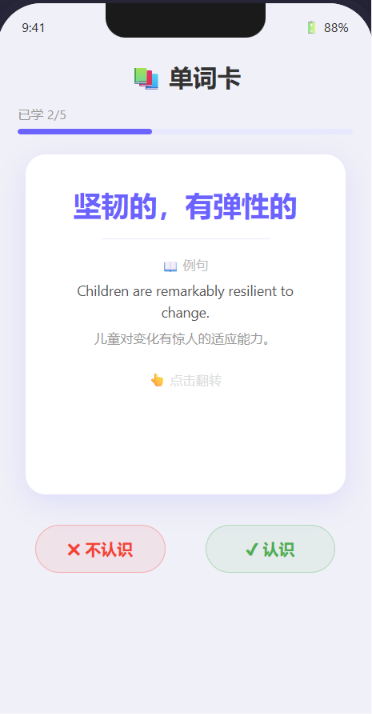
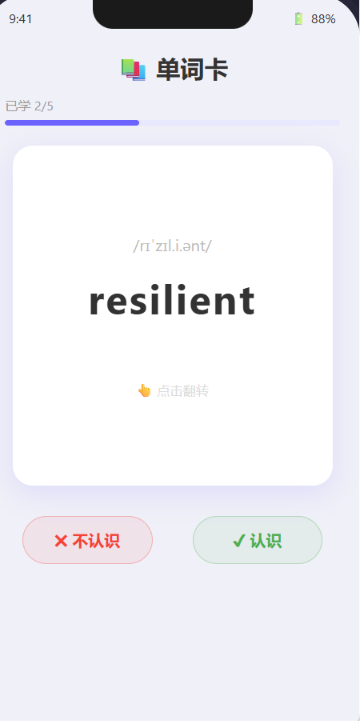
- 单词卡片正面显示英文,反面显示中文释义 + 例句
- 点击翻转动画 — 像真实卡片一样翻过去
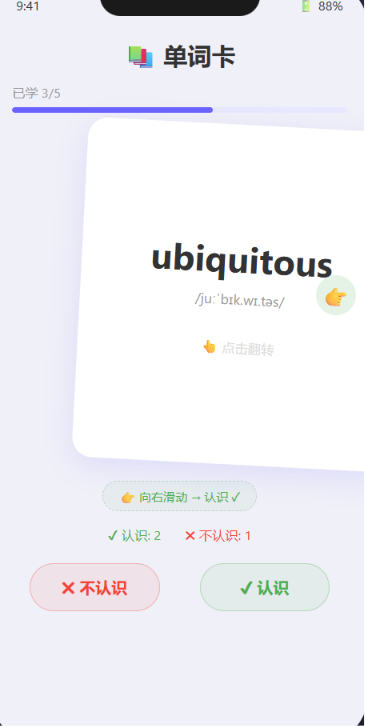
- 左右滑动手势 — 认识向右滑、不认识向左滑
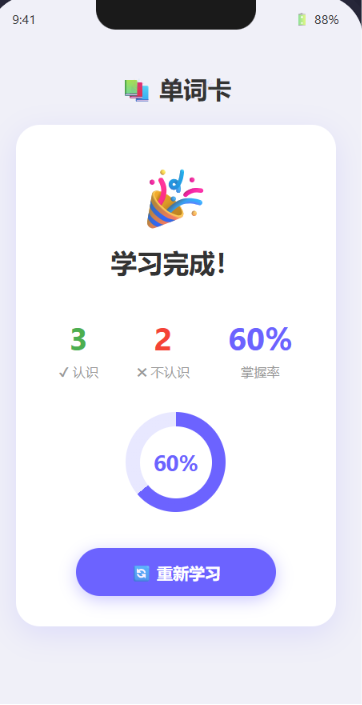
- 进度统计(已学 / 待学 / 掌握率)
- 本地存储学习进度,下次打开不丢失
⚙️ 运行环境要求
| 项目 | 版本要求 |
|---|---|
| DevEco Studio | 5.0.3.800 及以上 |
| HarmonyOS SDK | API 12(HarmonyOS 5.0.0)及以上 |
| 应用模型 | Stage 模型 |
| 开发语言 | ArkTS |
| 依赖模块 | @ohos.data.preferences(内置,无需额外安装) |
🛠️ 实战:从零搭建单词卡 App
Step 1:数据模型与模拟单词库
// models/WordCard.ets — 单词数据模型
export interface WordCard {
  id: string;
  english: string;       // 英文
  chinese: string;       // 中文释义
  example: string;       // 例句
  exampleCn: string;     // 例句翻译
  phonetic: string;      // 音标
}

export const WORD_LIST: WordCard[] = [
  {
    id: '1',
    english: 'ubiquitous',
    chinese: '无处不在的',
    example: 'Smartphones have become ubiquitous in modern society.',
    exampleCn: '智能手机在现代社会已变得无处不在。',
    phonetic: '/juːˈbɪk.wɪ.təs/'
  },
  {
    id: '2',
    english: 'ephemeral',
    chinese: '短暂的,转瞬即逝的',
    example: 'The beauty of cherry blossoms is ephemeral.',
    exampleCn: '樱花的美是转瞬即逝的。',
    phonetic: '/ɪˈfem.ər.əl/'
  },
  {
    id: '3',
    english: 'resilient',
    chinese: '坚韧的,有弹性的',
    example: 'Children are remarkably resilient to change.',
    exampleCn: '儿童对变化有惊人的适应能力。',
    phonetic: '/rɪˈzɪl.i.ənt/'
  },
  {
    id: '4',
    english: 'ambiguous',
    chinese: '模棱两可的,含糊的',
    example: 'The contract contains several ambiguous clauses.',
    exampleCn: '这份合同包含几个含糊的条款。',
    phonetic: '/æmˈbɪɡ.ju.əs/'
  },
  {
    id: '5',
    english: 'pragmatic',
    chinese: '务实的,实用主义的',
    example: 'We need a pragmatic approach to this problem.',
    exampleCn: '我们需要一个务实的方案来解决这个问题。',
    phonetic: '/præɡˈmæt.ɪk/'
  },
  // ... 可在下方继续添加更多单词
];
Step 2:卡片翻转动画 — @State + rotate 属性
这是本篇 最核心的技术点。ArkUI 中实现 3D 翻转的核心是一个属性:.rotate()。
// 核心动画逻辑:
// 1. @State flipAngle 控制旋转角度
// 2. 点击时从 0 → 180(正面翻到反面)
// 3. 配合 opacity 实现正面消失 → 反面出现

@State flipAngle: number = 0;  // 翻转角度
@State isFlipped: boolean = false;

// 翻转方法
flipCard(): void {
  // 动画 API:ArkUI 的 animateTo
  animateTo({ duration: 400, curve: Curve.EaseInOut }, () => {
    this.isFlipped = !this.isFlipped;
    this.flipAngle = this.isFlipped ? 180 : 0;
  });
}
📌 animateTo 详解
| 参数 | 说明 | 示例 |
|---|---|---|
duration |
动画时长 (ms) | 400 = 0.4 秒 |
curve |
缓动曲线 | Curve.EaseInOut 先快后慢再快 |
delay |
延迟开始 | delay: 100 = 延迟 0.1 秒 |
iterations |
重复次数 | 1 = 一次,-1 = 无限 |
Step 3:完整单词卡页面
// pages/FlashCard.ets — 单词卡主页面
@Entry
@Component
struct FlashCard {
  // ========== 状态 ==========
  @State private currentIndex: number = 0;
  @State private flipAngle: number = 0;
  @State private isFlipped: boolean = false;
  @State private knownCount: number = 0;
  @State private unknownCount: number = 0;
  @State private swipeOffset: number = 0;     // 滑动偏移量
  @State private isSwiping: boolean = false;

  // ========== 常量 ==========
  private words: WordCard[] = WORD_LIST;
  private prefData: preferences.Preferences | null = null;

  get currentWord(): WordCard {
    return this.words[this.currentIndex];
  }

  get progress(): number {
    return (this.currentIndex / this.words.length) * 100;
  }

  get isLastCard(): boolean {
    return this.currentIndex >= this.words.length - 1;
  }

  // ========== 生命周期 ==========
  aboutToAppear(): void {
    this.loadProgress();
  }

  // ========== UI 构建 ==========
  build() {
    Column() {
      // 标题
      Text('📚 单词卡')
        .fontSize(24).fontWeight(FontWeight.Bold).margin({ top: 20 })

      // 进度条
      Row({ space: 8 }) {
        Text(`已学 ${this.currentIndex}/${this.words.length}`)
          .fontSize(14).fontColor('#999')
      }
      .width('90%')
      .margin({ top: 8 })

      // 进度条
      Progress({ value: this.progress, total: 100, type: ProgressType.Linear })
        .width('90%').height(6).color('#6C63FF')
        .backgroundColor('#E8E8FF').borderRadius(3)

      // ========== 单词卡片(核心) ==========
      Stack() {
        // 正面 — 英文
        CardFront({
          word: this.currentWord,
          opacity: this.isFlipped ? 0 : 1,
          rotate: this.flipAngle
        })
        .onClick(() => this.flipCard())

        // 反面 — 中文 + 例句
        CardBack({
          word: this.currentWord,
          opacity: this.isFlipped ? 1 : 0,
          rotate: this.flipAngle + 180
        })
        .onClick(() => this.flipCard())
      }
      .width(320).height(380)
      .translate({ x: this.swipeOffset })
      .gesture(
        PanGesture()
          .onActionStart(() => { this.isSwiping = true; })
          .onActionUpdate((event: GestureEvent) => {
            this.swipeOffset = event.offsetX;
          })
          .onActionEnd(() => {
            if (this.swipeOffset > 80) {
              // 👉 右滑 → 认识 → 下一张
              this.onSwipeKnown();
            } else if (this.swipeOffset < -80) {
              // 👈 左滑 → 不认识 → 下一张
              this.onSwipeUnknown();
            } else {
              // 滑动距离不够 → 回弹
              animateTo({ duration: 200 }, () => {
                this.swipeOffset = 0;
              });
            }
            this.isSwiping = false;
          })
      )

      // 操作按钮区域
      Row({ space: 40 }) {
        // 不认识按钮
        Button() {
          Text('✖ 不认识').fontSize(16).fontColor('#F44336')
        }
        .width(130).height(48)
        .backgroundColor('rgba(244,67,54,0.08)')
        .borderRadius(24)
        .border({ width: 1, color: 'rgba(244,67,54,0.3)' })
        .onClick(() => this.onSwipeUnknown())

        // 认识按钮
        Button() {
          Text('✔ 认识').fontSize(16).fontColor('#4CAF50')
        }
        .width(130).height(48)
        .backgroundColor('rgba(76,175,80,0.08)')
        .borderRadius(24)
        .border({ width: 1, color: 'rgba(76,175,80,0.3)' })
        .onClick(() => this.onSwipeKnown())
      }
      .margin({ top: 24 })

      // 统计
      if (this.isLastCard) {
        // 学习完成
        CardComplete({
          knownCount: this.knownCount,
          unknownCount: this.unknownCount,
          total: this.words.length,
          onRestart: () => this.restartStudy()
        })
      }
    }
    .width('100%').height('100%')
    .backgroundColor('#F0F0F8')
  }

  // ========== 方法 ==========

  flipCard(): void {
    animateTo({ duration: 400, curve: Curve.EaseInOut }, () => {
      this.isFlipped = !this.isFlipped;
      this.flipAngle = this.isFlipped ? 180 : 0;
    });
  }

  onSwipeKnown(): void {
    this.knownCount++;
    this.nextCard();
  }

  onSwipeUnknown(): void {
    this.unknownCount++;
    this.nextCard();
  }

  nextCard(): void {
    // 卡片飞出动画
    animateTo({ duration: 300, curve: Curve.EaseOut }, () => {
      this.swipeOffset = this.swipeOffset > 0 ? 500 : -500;
    });
    // 延迟切换到下一张
    setTimeout(() => {
      this.currentIndex++;
      this.isFlipped = false;
      this.flipAngle = 0;
      this.swipeOffset = 0;
      this.saveProgress();
    }, 300);
  }

  restartStudy(): void {
    this.currentIndex = 0;
    this.knownCount = 0;
    this.unknownCount = 0;
    this.isFlipped = false;
    this.flipAngle = 0;
    this.saveProgress();
  }

  // ========== 本地持久化 ==========
  async loadProgress(): Promise<void> {
    try {
      const context = getContext(this);
      this.prefData = await preferences.getPreferences(context, 'flashcard_progress');
      const savedIndex = this.prefData.get('currentIndex', 0) as number;
      this.currentIndex = savedIndex;
    } catch (e) {
      console.error('Failed to load progress', e);
    }
  }

  async saveProgress(): Promise<void> {
    try {
      if (this.prefData) {
        await this.prefData.put('currentIndex', this.currentIndex);
        await this.prefData.flush();
      }
    } catch (e) {
      console.error('Failed to save progress', e);
    }
  }
}
Step 4:卡片正面组件(英文面)
@Component
struct CardFront {
  @Prop word: WordCard;
  @Prop opacity: number = 1;
  @Prop rotate: number = 0;

  build() {
    Column({ space: 16 }) {
      // 音标
      Text(this.word.phonetic)
        .fontSize(16).fontColor('#999').margin({ top: 20 })

      // 英文单词(大号突出)
      Text(this.word.english)
        .fontSize(36).fontWeight(FontWeight.Bold)
        .fontColor('#333')
        .margin({ top: 20 })

      // 提示:点击翻转
      Text('👆 点击翻转')
        .fontSize(13).fontColor('#ccc').margin({ top: 40 })
    }
    .width('100%').height('100%')
    .backgroundColor(Color.White)
    .borderRadius(20)
    .shadow({ radius: 12, color: 'rgba(108,99,255,0.15)', offsetY: 4 })
    .opacity(this.opacity)
    .rotate({ x: 0, y: 1, z: 0, angle: this.rotate })
  }
}
Step 5:卡片反面组件(中文面)
@Component
struct CardBack {
  @Prop word: WordCard;
  @Prop opacity: number = 0;
  @Prop rotate: number = 180;

  build() {
    Column({ space: 16 }) {
      // 中文释义(大号突出)
      Text(this.word.chinese)
        .fontSize(26).fontWeight(FontWeight.Bold)
        .fontColor('#6C63FF')
        .margin({ top: 24 })
        .textAlign(TextAlign.Center)
        .lineHeight(34)

      Divider().width('60%').color('#E8E8FF')

      // 例句
      Text('📖 例句')
        .fontSize(14).fontColor('#999')

      Text(this.word.example)
        .fontSize(14).fontColor('#555')
        .padding({ horizontal: 20 })
        .lineHeight(22)

      Text(this.word.exampleCn)
        .fontSize(13).fontColor('#999')
        .padding({ horizontal: 20 })
        .lineHeight(20)

      // 提示
      Text('👆 点击翻转')
        .fontSize(13).fontColor('#ccc').margin({ top: 16 })
    }
    .width('100%').height('100%')
    .backgroundColor(Color.White)
    .borderRadius(20)
    .shadow({ radius: 12, color: 'rgba(108,99,255,0.15)', offsetY: 4 })
    .opacity(this.opacity)
    .rotate({ x: 0, y: 1, z: 0, angle: this.rotate })
  }
}
📌 3D 翻转原理解析
             正面 (rotate: 0°)           反面 (rotate: 180°)
                ┌──────┐                    ┌──────┐
                │Apple │                    │ 苹果  │
                │      │      旋转 Y轴      │      │
                │👆点击│   ════════════▶    │👆点击│
                └──────┘                    └──────┘
              opacity: 1                  opacity: 1

关键:反面旋转了 180° 的同时,额外 +180° 把文字正过来
Step 6:学习完成统计组件
@Component
struct CardComplete {
  @Prop knownCount: number = 0;
  @Prop unknownCount: number = 0;
  @Prop total: number = 0;
  @Prop onRestart: () => void = () => {};

  get mastery(): number {
    return this.total > 0 ? Math.round((this.knownCount / this.total) * 100) : 0;
  }

  build() {
    Column({ space: 16 }) {
      Text('🎉 学习完成!').fontSize(28).fontWeight(FontWeight.Bold)
        .margin({ top: 30 })

      Row({ space: 30 }) {
        Column({ space: 4 }) {
          Text(`${this.knownCount}`).fontSize(32).fontWeight(FontWeight.Bold).fontColor('#4CAF50')
          Text('认识').fontSize(14).fontColor('#999')
        }
        Column({ space: 4 }) {
          Text(`${this.unknownCount}`).fontSize(32).fontWeight(FontWeight.Bold).fontColor('#F44336')
          Text('不认识').fontSize(14).fontColor('#999')
        }
        Column({ space: 4 }) {
          Text(`${this.mastery}%`).fontSize(32).fontWeight(FontWeight.Bold).fontColor('#6C63FF')
          Text('掌握率').fontSize(14).fontColor('#999')
        }
      }
      .margin({ top: 16 })

      // 掌握率进度圆环(模拟)
      Progress({ value: this.mastery, total: 100, type: ProgressType.Ring })
        .width(100).height(100).color('#6C63FF')
        .backgroundColor('#E8E8FF')

      Button('🔄 重新学习')
        .width(180).height(48)
        .backgroundColor('#6C63FF')
        .fontColor(Color.White)
        .borderRadius(24)
        .margin({ top: 20 })
        .onClick(() => { this.onRestart(); })
    }
    .width('100%')
    .padding(20)
    .backgroundColor(Color.White)
    .borderRadius(20)
    .shadow({ radius: 12, color: 'rgba(108,99,255,0.1)', offsetY: 4 })
  }
}
Step 7:本地持久化 — Preferences
@ohos.data.preferences 是 HarmonyOS 内置的轻量级 KV 存储,适合存设置和进度:
// 📌 核心 API

// 1. 获取 Preferences 实例
const prefs = await preferences.getPreferences(context, '文件名');

// 2. 写入数据
await prefs.put('key', value);    // value 支持 string/number/boolean
await prefs.flush();              // 持久化到磁盘

// 3. 读取数据
const val = prefs.get('key', defaultValue);

// 4. 删除
await prefs.delete('key');
🚨 避坑指南
❌ 坑1:3D 翻转时反面文字镜像
// ❌ 错误:反面只旋转 180°,文字是倒着的
.rotate({ x: 0, y: 1, z: 0, angle: 180 })

// ✅ 正确:反面本身旋转 180°,再额外 +180° 把文字正过来
// 在 CardBack 组件中:
.rotate({ x: 0, y: 1, z: 0, angle: this.rotate })
// 父组件传 rotate = flipAngle + 180
❌ 坑2:手势滑动残留
// ❌ 错误:滑完后不重置 swipeOffset,下一张卡片位置错误
this.swipeOffset = 500;  // 卡在右边了

// ✅ 正确:切到下一张后立即重置
setTimeout(() => {
  this.swipeOffset = 0;   // ← 必须重置!
  this.currentIndex++;
}, 300);
❌ 坑3:Preferences 异步陷阱
// ❌ 错误:在 aboutToAppear 中直接同步读取
this.currentIndex = preferences.get(...) // undefined!

// ✅ 正确:async/await 处理异步
async aboutToAppear(): Promise<void> {
  const prefs = await preferences.getPreferences(context, 'db');
  this.currentIndex = await prefs.get('currentIndex', 0);
}
💡 最佳实践
- 手势阈值设置:80px 作为「有效滑动」的阈值 — 不足 80px 回弹,防止误触。
- 动画曲线选择:卡片翻转用
Curve.EaseInOut(自然),卡片飞出用Curve.EaseOut(像被推走)。 - 数据持久化频率:不要每次滑动都写磁盘 — 只在切到下一张后调用
flush(),避免频繁 IO。 - 空状态保护:单词列表为空时显示「🎉 所有单词已学完!」,不要白屏。
- 可扩展设计:数据模型单独成文件,后续可轻松接入网络 API 下载单词包。
📚 系列知识点总复习
| 篇目 | 应用 | 核心知识点 |
|---|---|---|
| ① | 🍅 番茄钟 | @State、定时器、Circle、Stack |
| ② | ⏱️ 计时器 | 精确计时、@Builder、List、毫秒显示 |
| ③ | 💬 聊天应用 | http 网络请求、List 列表、AI 接口 |
| ④ | 🎨 颜色选择器 | Slider、@Link/@Prop、ForEach、颜色模型 |
| ⑤ | 🍳 菜谱 App | Grid、Image、Router 导航、Search |
| ⑥ | 📚 单词卡 | animateTo 动画、PanGesture 手势、Preferences 持久化 |
🔗 参考资源
- 官方文档:HarmonyOS 应用开发文档
- 开发者社区:华为开发者论坛
- 欢迎加入开源鸿蒙跨平台社区:https://openharmonycrossplatform.csdn.net/

讨论HarmonyOS开发技术,专注于API与组件、DevEco Studio、测试、元服务和应用上架分发等。
更多推荐
 8
8 0
0- 0


 已为社区贡献9条内容

所有评论(0)